
Search Deals ads: what it is and how to remove it
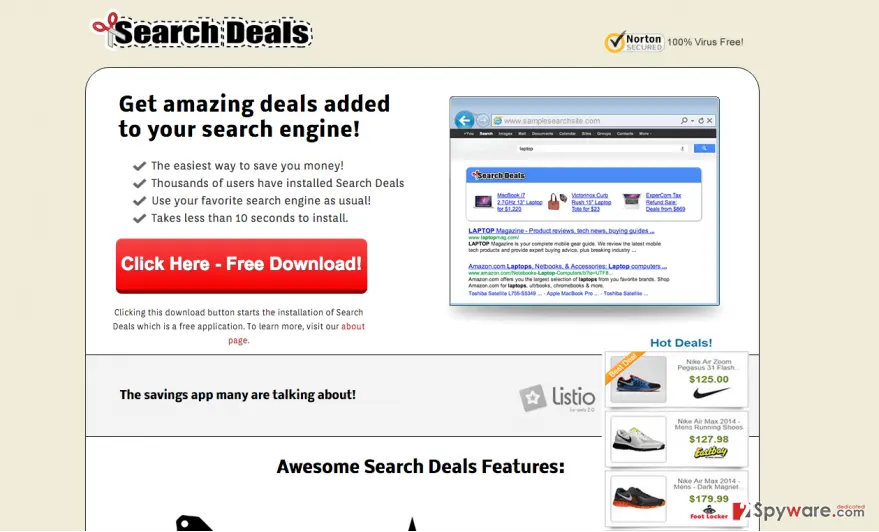
Search Deals is an adware-type program, which has been actively spread in a bundle with Online HD TV, PutLockerDownload, TornTV, Yontoo, 1ClickDown, 1ClickDownloader, FB Photo Zoom, GoPhoto.it, HDvid Codec, IB Updater, Incredibar Toolbar, OneClickDownload or OneClickDownloader. If you have just installed any of these programs, please check what was discovered by 2spyware security experts:
Facts checked October 7, 2026. Removal steps tested on Windows 11 (26H2) and checked against Microsoft's and the browser makers' current documentation. Sections marked as our earlier report are the original text: they describe the threat as it was then and have not been reviewed since. The 2026 status, the removal steps and the questions are current.
Automatic
Get a free scan and check if your PC is infected.
Fortect finds malware, unwanted programs and the Windows damage they leave behind, and repairs it in one pass.
If Search Deals keeps coming back after uninstalling, a scan can find what reinstalls it.
Do it yourself · free Remove Search Deals ads yourself 4 steps, about 12 minutes, no software needed.
Start the steps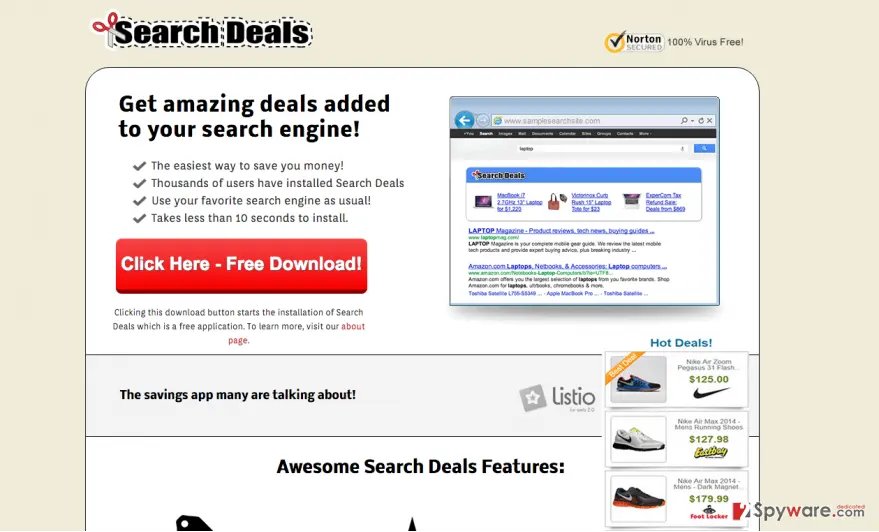
Search Deals ads: summary
| Detection names | No Microsoft detection name is known |
|---|---|
| Distribution | Not recorded in the old report |
| Damage | Not recorded in the old report |
| Name | Search Deals |
| Type | Adware extension |
| Symptoms | An unknown program in Installed apps |
| Removal | Scan the PC with security software to find and remove the malware and anything installed with it. Fortect scans Windows for malware and repairs the system files and settings it damaged. Remove it nowTo use the full-featured product, you have to purchase a license for Fortect. The scan is free. |
Show 4 more facts
| Evidence | One write-up by a security site; details still limited |
|---|---|
| Program | Search Deals |
| First seen | 9 December 2015 |
| Facts checked | 7 October 2026 |
From our report of Dec 2015 · not reviewed since
What Search Deals is
Search Deals is an adware-type program, which has been actively spread in a bundle with Online HD TV, PutLockerDownload, TornTV, Yontoo, 1ClickDown, 1ClickDownloader, FB Photo Zoom, GoPhoto.it, HDvid Codec, IB Updater, Incredibar Toolbar, OneClickDownload or OneClickDownloader. If you have just installed any of these programs, please check what was discovered by 2spyware security experts:
Is Search Deals ads dangerous?
From our report of Dec 2015 · not reviewed since
How can I download Search Deals by Injekt to my computer?
There are lots of various websites used for promoting Search Deals app.
Beware that this program can also try to infiltrate your system in a bundle with other programs. Some of them have already been mentioned in the beginning of this post and, in fact, have been included to our database because of their questionable activity on the system.
If you want to know more about preventing Search Deals ads on your computer, you should remember these tips:
As you can see, you don't have to be a genius to prevent infiltration of this program. However, you may need specific knowledge when trying to remove Search Deals malware from your computer.
If this program has already affected all of your web browsers, including IE, Mozilla Firefox, Google Chrome, etc., and now is causing unwanted pop-up ads on each of them, you should know that this is not the only thing that you can notice when having this program on board.
- Stay away from suspicious freeware and shareware because it can be used for unwanted activity on your computer;
- Always read Privacy Policy, End User's License Agreement and similar information that is given about the program;
- Select only Custom or Advanced installation option when installing freeware on your computer;
- Follow every installation step and uncheck pre-checked check boxes saying that you want to install additional components on your computer;
- Uncheck ALL suspicious checkmarks to prevent installation of unwanted software.
From our report of Dec 2015 · not reviewed since
What can I see on my computer after installing Search Deals?
As soon as Search Deals enters the system, it drops its own plugin on each of web browsers.
Sometimes such programs like to change the start page and the default search engine, but this hasn't been noticed when testing Search Deals adware. As a result, this program starts tracking its victim by collecting his/hers search terms, mostly visited websites and information that is added when visiting third party sites. Once it collects this data, it shares it with its developers what we definitely do NOT recommend.
Also, when having this program on the system, you can notice continuous pop-up notifications. As a rule, they are labelled as 'Search Deals ads' or 'Search Deals popup', but you can also notice other ads on each of your web browsers.
We do NOT recommend clicking them because there is a huge chance that by doing so you will be led to a questionable website. If you don't want to deal with such activity, you should remove this program from your computer.
How to remove Search Deals ads
How to remove the Search Deals extension
Do the browser steps in every browser and profile on the PC, then check Windows for the program that installed the extension.
Step 1: Remove extensions you did not add
Search Deals often works through an extension, so go through the extension list of each browser:
chrome://extensionsedge://extensions- Extensions and themes in Firefox
Switch suspicious extensions off one at a time and reload the page where the problem shows, then remove the one that stops it, and any other you did not add.
Remember the other browsers and profiles on the PC. If Remove is missing or greyed out, a policy forces the extension, which the policy step deals with. Windows 11 and Windows 10 show the same pages.
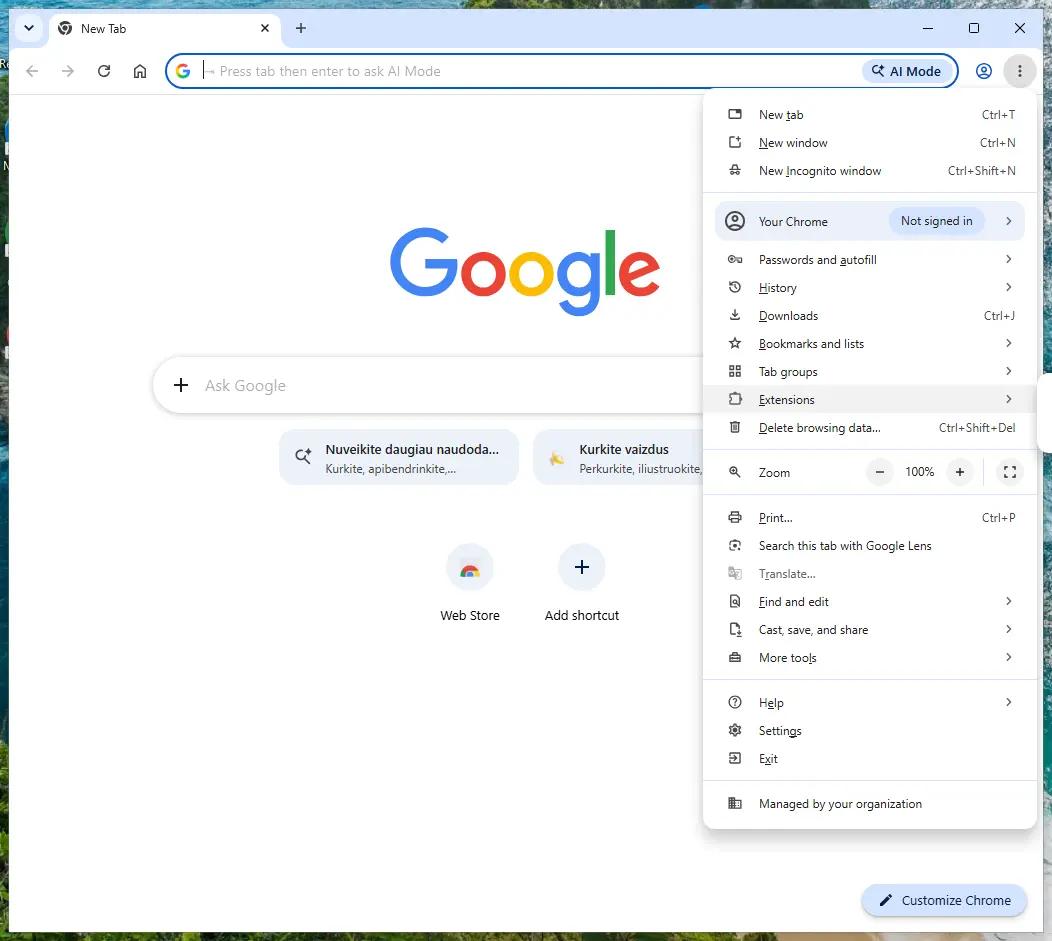
Chrome on Windows 11: More > Extensions > Manage extensions. Full procedure with screenshots: Remove a browser extension
Step 2: Uninstall Search Deals
Open Settings > Apps > Installed apps in Windows 11, or Settings > Apps > Apps & features in Windows 10. Sort the list by install date and find Search Deals, then choose Uninstall from the three-dot menu next to it (in Windows 10, click the entry and then Uninstall).
Remove anything else installed on the same day that you do not recognise, because such programs usually arrive together in one installer. If the uninstaller opens a browser page with an offer or a survey, close it: the program is removed either way.
Full procedure with screenshots: Uninstall a program or app in Windows On uGetFix
Step 3: Reset the browser
Finish the browser part with a reset, which puts the search engine, start page, new tab page and site permissions back to their defaults and switches extensions off. Chrome: Settings > Reset settings > Restore settings to their original defaults.
Edge: Settings > Reset settings. Firefox: Help > More troubleshooting information > Refresh Firefox, which also removes its extensions. Your bookmarks and saved passwords are kept, and the menus are the same on Windows 11 and Windows 10.
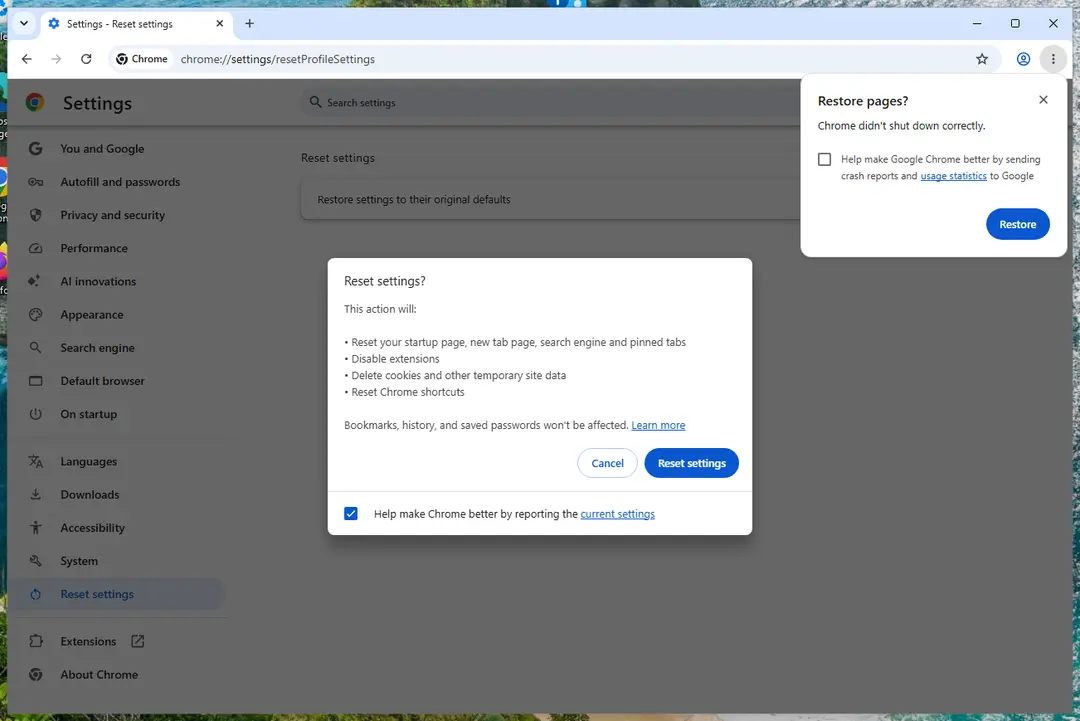
Chrome on Windows 11: Settings > Reset settings. Full procedure with screenshots: Reset a browser and fix a hijacked search engine
Step 4: Scan the PC, then run the offline scan
Open Windows Security > Virus & threat protection > Scan options, run a Full scan and remove everything it finds. Then select Microsoft Defender Antivirus (offline scan) and click Scan now: the PC restarts and scans before Windows loads, which finds files that hide while Windows runs.
Save your work first, because the offline scan takes about 15 minutes. Both scans are built into Windows 11 and Windows 10, and a second scanner from another vendor is a useful extra opinion.
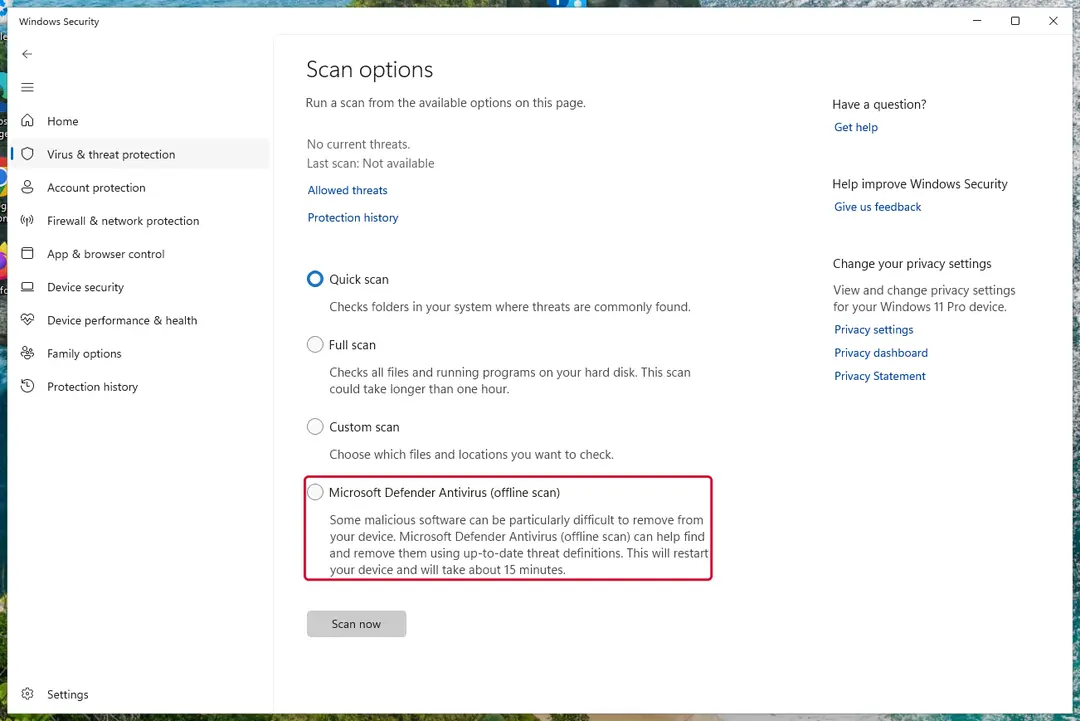
Windows 11: Windows Security > Virus & threat protection > Scan options. Full procedure with screenshots: Run a Microsoft Defender Offline scan
Instructions for each browser and system
The detailed steps for every browser and system this guide covers. Open the one you use.
Uninstall from Windows
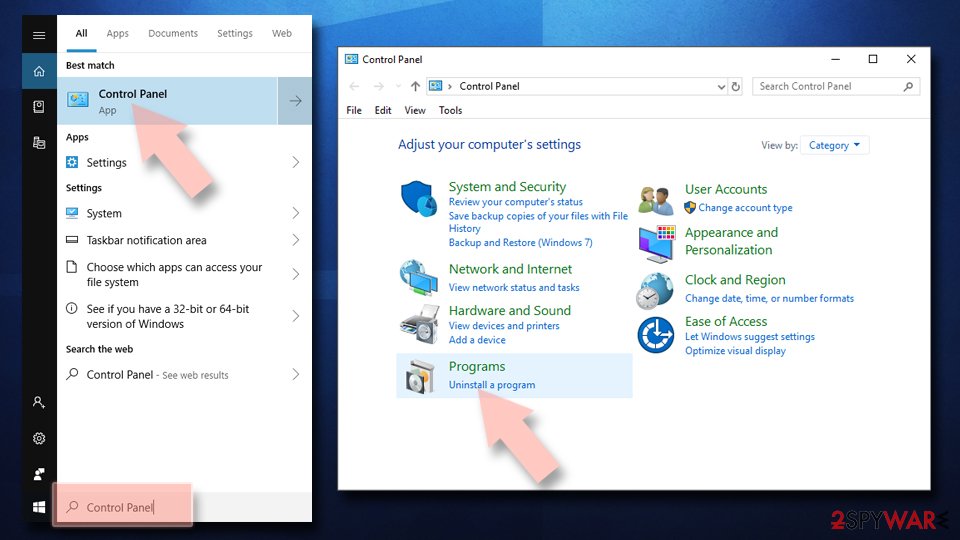
Uninstall from Windows 10/8:
- Type Control Panel into the Windows search box and open the result.
- Under Programs, select Uninstall a program.
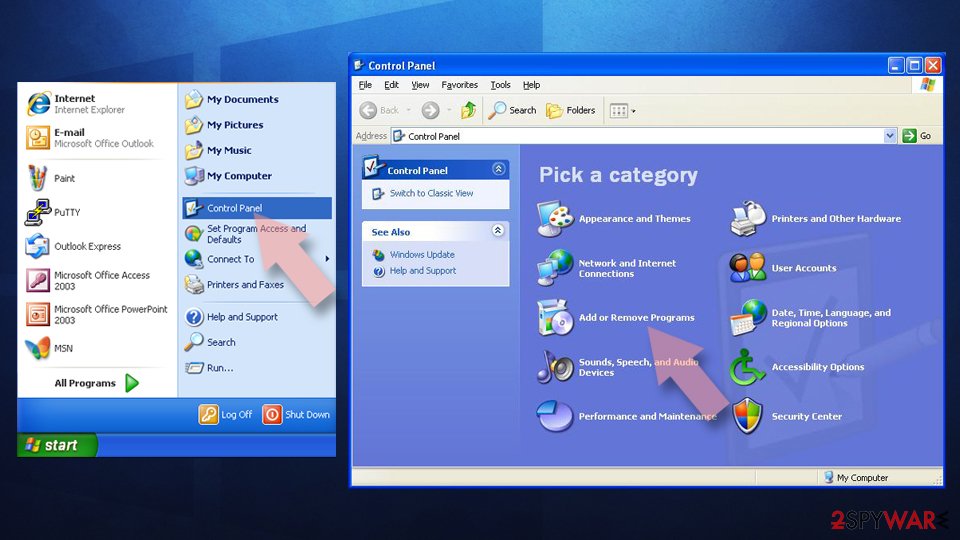
Uninstall from Windows 7/XP:
- Click on Windows Start > Control Panel (Windows XP users should click on Add/Remove Programs).
- In Control Panel, select Programs > Uninstall a program.
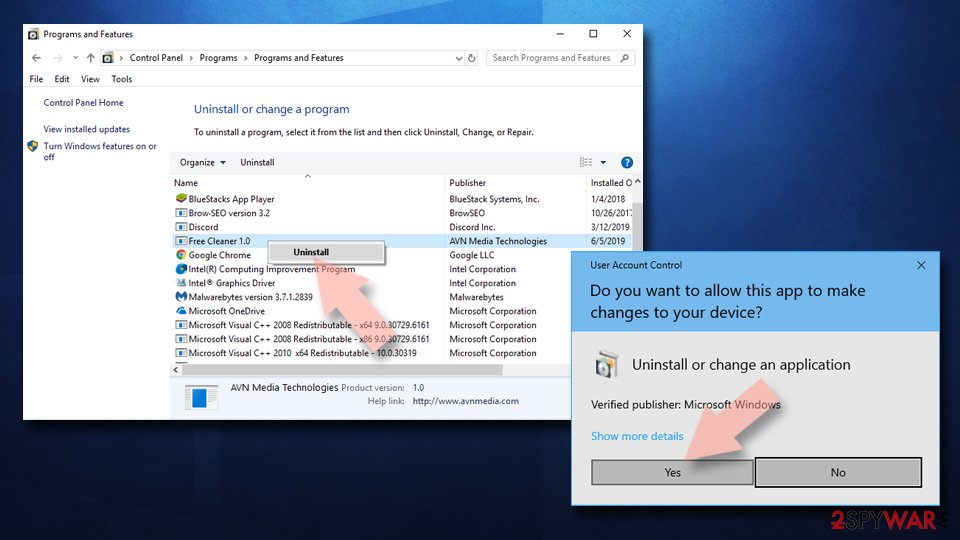
Remove the unwanted program:
- In the Programs and Features window, look for any recently installed suspicious entries, select them, and click Uninstall.
- If User Account Control appears, click Yes to confirm, then complete the removal.
Remove from Google Chrome
Delete malicious extensions from Google Chrome:
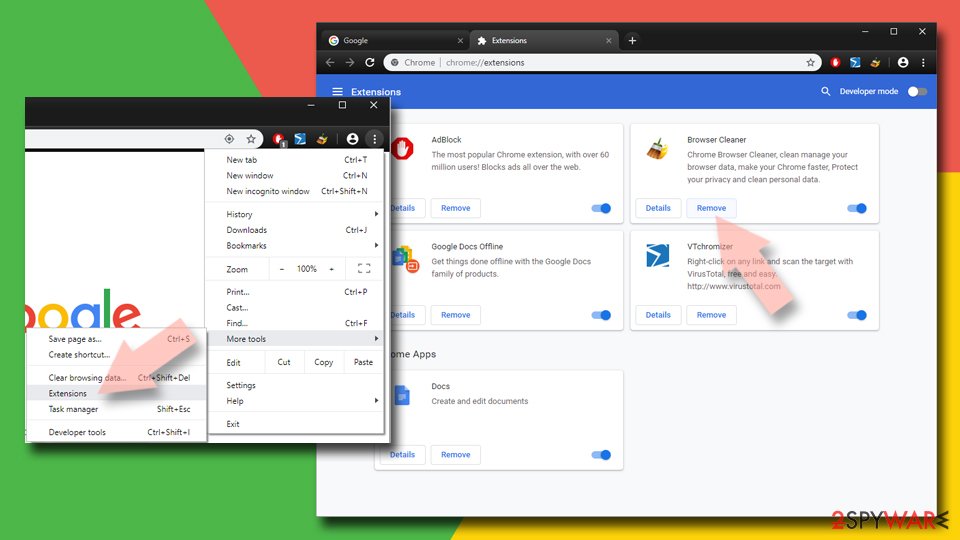
- Open Google Chrome, click on the Menu (three vertical dots at the top-right corner) and select More tools > Extensions.
- In the newly opened window, you will see all the installed extensions. Uninstall all suspicious extensions related to the unwanted program by clicking Remove.
Clear cache and web data from Chrome:
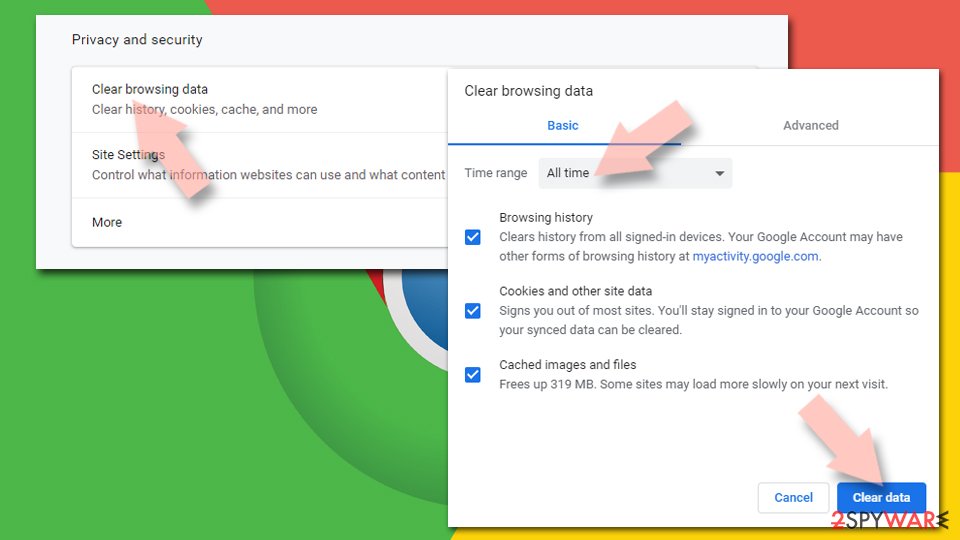
- Click on Menu and pick Settings.
- Under Privacy and security, select Clear browsing data.
- Select Browsing history, Cookies and other site data, as well as Cached images and files.
- Click Clear data.
Change your homepage:
- Click menu and choose Settings.
- Look for a suspicious site in the On startup section.
- Click on Open a specific or set of pages and click on three dots to find the Remove option.
Reset Google Chrome:
If the previous methods did not help you, reset Google Chrome to eliminate all the unwanted components:
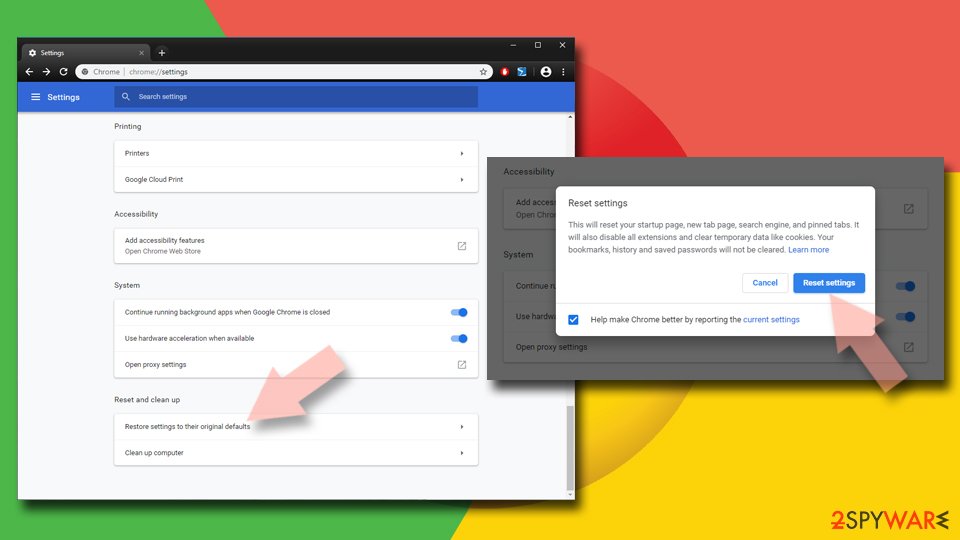
- Click on Menu and select Settings.
- In the Settings, scroll down and click Advanced.
- Scroll down and locate Reset and clean up section.
- Now click Restore settings to their original defaults.
- Confirm with Reset settings.
Remove from Microsoft Edge
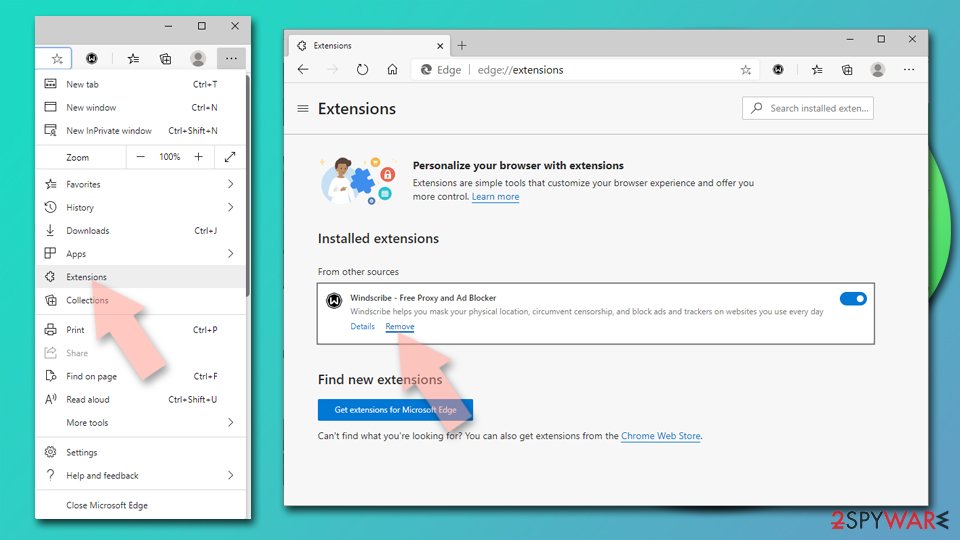
Delete unwanted extensions from MS Edge:
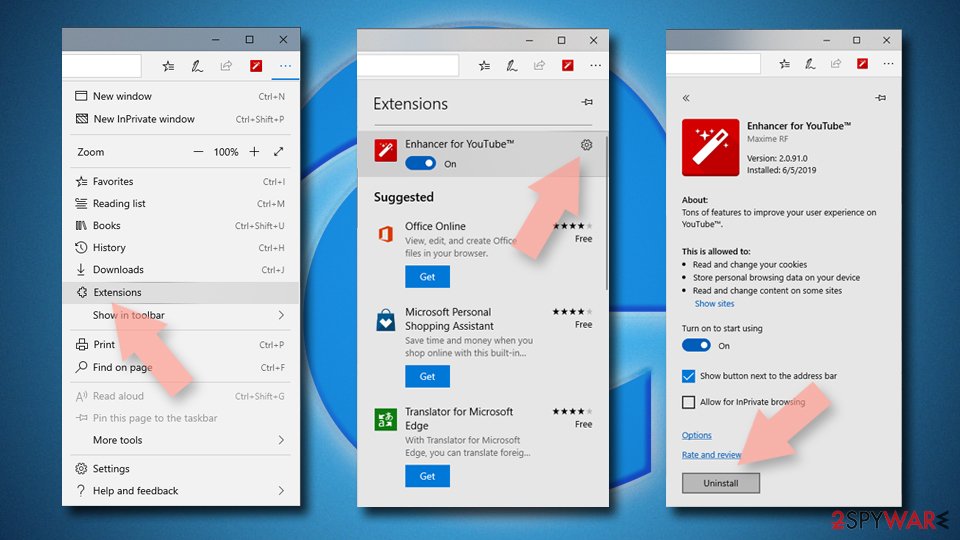
- Select Menu (three horizontal dots at the top-right of the browser window) and pick Extensions.
- From the list, pick the extension and click on the Gear icon.
- Click Remove.
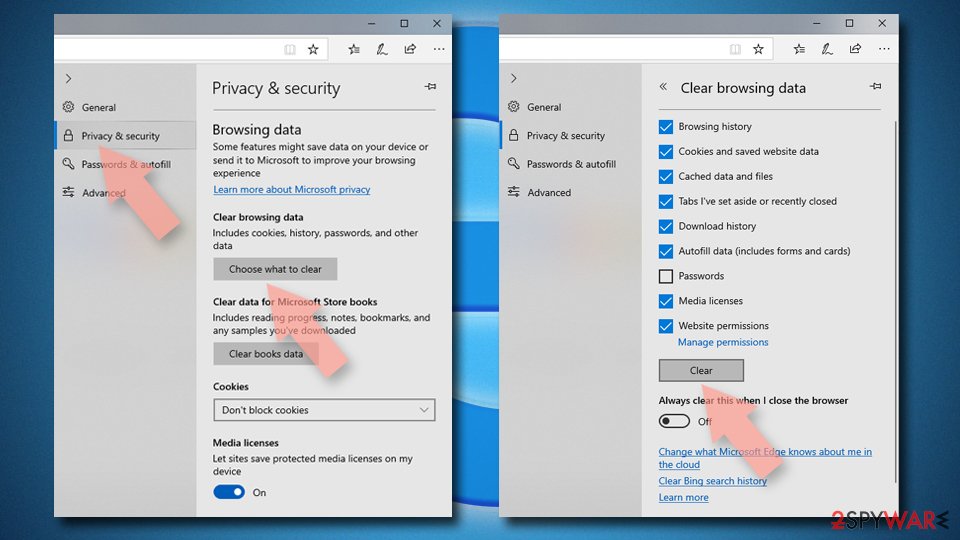
Clear cookies and other browser data:
- Click on the Menu (three horizontal dots at the top-right of the browser window) and select Settings > Privacy, search, and services..
- Under Clear browsing data, pick Choose what to clear.
- Select Cookies and other site data and Cached images and files. (apart from passwords, although you might want to include Media licenses as well, if applicable) and click on Clear.
Restore new tab and homepage settings:
- Click the menu icon and choose Settings.
- Then find On startup section.
- Click Remove next to any suspicious startup page.
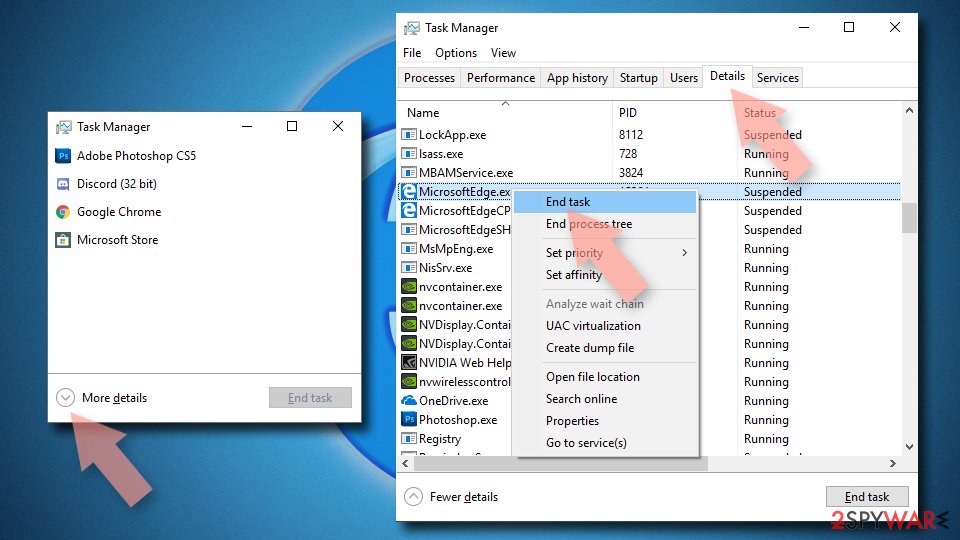
Reset MS Edge if the above steps did not work:
- Press on Ctrl + Shift + Esc to open Task Manager.
- Click on More details arrow at the bottom of the window.
- Select Details tab.
- Now scroll down and locate every entry with Microsoft Edge name in it. Right-click on each of them and select End Task to stop MS Edge from running.
Delete extensions from MS Edge (Chromium):
- Open Edge and click select Settings > Extensions.
- Delete unwanted extensions by clicking Remove.
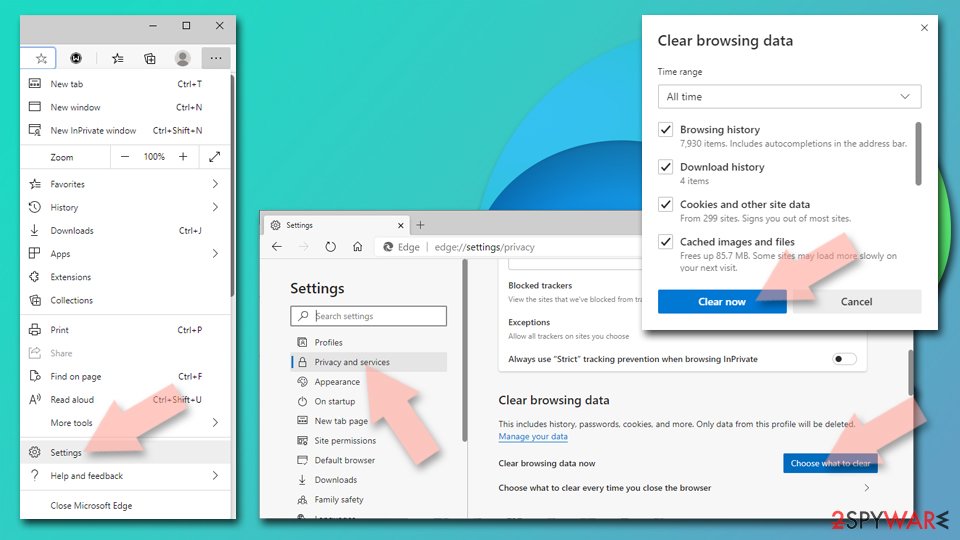
Clear cache and site data:
- Click on Menu and go to Settings.
- Select Privacy, search and services.
- Under Clear browsing data, pick Choose what to clear.
- Under Time range, pick All time.
- Select Clear now.
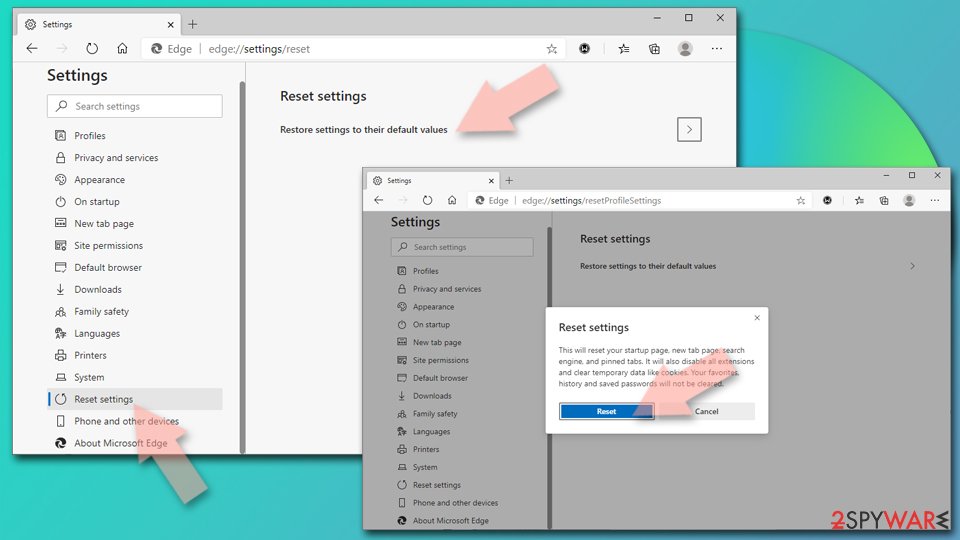
Reset Chromium-based MS Edge:
- Click on Menu and select Settings.
- On the left side, pick Reset settings.
- Select Restore settings to their default values.
- Confirm with Reset.
- This will disable extensions and reset startup pages but will not delete bookmarks, saved passwords, or browsing history.
Remove from Mozilla Firefox (FF)
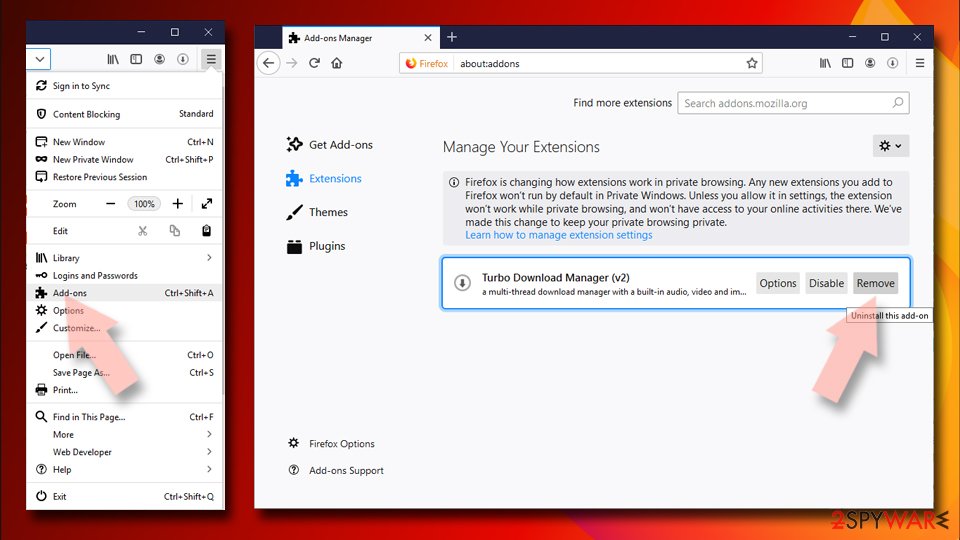
Remove dangerous extensions:
- Open Mozilla Firefox browser and click on the Menu (three horizontal lines at the top-right of the window).
- Select Add-ons.
- In here, select the unwanted extension and click Remove.
Reset the homepage:
- Click three horizontal lines at the top right corner to open the menu.
- Choose Settings.
- Under Home, set your preferred homepage and new tab settings.
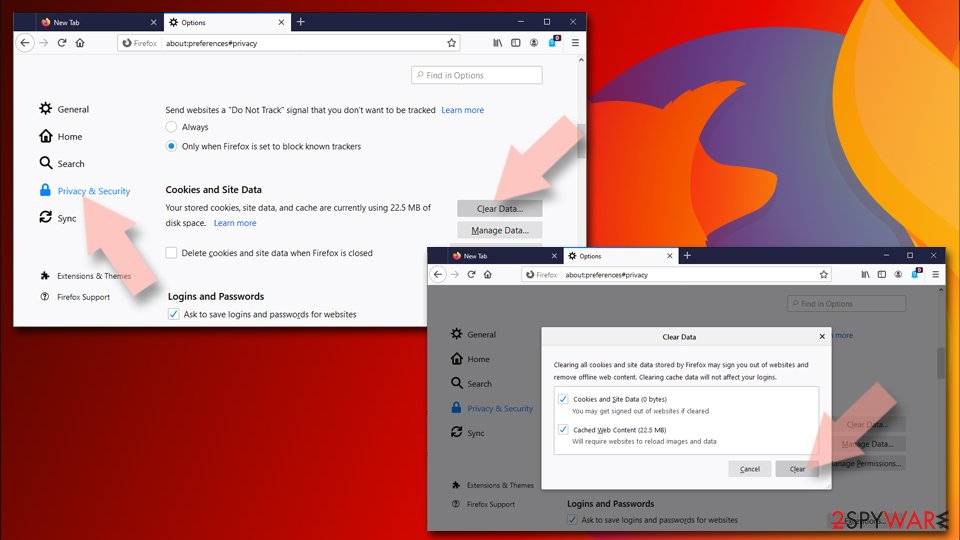
Clear cookies and site data:
- Click Menu and pick Settings.
- Go to Privacy & Security section.
- Scroll down to locate Cookies and Site Data.
- Click on Clear Data...
- Select Cookies and Site Data and Temporary cached files and pages, then click Clear.
Reset Mozilla Firefox
If clearing the browser as explained above did not help, reset Mozilla Firefox:
- Open Mozilla Firefox browser and click the Menu.
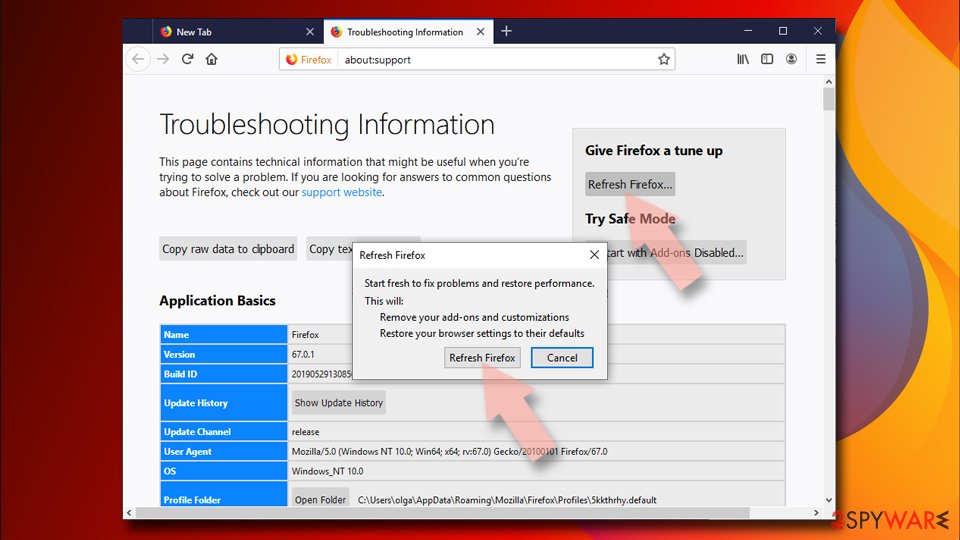
- Go to Help and then choose Troubleshooting Information.
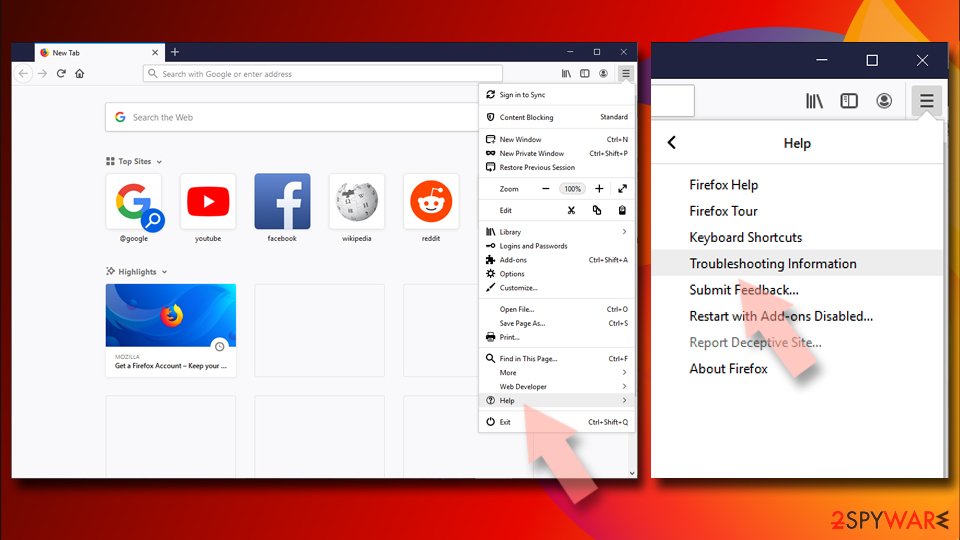
- Under Give Firefox a tune up section, click on Refresh Firefox...
- Once the pop-up shows up, confirm the action by pressing on Refresh Firefox.
Delete from Safari
Remove dangerous extensions:
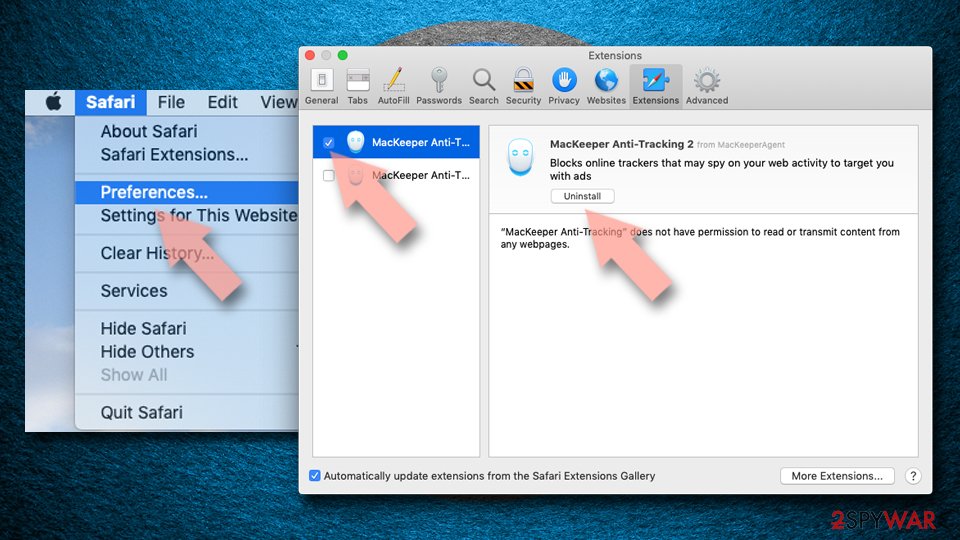
- Open Safari, click Safari in the menu at the top-left of the screen, and select Preferences.
- Go to the Extensions tab, look for any suspicious entries, and click Uninstall to remove them.
Clear history and website data:
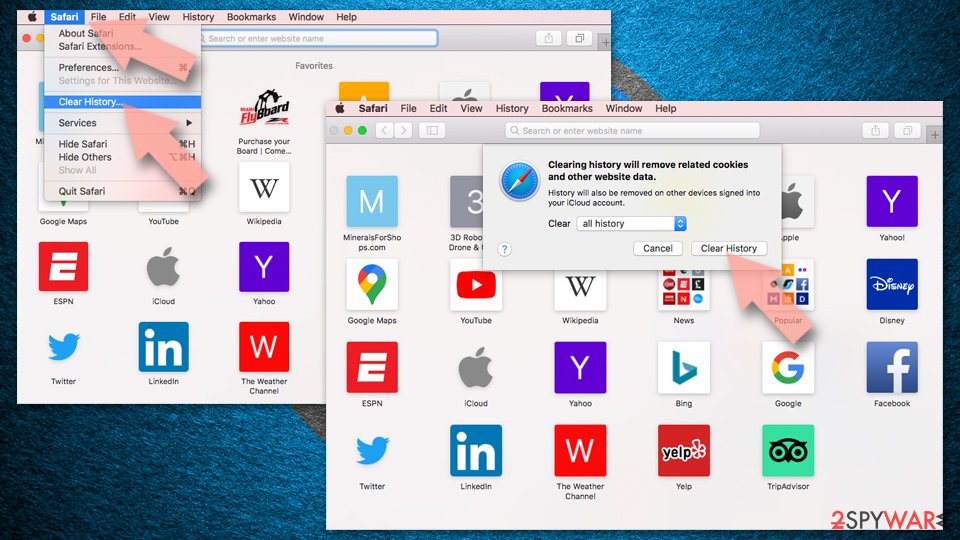
- Click Safari in the menu and pick Clear History.
- Set Clear to all history and confirm with Clear History.
Reset Safari:
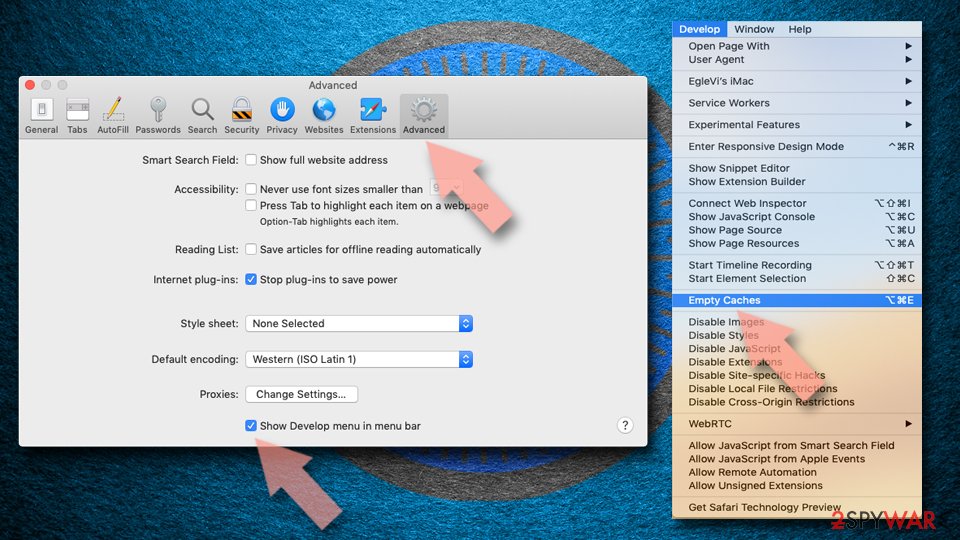
- Click Safari in the menu and select Preferences > Advanced.
- Enable Show Develop menu in menu bar.
- From the menu bar, click Develop and select Empty Caches.
Delete from macOS
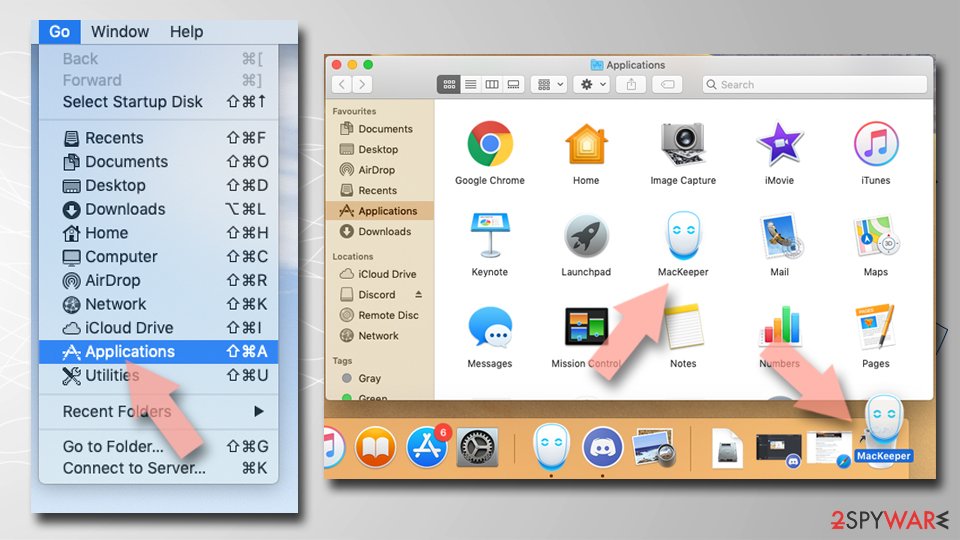
Remove the unwanted application:
- From the menu bar, select Go > Applications.
- In the Applications folder, look for any suspicious entries, then drag them to Trash (or right-click and pick Move to Trash).
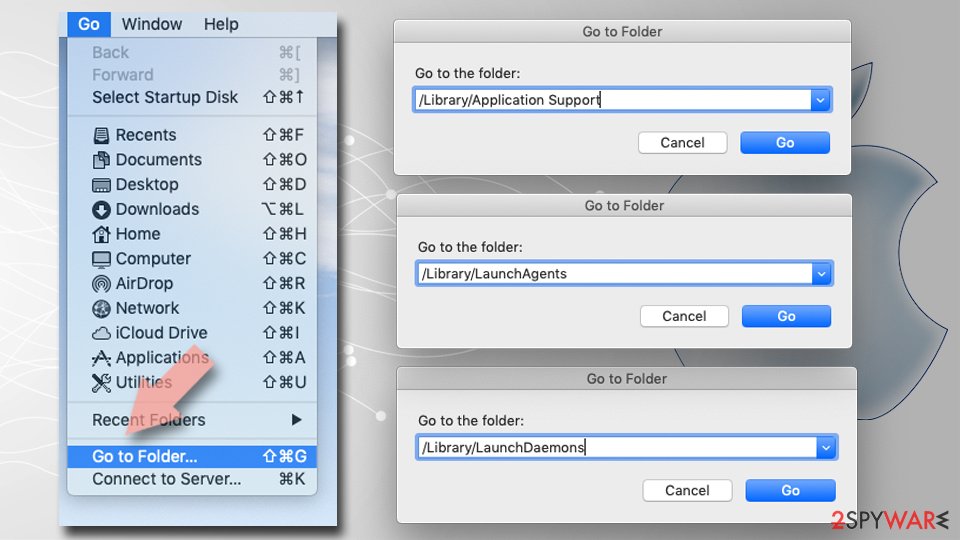
Delete leftover files and folders:
- Select Go > Go to Folder.
- Enter /Library/Application Support and remove any suspicious folders related to the unwanted program.
- Repeat the same check in the /Library/LaunchAgents and /Library/LaunchDaemons folders, deleting any suspicious entries.
- Finally, empty the Trash to permanently remove the leftovers.
Do not let government spy on you
The government has many issues in regards to tracking users' data and spying on citizens, so you should take this into consideration and learn more about shady information gathering practices.
Avoid any unwanted government tracking or spying by going totally anonymous on the internet.
You can choose a different location when you go online and access any material you want without particular content restrictions. You can easily enjoy internet connection without any risks of being hacked by using VPN.
Control the information that can be accessed by government any other unwanted party and surf online without being spied on. Even if you are not involved in illegal activities or trust your selection of services, platforms, be suspicious for your own security and take precautionary measures by using the VPN service.
Backup files for the later use, in case of the malware attack
Computer users can suffer from data losses due to cyber infections or their own faulty doings.
Ransomware can encrypt and hold files hostage, while unforeseen power cuts might cause a loss of important documents. If you have proper up-to-date backups, you can easily recover after such an incident and get back to work. It is also equally important to update backups on a regular basis so that the newest information remains intact - you can set this process to be performed automatically.
When you have the previous version of every important document or project you can avoid frustration and breakdowns. It comes in handy when malware strikes out of nowhere. Use for the data restoration process.
From our report of Dec 2015 · not reviewed since
Search Deals removal
In most of the cases, Search Deals malware is spread in a bundle with free applications.
According to PC security experts, these are the programs that have been actively used for promoting this adware:
- Online HD TV
- PutLockerDownload
- TornTV
- Yontoo
- 1ClickDown
- 1ClickDownloader
- FB Photo Zoom
- GoPhoto.it
- HDvid Codec
- IB Updater
- Incredibar Toolbar
- OneClickDownload
- OneClickDownloader
However, you can also fall for installing Search Deals by Injekt when downloading other applications. As we have said, you should always select Custom or Advanced installation option for preventing installation of questionable components. However, if it is too late because Search Deals is already hiding in your computer, you should use a guide below and fix your computer:
Questions about Search Deals ads
Is Search Deals a virus?
Most programs that appear the way Search Deals did are not viruses in the strict sense. They are potentially unwanted programs:
- real software that arrives bundled with other downloads and then shows offers
- changes browser settings
- starts with Windows
Some are harmless, some are annoying and a few carry adware. What makes it worth removing is that you did not choose it.
Uninstall it from Installed apps and check the startup list and the browsers for anything added the same day. If it refuses to uninstall or returns after a restart, treat it as more serious and run a Microsoft Defender offline scan.
Search Deals came back after I uninstalled it. Why?
Something else is reinstalling it. Common causes are a second program from the same publisher, a scheduled task that downloads it again, or a browser extension that keeps prompting for it. Sort Installed apps by install date and uninstall each entry from the same day that you did not choose.
Then open Task Scheduler and look in the Task Scheduler Library for tasks with updater-style names that you do not recognise. Check Startup apps in Task Manager too. If Search Deals still returns, start Windows in Safe Mode, uninstall it there and run a Microsoft Defender offline scan, which looks for loaders that ordinary scans can miss.
Did Search Deals collect my data?
Adware typically collects what it needs to choose ads:
- the sites you visit
- search terms
- approximate location
- browser and system details
Extensions with permission to read and change data on all websites can technically see everything on those pages, including forms. That is a privacy problem rather than proof of theft.
If you typed card details or passwords while it was active, changing the most important passwords is a reasonable precaution. Clearing cookies after removal ends the tracking sessions it may have started.
Why is my browser so slow since the ads started?
Each page now does extra work. An adware extension reads the page, decides where to put ads, loads them from ad servers and reports your visit, and that happens on every tab. Ad-supported programs add their own background activity.
Removing the extension or program usually makes the browser fast again at once. If it stays slow, open the browser's own task manager with Shift+Esc in Chrome or Edge and look for extensions using a lot of memory or processor time.
Can an adware pop-up infect my PC just by appearing?
No. A pop-up, a notification or a new tab is only a web page or a message. It cannot run programs on Windows by itself, provided the browser and Windows are up to date. Infection needs a step from you:
- running a downloaded file
- installing an extension
- giving a stranger remote access
That is why scam pages work so hard to make you click. Close such pages with the tab's X or by closing the browser, not with buttons inside the page, which may start a download.
I let a "support technician" from an ad connect to my PC. What should I do?
Act quickly but calmly. Disconnect the PC from the internet first, so the connection ends. Uninstall the remote access tool they asked you to install and check Installed apps for anything else added during the call.
Run a Microsoft Defender full scan and offline scan. From another device, change your e-mail and banking passwords and sign out of all sessions.
If you paid by card, bank transfer or gift card, contact your bank or the card issuer immediately, and report the scam to the police. Do not answer if they call back.
My scan found nothing, but the ads continue. Why?
Because the source may not be a file a scanner looks for. Browser notifications are a permission stored in the browser, and many adware extensions are not flagged because they come from an official store.
Some ad-supported programs are only reported if you enable detection of potentially unwanted apps. So a clean scan does not mean the job is done. Check each browser's notification permissions and extension list by hand, and turn on Potentially unwanted app blocking in Windows Security before scanning again.
Do I need to reset my browser after removing Search Deals?
A reset is a good last step, because it undoes settings that the program changed. A reset restores the home page, new tab page and default search engine, and turns off extensions.
It does not delete your bookmarks or saved passwords in the main browsers. Add back only the extensions you trust, one at a time.
Will Fortect remove Search Deals?
Fortect scans Windows for malware and unwanted programs and repairs the system files and settings they change, and its free scan shows what it finds on your PC before you decide anything.
For Search Deals, follow the plan above as well: the browser steps take back permissions and settings that no scanner treats as a threat, and uninstalling the program that brought it removes the source.
Run Microsoft Defender's full scan and, if anything was found, its offline scan as a second opinion. If the symptoms are gone after the plan and both scans are clean, there is nothing more to do.
Sources
- Google Chrome Help: Use notifications to get alerts (no longer online) (read October 7, 2026)
- FTC: How to recognize, remove and avoid malware (read October 7, 2026)
- Microsoft Learn: Microsoft Defender Offline (read October 7, 2026)
- Microsoft Learn: How Microsoft names malware (read October 7, 2026)