
How-to
How to remove a browser extension
Adware and browser hijackers very often live in a browser extension. Removing it takes a minute once you know where to look. Steps for Chrome, Edge and Firefox on Windows, and what to do when the Remove button is greyed out.
When you need this
- Your search engine, homepage or new tab page changed by itself.
- Pages are covered with ads that other people do not see on the same sites.
- A removal guide on this site names an extension to remove.
- An extension you did not install appeared, or the browser says it is "managed by your organization" although it is your own computer.
Chrome
Written for Google Chrome on Windows (screenshots: Windows 11 26H2, 2026-10-03). Steps checked against Google's Chrome Help on October 3, 2026.
Click More (the three dots, top right) > Extensions > Manage extensions.
You can also type
chrome://extensionsin the address bar.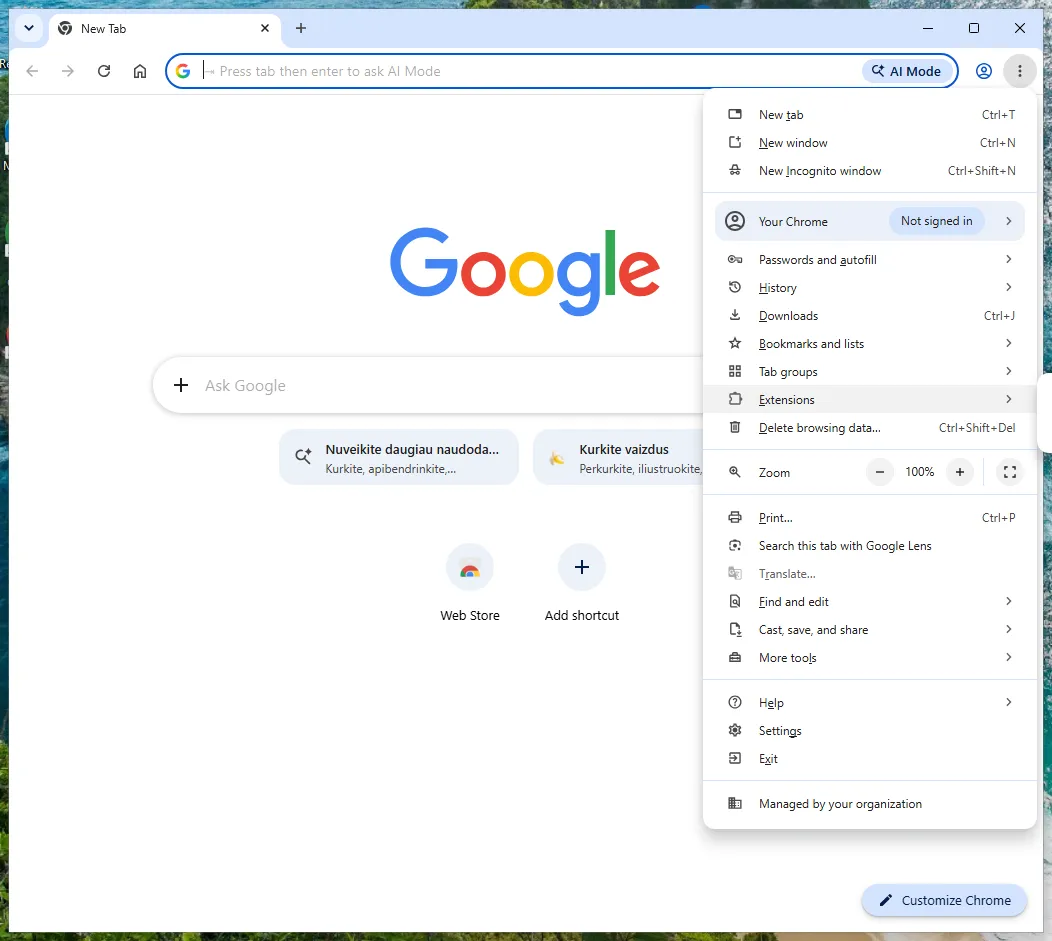
Chrome on Windows 11: More, Extensions, Manage Extensions. Find the extension you want to remove.
Not sure which one? See find the extension that causes it.
Click Remove on its card, then Remove again to confirm.
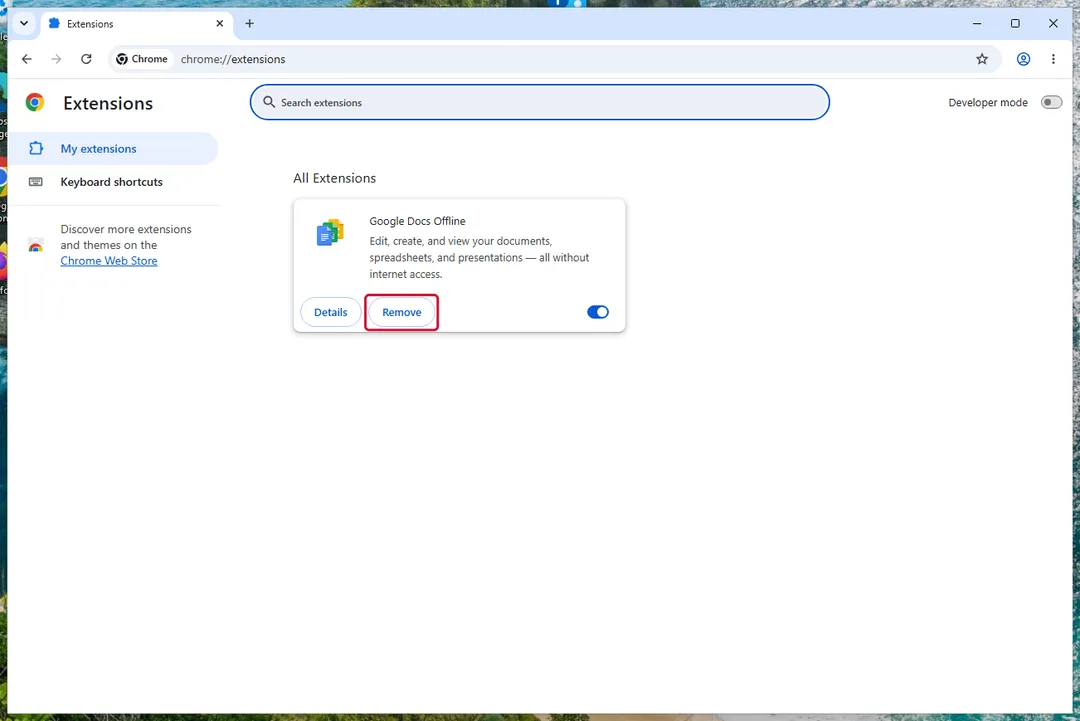
Chrome on Windows 11: Remove on the extension card.
Quicker, if the extension shows an icon next to the address bar: right-click the icon and choose Remove from Chrome. Hidden icons are under Extensions, the puzzle piece.
Is Remove missing, or does the menu say Managed by your organization? See managed by your organization.
Then check your search engine and start page: reset your browser.
Sources
- Chrome Web Store Help: Install and manage extensions (read October 3, 2026)
- Google Chrome Help: Remove unwanted ads, pop-ups & malware (read October 3, 2026)
Edge
Written for Microsoft Edge on Windows (screenshots: Windows 11 26H2, 2026-10-03). Steps checked against Microsoft Support documentation for Edge on October 3, 2026.
Click Extensions (the puzzle piece next to the address bar).
If it is not there: Settings and more (the three dots) > Extensions.
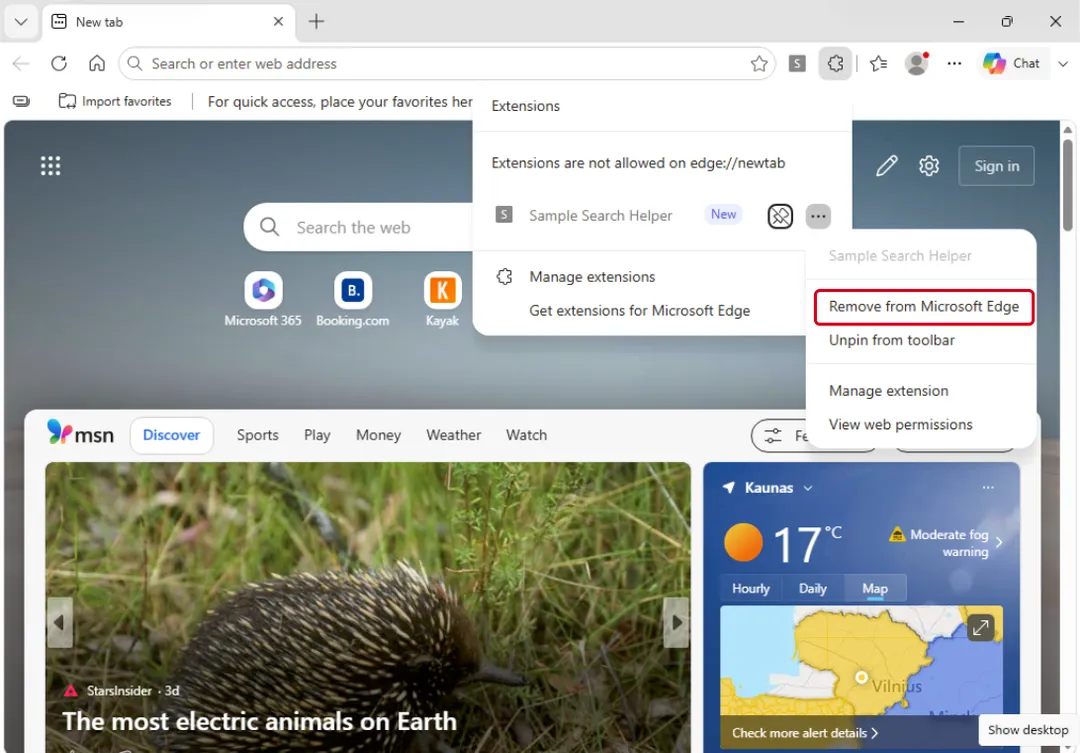
Edge on Windows 11: Extensions, More actions, Remove from Microsoft Edge. Next to the extension, click More actions (the three dots) and choose Remove from Microsoft Edge.
Confirm with Remove.
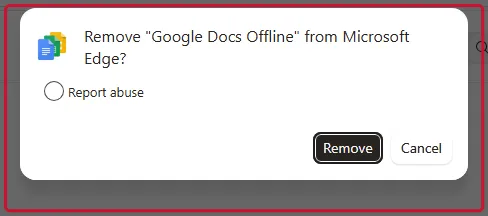
Edge on Windows 11: The Remove confirmation.
Or open Extensions > Manage extensions (or type edge://extensions), find it under Installed extensions and click Remove.
A briefcase icon next to an extension means it is installed by a policy and cannot be removed this way. Microsoft warns that on a personal PC this can be malware: see managed by your organization.
Then check the search engine and start page: reset your browser.
Sources
- Microsoft Support: Add, turn off, or remove extensions in Microsoft Edge (read October 3, 2026)
- Microsoft Support: Microsoft Edge extensions frequently asked questions (read October 3, 2026)
Firefox
Written for Firefox 140 and later on Windows (screenshots: Windows 11 26H2, 2026-10-03). Steps checked against Mozilla Support on October 3, 2026.
Click the menu button (three lines) > Extensions and themes > Extensions.
Older versions call it Add-ons and themes. You can also type
about:addons.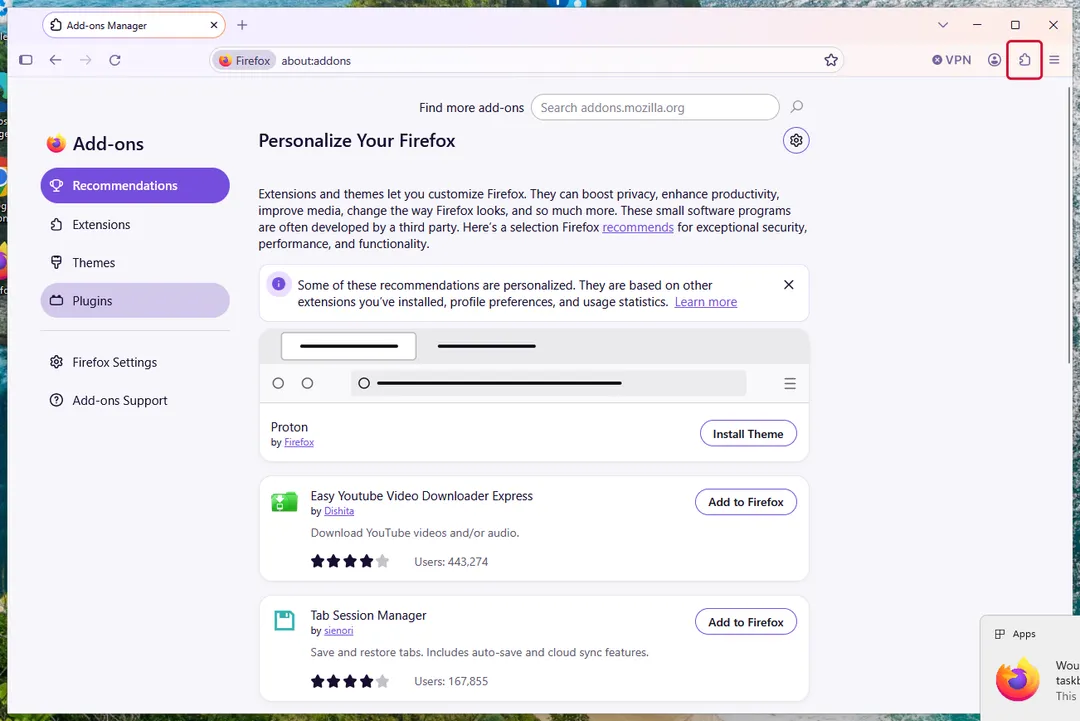
Firefox on Windows 11: Add-ons and themes, Extensions. Find the extension and click its … button.
Choose Remove.
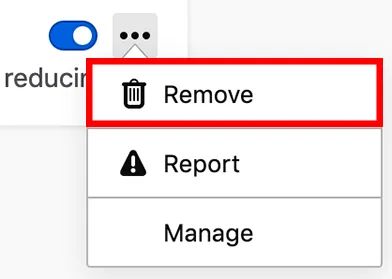
The … menu of an extension in the Firefox Add-ons Manager with Remove at the top.
Remove greyed out or the extension comes back? See Firefox will not remove it.
If Settings shows "Your browser is being managed by your organization", see managed by your organization.
Then check the search engine and homepage: reset your browser.
Sources
- Mozilla Support: Disable or remove Add-ons (read October 3, 2026)
- Mozilla Support: Cannot remove an add-on (extension or theme) (read October 3, 2026)
If the steps did not help
Find the extension that causes it
- Look at what changed: the search engine, the new tab page, the homepage, ads injected into pages.
- On the extensions page, switch extensions off one at a time and reload the page where the problem shows. The one that makes it stop is the culprit. Remove it, then switch the others back on.
- In Chrome and Edge, Details shows which sites an extension can read and change. Be suspicious of an extension you do not recognise that has access to all sites.
- Chrome: Settings > Safety Check warns about potentially harmful extensions.
- Security advisories list bad extensions by ID. To see IDs, turn on Developer mode on
chrome://extensionsoredge://extensions; in Firefox they are listed inabout:supportunder Extensions.
"Managed by your organization": when Remove is missing
Adware sometimes installs its extension through a browser policy, the mechanism companies use to manage their computers. The browser then shows "Managed by your organization", the extension has no Remove button, and it comes back after removal. On your own computer with no employer or school involved, treat this as part of the infection. On a real work or school device, stop here and ask the IT department.
- Check first. Chrome: open
chrome://managementandchrome://policy. Edge: look for the briefcase icon onedge://extensionsand openedge://policy. Firefox: click "Your browser is being managed by your organization" at the top of Settings to open the policy details. Look forExtensionInstallForcelistorExtensionSettingsand note the extension ID. - Uninstall the program that set it. Policies are usually written by a program. Remove it first: Uninstall a program or app in Windows On uGetFix, then run a security scan.
- Windows (advanced). Chrome policies are in the registry under
HKEY_LOCAL_MACHINE\SOFTWARE\Policies\Google\ChromeandHKEY_CURRENT_USER\SOFTWARE\Policies\Google\Chrome; Edge policies under the same paths withMicrosoft\Edge. In Registry Editor, export the key first (File > Export), then delete only the value that names the unwanted extension. Do not delete whole policy trees or the Windows Group Policy folder, as some guides advise. - Then restart the browser, check the policy page again, and remove the extension normally.
Open
chrome://policy(oredge://policyin Edge) and look at the policies listed.On your own PC every entry here was put there by a program.
ExtensionInstallForcelistis the one that installs an extension and hides its Remove button. After deleting the policy key in the registry, click Reload policies: the list should be empty.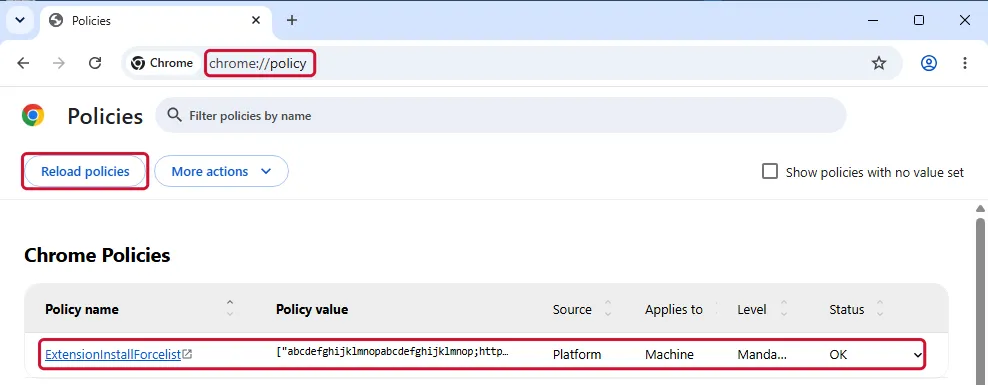
Chrome on Windows 11: chrome://policy with a forced extension and Reload policies.
The extension comes back
- Sync. Chrome syncs extensions to your Google Account, so another signed-in computer that still has it can bring it back. Remove it there too, or turn off syncing of extensions in Chrome's sync settings until all devices are clean.
- A program reinstalls it. Uninstall the program that came with it: Uninstall a program or app in Windows On uGetFix.
- A policy forces it. See managed by your organization.
Firefox will not remove it
- Restart Firefox in Troubleshoot Mode (hold Shift while starting it) and remove the extension there.
- Uninstall the program that installed it: in Windows Installed apps or Control Panel.
- If Firefox still keeps it, switch it off with its toggle, or use Refresh Firefox, which removes extensions: reset your browser.
Questions
Is switching an extension off enough?
It stops the extension from running, but it stays installed and can be switched on again by the software that put it there. Remove extensions you do not trust.
Will removing an extension delete my bookmarks or passwords?
No. Removing an extension deletes the extension and its own data only.
Why is an extension I removed back the next day?
Usually sync, a program on the computer, or a policy. See the extension comes back.