
@wcache folder on an SD card: what it is and how to delete it
The @wcache folder is a cache folder that simple keypad phones on MediaTek chips, such as the Nokia 216, create on their memory card, and no antivirus vendor lists it as malware. If you cannot delete it or your files keep vanishing, the card itself is usually failing or locked, so copy your data off first and then fix or replace the card.
Facts checked October 9, 2026. Steps checked against Apple's and Google's current documentation and the reports we cite. We have not run the app or the link on a phone ourselves.
Do it yourself · free Remove @wcache yourself 5 steps, about 15 minutes, no software needed.
Start the steps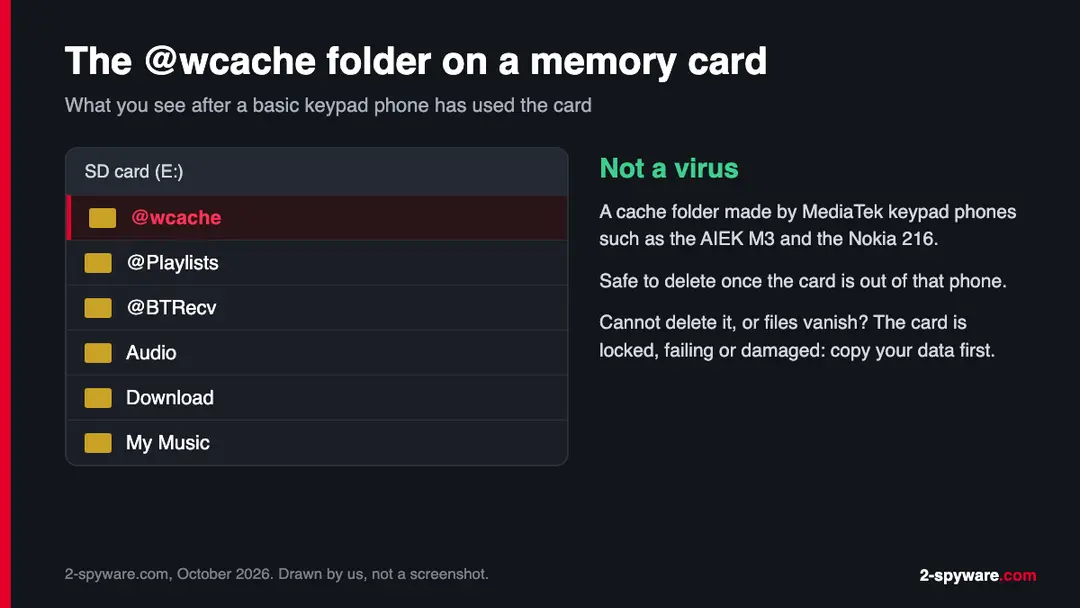
@wcache sits next to the phone's other folders.@wcache: summary
| Type | Cache folder that basic MediaTek keypad phones create on a memory card; not a virus and not a program |
|---|---|
| Risk | None from the folder. A card that will not let you delete it or loses files is failing, locked or damaged |
| Symptoms | An @wcache folder in the card's root next to @Playlists, @BTRecv or Audio; sometimes cannot be deleted; blamed for lost files |
| How to get rid of it | Delete it in Files by Google, Samsung My Files or File Explorer. If it comes back on a card that stays out of the old phone, copy your data and replace the card |
| Our check (9 October 2026) | No phone or card tested; owner's notes (2013) and a forum thread (2024) read, no malware listing found |
| First seen | 2013 (AIEK M3 notes); a reader asked us about it in 2018 |
Show 5 more facts
| Detection names | None: @wcache is a genuine phone cache folder, no Microsoft detection name is known and no other vendor lists it as a threat |
|---|---|
| File name | @wcache |
| Distribution | Part of Windows; malware sometimes copies the name in another folder |
| Damage | None from the genuine file; an impostor copy is as harmful as its malware |
| Facts checked | 9 October 2026 |
Facts checked on 9 October 2026 against the AIEK M3 owner's notes, a Nokia 216 forum thread, Microsoft Learn's chkdsk reference and Google's Files help. No phone or card was tested.
What the @wcache file is
What the @wcache folder is
@wcache is a folder, not a program. A phone creates it in the top level of a microSD card the first time the card is inserted, next to other folders whose names also start with @. It holds cache data for the phone's own software and nothing you saved yourself.
- 1
A basic phone opens the card
The folder is documented on simple keypad phones built on MediaTek chips. A 2013 owner's note for the AIEK M3 (MT6250 chip) warns that the phone creates
@Playlists,@wcache,Audio,DownloadandMy Musicon the card. - 2
Nokia Series 30+ phones do the same
In April 2024 a Nokia 216 owner on a Russian phone forum found
@bgsr_1,@BTRecvand@wcacheon the card. An experienced member answered that these are system folders, empty or hidden. - 3
The card moves to another device
Folders stay on a card after it leaves the phone, so
@wcacheshows up later in an Android smartphone, a camera or a PC card reader that never created it. Put the card back into the keypad phone, and the phone rebuilds the folder.
- Kind
- Folder in the root of a memory card, for example
E:\@wcacheon a PC or/storage/<card ID>/@wcacheon Android - Created by
- Basic keypad phones on MediaTek chips (AIEK M3, Nokia 216 on Series 30+); we found no Android app that makes it
- Contents
- Cache files of the phone's own software, often empty; the
wmost likely stands for web, but no maker documents it - Malware
- No antivirus vendor or Microsoft entry lists
@wcacheas a threat name - Safe to delete
- Yes, when the card is not in the phone that made it. That phone rebuilds it next time
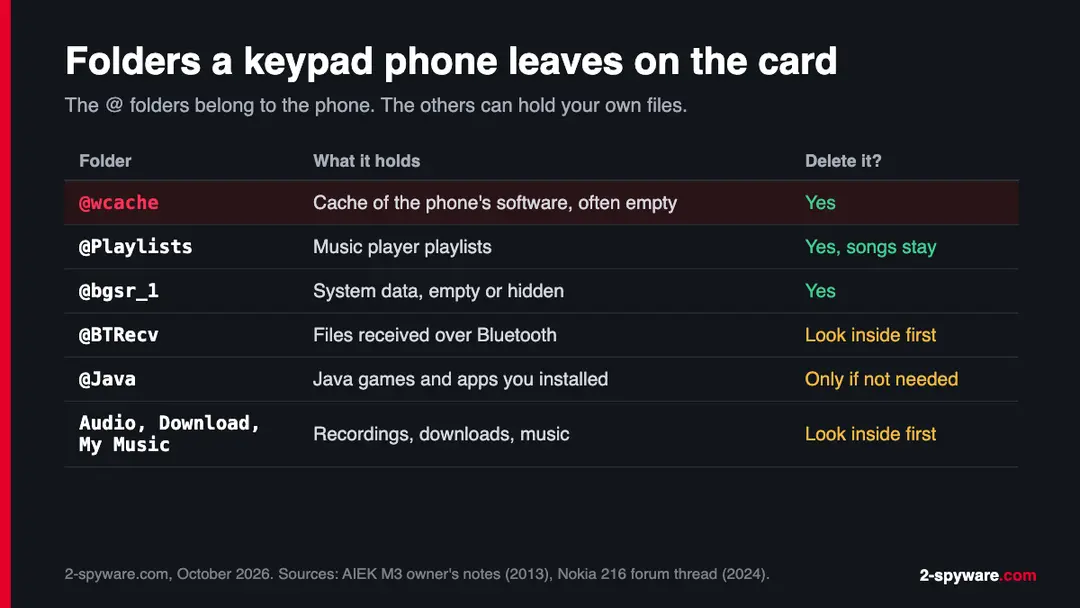
@BTRecv, Audio, Download and My Music before you delete them: they can hold your own files.What we checked for this guide
We did not have one of these phones or a card with the folder for this guide. The facts come from the owner's notes and forum posts listed in the sources, read on 9 October 2026.
This guide, 9 October 2026
- Who creates itTwo independent reports, from 2013 and 2024, name MediaTek-based keypad phones (AIEK M3 and Nokia 216) as the source.
- Malware listingsWe found no antivirus detection name, no vendor write-up and no Microsoft entry for
@wcache. - No phone testedWe did not insert a card into such a phone. Neither MediaTek nor HMD (the Nokia phone brand) explains the folder in public.
- Your card not checkedAny file can sit on a card. A folder with this name that holds
.exe,.vbsor.lnkfiles is not the phone's cache and needs a scan.
A phone's cache folder, not a virus The folder itself is harmless and safe to delete. A card that will not let you delete it, or that loses files, has a different problem: the next sections explain it.
Is @wcache safe or a virus?
Is @wcache a virus?
No. @wcache is not a virus and cannot delete your files: a folder does nothing on its own. It looks suspicious because of the @ sign, because it appears without warning, and because it often refuses to go away. Each of those has a plain cause.
- Low
"It appeared by itself"
The card was used in a keypad phone at some point, maybe by you, maybe by a previous owner of the card. The phone wrote the folder there.
- Low
"I deleted it and it came back"
The card went back into the keypad phone, and the phone rebuilt its cache. If it returns on a card that never leaves your Android phone or PC, the delete did not really happen: see the next point.
- Medium
"I cannot delete it"
Usually the card is read-only: a lock switch on the adapter, a card that has started to fail and locked itself, or a damaged file system. The folder is only the first thing you tried to remove.
- High
"It kills all my data"
The folder cannot do that. Files that vanish, turn into 0 KB, or come back after you delete them point to a failing or fake card. Stop using it and copy what you can, today.
Real Android malware arrives as apps, not as folders on a card. If your phone also shows pop-ups, new apps you did not install or a fast-draining battery, follow our guide to remove malware from Android or check the phone for spyware, and see the Android help page for more. For another odd system name that worries phone owners, see what Config APK is.
Why an SD card loses data: the real causes
When files disappear from a card that also holds @wcache, the folder is a bystander. These are the real causes, most common first.
| Cause | What you see | What to do |
|---|---|---|
| File system damage | "SD card is damaged" or "Blank SD card" on Android, "You need to format the disk" on Windows, folders with garbled names | Do not format. Copy what you can, then run chkdsk on a PC |
| Card failing, locked to read-only | Deleted files and folders come back after you remove and reinsert the card; new files never save | Copy everything off and replace the card. A worn card cannot be repaired |
| Fake capacity card | A cheap "256 GB" or "1 TB" card that loses older photos once it fills up | Copy what is left and replace it with a card from a known brand and shop |
| Formatted as internal storage | The card works only in one phone; in any other device it looks empty or unreadable | Put it back in that phone and move the files off before you reformat |
| Shortcut virus from a PC | Your folders are gone and shortcuts with the same names appear | Do not open the shortcuts. Scan the PC, then unhide the files (steps below) |
Google's Files help explains the one-phone case: a card formatted as adoptable (internal) storage cannot be read in another device, and formatting deletes its data permanently. A card that undoes every change is worn out: flash memory short of good cells often locks itself to read-only, so you can still copy from it, but no format will fix it.
Where @wcache comes from
If you met @wcache on a PC, also check for this. A shortcut virus is Windows malware that spreads through removable drives. It hides your folders, puts shortcuts (.lnk files) with the same names in their place, and runs itself when someone opens a shortcut. Android phones cannot run it, but they carry it from PC to PC on the card. Unlike @wcache, it leaves .lnk, .vbs or .exe files in the card's root, and Microsoft Defender flags it.
- 1
Scan the PC and the card
Open Windows Security > Virus & threat protection > Scan options, choose Full scan and click Scan now. Then right-click the card in File Explorer and choose Scan with Microsoft Defender (Windows 11: under Show more options). If it finds something it cannot remove, run the Microsoft Defender Offline scan.
- 2
Delete the shortcuts, not the folders
With hidden items shown, delete the
.lnkfiles and any.vbs,.jsor unknown.exefile in the card's root. Do not double-click any of them. - 3
Unhide your files
Run
attrib -h -r -s /s /d E:\*.*from an administrator Terminal, with your card's letter. Your folders become visible again.
What to do with @wcache
How to delete @wcache on an Android phone
These steps use the file managers of Android 14 and 15: Files by Google on Pixel, Motorola, Nokia and many other phones, and My Files on Samsung Galaxy phones with One UI 6 and 7. Do this once the card no longer goes into the keypad phone. We did not test the steps on a card with the folder.
Step 1: Delete it in Files by Google
On your Android phone open Files, tap Browse at the bottom, then tap your SD card under Storage devices. Touch and hold @wcache, tap Delete (the bin icon) and confirm.
If you do not see the folder, open the menu at the top left, tap Settings and turn on Show hidden files. The folder holds no files of yours, so nothing you need goes with it.
Step 2: Or delete it in Samsung My Files
On a Samsung Galaxy phone open My Files and tap SD card. Touch and hold @wcache, then tap Delete at the bottom and confirm.
Hidden folders appear after you tap the three dots, then Settings, and turn on Show hidden system files. Leave
@BTRecv,Audio, Download and My Music until you have looked inside them.Step 3: Empty the trash and test the card
Both apps can keep deleted items for 30 days: in Files by Google open the menu and Trash, in My Files tap the three dots and Trash, then Empty.
Next unmount the card under Settings > Storage (on Samsung, Settings > Battery and device care > Storage), take it out, put it back and open it again.
If
@wcachestays gone, you are done. If it and the other files you deleted are back, the card is read-only and ignores every change.Step 4: If it comes back, copy your files off first
A card that undoes your changes can still be read, so save what is on it before anything else.
In Files by Google or My Files select your photo, video and music folders on the card and choose Copy to > Internal storage, or copy them to a computer over USB.
Do not accept any offer to format the card while this is the only copy. The section on saving data from a failing card has the full rescue order, including recovery of files you can no longer see.
Step 5: Format the card, or replace it
A card that is not read-only can be formatted in the phone that will use it. On a Pixel open Settings > Storage, choose the SD card, then Format.
On a Samsung Galaxy open Settings > Battery and device care > Storage, tap the three dots, Advanced, SD card, then Format.
Formatting deletes everything on the card, so copy first. A card that went read-only or lost files twice cannot be fixed this way and belongs in the bin.
Delete @wcache on a Windows 11 or 10 PC
A PC gives you more control than a phone. Put the card in a card reader or connect the phone over USB in file transfer mode, then follow these steps. Windows names the card with a drive letter such as E:.
- 1
Show hidden items
Open File Explorer (Windows key + E). On Windows 11 click View > Show > Hidden items. On Windows 10 open the View tab and tick Hidden items. Some keypad phones mark their folders as hidden.
- 2
Delete the folder
Open the card's drive, right-click @wcache and choose Delete (on Windows 11, the bin icon at the top of the menu). Files on a removable card skip the Recycle Bin.
- 3
If Windows says the disk is write-protected
Take the card out and check the small slider on the left edge of a full-size SD card or adapter. Move it up, away from Lock, and insert the card again. A microSD card has no switch, so if the message stays, the card itself is in read-only mode.
- 4
If the folder will not delete for another reason
Clear its attributes from Terminal (Admin) on Windows 11 or Command Prompt run as administrator on Windows 10:
attrib -r -s -h E:\@wcache /s /d, with your card's letter in place ofE. Then delete it again. - 5
Check the card for errors, after your files are safe
In File Explorer right-click the card, choose Properties > Tools > Check, or run
chkdsk E: /ffrom an administrator Terminal (/ffixes errors and must lock the drive, so close windows that show the card). Microsoft warns that repairs on FAT file systems, which most cards use, can lose data; lost pieces land in aFOUND.000folder as.CHKfiles. Skip/ron a dying card: it reads every sector and can take hours.
Save your data from a failing card
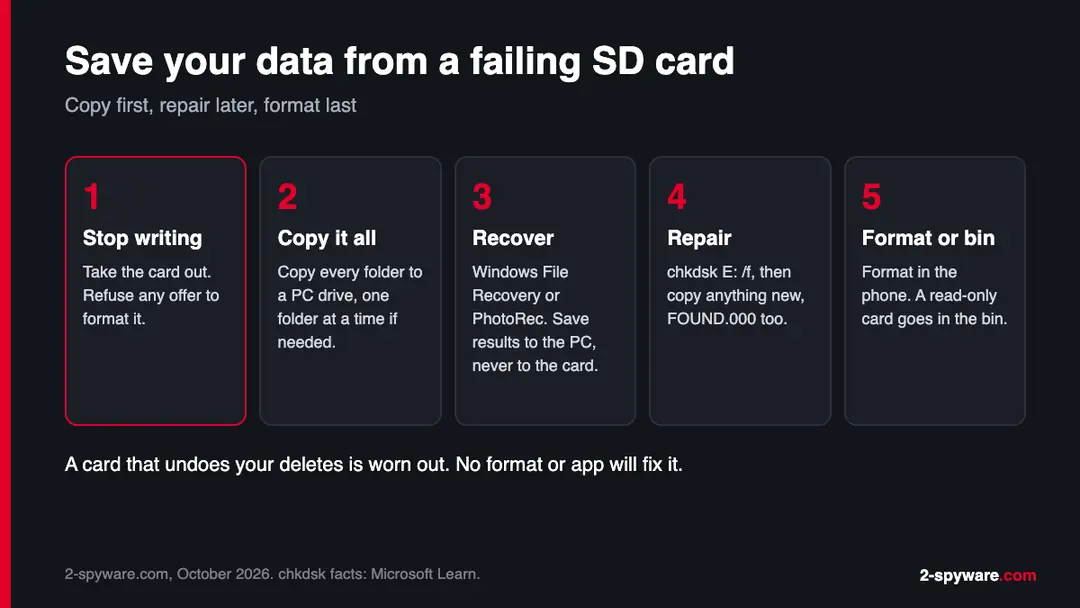
If files vanish, come back after deletion, or the card asks to be formatted, the card is the problem. Every write makes rescue harder, so stop taking photos to it and work in this order.
- 1
1. Stop writing to the card
Take the card out of the phone, or set the camera to save to internal storage. Do not accept any offer to format it.
- 2
2. Copy everything you can see
On a PC, copy every folder on the card to the PC's own drive. If one file stops the copy, copy the folders one at a time and skip it. A read-only card can usually still be read in full.
- 3
3. Recover what is missing
Deleted or lost photos can often be found by a recovery program that reads the card without writing to it. Microsoft's free Windows File Recovery (
winfr, from the Microsoft Store) supports FAT and exFAT cards in its Extensive mode; the free, open-source PhotoRec is another option. Save the recovered files to the PC, never back to the card. - 4
4. Repair, only after the copy
Run
chkdsk E: /fas shown above, then copy anything new it shows, includingFOUND.000. - 5
5. Format or replace
A card that passed the repair can be formatted in the phone that will use it, with the menu paths in the plan. A card that went read-only, or lost data twice, goes in the bin.
Keep your memory cards healthy
Do
- Unmount the card before you remove it: on Android, Settings > Storage, choose the card, Eject or Unmount; on Windows, Safely Remove Hardware in the taskbar.
- Keep a second copy of photos and videos somewhere else: a PC, a cloud backup, or both.
Don't
- Pull the card out while the phone or PC is copying to it.
- Use one card in several old phones, cameras and PCs without a backup: every device writes its own folders and its own risks.
Questions about @wcache
What is the @wcache folder on my SD card?
It is a cache folder that basic keypad phones on MediaTek chips create in the top level of their memory card. Owner's notes for the AIEK M3 from 2013 list it next to @Playlists, Audio, Download and My Music, and a Nokia 216 owner found it in 2024 together with @bgsr_1 and @BTRecv.
The folder holds data the phone's own software uses, often nothing at all. If you see it on a card in an Android phone or a PC, the card was used in such a phone before, by you or by someone else.
Is @wcache a virus?
No. We found no antivirus detection name, no security vendor report and no Microsoft entry that treats @wcache as malware, and the two reports that explain it name a phone as its source. A folder cannot run, delete files or spread on its own.
What makes it look like a virus is that it appears without warning, starts with an @ sign, and sometimes cannot be deleted, which is a problem of the card. One exception is worth a look: if the folder holds .exe, .vbs or .lnk files, it is not the phone's cache, and you should scan the card with Microsoft Defender.
Why can't I delete @wcache from my SD card?
Most often the card is read-only. A full-size SD adapter has a lock switch on its left edge that blocks every change. A microSD card with no switch can lock itself when its memory wears out: files still open, but deletions and new files are undone after you reinsert the card.
A damaged file system can block deletion too. Try the folder on a PC with hidden items shown; if Windows says the disk is write-protected and the switch is not on Lock, or the folder returns after every delete, copy your data off and replace the card.
Is it safe to delete @wcache?
Yes, as long as you no longer use the card in the keypad phone that made it. The folder holds cache data that the phone can rebuild, and Android, cameras and Windows do not use it at all.
If you still use the card in that phone, deleting it does no harm either, but the phone will simply make it again the next time it starts with the card inside. Before deleting the phone's other folders, open @BTRecv, Audio, Download and My Music: those can hold photos, recordings and files you received or saved yourself.
Did @wcache delete the data on my SD card?
No. A folder cannot delete files. When files disappear from a card that also has @wcache, the usual causes are a damaged file system after the card was removed during a write, a card that is wearing out, a fake card that reports more space than it has, or a card formatted as internal storage in another phone.
Stop writing to the card, copy everything that is still visible to a PC, and then use a recovery program such as Windows File Recovery or PhotoRec to look for what is missing.
How do I fix a corrupted SD card without losing data?
Copy first, repair second. Put the card in a PC, copy every folder you can open to the PC's own drive, and run a recovery program for the files you cannot see, saving the results to the PC. Only then run chkdsk E: /f from an administrator Terminal, using your card's letter.
Microsoft notes that repairs on FAT file systems can lose data, and that chkdsk saves the pieces it finds as .CHK files in a FOUND.000 folder. If the card works after that, format it in the phone that will use it; if it fails again, replace it.
How do I remove write protection from an SD card?
First check the lock switch on the full-size SD card or adapter and slide it away from Lock. If the card still refuses changes, test it in another reader or another PC to rule out a faulty reader.
A microSD card that has locked itself because of wear cannot be unlocked by any setting, command or app; that state protects what is left on it. Copy your files off while it still reads, and replace it. Tools that promise to remove write protection from such a card only waste the time you have to rescue your data.
Can a virus on my SD card infect my Android phone?
Windows malware on a card, such as a shortcut virus, cannot run on Android, so it does not infect the phone. The phone can carry it, though, and infect the next PC where you open the card.
Android malware arrives as apps (.apk files), and a downloaded .apk on a card is a risk only if you tap it and allow the install. Keep Google Play Protect on, install apps only from Google Play or the Galaxy Store, and scan the card on a PC with Microsoft Defender if it has been in shared computers.
Why does @wcache keep coming back?
There are two reasons. The normal one: the card goes back into the keypad phone that made it, and the phone rebuilds its cache each time.
Use a different card in that phone, or leave the folder alone. The worrying one: the card never left your Android phone or PC, and the folder still returns after a restart.
That means the card did not store your delete; it has gone read-only, usually because its memory is worn out. Every change you make will be undone in the same way, so copy your files off now and get a new card.
Sources
- AIEK M3 service codes and specifications, owner's notes (2013), on Scribd (read October 9, 2026)
- 4PDA forum: Nokia 216 discussion, posts of April 2024 on the @wcache, @bgsr_1 and @BTRecv folders (read October 9, 2026)
- Microsoft Learn: chkdsk (read October 9, 2026)
- Files by Google Help: Troubleshoot SD card undetected issue (read October 9, 2026)