
Does your phone really have a virus?
Three different things get called an Android virus, and each needs a different fix. Our malware and viruses guide explains the categories in general. This page covers real malicious apps on Android phones and tablets, and the clean-up that follows.
| What you see | What it usually is | Where to go |
|---|---|---|
| A website says your phone is infected, shows a fake scan or a battery damage counter | A scam page. Nothing is installed, and closing the tab ends it | This page, section below |
| Full-screen ads over other apps, or ad notifications | Adware or site notification spam | Remove adware from Android |
| Unknown app with Accessibility on, bank codes you did not request, money gone | A banking trojan or other real malware | Every step on this page, today |
| Someone knows your messages, location or photos without a clear reason | Possible stalkerware installed by a person close to you | Read the stalkerware section before you remove anything |
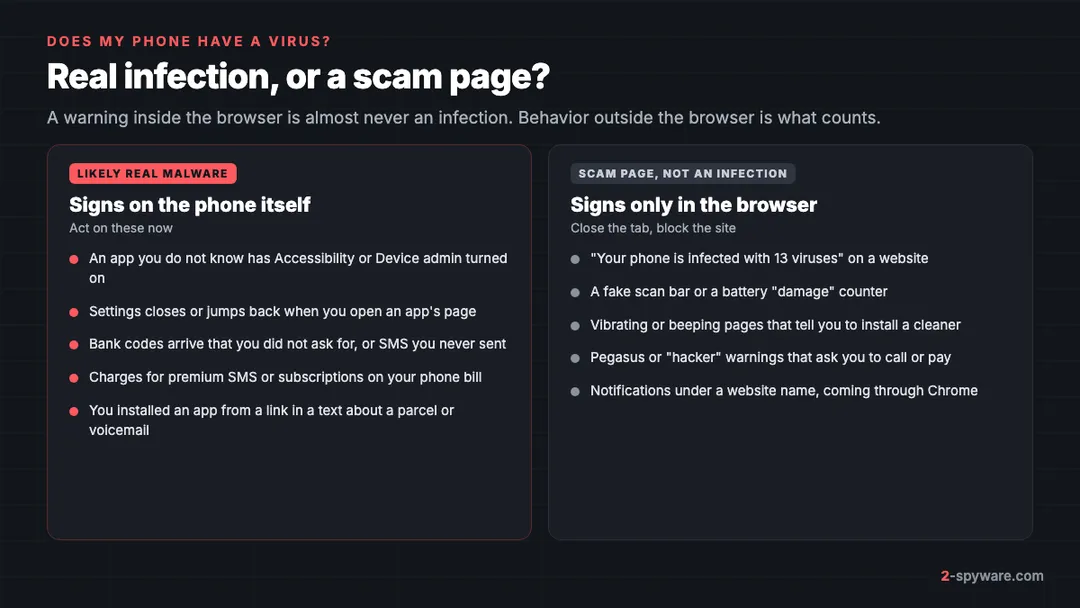
"Your phone is infected" pages are not infections
A browser page cannot scan your phone. Pages that vibrate, count down or claim 13 viruses are ads pushing a cleaner app, a fake support number or a payment. Some name Pegasus, like the Pegasus spyware activated scam. Close the tab, install nothing, and see tech support scams if you already called.
If the warnings return as notifications under a website name, that is notification spam, covered in the adware guide. The app such a page pushes is the real danger, because a "cleaner" from a scam page is how many phones get actual malware.
Signs of real malware
- An app you do not recognize has Accessibility or Device admin turned on.
- Settings closes or jumps back when you try to open or uninstall a particular app.
- Bank codes or login alerts arrive that you did not trigger, or payments you did not make.
- Premium SMS or subscriptions on your phone bill, or texts to numbers you never contacted.
- You installed an app from a link in a text or chat shortly before the trouble began.
- An app with no home screen icon, often named System Update, Google Service or Chrome.
What Android malware looks like now
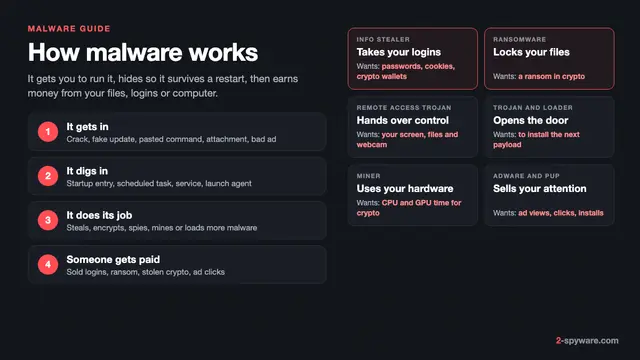
The family type tells you what the app was after and what to secure. Kaspersky counted 68,730 new banking trojan installation packages in 2024 and ranked Mamont fourth by attacked users [1].
| Type | Real examples | How it works | What to secure |
|---|---|---|---|
| Banking trojan | Mamont, Anubis, RatHat | Uses Accessibility to draw fake login screens over banking apps, read codes and tap for you [2] | Bank, card, email |
| SMS stealer and fraud trojan | SmsThief, Mamont | Reads incoming SMS codes, or sends SMS and USSD requests that move money or buy subscriptions [1] | Bank, mobile carrier account |
| Remote access trojan and spyware | SpyNote | Gives a criminal remote control of the phone. Several SpyNote variants were in Kaspersky's 2024 top 20 [1] | Every account used on the phone |
| Dropper | Dwphon, Agent.mm | A harmless-looking app that downloads and installs the real payload later [1] | Depends on the payload |
| NFC relay | NGate, NFCGate mods | Asks you to hold your bank card to the phone and relays its data for cash withdrawals [1] | Bank card: block it |
| Stalkerware | Spyzie and similar monitoring apps | Installed by someone with access to your unlocked phone to track messages and location [7] | Your safety first, then accounts |
Most of these arrive the same way. A text message claims a missed delivery or a voicemail and links to an app download. Google lists exactly these lures as typical of harmful apps [3]. Mamont was spread through fake shop offers that later sent a link to a "shipment tracking app" [1]. More cases are on our delivery scams topic, and the wider family is covered in our trojans guide.
Malware also reaches Google Play: Kaspersky found Play apps carrying the SparkCat implant, which stole crypto wallet recovery phrases from screenshots [1]. Cheap unbranded phones can ship with malware in the firmware, as our report on Triada in Android phones shows.
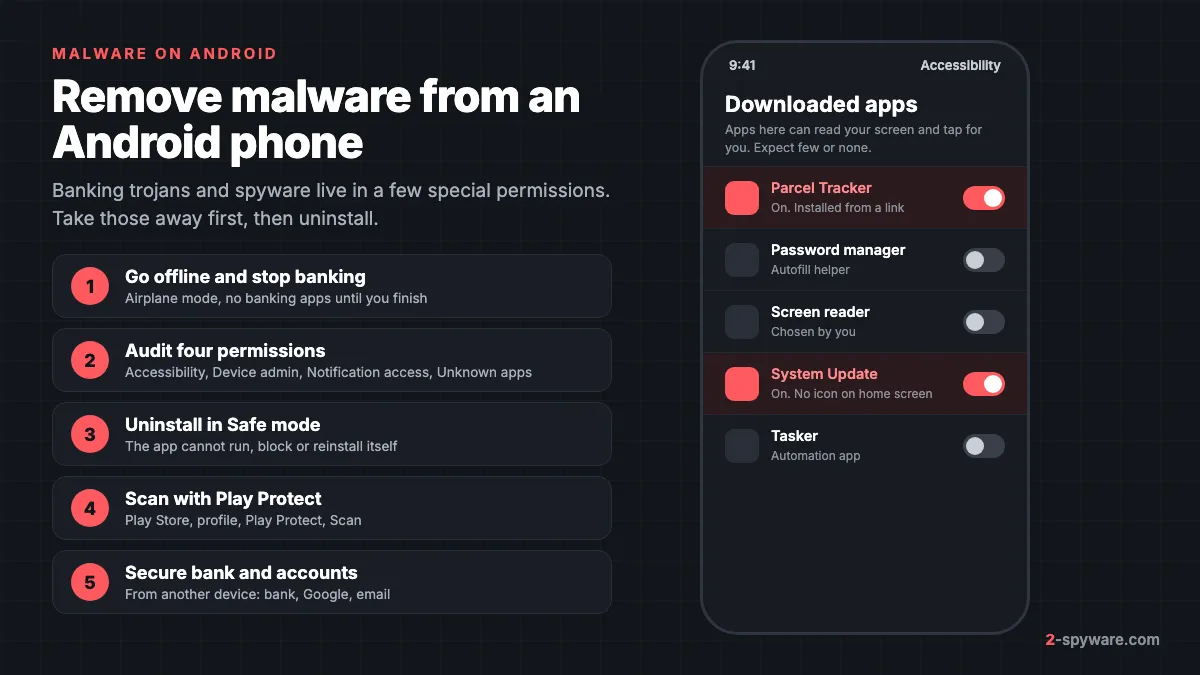
Before you start: protect your money
- If money has gone or codes arrive that you did not request, call your bank from another phone, using the number on your card, and block the card.
- Do not open banking, payment or crypto apps on the phone until you finish. An overlay trojan waits for that moment [2].
- Turn on Airplane mode while you work. This cuts the app off from its operator.
- If you suspect someone you know installed spyware, read the stalkerware section first.
Check the four permissions malware depends on
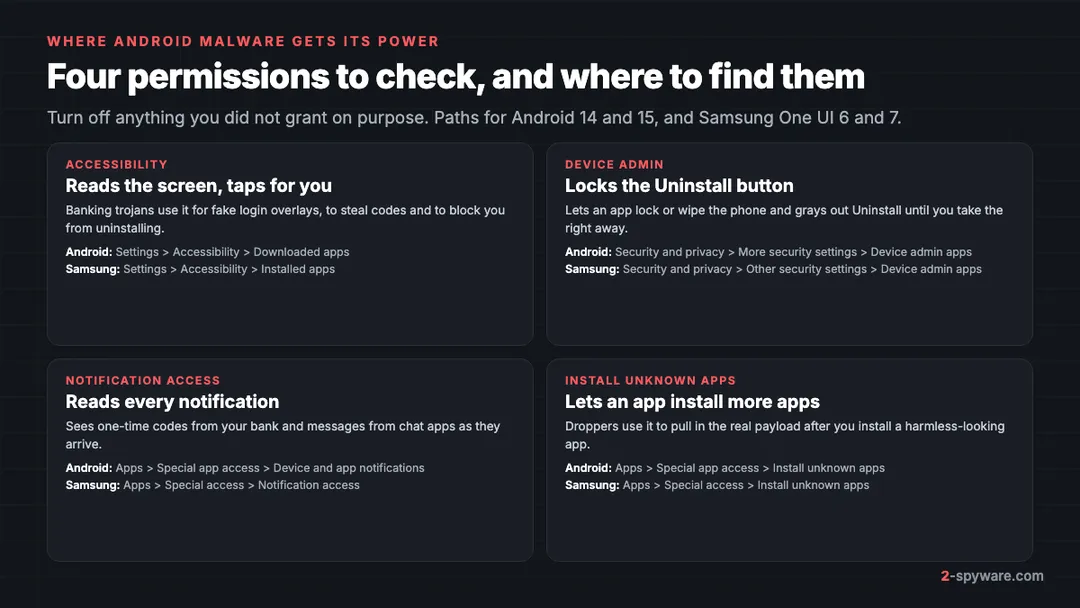
Android malware is powerful only because of a few special permissions you were tricked into granting. On Android 13 and newer, apps from outside an app store cannot request some of them until you tap Allow restricted settings [3]. If a text or an app told you to do that, treat the app as hostile.
1. Accessibility
Accessibility lets an app read everything on the screen and tap on your behalf [3]. Banking trojans use it to draw fake login screens over real apps, read one-time codes and even switch on hidden developer features without you [2]. It is the single most important setting to check.
- Stock Android 14 and 15: Settings, then Accessibility, then Downloaded apps.
- Samsung One UI 6 and 7: Settings, then Accessibility, then Installed apps.
- Expected: a screen reader, password manager or automation app you chose. Turn off anything else, especially fake system services, parcel trackers and PDF viewers.
2. Device admin apps
Device admin rights let an app lock or wipe the phone, and they gray out the Uninstall button.
- Stock Android: Settings, then Security and privacy, then More security settings, then Device admin apps.
- Samsung: Settings, then Security and privacy, then Other security settings, then Device admin apps.
- Expected entries: Find My Device, Samsung Find My Mobile, or a work profile app. Tap anything else and choose Deactivate.
3. Notification access
An app with notification access reads every notification as it arrives, including bank codes, message previews and password reset links.
- Stock Android 14 and 15: Settings, then Apps, then Special app access, then Device and app notifications.
- Samsung: Settings, then Apps, then the three-dot menu, then Special access, then Notification access.
- Expected: your smartwatch app or Android Auto. Turn off anything else.
4. Install unknown apps
This lets an app install other apps. Droppers need it to fetch their payload, and it is how the first malicious app got in through Chrome or a chat app.
- Stock Android: Settings, then Apps, then Special app access, then Install unknown apps.
- Samsung: Settings, then Apps, then the three-dot menu, then Special access, then Install unknown apps.
- Turn it off for every app, including Chrome, Files, Messages and WhatsApp.
While you are in Special app access, also check Display over other apps (Appear on top on Samsung), the other half of a fake login screen. If a switch turns itself back on, or Settings closes, go to Safe mode below.
Remove a malicious app, even one that fights back
Malware often hides its icon, so look under Settings, then Apps, then See all apps for apps with no icon, generic or copied system names, or an install date close to when trouble began. The adware guide shows how to sort by install date.
Use Safe mode
In Safe mode, Android runs only the apps that came with the phone, so a malicious app cannot close your settings screens or reinstall itself. Google recommends Safe mode for removing problem apps one by one [5].
- Press and hold the power button. On recent Pixels, press power and volume up together.
- Touch and hold Power off until the Safe mode prompt appears, then tap OK [5]. On Samsung, touch and hold Power off, then tap Safe mode.
- Go back through the four permission lists above and turn off anything you missed. Deactivate Device admin first.
- Open Settings, then Apps, tap the malicious app, then Uninstall.
- Restart normally and check the four lists again. If the app or its permissions are back, something reinstalled it.
If it keeps coming back
Some trojans hide a second component that restores the main app after you uninstall it [2]. Remove any other unknown app installed the same day, then check Install unknown apps again. If the app still returns, go to the factory reset section.
Run a Play Protect scan
Google Play Protect checks apps from Google Play and from other sources, warns about harmful ones and may disable or remove them [4]. It also may block installs of unverified apps that ask for permissions scammers commonly abuse [4].
- Open the Google Play Store app.
- Tap your profile icon at the top right, then Play Protect.
- Tap Settings and make sure Scan apps with Play Protect is on [4].
- Go back and tap Scan. If it flags an app, tap Uninstall.
If Play Protect was switched off and you did not do it, treat that as a sign of malware. Run the scan after the manual steps, not instead of them.
Stalkerware and spyware: be careful first
Stalkerware is a monitoring app that a partner, ex-partner or family member installs to track your messages, location and activity. The Coalition Against Stalkerware warns that removing it, or making big changes, may be noticed by the person who installed it and could make the abuse worse [7]. Deleting it also deletes evidence you may need for a police report [7].
- Look for help from a phone or computer the person has never had access to, because searches on a monitored phone can be seen [7].
- Talk to a domestic abuse support service about a safety plan before you remove anything [7].
- The Coalition says a new phone is the surest fix, and a factory reset is almost as effective [7]. Afterwards set a new screen lock PIN that the person does not know [7].
See our guide to Spyzie stalkerware for one real example. Criminal remote access tools are covered on our remote access trojans page.
Secure your bank and accounts afterwards
Removing the app does not undo what it already took. Treat anything you typed or received on the phone while it was infected as known to the attacker, and do these steps from a clean device.
- Bank and cards. Tell your bank which app you had and when you installed it. Ask them to block any card you held to the phone and reset online banking access.
- Google account. Review recent security activity and answer No, it wasn't me for anything you do not recognize. Then check Your devices, apps with access, recovery phone and recovery email [6].
- Gmail. Remove any filters, labels or forwarding rules you did not set up [6]. Attackers add these to hide bank alerts.
- Two-step verification. Turn it on and prefer an authenticator app or passkey over SMS codes, which malware can read. Our two-step verification walkthrough covers the main services.
- Mobile carrier. Ask for a list of premium SMS and carrier billing charges, dispute them, and ask for a premium SMS block. Then change passwords for email, social media and shopping accounts, starting with email.
Our checklist for securing accounts after malware goes through each account in order. If you lost money, report the cybercrime to the police as well as the bank.
Factory reset the right way
Reset when the app comes back, when Device admin cannot be removed, or when you cannot be sure the phone is clean. A reset removes every app you installed, but not malware built into the firmware.
What to back up
- Photos, videos and contacts, through your Google account or a computer.
- Authenticator codes. Move them or save recovery codes first, or you may lock yourself out.
- Your Google account email and password. Factory reset protection asks for them after the reset.
What not to restore
- Do not restore apps and settings in one go from a backup made while the phone was infected. Reinstall each app by hand from Google Play.
- Do not reinstall any app that came from a link in a text, a chat or a website.
Stock Android: Settings, then System, then Reset options, then Erase all data. Samsung: Settings, then General management, then Reset, then Factory data reset. Afterwards, set a new screen lock and change your Google password from another device.
How to keep malware off your phone
- Never install an app from a link in a text about a parcel, voicemail, fine or refund. Open the company's official app or website instead [3]. Our guide to phishing emails shows the same tricks used by email.
- Keep Install unknown apps off for every app, and never tap Allow restricted settings for an app someone told you to install [3].
- Distrust any app that asks for Accessibility with an odd excuse, such as a "network restriction" or a bonus [2].
- Never hold your bank card to your phone because an app or caller asks you to.
If you are unsure about a link or an app name, look it up with our link and threat checker. For specific families such as Anubis, see our Android topic page. If you are still stuck, ask in the Android help forum.
Frequently asked questions
How do I check if my Android phone has a virus?
Look in Settings for unknown apps with Accessibility, Device admin or Notification access, and for apps without an icon. Then run a Play Protect scan. Warnings inside a website are not proof of infection.
How do I remove a virus from my Android phone for free?
Turn off the app's Accessibility, Device admin and Notification access, restart in Safe mode, uninstall it and run Play Protect. All of this is built into Android. A factory reset is the last free option.
Is the "your phone is infected" message real?
No. A website cannot scan your phone. These pages try to make you install an app, call a number or pay. Close the tab and install nothing it suggests.
Can a banking trojan steal money even with two-factor authentication?
Yes. Banking trojans read SMS codes and notifications and can show a fake screen asking for the code. Call your bank from another phone and switch to an authenticator app or passkey where possible.
Why can't I uninstall a malicious app on Android?
The app most likely has Device admin rights, or it uses Accessibility to close the Settings screen when you open it. Restart in Safe mode, deactivate it under Device admin apps, turn off its Accessibility access, then uninstall.
Does a factory reset get rid of Android malware?
A factory reset removes every app you installed, which covers almost all Android malware. It does not remove malware built into the firmware of some cheap phones. Do not restore apps from a backup made while the phone was infected.
Will the person who installed stalkerware know if I remove it?
They may. The Coalition Against Stalkerware warns that removal can be noticed and may increase abuse. Plan with a support service first, from a device the person has never had access to, and keep evidence.
I installed an app from a delivery text. What should I do?
Do not open banking apps. Turn on Airplane mode, call your bank from another phone, then check Accessibility, Device admin and Notification access. Uninstall the app in Safe mode and change important passwords from another device.
Sources
- Kaspersky Securelist: The mobile threat landscape in 2024 read 2026-10-08
- Malwarebytes Labs: New Android malware uses AI to steal bank logins and PINs read 2026-10-08
- Android Help: Learn about restricted settings read 2026-10-08
- Google Play Help: Use Google Play Protect to help keep your apps safe and your data private read 2026-10-08
- Android Help: Find problem apps by rebooting to safe mode on Android read 2026-10-08
- Google Account Help: Secure a hacked or compromised Google Account read 2026-10-08
- Coalition Against Stalkerware: Information for survivors read 2026-10-08
 What is malware and how to remove it
 Best malware removal tools in 2026
 How to remove a virus or malware from a Mac
 Types of malware: what each kind does and how to spot it