The registry is one of the most vital components of the Microsoft Windows operating system. In simple phrase, it is a complex database containing virtually all system, software, hardware and user settings. Almost every piece of software keeps its data in the registry. It is so important, that Windows would not even start without it.
The major part of all dangerous parasites, especially browser hijackers, trojans, spyware and adware threats modify the Windows registry. Parasites add various registry entries, create new keys, change default values. This is made in attempt to register a pest in the system, alter essential settings of the Windows operating system and installed software. Most of such changes are made for malicious purpose.
On our site you can find parasite registry entries that need to be manually removed. However, editing the registry is a difficult task that only advanced users and professionals can accomplish safely. Most anti-spyware programs will remove malicious registry entries for you. However, even the most powerful spyware removers might be unable to get rid of certain threats. The reason is simple: security software vendors cannot examine each recent pest immediately after it goes wild, and new pests appear almost every day. Anti-spyware tools rely on spyware definition databases. A few advanced products can find unknown suspicious files, but unknown harmful registry entries often stay unrecognized. This is why you need to know how to manually edit the Windows registry. But you have to be extremely careful. One inappropriate value, mistyped registry key or other small mistake in the registry may damage installed software and even corrupt the entire system! Do not modify the registry if there is no real need for this!
The following guide thoroughly explains how to manually remove malicious registry entries.
Back up the Windows registry before editing it, so that you can quickly restore it later if something goes wrong. Please read the article Backing up and restoring the Windows registry to learn more. Remember, this step is very important!
Launch the Registry Editor. Press the Start button and then click Run. Type in regedit into the Open: field. Then click on the OK button.
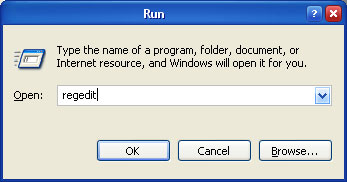
Image 1. Open the Registry Editor
This program consists of two panes. Use the left pane (on Image 2 it is designated by the red box) to navigate to certain registry key. In the right pane (it is in the blue box) you will see values, which belong to that selected key.
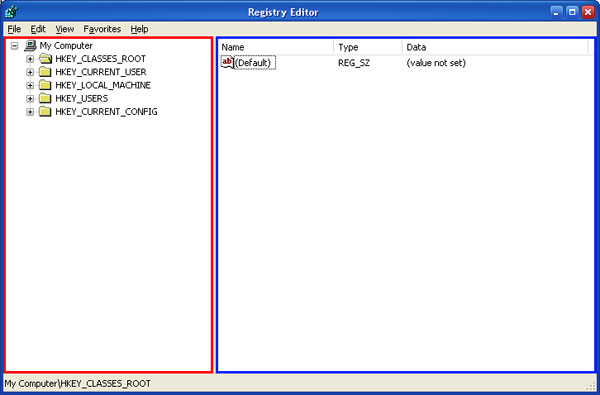
Image 2. The Registry Editor
To edit the value, right-click on it and select the Modify option (on Image 3 it is designated by the red box) from the appeared menu.
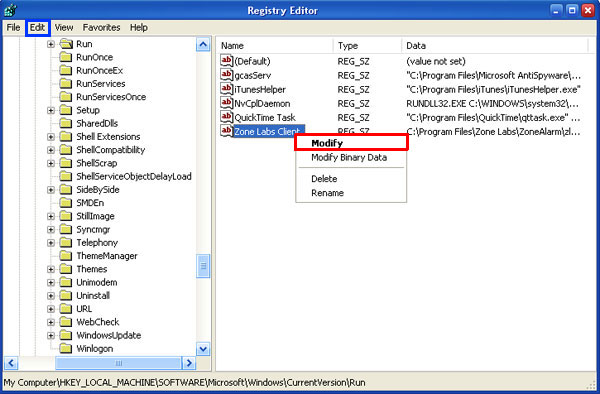
Image 3. Select the value
You can also double-click on the value with you left mouse button or use the Edit (on Image 3 it is in the blue box) menu. Type in the preferred value in the appeared window and click OK. The same action can be performed with any other value or registry key.
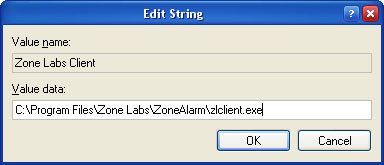
Image 4. Edit the value
Perform the same sequence of actions as just described in order to delete the value or the registry key. However, this time you will have to select the Delete option (on Image 5 it is in the red box) instead of Modify.
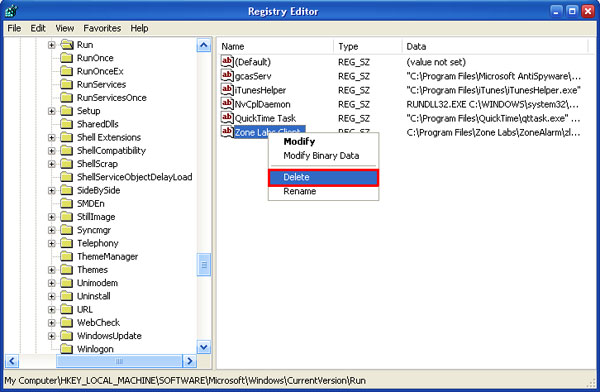
Image 5. Delete the value
To add a new registry key or a new value, click on the Edit menu, select New and choose a type for the entry.
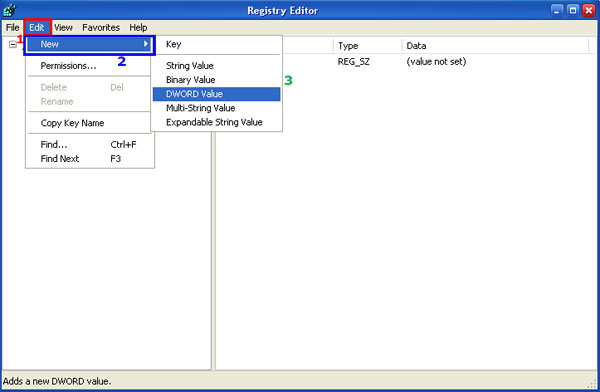
Image 6. Add the new value
You can export any key or value from the registry to the defined file. Right-click on the object and select Export (on Image 7 it is in the red box).
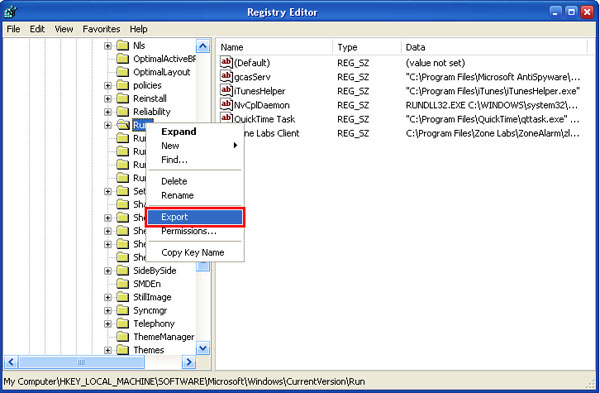
Image 7. Export the value
Enter a file name. Export registry files should have the .reg extension.
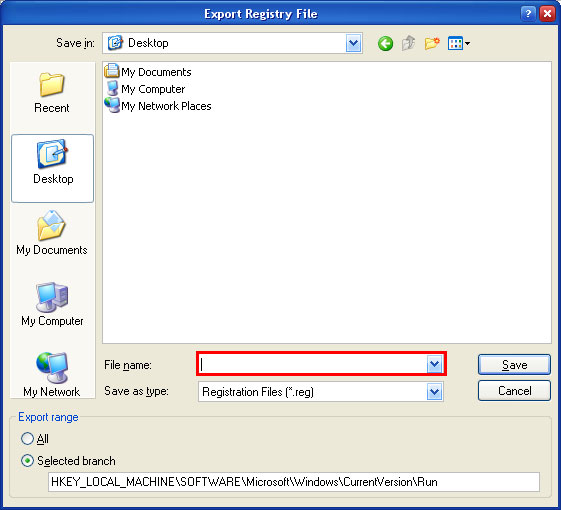
Image 8. Export registry entries to a file
You can also import a certain value or a key. Click on the File menu and select Import. Then choose the file containing objects you want to import.
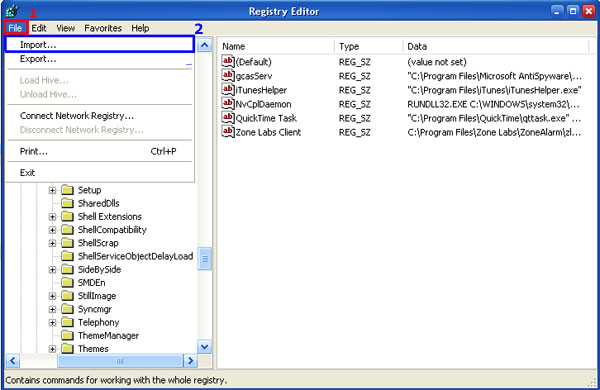
Image 9. Import registry entries
If after modifying the registry something goes wrong, you can restore the registry from a backup. Read the article Backing up and restoring the Windows registry to learn more.
If you do not know how to perform the described actions, you are not certain, why you have to do some steps, or the above guide is too difficult for you, feel free to try our recommended automatic spyware removers.


April 7th, 2007 at 5:37 am
how can i edit my registry if the run icon doesnt appear on my start menu.. what should i do?? please mail your answer.. tnx!
April 15th, 2007 at 10:18 pm
good explanation but what happens if the program wont let you delete it from the registry key? then what do i do?
June 18th, 2007 at 10:58 pm
When deleting the malicious entries in the regedit program, are you supposed to “right-click, delete” in the left column or right column box?
When I “right-click, delete” on the folder (left column box) of a malicious file it prompts, “Are you sure you want to delete this key and all of its subkeys?”, as opposed to “Are you sure you want to delete this value?” which prompts in the right column box.
What should I be deleting, “keys and subkeys”, or “values”?
Thanks
June 28th, 2007 at 2:39 pm
To David:
If “Run” doesn’t appear on your start menu, you can put it there. Just right click on the start button, then select “Properties.” (This will open the control panel for customizing the Start Menu and the Taskbar.) Click on the “Start Menu” tab at the top, then click on either of the “Customize” buttons below. You will only be able to click on one of them, depending on whether you use the “Classic” start menu or the newer XP start menu. Depending on which start menu you use, you’ll have slightly different options:
1) If you use the Classic menu, scroll through the “Advanced Start menu items” list and check “Display Run”.
2) If you use the newer menu, click on the “Advanced” tab, then scroll through the “Start Menu Items” list and check “Run”.
Click OK twice and “Run” should appear on the start menu.
August 19th, 2007 at 12:27 am
How will I know what folder(s) in my registry is malicious?There are so many folders and sub folders there,how would I know where to search for parasites?
Thanks
August 20th, 2007 at 5:08 pm
david Says:
April 7th, 2007 at 5:37 am
how can i edit my registry if the run icon doesnt appear on my start menu.. what should i do?? please mail your answer.. tnx!
the keyshort for the windows run command is (window key + r). then type ‘regedit’ or ‘regedit.exe’ in the field. good luck
September 1st, 2007 at 12:36 pm
i am in the same boat as “John”
i cannot remove these files, it says unable to delete
what should i do next?
thank you
September 8th, 2007 at 6:48 am
david, what you need to do is:
make a notepad file (probably most simple text editors will work) with the following in it:
start regedit
and save it as: anythingyouwant.bat (make sure it’s a .bat file!). It’s directory doesnt matter. Double clicking on this file will make regedit start.
September 18th, 2007 at 10:09 am
safemode encounters and then I can’t enter password to open in safe mode. what do I do?
September 23rd, 2007 at 1:08 pm
i know i have antivirgear in my computer but when i tried to delete the registiries none of them were there. what does that mean and how can i get rid of this?
September 26th, 2007 at 3:31 pm
What should i do if some of malicious registries which are shown on the website does not appear in the registry Editor?
January 9th, 2008 at 1:07 pm
just right click your file in the right pane and select delete.
to find more files related to the files you dont want… highlight the folder in the left pane then hold Ctrl key down and hit F. Then type a related name to search. just saves you having to do a manual search.
January 16th, 2008 at 11:06 pm
dint understand a word especially image1
February 12th, 2008 at 10:56 pm
What value needs to be added? Why do you have to modify the value instead of just deleteing the unwanted file?
Cheers
Derek
March 14th, 2008 at 1:34 am
How to remove the yspy_yahmali.b virus from my machine as well as from my networks
March 22nd, 2008 at 10:07 pm
Please delete MyWebsearch NOW! That includes Fun Cards, Smiley Control, Screensavers, and Cursor Mania!
April 5th, 2008 at 5:45 pm
please help me , am not able to type in value name in edit string box andif i try to delete val or key says im not allowed to
May 3rd, 2008 at 12:48 am
how to remove virus entrys in the rigistry? i want procedur
June 22nd, 2008 at 11:11 pm
I hate Spyguarder 2.1. I think it’s a Virus. Please help me remove it. How?
June 30th, 2008 at 2:45 pm
After I installed an image editing program, gifs don’t play in movie maker so there must be a malicious registry entry,but how do I know which one of the gif folder is malicious and I should delete it. Thank you.
July 1st, 2008 at 5:43 am
bug!.exe
Is that a virus?
July 3rd, 2008 at 11:24 am
Hey what if Zone labs client isnt there when I look in the run folder? Is there something I have to do to get it or what? Please help me
July 9th, 2008 at 9:06 pm
This ” instruction “,,,is totally useless and incomplete…..hope the people whose PC’s you helped destroy….SUE YOU FOR ALL YOUR WORTH!!!….WHICH ISN’T MUCH!…I’m not easily fooled by fake “techs” like you.
July 11th, 2008 at 6:59 pm
This information is entirely worthless because you ever explain what registry is to be modified or in what manner, nor do you explain what is to be deleted.
August 27th, 2008 at 6:06 pm
This is not supposed to tell you what to look for, it is simply an explanation of how to do it.
you should look up the problem you have and find the registry values for the infection.