
AntiVermins: what it is and how to remove it
AntiVermins is a trojan that displays an icon in the system tray. This icon shows a message saying that the compromised computer is infected with dangerous viruses and asks the user to download and install a removal program, which actually is AntiVermins, the same named corrupt illegally distributed spyware remover.
Facts checked October 7, 2026. Removal steps tested on Windows 11 (26H2) and checked against Microsoft's and the browser makers' current documentation. Sections marked as our earlier report are the original text: they describe the threat as it was then and have not been reviewed since. The 2026 status, the removal steps and the questions are current.
Automatic
Get a free scan and check if your PC is infected.
Fortect finds malware, unwanted programs and the Windows damage they leave behind, and repairs it in one pass.
An automatic scan checks installed programs, startup items and browser extensions for anything that came with AntiVermins.
Do it yourself · free Remove AntiVermins yourself 5 steps, about 15 minutes, no software needed.
Start the stepsAntiVermins: summary
| Detection names | No Microsoft detection name is known |
|---|---|
| Distribution | Not recorded in the old report |
| Damage | Not recorded in the old report |
| Name | AntiVermins |
| Type | Loader |
| Symptoms | An unknown program in Installed apps |
| Removal | Scan the PC with security software to find and remove the malware and anything installed with it. Fortect scans Windows for malware and repairs the system files and settings it damaged. Remove it nowTo use the full-featured product, you have to purchase a license for Fortect. The scan is free. |
Show 3 more facts
| Evidence | One write-up by a security site; details still limited |
|---|---|
| First seen | 26 April 2021 |
| Facts checked | 7 October 2026 |
From our report of Apr 2021 · not reviewed since
What AntiVermins is
AntiVermins is a trojan that displays an icon in the system tray.
This icon shows a message saying that the compromised computer is infected with dangerous viruses and asks the user to download and install a removal program, which actually is AntiVermins, the same named corrupt illegally distributed spyware remover. Once the user clicks on that message, the trojan opens a web site distributing AntiVermins.
It may also attempt to download the application without asking for user permission. The trojan is able to change the Internet Explorer default home page, redirect the web browser to malicious web sites, download and install other parasites. AntiVermins automatically runs on every Windows startup. AntiVermins, AntiVerminser and AntiVermeans Removal Guide
How to remove AntiVermins
A loader's job is to install other malware, so treat the PC as infected with more than one program until the scans are clean.
Step 1: Delete scheduled tasks that bring it back
Open Task Scheduler from the Start menu and click Task Scheduler Library. Select each task you do not recognise and read the Actions tab:
- a task that starts a file in
%AppData%or%Temp% - runs
powershellwith a long encoded line - opens a web address belongs to AntiVermins or a similar program
Right-click such a task and choose Delete, and check the subfolders too. Leave tasks from Microsoft, your PC's maker and programs you use. Task Scheduler is the same in Windows 11 and Windows 10.
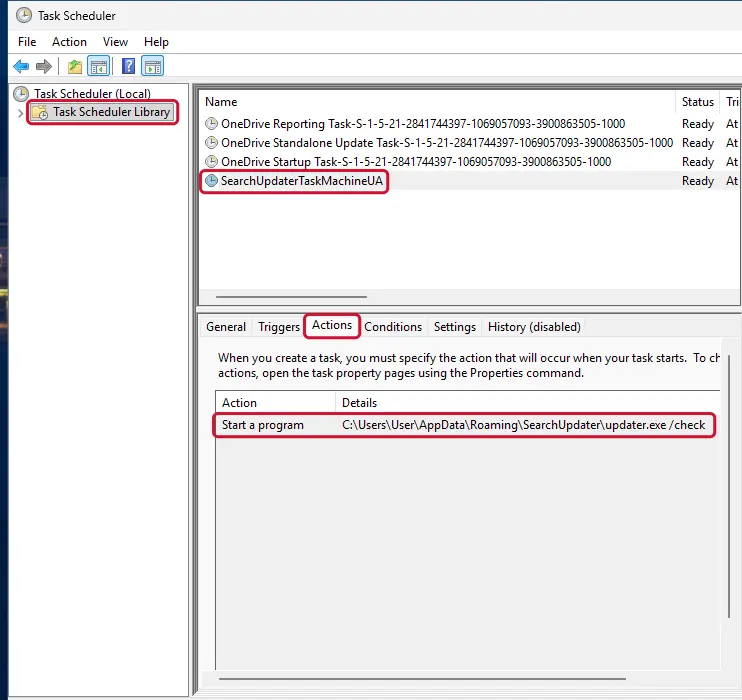
Windows 11: Task Scheduler Library, the task selected, the Actions tab shows the file it runs. Full procedure with screenshots: Remove what malware leaves behind in Windows
- a task that starts a file in
Step 2: Remove it from startup
Whatever AntiVermins installed usually starts with Windows. Open Task Manager with Ctrl + Shift + Esc, go to Startup apps in Windows 11 or the Startup tab in Windows 10, and disable what you do not know, starting with entries that have an empty Publisher column.
Open file location on the right-click menu shows the file, which helps you decide and tells you what to delete later. Disabling is safe: if something you need stops working, switch it back on.
Full procedure with screenshots: Stop apps from opening at startup On uGetFix
Step 3: Delete the folders left behind
What the uninstaller leaves behind is usually in the user folders. Open File Explorer, switch on View > Show > Hidden items (in Windows 10 View > Hidden items), and go through
%LocalAppData%,%AppData%, %ProgramData% and the two Program Files folders.Sort by Date modified and delete folders that appeared together with the problem and belong to no program you use. Folders with random names that hold
.exe,.dll, .js or .ps1 files are the strongest sign.Full procedure with screenshots: Remove what malware leaves behind in Windows
Step 4: Scan the PC, then run the offline scan
Open Windows Security > Virus & threat protection > Scan options, run a Full scan and remove everything it finds. Then select Microsoft Defender Antivirus (offline scan) and click Scan now: the PC restarts and scans before Windows loads, which finds files that hide while Windows runs.
Save your work first, because the offline scan takes about 15 minutes. Both scans are built into Windows 11 and Windows 10, and a second scanner from another vendor is a useful extra opinion.

Windows 11: Windows Security > Virus & threat protection > Scan options. Full procedure with screenshots: Run a Microsoft Defender Offline scan
Step 5: Change passwords from another device and sign out other sessions
Assume that the passwords saved in this PC's browsers, and the accounts that were open in them, are known to the attacker. From a phone or a clean computer, change the e-mail password first, then banking, shopping, social and gaming accounts.
Use each service's option to sign out of all other sessions, because stolen cookies keep a session open even after a password change. Turn on two-step verification on each account. Wait with the infected Windows 11 or Windows 10 PC until the scans are clean.
Full procedure with screenshots: Turn on two-step verification / secure a hacked account
After removal: passwords, accounts and prevention
Accounts come next
Because the PC showed antiVermins in the list of installed apps, a sign of a program that could read browser data, the clean-up is only half of the work.
The other half happens in your online accounts.
Change passwords from a clean device, beginning with e-mail; sign out of all sessions; check forwarding rules and recovery phone numbers; and turn on two-step verification with an authenticator app or a passkey. Ask your bank to replace cards saved in the browser.
Why the order matters and what to check in each account: secure your accounts after malware.
Stream videos without limitations, no matter where you are
There are multiple parties that could find out almost anything about you by checking your online activity.
While this is highly unlikely, advertisers and tech companies are constantly tracking you online. The first step to privacy should be a secure browser that focuses on tracker reduction to a minimum.
Even if you employ a secure browser, you will not be able to access websites that are restricted due to local government laws or other reasons. In other words, you may not be able to stream Disney+ or US-based Netflix in some countries. To bypass these restrictions, you can employ a powerful VPN, which provides dedicated servers for torrenting and streaming, not slowing you down in the process.
Data backups are important - recover your lost files
Ransomware is one of the biggest threats to personal data.
Once it is executed on a machine, it launches a sophisticated encryption algorithm that locks all your files, although it does not destroy them. The most common misconception is that anti-malware software can return files to their previous states. This is not true, however, and data remains locked after the malicious payload is deleted.
While regular data backups are the only secure method to recover your files after a ransomware attack, tools such as can also be effective and restore at least some of your lost data.
Questions about AntiVermins
Can I safely uninstall AntiVermins?
If you did not install AntiVermins yourself and it is not part of your hardware or a program you rely on, yes. Uninstalling an unwanted program does not harm Windows. Before you do, search the exact name and publisher to be sure it is not a driver tool, a printer utility or a game launcher with an odd name.
Then remove it from Settings, Apps, Installed apps. Ignore any offers or warnings in its uninstaller about losing protection or performance. Afterwards check Startup apps and your browsers for leftovers, and restart once to confirm that it does not reinstall itself.
How do I stop programs like AntiVermins from being installed again?
Most unwanted programs arrive through installers, so the fix is in how you install software. Download programs from their official sites or the Microsoft Store, not from download portals or ads above search results. During setup, choose Custom or Advanced installation and untick every extra offer, including browsers, toolbars and optimizers.
Decline update prompts that appear inside other programs unless you know them. In Windows Security, turn on reputation-based protection and potentially unwanted app blocking. These steps would most likely have stopped AntiVermins before it reached the app list.
Can AntiVermins spread to other devices on my network?
Most trojans aimed at home users stay on the PC they infected, but an attacker with remote access can look at the network, open shared folders and try passwords on other devices. Loaders sometimes deliver worms or ransomware that do spread.
Disconnect the PC while cleaning, run a full scan on other Windows PCs, change the router's admin password and the Wi-Fi password if they were saved on the infected PC, and update the router's firmware. If other PCs show the same detection, treat them as infected too.
Why can't I find AntiVermins in antivirus databases?
Because it is new or because it is listed under a different name. Antivirus companies name threats after the family they belong to, and a program that appears as AntiVermins on your PC may carry a generic or unrelated label in their databases.
Many new samples are first detected only by behaviour, without a family name. What you saw, antiVermins in the list of installed apps, is enough to act on:
- end the program
- remove its startup entry
- run a Microsoft Defender offline scan
- secure your accounts
A detection name from a scan is worth noting for later.
Can a normal remote support program be a backdoor?
Yes. Tools such as AnyDesk, TeamViewer and ScreenConnect are legitimate, but whoever controls the account behind them controls the PC. Scammers install them during fake support calls, and some trojan campaigns install them silently because antivirus programs do not flag a genuine, signed product.
If you find one you did not set up, uninstall it, check Startup apps for related entries and change passwords from another device. If money or accounts were involved, call your bank and report the incident.
What are the signs of a trojan infection?
Most trojans try to leave no visible signs, so look for side effects. Common ones:
- Windows Security turned off or unable to update
- new entries in Startup apps or Task Scheduler
- programs in Installed apps you did not install
- browser settings that changed by themselves
- unusual network activity while the PC is idle
- password-reset or login-alert e-mails you did not trigger
None of these proves an infection on its own. Together with an antivirus alert naming AntiVermins, they are a strong reason to follow the full plan.
Is a trojan infection worth reporting to the police?
If there was harm, yes. Unauthorised payments, accounts used for fraud, blackmail or a remote session during a scam call all belong in a report, and banks often ask for its reference number before they refund anything.
If antivirus caught AntiVermins before it ran and nothing was misused, there is nothing to report. Keep the evidence anyway:
- protection history
- the original download
- the dates
Businesses may also have to notify a data protection authority if personal data could have been accessed.
Can I keep using the PC while AntiVermins is on it?
Not for anything that matters. As long as the program behind antiVermins in the list of installed apps runs, it can see what you type and what the browser stores, and it may download more malware. Disconnect the PC from the internet while you remove it, and do your banking, e-mail and password changes from another device.
Once the offline scan finds nothing and the sign does not return after a few restarts, normal use is fine. If the scan keeps finding new items, or you cannot remove the startup entry, a reset of Windows is the safer choice.
Why didn't my antivirus stop AntiVermins?
New trojan builds are packed and changed often so that signatures do not match, and some are signed with stolen or bought certificates. Many arrive inside password-protected archives, which scanners cannot open until you extract them.
Some downloads also tell the user to turn off the antivirus "because it gives false alarms", a common line in cracked software instructions. Keep real-time protection on, never disable it for an installer, and run the offline scan whenever you suspect something slipped through.
Will Fortect remove AntiVermins?
Fortect scans Windows for malware and unwanted programs and repairs the system files and settings they change, and its free scan shows what it finds on your PC before you decide anything.
For AntiVermins, follow the plan above as well: the browser steps take back permissions and settings that no scanner treats as a threat, and uninstalling the program that brought it removes the source.
Run Microsoft Defender's full scan and, if anything was found, its offline scan as a second opinion. If the symptoms are gone after the plan and both scans are clean, there is nothing more to do.
Sources
- FTC: How to recognize, remove and avoid malware (read October 7, 2026)
- Microsoft Learn: Microsoft Defender Offline (read October 7, 2026)
- Microsoft Learn: How Microsoft names malware (read October 7, 2026)