
How-to
How to turn on two-factor authentication (2FA)
Two-factor authentication (Google and Microsoft call it two-step verification) asks for a second proof, such as a code or a security key, after your password. A stolen password alone then no longer opens the account. Set it up on your email account first: whoever controls your email can reset the passwords of everything else.
When you need this
- Your password appeared in a data breach or you typed it into a phishing page.
- You got a sign-in alert you do not recognise, or someone already got into the account.
- A removal guide on this site tells you to secure your accounts after an infection.
Google / Gmail
Written for Google Account in a desktop browser on Windows (2026-10-03). Steps checked against Google Account Help on October 3, 2026.
Open myaccount.google.com and sign in.
Click Security & sign-in.
Under How you sign in to Google, select Turn on 2-Step Verification.
Follow the on-screen steps to add a second step.
Add a backup: a passkey, a security key, an authenticator app or backup codes.
Backup codes are 8-digit codes you can print or download for when you lose your phone.
Google prompts on a signed-in phone are the recommended second step; codes by text or call can be hijacked with a SIM swap.
Signing in with a passkey skips the second step, because the passkey itself proves you have the device.
A newly added phone number can take up to 7 days before Google trusts it for 2-Step Verification.
Work and school accounts may need the administrator to allow 2-Step Verification.
Sources
- Google Account Help: Turn on 2-Step Verification (Computer) (read October 3, 2026)
Microsoft / Outlook.com
Written for Microsoft account in a desktop browser on Windows (2026-10-03). Steps checked against Microsoft Support on October 3, 2026.
This is the account you use for Windows sign-in, Outlook.com, OneDrive and Xbox.
Open account.microsoft.com/security and sign in.
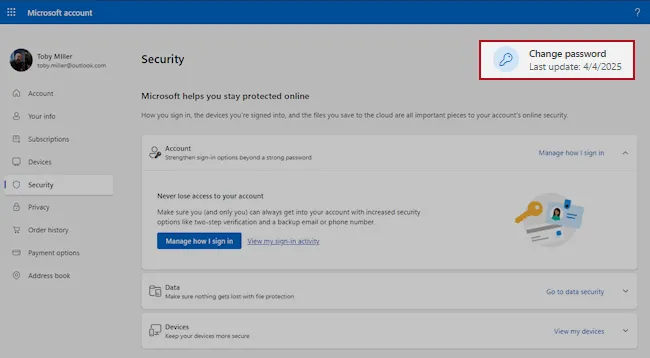
Microsoft account, Security page: Change password at the top, Manage how I sign in under Account. Select Manage how I sign in.
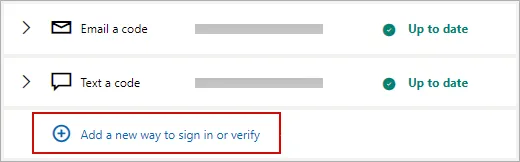
Manage how I sign in: your ways to prove who you are, and Add a new way to sign in or verify. Under Additional security > Two-step verification, choose Turn on.
Follow the instructions on the screen.
If you set up the Microsoft Authenticator app, you scan a QR code with your phone.
Keep at least three pieces of security info (for example an authenticator app, a second email address and a phone). With two-step verification on, a lost contact method can lock you out for 30 days or longer.
Microsoft is phasing out text message codes for personal accounts, so prefer the authenticator app or a backup email address.
If an older app or device says the password is wrong after you turn this on, it needs an app password (under Additional security options).
Sources
- Microsoft Support: How to use two-step verification with your Microsoft account (read October 3, 2026)
Written for facebook.com in a desktop browser on Windows (2026-10-03). Steps checked against Facebook Help Center (Computer) on October 3, 2026.
Meta is moving accounts to Meta Account settings; you may see that name instead of Accounts Center.
Click your profile picture in the top right, then Settings and privacy > Settings.
Click Accounts Center, then Password and security.
Click Two-factor authentication and pick the account.
Choose a method (security key, authentication app or text message) and follow the instructions.
Get your 10 recovery codes and keep them somewhere safe.
Do not click Save this browser on a shared or public computer.
If your browser clears history on close, Facebook may ask for a code at every login.
Sources
- Facebook Help Center: How two-factor authentication works on Facebook (read October 3, 2026)
Written for instagram.com in a desktop browser on Windows (2026-10-03). Steps checked against Instagram Help Center (Computer) on October 3, 2026.
Click More in the bottom left, then Settings.
Click See more in Accounts Center, then Password and security.
Click Two-factor authentication and select the account.
Choose the security method and follow the instructions.
On the web you can use text message codes, and WhatsApp codes once text message is on. An authentication app, which Instagram recommends, can be set up only from the Instagram app on a phone.
Save the backup codes: they get you in if you lose access to your phone number.
Choose Trust this device only on your own device.
Sources
- Instagram Help Center: Securing your Meta Account with two-factor authentication (read October 3, 2026)
If the steps did not help
The account is already hacked
- Clean the PC first. If malware stole the password, it can steal the new one too. Update your security software and run a full scan, for example a Microsoft Defender Offline scan.
- Use the provider's recovery page: Google, Microsoft, Facebook, Instagram.
- Once you are back in: change the password, sign out of all devices, turn on two-step verification with the steps above, and check that the recovery email and phone are yours.
- Look for what the intruder left: email forwarding rules and filters you did not create, unknown devices, connected apps, and sent messages you did not write. Google lists these under Security & sign-in > Recent security events and Your devices.
- Change the same password everywhere else you used it, and warn your contacts not to click links sent from your account.
Which second step to choose
- Strongest: a passkey or a hardware security key. They also stop phishing pages, because they work only on the real site.
- Good: an authenticator app or the service's own sign-in prompt.
- Weakest, but still better than nothing: codes by text message or call, which a SIM swap can intercept.
- Never read a code out to anyone who calls you. Google, Microsoft and Meta do not call to ask for it.
Questions
Is two-step verification the same as two-factor authentication?
Yes, for everyday use. Google and Microsoft say two-step verification, Meta says two-factor authentication; both mean a second proof after the password.
What if I lose my phone?
Use a backup method: backup or recovery codes, a security key, or a second email address. Set these up right after turning two-step verification on, because without them Microsoft, for example, can take 30 days to give access back.
Does 2FA help if my password was in a data breach?
Yes. The password alone is no longer enough to sign in. Change the leaked password anyway, on every site where you used it.