
Findwide search engine: is it safe, and how to remove it from your browser
Findwide is a search engine name that users report as a browser hijacker: it replaces the home page and default search. If it is your search engine and you did not choose it, remove the extension or program that set it and pick your own engine.
Facts checked October 11, 2026. Removal steps tested on Windows 11 (26H2) and checked against Microsoft's and the browser makers' current documentation.
Automatic
Get a free scan and check if your PC is infected.
Fortect finds malware, unwanted programs and the Windows damage they leave behind, and repairs it in one pass.
If search.findwide.com returns after you change the search engine back, a free scan can find the program that keeps setting it.
Do it yourself · free Remove Findwide search engine yourself 2 steps, about 6 minutes, no software needed.
Findwide search engine: summary
| Type | Browser hijacker (search and start page); potentially unwanted program, not a virus |
|---|---|
| Risk | Medium, unconfirmed: we could not test the page; whatever installed it may have added more |
| Symptoms | Home page, new tab or address bar search opens Findwide; an add-on you did not choose; the setting returns after a restart |
| How to get rid of it | Remove the add-on, set your own search engine and start page, uninstall programs added the same day, then scan |
| Our check (11 October 2026) | No reported malware URLs and no registration record for the name; no site test was possible |
| Running since | Unknown. Older user threads exist on Mozilla Support; we could not date them |
| Removal | Scan the PC with security software to find and remove the malware and anything installed with it. Fortect scans Windows for malware and repairs the system files and settings it damaged. Remove it nowTo use the full-featured product, you have to purchase a license for Fortect. The scan is free. |
Show 10 more facts
| Installed on the PC | Nothing from the page itself. Only what you add: an add-on or a program that changes the settings |
|---|---|
| Detection | No Microsoft detection name found for Findwide itself. Microsoft files search hijackers under BrowserModifier:Win32/..., for example BrowserModifier:Win32/MediaArena, a different family |
| Evidence | User threads, Microsoft's unwanted software rules, browser makers' help pages and our records check |
| Name | Findwide search engine |
| Search page | search.findwide.com |
| Browsers | Chrome, Edge and Firefox |
| First seen | 11 October 2026 |
| Distribution | Typically free PDF, map, recipe or weather extensions, bundled installers and ads |
| Damage | Searches logged and filled with ads, browser settings locked |
| Facts checked | 11 October 2026 |
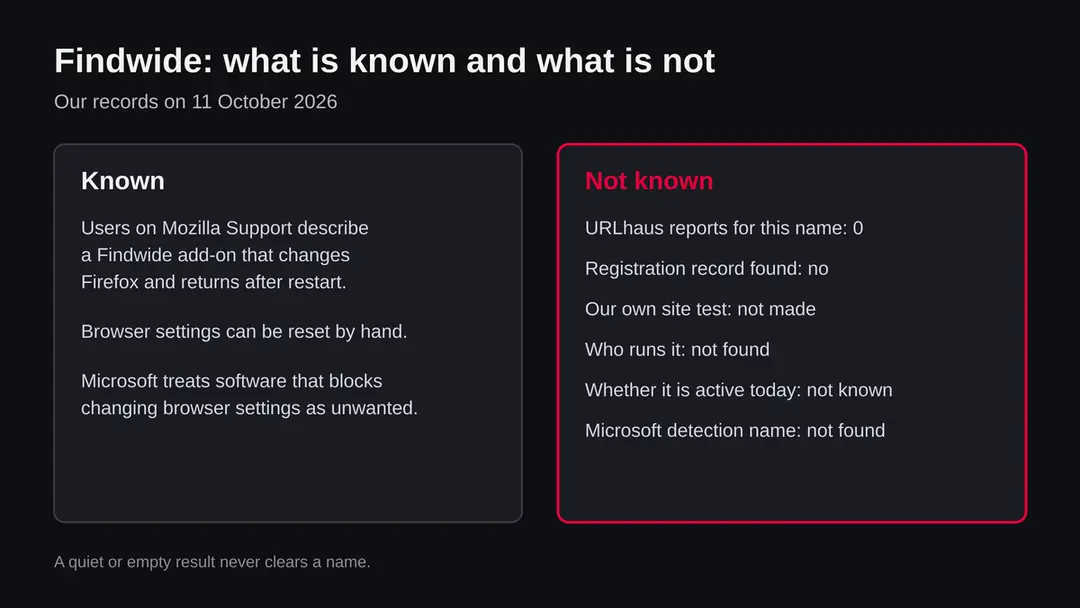
Facts checked on 11 October 2026 against our own records (no URLhaus rows, no registration record) and the pages listed in the sources. Not tested:
- the Findwide page itself
- any add-on
- any installer
Statements about its behaviour come from user reports and are marked as such.
What Findwide is, and what we can and cannot say
Findwide is the name of a search page that people meet when their browser opens it as the home page, the new tab page or the search engine without their choice. It is not something you download and run on purpose. It reaches a browser through an add-on or through the settings, and that is the part you remove.
We did not test the site ourselves for this page, so we do not describe how it looks today. Our own tool found no reported malware URLs for the name and no domain registration record for the words "findwide search engine". That is a gap in what we hold, not a clearance. The sections below separate what users report from what we checked.
- What it is
- A search page and search engine name. Users on the Mozilla Support forum describe a Findwide add-on that changes Firefox settings
- Where it comes from
- Not confirmed by us. Reports point to add-ons and free software installers; we could not identify who runs it
- What it changes
- Home page, new tab page and the default search engine, according to the user reports we read
- What it does not do on its own
- A search page in a tab cannot install a program by itself. The change is made by an add-on, a program or a setting on your side
- Our records
- No reported URLs in the URLhaus database for this name and no registration record found on 11 October 2026
Is Findwide search engine dangerous? What it collects
What our check covered on 11 October 2026
There was no address to open, so there is no site test on this page. We say that plainly instead of filling the space with a screenshot.
Findwide search engine · records check · 11 October 2026
- Reported malware URLsNone in the URLhaus database for this name. That shows nobody reported a file there; it does not show the page is harmless.
- Domain registrationNo record found for the words searched. We did not have a plain domain name to look up.
- Plain request from our serverNot made. The subject is a name, not a web address.
- Notification request, pop-ups, redirectsNot tested. We do not know what the page does today.
- Reports from usersForum threads on Mozilla Support describe a Findwide add-on in the Firefox Add-ons Manager and a hijack that came back after a restart.
Medium risk, unconfirmed We could not test the page, so we cannot clear it. A search hijacker is an unwanted program rather than a virus, but whatever put it in your browser may have added more. A quiet result in any test would also not clear it, because pages like this can behave differently by country, device, delay or second visit.
What the reports say, in order
Older forum threads
Firefox users ask how to get rid of it
Threads on Mozilla Support, such as question 1069191, ask how to remove the Findwide virus. One reply path lists the add-on in the Add-ons Manager and suggests checking the installed programs. One user reported the hijack returning after a restart, and a Firefox reset was the suggested fix. We could not date these threads from what we read, so we give no year.
October 2026
Our radar picks the name up
Our search data shows about 319 impressions of this name in Google for our old site, so people still look for it. No security-specific searches were counted, which means people mostly type the name in plain words, for example the engine's name alone.
11 October 2026
Our check finds no reports and no record
No URLhaus rows and no registration record for the name. We wrote this page from the user reports, Microsoft's rules for unwanted software and the browser makers' own help pages, and we say where we could not check.
What can go wrong
A search hijacker is a nuisance more than a catastrophe, but not a harmless one. These are the real concerns, from the most to the least serious. They are the general risks of the type; we did not measure them for Findwide.
- Medium
Results chosen for someone else's income
Hijacker search pages usually fill the top of the results with paid links. A click may lead to an offer, a fake alert or a download you did not want. We did not see Findwide's results, so this is the general pattern.
- Medium
Your search words pass through other companies
Search words travel in the web address. Every site on the way can read them, and you did not choose those sites.
- Medium
Whatever installed it may have installed more
If a free program carried the extension, it may also have added other adware or search changers. That program, not the search page, is what needs cleaning.
- Low
Settings that put themselves back
A user in a Mozilla thread reported the hijack returning after a restart. That points to a leftover add-on, program or policy still setting it.
What a search chain can see
- Your search words
- Your IP address
- Browser and device details
- Language setting
- Time of each search
- The page you came from
True of any search engine; here you did not choose the sites in the middle.
How Findwide search engine got into your browser
The Mozilla threads we read, and Microsoft's own description of unwanted software, point to the same few routes. Check them in this order, because the first two are the quickest to see.
Microsoft's page on unwanted software lists, among the signs, that browser features or settings have changed and that you cannot view or modify them. It also says Microsoft Edge has extra protections that block browser modifiers. Software that makes it hard to pick your own search provider or home page falls under the same heading.
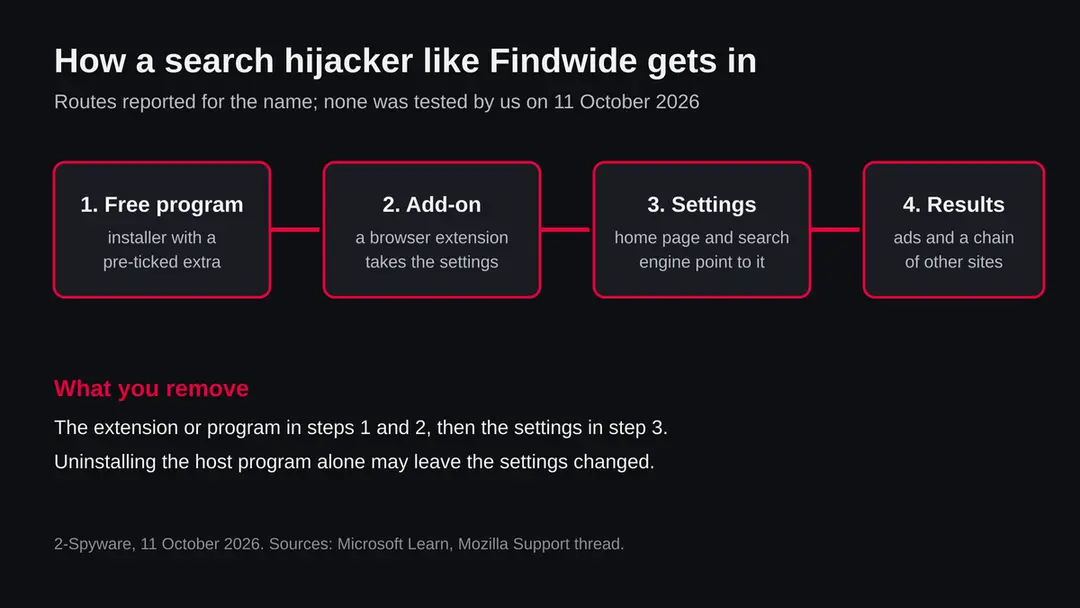
| Route | What you would see | How to check |
|---|---|---|
| A browser add-on or extension | Home page, new tab and search all changed at once; an add-on you do not remember | chrome://extensions, edge://extensions or about:addons |
| A free program with an optional extra | A new program or add-on appeared on the day the page did | Settings > Apps > Installed apps, sorted by install date |
| A changed search or start-page setting | No add-on, but the address bar search opens the page | Browser Settings > search engine and start-up pages |
| A changed shortcut | The browser opens the page only when started from one icon | Right-click the shortcut > Properties > Target |
How to remove Findwide search engine
How to remove Findwide search engine and get your search engine back
Remove the extension first.
The search settings only stay fixed once nothing on the PC can change them again.
Which browser shows the ads?
Remove extensions you do not recognise
Paste
chrome://extensionsinto the address bar and click Remove on anything you did not install yourself, especially anything added around the day the page appeared.Full procedure with screenshots: Remove a browser extension
Set another search engine
Open the three-dot menu > Settings > Search engine, click Change and pick the one you want. Then open Manage search engines and site search and delete or deactivate any entry you did not add.
Clear the site data
Press Ctrl + Shift + Delete, choose All time, tick Cookies and other site data and Cached images and files, and click Delete data.
Reset Chrome
Open Settings > Reset settings > Restore settings to their original defaults and confirm with Reset settings. Bookmarks and saved passwords stay.
Full procedure with screenshots: Reset a browser and fix a hijacked search engine
Remove extensions you do not recognise
Paste
edge://extensionsinto the address bar and click Remove under anything you did not install yourself.Full procedure with screenshots: Remove a browser extension
Set another search engine
Open the three-dot menu > Settings > Privacy, search, and services > Address bar and search and pick your engine from the drop-down. Check Manage search engines for entries you did not add.
Reset Edge
Open Settings > Reset settings > Restore settings to their default values and confirm with Reset. Favourites, history and saved passwords stay.
Full procedure with screenshots: Reset a browser and fix a hijacked search engine
Remove add-ons you do not recognise
Paste
about:addonsinto the address bar, open Extensions, and choose Remove from the three-dot menu of anything you did not install yourself, including an entry named Findwide.Full procedure with screenshots: Remove a browser extension
Set another search engine
Open Settings > Search and pick another engine under Default Search Engine. Under Search Shortcuts, remove any entry you did not add. Then open Settings > Home and reset the home page.
Refresh Firefox
Open the menu > Help > More troubleshooting information and click Refresh Firefox. Add-ons and custom settings are removed; bookmarks, history and passwords stay.
Full procedure with screenshots: Reset a browser and fix a hijacked search engine
Remove extensions you do not recognise
In Safari > Settings > Extensions, select anything you did not install yourself and click Uninstall. Move any program you did not install on purpose from Finder > Applications to the Bin.
Set another search engine
Open Safari > Settings > Search and choose a different Search engine.
Check the Mac for leftovers
In System Settings > General > Login Items & Extensions, remove unknown items. Then use Go > Go to Folder to check
~/Library/LaunchAgentsand/Library/LaunchAgentsfor files with unknown names, and empty the Bin.
Then, whichever browser you use
Step 1: Uninstall programs you did not mean to install
Open Settings > Apps > Installed apps in Windows 11, or Settings > Apps > Apps & features in Windows 10, and sort the list by install date. Look at what appeared around the day the problem started and uninstall every program you do not recognise or did not choose.
Free converters, PDF and video tools, "system optimizers" and unknown browsers are the usual carriers of Findwide search engine. If a name is unclear, search for it before you remove it, so you do not uninstall a driver or a Windows component.
Full procedure with screenshots: Uninstall a program or app in Windows On uGetFix
Step 2: Scan the PC, then run the offline scan
Open Windows Security > Virus & threat protection > Scan options, run a Full scan and remove everything it finds. Then select Microsoft Defender Antivirus (offline scan) and click Scan now: the PC restarts and scans before Windows loads, which finds files that hide while Windows runs.
Save your work first, because the offline scan takes about 15 minutes. Both scans are built into Windows 11 and Windows 10, and a second scanner from another vendor is a useful extra opinion.

Windows 11: Windows Security > Virus & threat protection > Scan options. Full procedure with screenshots: Run a Microsoft Defender Offline scan
The order of actions that works for most cases
The order matters. Removing the setting first while the add-on is still installed lets the add-on write it back, which is why some people see the page return after a restart.
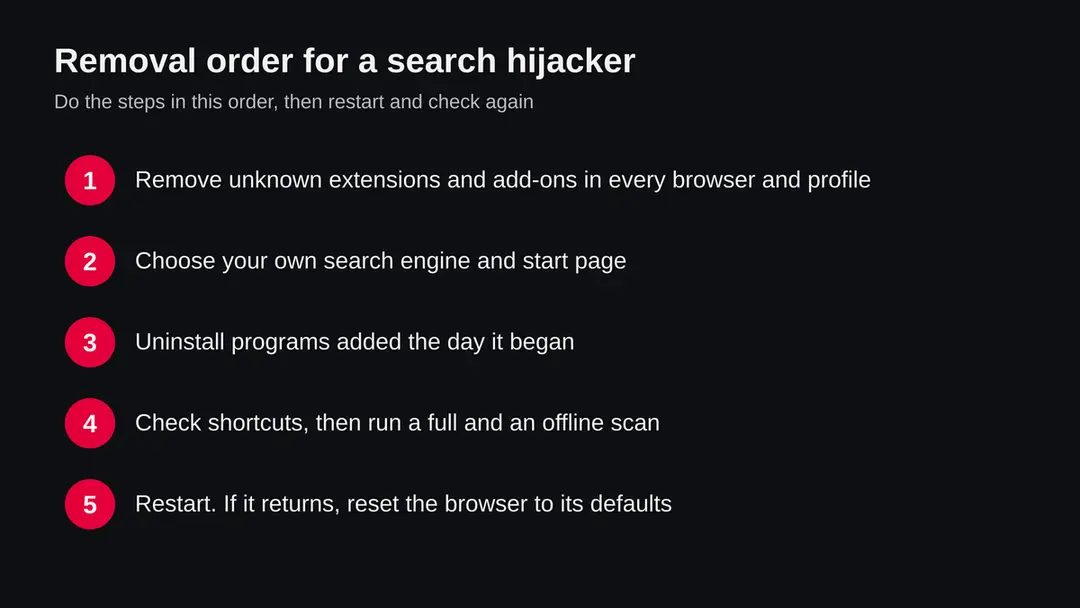
- 1
Remove unknown add-ons in every browser and profile
Open the add-ons page of each browser you use and remove what you did not install on purpose. A name containing Findwide is one to remove; a hijacker add-on can also carry a harmless-sounding name, so go by install date and by whether you remember adding it.
- 2
Choose your own search engine
Set the engine yourself in the browser settings (the exact paths are in the browser sections below). Delete any search entry you did not add.
- 3
Uninstall what came with it
Open Settings > Apps > Installed apps in Windows 11, sort by install date and uninstall programs added the day the page first appeared.
- 4
Scan, then scan offline
Run a Microsoft Defender Full scan, then the offline scan, which finds programs that hide while Windows runs.
- 5
Restart and look again
If the page returns, repeat step 1 in a second browser profile and look for a Managed by your organization message in Chrome or Edge. As the last resort, reset the browser.
After removal: keep your search engine and start page
If it came with a program or an ad
The browser steps are enough if only the settings and an add-on changed. If you installed something just before it started, do these three things as well.
- 1
Uninstall what came with it
Open Settings > Apps > Installed apps, sort by install date and uninstall anything you do not recognise from the day it began. If User Account Control asks, click Yes.
- 2
Check the shortcuts
Some hijackers change the shortcut that starts the browser. Right-click the browser icon on the desktop and the taskbar, open Properties and read the Target box. It should end with the browser program name and nothing after it, such as a web address.
- 3
Scan, then scan offline
Run a Microsoft Defender Full scan, then the Microsoft Defender Antivirus (offline scan).
How to keep it from happening again
Do
- Choose Custom or Advanced setup in installers and untick extra programs, add-ons and pre-ticked search settings.
- Download programs from their makers' sites or the Microsoft Store, not from download portals.
- Install browser extensions only from the browser's official store, from publishers you recognise.
- After installing free software, open the search engine and start-up page settings and check them once.
- Keep Microsoft Defender running and Edge's SmartScreen or Chrome's Enhanced protection on.
- Keep a current backup of your files, so an infection or a failed disk does not cost you your documents.
Don't
- Click through Quick or Recommended setup without reading it.
- Accept "make this your default search" prompts from programs you did not go to install.
- Install an extension because a page says it is needed to see results.
- Type searches into a start page you do not remember choosing.
Questions about Findwide search engine
What is the Findwide search engine?
Findwide is the name of a search page that users report as a browser hijacker. It takes over the home page, the new tab page or the default search engine, and shows search results that may be filled with paid links.
Threads on Mozilla Support describe a Findwide add-on that changes Firefox and returns after a restart. We did not test the page ourselves on 11 October 2026, and we found no registration record or malware reports for the name, so we cannot say who runs it or how it behaves today.
Is Findwide safe to use?
We cannot call it safe. We could not test the page, and the user reports describe a search page that was forced onto browsers, which is the behaviour Microsoft lists among the signs of unwanted software: settings that changed without your choice.
If you picked it yourself, it still gives you no reason to prefer it over the search engines your browser offers. If it appeared by itself, treat it as unwanted and remove whatever set it. A quiet page on one visit would not prove it is safe either.
Is Findwide a virus?
No, a hijacker of this type is classed as unwanted software, not a virus. A search page opened in a tab cannot install a program by itself. The danger lies in what put it there: an add-on, or a free program that carried it as an optional extra.
That carrier may have added other adware. We found no Microsoft detection name for Findwide, so a scan may find nothing even while the settings are still changed. Check the add-ons and the installed programs by hand.
How do I remove Findwide from Chrome?
Open chrome://extensions and remove any extension you did not install yourself. Then open the three-dot menu > Settings > Search engine, click Change and pick the engine you want. Under Manage search engines and site search, delete or deactivate any entry you did not add.
Check Settings > On startup and Home button for the Findwide address. Restart Chrome. If it returns, a program is still setting it: open Settings > Apps > Installed apps in Windows and uninstall what was added the day it began.
How do I remove Findwide from Firefox?
Open about:addons, choose Extensions and remove anything you did not install, especially an entry named Findwide, as the Mozilla Support threads describe it listed in the Add-ons Manager. Then open Settings > Search and choose your Default Search Engine, and Settings > Home to reset the start page.
Check the installed programs in Windows too. One user in a Mozilla thread saw the hijack come back after a restart, and a Firefox refresh (Help > More troubleshooting information > Refresh Firefox) was the suggested fix. Bookmarks and passwords stay.
How do I remove Findwide from Edge?
Open edge://extensions and remove extensions you did not install. Then open the three-dot menu > Settings > Privacy, search, and services > Address bar and search, and pick your preferred engine from the address bar drop-down. Check Manage search engines for entries you did not add.
Microsoft says Edge has extra protections against browser modifiers, so keep SmartScreen on. If a Managed by your organization message appears, a policy is holding the setting and a program must be removed first.
Why does Findwide keep coming back after I remove it?
Something is still writing the setting. The usual causes are an add-on left in a second browser or a second profile, a program that was installed with it, a changed browser shortcut, or a policy shown as Managed by your organization.
Remove add-ons in every browser, then open Settings > Apps > Installed apps, sort by install date and uninstall what was added the day it began.
Check the Target box in the browser shortcut's Properties. Run a Microsoft Defender Full scan and an offline scan. As the last step, reset the browser to its defaults.
Does Findwide track my searches?
We could not confirm it, because we could not read the page's privacy statement. Any search page you type into can see your search words, your IP address and your browser details, and a hijacker also routes your searches through sites you did not pick.
Treat what you typed while it was your search engine as seen by others, and do not type passwords or personal numbers into it. Removing the add-on and changing the default engine stops new searches from going that way. It does not delete anything already collected.
Does the same advice work on a Mac?
Yes for the idea, with different menus. In Safari open Settings > Extensions and uninstall anything unknown, then Settings > Search to choose your engine. Move programs you did not install on purpose from Finder > Applications to the Bin, and open System Settings > General > Login Items & Extensions to remove unknown items.
We found no report that ties Findwide to a Mac program, so we state this as general advice for search hijackers, not as something we tested.
Will Fortect remove Findwide search engine?
Fortect scans Windows for malware and unwanted programs and repairs the system files and settings they change, and its free scan shows what it finds on your PC before you decide anything.
For Findwide search engine, follow the plan above as well: the browser steps take back permissions and settings that no scanner treats as a threat, and uninstalling the program that brought it removes the source.
Run Microsoft Defender's full scan and, if anything was found, its offline scan as a second opinion. If the symptoms are gone after the plan and both scans are clean, there is nothing more to do.
Sources
- Our own records check for the name Findwide search engine (URLhaus and domain registration lookups) (read October 11, 2026)
- Microsoft Learn: Unwanted software (read October 11, 2026)
- Google Chrome Help: Change your default search engine (no longer online) (read October 11, 2026)
- Microsoft Support: Change your default search engine in Microsoft Edge (read October 11, 2026)
- Mozilla Support: how do I get rid of the Findwide virus (user question 1069191) (read October 11, 2026)