
Opera redirect virus: what it is and how to remove it
Opera redirect virus is a browser hijacker that targets Opera browser users, changing the homepage and search engine to redirect traffic through affiliate links. It often gets bundled with freeware.
Facts checked October 10, 2026. Removal steps tested on Windows 11 (26H2) and checked against Microsoft's and the browser makers' current documentation. Sections marked as our earlier report are the original text: they describe the threat as it was then and have not been reviewed since. The 2026 status, the removal steps and the questions are current.
Automatic
Get a free scan and check if your PC is infected.
Fortect finds malware, unwanted programs and the Windows damage they leave behind, and repairs it in one pass.
A scan of the PC is a quick way to confirm that nothing installed is behind the redirector.opera.com redirects.
Do it yourself · free Remove Opera redirect virus yourself 3 steps, about 9 minutes, no software needed.
Start the steps
Opera redirect virus: summary
| Detection names | No Microsoft detection name is known |
|---|---|
| Distribution | Not recorded in the old report |
| Damage | Not recorded in the old report |
| Name | Opera redirect virus |
| Type | Ad redirect domain |
| Symptoms | Redirects to an unknown domain |
| Removal | Scan the PC with security software to find and remove the malware and anything installed with it. Fortect scans Windows for malware and repairs the system files and settings it damaged. Remove it nowTo use the full-featured product, you have to purchase a license for Fortect. The scan is free. |
Show 6 more facts
| Evidence | 7 write-ups by security sites; details still limited |
|---|---|
| Domains | redirector.opera.com |
| Ads shown as | Redirects through ad pages |
| Browsers | Chrome, Edge and Firefox |
| First seen | 19 June 2019 |
| Facts checked | 5 October 2026 |
Is Opera redirect virus dangerous?
Is OperaSetup.exe a virus, and what is gt2.redirector.opera.com?
OperaSetup.exe is, in our reading, the name of the normal Opera web installer that the download page on opera.com gives you, not a virus by itself.
A file with that name becomes a problem only when it came from somewhere else, such as a pop-up or a bundled download. Right-click the file, open Properties and the Digital Signatures tab, and check that the signer is Opera Software. If there is no valid signature, delete the file and scan the PC.
We found no reliable public source that documents gt2.redirector.opera.com. Our reading is that it is a host on Opera's own opera.com domain that forwards requests, for example during a download or an update, because a name under opera.com can only be set up by Opera.
Seeing it in a firewall log or in the address bar for a moment is therefore not a sign of the hijacker described on this page.
To check any such name yourself, look at the part just before the first single slash. If it ends in opera.com, the address belongs to Opera. If a page only borrows the word opera inside a different domain, such as opera-update plus an unknown ending, treat it as the redirect problem this guide covers. Then follow the removal steps above on this page.
From our report of Jun 2019 · outdated details corrected in October 2026
Redirector.opera.com - a deceptive redirect virus
In 2019, users reported a spike of Redirector.opera.com redirects on Opera web browser.
Just as most potentially unwanted applications, it gets installed together with shareware and freeware programs, although users might install questionable applications like system optimizers and similar useless software after being tricked by clever social engineering.
Those who have their browsers affected by Redirector.opera.com can expect a large number of pop-ups, banners, deals, offers, in-text links, during their browser sessions. Additionally, these disturbances can also show up when Opera is not in operation. For that reason, Redirector.opera.com removal becomes necessary.
If you notice pop-up ads that are marked by Redirector.opera.com, you need to eliminate the adware that is associated with the redirect.

From our report of Jun 2019 · outdated details corrected in October 2026
Dissemination methods of the redirect malware
Potentially unwanted programs that are responsible for Opera redirects to sponsored websites usually spread attached in software packages.
Security experts from Poland tell that proper installation of programs is necessary to avoid accidental installation of PUPs:
However, PUPs often are presented as useful browser add-ons, extensions, or programs. Sometimes, they pretend to be updated for popular applications, such as Adobe Flash Player, which ended in 2020; fake updates became fake browser and codec updates. Therefore, you should never forget that reminders to install available updates popped up in the form of ads are fake, and you should not click them.
- Download programs from reliable websites only. Avoid file-sharing sites and rely on the official trusted developers' sites.
- Always opt for the Advanced/Custom installation method instead of Quick/Standard/Recommended. The latter settings rarely disclose about third-party apps that are included in the package. Thus, using this setup, you give indirect permission to install them without even realizing it.
- Read the Terms of Use and other official documents before clicking "Agree" button.
- Unmark all pre-selected additional apps or agreements to change your current search engine with an unknown provider.
From our report of Jun 2019 · not reviewed since
More from our earlier report on Opera redirect virus
- Windows, Mac OS X, Linux operating system
- Software bundling, browser vulnerabilities, deceptive websites, etc.
- Altered homepage and search engine, sponsored links, persistent pop-up ads, and redirects, etc.
- Severe malware infections, sensitive information leak
- You can get rid of potentially unwanted programs, you can make use anti-malware software that detects PUPs.
- If you noticed that your computer is crashing, lagging, or is suffering from other stability issues, you can fix them with the help of
From our report of Jun 2019 · outdated details corrected in October 2026
Opera redirect virus is a set of potentially malicious applications that could lead to severe consequences
Opera redirect virus is a phrase used to describe a variety of potentially unwanted programs related to the Opera web browser.
They can range from browser hijackers to adware. PUPs usually infiltrate the device with the help of software bundling or are manually installed by the user from a deceptive site. Upon infiltration, Opera virus can make a lot of significant changes to the browser or/and the system.
Even though constant pop-up ads cause immense frustration to users, the biggest danger lies in potential malware infections that could consequently lead to computer inclusion into a botnet, crypto-mining, sensitive data gathering, and similar privacy issues. In 2019, users complained about their browser redirecting them to redirector.opera.com and its subdomains, which is most likely linked to adware infection.
Opera web browser is compatible with Windows, macOS and Linux operating systems. It is one of the oldest browsers that is is still relatively popular, so there is no surprise that crooks target its users. Also, the unwanted programs seem to be targeting Opera browsers exclusively while skipping Google Chrome, Microsoft Edge, Mozilla Firefox, and Safari - hence the Opera virus name.
Opera browser hijack symptoms are as follows:
Opera redirect virus is similar to Chrome, Firefox or Edge redirect viruses. The purpose of the infection is to force the user's browser to open new tabs and trigger visits to affiliate websites. In various forums, users report about being redirected to travel, music, gaming, and similar sites. Undoubtedly, this activity is annoying and diminishes browsing experience significantly.
Opera redirect problems might end up worse than expected. Some PUPs initiate redirects to potentially dangerous websites. For instance, you might end up on a tech support scam or phishing site where cyber criminals hope to obtain your personal information. Furthermore, you might be forced to visit a domain where malicious JavaScript code could use a flaw in the unpatched software to inject malware.
Moreover, some versions of Opera redirect malware might also display pop-ups and ads that are misleading. They might promote bogus security software, notify about available updates or warn about the alleged virus attack. However, you should never click these advertisements because they are most likely to infect you with a trojan.
Therefore, if you have noticed suspicious activities on Opera, such as redirects, changed homepage, etc., you should take care of your computer's security. We firmly recommend installing anti-spyware or anti-malware to clean your device from potentially unwanted programs such as Opera virus and all additional content that has been brought by it. Also, after termination, you could use to remediate your system and ensure it runs as before.
A manual Opera redirect virus removal option is also available. However, it might be a complicated task because it's hard to tell what program is responsible for the infection. But if you want to try to find and locate malicious components, you should not forget to check opera://extensions page and uninstall unknown add-ons.
However, sometimes Opera redirect problem is related to the browser's settings itself. Therefore, you can check if "Enable automatic redirection" option is checked or not. You can do it by following this path: Settings > Preferences > Advanced > Network > uncheck "Enable automatic redirection."
- altered homepage, default search engine, and new tab;
- redirects to suspicious websites during a web search, clicking links, or visiting random websites;
- an increased amount of ads or pop-ups;
- an appearance of unknown browser extensions, add-ons, or toolbars.
Check your browser and PC
- Address:
redirector.opera.com
How to remove Opera redirect virus
How to stop the Opera redirect virus redirects
Work in this order and test a few links after each step, so you know which one was the cause.
Step 1: Check the browser's extensions
A browser that keeps landing on
redirector.opera.comby itself usually has an add-on doing it. Open the extension list (chrome://extensions, edge://extensions, or Extensions and themes in the Firefox menu) and remove anything you do not remember installing.Coupon, PDF, new tab, search and video downloader add-ons are the usual suspects. Do this in every browser on the Windows 11 or Windows 10 PC.
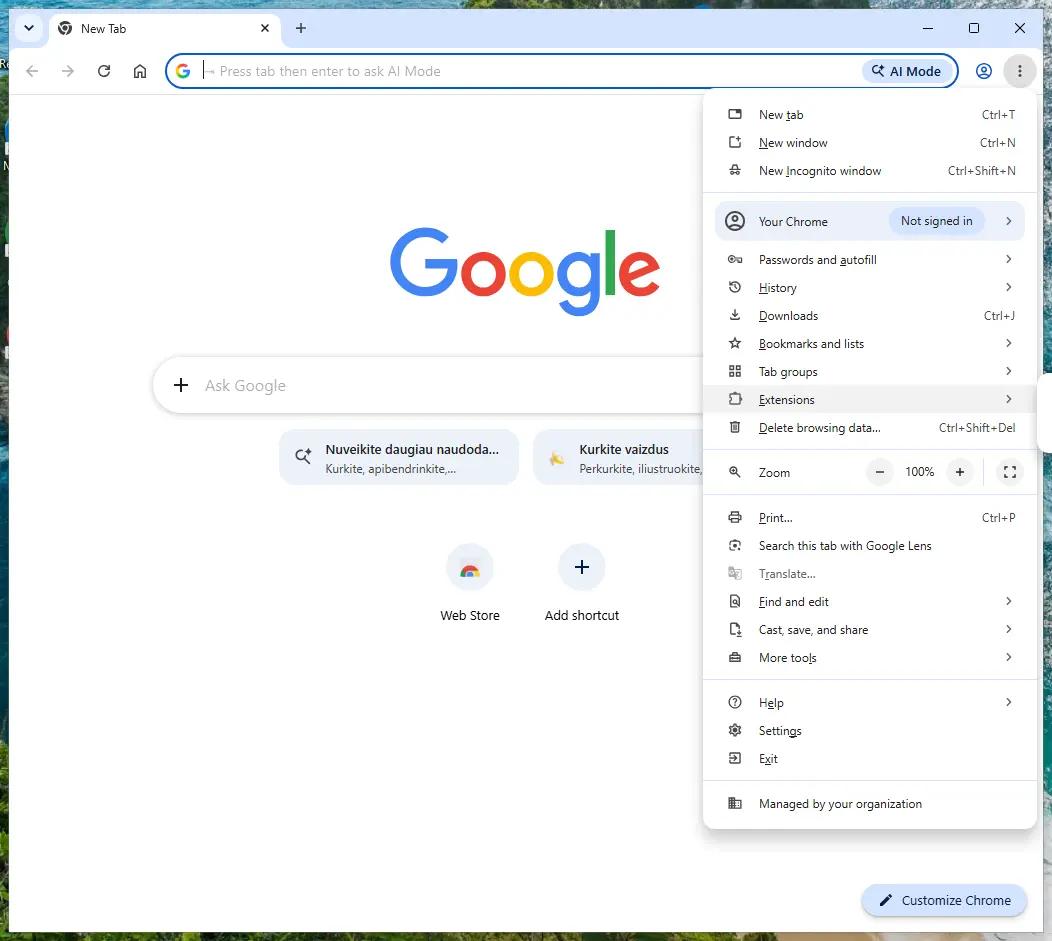
Chrome on Windows 11: More > Extensions > Manage extensions. Full procedure with screenshots: Remove a browser extension
Step 2: Reset the browser if the redirects continue
When
redirector.opera.comkeeps opening after the extensions are cleaned, reset the browser to its defaults. Chrome: Settings > Reset settings > Restore settings to their original defaults; Edge: Settings > Reset settings; Firefox: Help > More troubleshooting information > Refresh Firefox.A reset keeps bookmarks and saved passwords but clears site permissions, the start page and the search engine.
If every browser still redirects afterwards, the cause is a program in Windows 11 or Windows 10: check Settings > Apps > Installed apps for anything you did not install.
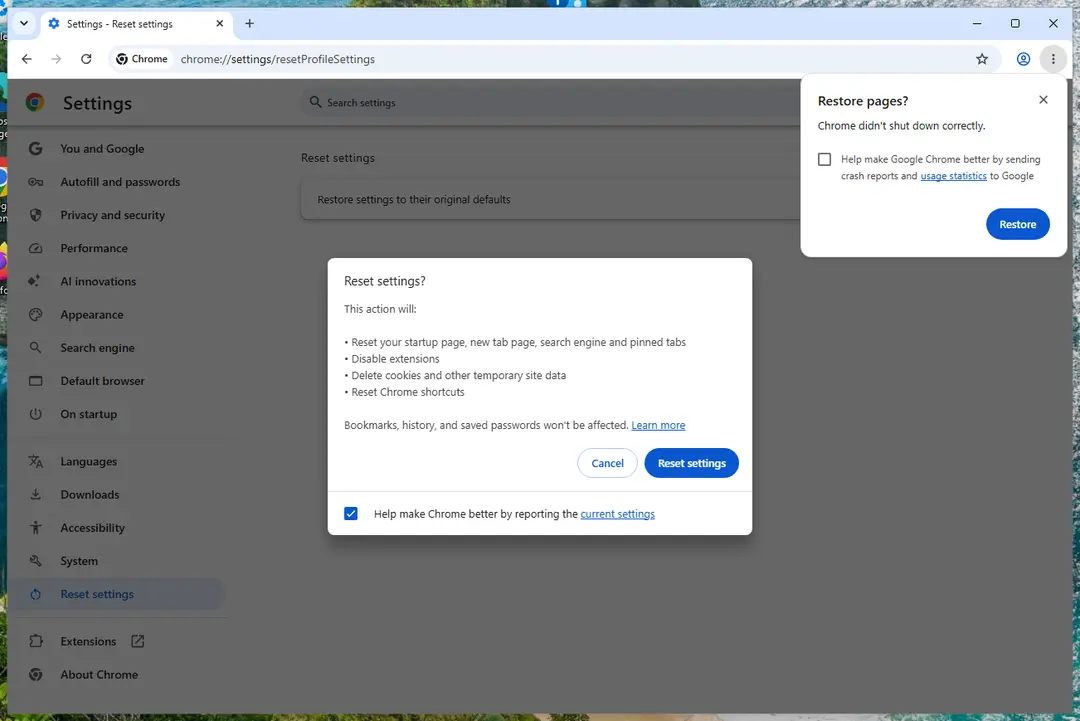
Chrome on Windows 11: Settings > Reset settings. Full procedure with screenshots: Reset a browser and fix a hijacked search engine
Step 3: Scan the PC if you downloaded anything from the ads
Most people who only saw the notifications can skip this step. If a notification or the page it opened made you download or run a file, delete the file and run a full scan, then a Microsoft Defender Offline scan.
In Windows 11 and Windows 10 open Windows Security > Virus & threat protection > Scan options, select Microsoft Defender Antivirus (offline scan) and click Scan now. The PC restarts and the scan takes about 15 minutes, so save your work first.

Windows 11: Windows Security > Virus & threat protection > Scan options. Full procedure with screenshots: Run a Microsoft Defender Offline scan
Instructions for each browser and system
The detailed steps for every browser and system this guide covers. Open the one you use.
Uninstall from Windows
If you are suffering from Opera redirects, you have to check if any unknown programs haven't been installed on your computer. The instructions below will show you how to achieve this goal. If you cannot find any programs, you have to Opera's extensions and lookup for the hijacker there. You can access the list of installed add-ons following this address: opera://extensions page. If you find unknown extensions, uninstall them ASAP. Then reset the browser: Open Opera and access About Opera page. Under the Path section select Profile and copy the address. Open File Explorer and paste the copied address. Click on Opera Software folder. Here you will find the Opera Stable folder. Delete it. Close the browser.
Uninstall from Windows 10/8:
- Type Control Panel into the Windows search box and open the result.
- Under Programs, select Uninstall a program.
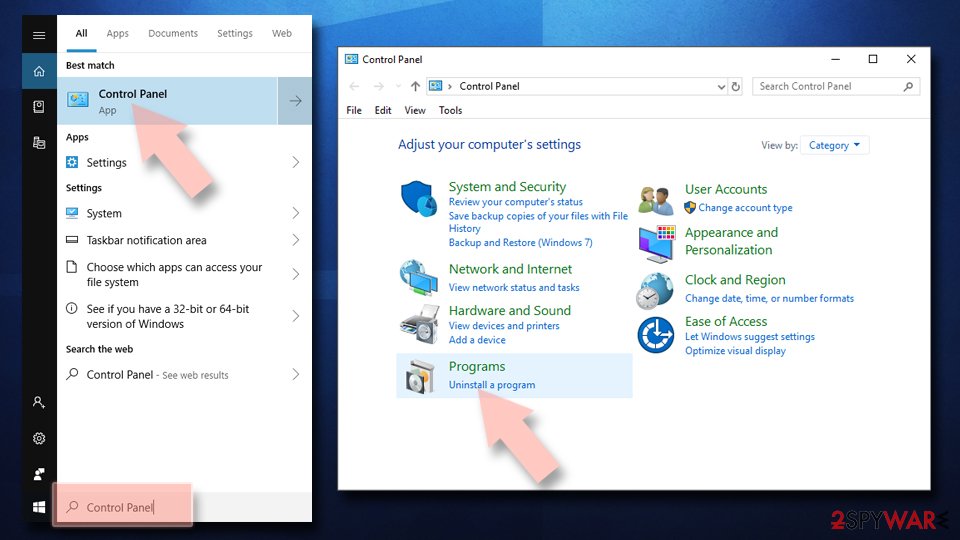
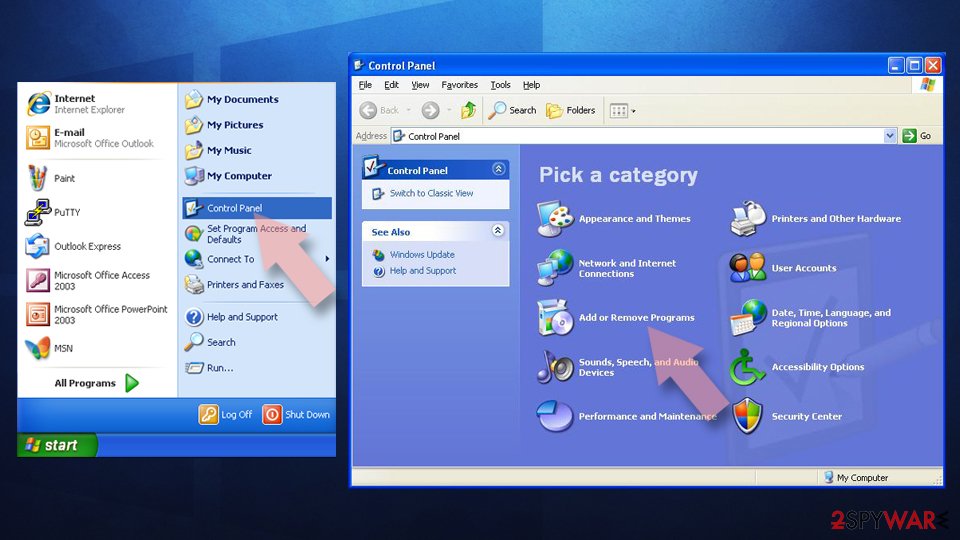
Uninstall from Windows 7/XP:
- Click on Windows Start > Control Panel (Windows XP users should click on Add/Remove Programs).
- In Control Panel, select Programs > Uninstall a program.
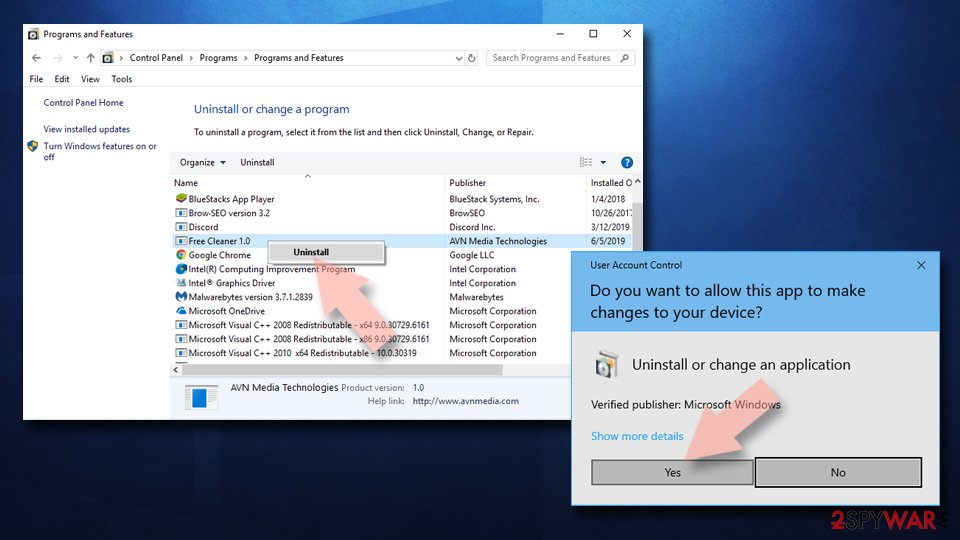
Remove the unwanted program:
- In the Programs and Features window, look for any recently installed suspicious entries, select them, and click Uninstall.
- If User Account Control appears, click Yes to confirm, then complete the removal.
Delete from macOS
First of all, you have to follow the instructions below to get rid of suspicious applications that may have been installed on your Mac silently. Then, check the list of Opera's extensions and uninstall unknown add-ons, extensions, toolbars, or similar entries. When all potentially dangerous entries are wiped out, you have to clean install Oper. Before that, we recommend backing up all bookmarks and other necessary information because it would be lost. Uninstall Opera as an ordinary application from your Mac. Then delete Opera profile data. Go to the official Opera's website and download the latest version of the browser. Follow the installation guidelines.
Remove the unwanted application:
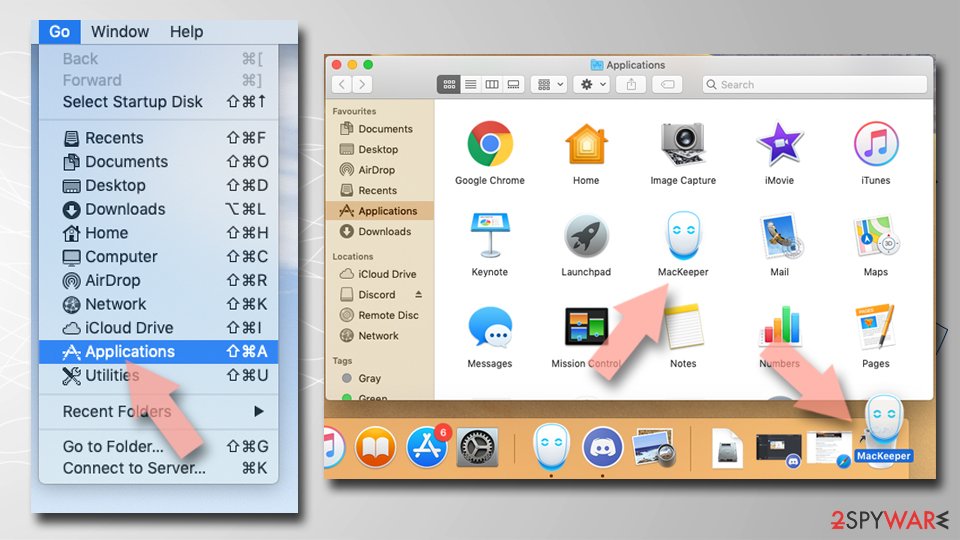
- From the menu bar, select Go > Applications.
- In the Applications folder, look for any suspicious entries, then drag them to Trash (or right-click and pick Move to Trash).
Delete leftover files and folders:
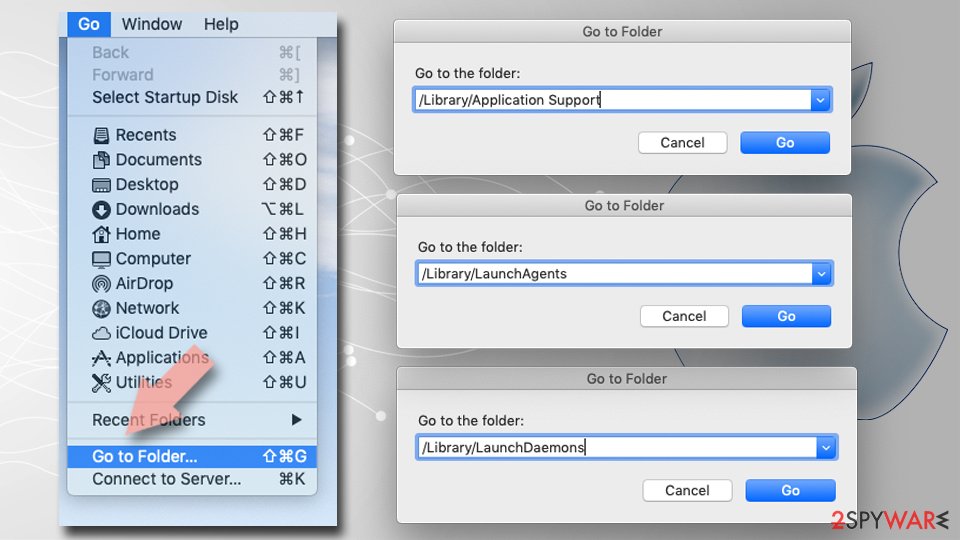
- Select Go > Go to Folder.
- Enter /Library/Application Support and remove any suspicious folders related to the unwanted program.
- Repeat the same check in the /Library/LaunchAgents and /Library/LaunchDaemons folders, deleting any suspicious entries.
- Finally, empty the Trash to permanently remove the leftovers.
Protect your privacy - employ a VPN
There are several ways how to make your online time more private - you can access an incognito tab.
However, there is no secret that even in this mode, you are tracked for advertising purposes. There is a way to add an extra layer of protection and create a completely anonymous web browsing practice with the help of VPN. This software reroutes traffic through different servers, thus leaving your IP address and geolocation in disguise.
Besides, it is based on a strict no-log policy, meaning that no data will be recorded, leaked, and available for both first and third parties. The combination of a secure web browser and VPN will let you browse the Internet without a feeling of being spied or targeted by criminals.
No backups? No problem. Use a data recovery tool
If you wonder how data loss can occur, you should not look any further for answers - human errors, malware attacks, hardware failures, power cuts, natural disasters, or even simple negligence.
In some cases, lost files are extremely important, and many straight out panic when such an unfortunate course of events happen. Due to this, you should always ensure that you prepare proper data backups on a regular basis.
If you were caught by surprise and did not have any backups to restore your files from, not everything is lost. is one of the leading file recovery solutions you can find on the market - it is likely to restore even lost emails or data located on an external device.
From our report of Jun 2019 · not reviewed since
Eliminate Opera redirect virus
As you already know, redirects are initiated by a potentially unwanted program, usually a browser hijacker, such as Opera virus.
Therefore, in order to stop this activity, you have to find and remove the source of the problem - PUP. For that, you have two options - manual and automatic elimination.
In order to remove Opera redirect virus manually, you have to investigate the system attentively. You have to find unknown programs installed on your computer and check the list of Opera extensions.
However, some hijackers do not contain any files. It means that you will not be able to find and delete the PUP manually. For this reason, you will have to opt for an automatic Opera redirect virus removal option. Bear in mind that you have to run a full system scan with a professional and up-to-date anti-malware or anti-spyware.
If you cannot find any programs, you have to Opera's extensions and lookup for the hijacker there. You can access the list of installed add-ons following this address: opera://extensions page.
If you find unknown extensions, uninstall them ASAP. Then reset the browser:
When all potentially dangerous entries are wiped out, you have to clean install Oper.
- Open Opera and access About Opera page.
- Under the Path section select Profile and copy the address.
- Open File Explorer and paste the copied address.
- Click on Opera Software folder. Here you will find the Opera Stable folder. Delete it.
- Close the browser.
- Uninstall Opera as an ordinary application from your Mac.
- Then delete Opera profile data.
- Go to the official Opera's website and download the latest version of the browser.
- Follow the installation guidelines.
Questions about Opera redirect virus
What is Opera redirect virus?
Opera redirect virus is a set of potentially unwanted programs (PUPs) that hijack the Opera web browser. Upon infection, it changes your browser homepage and default search engine to redirect you to affiliate sites.
Affected users report being redirected to travel, music, gaming, and shopping websites. Recently, users complained about redirects to redirector.opera.com and its subdomains. The virus can range from simple browser hijackers to full adware that displays constant pop-ups and interferes with normal browsing.
How does Opera redirect virus get on my computer?
Opera redirect virus typically spreads through software bundling, browser vulnerabilities, and deceptive websites. PUPs usually infiltrate devices through bundled installers where extra software is pre-selected for installation.
Users who install questionable applications or use Quick installation settings unknowingly accept the bundle. Deceptive websites and fake update prompts also distribute the malware. Once installed, the hijacker modifies browser settings without user permission.
What are the signs of Opera redirect virus infection?
Your Opera browser homepage changes to an unfamiliar website. Your default search engine switches without permission. New tabs open to sponsored sites.
You see increased amounts of pop-ups, banners, deals, and offers during browsing. Unknown browser extensions or add-ons appear in your extension list. Sponsored links appear in search results.
These disturbances may continue even when Opera is not running. Redirects happen when clicking links or visiting random websites, directing you to affiliate sites instead.
What damage can Opera redirect virus cause?
The hijacker displays intrusive advertisements and redirects to potentially dangerous websites. Some PUPs redirect users to tech support scams or phishing sites designed to steal personal information. Malicious JavaScript code on redirected sites may exploit software vulnerabilities to inject additional malware.
Trojans or other infections may be downloaded during redirects. Your browsing experience is severely degraded by constant ads and redirects. System performance may slow due to the resource-intensive ad generation.
Does Opera redirect virus affect other browsers?
Yes. While called "Opera redirect virus," similar hijackers target Google Chrome, Mozilla Firefox, Internet Explorer, Microsoft Edge, and Safari. Opera is not immune to hijackers; it is simply one target among many.
Chrome, Firefox, and Edge hijackers use similar distribution methods and cause comparable damage. If you use multiple browsers, check all of them for unwanted changes. Hijackers typically install system-wide changes that affect all browsers simultaneously.
How do I remove Opera redirect virus?
Uninstall suspicious programs from Control Panel's Programs and Features list. Look for unfamiliar applications installed recently. Open Opera and check opera://extensions to find and remove unknown add-ons.
Reset Opera settings to defaults: Settings > Preferences > Advanced > Network and uncheck "Enable automatic redirection." Use antivirus software to scan your system and remove remaining threats.
Clear browsing data, cache, and cookies. If manual removal fails, use professional anti-malware tools to remove the PUP completely.
Why does Opera keep getting hijacked?
Opera is a popular but smaller market share browser compared to Chrome and Firefox. Cybercriminals target Opera because hijackers can slip into the system through less-monitored software bundles. Users installing freeware from third-party sites may not notice Opera getting hijacked.
Some PUPs install without visible files—you will not find them in file systems, only in browser settings. The persistence comes from modifications to browser settings and system registry that survive even uninstalls of the original installer.
Can I prevent Opera redirect virus in the future?
Download programs from official websites only, not third-party sites or file-sharing platforms. Always choose Advanced or Custom installation settings instead of Quick or Recommended.
Carefully review each installation step and uncheck pre-selected additional apps. Never ignore warnings from security software about bundled programs.
Keep Windows and all software fully updated with latest security patches. Use reliable antivirus software and scan regularly. When updates are offered through pop-ups, verify they are legitimate before installing.
Will Fortect remove Opera redirect virus?
Fortect scans Windows for malware and unwanted programs and repairs the system files and settings they change, and its free scan shows what it finds on your PC before you decide anything.
For Opera redirect virus, follow the plan above as well: the browser steps take back permissions and settings that no scanner treats as a threat, and uninstalling the program that brought it removes the source.
Run Microsoft Defender's full scan and, if anything was found, its offline scan as a second opinion. If the symptoms are gone after the plan and both scans are clean, there is nothing more to do.
Sources
- Wikipedia: Opera (web browser) (read October 5, 2026)
- Opera: Adware(Malware) attack... (read October 5, 2026)
- PhishTank: What is phishing? (read October 5, 2026)
- ITNEXT: How Companies Are Hacked via Malicious Javascript Code? (read October 5, 2026)
- UsunWirusa: UsunWirusa (read October 5, 2026)
- Search Security: Adobe Flash Player (read October 5, 2026)