Kb-ribaki.org ads: what it is and how to stop the pop-ups
Kb-ribaki.org is a website address that in 2016 was tied to pop-ups and new tabs opening zodiac-game.info sponsor pages with casino, weight-loss and easy-money offers. In our October 2026 test it only forwarded to a news page; if the pop-ups still open on your PC, a program or extension is doing it, and the steps below remove it.
Facts checked October 6, 2026. Removal steps tested on Windows 11 (26H2) and checked against Microsoft's and the browser makers' current documentation.
Automatic
Get a free scan and check if your PC is infected.
Fortect finds malware, unwanted programs and the Windows damage they leave behind, and repairs it in one pass.
A scan of the PC is a quick way to confirm that nothing installed is behind the kb-ribaki.org redirects.
Do it yourself · free Remove Kb-ribaki.org ads yourself 1 step, about 5 minutes, no software needed.
Kb-ribaki.org ads: summary
| Type | Website tied to pop-up and new-tab sponsor ads; not a program; a program or extension on the PC is the risk |
|---|---|
| Risk | Medium: the address installs nothing by itself, but the 2016 pop-ups led to casino, weight-loss and easy-money offers that ask for personal and card details |
| Symptoms | Pop-ups and new tabs opening on their own, zodiac-game.info pages with Russian-language sponsor ads, ads after every click |
| How to get rid of it | Uninstall programs added the day the ads began, remove unknown extensions, clear site data and reset the browser, then scan (steps below) |
| Our check (6 October 2026) | Forwarded to a news page on simcast.com; no sponsor page, notification request or pop-up on this one visit |
| Running since | Domain registered 11 April 2016 (NameCheap); record last changed 21 September 2026 |
| Removal | Scan the PC with security software to find and remove the malware and anything installed with it. Fortect scans Windows for malware and repairs the system files and settings it damaged. Remove it nowTo use the full-featured product, you have to purchase a license for Fortect. The scan is free. |
Show 12 more facts
| First reported by us | 26 August 2016 |
|---|---|
| Evidence | Our 2016 screenshot, our own test of the site, the registry's record |
| Detection | Microsoft Defender: nothing is installed by the address, so there is no detection name; Defender only reacts to files you download after it |
| Installed on the PC | Nothing by visiting; the program the 2016 report blamed was never named |
| Name | Kb-ribaki.org |
| Domains | kb-ribaki.org |
| Ads shown as | Redirects through ad pages |
| Browsers | Chrome, Edge and Firefox |
| First seen | 26 August 2016 |
| Distribution | Typically ad scripts on free streaming, file-hosting and adult sites, typo domains and hacked websites |
| Damage | Redirects to scam pages, fake updates and tech support scams |
| Facts checked | 6 October 2026 |
Facts checked on 6 October 2026 against our own test of the site in desktop Chromium from Europe and the registry's RDAP record; the zodiac-game.info behaviour and the program behind it are from our 2016 report and were not re-tested.
What Kb-ribaki.org is and how it worked
Kb-ribaki.org is a website address, not a program. In 2016 it was linked to pop-ups and new tabs full of sponsor ads; the address itself did not install anything, and whatever opened it came from a program or a link on the PC or on another page.
- 1
The ads open by themselves
People did not type the address. The 2016 report says the ads showed up in new tabs or pop-up windows, at random times, and that after the infection the browser could start one after every click.
- 2
The pages are sponsor pages
According to the report, the pop-ups sent the browser to pages on
zodiac-game.info, which listed article shortcuts promising a better sex life, weight loss, cures and fast money. Our 2016 picture of the page (see the timeline) shows the page in Russian, with slot-machine and "Play" ads. - 3
The offers lead on
The report says a click could go on to more pages selling weight-loss pills, online casinos and courses on earning money, and that some of them asked for personal details, a card number or an e-mail address.
- 4
A program on the PC was blamed
The report blamed a potentially unwanted program (PUP) installed with free software, without the user noticing. It never named that program, and we have not identified one either; the steps for finding what you added are in the section on what to do after the ads.
- Address
- kb-ribaki.org (written Kb-ribaki.org in our 2016 report)
- What it was linked to
- Pop-up and new-tab ads that sent visitors to zodiac-game.info sponsor pages, per the 2016 report
- Domain registered
- 11 April 2016, through NameCheap, Inc.; the registry shows it paid until 11 April 2027
- Record last changed
- 21 September 2026, about two weeks before our test
- Where it points now
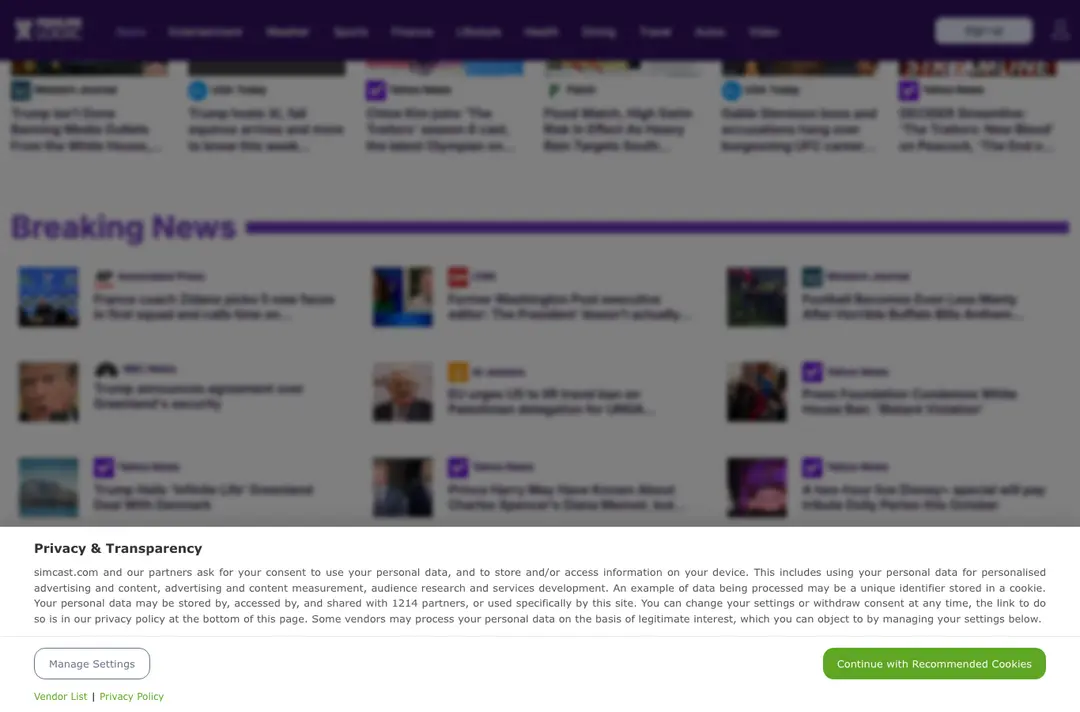
- A news page on simcast.com, titled HeadlineLogic News Portal (see our test)
The registry records when the name was first registered (April 2016, four months before our 2016 report) and when the record was last touched (September 2026). It does not say who held or holds the name in between, so we cannot say whether the owner is the same as in 2016.
Is Kb-ribaki.org ads dangerous?
Our test on 6 October 2026
We opened https://kb-ribaki.org/ in a clean desktop Chromium browser from Lithuania and recorded the pages, addresses and requests it went through. This was one visit, and a quiet result does not clear the address.
Kb-ribaki.org · desktop Chromium · Europe · 6 October 2026
- RedirectThe address answered with status 200 and our browser ended on
simcast.com, a page titled "HeadlineLogic News Portal". The address we typed is not the one we ended on, so a visitor does not stay on kb-ribaki.org. - What the page wasA news page: menu items for News, Entertainment, Weather, Sports, Finance and more, and headlines credited to outlets. Over it sat a "Privacy & Transparency" box that says the site and 1214 partners ask for consent to use personal data for personalised advertising, with a green button, Continue with Recommended Cookies.
- Requests it madeAbout twenty hosts, among them
g.ezoic.net,ezoicanalytics.com,router.parklogic.com,passback.parklogic.com,cmp.gatekeeperconsent.comand Google's tag and analytics hosts. The names read like advertising, consent and traffic-routing services; we did not look into who runs them or what they served. - The 2016 zodiac-game.info pagesNot shown on this one visit. We saw no sponsor article page and no casino or weight-loss offer.
- Notification requestNone on this one visit. No service worker was registered.
- Pop-ups and new tabsNone on this one visit.
- Ad networksOur detector flagged none, although the request list above shows advertising-style hosts, so treat this line as "not detected", not as "none".
- Not testedOther countries, phones, a visit that arrives from an ad or another page, a second visit, or a visitor who clicks. Adware pages often show their offer only to some of these, and a page that sat quiet for us can behave differently for you.
Do not trust it On this one visit the address only forwarded to a news page and showed no pop-ups. That says nothing about 2016 and nothing about the next visit: an address that forwards today can be pointed at ads tomorrow.
What changed since our 2016 report
April 2016
The domain is registered
The registry shows kb-ribaki.org first registered on 11 April 2016. That is four months before our report.
August 2016
Our report: pop-ups that opened sponsor pages
The report said the pop-ups and new tabs sent visitors to
zodiac-game.info. Our picture shows three Chrome windows stacked on one another, each onzodiac-game.info/pager.htmlwith the tab title "Website sponsors" ("Страница спонсоров" in the Russian one), and a translate bar offering to translate the page from Russian.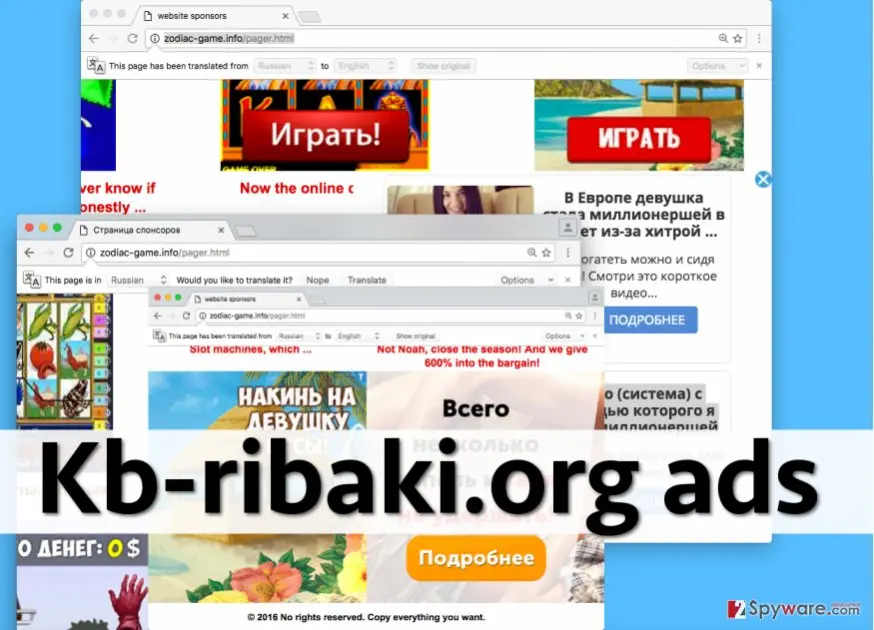
The Kb-ribaki.org pop-ups as shown in our 2016 report: the same zodiac-game.info sponsor page in three windows, Russian-language ads, red Play buttons and a footer reading "2016 No rights reserved. Copy everything you want." This picture is the only record we have of them. August 2016
The line at the bottom
The old report pointed to a short line at the foot of the page, "no rights reserved". The picture shows it is the page footer, "© 2016 No rights reserved. Copy everything you want." It tells you the page was not made by a known publisher; it is a detail, not proof of what a page does.
21 September 2026
The registration record is changed
The registry's record for the name was last changed on this date. It does not say what changed.
6 October 2026
Our new check: a news page
The address led to a news page on simcast.com with a consent box and advertising-style requests. There was no sponsor page, no notification request and no pop-up on this one visit.
What the sponsor pages promised and where it led
The pages worked on curiosity: article titles that sound too good to be true, which is the reason to leave rather than read.
| What the sponsor page promised (2016 report) | Where the report says a click could go |
|---|---|
| Articles about a better sex life | Scam pages, per the report; we did not follow any |
| Weight loss and cures for diseases | Pages selling suspicious weight-loss pills |
| Earning millions of dollars | Sites that promise to teach you how to earn money, and ask for personal or card details |
| Slot-machine and "Play" banners (our picture) | Online casinos |
The titles and slogans under these articles sound unrealistic, and the report's advice stands: do not follow them. Some of the pages it describes ask for your name, card number or e-mail address, and such sites are known to pass visitors on to even more dangerous pages.
The real risks, from most to least serious
Opening the address is not what hurts. The risk is what the ads lead to, and the program that may be opening them.
- High
Giving card details or a personal e-mail to a sponsor offer
The 2016 report said some of the offers asked for personal details, a card number or an e-mail address. Anything typed into such a page should be treated as handed over.
- Medium
A program that keeps opening the ads
The report said that once the infection was in place the browser could open an ad after every click, which can make normal browsing hard. If that happens to you today, a program or a browser extension is doing it; the address cannot.
- Medium
More dangerous pages after a click
The report said such sites can pass you on to still more dangerous pages. Treat any extra program or page that appeared after a click as part of the same incident.
- Low
The address today
On our one visit it forwarded to a news page and showed no pop-ups. The remaining risk is that the owner points it at something else; the address stays the same.
How to remove Kb-ribaki.org ads
How to stop the Kb-ribaki.org redirects
Work in this order and test a few links after each step, so you know which one was the cause.
Which browser shows the ads?
Remove extensions you do not recognise
Paste
chrome://extensionsinto the address bar and click Remove on anything you did not install yourself, especially ad blockers, "search" or PDF helpers added recently.Full procedure with screenshots: Remove a browser extension
Clear the site data
Press Ctrl + Shift + Delete, choose All time, tick Browsing history, Cookies and other site data and Cached images and files, and click Delete data. Cookies track what you do online and the data is often shared with advertisers, so clearing it after removing the cause is part of the clean-up.
Reset Chrome
Open Settings > Reset settings > Restore settings to their original defaults and confirm with Reset settings. This resets the start page, search engine and pinned tabs and turns off extensions; bookmarks and saved passwords stay. To stop notifications after you close Chrome, also turn off Settings > System > Continue running background apps when Google Chrome is closed.
Full procedure with screenshots: Reset a browser and fix a hijacked search engine
Remove extensions you do not recognise
Paste
edge://extensionsinto the address bar and click Remove under anything you did not install yourself.Full procedure with screenshots: Remove a browser extension
Clear the site data
Open Settings > Privacy, search, and services > Delete browsing data > Choose what to clear, set All time, tick Cookies and other site data and Cached images and files, and click Clear now.
Reset Edge
Open Settings > Reset settings > Restore settings to their default values and confirm with Reset. Extensions are turned off and the start page goes back to default; favourites, history and saved passwords stay. To stop notifications after you close Edge, turn off Settings > System and performance > Continue running background extensions and apps when Microsoft Edge is closed.
Full procedure with screenshots: Reset a browser and fix a hijacked search engine
Remove add-ons you do not recognise
Paste
about:addonsinto the address bar, open Extensions, and choose Remove from the three-dot menu of anything you did not install yourself.Full procedure with screenshots: Remove a browser extension
Clear cookies and site data
Open Settings > Privacy & Security > Cookies and Site Data > Clear Data, tick both boxes and click Clear.
Refresh Firefox
Open the menu > Help > More troubleshooting information and click Refresh Firefox. Add-ons and custom settings are removed and the home page goes back to default; bookmarks, history and passwords stay.
Full procedure with screenshots: Reset a browser and fix a hijacked search engine
Take back the notification permission
Safari 18 and later on macOS: open Safari > Settings > Websites > Notifications, select any site you do not recognise and set it to Deny, or click Remove. Untick Allow websites to ask for permission to send notifications at the bottom so no site can ask again.
Remove extensions you do not recognise
In Safari > Settings > Extensions, select anything you did not install yourself and click Uninstall.
Clear the site data
In Safari > Settings > Privacy > Manage Website Data, remove the site's data, or use History > Clear History > all history. To empty the cache as well, turn on Show features for web developers in Settings > Advanced and choose Develop > Empty Caches.
Check the Mac for apps from the ads
Ads also target Mac users with fake players and "cleaners". In Finder > Applications, move anything unknown to the Bin. In System Settings > General > Login Items & Extensions, remove unknown items. Then use Go > Go to Folder to check
/Library/LaunchAgents,~/Library/LaunchAgents,/Library/LaunchDaemonsand/Library/Application Supportfor folders and files with the same unknown names, and empty the Bin.
Then, whichever browser you use
Step 1: Scan the PC if you downloaded anything from the ads
Most people who only saw the notifications can skip this step. If a notification or the page it opened made you download or run a file, delete the file and run a full scan, then a Microsoft Defender Offline scan.
In Windows 11 and Windows 10 open Windows Security > Virus & threat protection > Scan options, select Microsoft Defender Antivirus (offline scan) and click Scan now. The PC restarts and the scan takes about 15 minutes, so save your work first.
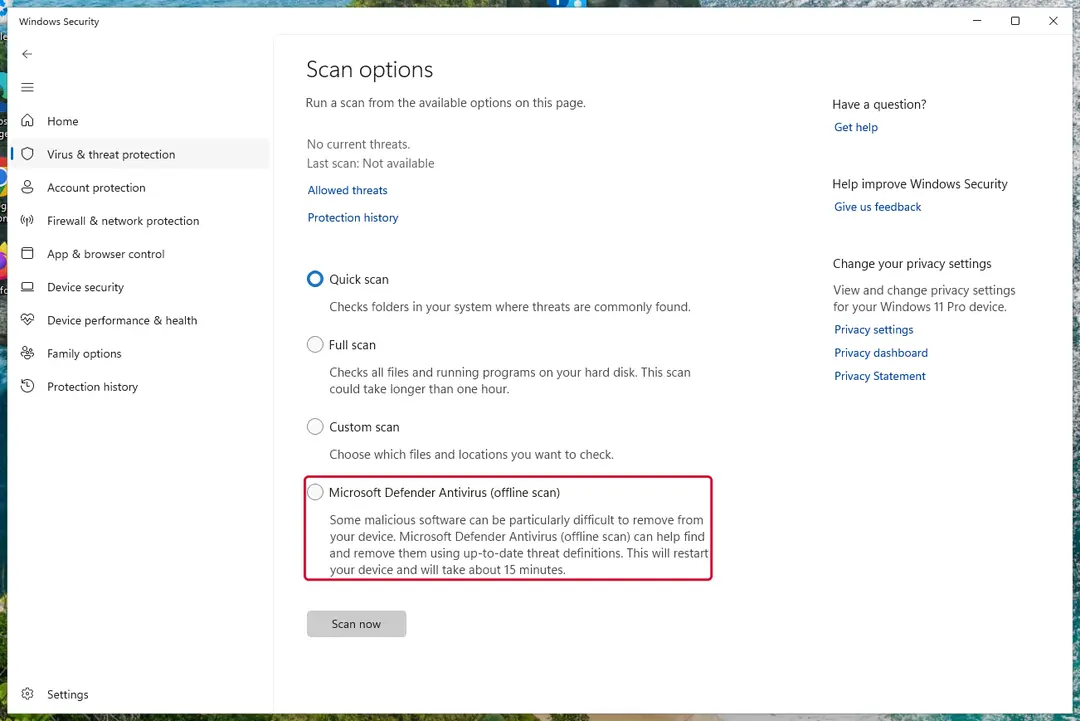
Windows 11: Windows Security > Virus & threat protection > Scan options. Full procedure with screenshots: Run a Microsoft Defender Offline scan
After removal: keep the ads from coming back
If the ads keep opening or you clicked an offer
If you only saw the page and closed it, nothing is installed. If the pop-ups keep coming on their own, something on the PC is opening them: find it and remove it.
- 1
Find what you added
Open Settings > Apps > Installed apps in Windows 11 (Apps & features in Windows 10), sort by install date and uninstall anything added the day the pop-ups began, then confirm if User Account Control asks. The old Windows steps (Control Panel, Uninstall a program) do the same on Windows 7 and 8. If you are not sure what belongs, skip the list and run the scan below instead (Uninstall a program or app in Windows On uGetFix).
- 2
Remove extensions you did not choose
In Chrome, open More > Extensions > Manage extensions and click Remove under anything you did not install (). The steps for each browser are in the tabs above.
- 3
Scan, then scan offline
Run a Microsoft Defender Full scan, then the Microsoft Defender Antivirus (offline scan) in Windows Security > Virus & threat protection > Scan options. The offline scan restarts the PC and runs before Windows loads, so persistent malware has a harder time hiding.
- 4
Reset the browser, then check what you typed
Use the reset step for your browser above. If you typed a password or card number on a page a pop-up opened, change that password now and tell your bank about the card.
On a Mac, moving an app to the Bin is not always enough, because adware leaves files for persistence; the Mac tab above lists the folders to check. If you are not sure what you are deleting, leave them alone and use a scan.
How to keep it from happening again
The 2016 report blamed free software that carries extra programs. These habits cut the chance and the damage.
Do
- When an installer offers Custom or Advanced setup, choose it: those settings let you see each component and untick the extras, which is where a bundled program is declined.
- Say no to any offer to change your home page or install an app you do not know.
- Download games, download managers, search tools and other free programs from the maker's own site, not from a page that wrapped them in an installer.
- Install browser extensions only from the extension store's own listing, and read the permissions before you approve.
- Keep Microsoft Defender SmartScreen on, or Chrome's Enhanced protection: both warn about known malicious pages and downloads.
- Keep a current backup of your files (File History or OneDrive), so an infection does not cost you your documents.
- On public networks, a VPN hides your IP address from the sites and ad networks you visit; it does not block ads or malware.
- Keep Microsoft Defender running and up to date.
Don't
- Click through an installer without reading its screens: unwanted programs only get in when nobody looks.
- Follow a sponsor page's shortcuts to "secrets", miracle cures or easy money.
- Give your e-mail address, phone number or card details to a prize, casino or survey page you reached through a redirect.
- Download software cracks or open torrent sites: they are common sources of unexpected redirects and malware.
Questions about Kb-ribaki.org ads
Is Kb-ribaki.org a virus?
No, the address is a website and not a virus. In our test on 6 October 2026 it forwarded to a news page on simcast.com and installed nothing.
What people mean is the pop-ups our 2016 report linked to it: new tabs and windows that opened zodiac-game.info sponsor pages, which the report blamed on an ad-supported program installed with free software. A page cannot infect your PC just by being open, but a program you installed earlier can keep opening ads.
If pop-ups keep coming, uninstall what you added the day they began, remove unknown extensions, reset the browser and run a Microsoft Defender full scan and offline scan, as the steps on this page show.
Is Kb-ribaki.org safe?
We do not recommend it. On 6 October 2026 the address sent us to a news page with a consent box and advertising-style requests, and we saw no pop-up, notification request or sponsor page on that one visit.
One quiet visit proves little: adware pages often show their offer only to some countries, devices or visitors who arrive from an ad. In 2016 the address was tied to sponsor pages with casino, weight-loss and get-rich offers.
If you land on it, close the tab, do not click anything on a sponsor page, and do not type personal or card details.
What is zodiac-game.info?
Zodiac-game.info is the address the pop-ups opened in our 2016 report. Our picture shows three Chrome windows on zodiac-game.info/pager.html with the tab title Website sponsors, Russian-language ads, slot-machine pictures, red Play buttons and the footer line 2016 No rights reserved.
The report said the page listed article shortcuts that promised a better sex life, weight loss, cures and quick money, and that clicking them could lead on to scam sites. We did not test zodiac-game.info in 2026, so we cannot say what it shows now.
Why do Kb-ribaki.org pop-ups keep appearing?
Because something on your side is opening them. In 2016 the cause was described as an ad-supported program that arrived with free software, and the ads appeared at random times and could return after every click.
The address kb-ribaki.org cannot open windows on a PC by itself once you close it, so a recurring pop-up points to a program, a browser extension or a changed browser setting. Open Settings, Apps, Installed apps, sort by date and uninstall what you added when the pop-ups began, then check your extensions and reset the browser.
How do I remove Kb-ribaki.org pop-ups?
There is no program called Kb-ribaki.org to uninstall, so removal means finding what opens the ads. In Windows 11 open Settings, Apps, Installed apps, sort by install date and uninstall programs you added on the day the pop-ups began.
Then open your browser's extension list and remove anything you did not choose, clear cookies and cached files for all time, and reset the browser if the start page or search keeps changing. Finish with a Microsoft Defender full scan and the offline scan. The tabs on this page give the steps for Chrome, Edge, Firefox and Safari.
Does Kb-ribaki.org send notifications?
We saw no notification request on 6 October 2026, and no service worker was registered. The 2016 report described pop-ups and new tabs, not notifications, so notifications are not part of its known behaviour. If you ever clicked Allow on a page like this, the permission stays in your browser until you remove it.
In Chrome open chrome://settings/content/notifications, in Edge edge://settings/content/notifications, and remove or block any address you do not recognise. In Firefox use Settings, Privacy & Security, Permissions, Notifications, Settings. A quiet test on one visit does not rule out that a different visit or country is asked for permission.
What should I do if I clicked an offer or typed my card details?
Act on what you entered. If you typed a card number, tell your bank about the card now and ask about blocking or replacing it. If you typed a password, change it on every site where you use it, and turn on two-factor authentication where it is offered.
If you downloaded or installed something from the page, uninstall it from Settings, Apps, Installed apps, remove unknown browser extensions and run a Microsoft Defender full scan and the offline scan. Do not enter more details to cancel an offer: report it at ReportFraud.ftc.gov if you are in the United States.
How did the pop-ups get on my computer?
The 2016 report said they came with a potentially unwanted program that spreads alongside free software such as games, download managers and search tools, and installs without the user noticing. It said many people skip through the installer and end up with extras they never chose.
The way to avoid this is to pick Custom or Advanced setup, read each screen, and refuse offers to change your home page or add apps you do not know. We could not identify the program behind the 2016 pop-ups, so we cannot name it.
Where does Kb-ribaki.org go now?
On 6 October 2026 it ended on simcast.com, a news page titled HeadlineLogic News Portal with a consent box that mentions 1214 partners and requests to advertising and consent services. The registry shows the name registered on 11 April 2016 through NameCheap and last changed on 21 September 2026.
We saw no sponsor page, pop-up or notification request on that one visit, but we tested one browser from one country, and we do not know what the owner will point it at next.
Will Fortect remove Kb-ribaki.org?
Fortect scans Windows for malware and unwanted programs and repairs the system files and settings they change, and its free scan shows what it finds on your PC before you decide anything.
For Kb-ribaki.org, follow the plan above as well: the browser steps take back permissions and settings that no scanner treats as a threat, and uninstalling the program that brought it removes the source.
Run Microsoft Defender's full scan and, if anything was found, its offline scan as a second opinion. If the symptoms are gone after the plan and both scans are clean, there is nothing more to do.
Sources
- Public Interest Registry RDAP: kb-ribaki.org registration record (read October 6, 2026)
- Chrome Web Store Help: Install and manage extensions (no longer online) (read October 6, 2026)
- Microsoft Support: Virus and threat protection in the Windows Security app (read October 6, 2026)
- FTC: Malware: how to protect against, detect and remove it (read October 6, 2026)