
Sd-steam.info: what it is and how to remove the redirects and ads
Sd-steam.info is a website address that, in our 2016 guide, sent browsers on to a page of Russian-language ads; in our October 2026 test it only showed a parked for-sale page. If redirects or ads like it still reach you, something on your PC or in your browser is sending them, and the steps below remove it.
Facts checked October 6, 2026. Removal steps tested on Windows 11 (26H2) and checked against Microsoft's and the browser makers' current documentation.
Automatic
Get a free scan and check if your PC is infected.
Fortect finds malware, unwanted programs and the Windows damage they leave behind, and repairs it in one pass.
A scan of the PC is a quick way to confirm that nothing installed is behind the sd-steam.info redirects.
Do it yourself · free Remove Sd-steam.info virus yourself 1 step, about 5 minutes, no software needed.
Sd-steam.info virus: summary
| Type | Website address that redirected to ad pages in 2016; not a program; the browser add-on or program that sent you there is the risk |
|---|---|
| Risk | Medium: the address itself is parked today, but the 2016 guide called the program behind it adware that pushes ads, extra plug-ins and toolbars |
| Symptoms | Redirects to zodiac-game.info or other ad pages, notifications and ads about snoring, fitness or casino games, new toolbars, a slower browser |
| How to get rid of it | Block the notifications, remove unknown extensions and programs, scan, reset the browser (steps below) |
| Our check (6 October 2026) | Parked for-sale page; no redirect, notification request or pop-up on this one visit |
| Running since | Current registration from 26 October 2025 (Sav.com, LLC); the ads in our 2016 guide came before it |
| Removal | Scan the PC with security software to find and remove the malware and anything installed with it. Fortect scans Windows for malware and repairs the system files and settings it damaged. Remove it nowTo use the full-featured product, you have to purchase a license for Fortect. The scan is free. |
Show 12 more facts
| First reported by us | 30 September 2016 |
|---|---|
| Evidence | Our 2016 screenshot, our own test of the site, the registry's record |
| Detection | Microsoft Defender: nothing is installed by the site, so there is no detection name; Defender only reacts to files you download after it |
| Installed on the PC | Nothing by visiting; programs or add-ons only if you allowed them earlier |
| Name | Sd-steam.info |
| Domains | sd-steam.info |
| Ads shown as | Redirects through ad pages |
| Browsers | Chrome, Edge and Firefox |
| First seen | 30 September 2016 |
| Distribution | Typically ad scripts on free streaming, file-hosting and adult sites, typo domains and hacked websites |
| Damage | Redirects to scam pages, fake updates and tech support scams |
| Facts checked | 6 October 2026 |
Facts checked on 6 October 2026 against our own test of the site in desktop Chromium from Europe and the registry's RDAP record; the description of the redirects, ads and the program behind them is from our 2016 guide and was not re-tested.
What Sd-steam.info is and how it works
Sd-steam.info is a website address, not a program. Our old 2016 guide said it sent browsers to a page of low-quality ads and called it adware; the address is the trail, and what matters is what sits on your PC or in your browser.
- 1
A link or a hijacked browser sends you
The old guide says people did not choose the address: it appeared as redirects, and as notifications and ads that pushed the browser on to another site. Nobody types a name like this, so something else sent you.
- 2
You land on an ad page
The picture in our 2016 guide shows the end of the chain: a page on
zodiac-game.info(the old text wrote it with a dot,zodiac.game.info; the address bar in the picture has a hyphen) with a grid of Russian-language ad tiles. - 3
A click opens the redirect
The old guide says clicking one of the tiles triggers the redirect to an affiliate website. The ads promised results for freckles, snoring and fitness, and the same page carried casino and game banners.
- 4
The bundle may come with it
The old guide says the program behind it could add other applications, browser plug-ins and toolbars. We could not test that program in 2026, so this is the 2016 report's claim, not ours.
- Address
- sd-steam.info (Sd-steam.info in our 2016 guide)
- Where it sent people (2016)
- A Russian-language ad page at zodiac-game.info, shown in the old picture
- Current registration
- 26 October 2025 through Sav.com, LLC; paid until 26 October 2026
- Record last changed
- 11 August 2026
- Where it points now
- A parked page that says the name may be for sale (see our test)
Our guide is from September 2016 and the registry says the current registration began on 26 October 2025, about nine years later. We cannot say who held the name in between, or whether it lapsed; the ads described below belong to the earlier period.
Is Sd-steam.info virus dangerous?
Our test on 6 October 2026
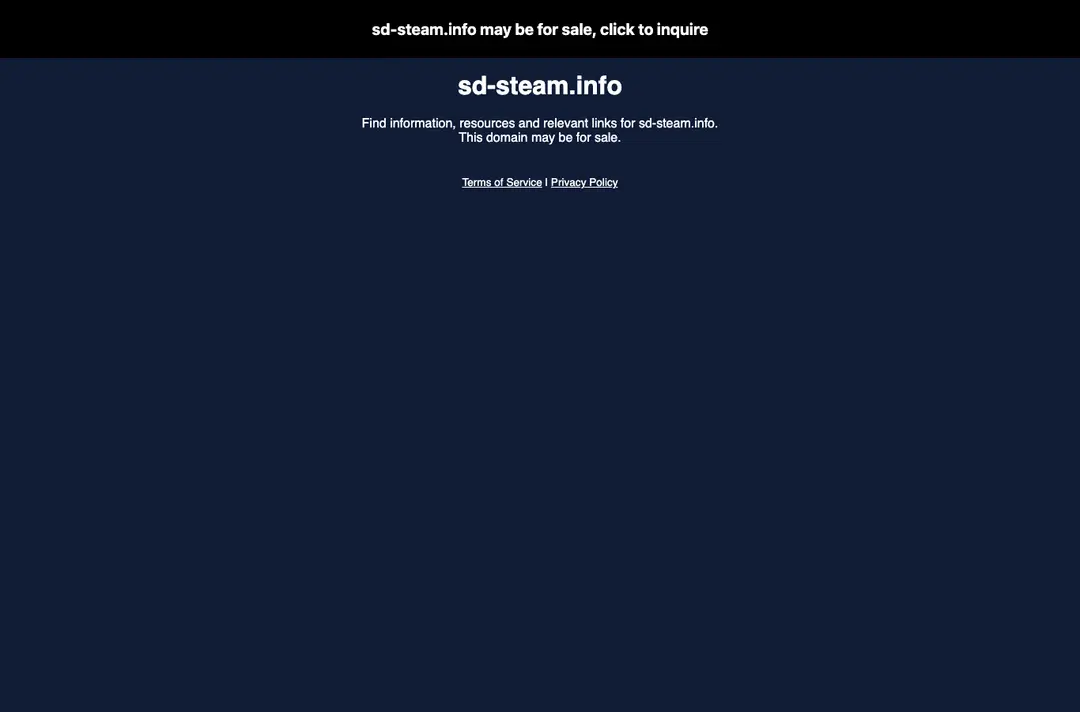
We opened https://sd-steam.info/ in a clean desktop Chromium browser from Lithuania and recorded the pages and addresses it went through. This was one visit, and a quiet result does not clear the address.
Sd-steam.info · desktop Chromium · Europe · 6 October 2026
- What it showedStatus 200 and a dark page headed
sd-steam.infowith the line "This domain may be for sale" and a bar saying the name may be for sale. The page text came from a domain-parking service (assets.abovedomains.comwas the only other host it loaded). - RedirectNone on this one visit: the address stayed
https://sd-steam.info/and no other domain opened. - Ad tiles from 2016Not shown on this one visit. We saw no grid of ad articles and no link to
zodiac-game.info. - Notification requestNone on this one visit. No service worker was registered.
- Pop-ups and new tabsNone on this one visit.
- Ad networksNone detected in the requests we recorded.
- Not testedOther countries, phones, a visit that arrives from an ad or another page, a second visit, a click on the sale link, or a longer wait. Adware pages often behave differently for some of these, and a page that was quiet for us can behave differently for you.
Parked on this visit, still avoid it On this one visit the address was a parked for-sale page with no redirect, notification request or pop-up. That says nothing about 2016, and a parked name can be pointed somewhere else tomorrow. If you still get redirects, the source is on your PC or in your browser, not only this address.
What changed since our 2016 guide
September 2016
Our guide: redirects to an ad page
The guide described redirects, notifications and ads that ended on a page of low-quality promoted articles, mostly gossip in its words, on the
zodiac-game.infosite. The picture shows an ad grid with Russian text, and a page footer that says rights are not protected and the text may be copied freely (© 2016).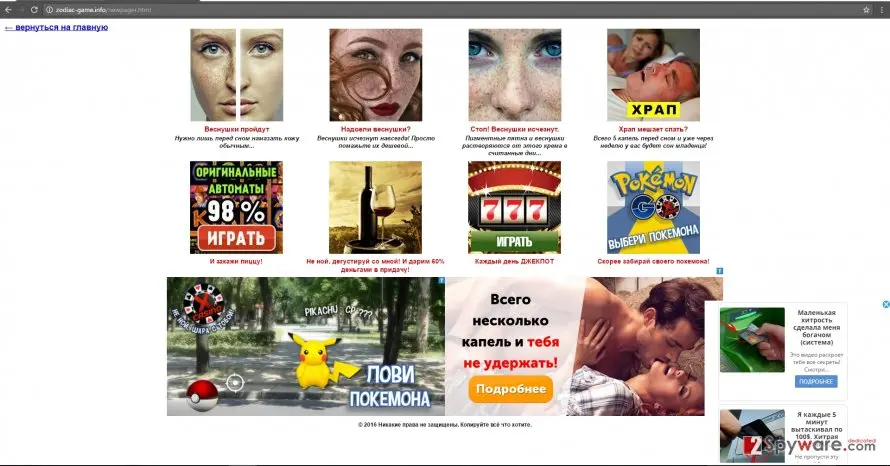
The page from our 2016 guide, at zodiac-game.info (hyphen, not the dot the old text used). The tiles promise a freckle cream, a snoring remedy, casino games, discount wine and Pokemon Go; the lower banner is an adult-themed ad. 2016
What the ads promised
The old guide says the tiles caught attention with everyday worries: snoring, fitness and sex life. Some people are unmoved by such notifications; others click out of curiosity, and the click starts the redirect. We describe the topics, not the ads' claims, and we have not checked any of the products.
2016
The Russian language
The old guide guessed that Russian criminals made it because the destination page is in Russian, and said people elsewhere could be hit as well. The language only shows who the ads were aimed at; it does not show who ran them, and we have no evidence of either.
26 October 2025
The current registration starts
The registry shows the name registered through Sav.com, LLC on this date, expiring on 26 October 2026. Nothing in the record says who holds it.
6 October 2026
Our new check: a parked page
The address showed a parked page that says the name may be for sale. There was no redirect, no notification request and no pop-up on this one visit.
The real risks, from most to least serious
Seeing the page is not what hurts. The danger is the program or extension that sent you there, and where the ads send you next.
- High
Whatever lets ads reach your browser
If you still get redirects, notifications or ads you did not ask for, a program, an extension or an allowed notification permission is producing them. The old guide called it a potentially unwanted program that can install other applications, plug-ins and toolbars. We did not test it in 2026, so treat that as the 2016 report's claim.
- Medium
The sites the redirects lead to
The old guide says the real danger is being sent to affiliate websites, and that once you land on such a page the device might suffer a load of viruses. We cannot confirm that for any one site, but an ad page you did not choose is a poor place to download anything, enter a card number or type a password.
- Medium
Slower browser and PC
The guide says the added plug-ins and toolbars slow the browser, and that corrupted files could drag down the whole computer. That was not confirmed by our test; if your browser is slow, the extension list and Task Manager show the cause faster than guessing.
- Medium
Your browsing data
The old guide says the program has no privacy policy and might pass non-personal and personal browsing information to third parties, which is a privacy problem. We could not verify what it sends; if you entered a password or card number on a page it opened, change the password and tell your bank.
- Low
The address today
On our one visit it was a parked name with no redirect. The risk now is that a future owner points it at something else; the address stays the same.
How to remove Sd-steam.info virus
How to stop the Sd-steam.info redirects
Work in this order and test a few links after each step, so you know which one was the cause.
Which browser shows the ads?
Take back the notification permission
Open Settings > Privacy and security > Site settings > Notifications, find
sd-steam.info,zodiac-game.infoor any address you do not recognise and choose Remove from its menu, or move it to Not allowed to send notifications.Remove extensions you do not recognise
Paste
chrome://extensionsinto the address bar and click Remove on anything you did not install yourself, especially ad blockers, "search" or PDF helpers added recently.Full procedure with screenshots: Remove a browser extension
Clear the site data
Press Ctrl + Shift + Delete, choose All time, tick Cookies and other site data and Cached images and files, and click Delete data.
Reset Chrome
Open Settings > Reset settings > Restore settings to their original defaults and confirm with Reset settings. This resets the start page, search engine and pinned tabs and turns off extensions; bookmarks and saved passwords stay. To stop notifications after you close Chrome, also turn off Settings > System > Continue running background apps when Google Chrome is closed.
Full procedure with screenshots: Reset a browser and fix a hijacked search engine
Instructions for Google Chrome
Remove from Google Chrome
You might need to follow these steps to fully restore your browser and eliminate all possible secretly infected files and tracking technologies.
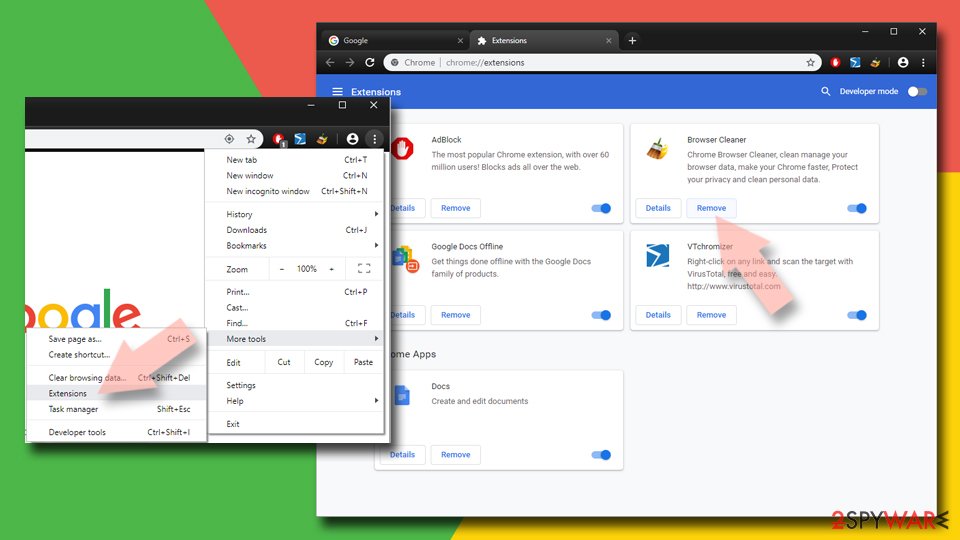
Delete malicious extensions from Google Chrome:
- Open Google Chrome, click on the Menu (three vertical dots at the top-right corner) and select More tools > Extensions.
- In the newly opened window, you will see all the installed extensions. Uninstall all suspicious extensions related to the unwanted program by clicking Remove.
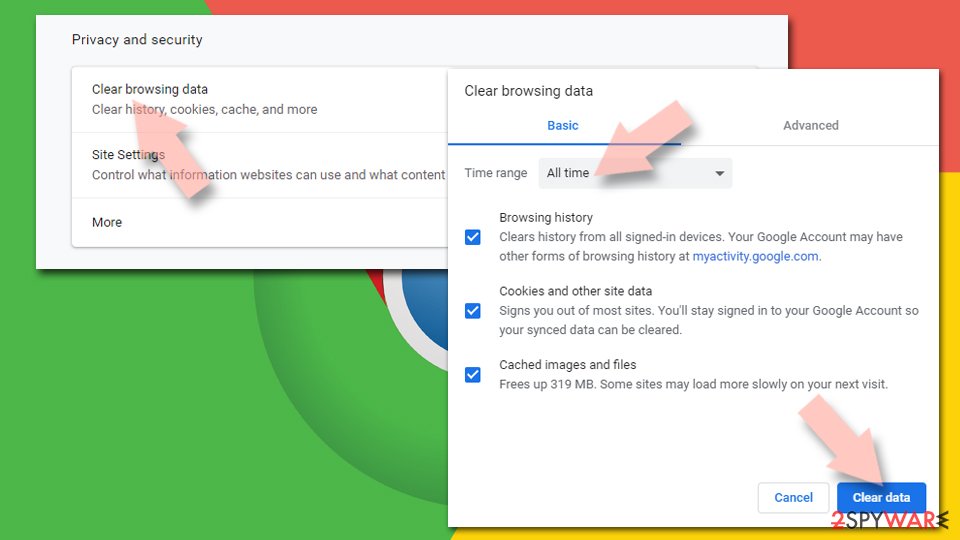
Clear cache and web data from Chrome:
- Click on Menu and pick Settings.
- Under Privacy and security, select Clear browsing data.
- Select Browsing history, Cookies and other site data, as well as Cached images and files.
- Click Clear data.
Change your homepage:
- Click menu and choose Settings.
- Look for a suspicious site in the On startup section.
- Click on Open a specific or set of pages and click on three dots to find the Remove option.
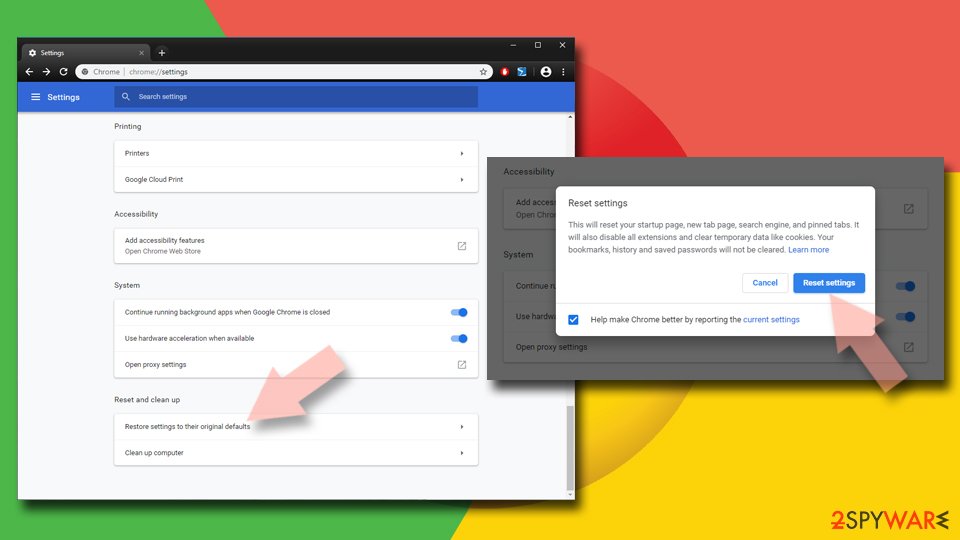
Reset Google Chrome:
If the previous methods did not help you, reset Google Chrome to eliminate all the unwanted components:
- Click on Menu and select Settings.
- In the Settings, scroll down and click Advanced.
- Scroll down and locate Reset and clean up section.
- Now click Restore settings to their original defaults.
- Confirm with Reset settings.
Take back the notification permission
Open Settings > Cookies and site permissions > Notifications, find
sd-steam.info,zodiac-game.infoor any address you do not recognise and choose Remove or Block.Remove extensions you do not recognise
Paste
edge://extensionsinto the address bar and click Remove under anything you did not install yourself.Full procedure with screenshots: Remove a browser extension
Clear the site data
Open Settings > Privacy, search, and services > Delete browsing data > Choose what to clear, set All time, tick Cookies and other site data and Cached images and files, and click Clear now.
Reset Edge
Open Settings > Reset settings > Restore settings to their default values and confirm with Reset. Extensions are turned off and the start page goes back to default; favourites, history and saved passwords stay. To stop notifications after you close Edge, turn off Settings > System and performance > Continue running background extensions and apps when Microsoft Edge is closed.
Full procedure with screenshots: Reset a browser and fix a hijacked search engine
Instructions for Microsoft Edge
Remove from Microsoft Edge
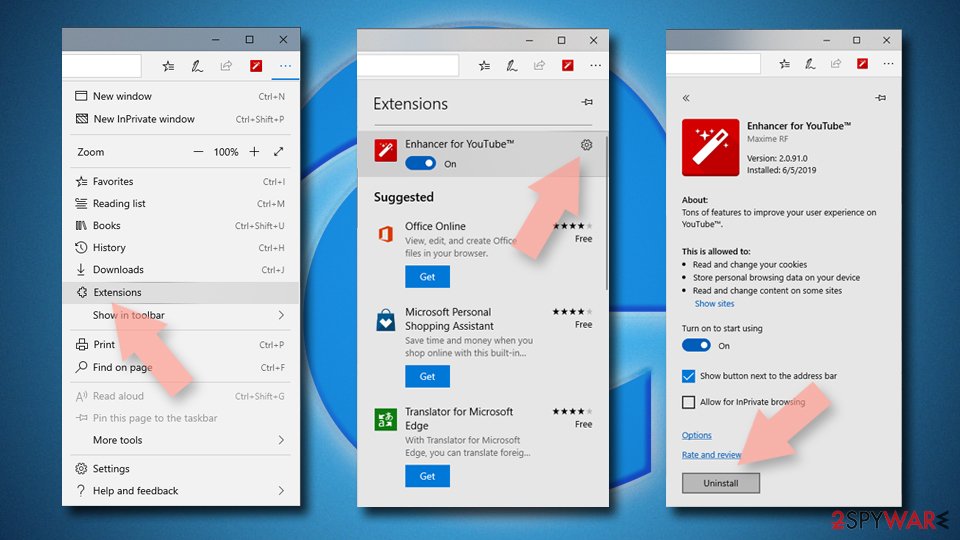
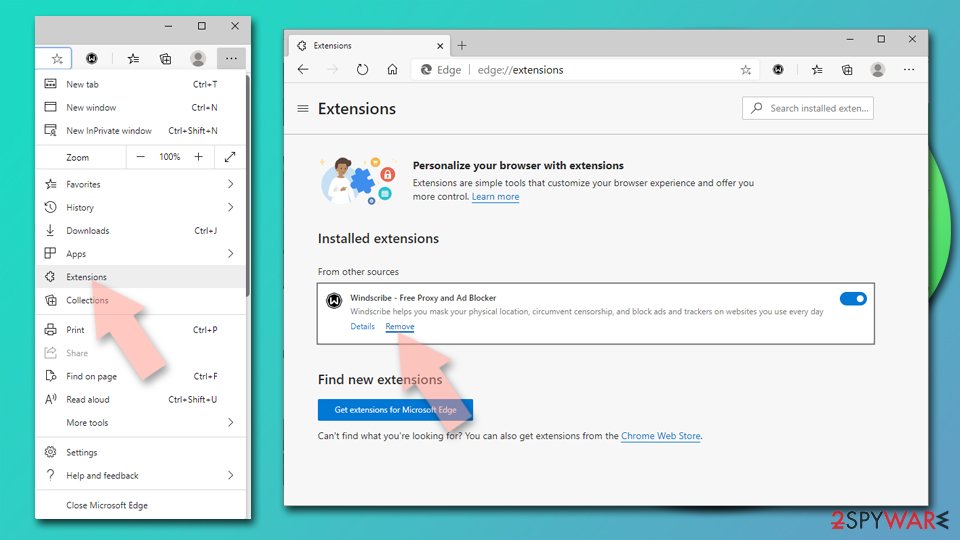
Delete unwanted extensions from MS Edge:
- Select Menu (three horizontal dots at the top-right of the browser window) and pick Extensions.
- From the list, pick the extension and click on the Gear icon.
- Click Remove.
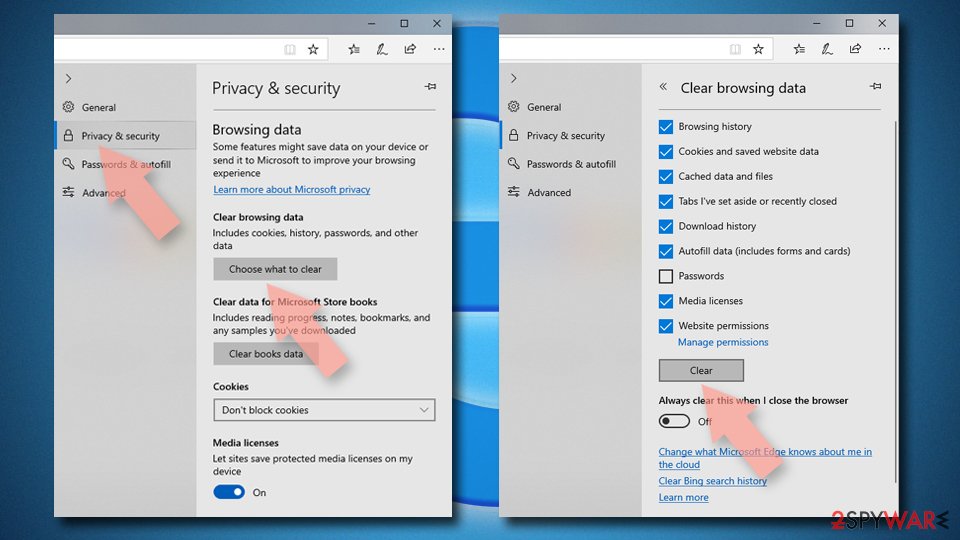
Clear cookies and other browser data:
- Click on the Menu (three horizontal dots at the top-right of the browser window) and select Settings > Privacy, search, and services..
- Under Clear browsing data, pick Choose what to clear.
- Select Cookies and other site data and Cached images and files. (apart from passwords, although you might want to include Media licenses as well, if applicable) and click on Clear.
Restore new tab and homepage settings:
- Click the menu icon and choose Settings.
- Then find On startup section.
- Click Remove next to any suspicious startup page.
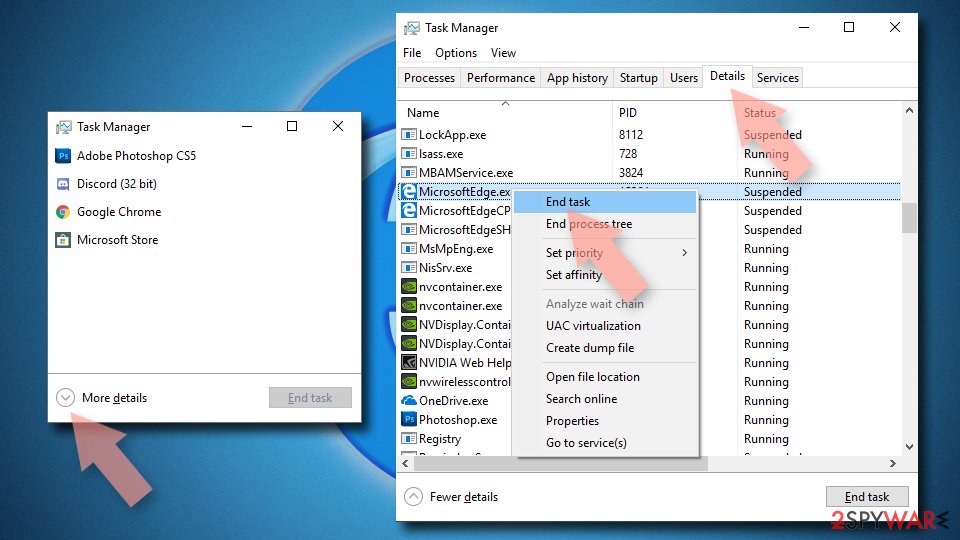
Reset MS Edge if the above steps did not work:
- Press on Ctrl + Shift + Esc to open Task Manager.
- Click on More details arrow at the bottom of the window.
- Select Details tab.
- Now scroll down and locate every entry with Microsoft Edge name in it. Right-click on each of them and select End Task to stop MS Edge from running.
Delete extensions from MS Edge (Chromium):
- Open Edge and click select Settings > Extensions.
- Delete unwanted extensions by clicking Remove.
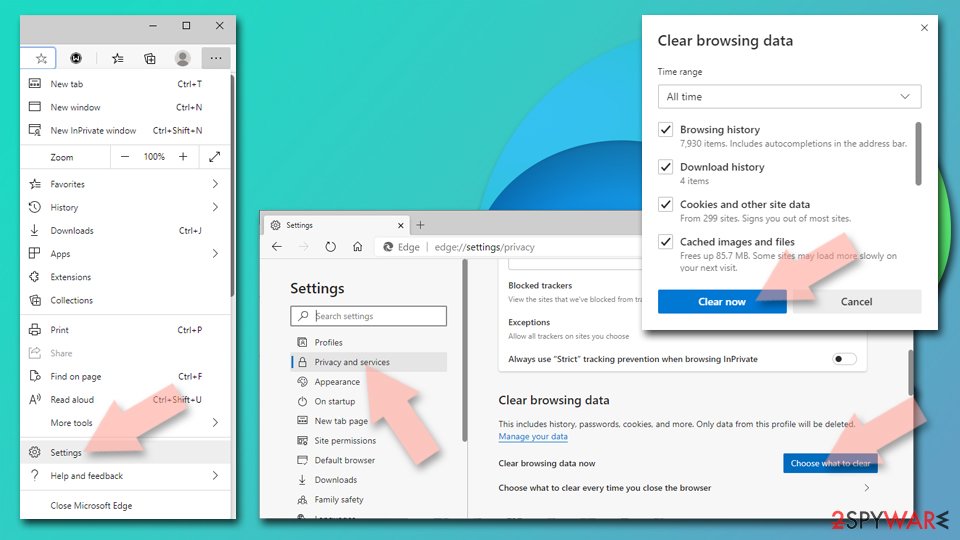
Clear cache and site data:
- Click on Menu and go to Settings.
- Select Privacy, search and services.
- Under Clear browsing data, pick Choose what to clear.
- Under Time range, pick All time.
- Select Clear now.
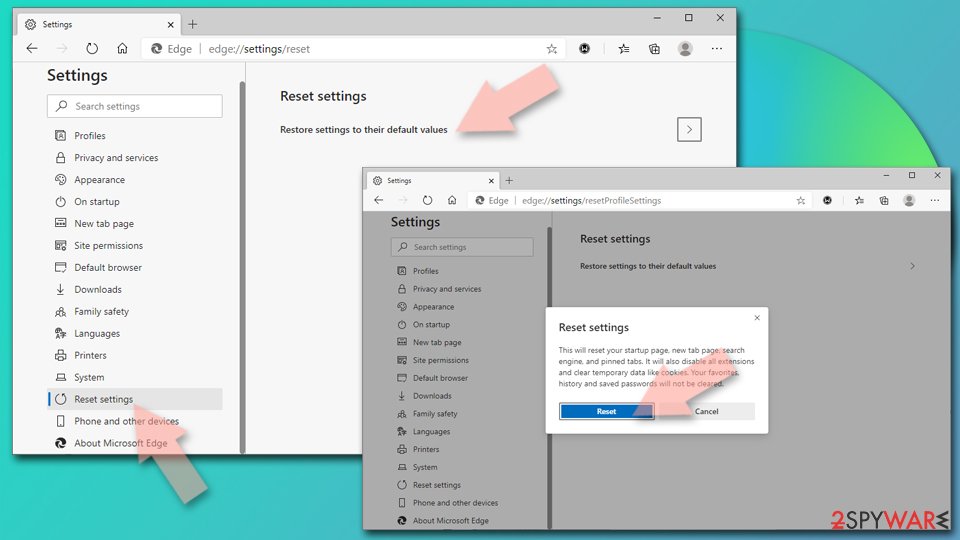
Reset Chromium-based MS Edge:
- Click on Menu and select Settings.
- On the left side, pick Reset settings.
- Select Restore settings to their default values.
- Confirm with Reset.
- This will disable extensions and reset startup pages but will not delete bookmarks, saved passwords, or browsing history.
Take back the notification permission
Open Settings > Privacy & Security > Permissions > Notifications > Settings, select any address you do not recognise and click Remove Website, then Save Changes.
Remove add-ons you do not recognise
Paste
about:addonsinto the address bar, open Extensions, and choose Remove from the three-dot menu of anything you did not install yourself.Full procedure with screenshots: Remove a browser extension
Clear cookies and site data
Open Settings > Privacy & Security > Cookies and Site Data > Clear Data, tick both boxes and click Clear.
Refresh Firefox
Open the menu > Help > More troubleshooting information and click Refresh Firefox. Add-ons and custom settings are removed and the home page goes back to default; bookmarks, history and passwords stay.
Full procedure with screenshots: Reset a browser and fix a hijacked search engine
Instructions for Mozilla Firefox
Remove from Mozilla Firefox (FF)
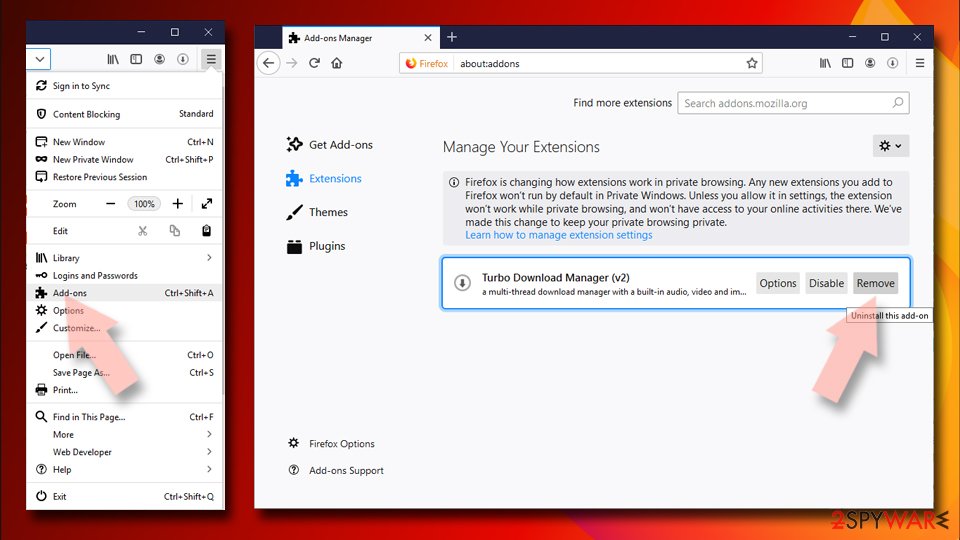
Remove dangerous extensions:
- Open Mozilla Firefox browser and click on the Menu (three horizontal lines at the top-right of the window).
- Select Add-ons.
- In here, select the unwanted extension and click Remove.
Reset the homepage:
- Click three horizontal lines at the top right corner to open the menu.
- Choose Settings.
- Under Home, set your preferred homepage and new tab settings.
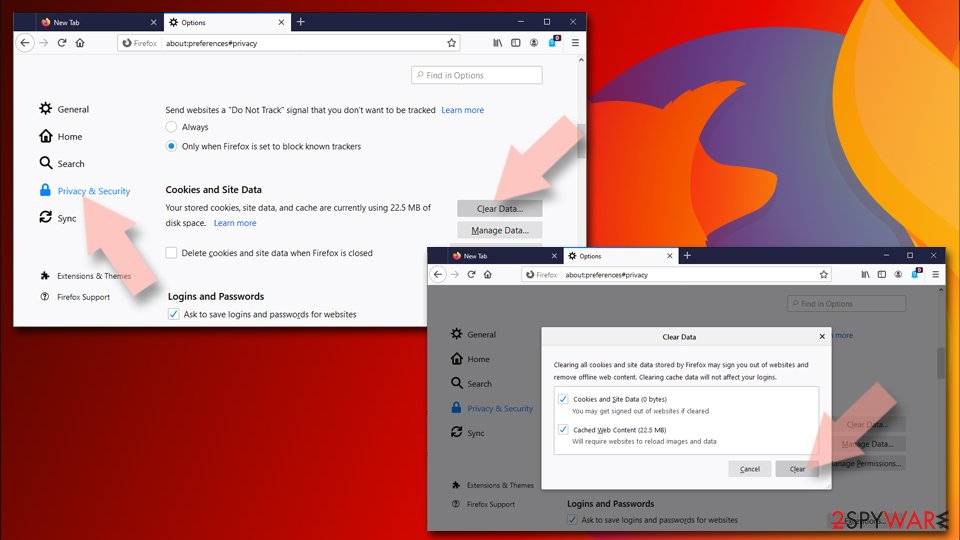
Clear cookies and site data:
- Click Menu and pick Settings.
- Go to Privacy & Security section.
- Scroll down to locate Cookies and Site Data.
- Click on Clear Data...
- Select Cookies and Site Data and Temporary cached files and pages, then click Clear.
Reset Mozilla Firefox
If clearing the browser as explained above did not help, reset Mozilla Firefox:
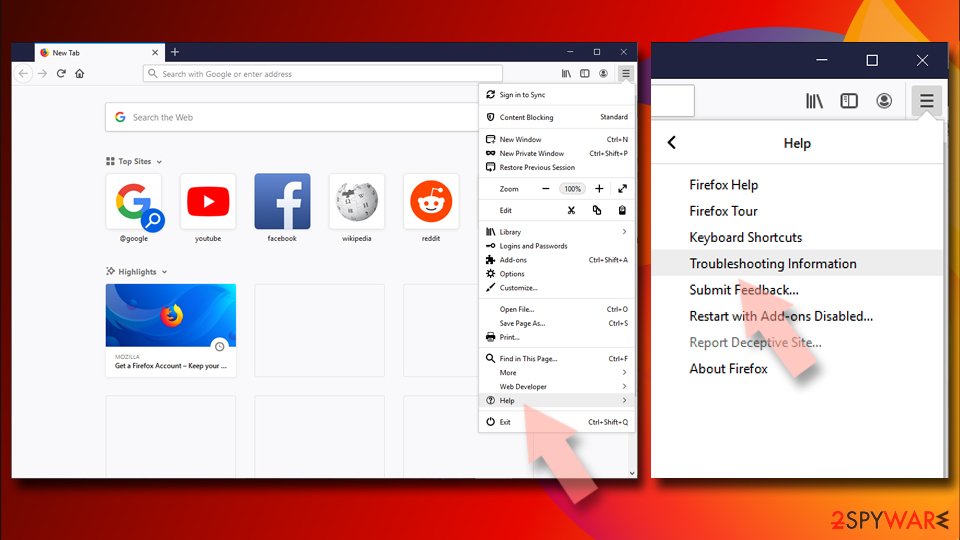
- Open Mozilla Firefox browser and click the Menu.
- Go to Help and then choose Troubleshooting Information.
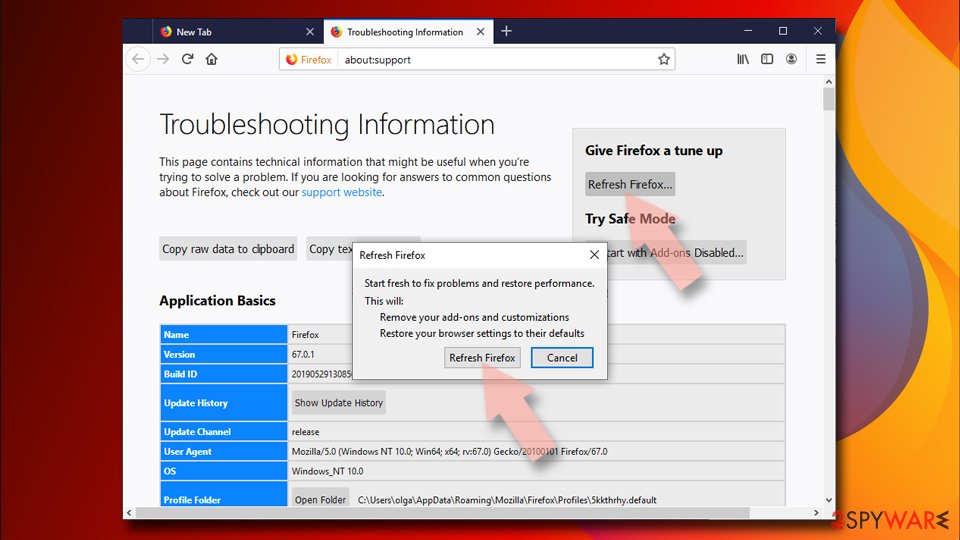
- Under Give Firefox a tune up section, click on Refresh Firefox...
- Once the pop-up shows up, confirm the action by pressing on Refresh Firefox.
Take back the notification permission
Safari 18 and later on macOS: open Safari > Settings > Websites > Notifications, select
sd-steam.info(or any site you do not recognise) and set it to Deny, or click Remove. Untick Allow websites to ask for permission to send notifications at the bottom so no site can ask again.Remove extensions you do not recognise
In Safari > Settings > Extensions, select anything you did not install yourself and click Uninstall.
Clear the site data
In Safari > Settings > Privacy > Manage Website Data, remove the site's data, or use History > Clear History > all history. To empty the cache as well, turn on Show features for web developers in Settings > Advanced and choose Develop > Empty Caches.
Check the Mac for apps from the ads
Ads also target Mac users with fake players and "cleaners". In Finder > Applications, move anything unknown to the Bin. In System Settings > General > Login Items & Extensions, remove unknown items. Then use Go > Go to Folder to check
/Library/LaunchAgents,~/Library/LaunchAgents,/Library/LaunchDaemonsand/Library/Application Supportfor folders and files with the same unknown names, and empty the Bin.
Instructions for Safari (Mac)
Delete from Safari
Remove dangerous extensions:
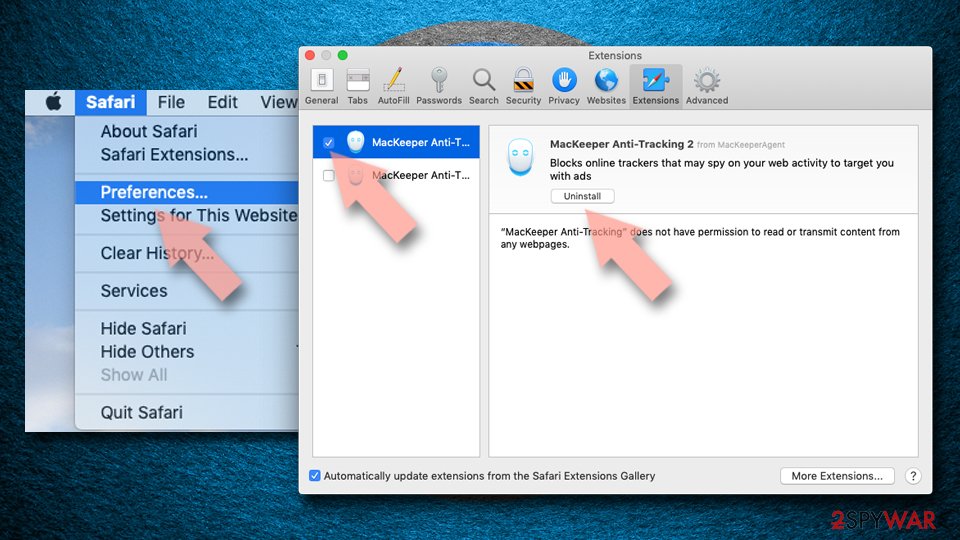
- Open Safari, click Safari in the menu at the top-left of the screen, and select Preferences.
- Go to the Extensions tab, look for any suspicious entries, and click Uninstall to remove them.
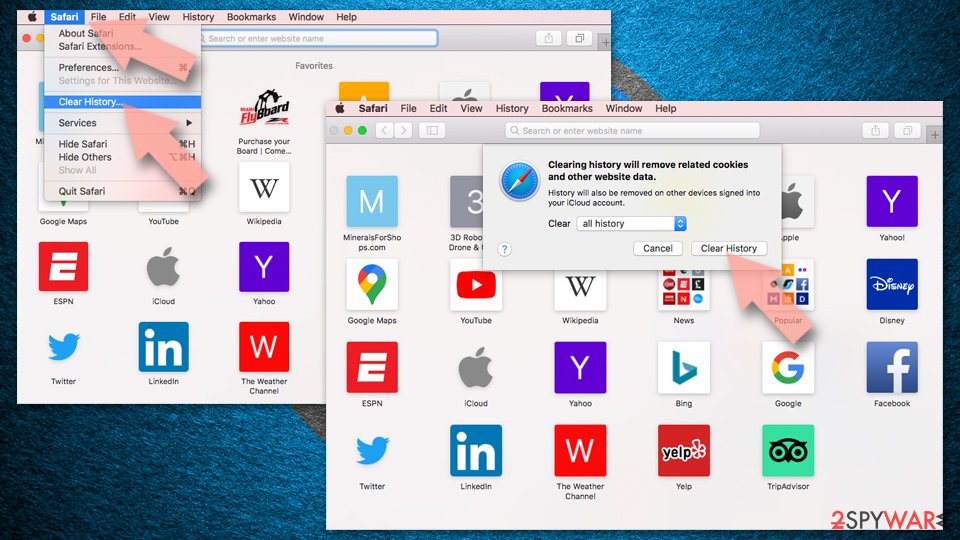
Clear history and website data:
- Click Safari in the menu and pick Clear History.
- Set Clear to all history and confirm with Clear History.
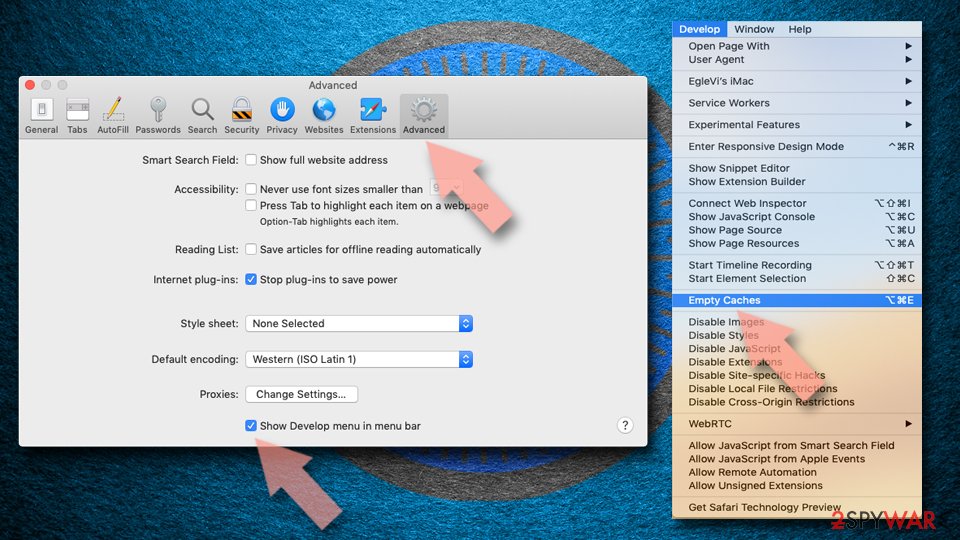
Reset Safari:
- Click Safari in the menu and select Preferences > Advanced.
- Enable Show Develop menu in menu bar.
- From the menu bar, click Develop and select Empty Caches.
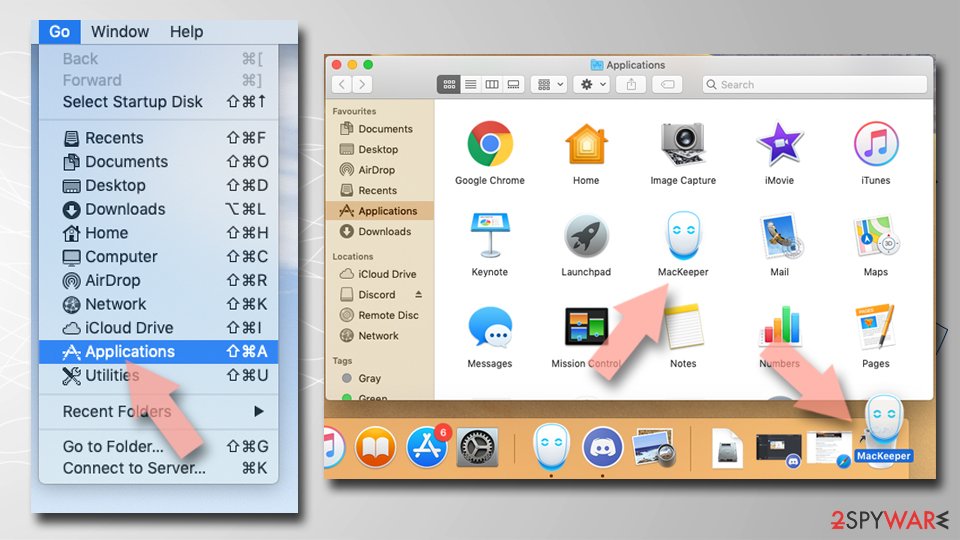
Delete from macOS
Remove the unwanted application:
- From the menu bar, select Go > Applications.
- In the Applications folder, look for any suspicious entries, then drag them to Trash (or right-click and pick Move to Trash).
Delete leftover files and folders:
- Select Go > Go to Folder.
- Enter /Library/Application Support and remove any suspicious folders related to the unwanted program.
- Repeat the same check in the /Library/LaunchAgents and /Library/LaunchDaemons folders, deleting any suspicious entries.
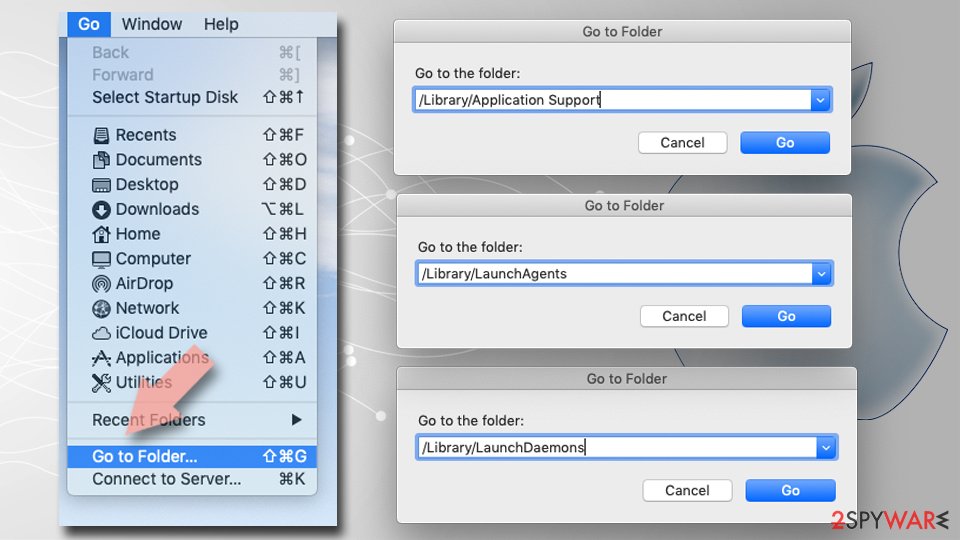
- Finally, empty the Trash to permanently remove the leftovers.
Then, whichever browser you use
Step 1: Scan the PC if you downloaded anything from the ads
If you only saw the notifications and clicked nothing, you can stop before this step. If a notification led you to download or run something, delete that file, then scan Windows.
In Windows Security > Virus & threat protection > Scan options, run a Full scan, then choose Microsoft Defender Antivirus (offline scan) and Scan now. The offline scan restarts the PC and takes about 15 minutes on Windows 11 and Windows 10.

Windows 11: Windows Security > Virus & threat protection > Scan options. Full procedure with screenshots: Run a Microsoft Defender Offline scan
More removal instructions
For programs installed on the PC and older browsers. Open the one you need.
Uninstall from Windows
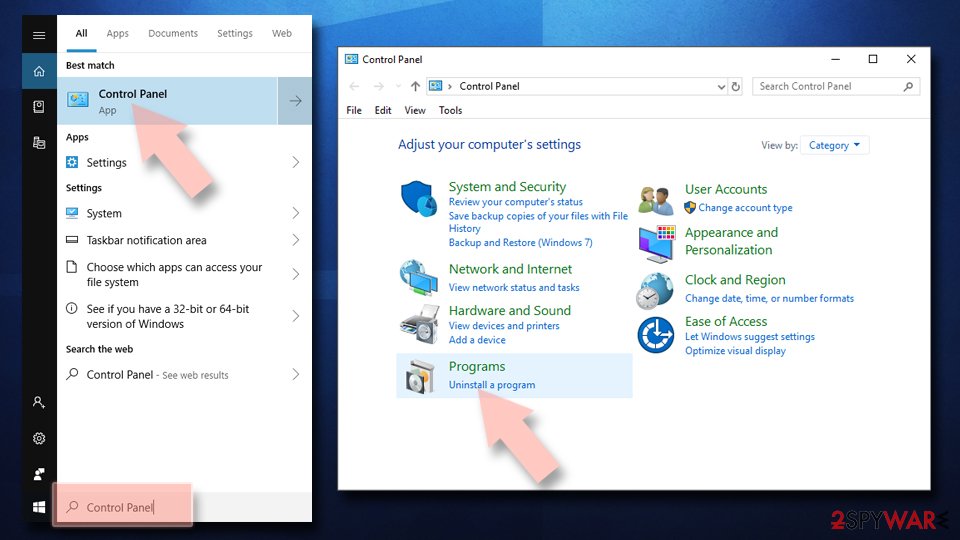
Uninstall from Windows 10/8:
- Type Control Panel into the Windows search box and open the result.
- Under Programs, select Uninstall a program.
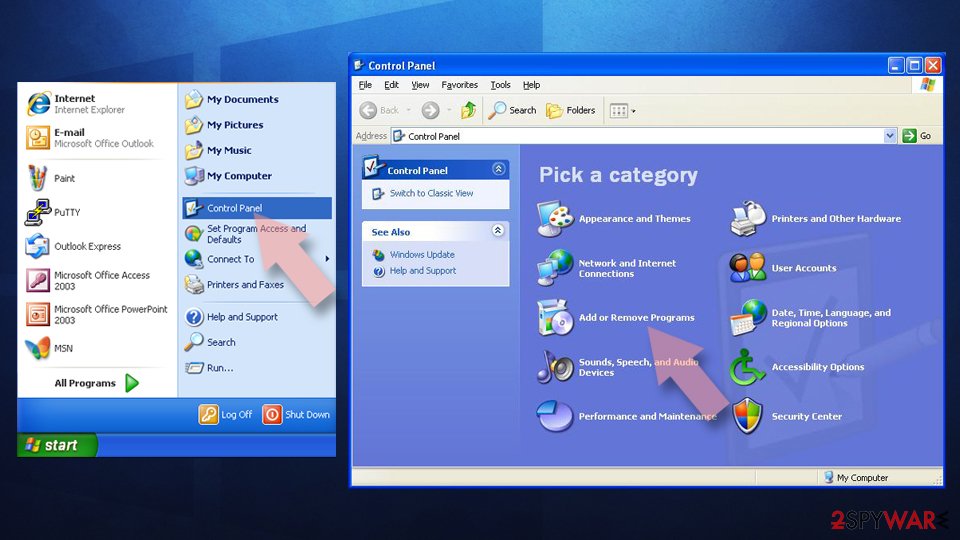
Uninstall from Windows 7/XP:
- Click on Windows Start > Control Panel (Windows XP users should click on Add/Remove Programs).
- In Control Panel, select Programs > Uninstall a program.
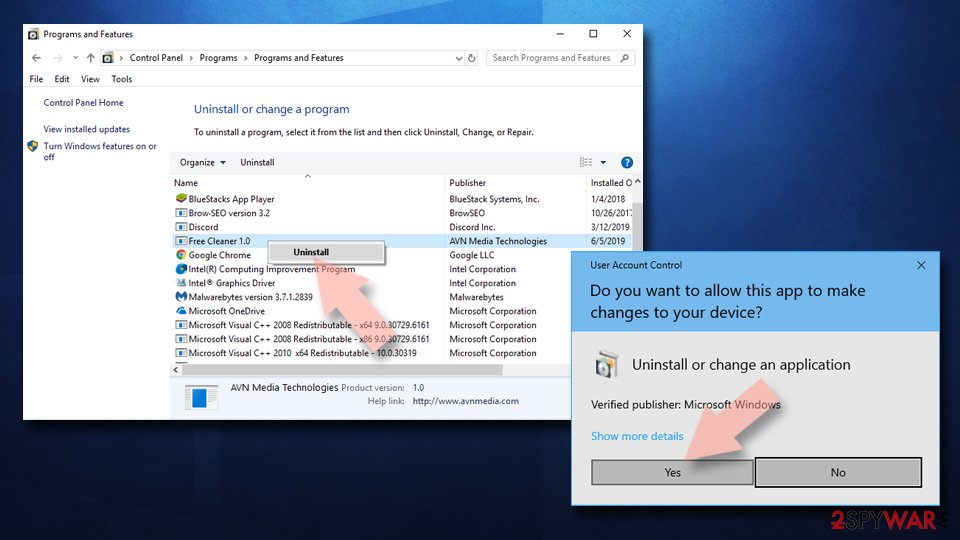
Remove the unwanted program:
- In the Programs and Features window, look for any recently installed suspicious entries, select them, and click Uninstall.
- If User Account Control appears, click Yes to confirm, then complete the removal.
Reset Internet Explorer
Though these steps are easy to follow, remember that precision and attention, while going through each step, is of crucial importance.
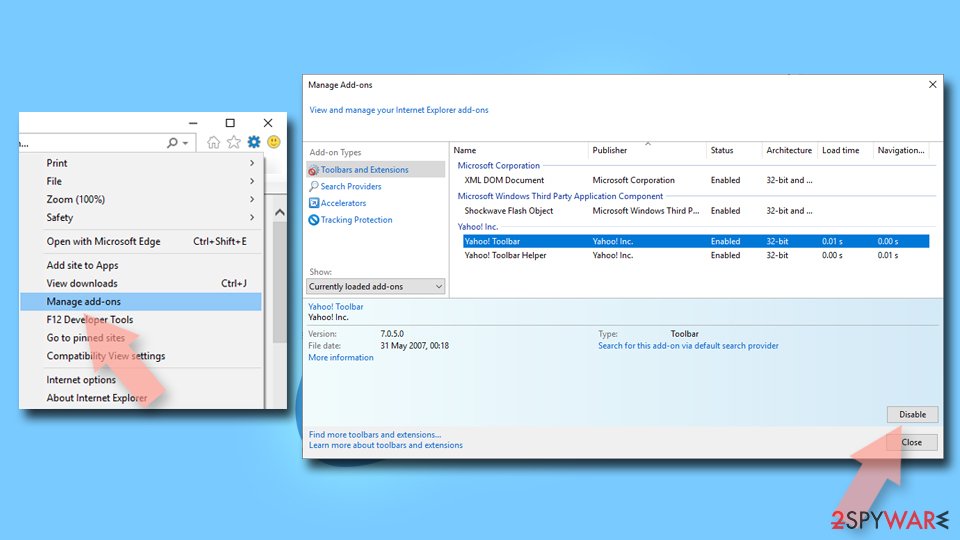
Remove dangerous add-ons:
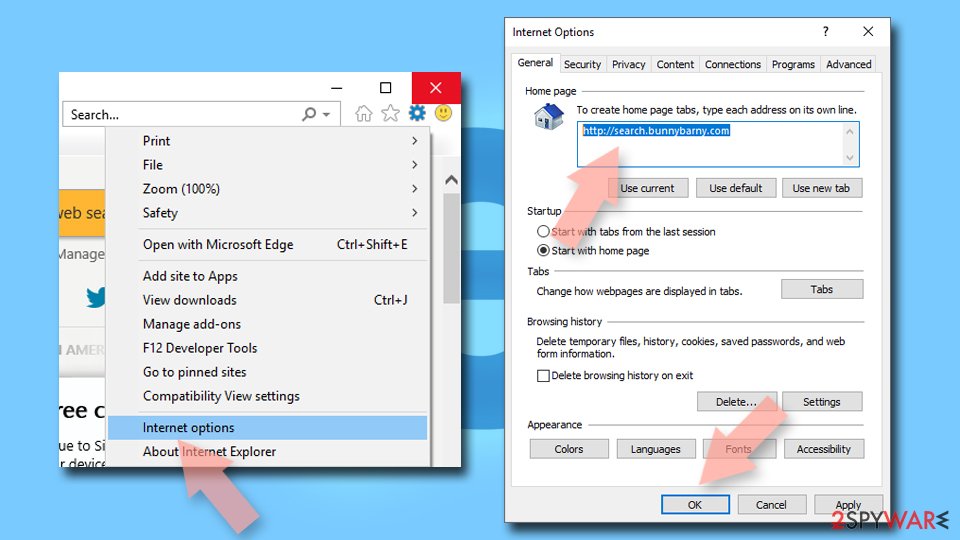
- Open Internet Explorer, click on the Gear icon (IE menu) on the top-right corner of the browser
- Pick Manage Add-ons.
- You will see a Manage Add-ons window. Here, look for suspicious plugins. Click on these entries and select Disable.
Change your homepage if it was altered:
- Open IE and click on the Gear icon.
- Select Internet Options.
- In the General tab, delete the Home page address and replace it by your preferred one (for example, Google.com).
- Click Apply and then select OK.
Delete temporary files:
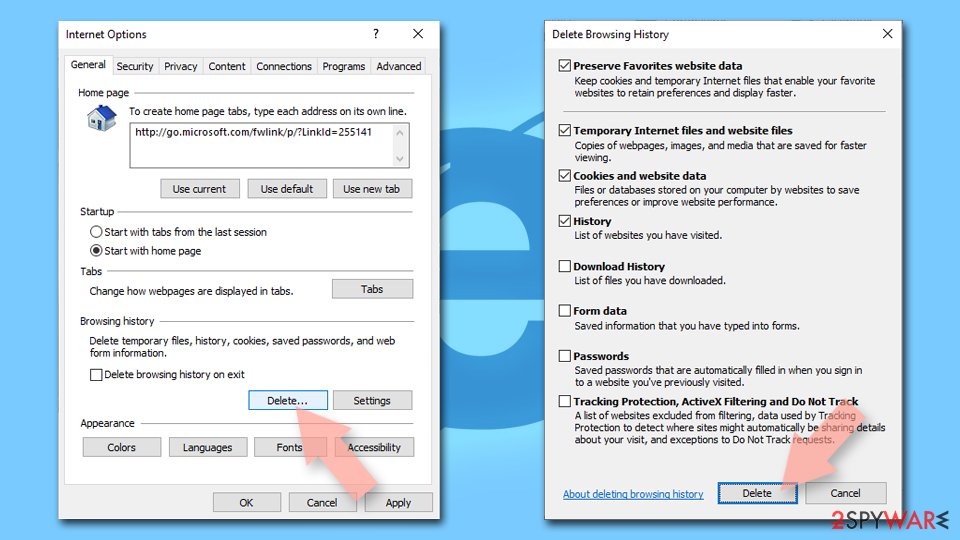
- Press on the Gear icon and select Internet Options.
- Under Browsing history, click Delete...
- Select relevant fields and press Delete.
Reset Internet Explorer:
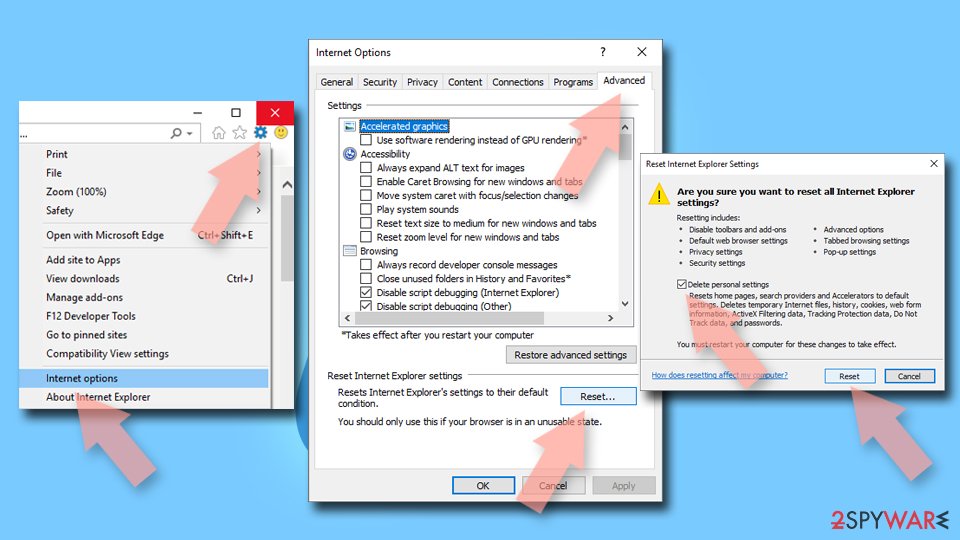
- Click on Gear icon > Internet options and select Advanced tab.
- Select Reset.
- In the new window, check Delete personal settings and select Reset.
After removal: keep the ads from coming back
If you clicked an ad or the redirects keep coming
If you only saw the page and closed it, nothing was installed by looking. If redirects, notifications or new toolbars keep appearing, remove them in this order: notification permission, extensions, programs, scan.
- 1
Stop the notifications
Open your browser's notification settings (Chrome:
chrome://settings/content/notifications, Edge:edge://settings/content/notifications) and remove or block any address you do not recognise,sd-steam.infoandzodiac-game.infoincluded. The permission stays until you remove it, even if the site has gone. - 2
Remove extensions and toolbars you did not choose
In Chrome, open More > Extensions > Manage extensions and click Remove on anything you did not install yourself, especially ad blockers, "search" helpers and toolbars (). The steps for each browser are in the tabs above.
- 3
Uninstall programs from the day it began
Open Settings > Apps > Installed apps in Windows 11 (Apps & features in Windows 10), sort by install date and uninstall anything added the day the redirects began, then confirm if User Account Control asks. On Windows 7 and 8 the same list is in Control Panel under Programs > Uninstall a program. If you are not sure what belongs, skip the list and run the scan below instead (Uninstall a program or app in Windows On uGetFix).
- 4
Scan, then scan offline
Run a Microsoft Defender Full scan, then the Microsoft Defender Antivirus (offline scan) in Windows Security > Virus & threat protection > Scan options. The offline scan restarts the PC and runs before Windows loads, so persistent malware has a harder time hiding.
- 5
Reset the browser, then check the passwords
Use the reset step for your browser above. If you typed a password or card number on a page the redirect opened, change that password now and tell your bank about the card.
On a Mac, moving an app to the Bin is not always enough, because adware leaves files for persistence; the Mac tab above lists the folders to check. If you are not sure what you are deleting, leave them alone and use a scan.
How it gets in, and how to keep it out
The old guide says you probably allowed it yourself while installing another program: the offer was tucked into a free download and nobody looked. These habits cut the odds.
Do
- When an installer offers Advanced or Custom setup, choose it: it lists the optional programs, and you should untick all of them, because they are rarely useful.
- Install browser extensions only from the extension store's own listing, and read the permissions before you approve.
- Keep Microsoft Defender SmartScreen on, or Chrome's Enhanced protection: both warn about known malicious pages and downloads.
- Keep a current backup of your files (File History or OneDrive), so an infection does not cost you your documents.
- On public networks, a VPN hides your IP address from the sites and ad networks you visit; it does not block ads or malware.
- Keep Microsoft Defender running and up to date.
Don't
- Download pirated games or software from torrent sharing sites: the old guide says this adware spread there, and cracks are a common way to get malware, including ransomware.
- Trade your computer's safety for a free game: the old guide's advice was to decide which matters more, and the answer is the PC.
- Click through notification prompts or ad tiles from a page you reached by a redirect.
- Give your e-mail address, phone number or card details to a prize or survey page you reached through a redirect.
Questions about Sd-steam.info virus
Is Sd-steam.info a virus?
No, the address is a website and not a virus. Our 2016 guide called the program behind it adware, meaning software that hijacks the browser and fills it with ads and notifications that lead to another site. In our test on 6 October 2026 the address only showed a parked for-sale page and installed nothing.
Looking at a page cannot infect your PC by itself, but a program or extension you approved earlier can keep producing redirects after the site is gone. If you still see them, remove the notification permission, unknown extensions and recently added programs, and run a full Microsoft Defender scan, as the steps on this page show.
What is Sd-steam.info?
Sd-steam.info is a website address that, according to our 2016 guide, redirected browsers to an ad page at zodiac-game.info. That page showed Russian-language tiles with promises about freckles, snoring and fitness, plus casino and game banners, and the guide says a click on a tile triggered the redirect to affiliate websites.
Today the name is registered through Sav.com, LLC since 26 October 2025 and shows a parked page saying it may be for sale. We cannot say who ran it in 2016 or who holds it now.
What is Zodiac-game.info?
Zodiac-game.info is the ad page shown in the picture of our 2016 guide, a page of Russian-language ad tiles and banners. The old text wrote it as zodiac.game.info, but the address bar in the screenshot shows a hyphen.
The guide called the promoted articles low quality, and warned that landing on pages like it can expose a device to malware. We did not test the address in 2026, so we cannot say what it shows now. If you see it open on its own, close the tab and check your extensions and notification permissions.
Is Sd-steam.info safe to open?
We do not recommend it. On 6 October 2026 it showed a parked for-sale page, with no redirect, notification request or pop-up, so on that one visit it offered nothing to use.
One quiet visit proves little: adware pages often behave differently by country, device, referrer or on a second visit, and a parked name can be pointed elsewhere at any time.
Reach the sites you want by typing their addresses, and treat any page that sends you somewhere you did not choose as a sign that something on your PC or in your browser needs checking.
Why am I being redirected to Sd-steam.info or zodiac-game.info?
Something on your PC or in your browser is sending you. Our 2016 guide says the cause is adware that you may have allowed while installing a free program: the offer sat in the installer and went unnoticed. Pirated games and torrent sites were named as a common source.
A site you allowed to send notifications, or a link on a page you visited, can have the same effect. Check your extension list, your installed apps and the notification permissions, because those are where the redirects come from.
How do I remove Sd-steam.info?
There is no program called Sd-steam.info to uninstall, so removal means finding what sends the redirects. First remove the notification permission for any address you do not recognise.
Then remove extensions and toolbars you did not choose, open Settings, Apps, Installed apps and uninstall what you added the day it began, and reset the browser if the start page or search keeps changing. Finish with a Microsoft Defender full scan and the offline scan. The tabs on this page give the steps for Chrome, Edge, Firefox and Safari.
How do I stop the notifications and ads?
Notifications come from a permission the browser gave a site, so they stop when you take it back. In Chrome open chrome://settings/content/notifications, in Edge edge://settings/content/notifications, and remove or block any address you do not recognise, including sd-steam.info and zodiac-game.info.
In Firefox use Settings, Privacy and Security, Permissions, Notifications. In Safari on a Mac use Settings, Websites, Notifications. If ads still appear inside pages, an extension or a program is adding them, so check the extension list and installed apps.
Can it steal my data?
Our 2016 guide says the program has no privacy policy and might pass non-personal and personal information about your browsing to third parties. We could not verify what it sent, and the address now shows only a parked page.
Adware that sits in a browser can see the pages you visit, so the safe response is to remove it and, if you typed a password or card number on a page it opened, change that password and tell your bank about the card.
How do I avoid getting this again?
Most adware arrives as an extra offer inside a free download. When an installer offers Advanced or Custom setup, choose it, read the list and untick the optional programs, because they are rarely useful.
Avoid pirated games and torrent sites, which the old guide named as a source, and install browser extensions only from the browser's own store after reading the permissions. Keep Microsoft Defender and SmartScreen on, and keep a backup of your files.
Will Fortect remove Sd-steam.info?
Fortect scans Windows for malware and unwanted programs and repairs the system files and settings they change, and its free scan shows what it finds on your PC before you decide anything.
For Sd-steam.info, follow the plan above as well: the browser steps take back permissions and settings that no scanner treats as a threat, and uninstalling the program that brought it removes the source.
Run Microsoft Defender's full scan and, if anything was found, its offline scan as a second opinion. If the symptoms are gone after the plan and both scans are clean, there is nothing more to do.
Sources
- RDAP: sd-steam.info registration record (read October 6, 2026)
- Chrome Web Store Help: Install and manage extensions (no longer online) (read October 5, 2026)
- Microsoft Support: Virus and threat protection in the Windows Security app (read October 5, 2026)
- Google Chrome Help: Use notifications to get alerts (no longer online) (read October 5, 2026)
- FTC: How to recognize, remove and avoid malware (read October 5, 2026)