
WebDiscover Browser ads: what it is and how to remove it
WebDiscover is a Chromium browser that hijacks your searches and defaults, filling results with ads. It persists even after removal attempts.
Facts checked October 5, 2026. Removal steps tested on Windows 11 (26H2) and checked against Microsoft's and the browser makers' current documentation. Sections marked as our earlier report are the original text: they describe the threat as it was then and have not been reviewed since. The 2026 status, the removal steps and the questions are current.
Automatic
Get a free scan and check if your PC is infected.
Fortect finds malware, unwanted programs and the Windows damage they leave behind, and repairs it in one pass.
Not sure what sends your browser to safestsearches.com? An automatic scan looks at the usual sources for you.
Do it yourself · free Remove WebDiscover Browser ads yourself 4 steps, about 12 minutes, no software needed.
Start the steps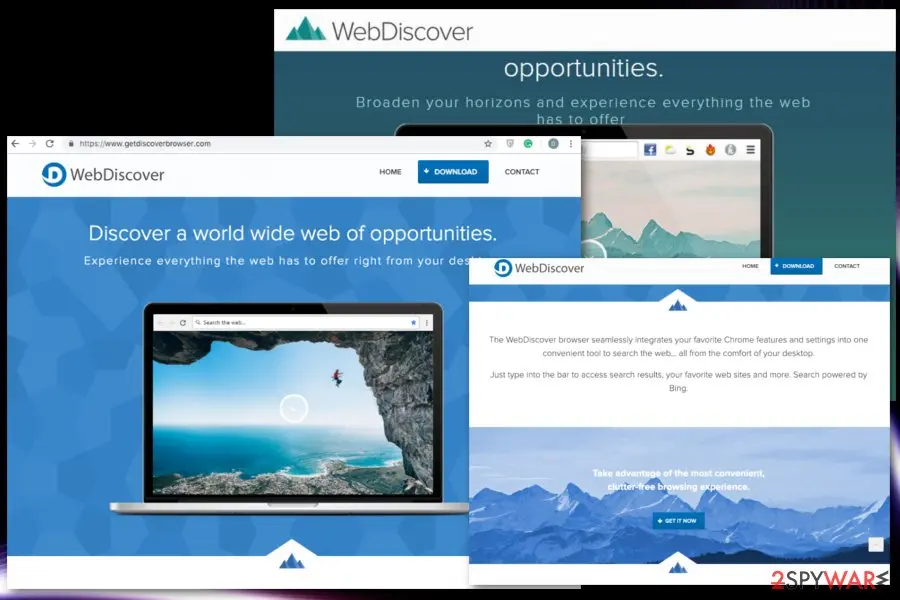
WebDiscover Browser ads: summary
| Detection names | No Microsoft detection name is known |
|---|---|
| Distribution | Not recorded in the old report |
| Damage | Not recorded in the old report |
| Name | WebDiscover Browser |
| Type | Adware extension |
| Symptoms | Redirects to an unknown domain |
| Removal | Scan the PC with security software to find and remove the malware and anything installed with it. Fortect scans Windows for malware and repairs the system files and settings it damaged. Remove it nowTo use the full-featured product, you have to purchase a license for Fortect. The scan is free. |
Show 6 more facts
| Evidence | 7 write-ups by security sites; details still limited |
|---|---|
| Domains | safestsearches.com |
| Ads shown as | Redirects through ad pages |
| Browsers | Chrome, Edge and Firefox |
| First seen | 2 August 2021 |
| Facts checked | 5 October 2026 |
What the WebDiscover Browser ads ads look like
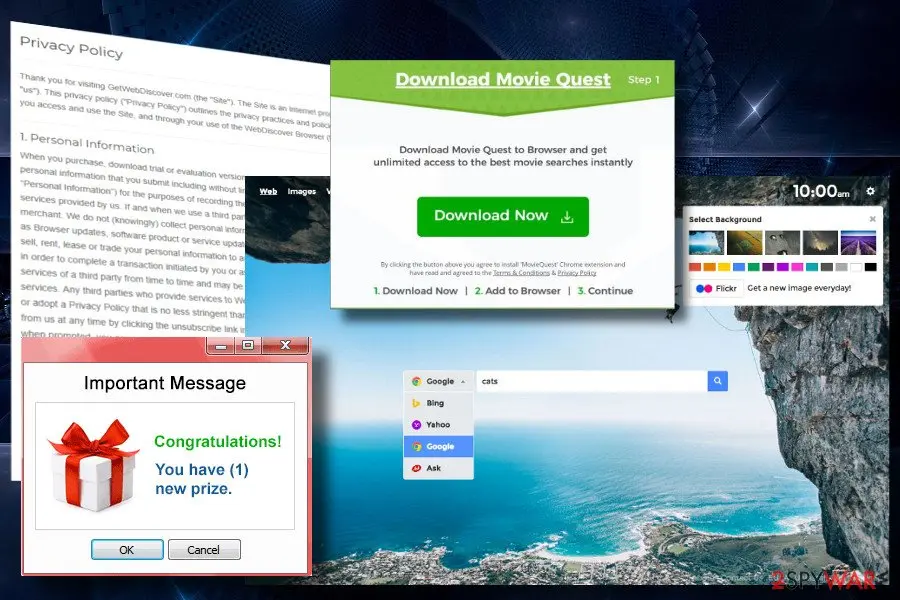
To make the Site and the Browser more useful to you, our servers (which may be hosted by a third-party service provider) may collect Anonymous Data from you such as web browser type, operating system type and version, domain name, Browser version, Browser usage and statistics, and/or a date/time stamp of your visit. We may use cookies and navigational data like Uniform Resource Locators (URL) and referring URLs to gather information regarding the date and time of your visit. We may use Anonymous Data and Application Data for market research purposes and to improve our products and services, the Site and the Browser.
Is WebDiscover Browser ads dangerous?
What readers reported about WebDiscover Browser
I need to completely remove WebDiscover browser!. I need to completely remove this WebDiscover browser that's stuck on my home PC. In simple terms can you help me with this?
I am trying to permanently remove WebDiscover browser. Help!. I am on my last good nerve in trying to permanently remove WebDiscover browser. Can you help me, in plain English, how to remove or disable it?
From the comments under our earlier guide; names and contact details removed.
From our report of Aug 2021 · not reviewed since
WebDiscover is a browser based on Chromium functions but called a PUP due to intrusive activities
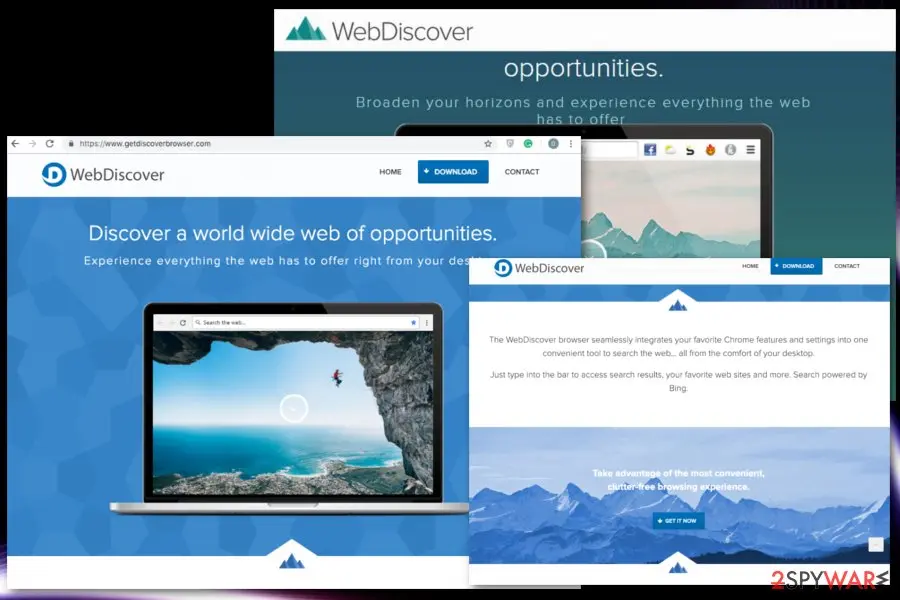
WebDiscover is a Chromium virus that is promoted as a replacement for a famous Chrome browser.
However, detailed research revealed that, next to its promises to provide VPN connection, weather forecasts, and similar help, it also has such capability as affecting the performance of users' browsing, tracking their time online and so on. Due to stealthy distribution methods and removal problems, it has been classified as a browser hijacker.
This application is designed to use Bing as a default search provider, which has been actively misused by scammers. Unfortunately, no matter that Bing is a legitimate search engine, the virus fills its search results with sponsored links to redirect its victims to websites which are paying for such traffic.
The PUP is not a severe cyber infection. Some people may even find it useful and can use it as much as they like. However, we feel a responsibility to warn people that it can be used for the implementation of shady marketing campaigns. It means that it may be filled with commercial content.
Additionally, to leave the system, the app is offering downloading the uninstall helper utility (WebDiscoverHelper_net40.exe or WebDiscoverHelper_net35.exe). If you don't want to end up with more unwanted activities on the system, follow the guide given at the end of this post instead of downloading related components.
From our report of Aug 2021 · not reviewed since
The main functionality of the intruder
The developers of this PUP have been trying to introduce this program as an alternative web browser which supposedly improves users' browsing experience by providing useful features.
These alleged features include quick links to social media and news sites as well as an integrated search bar which gets pinned to the top of the desktop for convenient access.
In reality, this toolbar can become annoying right after it starts staying on top of every application and prevents you from using them properly. Unfortunately, that's not the only undesirable feature that this alternative web browser trigger when installed on the PC.
The main problems are associated with the constant redirects and never-ending pop-up ads that are caused by the browser while you surf the net. To eliminate them, you need to remove the browser itself.
Usually, these ads are intended to grasp the internet user's attention. Some specific keywords may be hyperlinked; you may also be offered coupons for your visited sites, etc. These ads can get really intrusive and, perhaps, this is the reason why so many users begin looking for the proper virus removal tips just after a couple of days after its installation.
According to people's reports, it starts displaying intrusive advertisements once installed. It is capable of generating all kinds of ads, including pop-ups, full-page, and in-text. All of them are, indeed, intrusive and should not be ignored. Therefore, if you keep seeing "Ads by WebDiscover," "Powered by WebDiscover" or similar pop-ups as well as experiencing redirects to Safestsearches.com, take corresponding actions to delete the virus from the system.
From our report of Aug 2021 · not reviewed since
Why does this browser look so legit and useful
Looking at the design, the Web Discover browser appears to be almost identical to Google Chrome.
This is not a coincidence since this browser is based on the open-source Google Chromium custom builder. Nevertheless, there are a few things that differ.
First of all, when trying to use your browser, it causes redirects to shady search engines, including safestsearches.com. This way, you will inevitably notice the already mentioned search bar attached to the top section of your desktop. If you tried searching anything through it, you will eventually land on the Bing search engine. You should be very careful with this redirect tendency .
In addition to that, you may also notice ads constantly popping up here and there, and sometimes even covering the original website's content. These ads are not only annoying but can also slow down the loading speed and performance of your favorite sites.
As a result, the program can also cause some further contamination of your computer since they usually promote some untrusted third-party web pages, software, toolbars, and other products.
With the help of such aggressive advertising, only generates revenue for its developers instead of offering any legitimately useful information. Malware creators often go as far as collecting data about users and their browsing habits. There is a high chance that this application has some tracking technology integrated as well.
Like various other websites and PUAs, WebDiscover collects and tracks information about your online habits, preferences, searches. This information is stated in the Privacy Policy section of the official website:
The second version of this infamous Web engine is based on Chromium builder, and, unfortunately, also gets installed on the computers against their owners' will. The ad-based browser runs on the computer as a Media application and modifies the computer's settings to launch it as a default browser.
A problematic thing about this browser is that antivirus utilities find it difficult to detect and eliminate, so the malware may continue making your Internet browsing experience miserable by overflowing your visited websites with numerous ads and sponsored links.
If you notice ads and banners on your visited pages or some random text on the web pages get turned into hyperlinks, and if you keep receiving recommendations to update or download some suspicious software, it may indicate that you have been infected with some virus.
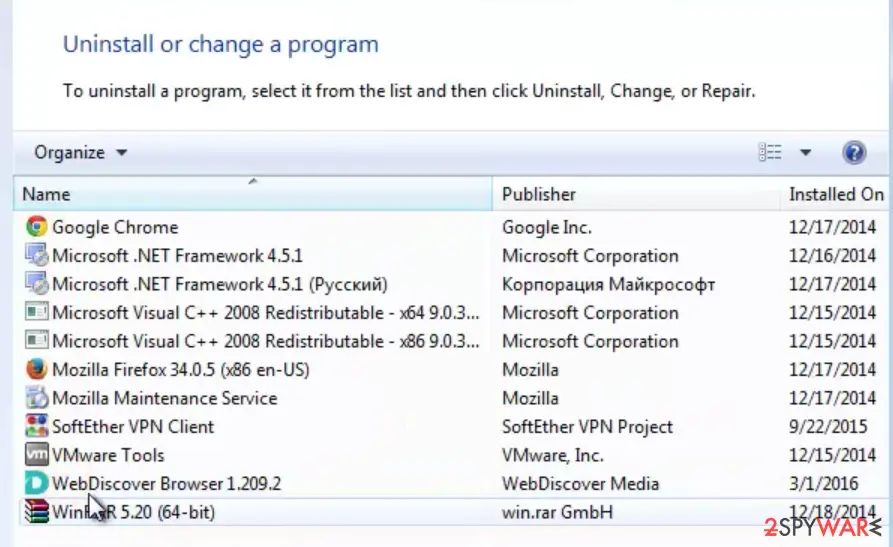
From our report of Aug 2021 · not reviewed since
You can install the browser hijacker unknowingly, along with freeware
The hijack is initiated by employing various methods.
The most frequent one, however, is called "bundling." In such a scenario, the user must download free software which is bundled with some potentially unwanted programs, such as add-ons, toolbars, extensions, and similar.
These PUPs are hidden in "Advanced" and "Custom" options frequently omitted by users who skip most of the steps in the installation process. This, however, should not be done. It will save you a lot of time and nerves as detecting and deselecting programs hidden here guarantee the installation of the sole program you intended to download.
Another important thing to remember is that you should avoid using all sorts of download managers and installers which are infamous for distributing bundled software for users who want to install some PDF converters or other free software. Therefore, if possible, you should always download programs from official websites.
From our report of Aug 2021 · not reviewed since
More from our earlier report on WebDiscover Browser
- Clicking on any link by default opens the WebDiscover browser The PUP displays an excessive amount of ads on most of the websites The most of search results are sponsored You cannot get rid of the intruder completely as it keeps resetting itself as a default browser
- Clicking on any link by default opens the WebDiscover browser
- The PUP displays an excessive amount of ads on most of the websites
- The most of search results are sponsored
- You cannot get rid of the intruder completely as it keeps resetting itself as a default browser
Check your browser and PC
- Address:
safestsearches.com
How to remove WebDiscover Browser ads
How to remove the WebDiscover Browser extension
Do the browser steps in every browser and profile on the PC, then check Windows for the program that installed the extension.
Step 1: Remove extensions you did not add
WebDiscover Browser often works through an extension, so go through the extension list of each browser:
chrome://extensionsedge://extensions- Extensions and themes in Firefox
Switch suspicious extensions off one at a time and reload the page where the problem shows, then remove the one that stops it, and any other you did not add.
Remember the other browsers and profiles on the PC. If Remove is missing or greyed out, a policy forces the extension, which the policy step deals with. Windows 11 and Windows 10 show the same pages.
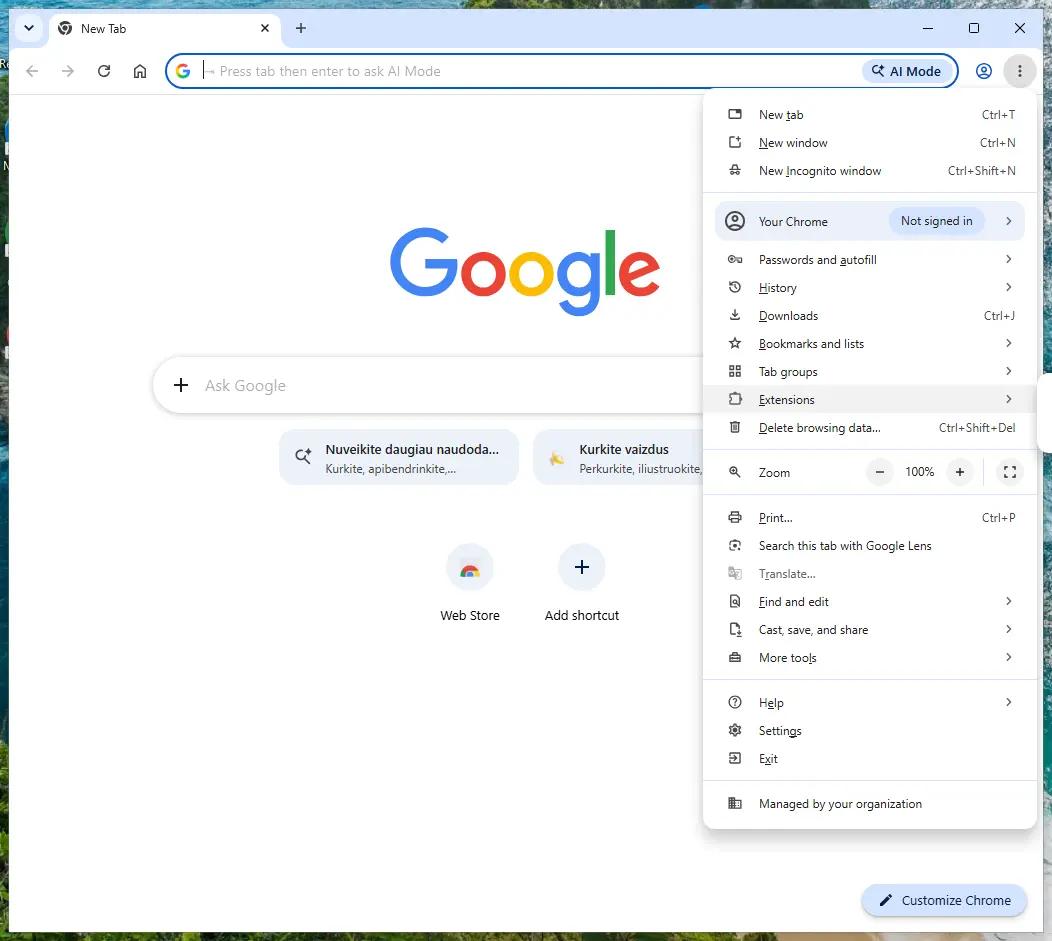
Chrome on Windows 11: More > Extensions > Manage extensions. Full procedure with screenshots: Remove a browser extension
Step 2: Uninstall programs you did not mean to install
Open Settings > Apps > Installed apps in Windows 11, or Settings > Apps > Apps & features in Windows 10, and sort the list by install date. Look at what appeared around the day the problem started and uninstall every program you do not recognise or did not choose.
Free converters, PDF and video tools, "system optimizers" and unknown browsers are the usual carriers of WebDiscover Browser. If a name is unclear, search for it before you remove it, so you do not uninstall a driver or a Windows component.
Full procedure with screenshots: Uninstall a program or app in Windows On uGetFix
Step 3: Reset the browser
Finish the browser part with a reset, which puts the search engine, start page, new tab page and site permissions back to their defaults and switches extensions off. Chrome: Settings > Reset settings > Restore settings to their original defaults.
Edge: Settings > Reset settings. Firefox: Help > More troubleshooting information > Refresh Firefox, which also removes its extensions. Your bookmarks and saved passwords are kept, and the menus are the same on Windows 11 and Windows 10.
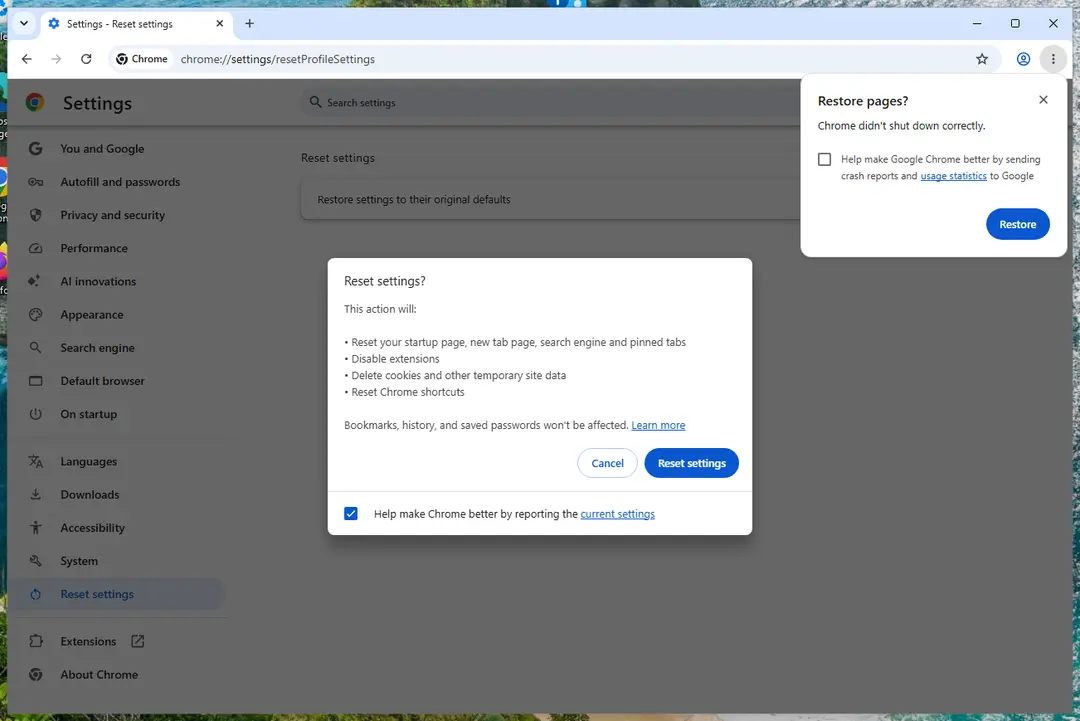
Chrome on Windows 11: Settings > Reset settings. Full procedure with screenshots: Reset a browser and fix a hijacked search engine
Step 4: Scan the PC, then run the offline scan
Open Windows Security > Virus & threat protection > Scan options, run a Full scan and remove everything it finds. Then select Microsoft Defender Antivirus (offline scan) and click Scan now: the PC restarts and scans before Windows loads, which finds files that hide while Windows runs.
Save your work first, because the offline scan takes about 15 minutes. Both scans are built into Windows 11 and Windows 10, and a second scanner from another vendor is a useful extra opinion.

Windows 11: Windows Security > Virus & threat protection > Scan options. Full procedure with screenshots: Run a Microsoft Defender Offline scan
Instructions for each browser and system
The detailed steps for every browser and system this guide covers. Open the one you use.
Uninstall from Windows
Uninstall from Windows 10/8:
- Type Control Panel into the Windows search box and open the result.
- Under Programs, select Uninstall a program.
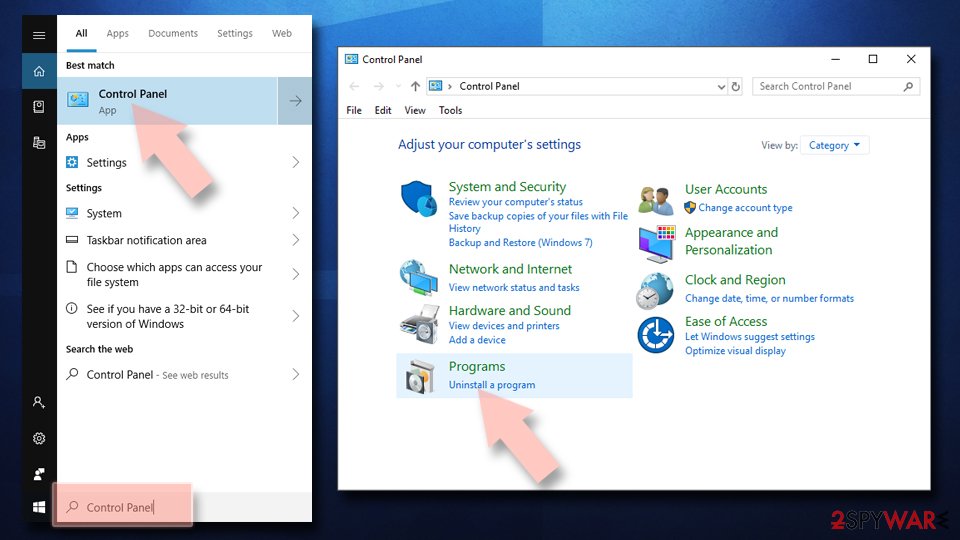
Uninstall from Windows 7/XP:
- Click on Windows Start > Control Panel (Windows XP users should click on Add/Remove Programs).
- In Control Panel, select Programs > Uninstall a program.
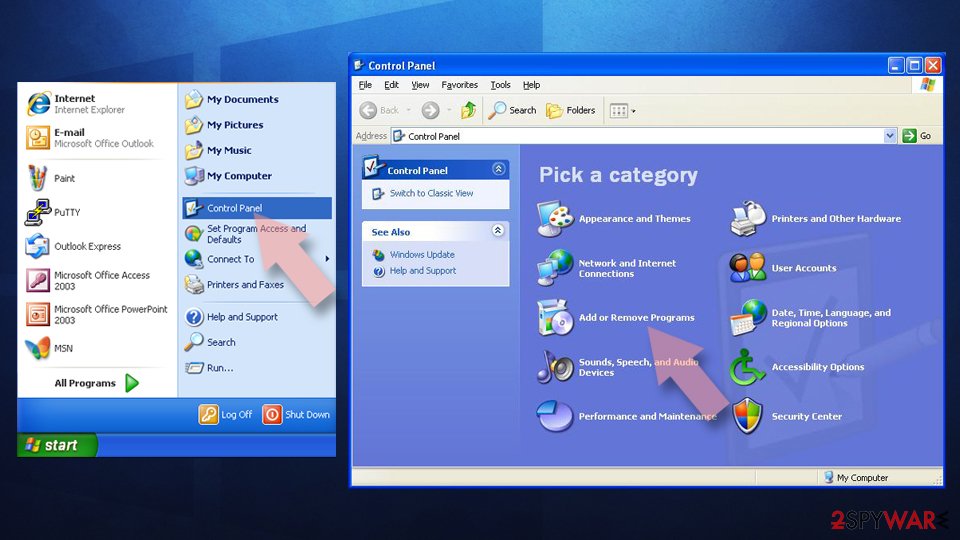
Remove the unwanted program:
- In the Programs and Features window, look for any recently installed suspicious entries, select them, and click Uninstall.
- If User Account Control appears, click Yes to confirm, then complete the removal.
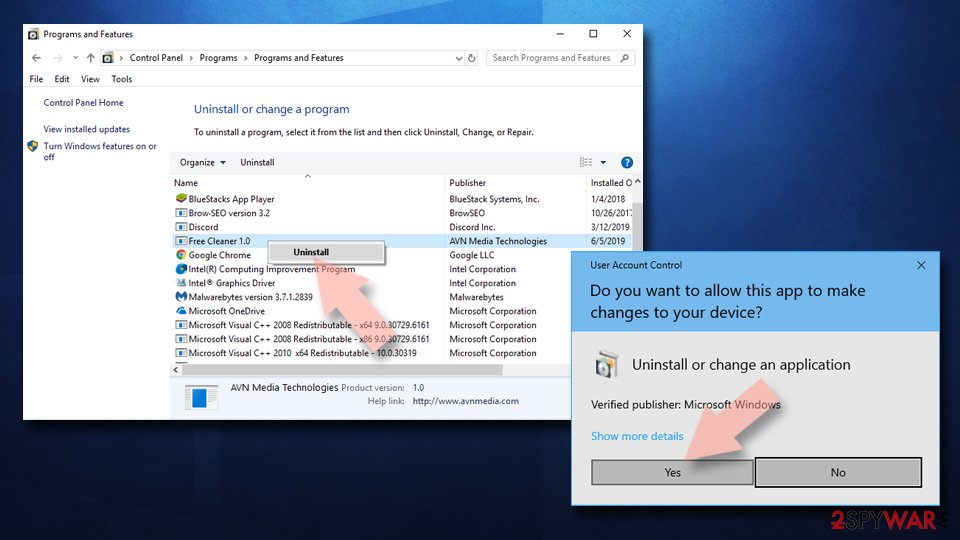
Remove from Google Chrome
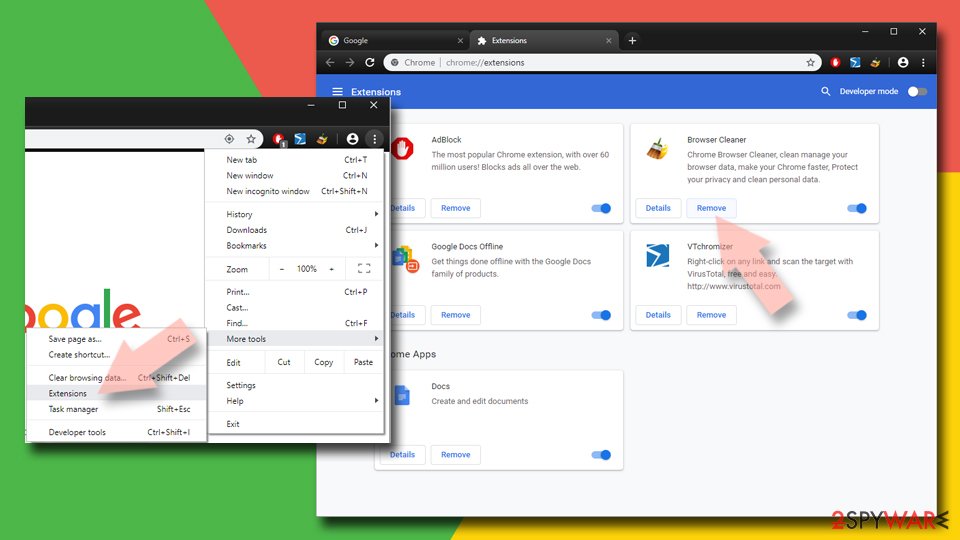
Delete malicious extensions from Google Chrome:
- Open Google Chrome, click on the Menu (three vertical dots at the top-right corner) and select More tools > Extensions.
- In the newly opened window, you will see all the installed extensions. Uninstall all suspicious extensions related to the unwanted program by clicking Remove.
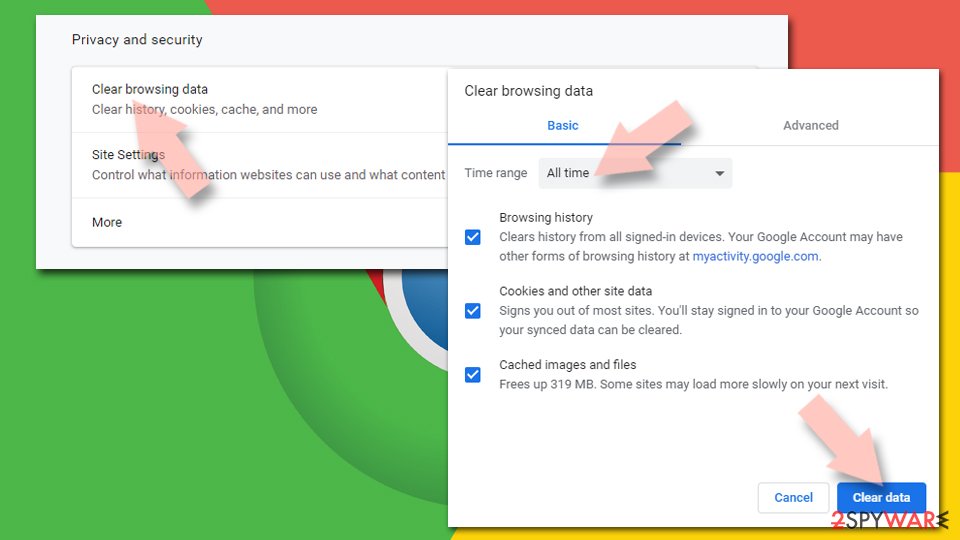
Clear cache and web data from Chrome:
- Click on Menu and pick Settings.
- Under Privacy and security, select Clear browsing data.
- Select Browsing history, Cookies and other site data, as well as Cached images and files.
- Click Clear data.
Change your homepage:
- Click menu and choose Settings.
- Look for a suspicious site in the On startup section.
- Click on Open a specific or set of pages and click on three dots to find the Remove option.
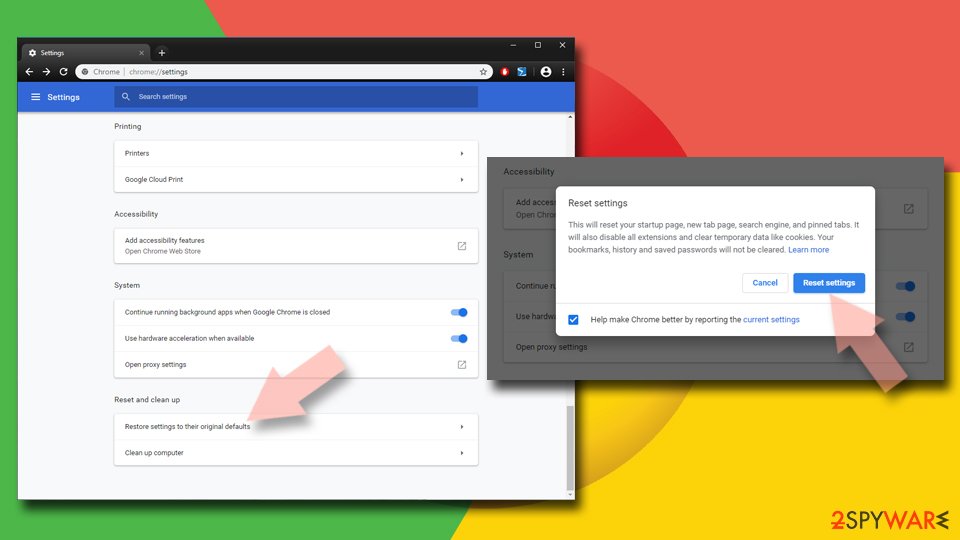
Reset Google Chrome:
If the previous methods did not help you, reset Google Chrome to eliminate all the unwanted components:
- Click on Menu and select Settings.
- In the Settings, scroll down and click Advanced.
- Scroll down and locate Reset and clean up section.
- Now click Restore settings to their original defaults.
- Confirm with Reset settings.
Remove from Microsoft Edge
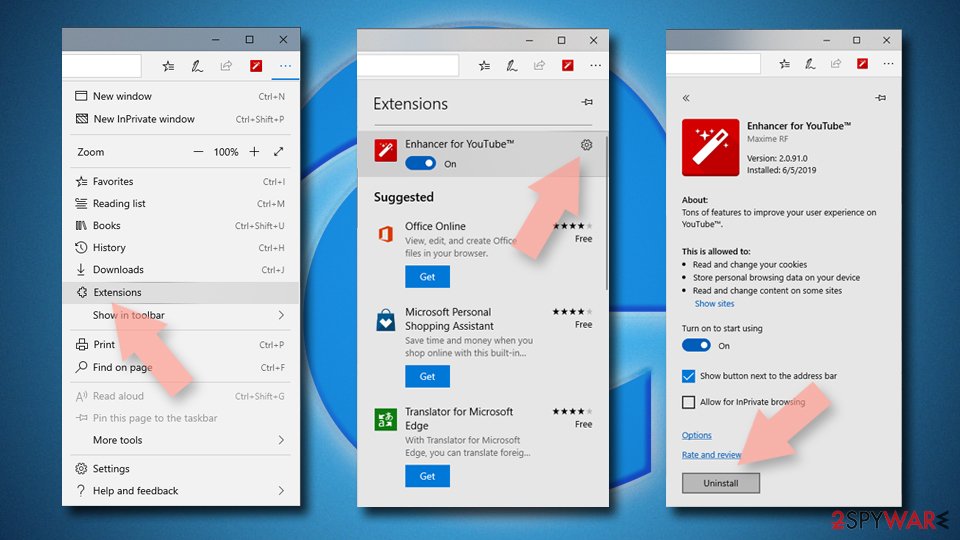
Delete unwanted extensions from MS Edge:
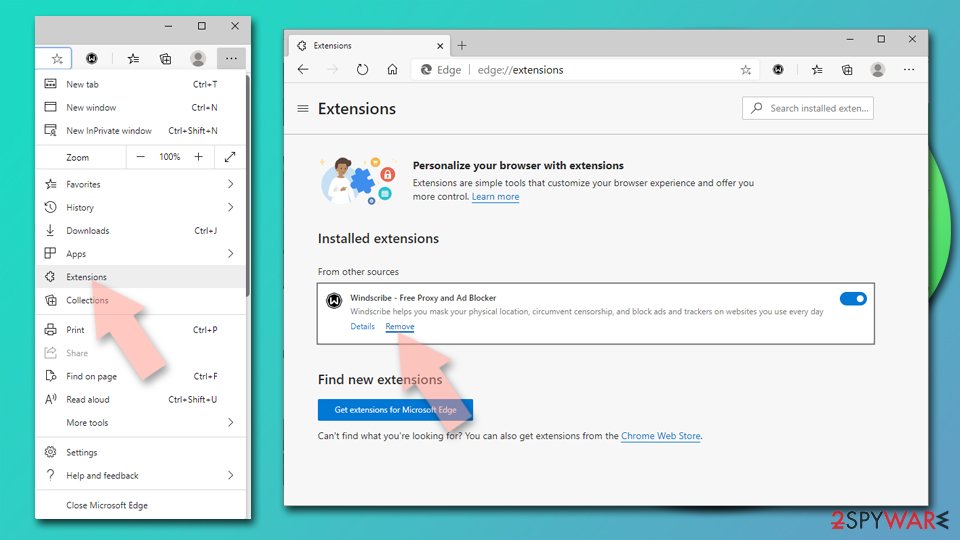
- Select Menu (three horizontal dots at the top-right of the browser window) and pick Extensions.
- From the list, pick the extension and click on the Gear icon.
- Click Remove.
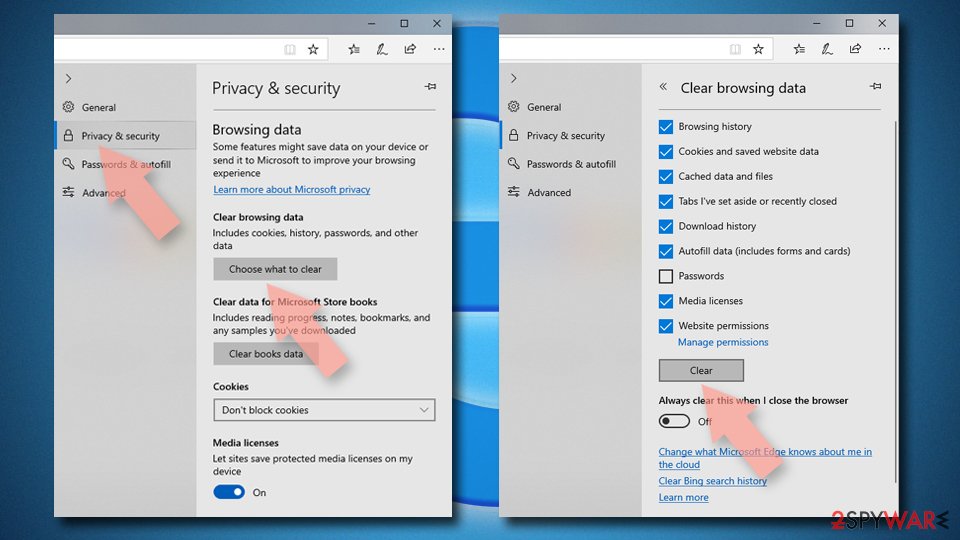
Clear cookies and other browser data:
- Click on the Menu (three horizontal dots at the top-right of the browser window) and select Settings > Privacy, search, and services..
- Under Clear browsing data, pick Choose what to clear.
- Select Cookies and other site data and Cached images and files. (apart from passwords, although you might want to include Media licenses as well, if applicable) and click on Clear.
Restore new tab and homepage settings:
- Click the menu icon and choose Settings.
- Then find On startup section.
- Click Remove next to any suspicious startup page.
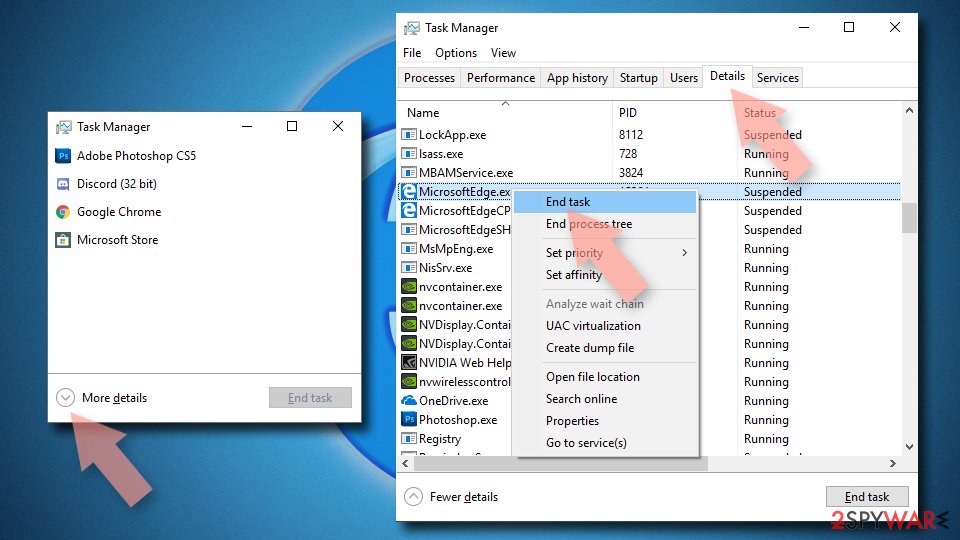
Reset MS Edge if the above steps did not work:
- Press on Ctrl + Shift + Esc to open Task Manager.
- Click on More details arrow at the bottom of the window.
- Select Details tab.
- Now scroll down and locate every entry with Microsoft Edge name in it. Right-click on each of them and select End Task to stop MS Edge from running.
Delete extensions from MS Edge (Chromium):
- Open Edge and click select Settings > Extensions.
- Delete unwanted extensions by clicking Remove.
Clear cache and site data:
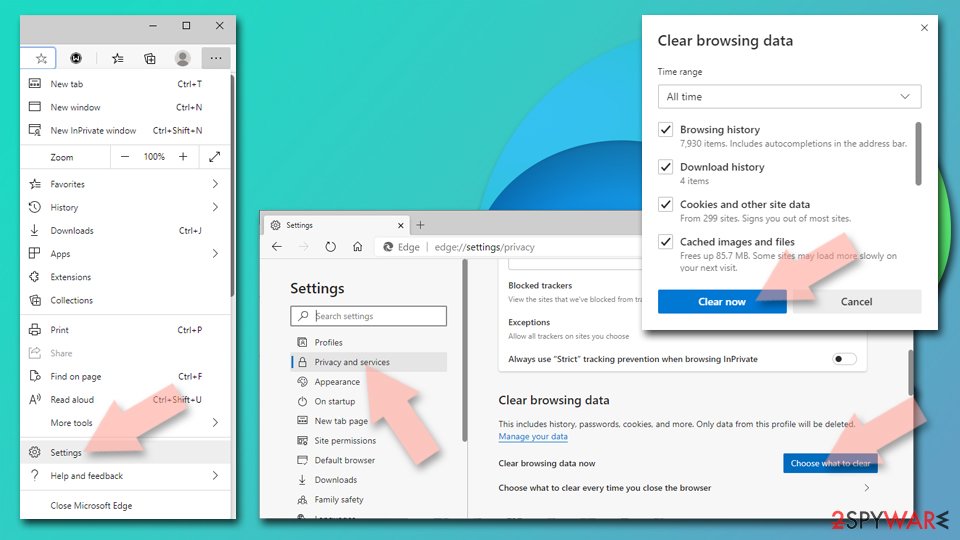
- Click on Menu and go to Settings.
- Select Privacy, search and services.
- Under Clear browsing data, pick Choose what to clear.
- Under Time range, pick All time.
- Select Clear now.
Reset Chromium-based MS Edge:
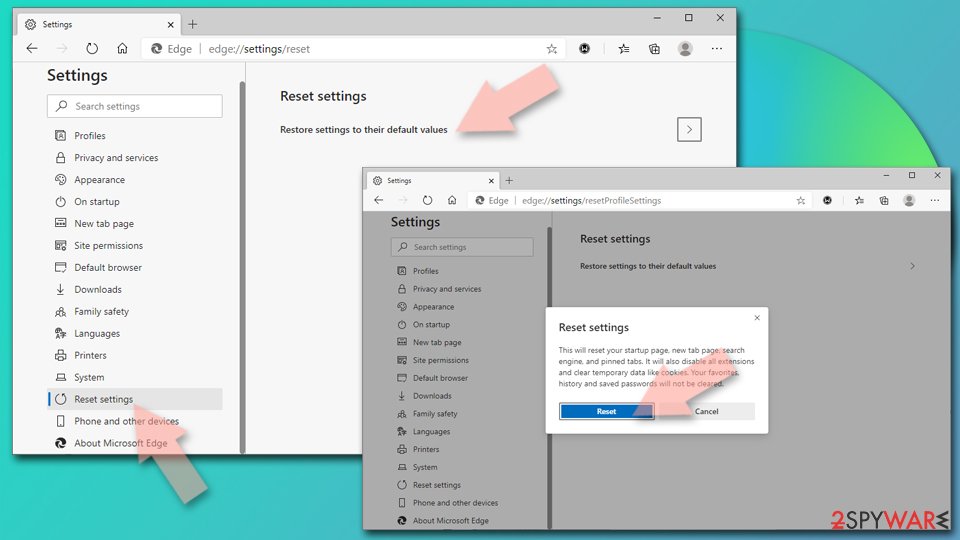
- Click on Menu and select Settings.
- On the left side, pick Reset settings.
- Select Restore settings to their default values.
- Confirm with Reset.
- This will disable extensions and reset startup pages but will not delete bookmarks, saved passwords, or browsing history.
Remove from Mozilla Firefox (FF)
Remove dangerous extensions:
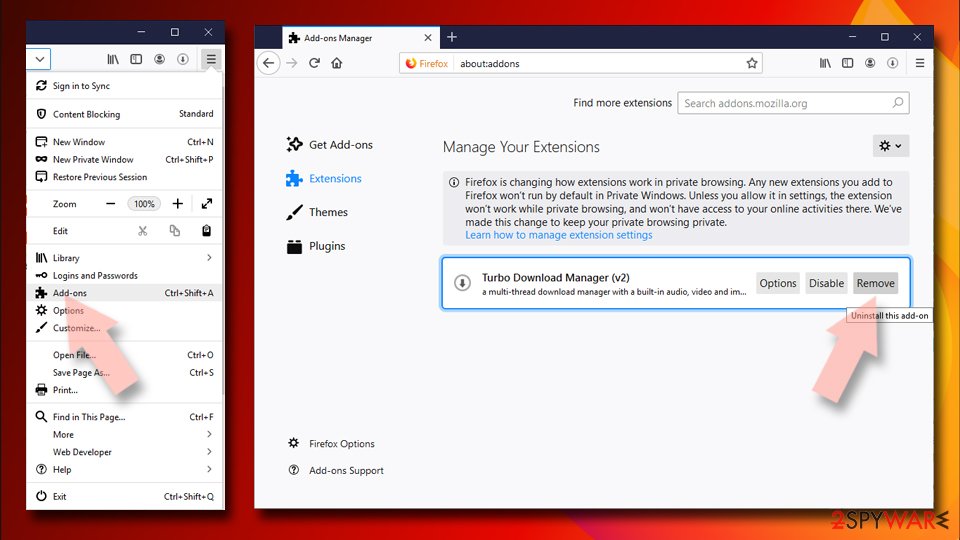
- Open Mozilla Firefox browser and click on the Menu (three horizontal lines at the top-right of the window).
- Select Add-ons.
- In here, select the unwanted extension and click Remove.
Reset the homepage:
- Click three horizontal lines at the top right corner to open the menu.
- Choose Settings.
- Under Home, set your preferred homepage and new tab settings.
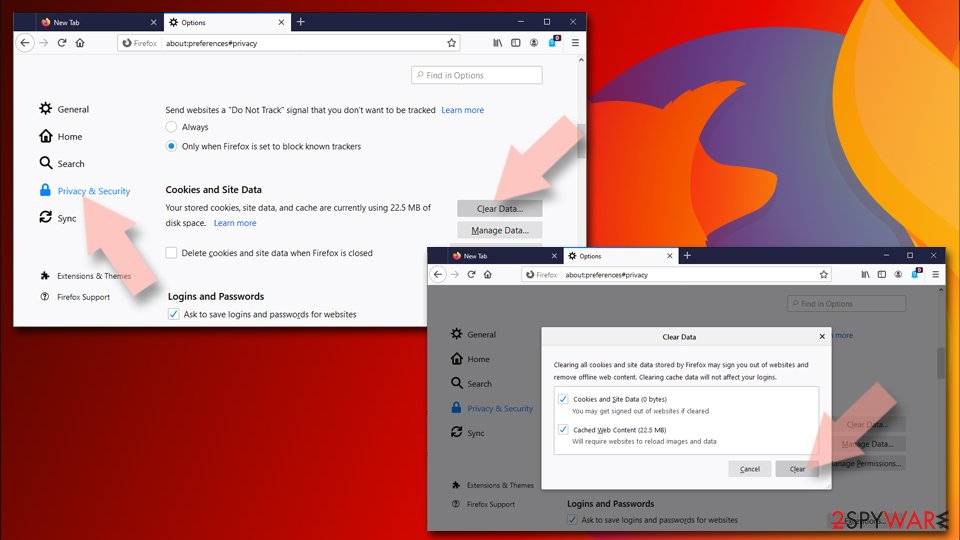
Clear cookies and site data:
- Click Menu and pick Settings.
- Go to Privacy & Security section.
- Scroll down to locate Cookies and Site Data.
- Click on Clear Data...
- Select Cookies and Site Data and Temporary cached files and pages, then click Clear.
Reset Mozilla Firefox
If clearing the browser as explained above did not help, reset Mozilla Firefox:
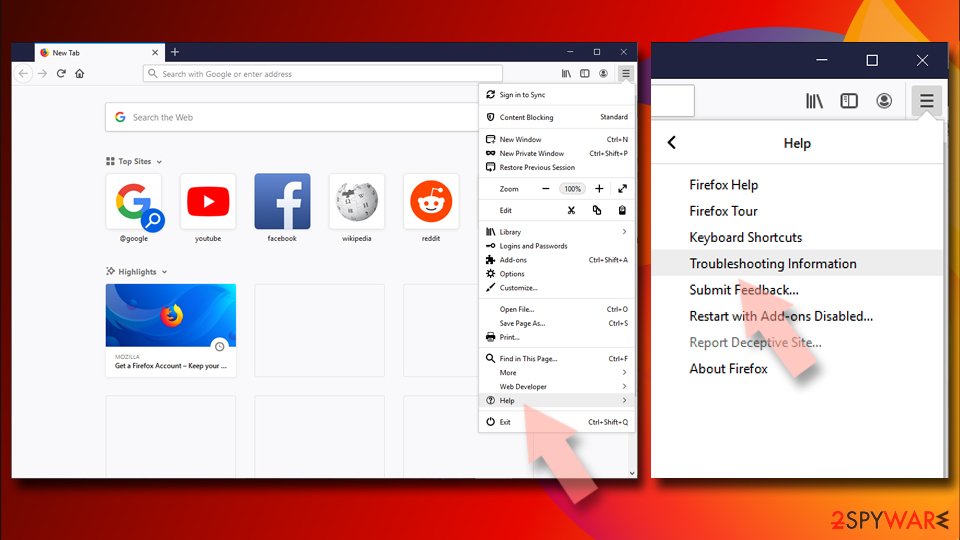
- Open Mozilla Firefox browser and click the Menu.
- Go to Help and then choose Troubleshooting Information.
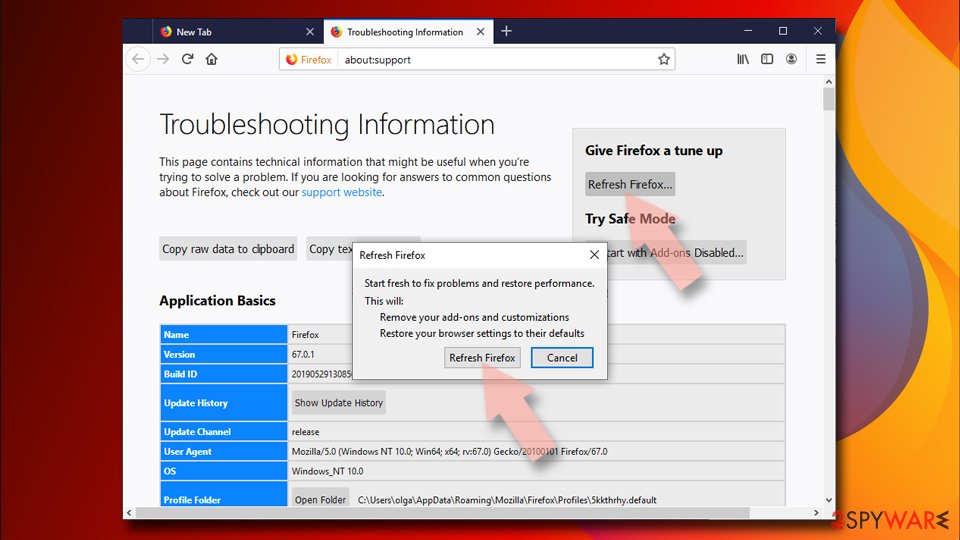
- Under Give Firefox a tune up section, click on Refresh Firefox...
- Once the pop-up shows up, confirm the action by pressing on Refresh Firefox.
Delete from Safari
Remove dangerous extensions:
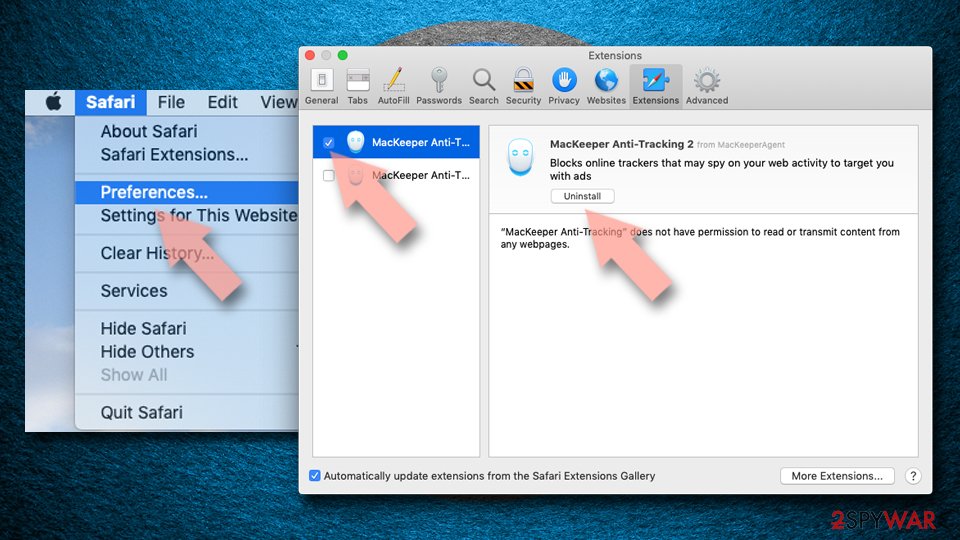
- Open Safari, click Safari in the menu at the top-left of the screen, and select Preferences.
- Go to the Extensions tab, look for any suspicious entries, and click Uninstall to remove them.
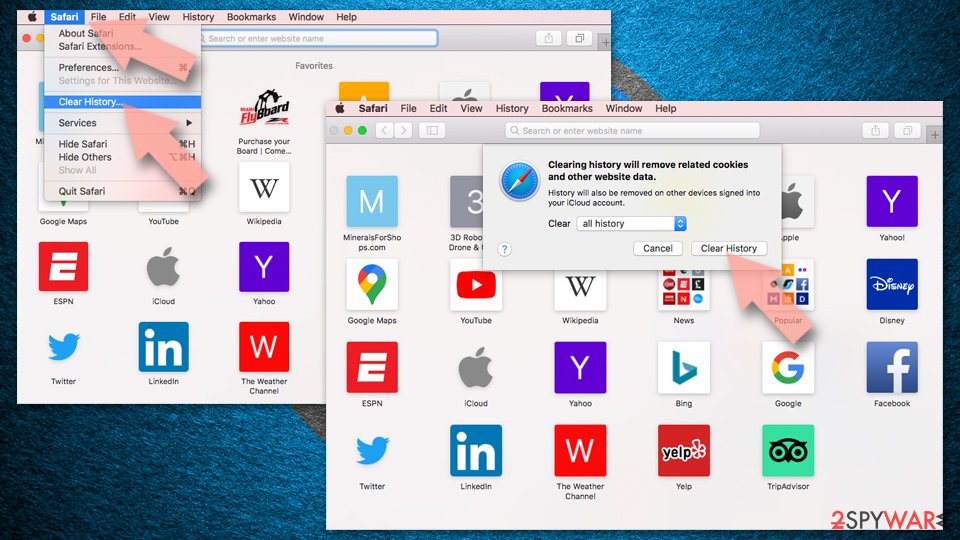
Clear history and website data:
- Click Safari in the menu and pick Clear History.
- Set Clear to all history and confirm with Clear History.
Reset Safari:
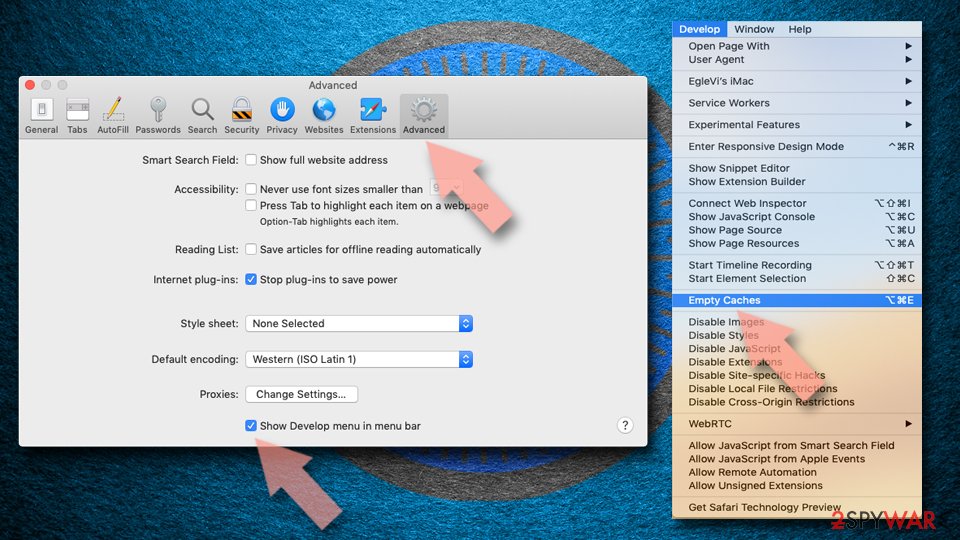
- Click Safari in the menu and select Preferences > Advanced.
- Enable Show Develop menu in menu bar.
- From the menu bar, click Develop and select Empty Caches.
Delete from macOS
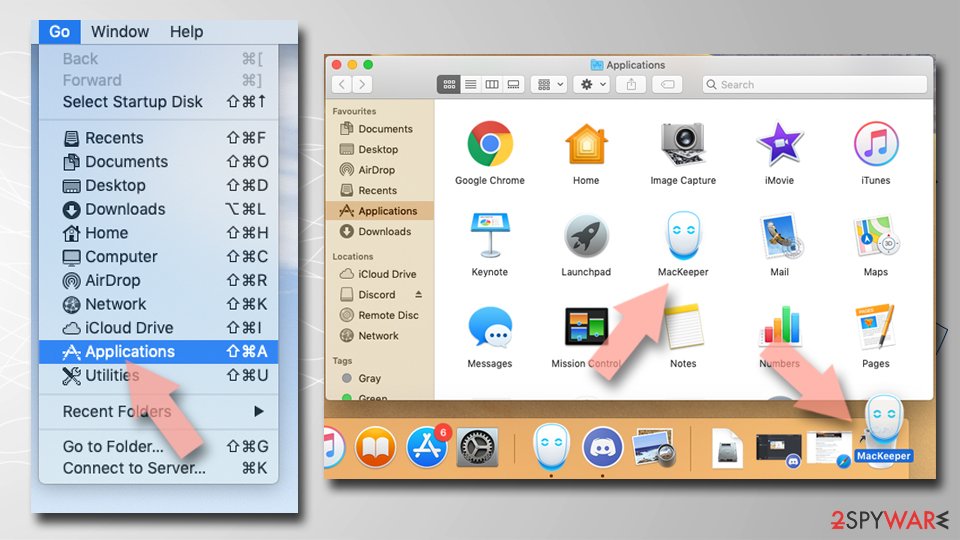
Remove the unwanted application:
- From the menu bar, select Go > Applications.
- In the Applications folder, look for any suspicious entries, then drag them to Trash (or right-click and pick Move to Trash).
Delete leftover files and folders:
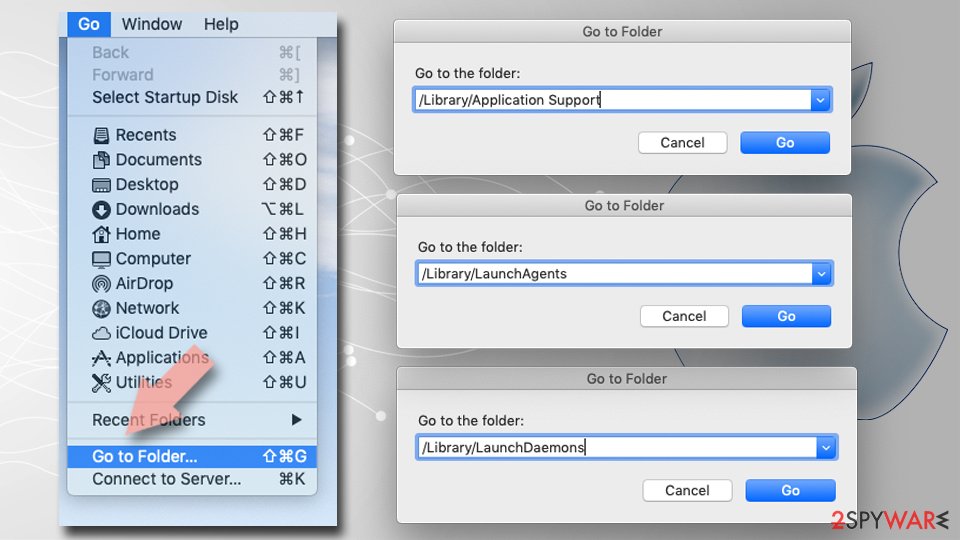
- Select Go > Go to Folder.
- Enter /Library/Application Support and remove any suspicious folders related to the unwanted program.
- Repeat the same check in the /Library/LaunchAgents and /Library/LaunchDaemons folders, deleting any suspicious entries.
- Finally, empty the Trash to permanently remove the leftovers.
Choose a proper web browser and improve your safety with a VPN tool
Online spying has got momentum in recent years and people are getting more and more interested in how to protect their privacy online.
One of the basic means to add a layer of security - choose the most private and secure web browser. Although web browsers can't grant full privacy protection and security, some of them are much better at sandboxing, HTTPS upgrading, active content blocking, tracking blocking, phishing protection, and similar privacy-oriented features.
However, if you want true anonymity, we suggest you employ a powerful VPN - it can encrypt all the traffic that comes and goes out of your computer, preventing tracking completely.
Lost your files? Use data recovery software
While some files located on any computer are replaceable or useless, others can be extremely valuable.
Family photos, work documents, school projects - these are types of files that we don't want to lose. Unfortunately, there are many ways how unexpected data loss can occur:
- power cuts
- Blue Screen of Death errors
- hardware failures
- crypto-malware attack
- even accidental deletion
To ensure that all the files remain intact, you should prepare regular data backups. You can choose cloud-based or physical copies you could restore from later in case of a disaster. If your backups were lost as well or you never bothered to prepare any, can be your only hope to retrieve your invaluable files.
From our report of Aug 2021 · not reviewed since
Main ways to remove unwanted intruders from the system
Web Discover browser won't uninstall simply by removing it from the Add/remove programs list.
As we have already mentioned in the previous sections of the article, the adware should be deleted by using some reputable and trustworthy anti-spyware which becomes very handy for the inspection of your system and checking if it has been infected.
However, since the virus is good at obfuscating itself, it might be necessary to remove it manually. In such a case, you should be ready to use some of your time and apply technical skills.
If you do not feel overwhelmed by a longer and more complex procedure and instead of leaving the adware removal for the automatic antivirus utilities would like to delete it yourself, you can check out the detailed removal instructions presented below.
Questions about WebDiscover Browser ads
What is WebDiscover Browser?
WebDiscover is a Chromium-based browser promoted as a replacement for Google Chrome that supposedly improves browsing experience. The developers claim it provides VPN connection, weather forecasts, quick access to social media, and convenient integrated search features. However, research reveals the browser hijacks performance, tracks online time, and actively redirects users to sponsored websites and paid content.
It has been classified as a browser hijacker and potentially unwanted program due to stealthy distribution methods and serious removal difficulties. Despite legitimate-sounding marketing, WebDiscover is designed primarily to generate revenue for developers through sponsored search results and advertising redirects rather than provide genuine utility to users.
What problems does WebDiscover cause?
WebDiscover displays excessive amounts of ads on most websites you visit, with sponsored links filling search results and leading to websites paying for such traffic. The browser resets itself as your default browser repeatedly, making it extremely difficult to use a different browser.
Users cannot completely get rid of the intruder even after manual removal attempts because it automatically reasserts itself. The browser can promote suspicious third parties and redirect victims to potentially dangerous websites that display phishing content or malware.
Clicking links by default opens WebDiscover instead of your preferred browser, and the toolbar pins itself to the top of your desktop, staying on top of every application and preventing normal use. Performance degradation becomes noticeable as the browser consumes system resources while serving aggressive advertising.
How does WebDiscover spread?
WebDiscover spreads through multiple channels including bundling with free software, misleading download websites, and its own official website. Users often install it unknowingly when downloading free applications from third-party sites, where WebDiscover is bundled as an optional component hidden in Advanced settings.
Misleading websites offering free software downloads trick users into installing WebDiscover by disguising it as a Chrome update or necessary plugin. Some users intentionally download it from the official website without realizing its true nature.
The installer offers additional potentially unwanted programs during setup. Once installed, WebDiscover resists removal by respawning itself as the default browser and rebuilding removed components.
Is WebDiscover malware?
WebDiscover is not classified as traditional malware like trojans or ransomware but rather as a browser hijacker and potentially unwanted program. It lacks destructive capabilities that damage or encrypt files, steal banking information, or propagate itself like worms. However, security experts consider it dangerous due to its aggressive advertising, tracking capabilities, and association with phishing and malware distribution.
The browser can be used to implement shady marketing campaigns and expose users to infectious websites. Antivirus utilities find it difficult to detect and eliminate, allowing it to persist and continue troubling users. Its combination of intrusive behavior, tracking technology, and refusal to uninstall cleanly makes it functionally equivalent to dangerous malware from a user perspective.
What tracking does WebDiscover perform?
WebDiscover collects anonymous data including web browser type, operating system type and version, domain name, browser version, browser usage statistics, and visit timestamps. The browser uses cookies and navigational data like URLs and referrer URLs to gather information about your visits. WebDiscover tracks your IP address, geolocation data, and browsing behavior to identify interests and patterns.
This information is used for market research and to improve products, but also to create behavioral profiles sold to advertisers. The privacy policy states this data may be shared with third-party service providers hosting the servers, meaning multiple parties access your information. This level of tracking violates privacy and enables targeted manipulation of your browsing experience toward sponsored content.
How do I remove WebDiscover Browser?
Removal requires using reputable antispyware software because WebDiscover resists manual uninstallation. A mobile-friendly antivirus program can scan your system, detect malicious entries and files, and eliminate all instances of the browser hijacker.
Standard uninstallation through Control Panel often fails because WebDiscover rebuilds removed components and resets itself as default browser. After running antimalware software, manually check your browser settings to verify the hijacker is completely gone. Reset your default browser preferences and search engines to legitimate providers.
Look for remaining WebDiscover entries in registry or startup programs using registry editor or system utilities. If WebDiscover persists, boot into Safe Mode and retry antimalware scanning, as this prevents the hijacker from defending itself during removal.
What does the WebDiscoverHelper utility do?
WebDiscover offers a program called WebDiscoverHelper (versions net40.exe or net35.exe) claiming to help uninstall the browser. Users who encounter uninstallation difficulties may be tempted to download this helper utility.
However, downloading this program risks installing additional unwanted software or malware, compounding your problems rather than solving them. Security experts advise against downloading helper utilities or additional programs suggested by WebDiscover. Instead, use established antimalware software from reputable security vendors that specialize in removing hijackers.
Trust proven security tools rather than utilities offered by the developers of the unwanted software. The offer of download helpers is typically a social engineering tactic designed to trick users into installing more threats.
How do I prevent WebDiscover infection?
Avoid downloading software from misleading third-party sites offering free software—these frequently bundle unwanted programs like WebDiscover. Always download applications directly from official developer websites. When installing free software, select Custom or Advanced installation options to see all bundled components and uncheck anything suspicious.
Be particularly wary of setup steps offering toolbars, browser extensions, or browser homepage changes. Do not trust website claims that WebDiscover improves browsing—legitimate improvements don't require aggressive advertising or tracking.
Read user reviews on trusted tech forums before installing any browser alternative. Keep antivirus software updated with real-time protection enabled to block WebDiscover downloads before installation. Maintain healthy skepticism about browser utilities promising superior performance, as these are often hijackers in disguise.
Will Fortect remove WebDiscover Browser?
Fortect scans Windows for malware and unwanted programs and repairs the system files and settings they change, and its free scan shows what it finds on your PC before you decide anything.
For WebDiscover Browser, follow the plan above as well: the browser steps take back permissions and settings that no scanner treats as a threat, and uninstalling the program that brought it removes the source.
Run Microsoft Defender's full scan and, if anything was found, its offline scan as a second opinion. If the symptoms are gone after the plan and both scans are clean, there is nothing more to do.
Sources
- How-To-Geek: Not all "viruses" are viruses: 10 malware terms explained (read October 5, 2026)
- Chromium: Chromium OS developer guide (read October 5, 2026)
- Yahoo: Explained: here's how advertising tracks you across the web (read October 5, 2026)
- Piwiki: What is PII, non-PII, and personal data? (read October 5, 2026)
- Google Chrome Help: Use notifications to get alerts (no longer online) (read October 5, 2026)