
Webfreshupdater.com ads: what it is and how to remove it
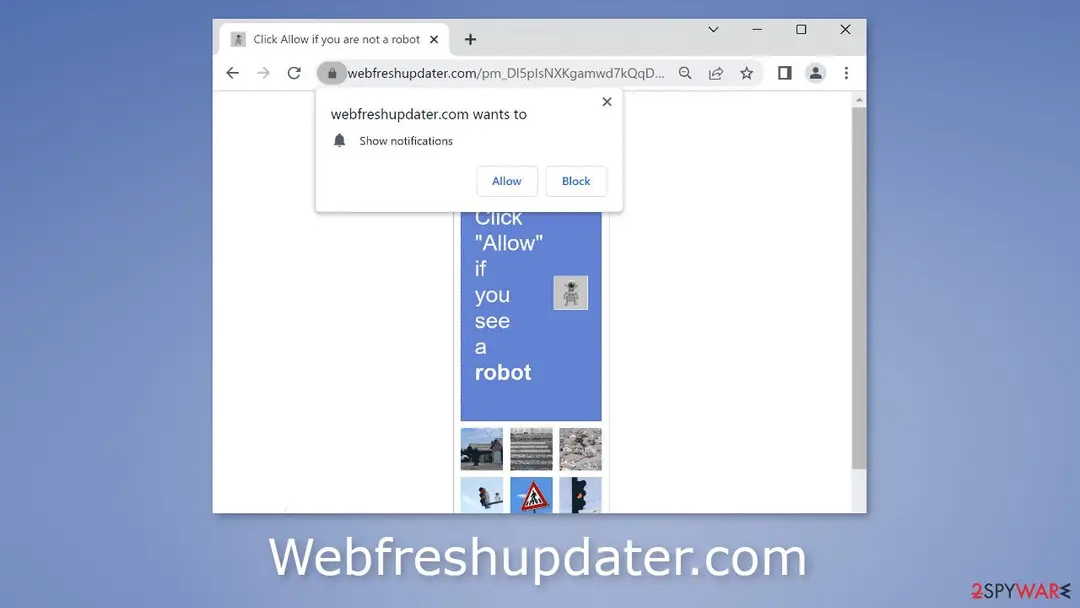
Webfreshupdater.com is a bogus website that sends users spammy push notifications and redirects them to other harmful websites. It tricks people into clicking on the "Allow" button by presenting them with the message, "Click "Allow" if you see a robot."
Facts checked October 7, 2026. Removal steps tested on Windows 11 (26H2) and checked against Microsoft's and the browser makers' current documentation. Sections marked as our earlier report are the original text: they describe the threat as it was then and have not been reviewed since. The 2026 status, the removal steps and the questions are current.
Automatic
Get a free scan and check if your PC is infected.
Fortect finds malware, unwanted programs and the Windows damage they leave behind, and repairs it in one pass.
A quick scan confirms that the webfreshupdater.com notifications did not lead to anything being installed.
Do it yourself · free Remove Webfreshupdater.com ads yourself 2 steps, about 6 minutes, no software needed.
Webfreshupdater.com ads: summary
| Distribution | Shady websites, deceptive ads, freeware bundling |
|---|---|
| NAME | Webfreshupdater.com |
| TYPE | Push notification spam; adware |
| SYMPTOMS | Annoying pop-up ads start appearing in the corner of the screen, sometimes even when the browser is closed |
| DANGERS | Links embedded in the pop-ups may lead to dangerous pages where people can get tricked into providing their personal information or downloading PUPs and malware |
| Detection names | No Microsoft detection name is known |
| Removal | Scan the PC with security software to find and remove the malware and anything installed with it. Fortect scans Windows for malware and repairs the system files and settings it damaged. Remove it nowTo use the full-featured product, you have to purchase a license for Fortect. The scan is free. |
Show 11 more facts
| Damage | Not recorded in the old report |
|---|---|
| Name | Webfreshupdater.com |
| Type | Push-notification spam site |
| Symptoms | Notification spam from a website |
| Evidence | 4 write-ups by security sites; details still limited |
| Domains | webfreshupdater.com |
| Ads shown as | Desktop notifications |
| Browsers | Chrome, Edge and Firefox |
| Installed on the PC | Nothing; a browser notification permission only |
| First seen | 29 November 2022 |
| Facts checked | 7 October 2026 |
Is Webfreshupdater.com ads dangerous?
From our report of Nov 2022 · not reviewed since
Webfreshupdater.com provides passive income to crooks using social engineering
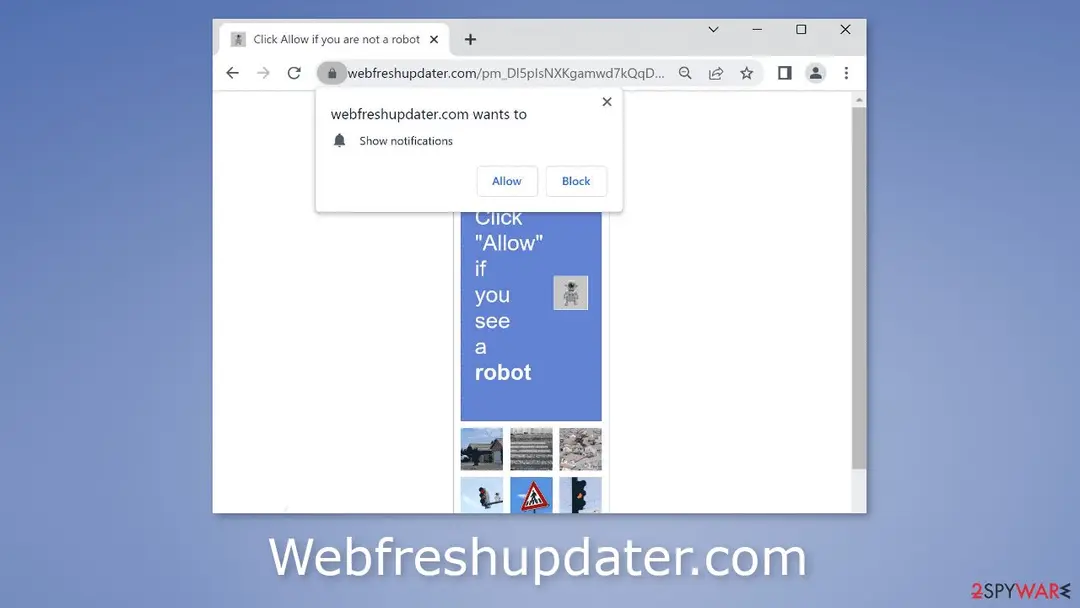
Webfreshupdater.com is a bogus website that sends users spammy push notifications and redirects them to other harmful websites.
It tricks people into clicking on the "Allow" button by presenting them with the message, "Click "Allow" if you see a robot." Once they do, they start getting bombarded with annoying pop-up ads.
If users click "Allow," they may also get redirected to other scam sites. Crooks typically use advertising networks that display ads for dangerous websites. As a result, people can end up on deceitful pages that try to extract personal information or trick them into downloading PUPs (potentially unwanted programs), and even malware.
People typically see ads promoting things like adult sites, fake antivirus deals, software offers, giveaways, and surveys. So it's best to disable pop-ups as soon as possible, especially if there are other people who use the same computer. Our full guide will tell you everything else you need to know.
From our report of Nov 2022 · not reviewed since
Safe browsing tips
Websites that spam users with push notifications are rarely seen on the first few pages of search results.
They're normally hidden on other, less reputable sites that also engage in illegal activities. For example, some illegal streaming websites have fake "Download" and "Play" buttons which send users to scam sites instead.
Therefore, it is more beneficial to use streaming services that are reputable, such as Netflix or Hulu. A small monthly subscription fee is all that is needed, and users have access to watch an unlimited amount of content. Furthermore, do not click on any links or ads if they seem suspicious, or even if the product or service being promoted looks real because crooks can use social engineering tricks.
From our report of Nov 2022 · not reviewed since
Adware infections
Adware is a type of software that typically runs in the background without users' knowledge.
It can cause an increase in commercial content on your machines, like redirects to websites and pop-up ads. It is possible that Webfreshupdater.com was opened by it.
Adware is often installed on peoples' computers when they download freeware. However, you can prevent such PUP installations by following a few simple steps:
- always choose "Custom" or "Advanced" installation methods
- read the Privacy Policy and Terms of Use before installing any programs
- check the file list for any unrelated applications
From our report of Nov 2022 · not reviewed since
Disable the notifications
If you have had enough of annoying ads, you can disable Webfreshupdater.com permissions to show pop-ups by going to your browser settings.
Keep in mind that this might not work if you have an adware infection. After successful removal, you need to take care of your browsers separately.
Google Chrome (desktop):
Google Chrome (Android):
MS Edge (Chromium):
- Open Google Chrome browser and go to Menu > Settings.
- Locate Privacy and security section and pick Site Settings > Notifications.
- Look at the Allow section and look for a suspicious URL.
- Click the three vertical dots next to it and pick Block. This should remove unwanted notifications from Google Chrome.
- Open Google Chrome and tap on Settings (three vertical dots).
- Select Notifications.
- Locate the unwanted URL and toggle the button to the left (Off setting).
- Open Mozilla Firefox and go to Menu > Options.
- Click on Privacy & Security section.
- Under Permissions, you should be able to see Notifications. Click the Settings button next to it.
- In the Settings – Notification Permissions window, click on the drop-down menu by the URL in question.
- Select Block and then click on Save Changes. This should remove unwanted notifications from Mozilla Firefox.
- Click on Safari > Preferences...
- Go to the Websites tab and, under General, select Notifications.
- Select the web address in question, click the drop-down menu and select Deny.
- Open Microsoft Edge, and click the Settings and more button (three horizontal dots) at the top-right of the window.
- Select Settings and then go to Advanced.
- Under Website permissions, pick Manage permissions and select the URL in question.
- Toggle the switch to the left to turn notifications off on Microsoft Edge.
- Open Microsoft Edge, and go to Settings.
- Select Site permissions.
- Go to Notifications on the right.
- Under Allow, you will find the unwanted entry.
- Click on More actions and select Block.
From our report of Nov 2022 · not reviewed since
Clear your browsers from cookies
With the help of cookies, shady websites you visit can collect data about your browsing activities.
This includes your IP address, geolocation, links you click on, and things you purchase online. This information can later be sold to advertising networks or other third parties for profit.
You should clear your browsers from cookies and cache regularly, to prevent that from happening. Using a maintenance tool like makes it easy. This powerful software can also fix various system errors, corrupted files, and registry issues, which is especially helpful after a virus infection.
From our report of Nov 2022 · not reviewed since
More from our earlier report on Webfreshupdater.com
- Disable push notification via browser settings
- Use a maintenance tool like to clear your browsers from cookies and cache
Check your browser and PC
- Address:
webfreshupdater.com
How to remove Webfreshupdater.com ads
How to stop Webfreshupdater.com notifications
Do this in every browser you use, and in every profile inside it: each keeps its own list of sites allowed to send notifications.
Nothing has to be uninstalled for the notifications themselves.
Which browser shows the ads?
Step 1: Remove webfreshupdater.com from Chrome's notification list
Open More (the three dots) > Settings > Privacy and security > Site settings > Notifications, or paste
chrome://settings/content/notificationsinto the address bar.Under Allowed to send notifications, open the menu next to
webfreshupdater.comand choose Remove or Block, and do the same for any other address you do not recognise.Next to Not allowed to send notifications, click Add and enter webfreshupdater.com, so the site cannot ask again. The menus are the same in Chrome on Windows 11 and Windows 10, and each Chrome profile keeps its own list.
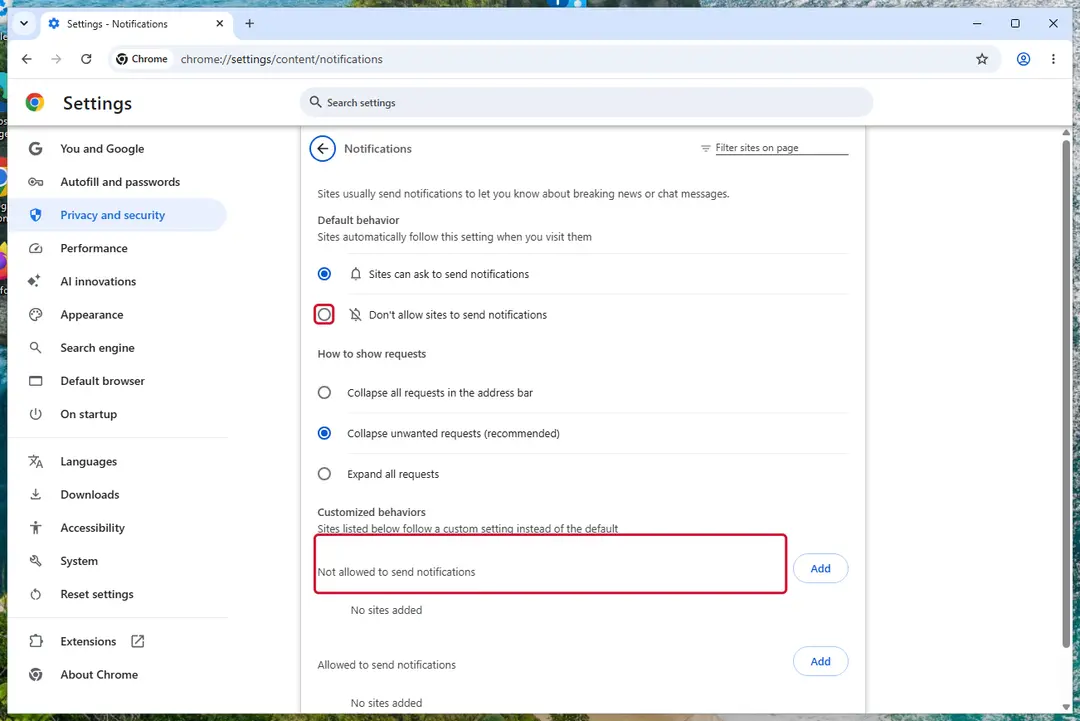
Chrome on Windows 11: Settings > Privacy and security > Site settings > Notifications. Full procedure with screenshots: Stop website notifications and pop-ups
Step 1: Remove webfreshupdater.com from Edge's notification list
Edge stores its own permission list, separate from Chrome's, and it is often the browser behind these pop-ups on Windows 11 and Windows 10.
Go to Settings > Privacy, search, and services > Site permissions > All permissions > Notifications, or paste
edge://settings/content/notifications. Removewebfreshupdater.comfrom Allowed, then add it under Not allowed to send notifications. Notifications that show the Edge logo come from this list.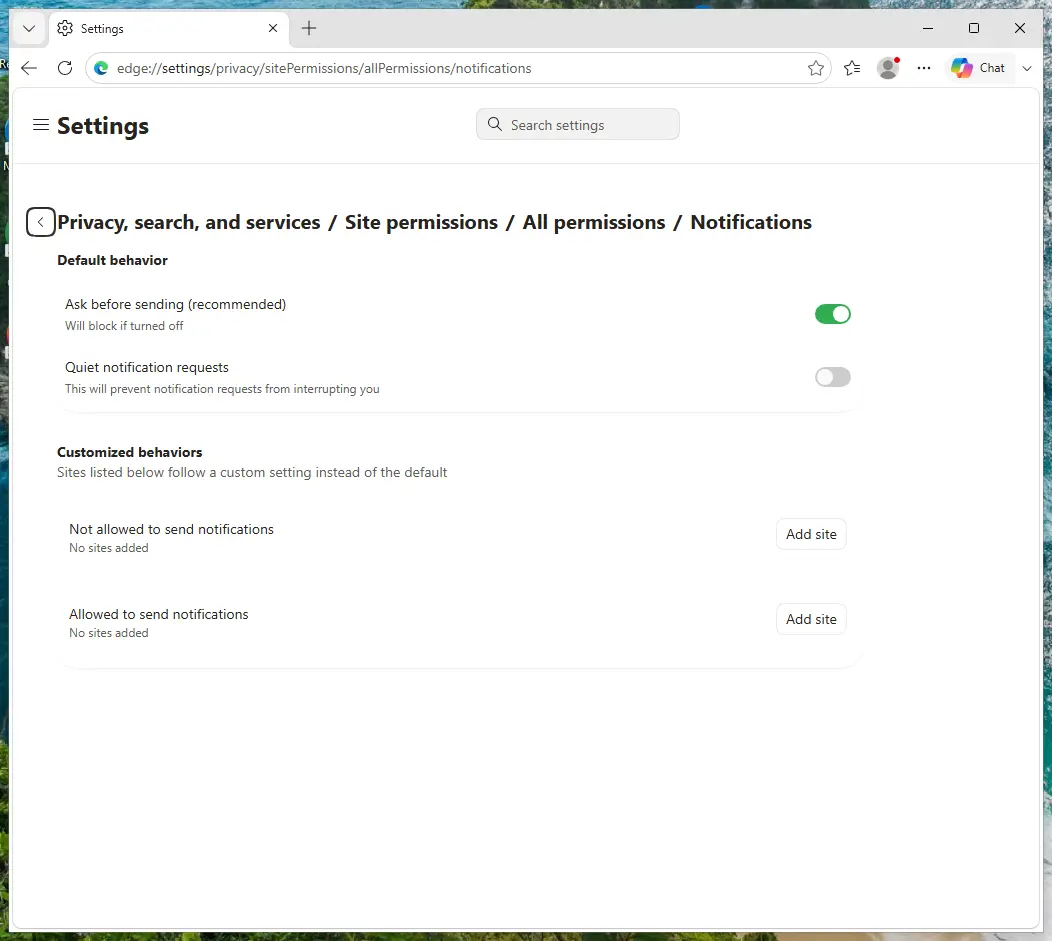
Edge on Windows 11: Site permissions > All permissions > Notifications. Full procedure with screenshots: Stop website notifications and pop-ups
Step 1: Remove webfreshupdater.com from Firefox's notification permissions
In Firefox the permission sits in Settings > Permissions and data > Notifications (in older versions Privacy & Security > Notifications > Settings). Select
webfreshupdater.comin the list, click Remove Website, and confirm with Save Changes.Firefox only shows these notifications while it is open, so if they stopped after closing Firefox, this is the browser to clean. The steps are the same on Windows 11 and Windows 10.
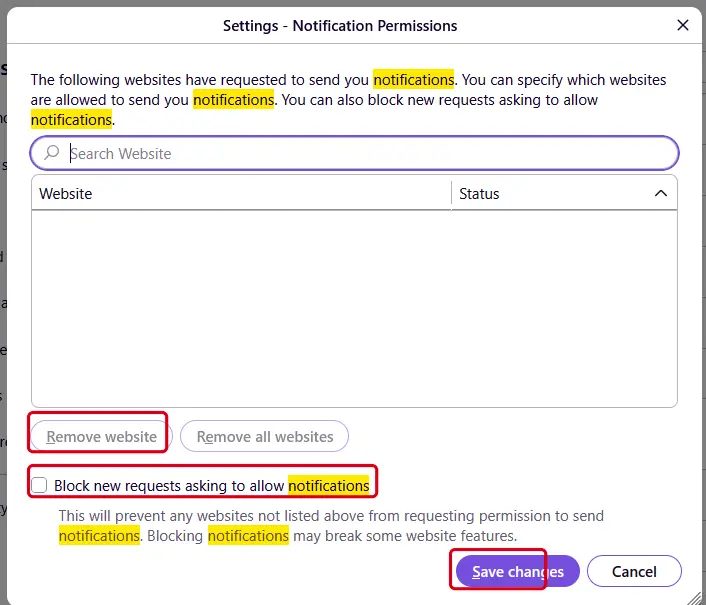
Firefox on Windows 11: the Notification Permissions window. Full procedure with screenshots: Stop website notifications and pop-ups
Then, whichever browser you use
Step 2: Scan the PC if you downloaded anything from the ads
Most people who only saw the notifications can skip this step. If a notification or the page it opened made you download or run a file, delete the file and run a full scan, then a Microsoft Defender Offline scan.
In Windows 11 and Windows 10 open Windows Security > Virus & threat protection > Scan options, select Microsoft Defender Antivirus (offline scan) and click Scan now. The PC restarts and the scan takes about 15 minutes, so save your work first.

Windows 11: Windows Security > Virus & threat protection > Scan options. Full procedure with screenshots: Run a Microsoft Defender Offline scan
More removal instructions
For programs installed on the PC and older browsers. Open the one you need.
Adware removal
If the previous removal method did not work and you still experience symptoms like an increased amount of commercial content, banners, surveys, or redirects you might be infected by adware.
These programs often infiltrate the systems as bundled software from freeware distribution sites.
If you have no idea which app is responsible for such activities, you should deploy or professional security software that will perform a full system scan and eliminate it automatically. They can also prevent such infections in the future by warning you. If you still prefer doing it yourself, here are step-by-step instructions for Windows and macOS:
To fully remove an unwanted app, you need to access Application Support, LaunchAgents, and LaunchDaemons folders and delete relevant files:
- Enter Control Panel into Windows search box and hit Enter or click on the search result.
- Under Programs, select Uninstall a program.
- From the list, find the entry of the suspicious program.
- Right-click on the application and select Uninstall.
- If User Account Control shows up, click Yes.
- Wait till uninstallation process is complete and click OK.
- Click on Windows Start > Control Panel located on the right pane (if you are Windows XP user, click on Add/Remove Programs).
- In Control Panel, select Programs > Uninstall a program.
- Pick the unwanted application by clicking on it once.
- At the top, click Uninstall/Change.
- In the confirmation prompt, pick Yes.
- Click OK once the removal process is finished.
- From the menu bar, select Go > Applications.
- In the Applications folder, look for all related entries.
- Click on the app and drag it to Trash (or right-click and pick Move to Trash)
- Select Go > Go to Folder.
- Enter /Library/Application Support and click Go or press Enter.
- In the Application Support folder, look for any dubious entries and then delete them.
- Now enter /Library/LaunchAgents and /Library/LaunchDaemons folders the same way and terminate all the related .plist files.
Protect your privacy - employ a VPN
There are several ways how to make your online time more private - you can access an incognito tab.
However, there is no secret that even in this mode, you are tracked for advertising purposes. There is a way to add an extra layer of protection and create a completely anonymous web browsing practice with the help of VPN. This software reroutes traffic through different servers, thus leaving your IP address and geolocation in disguise.
Besides, it is based on a strict no-log policy, meaning that no data will be recorded, leaked, and available for both first and third parties. The combination of a secure web browser and VPN will let you browse the Internet without a feeling of being spied or targeted by criminals.
No backups? No problem. Use a data recovery tool
If you wonder how data loss can occur, you should not look any further for answers - human errors, malware attacks, hardware failures, power cuts, natural disasters, or even simple negligence.
In some cases, lost files are extremely important, and many straight out panic when such an unfortunate course of events happen. Due to this, you should always ensure that you prepare proper data backups on a regular basis.
If you were caught by surprise and did not have any backups to restore your files from, not everything is lost. is one of the leading file recovery solutions you can find on the market - it is likely to restore even lost emails or data located on an external device.
Questions about Webfreshupdater.com ads
Why do I get notifications from webfreshupdater.com when the browser is closed?
Chrome and Edge can keep a small part running in the background so that sites can deliver notifications, and Windows shows them in its notification area. That is why messages from webfreshupdater.com keep arriving with no browser window open.
The permission to send them was granted when someone clicked Allow on a prompt from that site, often disguised as a robot check or a video player. Closing the browser does not remove it; only the notification settings do.
Remove webfreshupdater.com from the allowed sites and the background messages stop. You can also stop the browser from running in the background in its system settings, but the permission is the real fix.
I clicked a notification from webfreshupdater.com. What should I do?
If you only opened the page and closed it, nothing else is needed besides removing the permission from webfreshupdater.com. If the page asked for card details, a phone number or a password and you entered them, act on that: call the bank to block the card, or change the password from another device.
If it offered a download, delete the file unopened, or uninstall it from Installed apps if you ran it, then run a full scan. If you called a number shown on the page, follow the steps for callers in this guide. Finally, remove the permission so that no more messages arrive.
What is Webfreshupdater.com?
Webfreshupdater.com is a push-notification spam site, a kind of adware. It earns money by showing desktop notifications, and each view, click or redirect pays whoever runs it. It is not something people usually choose; it arrives through a free download, a fake button or a misleading prompt.
Webfreshupdater.com does not encrypt files or take control of Windows, but its ads are sold to anyone, including scam operators, so they can lead to fake virus warnings and unwanted downloads. The steps in this guide remove it from Windows and from each browser.
Why does webfreshupdater.com keep showing up?
There are two possible reasons. If it appears as desktop notifications, a browser on this PC was given permission to receive them from webfreshupdater.com, usually through a misleading prompt. That permission stays until you remove it in the browser's site settings.
If it appears as tabs or redirects, an ad on a site you visit is opening it, or an extension or program on the PC is. Test a private window: if webfreshupdater.com never appears there, an extension is the likely cause. The plan above covers each case.
Do I have to change settings in every browser?
Only in the browsers that allowed webfreshupdater.com, but checking all of them takes a minute and is worth it. We saw the notifications in Chrome, Edge and Firefox. Chrome and Edge keep their notification lists under site settings, and Firefox under Privacy & Security > Permissions.
Remove webfreshupdater.com and any other unfamiliar site from each list, then turn off new notification requests if you do not need them. Remember that every browser profile has its own list, so a second profile can keep the messages coming after you clean the first.
Are the pop-ups I see really from Webfreshupdater.com?
Compare them with the details in the table above. Webfreshupdater.com produces desktop notifications, and the clearest sign of it is notifications from webfreshupdater.com. Other adware looks similar, so check the name of the sending site at the bottom of a notification, the address in the tab that opened, or the newest entries on the extensions page.
If those match, this guide fits. If you see a different name, the same kind of steps apply, but remove the item you actually find rather than guessing.
Is it safe to click Block or Allow on a notification prompt?
Clicking Block is safe; it only tells the browser not to show notifications from that site. Clicking Allow is not dangerous to your files either, but it gives the site a channel to your desktop that spam sites abuse at once.
The prompt itself is part of the browser, so you can trust its buttons. What you cannot trust is the text on the page around it. If a page explains why you must click Allow, choose Block or close the tab.
Can I turn off the pop-ups in Windows settings instead?
You can hide them, but that is not the fix. In Windows 11, Settings > System > Notifications lets you switch off notifications for a whole browser, which silences the spam together with every useful notification from that browser.
The site keeps its permission and can still send messages when you switch them back on. It is better to remove the specific site in the browser's own notification settings and block new requests. That stops the messages at the source and leaves the rest of your notifications working.
Can an adware pop-up infect my PC just by appearing?
No. A pop-up, a notification or a new tab is only a web page or a message. It cannot run programs on Windows by itself, provided the browser and Windows are up to date. Infection needs a step from you:
- running a downloaded file
- installing an extension
- giving a stranger remote access
That is why scam pages work so hard to make you click. Close such pages with the tab's X or by closing the browser, not with buttons inside the page, which may start a download.
Will Fortect remove Webfreshupdater.com?
No program removes Webfreshupdater.com itself, because there is nothing on the PC to remove: the notifications come through a permission saved in the browser, and only the browser's settings take it away, as the steps above show.
What Fortect can do is check the rest of Windows. Its free scan looks for malware, unwanted programs and damaged system files, which is useful if you clicked the ads, downloaded something from the pages they opened, or are not sure what else changed on the PC.
If the scan finds nothing and the notifications stopped after you removed the permission, this problem is solved. Use Microsoft Defender as a second opinion whenever you have downloaded files from pages like these.
Sources
- Torrentfreak: Google Targets Fake 'Download' and 'Play' Buttons (read October 7, 2026)
- Wikipedia, the free encyclopedia: Adware (read October 7, 2026)
- Google Chrome Help: Use notifications to get alerts (no longer online) (read October 7, 2026)
- FTC: How to recognize, remove and avoid malware (read October 7, 2026)
- Microsoft Learn: Microsoft Defender Offline (read October 7, 2026)