Starting the system in Safe Mode


Often spyware and other parasites change default system behavior in order to obstruct their manual removal or make it virtually impossible. Even if the user knows what files or registry entries must be removed, what processes should be terminated or what dynamic libraries need to be unregistered, he can be unable to manually remove the threat. The system may show various error messages, report that the user doesn’t have necessary rights, etc. In such cases automatic spyware removers would be useful. But sometimes even advanced tools fail. Then the only way to get rid of the parasite is to start the system in Safe Mode and try once again.

Safe Mode is a special way of booting up Windows operating system (i.e. 95, 98, ME, 2000 and XP versions). It is used to run troubleshooting, diagnostics, administrative and other similar tasks when the system doesn’t normally start or doesn’t work as intended. Safe Mode allows the user to modify practically every system aspect. However, its functionality is heavily limited, so it is very difficult to work in it. When in Safe Mode, Windows loads only basic drivers, many system functions are disabled, some installed application and even hardware devices do not work.

Windows 95

1. Reboot your computer.
2. Press the F8 key immediately after seeing Starting Windows 95 line at the top of the screen.
3. From the appeared startup menu select the Safe Mode option. Press enter. This will start Windows in Safe Mode.

Windows 98 and Windows ME

1. Reboot your computer.
2. Press the F8 key immediately after seeing Starting Windows 98 or Starting Windows Millenium at the top of the screen.
3. From the appeared startup menu select the Safe Mode option. Press enter. This will start Windows in Safe Mode.

If the startup menu doesn’t show, enable it from within standard mode:

1. Click the Start button and select the Run option.
2. In the appeared field type msconfig. Press the OK button. This will launch System Configuration Utility.
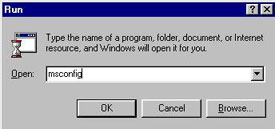

Image 1. Start System Configuration Utility

3. Within it press the Advanced… button.
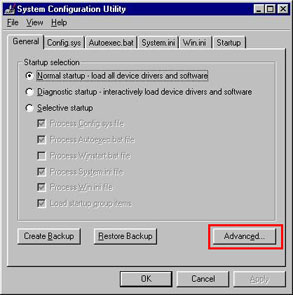

Image 2. Open the Advanced Troubleshooting Settings window

4. The "Advanced Troubleshooting Settings" window will appear. Check Enable Startup Menu. Press the OK button.
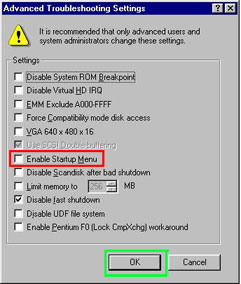

Image 3. Check the option designated by the red box

5. Windows will display a message asking you to restart your computer now. Answer Yes.
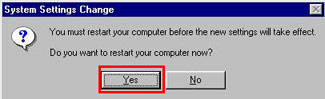

Image 4. Restart a computer

6. On next startup you will see a menu.

Windows 2000

1. Reboot your computer.
2. When the black-and-white Starting Windows bar will appear at the bottom of the screen, press the F8 key repeatedly.
3. From the appeared Advanced Options Menu select the Safe Mode. Press enter. Windows will start in Safe Mode.

Windows XP

1. Reboot your computer.
2. When the black-and-white progress Starting Windows bar will appear at the bottom of the screen, press the F8 key repeatedly.
3. From the appeared Advanced Options Menu select the Safe Mode. Press enter. Windows will start in Safe Mode.

If the startup menu doesn’t show, enable it from within standard mode:

1. Click the Start button and select the Run… option.
2. In the appeared field type msconfig. Press the OK button. This will launch System Configuration Utility.
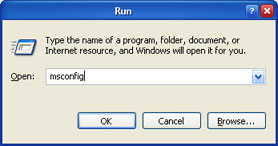

Image 5. Launch System Configuration Utility

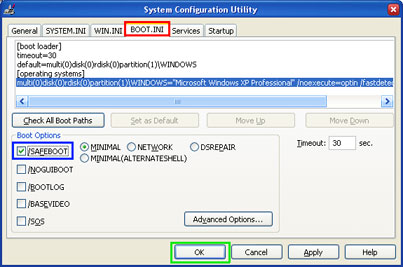
3. Select the BOOT.INI tab.
4. Within it in the "Boot Options" check /SAFEBOOT. Press the OK button.


Image 6. Enable the /SAFEBOOT option

5. Windows will display a message asking you to restart you computer now. Answer Restart.
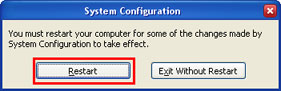

Image 7. Restart your computer

6. On next startup you will see a menu.

Starting the system in Safe Mode is not the uncommon practice. Do not be scared of it. However, you should be very careful. Think twice before changing certain system settings or removing a particular object while in Safe Mode.

If you do not know how to perform described actions, are not sure why you have to do a certain task or above guide is too difficult for you, feel free to try our recommended automatic spyware removers.


16 Responses to “Starting the system in Safe Mode”

  1. lee Says:
    June 1st, 2007 at 7:54 am

    Can this work for Vista the malware removal?

  2. dolphin Says:
    September 13th, 2007 at 2:11 am

    hw 2 make it bac to standard mode?

  3. Mike Says:
    February 11th, 2008 at 11:33 am

    I tried removing Adware.Agent.Bn in the safemode…which spyware doctor was able to compeletly remove the infected files, but then when I went back to normal mode, spyware found the files again and again. I could not get rid of the Adware.Agent.Bn files, eventhough I have turned off system restore both in normal mode and safe mode. What should I do? Please Help!!

  4. vipin.v Says:
    April 26th, 2008 at 12:07 am

    I like the tutorials.I want your support and help in future!

  5. vipin.v Says:
    April 26th, 2008 at 12:09 am

    hw 2 make it bac to standard mode?

  6. Nils Says:
    August 10th, 2008 at 7:32 am

    If I reinstall my computer, will the Adware Agent BN still be on my computer?

  7. i just got trojan.w32 looksky on my computer help? | Popup Blog Says:
    January 11th, 2009 at 4:59 am

    [...] here are instructions on how to start a computer in a safe mode: http://www.2-spyware.com/news/post232.htmlReferences : January 11th, 2009 at 1:04 [...]

  8. Ex Back Says:
    April 8th, 2009 at 8:02 pm

    If you ever want to hear a reader’s feedback :) , I rate this article for four from five. Detailed info, but I have to go to that damn yahoo to find the missed parts. Thanks, anyway!

  9. Leonard Says:
    October 3rd, 2009 at 5:38 pm

    Thanks for the info now if I can get rid of the AntivirusPro 2010

  10. Jim Says:
    November 26th, 2009 at 8:27 pm

    I am trying to get rid of Advanced Virus Remover. I followed the recommendations for starting Windows XP in “safe” mode. (Using the System Config Utility) Now my computer won’t start up at all. It gets to the Menu option but no matter what I choose, it shuts down, restarts and comes back to the same Menu option. HELP

  11. Mark Says:
    January 21st, 2010 at 12:36 am

    I have the same EXACT problem as Jim above… “my computer won’t start up at all. It gets to the Menu option but no matter what I choose, it shuts down, restarts and comes back to the same Menu option.”

    I lost track of everything I’ve tried so far, but I know this… since I couldn’t boot my PC at all, I wired my hard drive as a external USB drive, connected it to another PC, & scanned it with every virus/malware programs I could get my hands on, yet here I am! SAME CIRCULAR BOOTING PROBLEM! I’d VERY MUCH APPRECIATE ANY HELP AVAILABLE!!

  12. targetmarketing Says:
    February 2nd, 2010 at 9:03 am

    Thanks for a really informative article on getting rid of win32/Olmark trogen, it was playing havoc with my browers and searching, hopefully it will now be gone and l can get back to some work thanks nicho

  13. Harry New Says:
    September 28th, 2010 at 9:15 am

    I have tried everything you mentioned on this website but can not remove the (AntiSpySafeguard) program that got in my computer. It will not let me on the internet. Their program keeps poping up each time I try to do anything having to do on the Internet. Is there anything I can do to get rid of this malicious program?

    Thanks

  14. Leslie Kaleiwahea Says:
    August 10th, 2011 at 4:35 pm

    There are unchanging amount of DIY plans on tap, but after correspondence I came to the conclusion, Woodworking4Home.Com Combination is one of the best:

  15. Site Content Optimization For Dummies Says:
    December 7th, 2011 at 2:54 pm

    Site Content Optimization For Dummies…

    [...]Starting the system in Safe Mode – spyware news[...]…

  16. best lcd monitors for text Says:
    December 13th, 2011 at 10:00 am

    best lcd monitors for text…

    [...]Starting the system in Safe Mode – spyware news[...]…

Your opinion regarding Starting the system in Safe Mode

Spreading the knowledge:

It is very hard to fight Computer parasites alone in internet space. If you have a website we would be more than happy if you would help us to spread the knowledge about latest threats. You can help your visitors to manage their Computer system manually without aditional expences. Knowledge is the power, we just need to spread it.
add text box
rss feed
help other
News

Subscribe to spyware news

Please enter your e-mail address:
If you do not want to receive our spyware
newsletter, please unsubscribe here.
Articles