Noptify (Removal Instructions) - Chrome, Firefox, IE, Edge
Noptify Removal Guide
What is Noptify?
Noptify is a suspicious ad-supported program which floods your browser with annoying ads

Noptify is an adware that is designed to generate numerous commercial advertisements on user's computer. Additionally, experts classify it is a potentially unwanted program (PUP) as it might perform other undiscovered activities which may harm your system. Note that intrusive ads are not only annoying but dangerous as well[1].
| Name | Noptify |
|---|---|
| Type | Adware |
| Danger level | Medium |
| Distribution | Employs bundling technique to spread |
| Potential dangers | Generated ads may be malicious and redirect to more suspicious pages where PCs might be infected with malware |
| Removal | You can quickly uninstall Noptify with a full system scan from FortectIntego |
Experts use the term Noptify hijack to identify an infection which takes over victim's computer and performs an arbitrary activity. It includes modifying browser settings to start displaying more than annoying online advertisements on frequently visited pages. Thus, users receive never-ending pop-ups, banners, and offers which are less than reliable.
Furthermore, ads by Noptify are created regarding your preferences. This is the result of data tracking which is also performed without your consent. Ad-supported programs collect non-personally identifiable information[2] to develop customized advertisements and attract users clicking on them.
Unfortunately, the data gathered for Noptify ads might contain sensitive details which might identify you and lead to severe privacy issues. Note that the developers of an adware program are eager to generate pay-per-click revenue and do not care about the interests of regular computer users.
Additionally, these are not the only consequences of this unreliable software. According to the experts, it is categorized as Noptify redirect virus which continuously leads its victims to numerous suspicious websites. In fact, some of them might be potentially dangerous and expose your PC to malware infections.

Likewise, Noptify removal is a must if you want to protect your privacy and computer's security. For that, we recommend installing an antivirus right away. Our top pick is FortectIntego. Although, you can employ any other reputable security software as well.
It is also possible to remove Noptify manually. However, this method is recommended only for experienced computer users by following the instructions appended at the end of this article. Automatic elimination is far more convenient for those who do not have specific IT knowledge.
Adware programs can enter the computer without user's permission
The primary adware distribution technique is called bundling. It is based on the inattentiveness of novice computer users who do not pay the necessary attention during the installation of free applications. In other terms, the ad-supported software enters the system without user's notice if one chooses Quick/Recommended settings.
Thus, it is vital to download programs only from verified developers and ALWAYS pick Advanced/Custom mode during the installation process. Note that potentially unwanted programs (PUPs) will come as pre-selected additional components which must be de-selected during the procedure. Also, you can use a professional security tool to protect your PC.
Two ways to uninstall Noptify from the computer
Even though adware programs are not categorized as potentially dangerous, their activity is considered to be harmful to your PC in the long-run. Therefore, you might encounter the term Noptify virus and find numerous reports online recommending to get rid of this software.
You can remove Noptify both, manually and automatically. For automatic elimination, you will need to download and install a reliable antivirus which will uninstall the program for you. This is the easiest and safest way to clean your system from all potentially unwanted programs.
Manual Noptify removal is a more complicated process. LosVirus.es[3] experts advise picking this elimination method for experienced computer users only. Additionally, we have prepared instructions designed to guide users through the process to make sure that the PUP is removed for good. You can find the guidelines below.
You may remove virus damage with a help of FortectIntego. SpyHunter 5Combo Cleaner and Malwarebytes are recommended to detect potentially unwanted programs and viruses with all their files and registry entries that are related to them.
Getting rid of Noptify. Follow these steps
Uninstall from Windows
Users should get rid of all unreliable programs from their Windows systems first. Instructions are presented here:
-
Click Start → Control Panel → Programs and Features (if you are Windows XP user, click on Add/Remove Programs).

-
If you are Windows 10 / Windows 8 user, then right-click in the lower left corner of the screen. Once Quick Access Menu shows up, select Control Panel and Uninstall a Program.

-
Uninstall Noptify and related programs
Here, look for Noptify or any other recently installed suspicious programs. -
Uninstall them and click OK to save these changes.


Delete from macOS
-
If you are using OS X, click Go button at the top left of the screen and select Applications.

-
Wait until you see Applications folder and look for Noptify or any other suspicious programs on it. Now right click on every of such entries and select Move to Trash.


Remove from Microsoft Edge
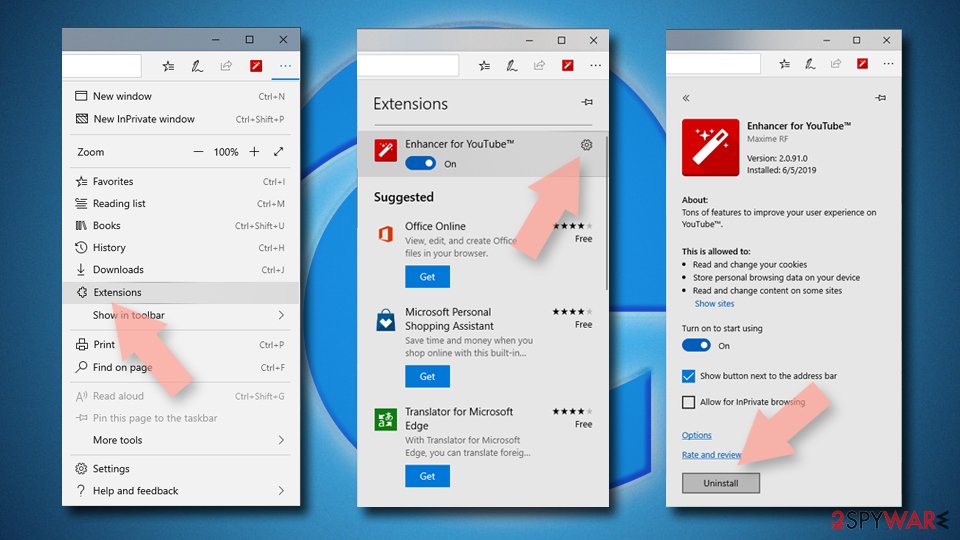
Delete unwanted extensions from MS Edge:
- Select Menu (three horizontal dots at the top-right of the browser window) and pick Extensions.
- From the list, pick the extension and click on the Gear icon.
- Click Remove.

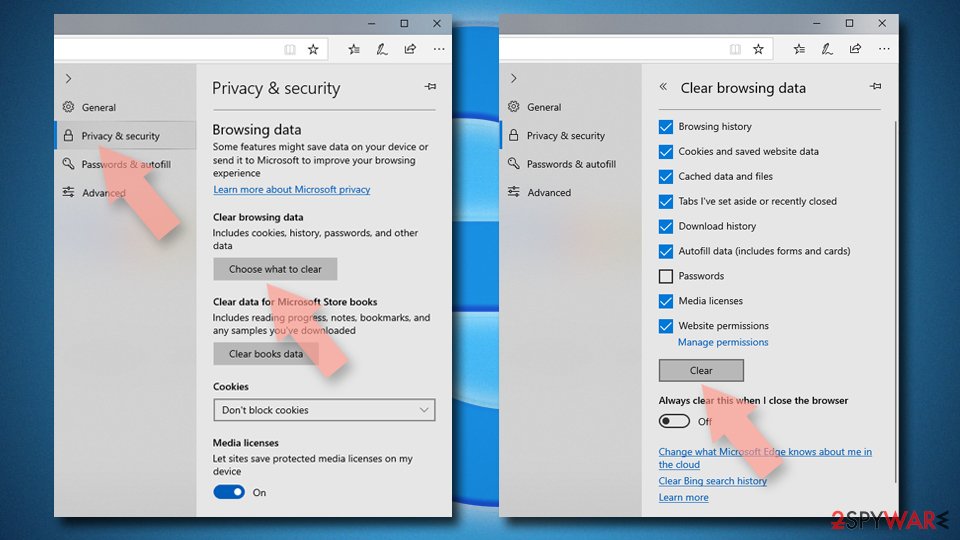
Clear cookies and other browser data:
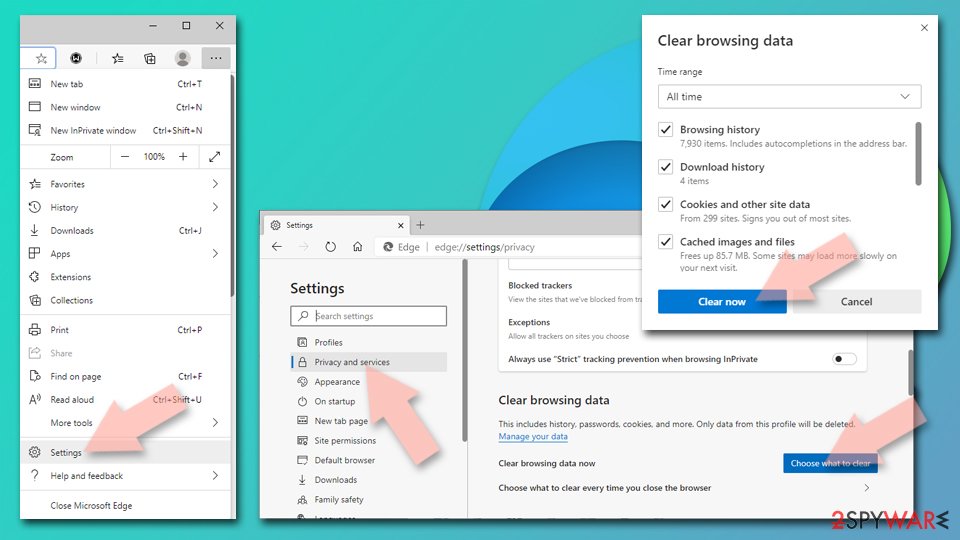
- Click on the Menu (three horizontal dots at the top-right of the browser window) and select Settings > Privacy, search, and services..
- Under Clear browsing data, pick Choose what to clear.
- Select Cookies and other site data and Cached images and files. (apart from passwords, although you might want to include Media licenses as well, if applicable) and click on Clear.

Restore new tab and homepage settings:
- Click the menu icon and choose Settings.
- Then find On startup section.
- Click Remove next to any suspicious startup page.
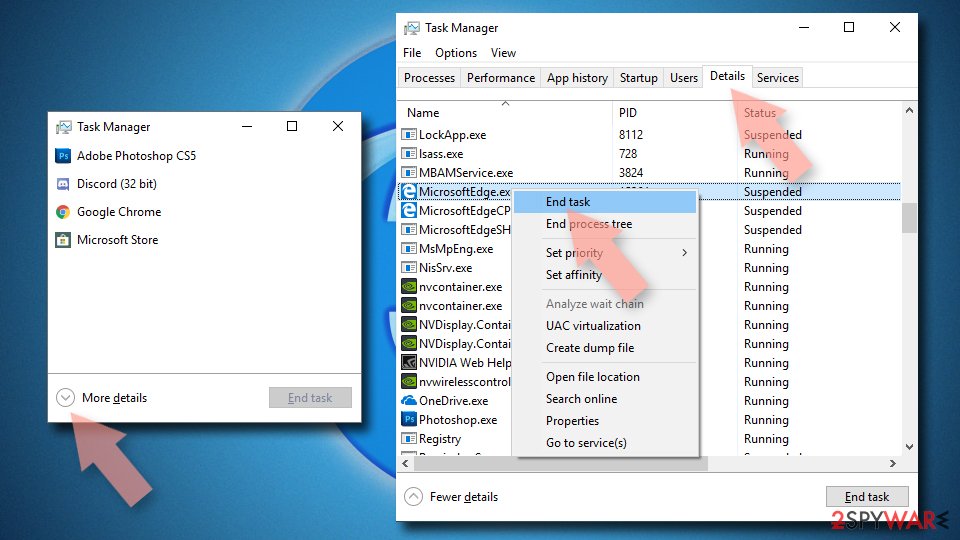
Reset MS Edge if the above steps did not work:
- Press on Ctrl + Shift + Esc to open Task Manager.
- Click on More details arrow at the bottom of the window.
- Select Details tab.
- Now scroll down and locate every entry with Microsoft Edge name in it. Right-click on each of them and select End Task to stop MS Edge from running.

Instructions for Chromium-based Edge
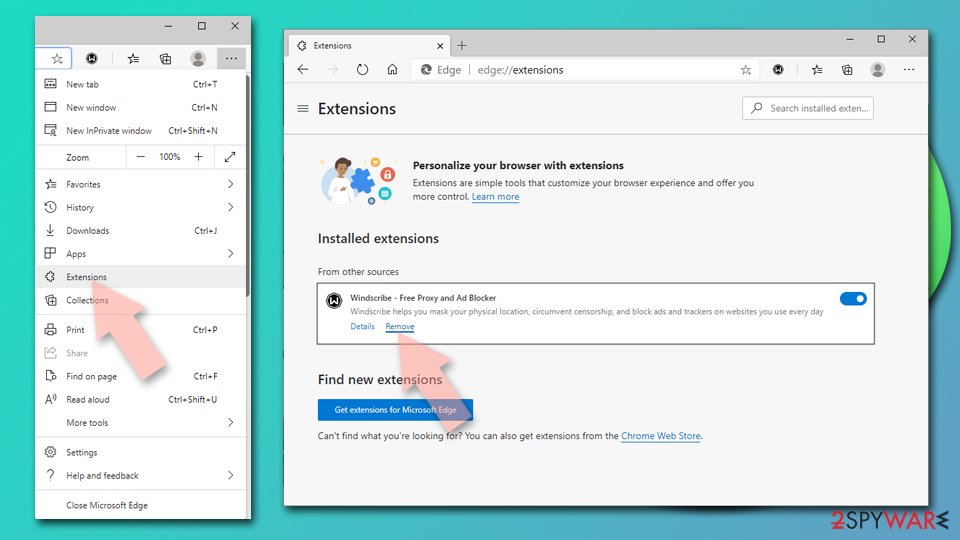
Delete extensions from MS Edge (Chromium):
- Open Edge and click select Settings > Extensions.
- Delete unwanted extensions by clicking Remove.

Clear cache and site data:
- Click on Menu and go to Settings.
- Select Privacy, search and services.
- Under Clear browsing data, pick Choose what to clear.
- Under Time range, pick All time.
- Select Clear now.

Reset Chromium-based MS Edge:
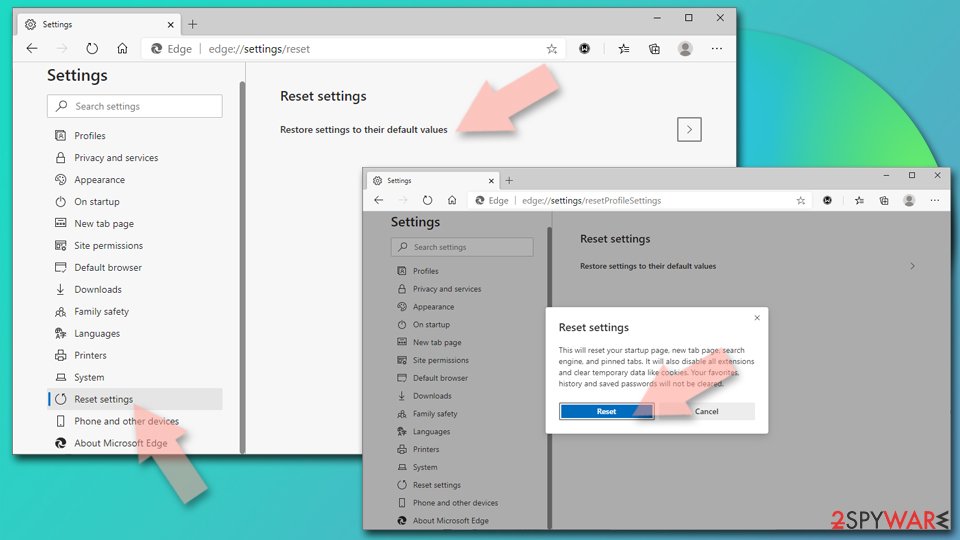
- Click on Menu and select Settings.
- On the left side, pick Reset settings.
- Select Restore settings to their default values.
- Confirm with Reset.
- This will disable extensions and reset startup pages but will not delete bookmarks, saved passwords, or browsing history.

Remove from Mozilla Firefox (FF)
Remove dangerous extensions:
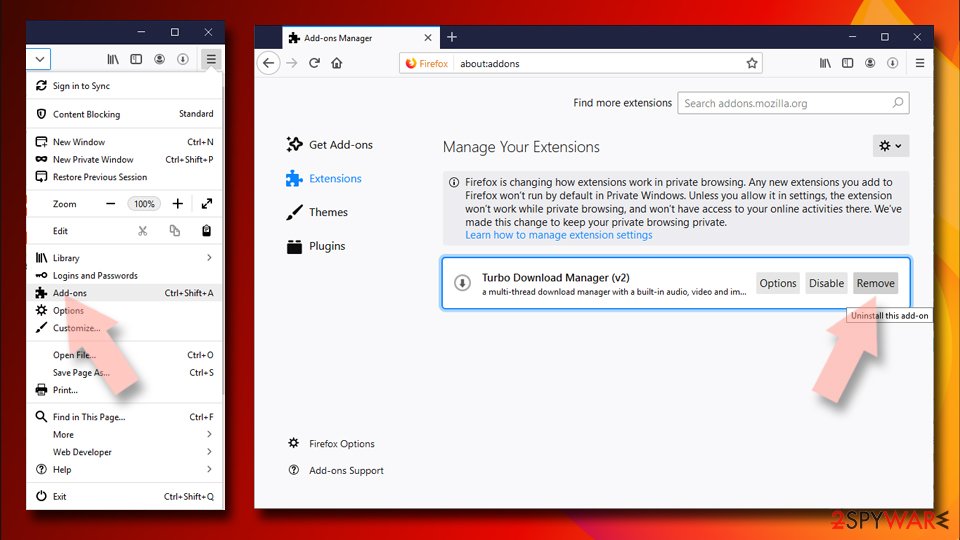
- Open Mozilla Firefox browser and click on the Menu (three horizontal lines at the top-right of the window).
- Select Add-ons.
- In here, select the unwanted extension and click Remove.

Reset the homepage:
- Click three horizontal lines at the top right corner to open the menu.
- Choose Settings.
- Under Home, set your preferred homepage and new tab settings.
Clear cookies and site data:
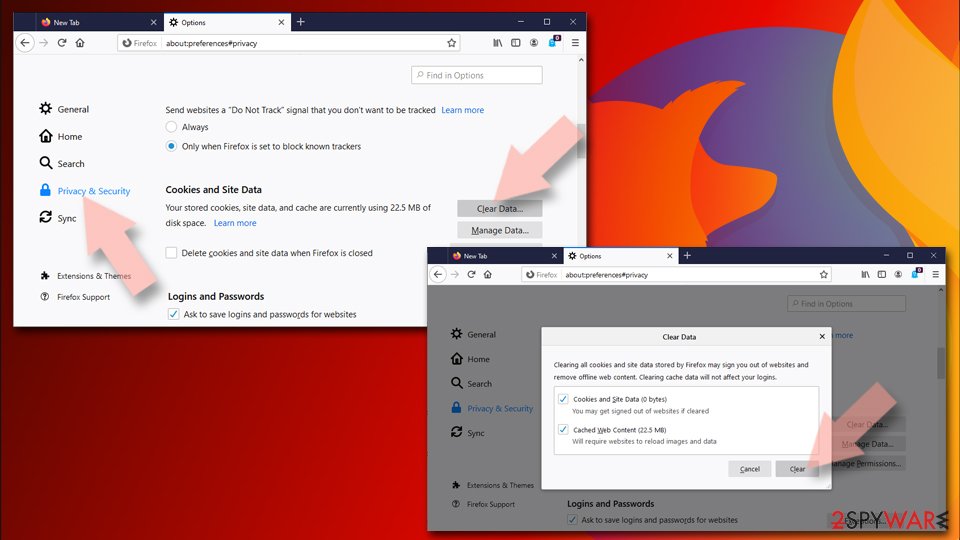
- Click Menu and pick Settings.
- Go to Privacy & Security section.
- Scroll down to locate Cookies and Site Data.
- Click on Clear Data…
- Select Cookies and Site Data and Temporary cached files and pages, then click Clear.

Reset Mozilla Firefox
If clearing the browser as explained above did not help, reset Mozilla Firefox:
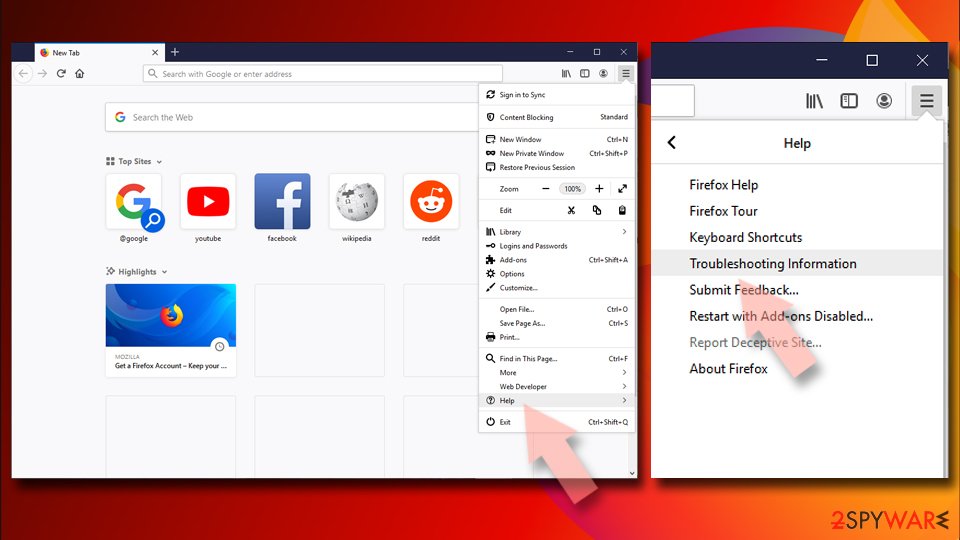
- Open Mozilla Firefox browser and click the Menu.
- Go to Help and then choose Troubleshooting Information.
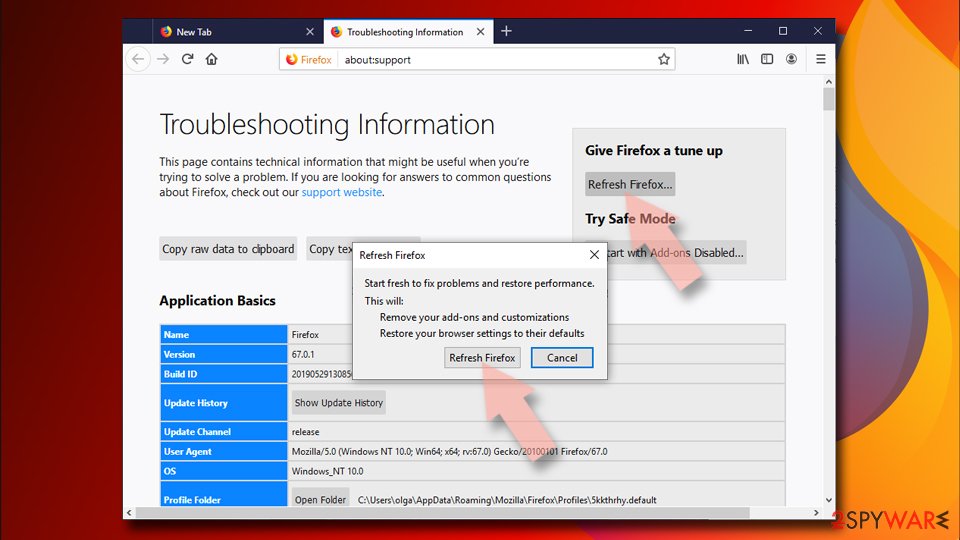
- Under Give Firefox a tune up section, click on Refresh Firefox…
- Once the pop-up shows up, confirm the action by pressing on Refresh Firefox.


Remove from Google Chrome
It is essential to uninstall suspicious plug-ins and extensions if you want to fix Chrome.
Delete malicious extensions from Google Chrome:
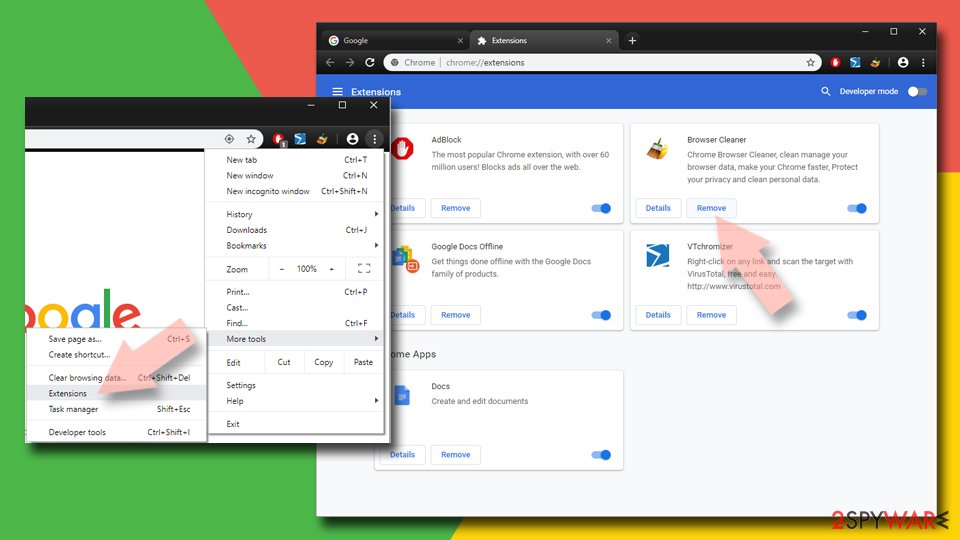
- Open Google Chrome, click on the Menu (three vertical dots at the top-right corner) and select More tools > Extensions.
- In the newly opened window, you will see all the installed extensions. Uninstall all suspicious extensions related to the unwanted program by clicking Remove.

Clear cache and web data from Chrome:
- Click on Menu and pick Settings.
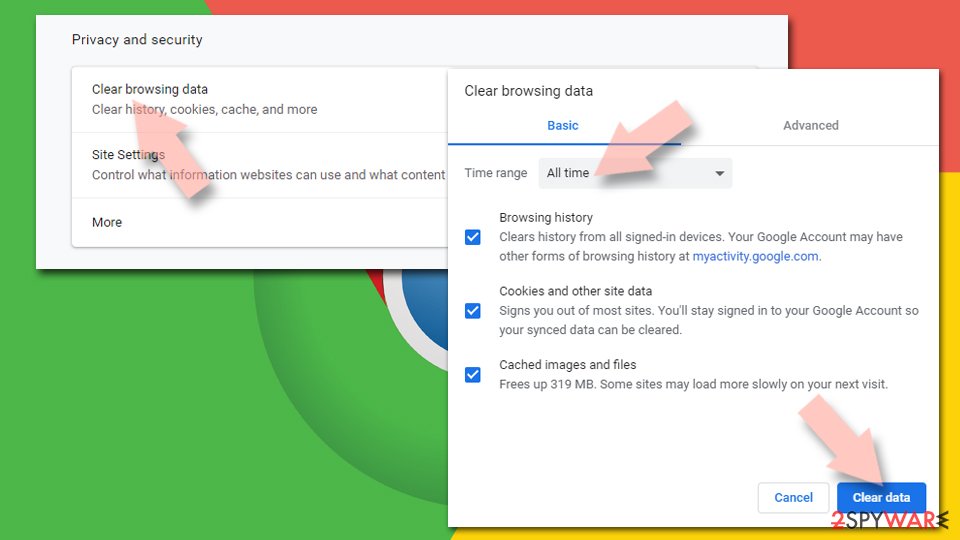
- Under Privacy and security, select Clear browsing data.
- Select Browsing history, Cookies and other site data, as well as Cached images and files.
- Click Clear data.

Change your homepage:
- Click menu and choose Settings.
- Look for a suspicious site in the On startup section.
- Click on Open a specific or set of pages and click on three dots to find the Remove option.
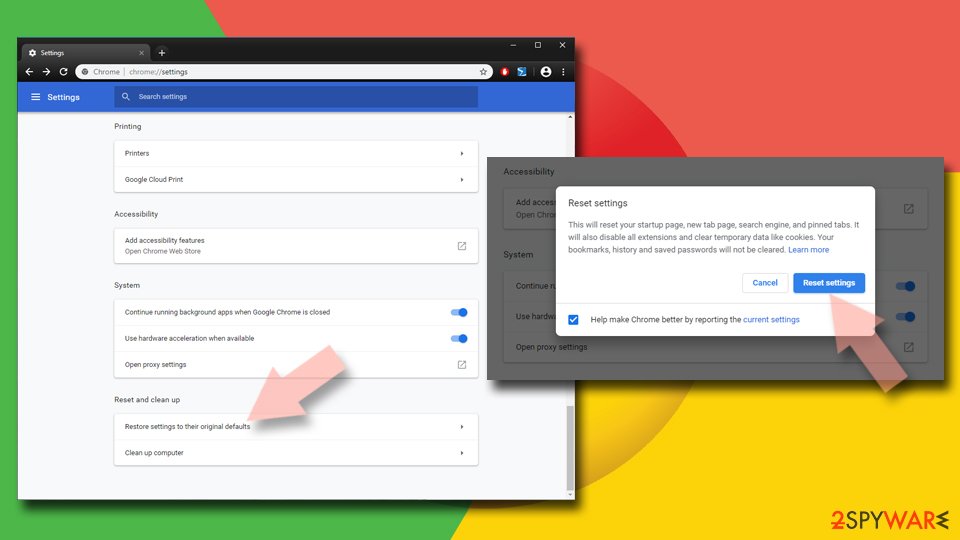
Reset Google Chrome:
If the previous methods did not help you, reset Google Chrome to eliminate all the unwanted components:
- Click on Menu and select Settings.
- In the Settings, scroll down and click Advanced.
- Scroll down and locate Reset and clean up section.
- Now click Restore settings to their original defaults.
- Confirm with Reset settings.

Delete from Safari
-
Remove dangerous extensions
Open Safari web browser and click on Safari in menu at the top left of the screen. Once you do this, select Preferences.
-
Here, select Extensions and look for Noptify or other suspicious entries. Click on the Uninstall button to get rid each of them.

-
Reset Safari
Open Safari browser and click on Safari in menu section at the top left of the screen. Here, select Reset Safari....
-
Now you will see a detailed dialog window filled with reset options. All of those options are usually checked, but you can specify which of them you want to reset. Click the Reset button to complete Noptify removal process.


After uninstalling this potentially unwanted program (PUP) and fixing each of your web browsers, we recommend you to scan your PC system with a reputable anti-spyware. This will help you to get rid of Noptify registry traces and will also identify related parasites or possible malware infections on your computer. For that you can use our top-rated malware remover: FortectIntego, SpyHunter 5Combo Cleaner or Malwarebytes.
How to prevent from getting adware
Stream videos without limitations, no matter where you are
There are multiple parties that could find out almost anything about you by checking your online activity. While this is highly unlikely, advertisers and tech companies are constantly tracking you online. The first step to privacy should be a secure browser that focuses on tracker reduction to a minimum.
Even if you employ a secure browser, you will not be able to access websites that are restricted due to local government laws or other reasons. In other words, you may not be able to stream Disney+ or US-based Netflix in some countries. To bypass these restrictions, you can employ a powerful Private Internet Access VPN, which provides dedicated servers for torrenting and streaming, not slowing you down in the process.
Data backups are important – recover your lost files
Ransomware is one of the biggest threats to personal data. Once it is executed on a machine, it launches a sophisticated encryption algorithm that locks all your files, although it does not destroy them. The most common misconception is that anti-malware software can return files to their previous states. This is not true, however, and data remains locked after the malicious payload is deleted.
While regular data backups are the only secure method to recover your files after a ransomware attack, tools such as Data Recovery Pro can also be effective and restore at least some of your lost data.

If this free guide helped you and you are satisfied with our service, please consider making a donation to keep this service alive. Even a smallest amount will be appreciated.
- ^ Noah Gamer. Ads on websites are dangerous to more than your sanity. Trend Micro. Simply Security News, Views and Opinions.
- ^ Non (Personally Identifiable Information) PII Data. LatentView. Top globally-recognized digital analytics firm.
- ^ LosVirus. LosVirus. Security and Spyware News.