WinAD (Removal Instructions) - updated Jul 2018
WinAD Removal Guide
What is WinAD?
WinAD is a program that displays advertisements and affects computer performance speed

WinAD is an adware related program that can display numerous ads and disturb web browsing sessions. This program might affect the performance of computer and decrease security level of the device. It should raise the attention of the user because a suspicious activity is never wanted. As a general rule, adware programs are not considered to be malware, but can still cause havoc on users' PCs. They can track various information about users, as well as redirect to sometimes dangerous domains.
| Name | WinAD |
|---|---|
| Type | Adware |
| Dangers | Can attract malware, result in personal data theft |
| Distribution | Software bundling |
| Elimination | Use FortectIntego for WinAD removal |
Typical adware programs are sponsored by advertisement developers – that means the program needs to create ads in various forms to generate revenue for the provider. Typically, a pay-per-click[1] scheme is used.
Adware as WinAD virus also can promote fake system tools or unnecessary programs inside pop-ups, deals, banners, coupons, offers, etc. These applications may demand you to purchase licensed version to fix fake computer problems or act as an advertisement delivery tool. Meaning, your PC will get injected with even more ads.
In some cases, adware can lead to infiltration of malicious programs (ransomware, trojans, keyloggers, etc.), especially if you are keen on clicking on the content inside questionable websites that you get redirected to. You should remove WinAD immediately after noticing any suspicious activity. If you are not sure if your PC is plagued with adware, see if you are experiencing any of these symptoms:
- intrusive advertisements are displayed on Google Chrome, Internet Explorer, Mozilla Firefox or other browsers;
- redirects lead to commercial sites;
- ads of deceptive software appear;
- advertisements redirect to affiliated[2] sites from the same provider;
- you feel that in time ads become personalized.
The last point is explained by the biggest issue with adware itself — data collecting. This program can track various browsing related data such as search queries, most visited sites, preferences on games, movies, and music. Social media likes and friend activity is also accessible for adware. You need to perform WinAD removal because this information about your location and habits can be used by third-party ad providers to create and display commercial content designed for you. You can use security software like FortectIntego, or, if you trust your skills, perform manual elimination of a questionable program.
In case you get unlucky and manage to install a trojan or other malware on your system, it could result in severe consequences. For example, viruses are capable of stealing personal information, record every key-press of your keyboard, disable or enable programs, or even capture screenshots. These malicious programs can also modify Windows settings without your permission. Thus, to avoid all that, follow a guide below for a proper WinAD removal.

Unwanted programs spread via software bundling
Users tend to forget that adware or other unwanted programs tend to be installed silently – without their consent. These programs come in bundles with freeware or shareware. This marketing technique is often used by developers and is remarkably effective when it comes to PUP distribution.
To avoid possible adware infections, you should pay attention when installing the free software you obtained from the internet. Security experts[3] warn – do not rush, and do not click “Next” until the process is complete. Instead, take your time and read installation instructions. Most importantly, when prompted – use Advanced or Custom installation mode instead of Recommended one. This way, you will be able to get rid of all optional installs by unticking all the tick-marks next to add-ons, toolbars, system optimization tools, etc.
Get rid of WinAD from your computer so you can browse safely
To remove WinAD virus from the system, you could employ a certified anti-malware tool. If you use automatic elimination method, you will also be able to get rid of all additional useless software that may have been installed without your knowledge. What is more, the process only takes a couple of minutes.
WinAD removal can also be executed manually. If you are a computer-savvy individual, you can follow detailed instructions below. You will have to detect and eliminate all browser extensions, plug-ins, add-ons and other apps, and then reset each of the affected browsers. Nevertheless, make sure you do not rush this process and skip steps.
You may remove virus damage with a help of FortectIntego. SpyHunter 5Combo Cleaner and Malwarebytes are recommended to detect potentially unwanted programs and viruses with all their files and registry entries that are related to them.
Getting rid of WinAD. Follow these steps
Uninstall from Windows
Clean adware from your Windows OS:
-
Click Start → Control Panel → Programs and Features (if you are Windows XP user, click on Add/Remove Programs).

-
If you are Windows 10 / Windows 8 user, then right-click in the lower left corner of the screen. Once Quick Access Menu shows up, select Control Panel and Uninstall a Program.

-
Uninstall WinAD and related programs
Here, look for WinAD or any other recently installed suspicious programs. -
Uninstall them and click OK to save these changes.


Delete from macOS
-
If you are using OS X, click Go button at the top left of the screen and select Applications.

-
Wait until you see Applications folder and look for WinAD or any other suspicious programs on it. Now right click on every of such entries and select Move to Trash.


Remove from Microsoft Edge
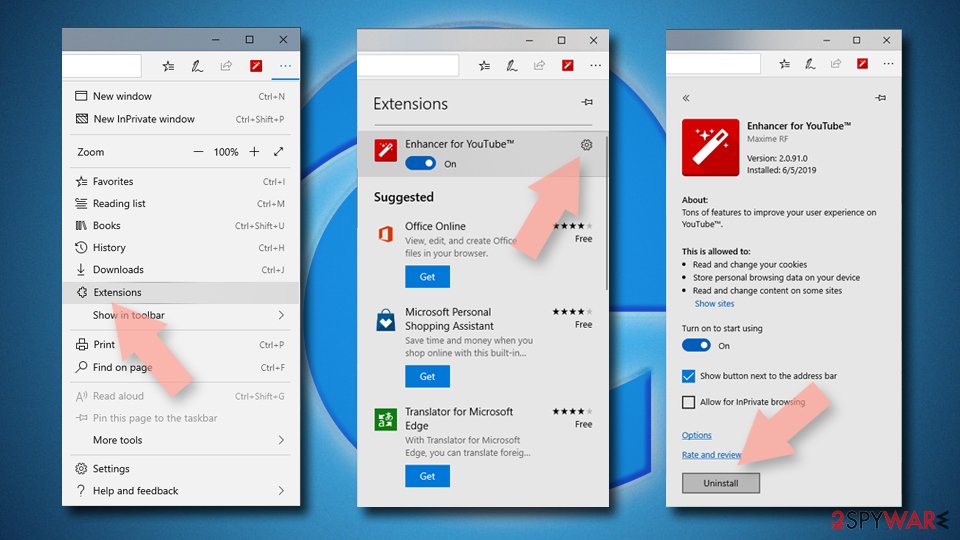
Delete unwanted extensions from MS Edge:
- Select Menu (three horizontal dots at the top-right of the browser window) and pick Extensions.
- From the list, pick the extension and click on the Gear icon.
- Click Remove.

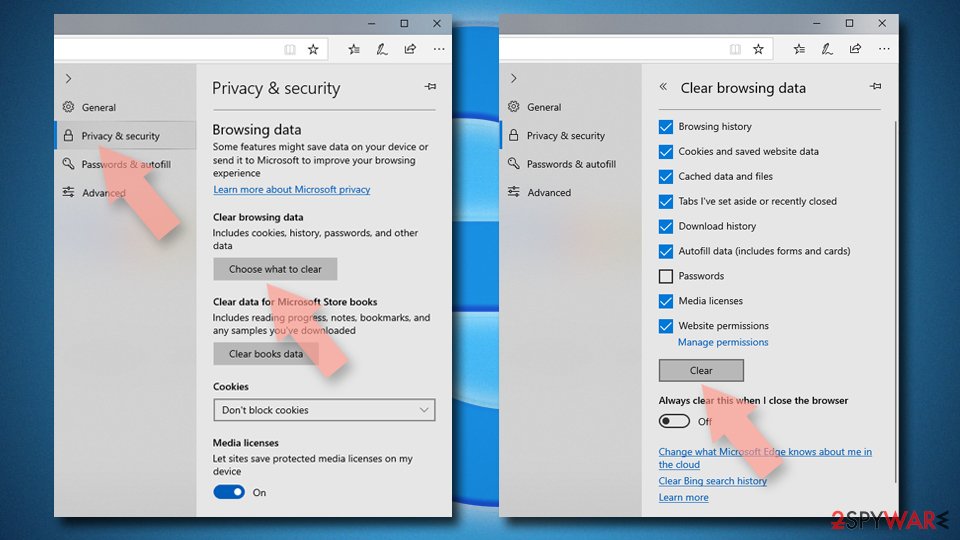
Clear cookies and other browser data:
- Click on the Menu (three horizontal dots at the top-right of the browser window) and select Settings > Privacy, search, and services..
- Under Clear browsing data, pick Choose what to clear.
- Select Cookies and other site data and Cached images and files. (apart from passwords, although you might want to include Media licenses as well, if applicable) and click on Clear.

Restore new tab and homepage settings:
- Click the menu icon and choose Settings.
- Then find On startup section.
- Click Remove next to any suspicious startup page.
Reset MS Edge if the above steps did not work:
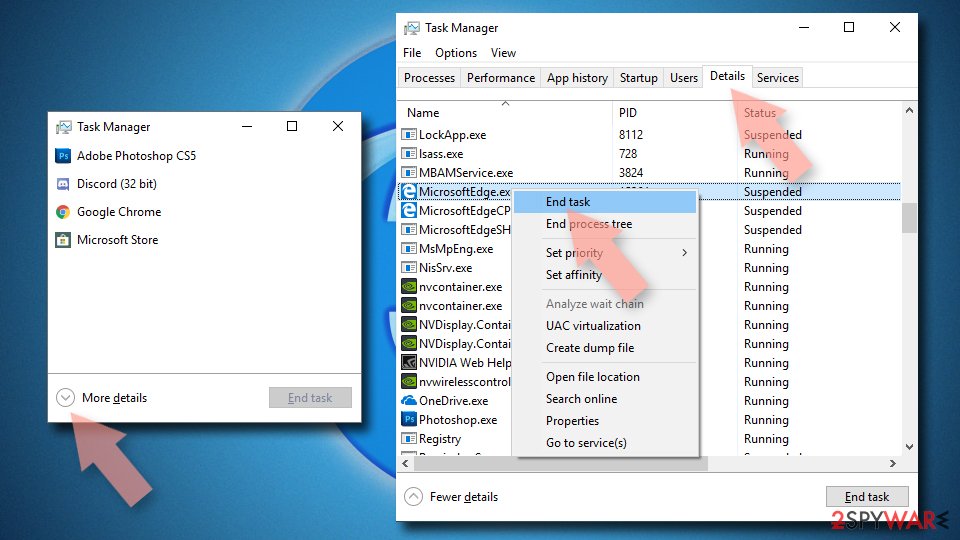
- Press on Ctrl + Shift + Esc to open Task Manager.
- Click on More details arrow at the bottom of the window.
- Select Details tab.
- Now scroll down and locate every entry with Microsoft Edge name in it. Right-click on each of them and select End Task to stop MS Edge from running.

Instructions for Chromium-based Edge
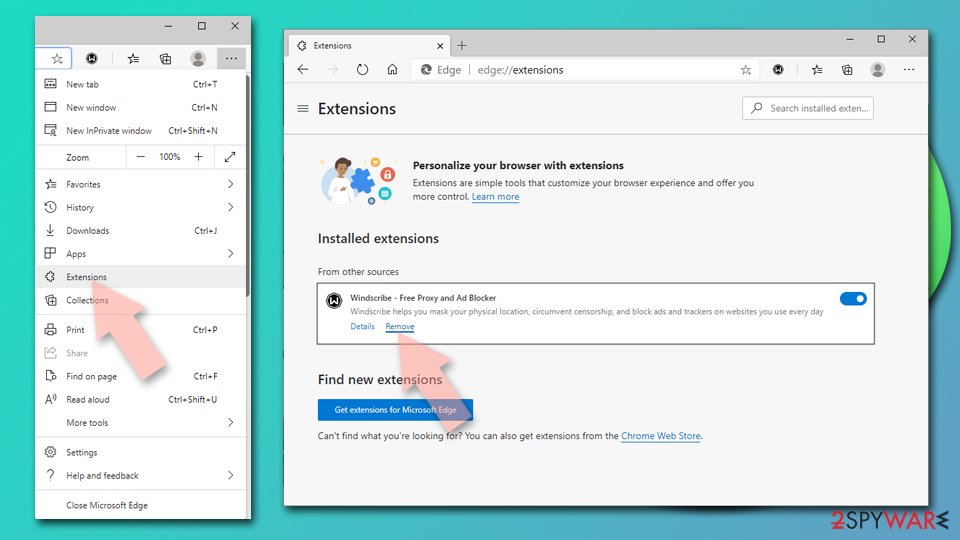
Delete extensions from MS Edge (Chromium):
- Open Edge and click select Settings > Extensions.
- Delete unwanted extensions by clicking Remove.

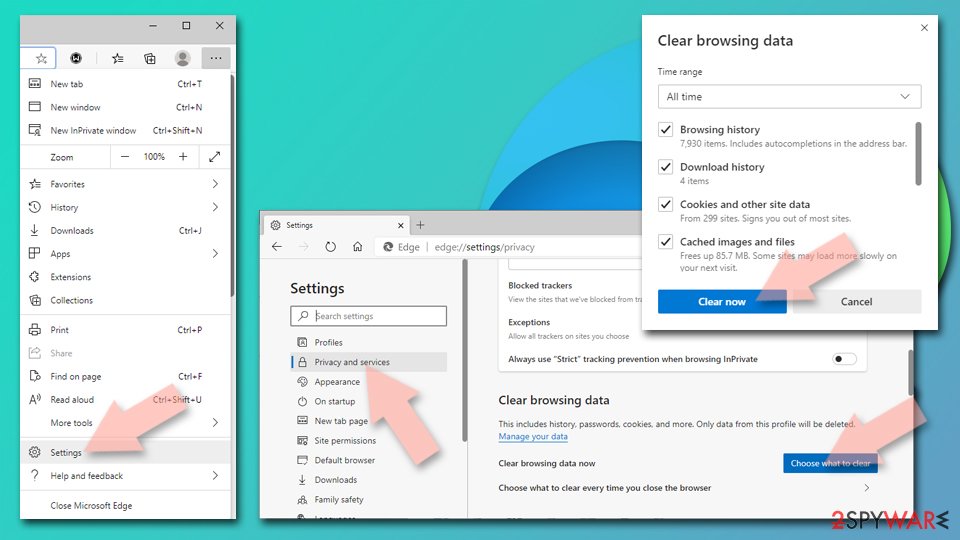
Clear cache and site data:
- Click on Menu and go to Settings.
- Select Privacy, search and services.
- Under Clear browsing data, pick Choose what to clear.
- Under Time range, pick All time.
- Select Clear now.

Reset Chromium-based MS Edge:
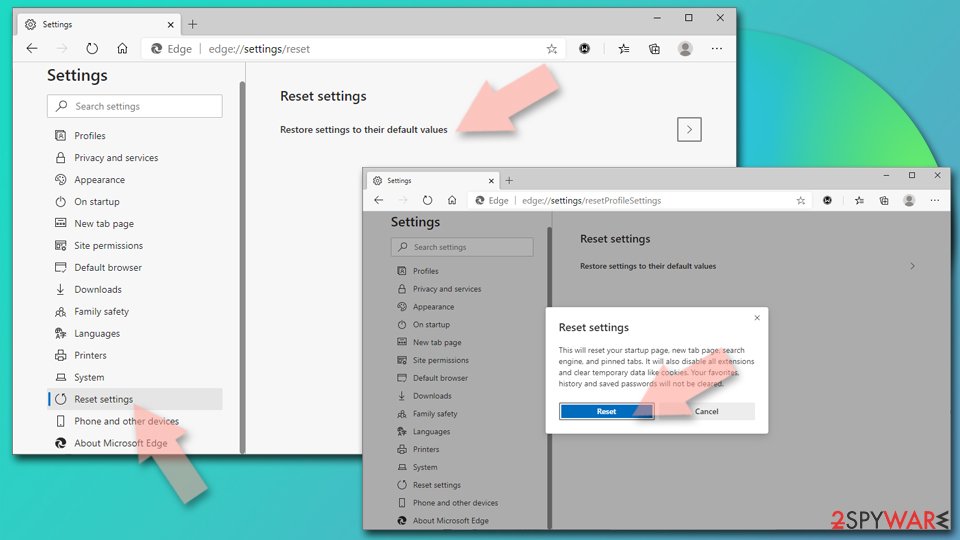
- Click on Menu and select Settings.
- On the left side, pick Reset settings.
- Select Restore settings to their default values.
- Confirm with Reset.
- This will disable extensions and reset startup pages but will not delete bookmarks, saved passwords, or browsing history.

Remove from Mozilla Firefox (FF)
If Firefox is affected by this adware follow these steps:
Remove dangerous extensions:
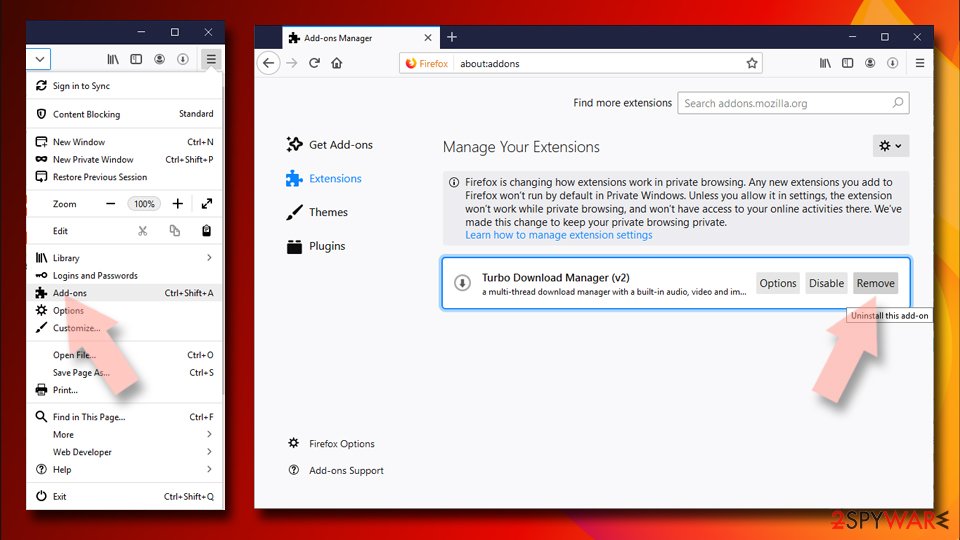
- Open Mozilla Firefox browser and click on the Menu (three horizontal lines at the top-right of the window).
- Select Add-ons.
- In here, select the unwanted extension and click Remove.

Reset the homepage:
- Click three horizontal lines at the top right corner to open the menu.
- Choose Settings.
- Under Home, set your preferred homepage and new tab settings.
Clear cookies and site data:
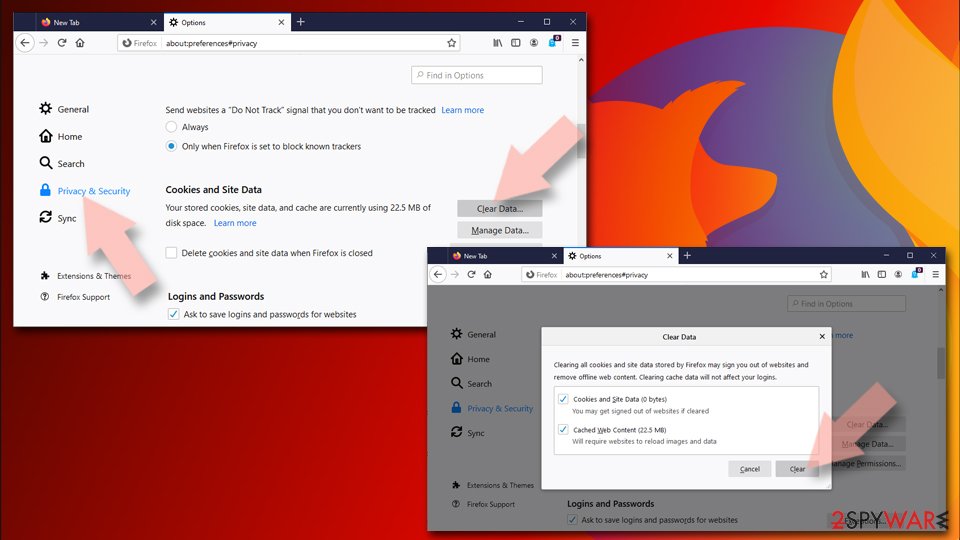
- Click Menu and pick Settings.
- Go to Privacy & Security section.
- Scroll down to locate Cookies and Site Data.
- Click on Clear Data…
- Select Cookies and Site Data and Temporary cached files and pages, then click Clear.

Reset Mozilla Firefox
If clearing the browser as explained above did not help, reset Mozilla Firefox:
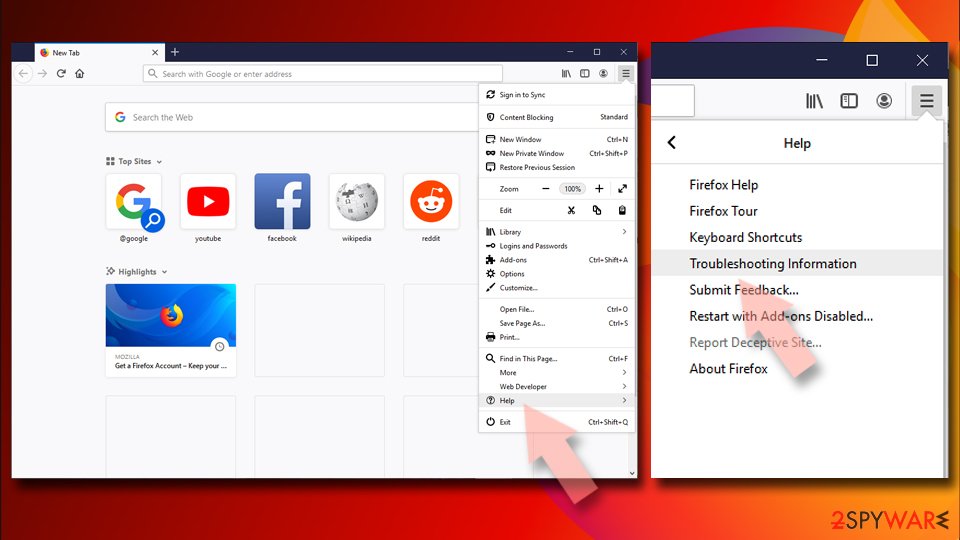
- Open Mozilla Firefox browser and click the Menu.
- Go to Help and then choose Troubleshooting Information.
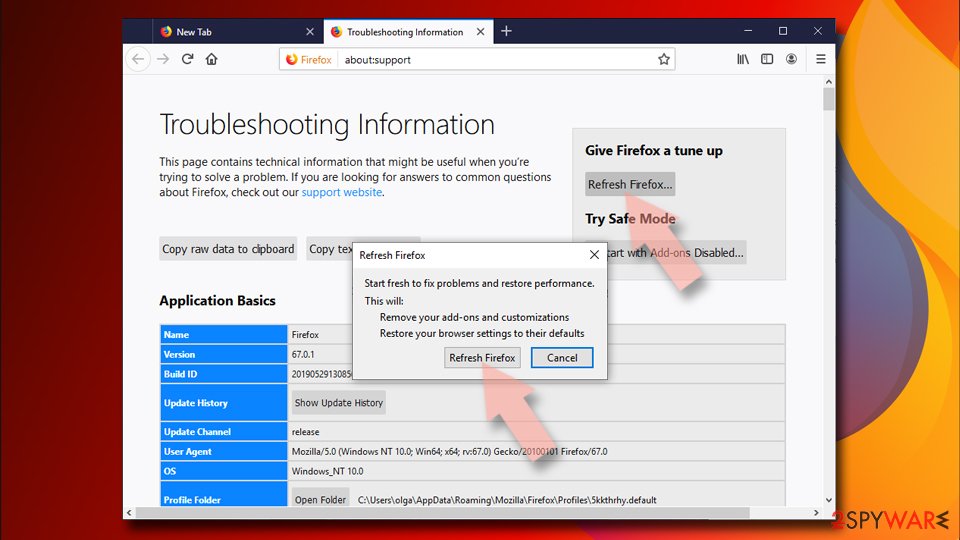
- Under Give Firefox a tune up section, click on Refresh Firefox…
- Once the pop-up shows up, confirm the action by pressing on Refresh Firefox.


Remove from Google Chrome
Remove WinAD from Chrome:
Delete malicious extensions from Google Chrome:
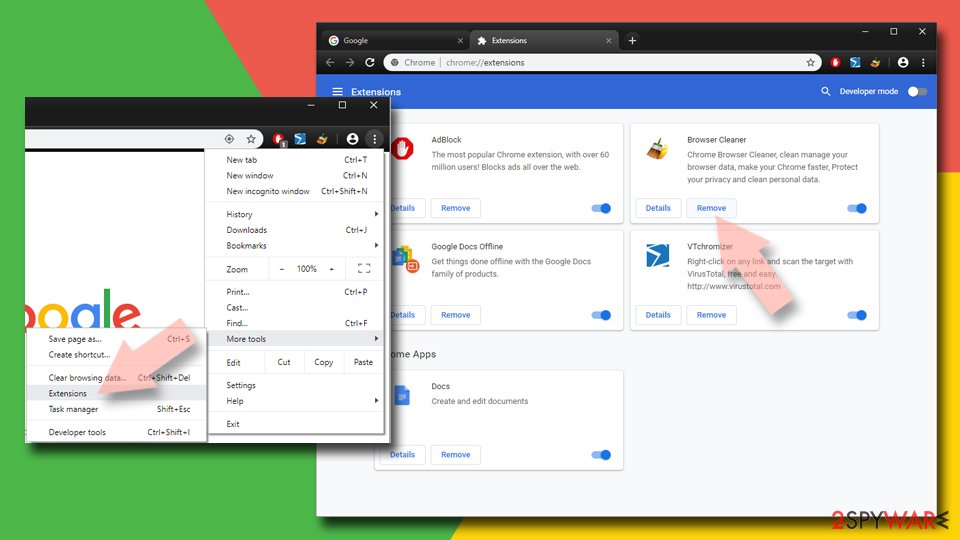
- Open Google Chrome, click on the Menu (three vertical dots at the top-right corner) and select More tools > Extensions.
- In the newly opened window, you will see all the installed extensions. Uninstall all suspicious extensions related to the unwanted program by clicking Remove.

Clear cache and web data from Chrome:
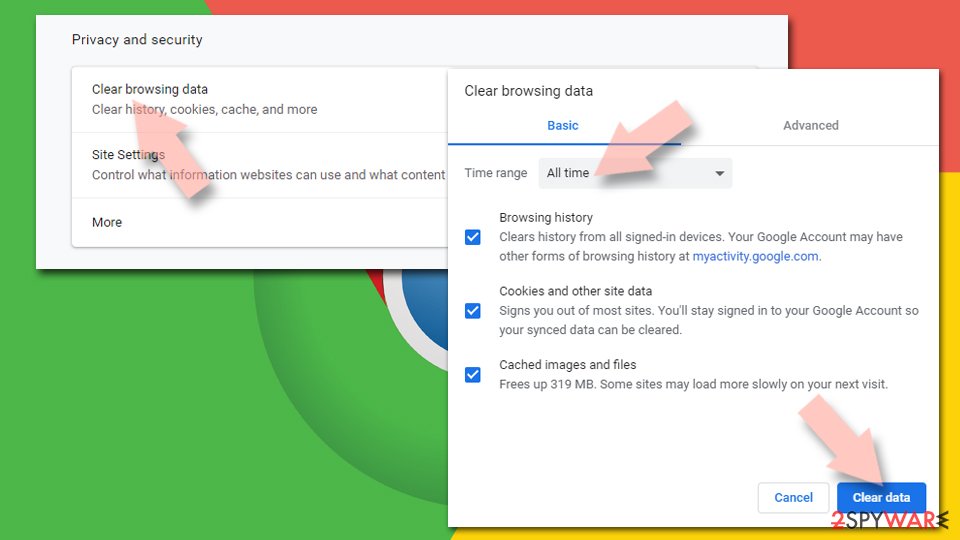
- Click on Menu and pick Settings.
- Under Privacy and security, select Clear browsing data.
- Select Browsing history, Cookies and other site data, as well as Cached images and files.
- Click Clear data.

Change your homepage:
- Click menu and choose Settings.
- Look for a suspicious site in the On startup section.
- Click on Open a specific or set of pages and click on three dots to find the Remove option.
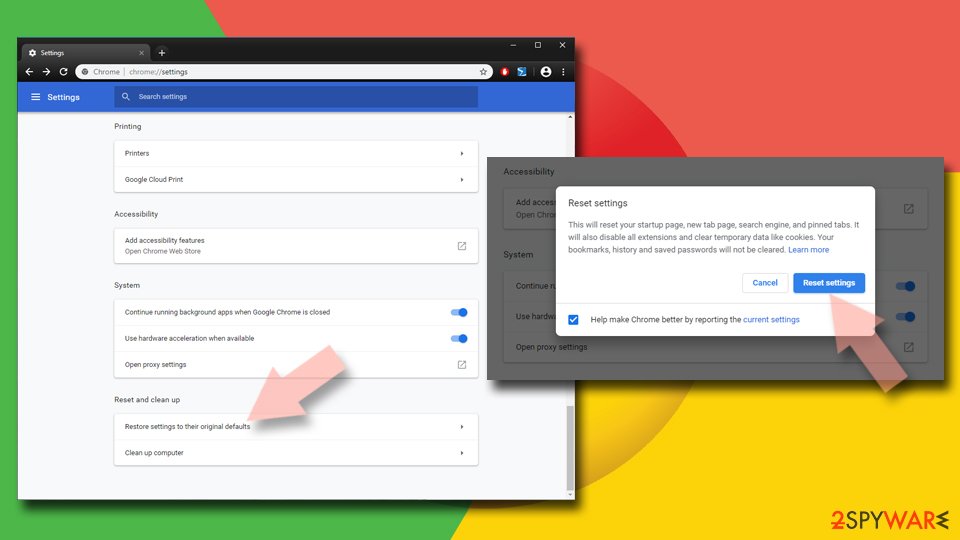
Reset Google Chrome:
If the previous methods did not help you, reset Google Chrome to eliminate all the unwanted components:
- Click on Menu and select Settings.
- In the Settings, scroll down and click Advanced.
- Scroll down and locate Reset and clean up section.
- Now click Restore settings to their original defaults.
- Confirm with Reset settings.

Delete from Safari
-
Remove dangerous extensions
Open Safari web browser and click on Safari in menu at the top left of the screen. Once you do this, select Preferences.
-
Here, select Extensions and look for WinAD or other suspicious entries. Click on the Uninstall button to get rid each of them.

-
Reset Safari
Open Safari browser and click on Safari in menu section at the top left of the screen. Here, select Reset Safari....
-
Now you will see a detailed dialog window filled with reset options. All of those options are usually checked, but you can specify which of them you want to reset. Click the Reset button to complete WinAD removal process.


After uninstalling this potentially unwanted program (PUP) and fixing each of your web browsers, we recommend you to scan your PC system with a reputable anti-spyware. This will help you to get rid of WinAD registry traces and will also identify related parasites or possible malware infections on your computer. For that you can use our top-rated malware remover: FortectIntego, SpyHunter 5Combo Cleaner or Malwarebytes.
How to prevent from getting adware
Do not let government spy on you
The government has many issues in regards to tracking users' data and spying on citizens, so you should take this into consideration and learn more about shady information gathering practices. Avoid any unwanted government tracking or spying by going totally anonymous on the internet.
You can choose a different location when you go online and access any material you want without particular content restrictions. You can easily enjoy internet connection without any risks of being hacked by using Private Internet Access VPN.
Control the information that can be accessed by government any other unwanted party and surf online without being spied on. Even if you are not involved in illegal activities or trust your selection of services, platforms, be suspicious for your own security and take precautionary measures by using the VPN service.
Backup files for the later use, in case of the malware attack
Computer users can suffer from data losses due to cyber infections or their own faulty doings. Ransomware can encrypt and hold files hostage, while unforeseen power cuts might cause a loss of important documents. If you have proper up-to-date backups, you can easily recover after such an incident and get back to work. It is also equally important to update backups on a regular basis so that the newest information remains intact – you can set this process to be performed automatically.
When you have the previous version of every important document or project you can avoid frustration and breakdowns. It comes in handy when malware strikes out of nowhere. Use Data Recovery Pro for the data restoration process.

If this free guide helped you and you are satisfied with our service, please consider making a donation to keep this service alive. Even a smallest amount will be appreciated.
- ^ Pay-per-click. Wikipedia. The free encyclopedia.
- ^ What is Affiliate Marketing?. Cj. Marketing network.
- ^ Senzavirus. Senzavirus. Security news.