
HijackThis Log Analyzer 2026: How to Read a Log Safely
- What happened to the 2-Spyware HijackThis Log Analyzer
- HijackThis timeline from 2006 to 2026
- What a HijackThis log is, and what it is not
- How to read one line of a HijackThis log
- What HijackThis does when you press Fix
- The log sections that matter most
- What is usually safe to leave alone
- What deserves removal
- Six checks before you fix any line
- Better tools to use alongside a log
- Why automatic log analyzers are risky
- Where to get a human opinion on a log
- What is still unknown
A HijackThis log is a report of Windows settings that malware often changes. It is not a list of infections. The tool lists what it finds and never says which entries are good or bad, so the decision to keep or remove a line is yours.[3][4] This guide explains how to read each line, which entries are usually safe to leave alone, and which ones deserve removal.
It is written for anyone holding a log from HijackThis or its successor HiJackThis+ who is unsure what to delete. It is also for readers who used the 2-Spyware HijackThis Log Analyzer years ago and wonder what happened to it. The old service is gone, and the old advice needs correcting.
| Question | Answer |
|---|---|
| What a log is | A text report of autostart and hijack related settings on Windows. It lists non-default settings and does not judge them[3][4] |
| Original tool | Created by Merijn Bellekom, bought by Trend Micro in 2007, released as open source in February 2012, last release 2.0.5 in May 2013[1][2] |
| Status of the original | The SourceForge page calls the project abandoned, shows a last update in November 2017 and points to an unofficial fork[3] |
| Active successor | HiJackThis+ by Alex Dragokas, with its latest commit (version 3.5.0.1) dated July 2, 2026[4] |
| 2-Spyware analyzer | Launched in beta on March 31, 2006. Its web address and tutorial address returned not found when we checked on October 6, 2026 |
| Who decides what is safe | You, or a trained helper. Specialists cited by Wikipedia discourage automatic analyzers for inexperienced users[1] |
| Safest first move | Run a malware scan first, such as a Microsoft Defender Offline scan, and do not fix lines you cannot explain[8][9] |
| Biggest risk | Removing a legitimate service, debugger setting or hosts line and breaking programs or the internet connection[5][7] |
What happened to the 2-Spyware HijackThis Log Analyzer
On March 31, 2006, 2-Spyware announced a free online HijackThis Log Analyzer. A visitor scanned a PC with HijackThis, copied the generated log and pasted it into the analyzer, which was supposed to answer at once. The announcement promised that the tool would show which entries belong to parasites and must be fixed, and that it would help users avoid damaging their system or installed software by accident.
The service was in beta. Its entry descriptions and statuses had known gaps, so the announcement asked readers to send information about unknown items and to propose status changes for entries that looked wrongly identified. Every submission was to be checked before approval. A step by step tutorial was announced as coming soon, and readers were invited to leave feedback in the forum.
Here is what has changed since then. The analyzer address from that announcement returned a not found response when we requested it on October 6, 2026. The tutorial address and the forum address linked from the same post did the same. The service no longer exists. We have not documented why it was withdrawn, so we do not offer a reason.
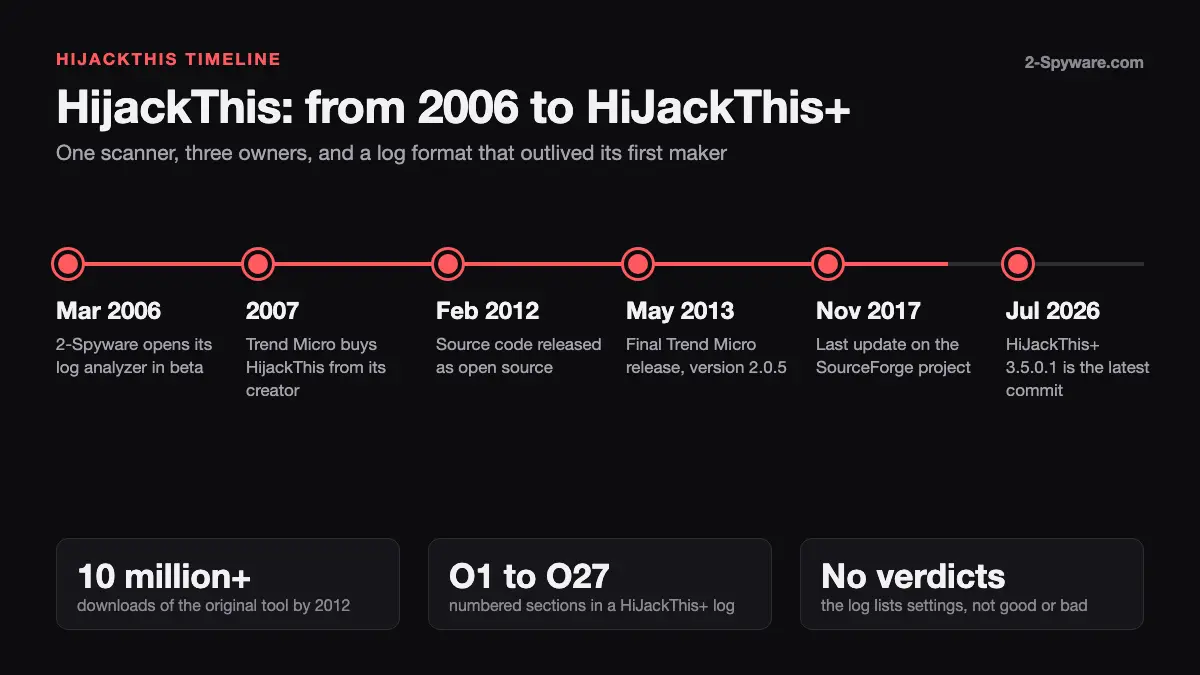
The tool underneath it changed as well. HijackThis was still the work of its creator in 2006. Trend Micro acquired it in 2007, made it free, and released the code as open source in February 2012.[1][2][10] The final Trend Micro build, version 2.0.5, came out on May 18, 2013.[1] Today the SourceForge project is marked abandoned and warns that it is inactive.[3]
HijackThis timeline from 2006 to 2026
- March 31, 2006. 2-Spyware announces its free log analyzer, still in beta.
- 2007. Trend Micro acquires HijackThis from its creator, Merijn Bellekom, and offers it for free.[2]
- February 2012. Trend Micro releases the source code on SourceForge, and the tool reaches a reported total of well over 10 million downloads.[1][2][10]
- May 18, 2013. Version 2.0.5 is the final release of the original.[1]
- November 24, 2017. The SourceForge page shows its last update.[3]
- July 2, 2026. The HiJackThis+ repository shows its latest commit, version 3.5.0.1.[4]
What a HijackThis log is, and what it is not
HijackThis does not compare your files with a database of known malware. It looks at the places that hijackers change, such as startup entries, browser settings, services, scheduled tasks and the hosts file, and it writes down whatever differs from the defaults.[3][4] That design lets it spot new or unknown threats without constant updates. It also means that every program you installed that starts with Windows can appear in the log.
The tool makes no distinction between safe and unsafe items. The fork's own readme says false positives are likely and tells users to consult a knowledgeable expert before deleting anything.[4] The original project page gives the same warning and advises against changes unless you have expert knowledge.[3] SecurityWeek's 2012 report on the open source release said the tool is not designed for novices and that Trend Micro warned against changing settings if you do not know what you are doing.[2]
HiJackThis+ is a passive scanner. It offers no real time protection and is not a replacement for an antivirus program.[4] Think of it as a magnifying glass, not as a cleaner. Wikipedia adds that later builds of the original also included a task manager, a hosts file editor and an alternate data stream scanner.[1] HiJackThis+ keeps these and adds more, including a process manager, an uninstall manager and a digital signature checker.[4]
How to read one line of a HijackThis log
Every entry starts with a section prefix, followed by the location, the item name and usually a file path. The tool may append a status in brackets. The example below comes from a question posted on the SourceForge discussion pages, and we break it down part by part.[3]
| Part of the line | Example | What it tells you |
|---|---|---|
| Section prefix | O4 | Startup entries: autoloading registry values, the Autostart folder and items disabled in MSConfig or Task Manager[5] |
| Flag | (disabled) | The entry is switched off, so it does not run at startup[5] |
| Location | HKLM..\Run | A machine wide registry location that launches programs at logon |
| Item name | [AdobeAAMUpdater-1.0] | A label chosen by whoever created the entry. It suggests an Adobe updater, but a name proves nothing |
| File path | C:\Program Files (x86)\Common Files\Adobe\OOBE\PDApp\UWA\UpdaterStartupUtility.exe | The program the entry would start. A normal program folder is a good sign, not a guarantee |
| Status | (file missing) | The log reports that the file is not at that path, so the entry points to nothing[3] |
Our reading of this example is simple. The entry is disabled, it names a path inside a normal Adobe folder, and the file is gone. It is a leftover, not an active startup item. That does not make it dangerous, and it does not make it worth a risky fix. The excerpt we read shows the question but no answer, so the original poster's outcome is unknown.
A second line from the same post shows a toolbar registration with no name and no file. Under the section list in the HiJackThis+ tutorial, O3 covers Internet Explorer toolbars.[5] An empty registration like this is again a leftover. Leftovers are untidy, but they are not the entries that cause redirects and pop-ups.
What HijackThis does when you press Fix
Before you fix anything, know what the button does. The HiJackThis+ tutorial lists the action for every section, and several of them delete more than the registry line you see.[5] The table shows a selection.
| Section | Action taken by HiJackThis+ | Watch out for |
|---|---|---|
| F0 to F3 | Restores or deletes the ini file or registry value. The corresponding file is not deleted | The program stays on disk and can be started again[5] |
| O1 hosts file | Deletes the line from the hosts file and flushes the DNS cache | A line you wanted, such as an ad block entry, disappears[5] |
| O2 and O3 | Deletes the registry key and the related DLL file | The file is removed, not only the setting[5] |
| O4 disabled items | Deletes the registry entry and the autoloading file | Even a disabled item loses its file[5] |
| O17 DHCP DNS | Deletes the value and flushes the resolver cache | The tutorial says to configure your router with the address from your provider before fixing this item[5] |
| O23 service or driver | Disables, stops and removes it, then asks for a reboot | Some Windows services are needed for the system to boot[5] |
| O26 debugger | Deletes the registry value | If a debugger file was deleted but is still set, the host program will not start[5] |
The tool tries to back up what it fixes, which lets you restore an item after a mistake.[1] The command line switch /noBackup turns that off, so never use it on a machine you care about.[5] The same tutorial documents /saveLog for saving the report to a folder of your choice, which helps when you want a copy before you begin.
The log sections that matter most
A current log can contain entries from the B group for browsers, the R group for Internet Explorer settings, the F group for ini files and the O group, which runs from O1 to O27.[5] Many of the R and O sections describe Internet Explorer features, so on a modern PC they are often short or empty. We could not verify how often that is the case, so treat it as an expectation, not a fact. The table gives our own practical view of the sections you are most likely to meet.[5]
| Section | What it covers | Our approach |
|---|---|---|
| R0 to R4 | Internet Explorer start page, search page, proxy and search providers | Check that the values are ones you set. An unknown proxy or search provider is a red flag[5] |
| F0 and F2 | Shell and userinit values in system.ini and the Winlogon registry key | The default is explorer.exe. Any extra program after it deserves investigation[5] |
| F1 and F3 | run and load values in win.ini and the matching registry key | Normally empty. A value here is unusual[5] |
| O1 | Hosts file and DNS API patches | Read every domain. Do not delete lines because they say 127.0.0.1[5][7] |
| O2 and O3 | Internet Explorer helper objects and toolbars | Unknown entries with a file path outside program folders are suspect[5] |
| O4 | Startup registry entries, Startup folder, disabled items | The busiest section. Match each entry to software you installed[5] |
| O7 | Policies that disable Regedit, Task Manager or Explorer features | Malware uses these to protect itself. If you did not set them, investigate[5] |
| O10 | Winsock layered service providers | Repair is risky. The tutorial points to a separate reset tool[5] |
| O17 | DNS settings and the DNS address a router hands out by DHCP | Compare with your provider or router settings before any fix[5] |
| O20 | AppInit_DLLs and Winlogon notify entries | Rarely used except by trojans, though some video drivers use them[5] |
| O22 | Scheduled tasks | Tasks can run with high privileges. Check the file and the schedule[5] |
| O23 | Services, drivers and dependencies | Removing the wrong one can stop Windows booting. Research before acting[5] |
| O25 | WMI permanent event consumers | Can run script code stored inside, with no file on disk[5] |
| O26 | Process debuggers | A debugger set on a normal program is a known persistence trick[5] |
| O27 | User accounts and remote desktop settings | Hidden accounts and an opened port 3389 need an explanation[5] |
What is usually safe to leave alone
This section is our analysis, based on how the tool works and on the vendor documentation we cite. It is not a promise about any single log. If you cannot explain a line, treat it as unknown, not as safe.
- Entries for software you installed. The path points to a normal program folder, the publisher is one you recognize and the file carries a valid digital signature. Microsoft Autoruns can hide signed Microsoft entries so that third party items stand out.[6] A signature shows who signed the file. It does not prove the file is harmless.
- Disabled startup entries. They do not run, and fixing them deletes the file.[5] Leave them unless you know the file is unwanted.
- Missing file leftovers. An entry that points to a file that no longer exists cannot start anything.[3] It is clutter, not an active threat.
- Hosts lines that you or a tool created. Mapping a name to 127.0.0.1 is how some ad blockers and security tools work, while malware can use the same trick to block security sites.[5] The domain decides, not the address.[7]
- Microsoft and hardware vendor services. Some services are required for the operating system to work, and removing them can stop it from booting.[5]
What deserves removal
Again, this is our analysis. These patterns are described as hijacking methods in the HiJackThis+ tutorial, and each one calls for a closer look, not for an automatic fix.[5]
- A Shell value with an extra program after explorer.exe, or a userinit value with an unknown file. The tutorial's own example shows a Shell line that adds a file named openme.exe.[5]
- A run or load value in win.ini or its registry twin that starts a program you do not recognize.[5]
- Hosts lines that send well known sites to unfamiliar addresses, or that block your antivirus vendor. The tutorial gives google.com pointing to a foreign address and a Russian security vendor pointing to localhost as infected examples.[5]
- A service or driver you cannot match to any software. Malicious drivers can hide files and processes, and the tutorial calls these rootkit techniques.[5]
- An AppInit_DLLs entry that is not a graphics or cryptography library.[5]
- A proxy or DNS value you never set, or a hidden account, or an open remote desktop port you did not request.[5]
- A debugger value attached to a normal program or to a default app, or a WMI event consumer you cannot explain.[5]
Finding one of these does not prove infection. It means the entry needs research, a scan and ideally a second pair of eyes. If several appear together, assume an active problem and move to the scanning steps below.
Six checks before you fix any line
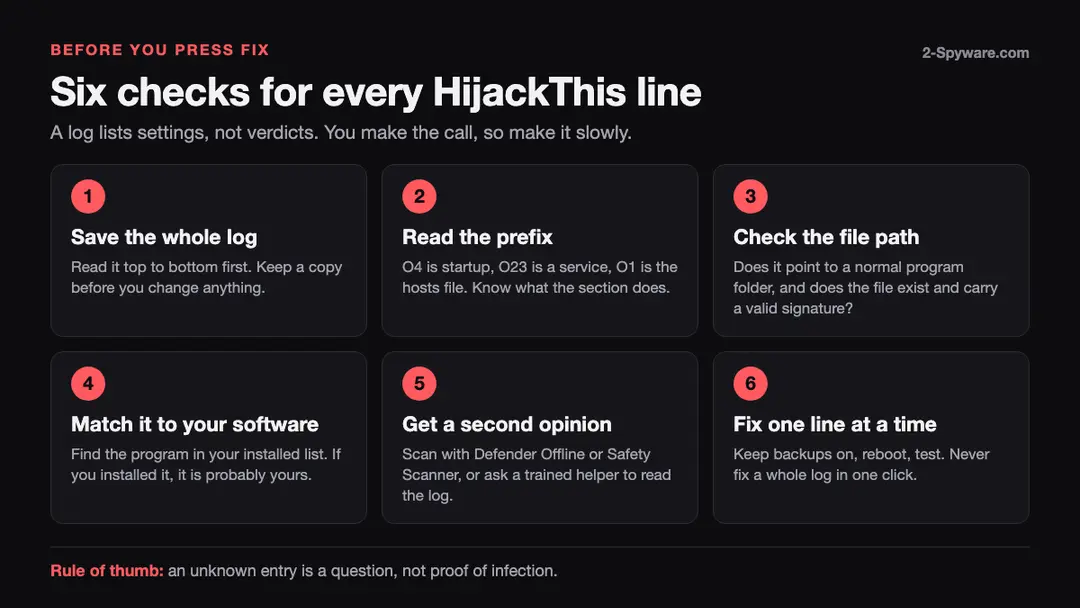
- Save the whole log and read it first. Keep a copy outside the program. A complete picture stops you from fixing a line that only makes sense next to another one.
- Read the prefix. Look up the section in the HiJackThis+ tutorial and learn what it covers and what the Fix button does.[5]
- Check the file. Open the folder from the path. Look at the file name, its location and its digital signature. Autoruns can verify digital signatures for startup entries.[6]
- Match it to your software. Compare the entry with the programs you installed. If you cannot find an owner, search for the exact file name and the publisher before you decide.
- Get a second opinion. Run a scan with Microsoft Defender Offline or Microsoft Safety Scanner.[8][9] Autoruns can also check file hashes against VirusTotal after you accept its terms.[6] A trained helper can read the whole log for you.[11]
- Fix one line at a time. Leave backups on, reboot, and test your browser, your network and your programs before touching the next line. Never press Fix on the whole log at once.
Better tools to use alongside a log
A log is a starting point. These tools answer the questions it raises. Our guides explain how to run a Microsoft Defender Offline scan step by step and how to remove what malware leaves behind in Windows.
| Tool | What it does | Notes |
|---|---|---|
| HiJackThis+ | Scans for hijacking methods and writes the log. It supports Windows 11, 10, 8.1, 8, 7, Vista and XP, and can add an ignore list | Active fork. The author calls the v3 line a beta with major changes in progress[4] |
| Microsoft Autoruns | Shows every autostart location, can hide signed Microsoft entries, verify signatures and query VirusTotal, and has a command line version | Version 14.3, published June 17, 2026. Unchecking an entry disables it, and Delete removes it[6] |
| Microsoft Defender Offline | Boots into a trusted environment outside the normal Windows kernel and targets rootkits and boot record infections | The scan takes about 15 minutes and restarts the PC. Save your work first and suspend BitLocker if it is on[8] |
| Microsoft Safety Scanner | A portable manual scanner that tries to remove malware and reverse changes | It expires 10 days after download and does not replace your antivirus. The log is %SYSTEMROOT%\debug\msert.log[9] |
Download these tools from their own project or vendor pages. The HiJackThis+ readme notes that third party mirrors belong to other companies and are not official.[4]
Why automatic log analyzers are risky
The 2006 service tried to turn a log into a verdict. The idea is attractive, and it is also the part that experts criticize. Wikipedia reports that specialists who handle HijackThis logs by hand consider automatic tools dangerous for inexperienced users, and neither accurate nor reliable enough to replace a trained human analyst.[1] The tool authors say the same thing in a different way: the log itself makes no value judgment.[3][4]
A hosts file example shows the problem. In January 2019 a user of the HiJackThis+ project posted that they had almost deleted every 127.0.0.1 line in their hosts file because the lines looked suspicious, while banking sites would not load after the PC had been left asleep, until a restart. A volunteer helper did not advise deleting anything. The helper asked for the full diagnostic collection first.[7] An analyzer that flagged all those lines in red could have pushed the user toward the wrong fix.
Our conclusion is practical. Use any analyzer as a source of hints, never as an order. Today 2-Spyware does not run one, so no site of ours is waiting for your pasted log. If you use a third party analyzer, check its answer against the vendor documentation first.
Where to get a human opinion on a log
The HiJackThis+ readme names English language forums for log help, including GeeksToGo and BleepingComputer, and says that the VIRUSNET association reads HiJackThis+ logs in the Issues section of the project's GitHub page, in English or Russian only.[4] Its help instructions set strict rules: follow only the instructions written for your own case, do not delete or move files without the helper's advice, and expect the topic to be closed if you stay silent for 10 days.[11]
The same page asks users to pause their antivirus protection while collecting logs.[11] Decide that for yourself, and keep the pause as short as possible. Also remember that a log can contain file paths with your Windows user name and the names of your programs, so think before you post it in a public thread.
If you would rather start with cleanup, our guides cover how to reset your browser after adware or a hijacker, how to remove a browser extension and how to reset the hosts file in Windows 11 and 10. For other threats, our security check page and the breach list help you judge whether accounts need attention.
What is still unknown
- Why 2-Spyware withdrew its analyzer. We have not documented a reason.
- How many people still run the original HijackThis 2.0.5 on current Windows. The SourceForge page marks it inactive, and the readme claims Windows 11 support only for the fork.[3][4]
- How well HiJackThis+ detects modern threats. The author calls the v3 line a beta with major changes in progress and says it balances speed with fighting popular malware.[4]
- Why Trend Micro stopped supporting the fork. The readme says Trend Micro refused support and closed its GitHub repository and gives no reason.[4]
- Whether a given unknown line in your log is harmless. Only a scan, research of the file and a trained helper can answer that.
Every other point in this guide comes from the sources listed below, and we marked our own reading where it goes beyond them.
Frequently asked questions
Does 2-Spyware still have a HijackThis log analyzer?
No. The service launched in beta in March 2006, and its address returned not found when we checked on October 6, 2026. Use the tools and help channels in this guide instead.
Is HijackThis still safe to use?
The original is abandoned, so use the maintained fork HiJackThis+ from its official project page. Scanning only reads settings. The risk is in the Fix button, which can delete files and services. The fork's author calls the beta safe to use, and we have not audited it ourselves.{3}{4}
Should I delete every line the log flags?
No. The log lists non-default settings and does not separate safe from unsafe ones, so false positives are likely. Research each line, scan the PC, and fix one entry at a time with backups on.{4}{5}
Is a 127.0.0.1 line in the hosts file malware?
Not by itself. Some tools use it to block ads, while malware can use it to block security sites. Read the domain on the line before you decide, and compare with our hosts file guide.{5}{7}
What replaced HijackThis?
The closest successor is HiJackThis+, which continues the original code base and still shows commits in 2026. Microsoft Autoruns covers the autostart part of the job and has built in signature and VirusTotal checks.{4}{6}
Does a clean HijackThis log mean my PC is free of malware?
No. The tool is a passive scanner that looks for hijacking methods and is not a replacement for antivirus software. A scan with Microsoft Defender Offline or Safety Scanner adds a second view.{4}{8}{9}
Can I trust an online log analyzer?
Treat it as a hint only. Specialists quoted by Wikipedia consider automatic analyzers neither accurate nor reliable enough for novices, and the log itself makes no value judgment.{1}{4}
How do I analyse a HijackThis log?
Read a HijackThis log as a list of non-default settings, not as a list of infections, because the tool lists them and does not judge them.{3}{4} Do not paste the log into an automatic analyzer and press Fix. Specialists cited by Wikipedia discourage automatic analyzers for inexperienced users.{1} Run a malware scan first, such as a Microsoft Defender Offline scan, and do not fix any line you cannot explain.{8}{9} Then ask a person who reads logs to look at what is left.
Log in to comment
No comments yet. Be the first.