
Error 0x80072ee7" virus: what it is and how to remove it
"Error #0x80072ee7" virus is another browser-based tech support scam sample. However, such statement may not answer your "what is error 0x80072ee7" question.
Facts checked October 7, 2026. Removal steps tested on Windows 11 (26H2) and checked against Microsoft's and the browser makers' current documentation. Sections marked as our earlier report are the original text: they describe the threat as it was then and have not been reviewed since. The 2026 status, the removal steps and the questions are current.
Automatic
Get a free scan and check if your PC is infected.
Fortect finds malware, unwanted programs and the Windows damage they leave behind, and repairs it in one pass.
Programs like Error 0x80072ee7" virus usually arrive in groups; a free scan lists the companions that are easy to miss.
Do it yourself · free Remove Error 0x80072ee7" virus yourself 4 steps, about 12 minutes, no software needed.
Start the steps
Error 0x80072ee7" virus: summary
| Detection names | No Microsoft detection name is known |
|---|---|
| Distribution | Not recorded in the old report |
| Damage | Not recorded in the old report |
| Name | Error 0x80072ee7" virus |
| Type | Adware extension |
| Symptoms | An unknown program in Installed apps |
| Removal | Scan the PC with security software to find and remove the malware and anything installed with it. Fortect scans Windows for malware and repairs the system files and settings it damaged. Remove it nowTo use the full-featured product, you have to purchase a license for Fortect. The scan is free. |
Show 4 more facts
| Evidence | 6 write-ups by security sites; details still limited |
|---|---|
| Program | Error 0x80072ee7" virus |
| First seen | 19 October 2017 |
| Facts checked | 7 October 2026 |
Is Error 0x80072ee7" virus dangerous?
From our report of Oct 2017 · not reviewed since
"Error #0x80072ee7" alert: genuine or fake?
"Error #0x80072ee7" virus is another browser-based tech support scam sample.
However, such statement may not answer your "what is error 0x80072ee7" question. More specifically, this browser infection is also known by the name of Microsoft or Windows Warning Alert 0x80072ee7. It attempts to persuade that victim's device is infected with spyware.
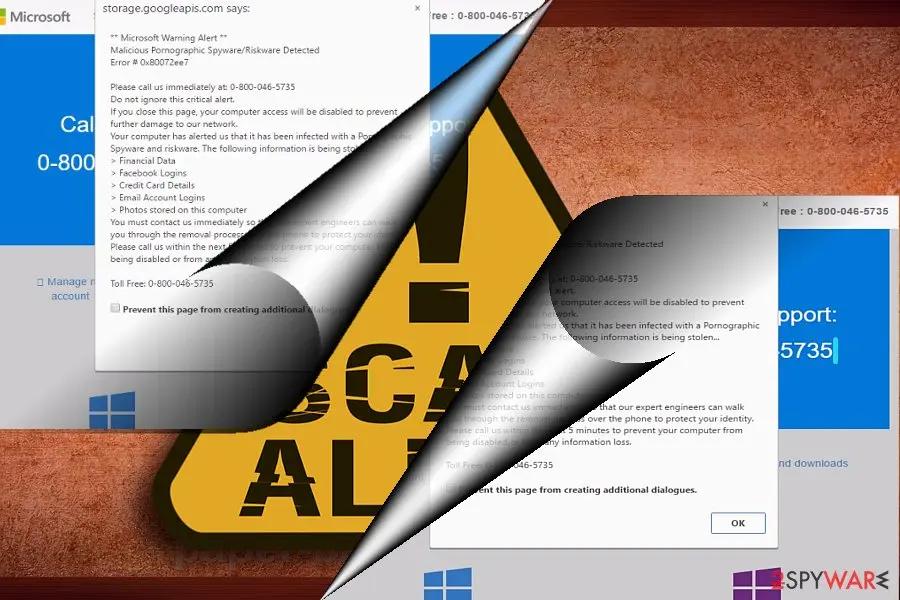
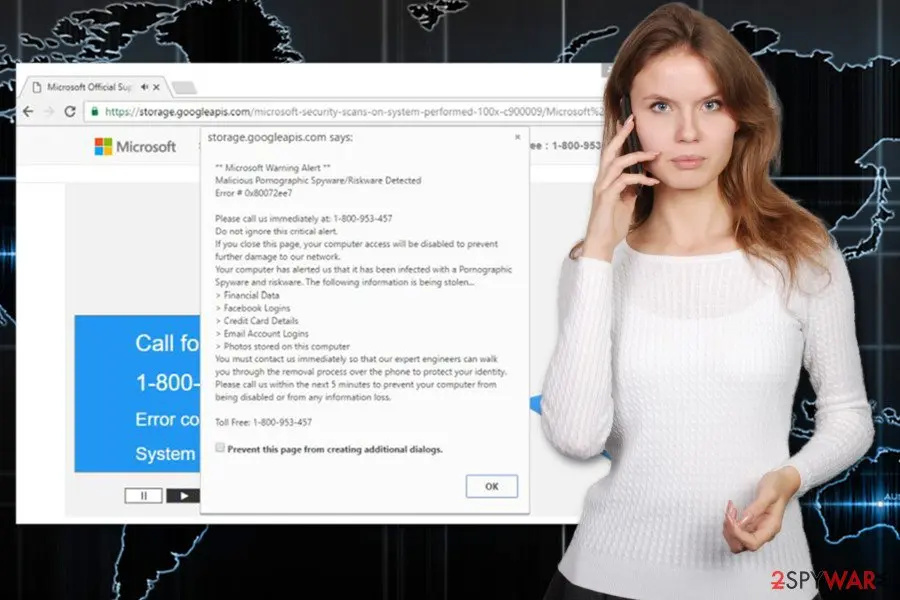
In order to save important data from theft, the message urges users to call 0-800-046-5735. Note that the number may vary as there are dozens of Microsoft Warning Alert scams. This infection targets Chrome, Internet Explorer, and other browsers. It operates via adware scripts.
Here is an extract from the scam message:
"Error 0x80072ee7" tech support scam website may temporarily paralyze your browser. As a result, exiting the page with the fake message might be troublesome. You may exit the fraudulent page by marking the box "Prevent this page from creating additional dialogues."
If that does not help, press CTRL+SHIFT+ESC. When Task Manager opens, find the task indicating your browser, right-click on it and choose "End task."
Usually, such "Microsoft support error code 0x80072ee7" scam is only tied to the browser. In other words, you can simply get rid of it by shutting the browser.
However, there are cases when this browser infection drops a few unwanted files on an operating system. In that case, review the list of system applications. Delete shady ones, especially the ones with "Unknown" publisher.
The scam website mimics Microsoft Support page ; hence, inexperienced computer users can be easily tricked by the scammers and believe that it's a legitimate service. However, we want to remind that legitimate Microsoft support service does not ask to call and especially does not give you a deadline to do it.
When on this malicious website, the adware program generates a pop-up message which looks like an ordinary browser's notification. However, the message warns about detected malicious content that might be related to pornographic spyware or riskware .
Instead of making the call, you have to remove "Error 0x80072ee7" virus from the computer with a help of , , or another anti-malware program.
The purpose of Microsoft Warning Alert Error #0x80072ee7a is to make people call the provided phone number for several reasons. For example, this call may be charged a lot even if scammers state opposite, or they want to get your personal information or access to your computer.
In the pop-up message, "Error # 0x80072ee7" malware informs that victim's computer is in a serious danger. Scammers warn that due to the malware attack, a person has already lost data:
To make the situation look even more dangerous, they claim that ignoring this warning may lead to even bigger problems. Those who want to protect themselves from further damage have to call provided phone number 1-800-953-457. However, fake tech support service won't help you.
All they can do is to cause you more problems or convince to buy fake security tools. We highly recommend getting rid of this misleading warning by initiating "Error 0x80072ee7" removal using one of our presented methods at the end of the article.
- credit card information;
- Facebook and email logins;
- photos and images stored on the computer'
From our report of Oct 2017 · not reviewed since
Dealing with tech support scams
The adware program which is responsible for bringing "Error # 0x80072ee7" virus to the computer spreads in the software bundles.
This potentially unwanted application is attached as an optional component in the software package and gets inside the system when a user forgets to opt out it from the optional downloads list, or he or she chooses the wrong installation mode.
Often users have to choose whether they want to install a new program under Quick/Standard or Advanced/Custom settings. The former choice often may lead to Microsoft Error 0x80072ee7 hijack. The same way travels other potentially unwanted programs, so you have to get used to installing software under Advanced/Custom mode.
It allows to monitor the process and reject installation of the unwanted apps. Also, before installing new programs, you should read the Privacy Policy, EULA or other official documents because they reveal whether you can trust the developer or not. Now let us move on "Windows Warning Alert Error 0x80072ee7" removal section.
From our report of Oct 2017 · not reviewed since
Terminate "Error 0x80072ee7" browser infection
Nevertheless, you can remove adware program manually; we highly recommend initiating "Error 0x80072ee7" removal automatically.
Security software will eliminate all web scripts associated with this scam. Resetting the browser may be practical as well.
It might be hard to find all adware-related components on the system and web browsers. Hence, it may take hours to investigate the system and stop these redirects to the misleading site. However, if you still want to remove "Error 0x80072ee7" manually, please carefully follow our prepared step-by-step guide below.
From our report of Oct 2017 · not reviewed since
More from our earlier report on Error 0x80072ee7" virus
- Microsoft Warning Alert Malicious Pornographic Spyware/Riskware Detected Error # 0x80072ee7 Please call us immediately at: 0-800-046-5735 Do not ignore this critical alert.
How to remove Error 0x80072ee7" virus
Do the browser steps in every browser and profile on the PC, then check Windows for the program that installed the extension.
Step 1: Remove extensions you did not add
In Chrome open
chrome://extensions, in Edgeedge://extensions, and in Firefox the menu > Extensions and themes.Remove every extension you do not remember adding, especially search, new tab, coupon, PDF, weather or video downloader add-ons. Check every browser and every profile, because each keeps its own list.
If an extension has no Remove button or comes back, a browser policy holds it (see "Managed by your organization" in the procedure below). The pages are the same on Windows 11 and Windows 10.
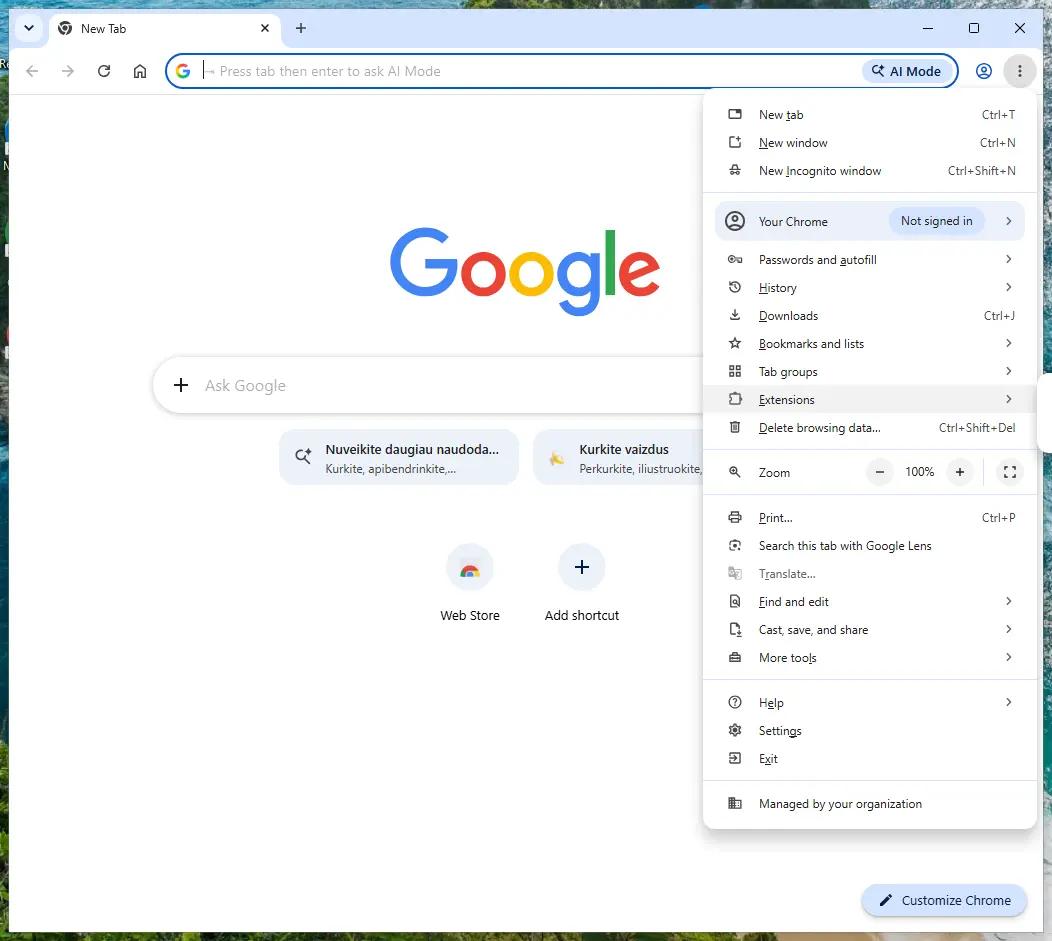
Chrome on Windows 11: More > Extensions > Manage extensions. Full procedure with screenshots: Remove a browser extension
Step 2: Uninstall Error 0x80072ee7" virus
Error 0x80072ee7" virus is removed like any other program, from the list of installed apps. In Windows 11 that is Settings > Apps > Installed apps, in Windows 10 Settings > Apps > Apps & features, and in both you can also use Control Panel > Programs and Features.
Select Error 0x80072ee7" virus, click Uninstall and follow the uninstaller to the end. Then look at the entries just above and below it when the list is sorted by date: bundled programs install at the same minute.
Full procedure with screenshots: Uninstall a program or app in Windows On uGetFix
Step 3: Reset the browser
A reset removes what the steps above could miss:
- changed start pages
- site permissions
- hidden settings
In Chrome open Settings > Reset settings > Restore settings to their original defaults; in Edge Settings > Reset settings; in Firefox Help > More troubleshooting information > Refresh Firefox.
Tip: Bookmarks and saved passwords stay, while extensions are turned off and the search engine and start page return to the defaults.
Reset every browser on the PC, including Edge, which Windows 11 and Windows 10 always have.
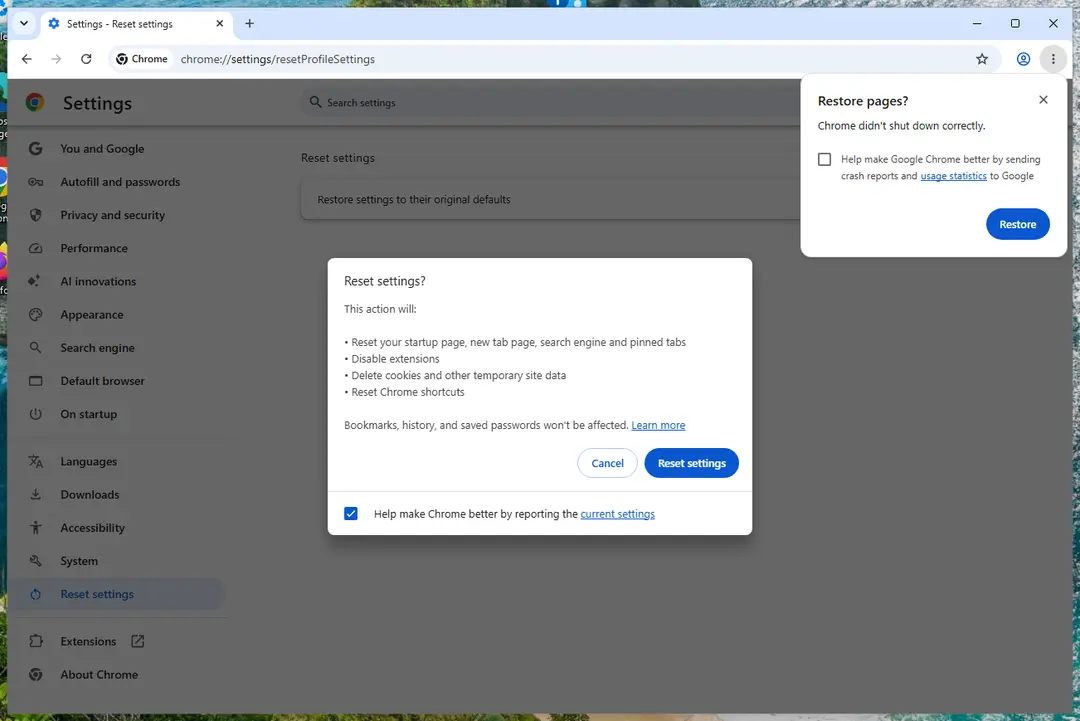
Chrome on Windows 11: Settings > Reset settings. Full procedure with screenshots: Reset a browser and fix a hijacked search engine
Step 4: Scan the PC, then run the offline scan
A scan finds the parts of Error 0x80072ee7" virus that the manual steps cannot see. In Windows Security > Virus & threat protection > Scan options, start a Full scan and quarantine what it reports.
Follow it with Microsoft Defender Antivirus (offline scan) > Scan now, which restarts the PC and checks the disk while Windows and the malware are not running.
It takes about 15 minutes and works the same in Windows 11 and Windows 10. If either scan finds something, run the full scan again after removal until it comes back clean.

Windows 11: Windows Security > Virus & threat protection > Scan options. Full procedure with screenshots: Run a Microsoft Defender Offline scan
Instructions for each browser and system
The detailed steps for every browser and system this guide covers. Open the one you use.
Uninstall from Windows
If you decide to remove "Error 0x80072ee7" virus manually, please follow the instructions carefully and make sure you delete all malicious entries from the computer and browsers.
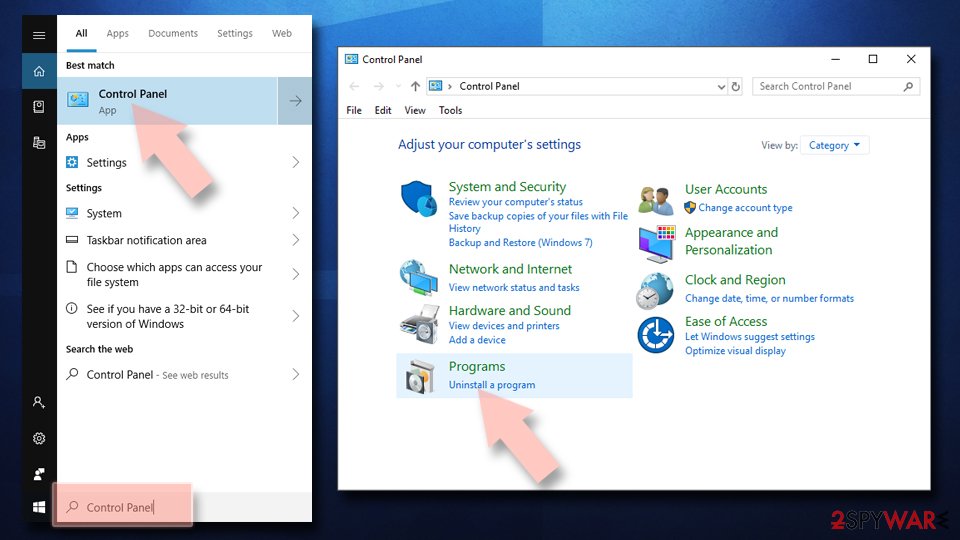
Uninstall from Windows 10/8:
- Type Control Panel into the Windows search box and open the result.
- Under Programs, select Uninstall a program.
Uninstall from Windows 7/XP:
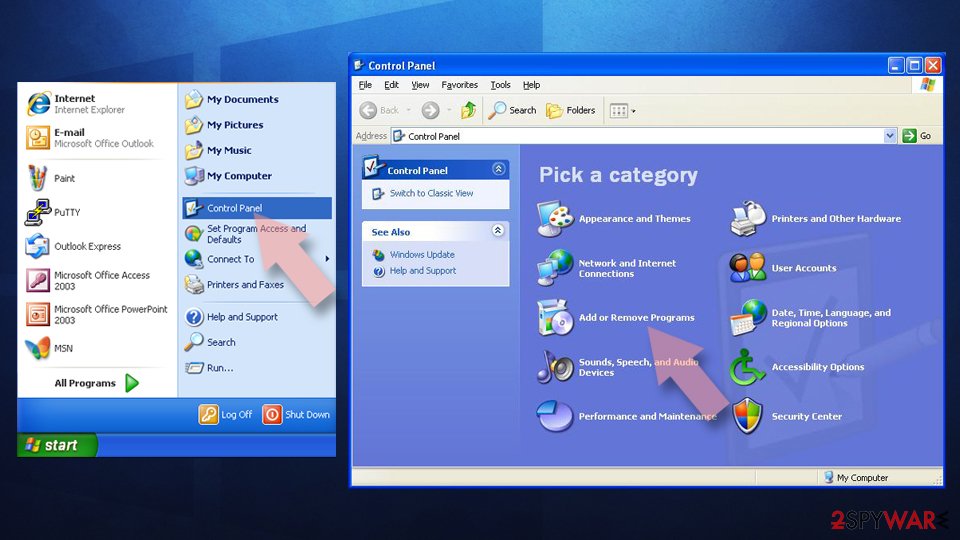
- Click on Windows Start > Control Panel (Windows XP users should click on Add/Remove Programs).
- In Control Panel, select Programs > Uninstall a program.
Remove the unwanted program:
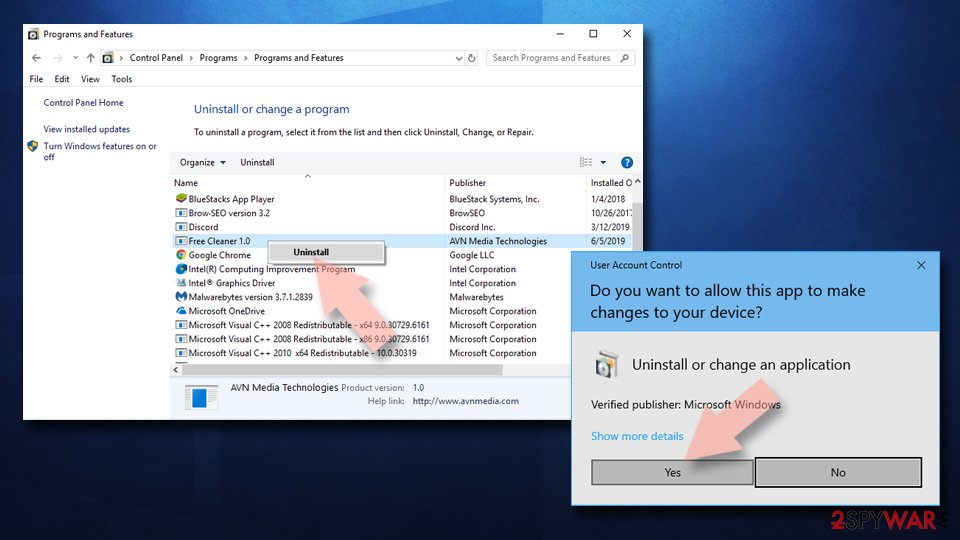
- In the Programs and Features window, look for any recently installed suspicious entries, select them, and click Uninstall.
- If User Account Control appears, click Yes to confirm, then complete the removal.
Remove from Google Chrome
"Error 0x80072ee7" Tech Support Scam warning might be triggered by suspicious browser extension that was installed on Google Chrome. Follow the instruction to remove it:
Delete malicious extensions from Google Chrome:
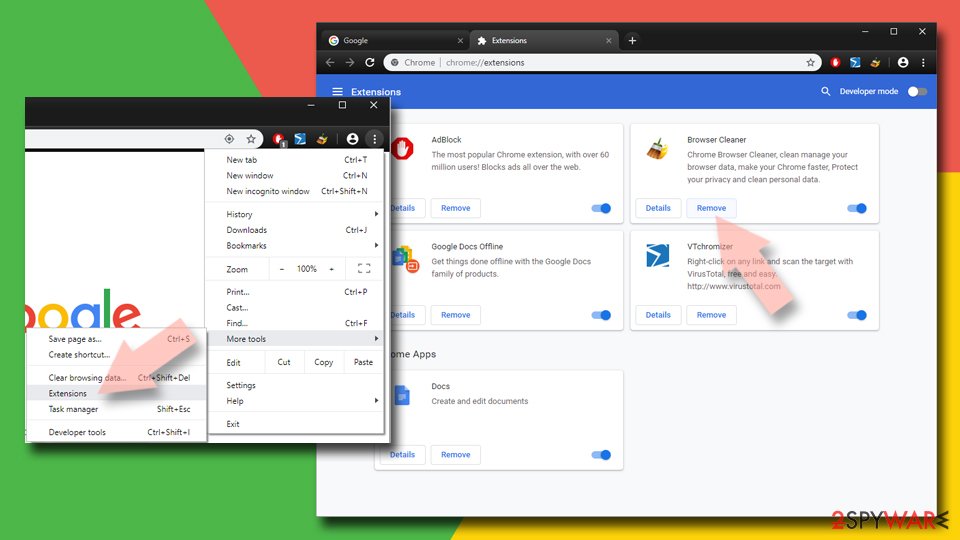
- Open Google Chrome, click on the Menu (three vertical dots at the top-right corner) and select More tools > Extensions.
- In the newly opened window, you will see all the installed extensions. Uninstall all suspicious extensions related to the unwanted program by clicking Remove.
Clear cache and web data from Chrome:
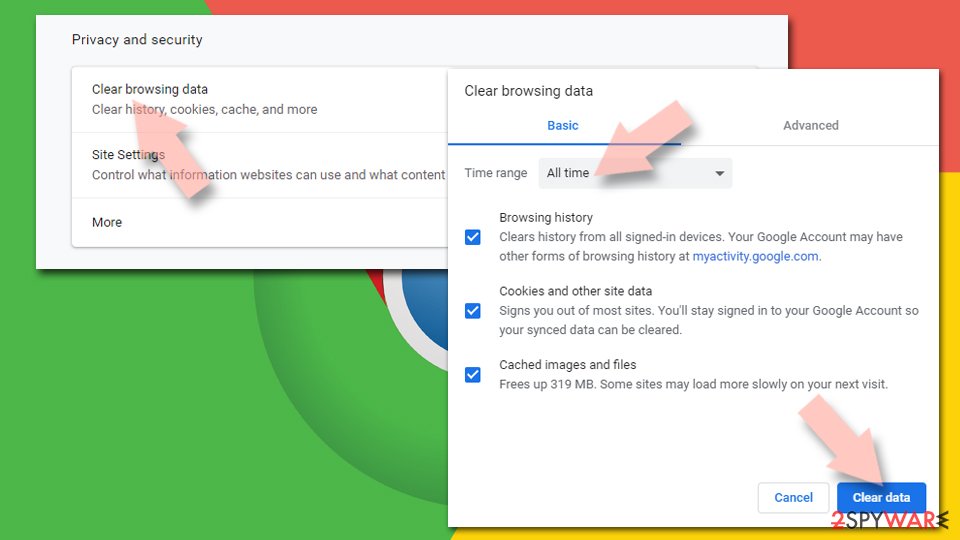
- Click on Menu and pick Settings.
- Under Privacy and security, select Clear browsing data.
- Select Browsing history, Cookies and other site data, as well as Cached images and files.
- Click Clear data.
Change your homepage:
- Click menu and choose Settings.
- Look for a suspicious site in the On startup section.
- Click on Open a specific or set of pages and click on three dots to find the Remove option.
Reset Google Chrome:
If the previous methods did not help you, reset Google Chrome to eliminate all the unwanted components:
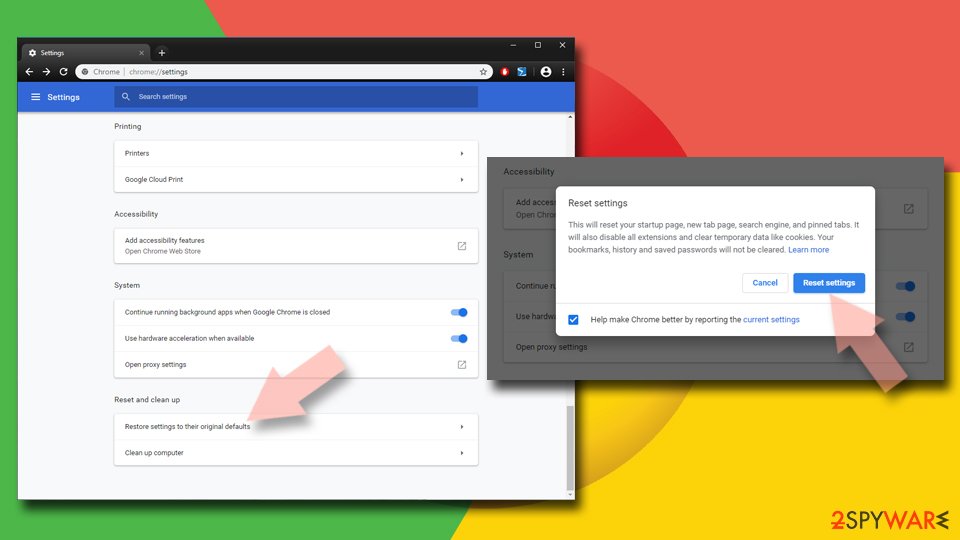
- Click on Menu and select Settings.
- In the Settings, scroll down and click Advanced.
- Scroll down and locate Reset and clean up section.
- Now click Restore settings to their original defaults.
- Confirm with Reset settings.
Remove from Microsoft Edge
The virus may have installed suspicious tools on your browser; hence you have to remove them all from the Microsoft Edge.
Delete unwanted extensions from MS Edge:
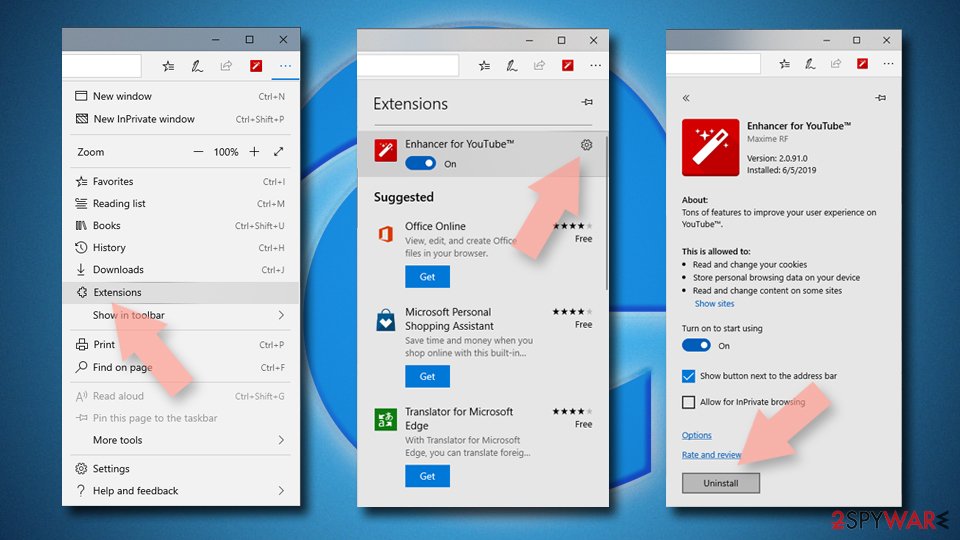
- Select Menu (three horizontal dots at the top-right of the browser window) and pick Extensions.
- From the list, pick the extension and click on the Gear icon.
- Click Remove.
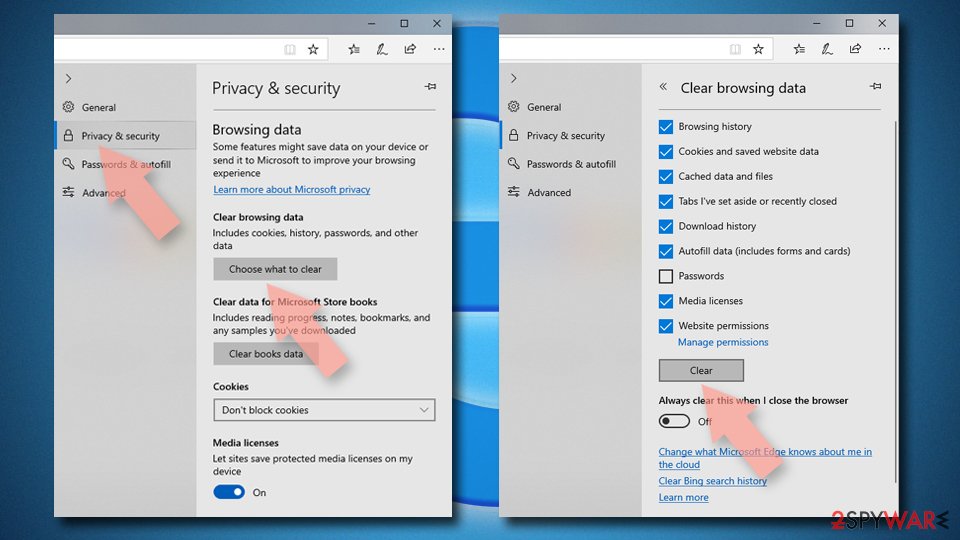
Clear cookies and other browser data:
- Click on the Menu (three horizontal dots at the top-right of the browser window) and select Settings > Privacy, search, and services..
- Under Clear browsing data, pick Choose what to clear.
- Select Cookies and other site data and Cached images and files. (apart from passwords, although you might want to include Media licenses as well, if applicable) and click on Clear.
Restore new tab and homepage settings:
- Click the menu icon and choose Settings.
- Then find On startup section.
- Click Remove next to any suspicious startup page.
Reset MS Edge if the above steps did not work:
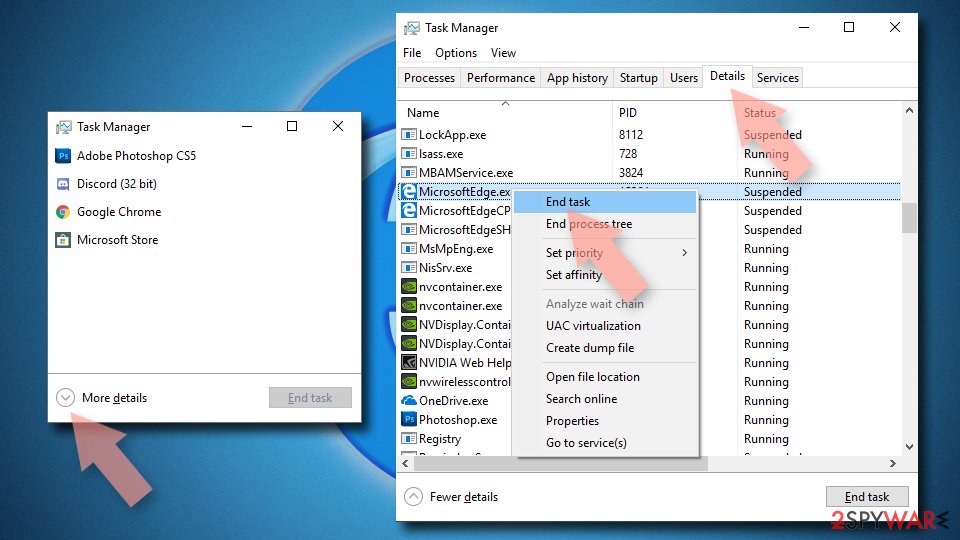
- Press on Ctrl + Shift + Esc to open Task Manager.
- Click on More details arrow at the bottom of the window.
- Select Details tab.
- Now scroll down and locate every entry with Microsoft Edge name in it. Right-click on each of them and select End Task to stop MS Edge from running.
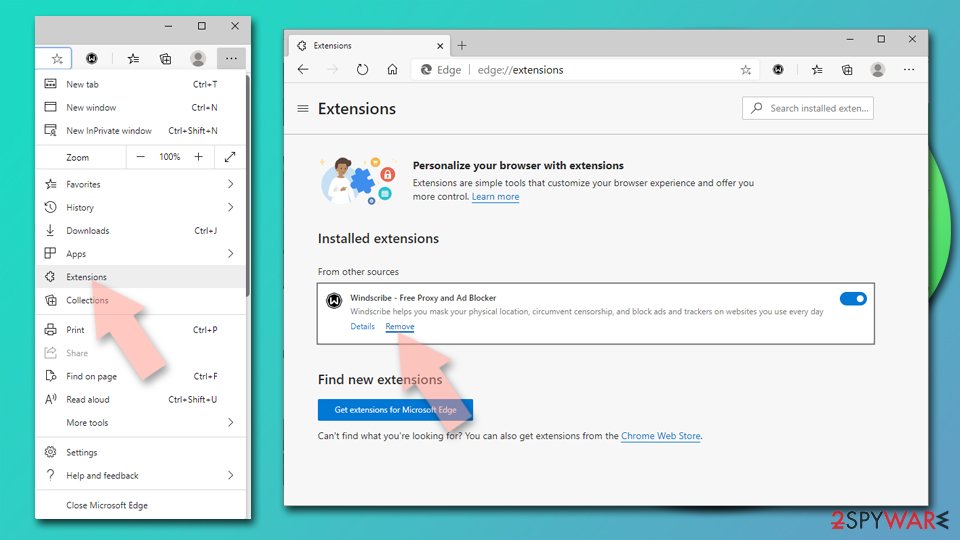
Delete extensions from MS Edge (Chromium):
- Open Edge and click select Settings > Extensions.
- Delete unwanted extensions by clicking Remove.
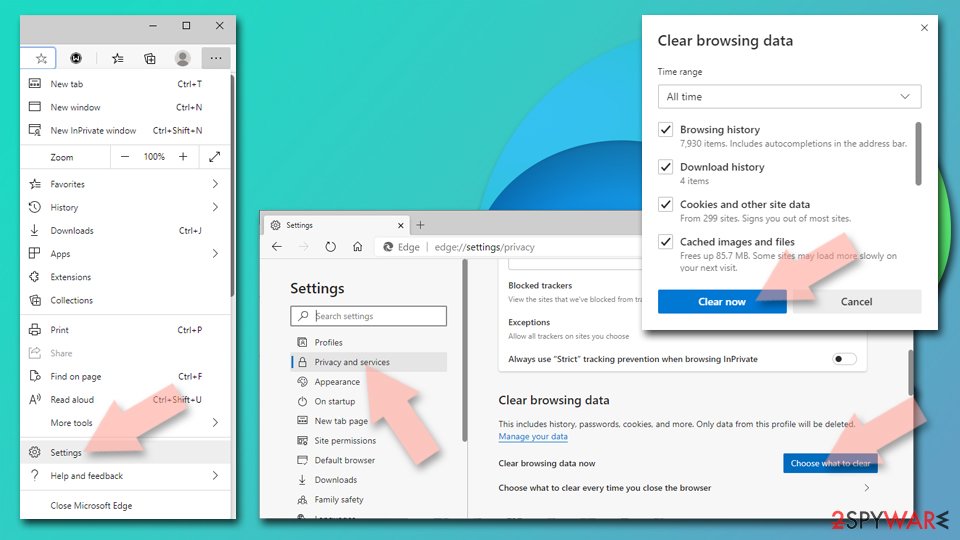
Clear cache and site data:
- Click on Menu and go to Settings.
- Select Privacy, search and services.
- Under Clear browsing data, pick Choose what to clear.
- Under Time range, pick All time.
- Select Clear now.
Reset Chromium-based MS Edge:
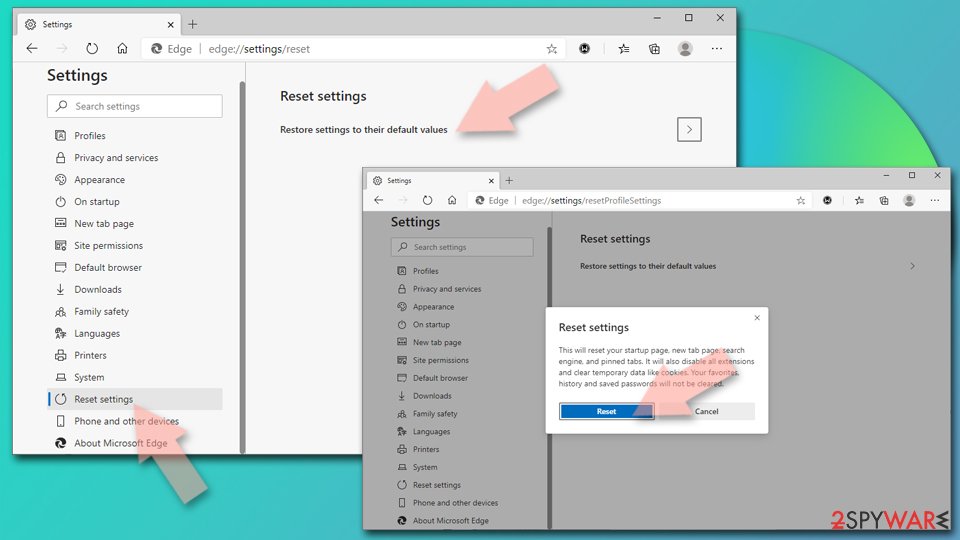
- Click on Menu and select Settings.
- On the left side, pick Reset settings.
- Select Restore settings to their default values.
- Confirm with Reset.
- This will disable extensions and reset startup pages but will not delete bookmarks, saved passwords, or browsing history.
Remove from Mozilla Firefox (FF)
"Error 0x80072ee7" scam might be initiated by some browser add-on that was installed on Mozilla Firefox. Therefore, you have to get rid of it.
Remove dangerous extensions:
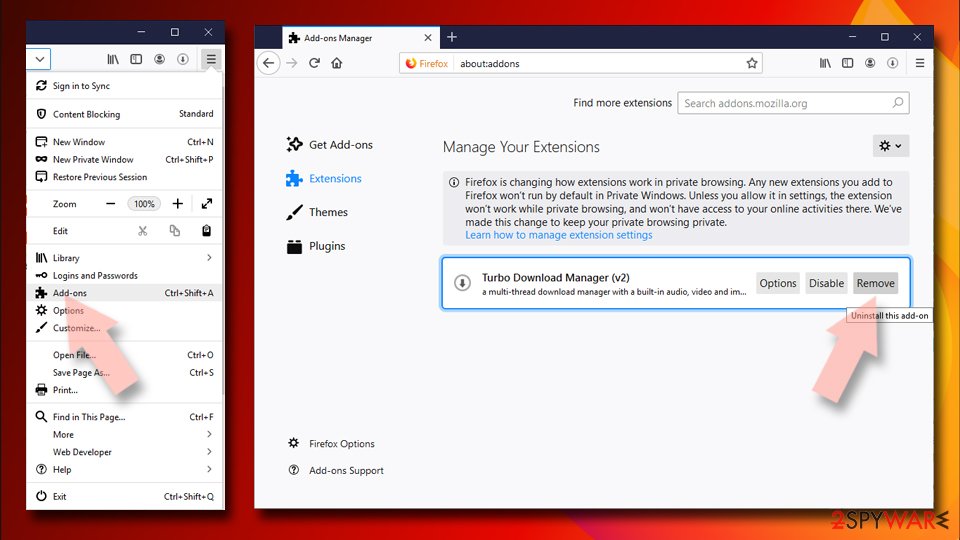
- Open Mozilla Firefox browser and click on the Menu (three horizontal lines at the top-right of the window).
- Select Add-ons.
- In here, select the unwanted extension and click Remove.
Reset the homepage:
- Click three horizontal lines at the top right corner to open the menu.
- Choose Settings.
- Under Home, set your preferred homepage and new tab settings.
Clear cookies and site data:
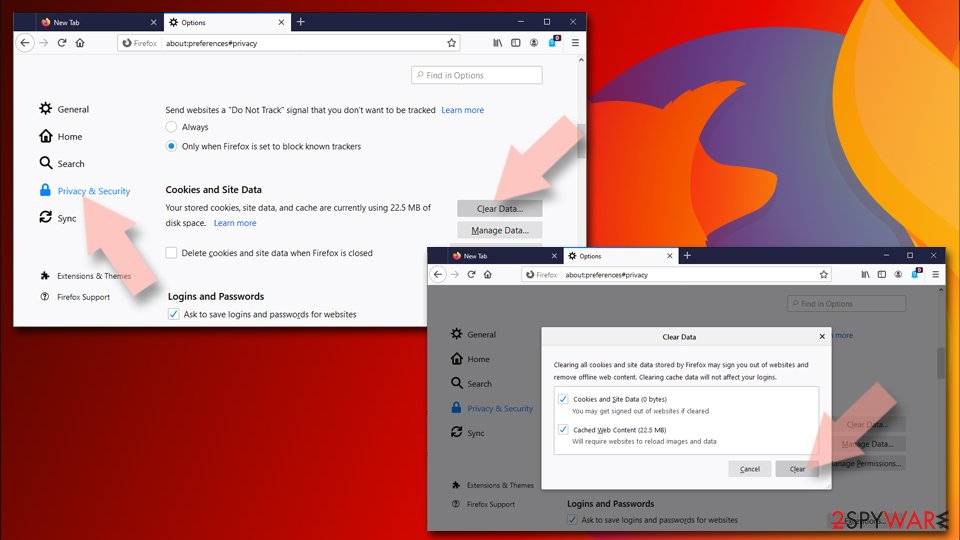
- Click Menu and pick Settings.
- Go to Privacy & Security section.
- Scroll down to locate Cookies and Site Data.
- Click on Clear Data...
- Select Cookies and Site Data and Temporary cached files and pages, then click Clear.
Reset Mozilla Firefox
If clearing the browser as explained above did not help, reset Mozilla Firefox:
- Open Mozilla Firefox browser and click the Menu.
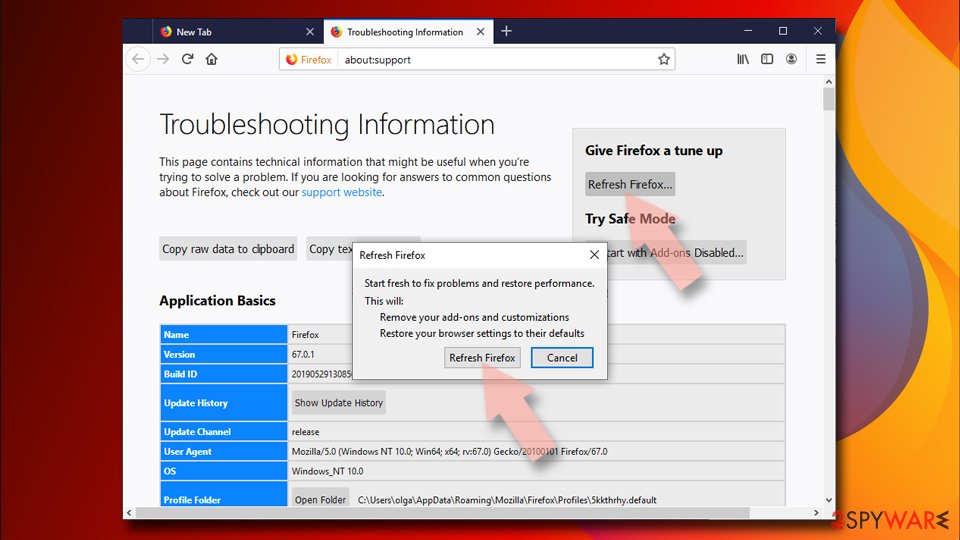
- Go to Help and then choose Troubleshooting Information.
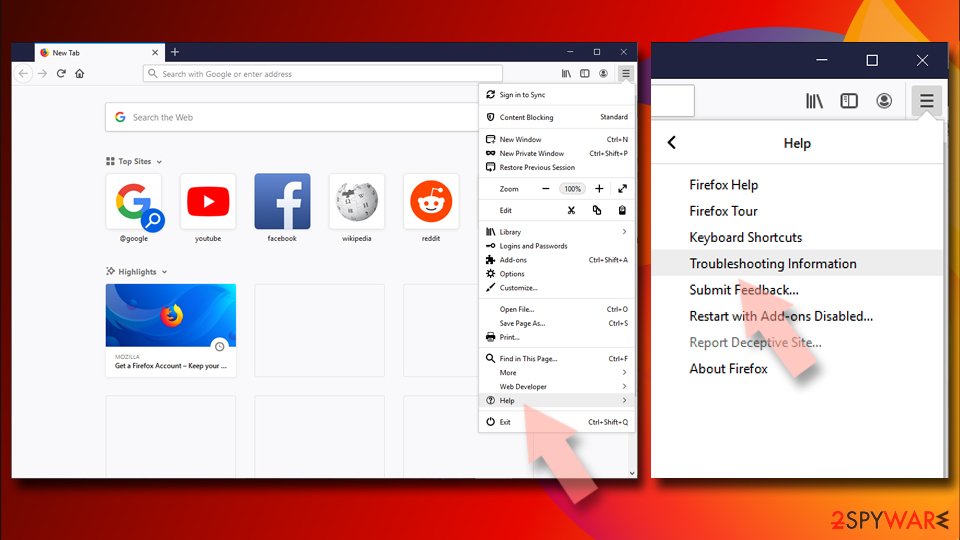
- Under Give Firefox a tune up section, click on Refresh Firefox...
- Once the pop-up shows up, confirm the action by pressing on Refresh Firefox.
Delete from Safari
Remove dangerous extensions:
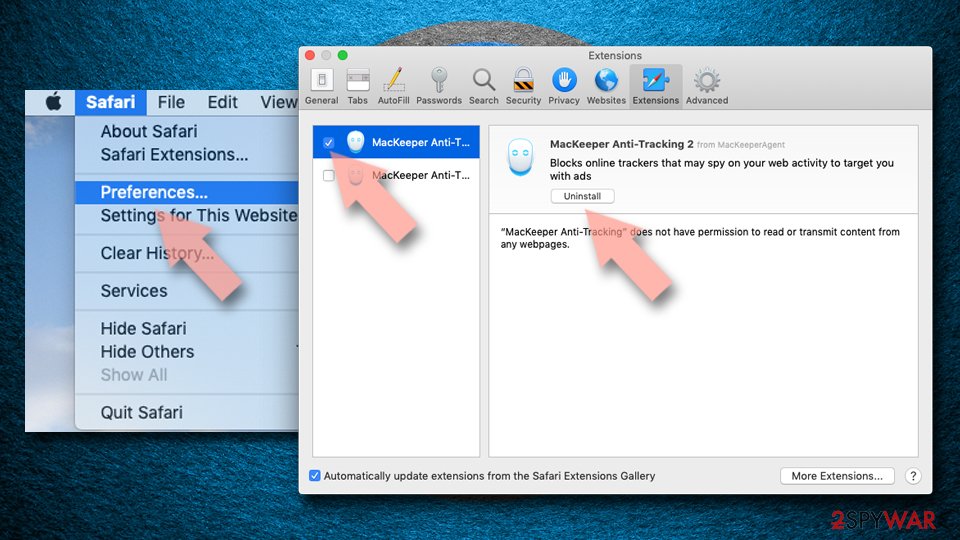
- Open Safari, click Safari in the menu at the top-left of the screen, and select Preferences.
- Go to the Extensions tab, look for any suspicious entries, and click Uninstall to remove them.
Clear history and website data:
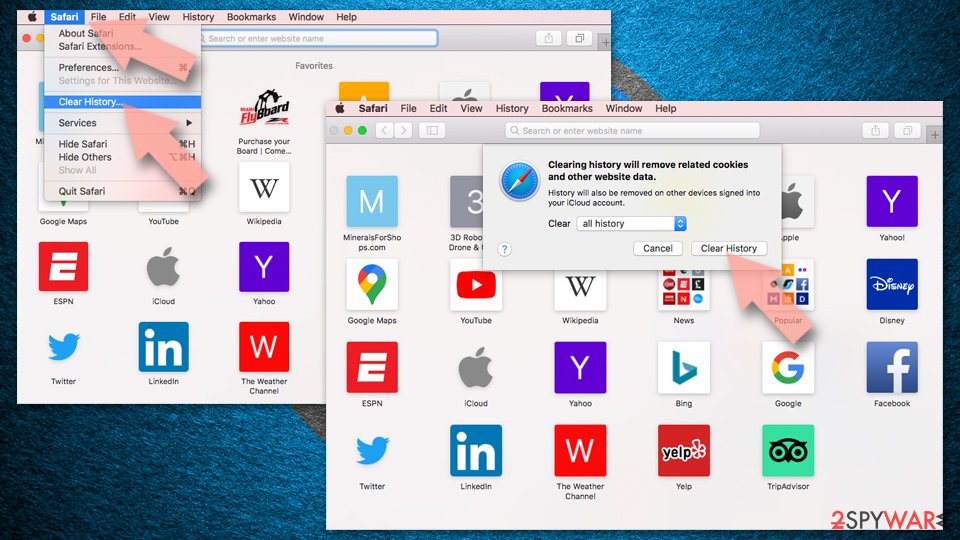
- Click Safari in the menu and pick Clear History.
- Set Clear to all history and confirm with Clear History.
Reset Safari:
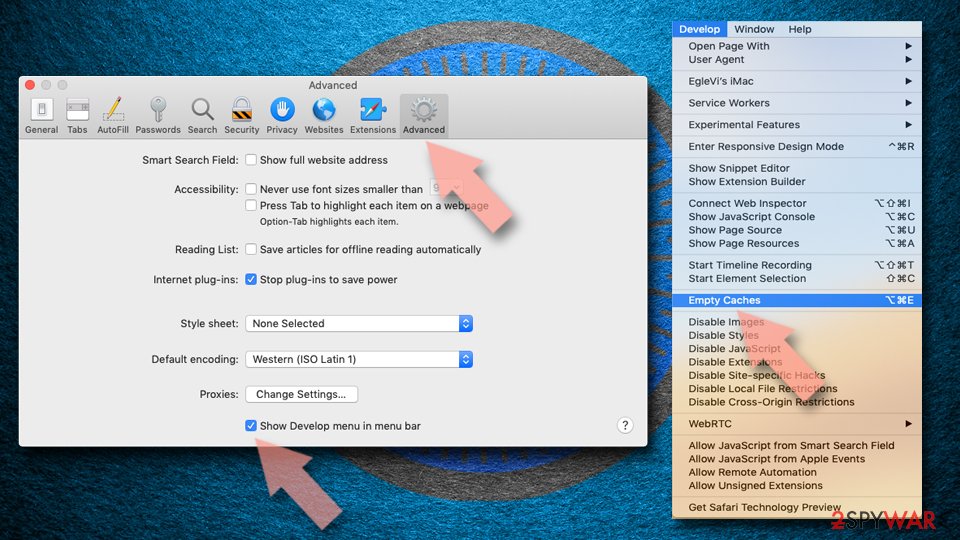
- Click Safari in the menu and select Preferences > Advanced.
- Enable Show Develop menu in menu bar.
- From the menu bar, click Develop and select Empty Caches.
Delete from macOS
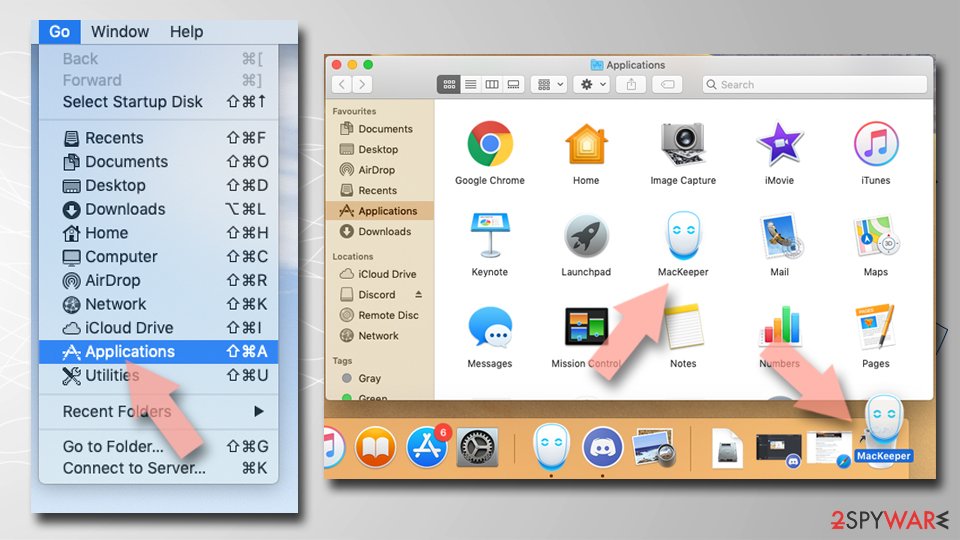
Remove the unwanted application:
- From the menu bar, select Go > Applications.
- In the Applications folder, look for any suspicious entries, then drag them to Trash (or right-click and pick Move to Trash).
Delete leftover files and folders:
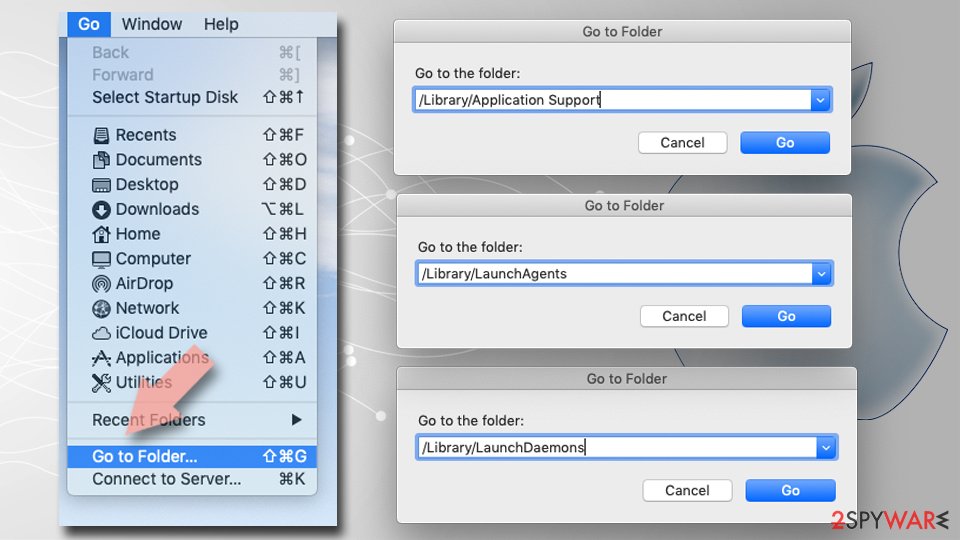
- Select Go > Go to Folder.
- Enter /Library/Application Support and remove any suspicious folders related to the unwanted program.
- Repeat the same check in the /Library/LaunchAgents and /Library/LaunchDaemons folders, deleting any suspicious entries.
- Finally, empty the Trash to permanently remove the leftovers.
Reset Internet Explorer
After "Error 0x80072ee7" hijack, you should fix Internet Explorer by following these steps.
Remove dangerous add-ons:
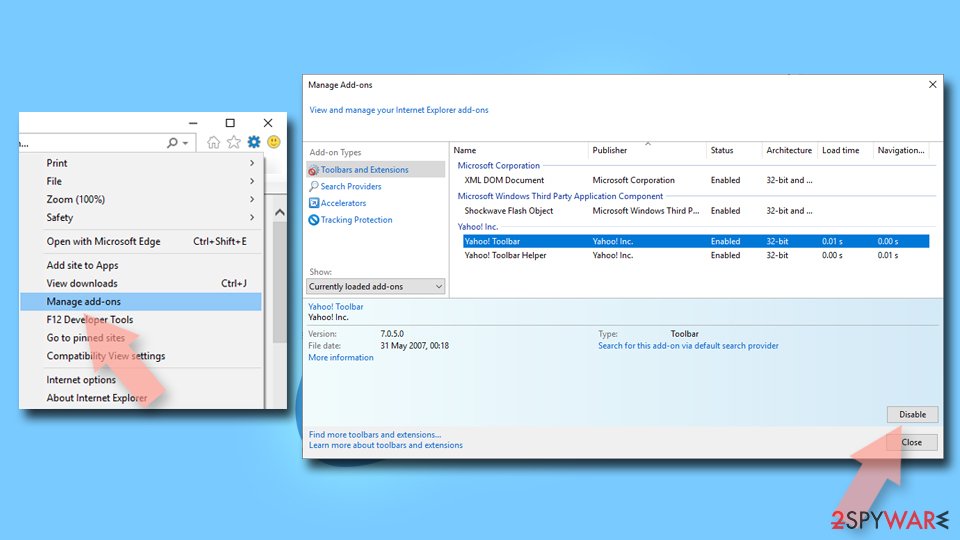
- Open Internet Explorer, click on the Gear icon (IE menu) on the top-right corner of the browser
- Pick Manage Add-ons.
- You will see a Manage Add-ons window. Here, look for suspicious plugins. Click on these entries and select Disable.
Change your homepage if it was altered:
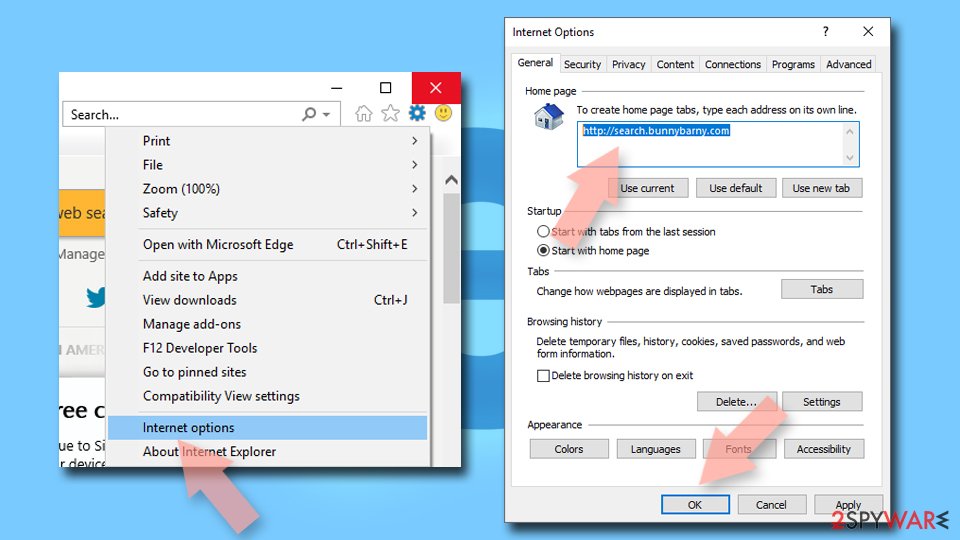
- Open IE and click on the Gear icon.
- Select Internet Options.
- In the General tab, delete the Home page address and replace it by your preferred one (for example, Google.com).
- Click Apply and then select OK.
Delete temporary files:
- Press on the Gear icon and select Internet Options.
- Under Browsing history, click Delete...
- Select relevant fields and press Delete.
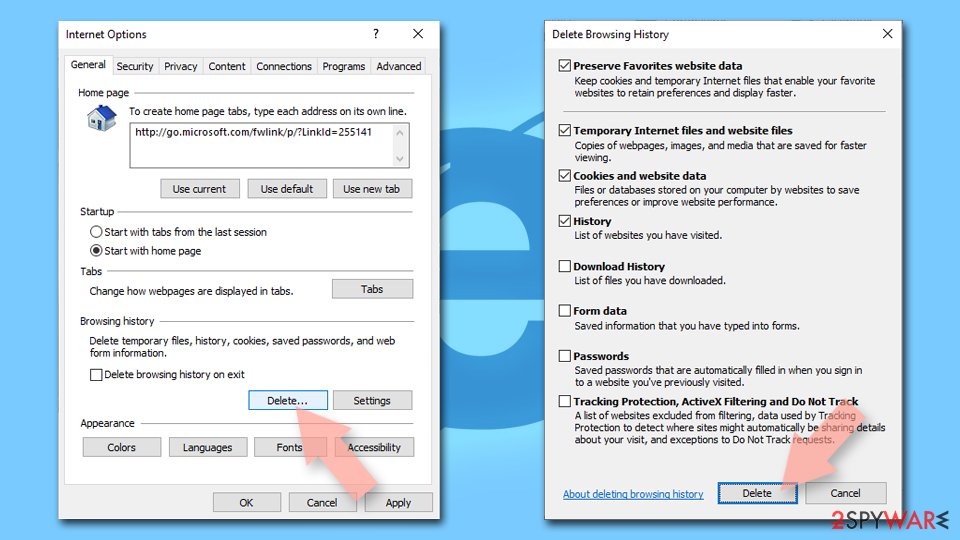
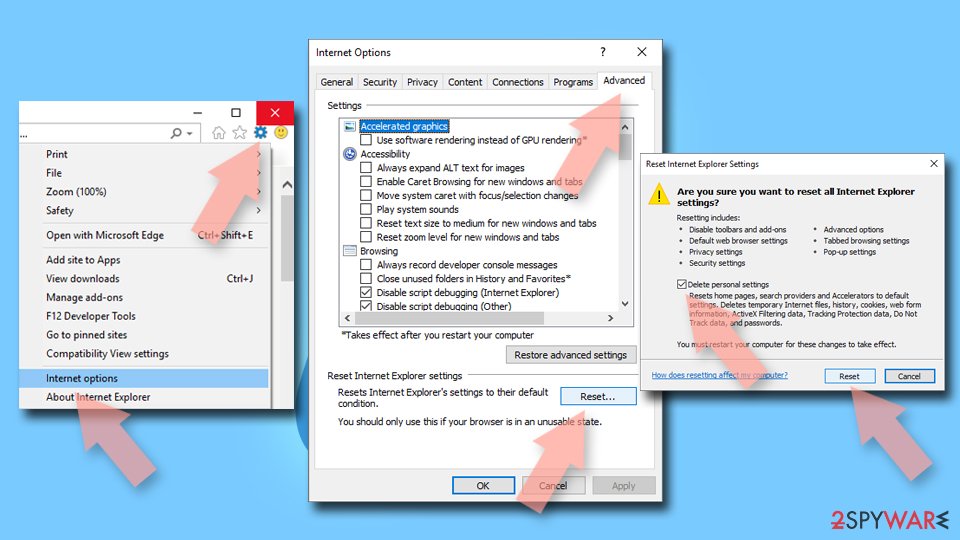
Reset Internet Explorer:
- Click on Gear icon > Internet options and select Advanced tab.
- Select Reset.
- In the new window, check Delete personal settings and select Reset.
Access your website securely from any location
When you work on the domain, site, blog, or different project that requires constant management, content creation, or coding, you may need to connect to the server and content management service more often. The best solution for creating a tighter network could be a dedicated/fixed IP address.
If you make your IP address static and set to your device, you can connect to the CMS from any location and do not create any additional issues for the server or network manager that needs to monitor connections and activities. VPN software providers like can help you with such settings and offer the option to control the online reputation and manage projects easily from any part of the world.
Recover files after data-affecting malware attacks
While much of the data can be accidentally deleted due to various reasons, malware is one of the main culprits that can cause loss of pictures, documents, videos, and other important files.
More serious malware infections lead to significant data loss when your documents, system files, and images get encrypted. In particular, ransomware is is a type of malware that focuses on such functions, so your files become useless without an ability to access them.
Even though there is little to no possibility to recover after file-locking threats, some applications have features for data recovery in the system. In some cases, can also help to recover at least some portion of your data after data-locking virus infection or general cyber infection.
Questions about Error 0x80072ee7" virus
Can I safely uninstall Error 0x80072ee7" virus?
If you did not install Error 0x80072ee7" virus yourself and it is not part of your hardware or a program you rely on, yes. Uninstalling an unwanted program does not harm Windows.
Before you do, search the exact name and publisher to be sure it is not a driver tool, a printer utility or a game launcher with an odd name. Then remove it from Settings, Apps, Installed apps.
Ignore any offers or warnings in its uninstaller about losing protection or performance. Afterwards check Startup apps and your browsers for leftovers, and restart once to confirm that it does not reinstall itself.
Error 0x80072ee7" virus will not uninstall. What can I do?
First restart the PC and try again, because the program may have been running and locked its own files. If the uninstaller is missing or fails, start Windows in Safe Mode, where most third-party programs do not start, and remove Error 0x80072ee7" virus from Installed apps there.
If it still refuses, delete its startup entry and its scheduled task, restart, and try once more. A program that actively prevents removal is behaving like malware, so finish with a Microsoft Defender offline scan. Avoid third-party uninstallers offered on search ads; several of them are unwanted programs themselves.
An ad showed a phone number and I called it. What now?
The number belongs to scammers, not to Microsoft or an antivirus company. If you only talked, hang up and do not call back. If you let them connect to the PC, disconnect it from the internet, uninstall the remote access program they used, such as AnyDesk, TeamViewer, ScreenConnect or UltraViewer, and run a full and offline scan.
If you paid or gave bank details, call your bank at once on the number printed on your card. Change any passwords you typed while they were connected, and report the call.
I clicked on one of the ads. Am I infected?
Probably not. Clicking an ad usually only opens a page, and a page cannot install programs on an up-to-date Windows PC without your help.
You are at risk only if you then downloaded and ran a file, allowed notifications, entered card or login details, or called a phone number shown on the page. Delete any download and run a full and offline scan.
Change passwords you typed, from a clean device. Call your bank if you gave card details. If you called a number or allowed remote access, see the next question.
Can adware slow down my PC?
Yes. Adware runs in the background, loads ad scripts, opens extra tabs and contacts its servers, all of which use processor time, memory and bandwidth. Ad-heavy extensions also slow down every page, because they inspect and change it before you see it.
The effect is strongest on older PCs and when several adware programs arrived together. After removal, restart the PC and check Task Manager for anything still using a lot of resources that you do not recognise. Speed usually returns to normal once the ads stop.
Does adware steal passwords?
Ordinary adware is built to show ads, not to steal logins, and most of it never touches saved passwords. The line is blurry, though. Extensions that can read every page could capture what you type, and adware ads sometimes lead to phishing pages that ask for passwords directly.
If you entered credentials on a page reached through an ad, change that password from a clean device and turn on two-step verification. Otherwise, removing adware extension and clearing cookies is usually enough.
Why didn't my antivirus catch Error 0x80072ee7" virus?
Many security products do not block adware or notification sites by default, because users often agreed to them, even through a misleading prompt. Notification spam installs nothing at all, so there is no file to detect.
In Windows 11 you can make Microsoft Defender block potentially unwanted apps: open Windows Security > App & browser control > Reputation-based protection settings and turn on Potentially unwanted app blocking. If notifications caused the pop-ups, no scanner will report them; the fix is in the browser's site settings.
What is Error 0x80072ee7?
"Error #0x80072ee7" virus is another browser-based tech support scam sample. However, such statement may not answer your "what is error 0x80072ee7" question. The summary table at the top of this guide lists the type, the detection names, the symptoms and the damage of Error 0x80072ee7.
Reading it first helps you decide whether your computer shows the same signs. The removal plan below it works in order, from the safest step to the more thorough ones.
Will Fortect remove Error 0x80072ee7" virus?
Fortect scans Windows for malware and unwanted programs and repairs the system files and settings they change, and its free scan shows what it finds on your PC before you decide anything.
For Error 0x80072ee7" virus, follow the plan above as well: the browser steps take back permissions and settings that no scanner treats as a threat, and uninstalling the program that brought it removes the source.
Run Microsoft Defender's full scan and, if anything was found, its offline scan as a second opinion. If the symptoms are gone after the plan and both scans are clean, there is nothing more to do.
Sources
- Microsoft: Microsoft Support page (read October 7, 2026)
- Wikipedia: Riskware (read October 7, 2026)
- Google Chrome Help: Use notifications to get alerts (no longer online) (read October 7, 2026)
- FTC: How to recognize, remove and avoid malware (read October 7, 2026)
- Microsoft Learn: Microsoft Defender Offline (read October 7, 2026)