
MyPC Backup: what it is and how to remove it
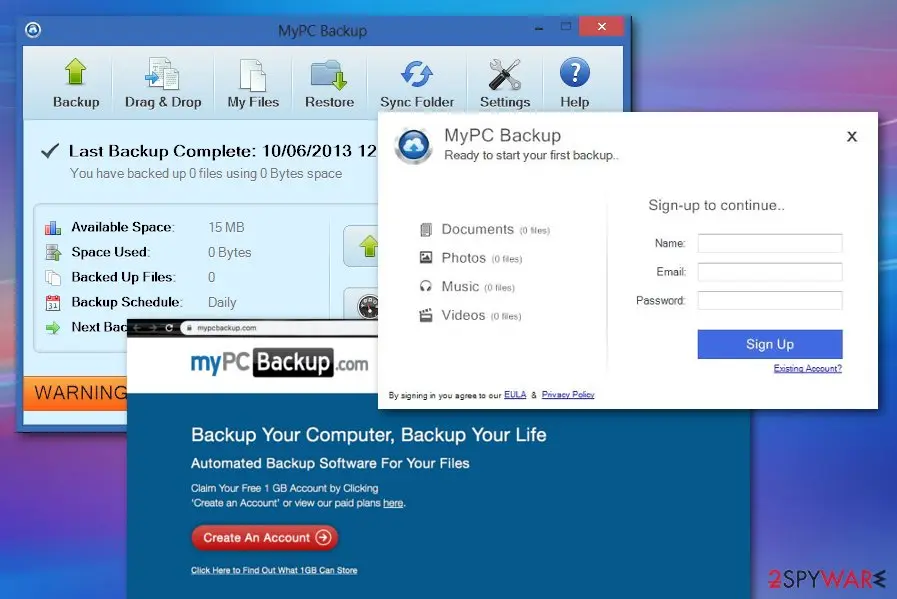
MyPC Backup is a misleading computer utility that urges to backup your files. Once you install this type of software, it might start booting itself within every machine startup process and dropping you warnings about unprotected files that "need to be backed up right now".
Facts checked October 6, 2026. Removal steps tested on Windows 11 (26H2) and checked against Microsoft's and the browser makers' current documentation. Sections marked as our earlier report are the original text: they describe the threat as it was then and have not been reviewed since. The 2026 status, the removal steps and the questions are current.
Automatic
Get a free scan and check if your PC is infected.
Fortect finds malware, unwanted programs and the Windows damage they leave behind, and repairs it in one pass.
If MyPC Backup keeps coming back after uninstalling, a scan can find what reinstalls it.
Do it yourself · free Remove MyPC Backup yourself 5 steps, about 15 minutes, no software needed.
Start the steps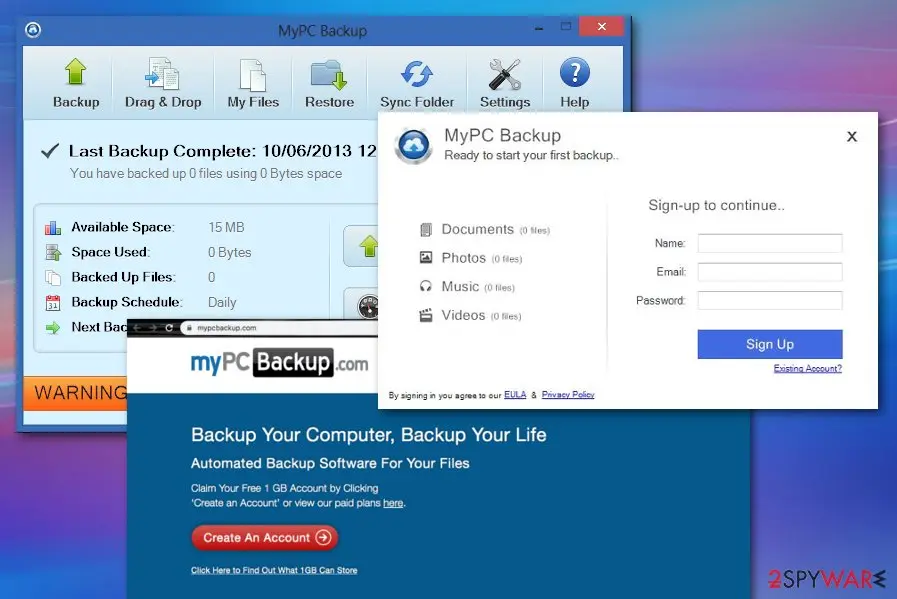
MyPC Backup: summary
| Distribution | The PUP is mostly distributed by using a deceptive technique called "software bundling"[1] when the tool gets installed in the system through free software packages. Also, you can get the product download from third-party sources and promotional ads |
|---|---|
| Name | MyPC Backup |
| Type | Potentially unwanted program/rogue system tool |
| Developer | This suspicious application has been created and released by JustDevelopIT |
| Aim | The main goal of this app is to throw warnings that the user's files need backups and encourage them to protect their data safely by promoting the advanced version of the program |
| Other apps | During the installation process, this questionable security tool can come in a bundled with another PUP such as DeltaSearch Community Toolbar |
| Removal | Scan the PC with security software to find and remove the malware and anything installed with it. Fortect scans Windows for malware and repairs the system files and settings it damaged. Remove it nowTo use the full-featured product, you have to purchase a license for Fortect. The scan is free. |
Show 7 more facts
| Detection names | No Microsoft detection name is known |
|---|---|
| Damage | Not recorded in the old report |
| Symptoms | An unknown program in Installed apps |
| Evidence | 4 write-ups by security sites; details still limited |
| Program | MyPC Backup |
| First seen | 1 July 2020 |
| Facts checked | 6 October 2026 |
Is MyPC Backup a real security program?
From our report of Jul 2020 · not reviewed since
MyPC Backup – legitimate-looking system tool that is offering backups and security but is actually a pup and adware
MyPC Backup is a misleading computer utility that urges to backup your files.
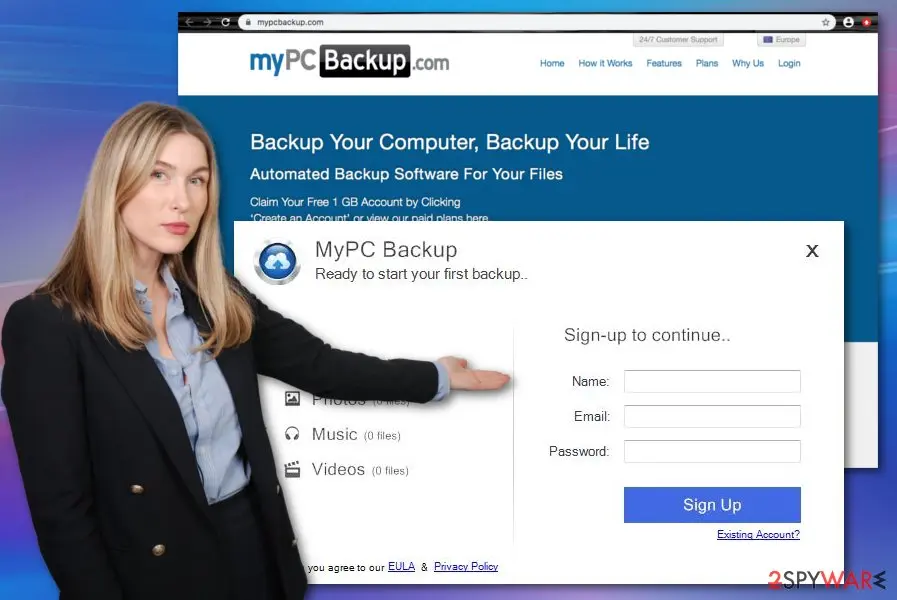
Once you install this type of software, it might start booting itself within every machine startup process and dropping you warnings about unprotected files that "need to be backed up right now". Afterward, the user is prompted to create a free account by entering his name and email address.
Also, MyPC Backup, created by JustDevelopIT aims to offer the premium version of its application in order to "properly back up all files that are at risk" and get more space for a 20% discount.
MyPC Backup virus is a suspicious program that can get downloaded from third-party sources such as ironSource, cnet.com, softonic.com, soft32.com, and download.com and other free sites that promote and provide questionable software.
Also, it is known that this rogue system software can come in a package with other potentially unwanted products such as DeltaSearch Community Toolbar installation. Paying close attention to online material and caution can help avoid such infiltrations of not-so-easily removable PUAs.
Users have been complaining that MyPC Backup arrives with additional questionable content to the computer system and fills the disk space with unnecessary components.
My PC Backup spreads just like any other malicious program or potentially unwanted application. It can show up on your machine after visiting an infected website or after opening a fraudulent email's attachment.
Besides, it may also try to infiltrate your PC system in a bundle with freeware and shareware as the optional component of these programs. In order to avoid such threats, you should avoid suspicious websites and also install reputable anti-virus on your computer.
However, My PC Backup is advertised on various misleading sites and deceptive promotional ads. Such content claims about all the data backup features and other useful functions that this potentially unwanted program should offer. It supposedly allows users to backup files cored on their devices.
My PC Backup has nothing valuable about itself, and it falls into the category of potentially unwanted programs or even can be considered as adware-type intruder due to relation with ad-supported sites. People claim that all the negative features of this program, like stealth installation with users' consent and questionable pop-ups, allow calling the tool a virus.
My PC Backup itself is not malicious and cannot damage the machine, even though it seems to be intrusive and annoying this is a potentially unwanted application, not a threat. However, the content that gets displayed by third-party advertisers may cause trouble and malware infections since there is no guarantee that you are not exposed to the potentially dangerous material.
Additionally, advertisers, the intruder itself, and all creators of those redirects, pop-ups, banners can access and even track, record details about your preferences online, browsing habit and most viewed sites or searched items. This is one of the first reasons that should encourage you to perform a My PC Backup removal as soon as possible, so you can avoid privacy issues.
Avoid clicking on any buttons and forms that present on the screen with all the claims about issues, malware, and danger to your device. Even survey forms that appear on the screen with the name of this shady software can collect your personal information directly. My PC Backup can be associated with scammers and people that focus on getting money and personal data from victims directly.
Make sure to remove My PC Backup using anti-malware tools and uninstall anything added on the browser or machine without your permission.
When you clean the machine, go through settings and system files in such places as Windows registry and startup preferences, so the virus is no longer launched on the PC. can go that safely for you and even repair damaged files, virus affected functions. For additional tips - check the guide below.
From our report of Jul 2020 · not reviewed since
More from our earlier report on MyPC Backup
- If you have found signs of system compromisation, you can try recovering the corrupted areas with the help of
- According to the user, he initiated two Malwarebytes scans, and the checkup results the first time revealed that there are 99 unwanted files found and the second time that there are 172 files.
How MyPC Backup got on your PC
From our report of Jul 2020 · not reviewed since
Questionable security tools are delivered to the computer system with the help of software bundling.
This technique is promoted by various third-party developers and widely used throughout the Internet sphere. The PUP comes in an entire bundle of software when the user has opted for the "Recommended" installation mode and does not have the possibility to uncheck all suspicious incoming downloads. However, you can easily fix this type of issue.
First, if you are completing downloads and installations on your own, you should NEVER skip any steps as some of them might be crucial and allow a PUP to appear on your computer system.
Continuously, always go for the "Advanced" or "Custom" configuration where you will be allowed to take full control of your incoming downloads. Once you have chosen these settings, you will be provided with the option to opt-out of unwanted objects.
Continuously, rogue security software can get delivered by third-party downloading sources such as cnet.com, download.com, softonic.com, ironSource, and soft32.com. If you have been choosing these websites for receiving your software, you should think about getting all of your products and services only from reliable sources and the original developers as there you will be guaranteed that you will receive the entire software without any rogue additional objects.
Also, you should employ a reliable anti-malware program that will take care of your computer system will completing various browsing and computing actions. Be aware that your antivirus tool also needs to get updated regularly.
How to remove MyPC Backup
Nothing it reports is real.
These steps remove it and undo a payment if you made one.
Step 1: Do not pay, and undo a payment if you made one
MyPC Backup reports problems to sell a licence: the "threats" or "errors" it lists are invented or harmless leftovers. If you already paid, ask your card issuer to dispute the charge and cancel the subscription both in the seller's account and through your bank.
If you called a phone number it showed and let someone connect, treat the PC as remotely accessed and remove the remote tool. Uninstalling it from Windows 11 or Windows 10 does not cancel a subscription by itself.
Full procedure with screenshots: What to do after paying a scammer
Step 2: Uninstall MyPC Backup
Open Settings > Apps > Installed apps in Windows 11, or Settings > Apps > Apps & features in Windows 10. Sort the list by install date and find MyPC Backup, then choose Uninstall from the three-dot menu next to it (in Windows 10, click the entry and then Uninstall).
Remove anything else installed on the same day that you do not recognise, because such programs usually arrive together in one installer. If the uninstaller opens a browser page with an offer or a survey, close it: the program is removed either way.
Full procedure with screenshots: Uninstall a program or app in Windows On uGetFix
Step 3: Remove it from startup
Whatever MyPC Backup installed usually starts with Windows. Open Task Manager with Ctrl + Shift + Esc, go to Startup apps in Windows 11 or the Startup tab in Windows 10, and disable what you do not know, starting with entries that have an empty Publisher column.
Open file location on the right-click menu shows the file, which helps you decide and tells you what to delete later. Disabling is safe: if something you need stops working, switch it back on.
Full procedure with screenshots: Stop apps from opening at startup On uGetFix
Step 4: Delete the folders left behind
What the uninstaller leaves behind is usually in the user folders. Open File Explorer, switch on View > Show > Hidden items (in Windows 10 View > Hidden items), and go through
%LocalAppData%,%AppData%, %ProgramData% and the two Program Files folders.Sort by Date modified and delete folders that appeared together with the problem and belong to no program you use. Folders with random names that hold
.exe,.dll, .js or .ps1 files are the strongest sign.Full procedure with screenshots: Remove what malware leaves behind in Windows
Step 5: Scan the PC, then run the offline scan
Open Windows Security > Virus & threat protection > Scan options, run a Full scan and remove everything it finds. Then select Microsoft Defender Antivirus (offline scan) and click Scan now: the PC restarts and scans before Windows loads, which finds files that hide while Windows runs.
Save your work first, because the offline scan takes about 15 minutes. Both scans are built into Windows 11 and Windows 10, and a second scanner from another vendor is a useful extra opinion.

Windows 11: Windows Security > Virus & threat protection > Scan options. Full procedure with screenshots: Run a Microsoft Defender Offline scan
Instructions for each browser and system
The detailed steps for every browser and system this guide covers. Open the one you use.
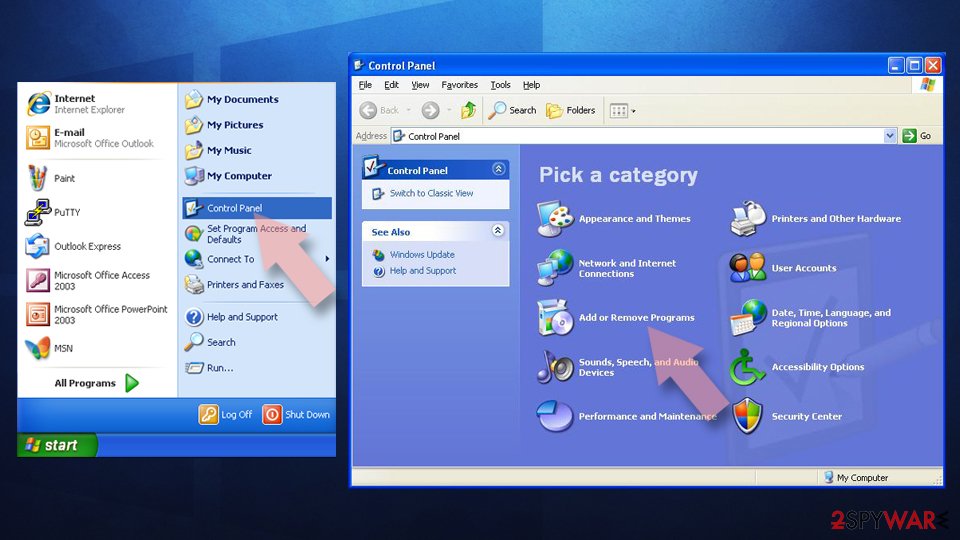
Uninstall from Windows
To eliminate the suspicious product from your Windows computer system, and get rid of all the additional components that were added by the PUP, employ the following guiding steps.
Uninstall from Windows 10/8:
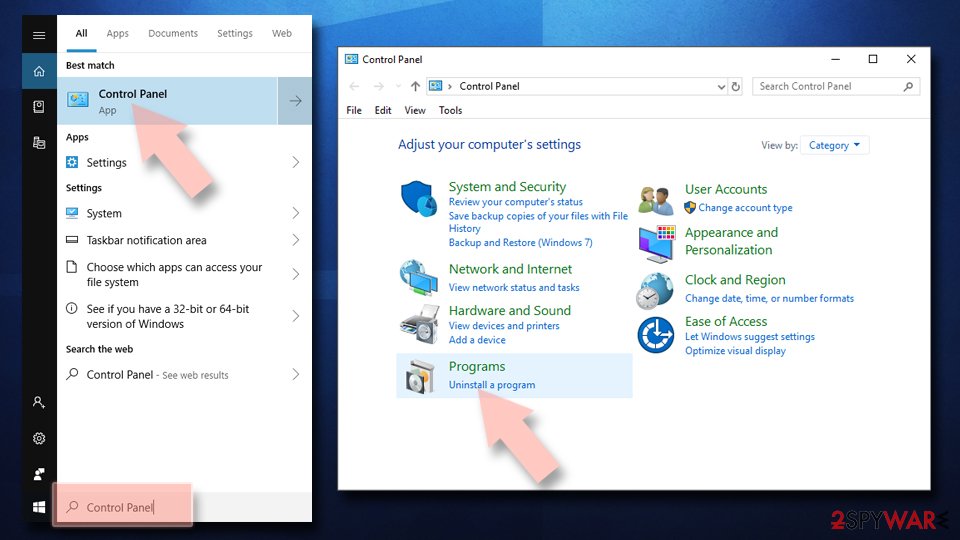
- Type Control Panel into the Windows search box and open the result.
- Under Programs, select Uninstall a program.
Uninstall from Windows 7/XP:
- Click on Windows Start > Control Panel (Windows XP users should click on Add/Remove Programs).
- In Control Panel, select Programs > Uninstall a program.
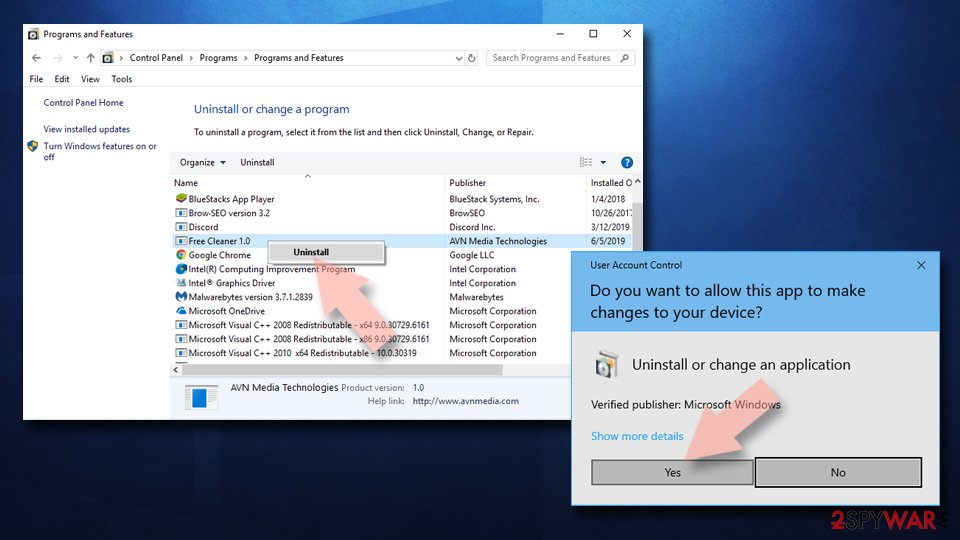
Remove the unwanted program:
- In the Programs and Features window, look for any recently installed suspicious entries, select them, and click Uninstall.
- If User Account Control appears, click Yes to confirm, then complete the removal.
Delete from macOS
To clean your macOS computer from questionable software, and get rid of the suspicious system tool, complete the below-provided step-by-step guidelines.
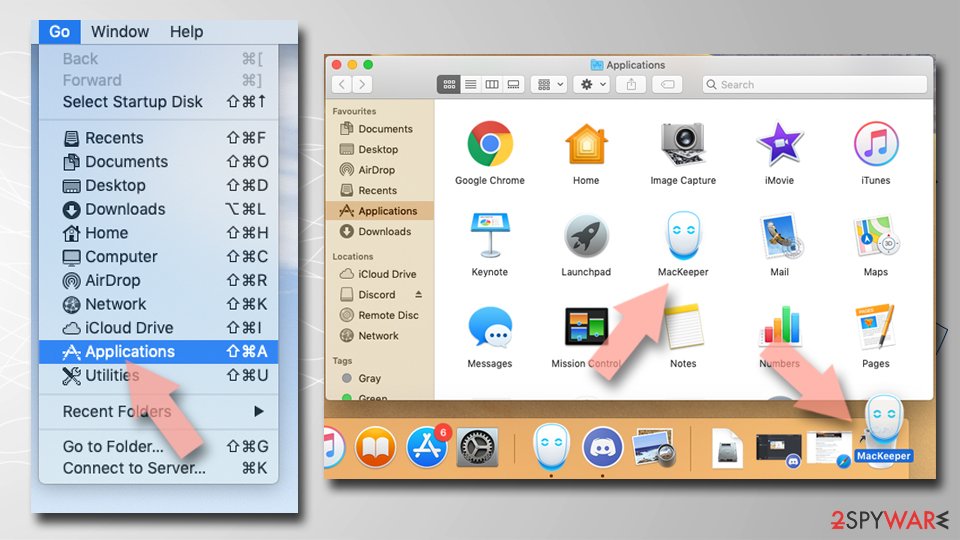
Remove the unwanted application:
- From the menu bar, select Go > Applications.
- In the Applications folder, look for any suspicious entries, then drag them to Trash (or right-click and pick Move to Trash).
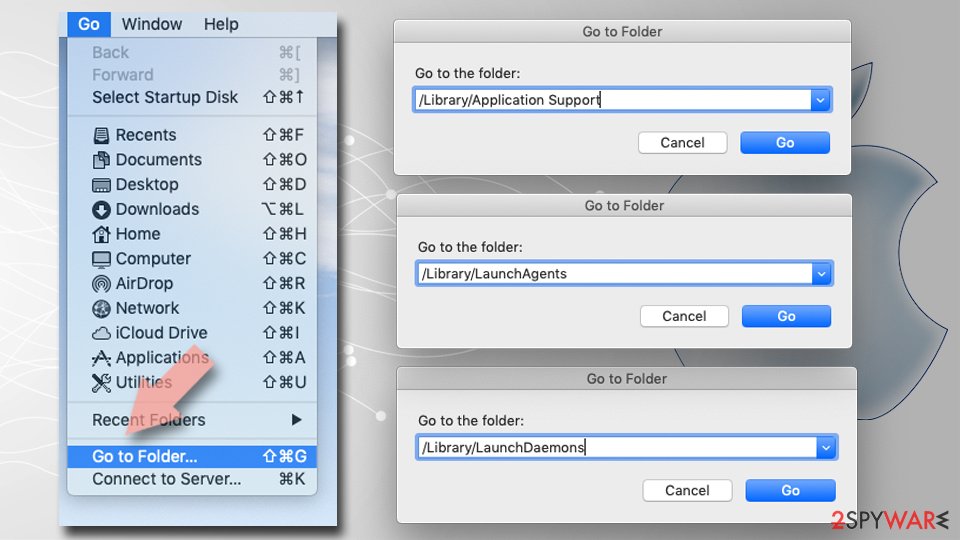
Delete leftover files and folders:
- Select Go > Go to Folder.
- Enter /Library/Application Support and remove any suspicious folders related to the unwanted program.
- Repeat the same check in the /Library/LaunchAgents and /Library/LaunchDaemons folders, deleting any suspicious entries.
- Finally, empty the Trash to permanently remove the leftovers.
Do not let government spy on you
The government has many issues in regards to tracking users' data and spying on citizens, so you should take this into consideration and learn more about shady information gathering practices.
Avoid any unwanted government tracking or spying by going totally anonymous on the internet.
You can choose a different location when you go online and access any material you want without particular content restrictions. You can easily enjoy internet connection without any risks of being hacked by using VPN.
Control the information that can be accessed by government any other unwanted party and surf online without being spied on. Even if you are not involved in illegal activities or trust your selection of services, platforms, be suspicious for your own security and take precautionary measures by using the VPN service.
Backup files for the later use, in case of the malware attack
Computer users can suffer from data losses due to cyber infections or their own faulty doings.
Ransomware can encrypt and hold files hostage, while unforeseen power cuts might cause a loss of important documents. If you have proper up-to-date backups, you can easily recover after such an incident and get back to work. It is also equally important to update backups on a regular basis so that the newest information remains intact - you can set this process to be performed automatically.
When you have the previous version of every important document or project you can avoid frustration and breakdowns. It comes in handy when malware strikes out of nowhere. Use for the data restoration process.
From our report of Jul 2020 · not reviewed since
Remove MyPC Backup virus from your computer
If the rogue security software has been bothering lately with its intrusive pop-up notifications and fake warning alerts, you can remove MyPC Backup with the help of antivirus products.
These tools will run a full malware scan for you, find the PUP, and get rid of it safely and properly within a few minutes of time.
Also, you can try performing MyPC Backup removal with the help of manual step-by-step guidelines that we have added to the end of this page. There you will learn how to clean both your Windows and macOS operating systems.
According to cybersecurity specialists from LesVirus.fr, various potentially unwanted programs can bring additional products to the computer system and scatter them all over the machine. In order to uninstall MyPC Backup virus properly, you have to get rid of all the added software automatically or manually, otherwise, the bogus tool might reappear.
Questions about MyPC Backup
Can I safely uninstall MyPC Backup?
If you did not install MyPC Backup yourself and it is not part of your hardware or a program you rely on, yes. Uninstalling an unwanted program does not harm Windows. Before you do, search the exact name and publisher to be sure it is not a driver tool, a printer utility or a game launcher with an odd name.
Then remove it from Settings, Apps, Installed apps. Ignore any offers or warnings in its uninstaller about losing protection or performance. Afterwards check Startup apps and your browsers for leftovers, and restart once to confirm that it does not reinstall itself.
MyPC Backup will not uninstall. What can I do?
First restart the PC and try again, because the program may have been running and locked its own files. If the uninstaller is missing or fails, start Windows in Safe Mode, where most third-party programs do not start, and remove MyPC Backup from Installed apps there.
If it still refuses, delete its startup entry and its scheduled task, restart, and try once more. A program that actively prevents removal is behaving like malware, so finish with a Microsoft Defender offline scan. Avoid third-party uninstallers offered on search ads; several of them are unwanted programs themselves.
How do I know MyPC Backup is fake?
Three things give it away. It appears as myPC Backup in the list of installed apps, a window from a program rather than from Windows Security. It pushes you to act quickly by calling, paying or downloading.
And the threats it reports never show up when you run a scan in the real Windows Security app. Microsoft does not put phone numbers in warnings or charge for removing threats through pop-ups. Close the window, do not call, and follow the steps to find and uninstall the program behind it.
MyPC Backup has no uninstaller. How do I get rid of it?
Some scareware does not register an uninstaller, or its uninstaller only opens another sales page. In that case, end the program in Task Manager, then go to Task Manager > Startup apps, right-click its entry and choose Open file location to find its folder. Disable the startup entry, restart in Safe Mode and delete the folder.
Check Task Scheduler for tasks with the same name. Finally, run the Microsoft Defender offline scan, which removes remaining files that Microsoft knows about. Restart afterwards and check that nothing named after MyPC Backup starts again.
I entered my card number in MyPC Backup. What should I do?
Call your card issuer using the number on the back of the card, report the purchase as fraud and ask for a new card. Ask them to block further charges from the same merchant. Watch your statements for small test charges, which often come before larger ones.
If you used a password on the order page or the same e-mail for the purchase, change that password and expect phishing e-mails that mention the purchase. Your bank can also tell you whether the merchant is linked to other fraud reports.
Will the seller of MyPC Backup refund me if I ask?
Sometimes, but do not depend on it and do not let them steer the process. If you contact the seller, do it in writing and keep the replies. Never install software, share your screen or give banking details to get a refund.
The more reliable route is your card issuer or PayPal: a chargeback or dispute for a product sold with false claims. If the seller or anyone claiming to represent them calls you first about a refund, treat it as a scam and hang up.
Should I reset my PC because of MyPC Backup?
Only if the signs point to deeper access. Reset when you see myPC Backup in the list of installed apps again after removal, when Windows Security cannot start or update, when remote access tools you did not install keep appearing, or when you simply cannot trust the PC any more.
Otherwise, the plan in this guide plus an offline scan is enough. If you do reset, choose Remove everything and Cloud download for a fresh copy of Windows, restore only documents and photos, and reinstall programs from their official sites. Change important passwords from the clean system afterwards.
I let a technician connect to my PC because of MyPC Backup. Is it safe now?
Not until you check. While connected, the caller could install other programs, create a user account or look at saved passwords. Disconnect from the internet, uninstall the remote access program and anything else installed during the call, and run a full scan and the Microsoft Defender offline scan.
From another device, change your e-mail and banking passwords and turn on two-step verification. If the caller opened your online banking, call the bank today. A reset of Windows is the safest option if you cannot tell what was done.
Do I need to buy antivirus after removing MyPC Backup?
No. Windows 11 and Windows 10 include Microsoft Defender in Windows Security, which provides real-time protection, scheduled scans, the offline scan and protection against unwanted apps at no cost. Keep it switched on and updated, and turn on Reputation-based protection under App & browser control.
If you prefer a third-party product, buy it from the vendor's own site after reading independent test results, never from a pop-up or a phone call. The lesson of MyPC Backup is that security offers which arrive unasked are the ones to avoid.
Will Fortect remove MyPC Backup?
Fortect scans Windows for malware and unwanted programs and repairs the system files and settings they change, and its free scan shows what it finds on your PC before you decide anything.
For MyPC Backup, follow the plan above as well: the browser steps take back permissions and settings that no scanner treats as a threat, and uninstalling the program that brought it removes the source.
Run Microsoft Defender's full scan and, if anything was found, its offline scan as a second opinion. If the symptoms are gone after the plan and both scans are clean, there is nothing more to do.
Sources
- Wikipedia: Bundling (read October 6, 2026)
- Scambusters: Online survey scams (read October 6, 2026)
- Techtarget: Potentially unwanted programs (read October 6, 2026)
- FTC: How to recognize, remove and avoid malware (read October 6, 2026)
- Microsoft Learn: Microsoft Defender Offline (read October 6, 2026)