
Pluto TV: is it safe? Ads, data sharing and how to uninstall it
Pluto TV is a free, ad-supported streaming service owned by Paramount, not a virus. Our 2020 review called it adware because of its ads and data sharing; today we show what we checked and how to uninstall the app or stop it if you simply want it gone.
Facts checked October 4, 2026. Removal steps tested on Windows 11 (26H2) and checked against Microsoft's and the browser makers' current documentation.
Automatic
Get a free scan and check if your PC is infected.
Fortect finds malware, unwanted programs and the Windows damage they leave behind, and repairs it in one pass.
If Pluto TV keeps coming back after uninstalling, a scan can find what reinstalls it.
Do it yourself · free Remove Pluto TV yourself 4 steps, about 12 minutes, no software needed.
Pluto TV: summary
| Type | Legitimate free streaming service (Paramount) with adverts; a website and apps; not malware |
|---|---|
| Risk | Low for the service itself; medium if a fake or bundled installer was used |
| Symptoms | Adverts while watching; sound that will not stop; an app that starts with Windows; pop-ups from other sites mentioning Pluto TV |
| How to get rid of it | Uninstall the app in Installed apps, close or end the process, check browser add-ons (steps below) |
| Our check (4 October 2026) | No notification request, no pop-ups, no foreign redirect, no ad network; region not served from Lithuania, so the player was not tested |
| Running since | 2013 (company founded, per Wikipedia); pluto.tv is the official address |
| Removal | Scan the PC with security software to find and remove the malware and anything installed with it. Fortect scans Windows for malware and repairs the system files and settings it damaged. Remove it nowTo use the full-featured product, you have to purchase a license for Fortect. The scan is free. |
Show 14 more facts
| Installed on the PC | Nothing by visiting the website; only the optional app from a store installs a program |
|---|---|
| Microsoft detection | None: Microsoft Defender has no detection name for the website, because nothing is installed by visiting it; the store apps are not detected as malware |
| First reported by us | 1 April 2020 |
| Owner | Paramount (Paramount Skydance) |
| Distribution | Browser, device app stores and the Microsoft Store; the old PlutoTvSetup.exe could not be verified |
| Evidence | Our test of the site, Paramount's brand page, Wikipedia, Pluto TV's help centre, our 2020 report |
| Name | Pluto TV |
| Program | Pluto TV |
| Publisher | Paramount |
| Ads shown as | Banner |
| Browsers | Chrome,Edge,Firefox |
| First seen | 1 April 2020 |
| Damage | Pop-ups and ad pages, a slower PC, usage tracking, and links to scam pages |
| Facts checked | 4 October 2026 |
Facts checked on 4 October 2026 against our own test of pluto.tv in desktop Chromium from Europe. The region is not served, so we did not see the player or an ad break; the RDAP service has no record for the .tv domain.
What Pluto TV is and how it works
Pluto TV is a free, ad-supported streaming service owned by Paramount. You watch live channels and on-demand films and series, and the adverts between them pay for it. It works in a browser and in apps for phones, TVs and computers, so "removing" it means removing an app or closing a tab, not cleaning an infection.
- 1
Open the service
Go to
pluto.tvor start the Pluto TV app on your phone, TV, game console or computer. - 2
Pick a channel or a title
Live channels run on a schedule like television; the on-demand shelf lets you start a film or episode yourself.
- 3
Watch the adverts
Ad breaks play between and during programmes. This is how the service earns, and it is the part people remember as "the ads".
- Owner
- Paramount (the company's own brand page lists Pluto TV, based in Los Angeles, in over 35 markets)
- Founded
- 2013, per Wikipedia; in the Viacom family from 2019 and now under Paramount Skydance
- Where it runs
- Browsers, Android and iOS, smart TVs, streaming boxes, consoles, and Windows and macOS computers (Wikipedia's list)
- Where it is offered
- The US, Canada, Latin America, most of Europe and Australia through 10 Play; not every country (we were told it is not available in ours, see our test)
- Paid for by
- Advertising; there is no subscription to cancel for the standard service
Free television paid for by adverts is an old bargain, and Pluto TV simply moved it online. Where it goes wrong is the same place as for any ad-supported site: a lookalike page, a bundled installer or an ad that is not Pluto's own.
Is Pluto TV dangerous?
Our test on 4 October 2026
We opened pluto.tv the way a visitor does: a clean desktop Chromium profile, English language, from Lithuania. We did not install an app or create an account.
pluto.tv · desktop Chromium · Lithuania (EU) · 4 October 2026
- Notification requestNone on this one visit.
- Pop-ups and new tabsNone on this one visit.
- Redirects to other domainsNone. The address changed from
pluto.tv/topluto.tv/intl/, which is the same site. - Ad networks on the pageNone found in the page we received.
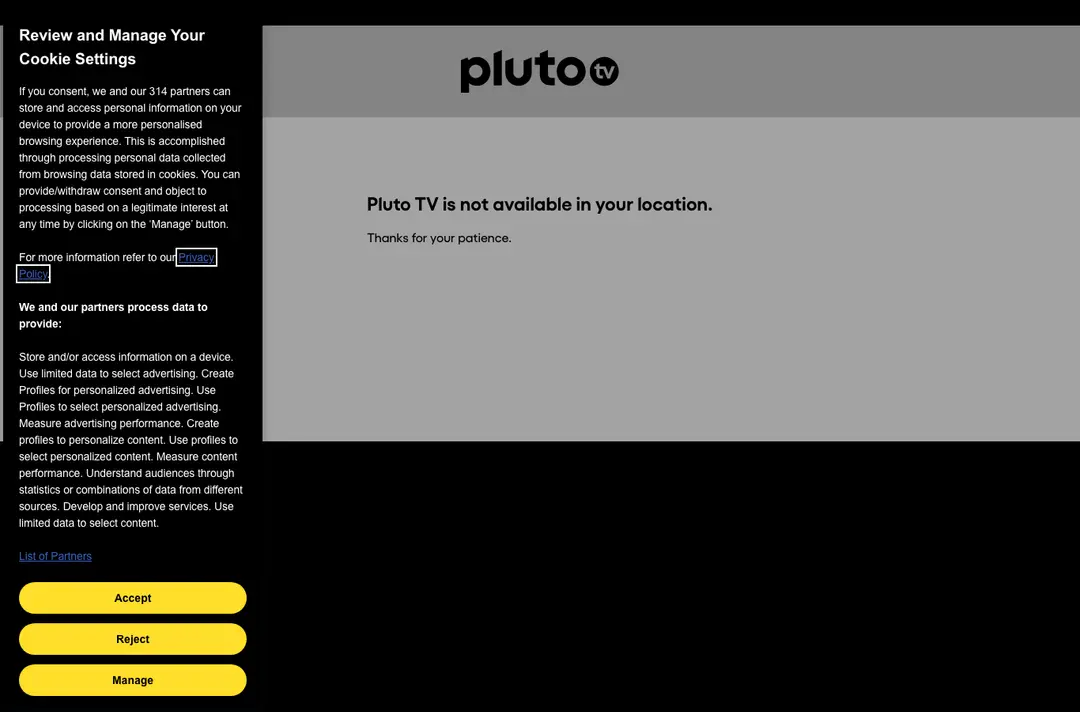
- Cookie choiceA consent panel with Accept, Reject and Manage buttons, so tracking can be refused before anything else.
- Data partnersThe consent panel says "we and our 314 partners" may store and read information on your device for advert selection and measurement.
- Service workerThe site registers
pluto.tv/sw.js, a background script that streaming sites and web apps commonly use. - What we could not testThe service itself. The page said "Pluto TV is not available in your location", so we never saw a player, an ad break or an install button.
No sign of unwanted behaviour The site behaved like a normal, if tracking-heavy, commercial site: no notification prompt, no pop-ups, no foreign redirects. Because our region is blocked we only tested the front door. Adverts inside the player come from ad partners and can differ by country and device.
What changed since our 2020 report
2013
The service starts
Wikipedia gives 2013 as the year Pluto TV was founded in Los Angeles, as an internet television service with free channels.
2019
Viacom buys it and it spreads to Europe
Pluto TV joined Viacom in 2019, later Paramount Global and now Paramount Skydance. Its mobile apps reached Germany, Austria, Switzerland and the UK in September 2019, and more countries followed.
April 2020
Our review: an ad-supported program
We described a free service with live channels and on-demand films, and warned about ads, redirects and data sharing. The two home pages we showed then were Pluto's own, advertising free live sports, news, comedy and films.
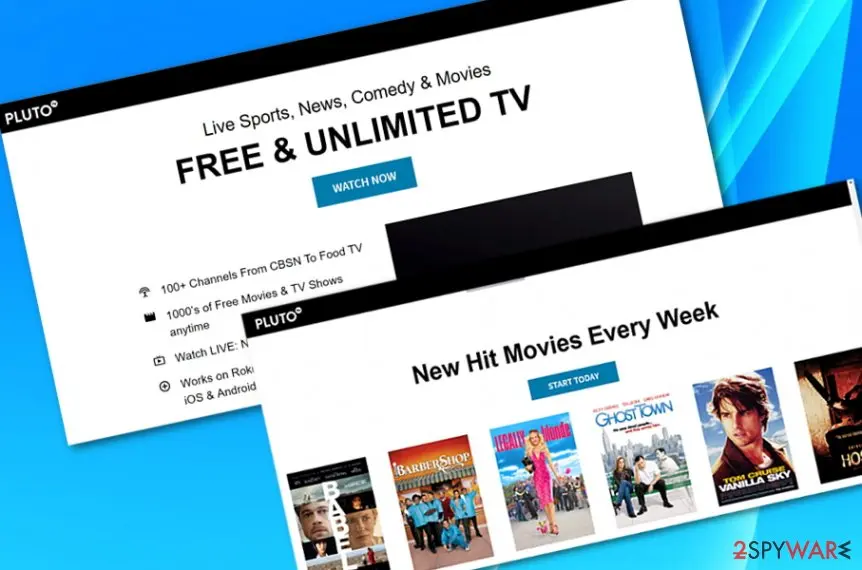
Pluto TV's own pages as they appeared in our 2020 review: "Free & Unlimited TV" with a Watch Now button, and a list of weekly film releases. 2020
The privacy policy our review quoted
Our 2020 review built its case on Pluto TV's privacy policy of the time, shown here beside a browser-store listing for a Pluto TV extension. We have not repeated the quotes, because the text may have changed; read the current policy on
pluto.tv.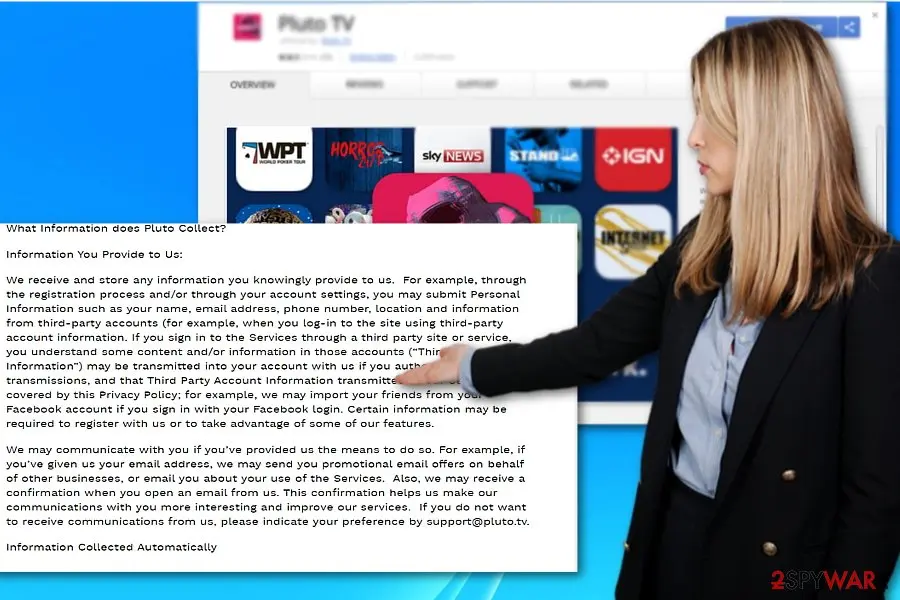
The 2020 illustration: privacy policy text over a store page for a Pluto TV extension. The policy text shown is from 2020 and not current. April 2021
We last updated the review
The old text still described a Windows installer called
PlutoTvSetup.exe, version 0.0.9, which we have not been able to confirm today.October 2026
Our new check: nothing hostile on the site
The home page showed a consent panel and, from our region, a notice that Pluto TV is not available there. No notification prompt, pop-up or foreign redirect appeared.
Ads and your data: what a free service takes
The old review called Pluto TV adware because it shows ads and shares data with partners. Both are true of almost every free streaming service. That is a privacy trade, not a virus.
| What people worry about | What we found | What you can do |
|---|---|---|
| Ads between programmes | This is the business model: the service is free because advertisers pay for it. | Accept them, or pick a paid service without ads. |
| Sharing data with partners | On 4 October 2026 the consent panel named 314 partners and offered Accept, Reject and Manage. | Click Reject or Manage and read the privacy policy on pluto.tv before you create an account. |
| A "Do not track" signal | The 2020 text said the site ignores it. We did not recheck the current policy line by line. | Use the consent panel and your browser's tracking settings instead. |
| Notifications and pop-ups | None requested or opened in our test. | If you ever see them, they came from another page; see the steps below. |
| An account | Not needed to understand the site; we made none. | Use a separate e-mail address, and delete the account in Pluto's help centre if you stop using it. |
Whether the trade is worth it is your decision. The honest question is the one our 2020 text asked: how much of your viewing and advert profile are you willing to give for free television.
The real risks, from most to least serious
Pluto TV itself did nothing harmful in our test. These are the ways a "Pluto TV" experience can still go wrong.
- High
A fake Pluto TV download or player
Searches for a free Pluto TV desktop program or a "premium" version can lead to pages that are not Pluto's. Running a file from one is how adware, hijackers or a trojan reach a PC.
- Medium
A bundled installer
Free-software installers from third-party sites can add toolbars, browser add-ons or "offers" next to the program you wanted. The old review's warning about this was fair.
- Medium
Scam pop-ups from other websites
Pop-ups saying your PC is infected, or ads offering Pluto TV downloads, come from other sites, not from Pluto's. Close the tab and do not call numbers or run files they show.
- Low
Data collection by advertising partners
The consent panel lists 314 partners that may read information on your device. You can refuse most of it with Reject or Manage.
- Low
Background playback and start-up
An app can keep playing sound in a tab or start when you sign in. That is annoying, not dangerous, and the steps below switch it off.
What advertising partners and adware typically collect
- IP address
- Approximate location
- Videos watched
- Ads viewed or clicked
- Browser and device details
- Cookie and device identifiers
A real adware program can add your list of installed apps and websites visited. If you installed something you do not recognise, follow the steps below.
How Pluto TV got on your PC
Take Pluto TV only from its own site or your device's store. The old review warned that free software installers can carry extras; that is the real route to an unwanted program, not Pluto TV itself.
- 1
Phones and tablets
Install from Google Play or the App Store. Both are linked from
pluto.tv. - 2
TVs, boxes and consoles
Use your device's own store (Roku, Amazon, and similar). Nothing you download in a browser is needed there.
- 3
Windows
Use the Microsoft Store. Microsoft's own forum has questions about the Pluto TV app on Windows 11 from this store. We could not verify the
PlutoTvSetup.exethe old review mentioned, so treat that file from any other website as unconfirmed. - 4
Any installer from a third site
Choose Custom or Advanced installation if it offers a choice, and untick every extra toolbar, browser add-on or "offer" before you continue.
If the Pluto TV icon on your screen came with a program you do not remember installing, check the list in the next sections: it is the extra program or add-on you want to find.
How to remove Pluto TV
Uninstall first, then remove what stays behind, so the ads do not come back after a restart.
Which browser shows the ads?
Remove extensions you do not recognise
Paste
chrome://extensionsinto the address bar and click Remove on anything you did not install yourself, especially video downloaders, "search" or PDF helpers added recently.Full procedure with screenshots: Remove a browser extension
Clear the site data
Press Ctrl + Shift + Delete, choose All time, tick Cookies and other site data and Cached images and files, and click Delete data.
Reset Chrome
Open Settings > Reset settings > Restore settings to their original defaults and confirm with Reset settings. This resets the start page, search engine and pinned tabs and turns off extensions; bookmarks and saved passwords stay. To stop notifications after you close Chrome, also turn off Settings > System > Continue running background apps when Google Chrome is closed.
Full procedure with screenshots: Reset a browser and fix a hijacked search engine
Remove extensions you do not recognise
Paste
edge://extensionsinto the address bar and click Remove under anything you did not install yourself.Full procedure with screenshots: Remove a browser extension
Clear the site data
Open Settings > Privacy, search, and services > Delete browsing data > Choose what to clear, set All time, tick Cookies and other site data and Cached images and files, and click Clear now.
Reset Edge
Open Settings > Reset settings > Restore settings to their default values and confirm with Reset. Extensions are turned off and the start page goes back to default; favourites, history and saved passwords stay. To stop notifications after you close Edge, turn off Settings > System and performance > Continue running background extensions and apps when Microsoft Edge is closed.
Full procedure with screenshots: Reset a browser and fix a hijacked search engine
Remove add-ons you do not recognise
Paste
about:addonsinto the address bar, open Extensions, and choose Remove from the three-dot menu of anything you did not install yourself.Full procedure with screenshots: Remove a browser extension
Clear cookies and site data
Open Settings > Privacy & Security > Cookies and Site Data > Clear Data, tick both boxes and click Clear.
Refresh Firefox
Open the menu > Help > More troubleshooting information and click Refresh Firefox. Add-ons and custom settings are removed and the home page goes back to default; bookmarks, history and passwords stay.
Full procedure with screenshots: Reset a browser and fix a hijacked search engine
Take back the notification permission
Safari 18 and later on macOS: open Safari > Settings > Websites > Notifications, select
pluto.tv(or any site you do not recognise) and set it to Deny, or click Remove. Untick Allow websites to ask for permission to send notifications at the bottom so no site can ask again.Remove extensions you do not recognise
In Safari > Settings > Extensions, select anything you did not install yourself and click Uninstall.
Clear the site data
In Safari > Settings > Privacy > Manage Website Data, remove the site's data, or use History > Clear History > all history. To empty the cache as well, turn on Show features for web developers in Settings > Advanced and choose Develop > Empty Caches.
Check the Mac for apps from the ads
Ads also target Mac users with fake players and "cleaners". In Finder > Applications, move anything unknown to the Bin. In System Settings > General > Login Items & Extensions, remove unknown items. Then use Go > Go to Folder to check
/Library/LaunchAgents,~/Library/LaunchAgents,/Library/LaunchDaemonsand/Library/Application Supportfor folders and files with the same unknown names, and empty the Bin.
Then, whichever browser you use
Step 1: Uninstall Pluto TV
Pluto TV is removed like any other program, from the list of installed apps. In Windows 11 that is Settings > Apps > Installed apps, in Windows 10 Settings > Apps > Apps & features, and in both you can also use Control Panel > Programs and Features.
Select Pluto TV, click Uninstall and follow the uninstaller to the end. Then look at the entries just above and below it when the list is sorted by date: bundled programs install at the same minute.
Full procedure with screenshots: Uninstall a program or app in Windows On uGetFix
Step 2: Remove it from startup
Press Ctrl + Shift + Esc to open Task Manager and select Startup apps (Windows 11) or the Startup tab (Windows 10). Disable entries you do not recognise, especially ones with no publisher or with a name that copies a Windows component.
Right-click an entry and choose Open file location to see where it runs from: programs in
%AppData%or%Temp%deserve a closer look. Some entries are not listed there but in the registry Run keys, which the procedure below shows how to check.Full procedure with screenshots: Stop apps from opening at startup On uGetFix
Step 3: Delete the folders left behind
Uninstalling often leaves the program's folders, and some threats reinstall themselves from them.
Press Windows + R, type
%LocalAppData%and press Enter, then do the same for%AppData%and %ProgramData%, and look for folders named after Pluto TV, its publisher or created on the day the problem started.Delete those folders, and check
C:\Program FilesandC:\Program Files (x86)too.If Windows says a file is in use, end it in Task Manager or delete the folder after a restart in Safe Mode. The folders are the same in Windows 11 and Windows 10.
Full procedure with screenshots: Remove what malware leaves behind in Windows
Step 4: Scan the PC, then run the offline scan
A scan finds the parts of Pluto TV that the manual steps cannot see. In Windows Security > Virus & threat protection > Scan options, start a Full scan and quarantine what it reports.
Follow it with Microsoft Defender Antivirus (offline scan) > Scan now, which restarts the PC and checks the disk while Windows and the malware are not running.
It takes about 15 minutes and works the same in Windows 11 and Windows 10. If either scan finds something, run the full scan again after removal until it comes back clean.
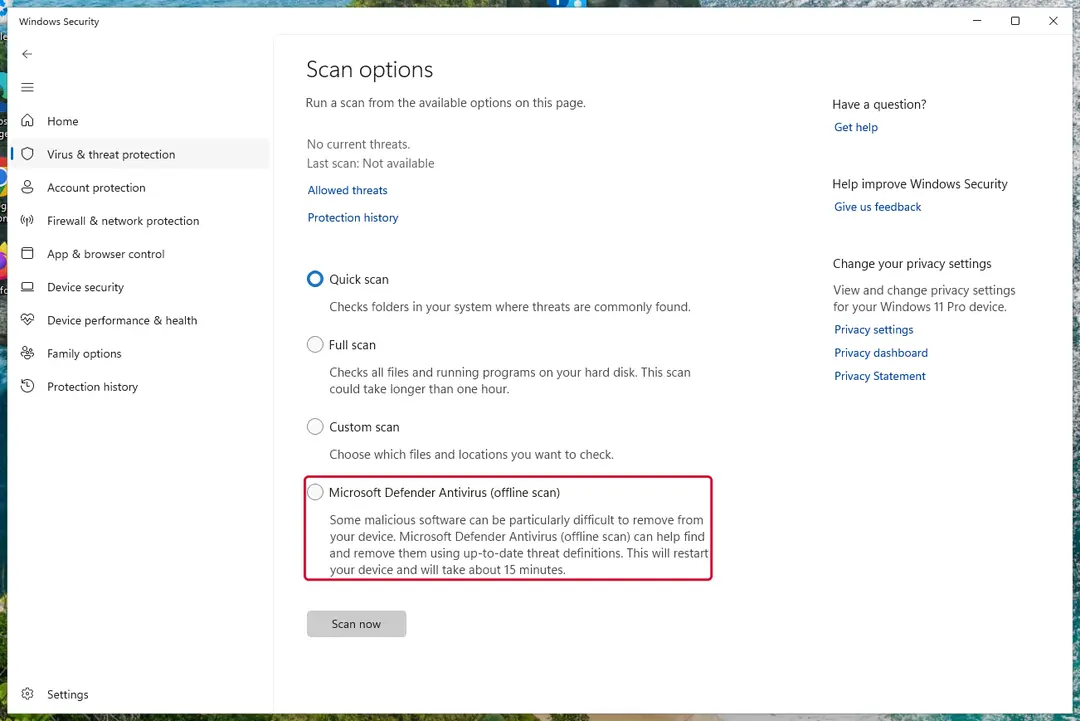
Windows 11: Windows Security > Virus & threat protection > Scan options. Full procedure with screenshots: Run a Microsoft Defender Offline scan
After removal: keep the ads from coming back
If you installed an app or add-on you do not want
Removing Pluto TV is not difficult. The app uninstalls like any other, but browser add-ons are separate, so check the browser as well.
- 1
Uninstall the app in Windows
Go to Settings > Apps > Installed apps (Windows 11) or Apps & features (Windows 10), find Pluto TV, open the three-dot menu or select it, and click Uninstall (Uninstall a program or app in Windows On uGetFix).
- 2
Look at what was installed that day
Sort the same list by install date. Uninstall every program dated the day you got Pluto TV that you did not choose.
- 3
Check the browser add-ons
A program's own uninstaller does not remove browser add-ons. Use the browser steps below on every browser you use.
- 4
Run a Defender scan
If you got the program from an unofficial site, run a Full scan and then the Microsoft Defender Antivirus (offline scan) from Windows Security > Virus & threat protection.
A genuine app from the Microsoft Store does not reinstall itself after you remove it. If something keeps coming back, it was not that app: look for the extra program that installs it.
Stop Pluto TV from playing or starting
Two readers asked us how to turn Pluto TV off when the sound keeps going or it needs Task Manager. These steps cover that.
- 1
Close the browser tab
If Pluto TV is a tab, look for the speaker icon on the tab and close it. Sound from a hidden tab stops when the tab closes.
- 2
End the app in Task Manager
Press Ctrl + Shift + Esc, find Pluto TV under Apps, right-click it and choose End task.
- 3
Stop it starting with Windows
Open Settings > Apps > Startup and switch Pluto TV to Off. On Windows 10 use the Startup tab in Task Manager and choose Disable.
- 4
Mute and sign out
In the volume mixer (right-click the speaker icon > Open Volume mixer) lower or mute the app, or sign out of your Pluto TV account on the device.
How to keep unwanted ads and installers away
Do
- Get Pluto TV from
pluto.tv, Google Play, the App Store, the Microsoft Store or your TV's own store. - Use Custom or Advanced installation and untick extras when any installer offers them.
- Block pop-ups and redirects: in Chrome, Settings > Privacy and security > Site settings > Pop-ups and redirects > Don't allow sites to send pop-ups or use redirects. Do the same for Notifications.
- Click Reject or Manage in the consent panel if you do not want advert profiling.
- Keep Microsoft Defender running with its virus definitions up to date; a full scan is under Windows Security > Virus & threat protection.
- Back up your documents with File History or OneDrive, so a bad install or a failing disk does not take them with it.
- A VPN hides your IP address from the sites and ad networks you visit. It does not stop ads or cookies, and it does not make a free service anonymous on its own.
Don't
- Run a
PlutoTvSetup.exeor other installer you found on a download portal or in an ad. - Click a pop-up that says your PC needs a "Pluto TV update" or a codec.
- Call a number shown in a pop-up.
- Install extra browser add-ons because a streaming page demands them.
- Use a VPN to get around a region block if that breaks the service's terms: the service decides where it is offered.
If you simply want fewer ads
You do not need to remove Pluto TV to avoid its ads; you only need a choice between ad-supported and paid.
| Option | What you get |
|---|---|
| Keep Pluto TV | Free television with adverts and the consent choices described above. |
| Use another free service | Other free ad-supported services have their own adverts and privacy terms; compare them before you switch. |
| A paid streaming service | Normally fewer or no adverts; you pay with money instead of attention and data. |
| Free over-the-air TV | A TV aerial gives free local channels with no account and no profile. |
Questions about Pluto TV
How do I uninstall Pluto TV?
Remove it like any other app on the device where you installed it. On Windows, open Settings, then Apps, then Installed apps (Windows 11) or Apps & features (Windows 10), find Pluto TV and click Uninstall. On a phone or tablet, press and hold the icon, or open the app list in Settings, and choose Uninstall or Delete App.
On a smart TV, box or console, use the device's own app manager. If you only watch in a browser, there is nothing to uninstall: close the tab. Then check your browser's extension list for anything you did not add, because the app's uninstaller does not remove add-ons.
How do I uninstall Pluto TV on Windows 11 or Windows 10?
Open Settings and go to Apps, then Installed apps on Windows 11, or Apps & features on Windows 10. Find Pluto TV in the list, open the three-dot menu or select it, and click Uninstall, then confirm.
Restart the PC afterwards. If the entry is missing, the service was only a browser tab, or it came as part of another installer: sort the list by install date and look for unfamiliar programs dated the same day.
The old Control Panel route from our 2020 guide still opens the same list on Windows 10, but Settings is quicker and shows the install date.
Is Pluto TV a virus or malware?
No. Pluto TV is a legitimate free streaming service owned by Paramount, and it is paid for by advertising. In our check on 4 October 2026 the website asked for no notification permission, opened no pop-ups and sent us to no other domain.
The word virus in our 2020 review came from the ads and data sharing that any ad-supported service has, not from a harmful program.
The risk lies elsewhere: a fake Pluto TV download or an installer from a third-party site that adds extras. Take the app from pluto.tv, your device's store or the Microsoft Store, and it is as safe as any streaming app.
Is Pluto TV safe to use?
For watching, the site we tested was calm: a consent panel with Accept, Reject and Manage buttons, no notification prompt and no pop-ups.
We could not test the player, because the page said Pluto TV was not available in our location. The main trade-off is privacy: the panel says 314 partners may store or read information on your device for advert selection and measurement.
If that bothers you, click Reject or Manage, skip the account, and read the privacy policy first. Do not run installers from other websites, and do not trust a pop-up that says you need a Pluto TV update.
Why does Pluto TV say it is not available in my location?
Pluto TV is only offered in some countries because its films and channels are licensed region by region. Wikipedia lists the US, Canada, Latin America, most of Europe and Australia, and our test from Lithuania showed the message Pluto TV is not available in your location.
That is a licensing decision, not a fault with your computer or a sign of malware. Check the service's help centre for supported countries. Using a VPN to get around it may break the service's terms, and you should be careful with free VPN downloads, which are a common route for unwanted programs.
How do I turn off Pluto TV when it keeps playing?
Close the browser tab or the app window first. If sound continues, press Ctrl, Shift and Esc to open Task Manager, find Pluto TV under Apps, right-click it and choose End task.
To stop it starting with Windows, open Settings, Apps, Startup, and switch Pluto TV to Off; on Windows 10 use the Startup tab in Task Manager and click Disable. If a browser tab is the source, look for the small speaker icon on the tab strip. Sign out of the account on shared devices so it does not resume.
Does Pluto TV collect or share my data?
Pluto TV shows a consent panel saying it and 314 partners may store and access information on your device to select and measure adverts and to personalise content. On 4 October 2026 the panel offered Accept, Reject and Manage. Sharing data with advertising partners is how free services make money, so expect it unless you refuse.
Use Reject or Manage, read the current privacy policy on pluto.tv before creating an account, and use a separate e-mail address if you want to keep your main one out of it. Our 2020 quotes from the policy are not repeated here because the text may have changed.
Does Pluto TV send notifications or open pop-ups?
Not in our test. On 4 October 2026 pluto.tv did not ask for notification permission and opened no pop-up windows or new tabs. If you see notifications or pop-ups that mention Pluto TV, they probably come from another site:
- a lookalike page
- an ad
- a notification permission you allowed on a different site
Open your browser's notification settings, remove sites you do not recognise, and reset the browser if they keep returning. The browser steps in this guide cover Chrome, Edge, Firefox and Safari.
What should I do if a pop-up tells me to download Pluto TV or update it?
Close the tab and do not run the file. Genuine Pluto TV apps come from pluto.tv, Google Play, the App Store, the Microsoft Store or your TV's own store, and updates arrive through those stores, not through a pop-up.
A message that your PC needs a Pluto TV update, a codec or a player is a lure used to get adware or a trojan onto your computer. If you already ran such a file, uninstall recent programs from Installed apps, run a Defender full scan and the offline scan, and reset your browser.
Will Fortect remove Pluto TV?
Fortect scans Windows for malware and unwanted programs and repairs the system files and settings they change, and its free scan shows what it finds on your PC before you decide anything.
For Pluto TV, follow the plan above as well: the browser steps take back permissions and settings that no scanner treats as a threat, and uninstalling the program that brought it removes the source.
Run Microsoft Defender's full scan and, if anything was found, its offline scan as a second opinion. If the symptoms are gone after the plan and both scans are clean, there is nothing more to do.
Sources
- pluto.tv home page (our test) (read October 4, 2026)
- Paramount: Pluto TV brand page (no longer online) (read October 4, 2026)
- Wikipedia: Pluto TV (read October 4, 2026)
- Pluto TV Support: Troubleshooting Tips & Tricks (read October 4, 2026)
- Microsoft Learn Q&A: Pluto TV app on Windows 11 (read October 4, 2026)
- Google Chrome Help: Use notifications to get alerts (no longer online) (read October 4, 2026)
- FTC: How to recognize, remove and avoid malware (read October 4, 2026)
- Our 2020 review of Pluto TV (2-spyware.com) (read October 4, 2026)