
Privacy Protector: what it is and how to remove it
Privacy Protector is another fraudulent application labeled as a security tool. PrivacyProtector is a malware; it infects computers using web browser vulnerabilities.
Facts checked October 7, 2026. Removal steps tested on Windows 11 (26H2) and checked against Microsoft's and the browser makers' current documentation. Sections marked as our earlier report are the original text: they describe the threat as it was then and have not been reviewed since. The 2026 status, the removal steps and the questions are current.
Automatic
Get a free scan and check if your PC is infected.
Fortect finds malware, unwanted programs and the Windows damage they leave behind, and repairs it in one pass.
If Privacy Protector keeps coming back after uninstalling, a scan can find what reinstalls it.
Do it yourself · free Remove Privacy Protector yourself 5 steps, about 15 minutes, no software needed.
Start the stepsPrivacy Protector: summary
| Detection names | No Microsoft detection name is known |
|---|---|
| Distribution | Not recorded in the old report |
| Damage | Not recorded in the old report |
| Name | Privacy Protector |
| Type | Loader |
| Symptoms | An unknown program in Installed apps |
| Removal | Scan the PC with security software to find and remove the malware and anything installed with it. Fortect scans Windows for malware and repairs the system files and settings it damaged. Remove it nowTo use the full-featured product, you have to purchase a license for Fortect. The scan is free. |
Show 3 more facts
| Evidence | One write-up by a security site; details still limited |
|---|---|
| First seen | 26 April 2021 |
| Facts checked | 7 October 2026 |
From our report of Apr 2021 · not reviewed since
What Privacy Protector is
Privacy Protector is another fraudulent application labeled as a security tool.
PrivacyProtector is a malware; it infects computers using web browser vulnerabilities. Privacy Protector loads pop-ups disguised as Windows notifications. The fake alerts warns user of non-existent system issues and privacy risks.
PrivacyProtector can also hijack desktop background and load "Your privacy is in danger. Download privacy protection software now!" message instead of wallpaper. Do not trust this scam and delete Privacy Protector malware as soon as possible!
How to remove Privacy Protector
A loader's job is to install other malware, so treat the PC as infected with more than one program until the scans are clean.
Step 1: Delete scheduled tasks that bring it back
Programs like Privacy Protector add a scheduled task so they return after an uninstall or reopen a page at every sign-in. Start Task Scheduler, open Task Scheduler Library and sort by Last Run Time to see what ran recently.
On the Actions tab, a program in a user folder, a script or a web address is a warning sign; right-click such a task and choose Delete.
Tasks with names copying Google, Edge or Windows updaters but pointing to an odd folder are typical. The tool looks the same in Windows 11 and Windows 10.
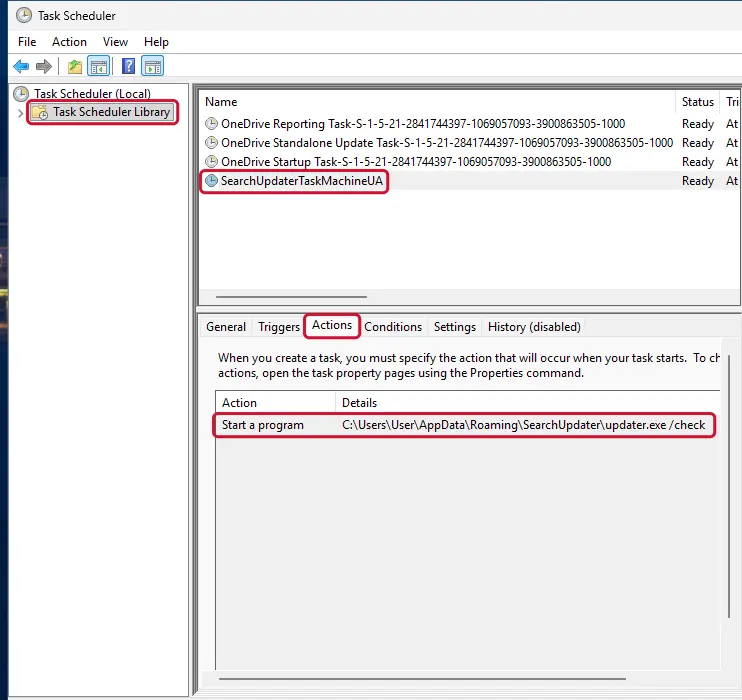
Windows 11: Task Scheduler Library, the task selected, the Actions tab shows the file it runs. Full procedure with screenshots: Remove what malware leaves behind in Windows
Step 2: Remove it from startup
Press Ctrl + Shift + Esc to open Task Manager and select Startup apps (Windows 11) or the Startup tab (Windows 10). Disable entries you do not recognise, especially ones with no publisher or with a name that copies a Windows component.
Right-click an entry and choose Open file location to see where it runs from: programs in
%AppData%or%Temp%deserve a closer look. Some entries are not listed there but in the registry Run keys, which the procedure below shows how to check.Full procedure with screenshots: Stop apps from opening at startup On uGetFix
Step 3: Delete the folders left behind
Uninstalling often leaves the program's folders, and some threats reinstall themselves from them.
Press Windows + R, type
%LocalAppData%and press Enter, then do the same for%AppData%and %ProgramData%, and look for folders named after Privacy Protector, its publisher or created on the day the problem started.Delete those folders, and check
C:\Program FilesandC:\Program Files (x86)too.If Windows says a file is in use, end it in Task Manager or delete the folder after a restart in Safe Mode. The folders are the same in Windows 11 and Windows 10.
Full procedure with screenshots: Remove what malware leaves behind in Windows
Step 4: Scan the PC, then run the offline scan
A scan finds the parts of Privacy Protector that the manual steps cannot see. In Windows Security > Virus & threat protection > Scan options, start a Full scan and quarantine what it reports.
Follow it with Microsoft Defender Antivirus (offline scan) > Scan now, which restarts the PC and checks the disk while Windows and the malware are not running.
It takes about 15 minutes and works the same in Windows 11 and Windows 10. If either scan finds something, run the full scan again after removal until it comes back clean.

Windows 11: Windows Security > Virus & threat protection > Scan options. Full procedure with screenshots: Run a Microsoft Defender Offline scan
Step 5: Change passwords from another device and sign out other sessions
Privacy Protector can copy saved passwords, cookies and session tokens and send them out in seconds, so cleaning the PC does not undo the theft.
Change your passwords on a device that was never infected, starting with the e-mail account, since every other reset goes through it. On each account, end all other sessions and check the recovery e-mail, phone number and forwarding rules.
Then turn on two-step verification. Sign in on the Windows 11 or Windows 10 PC again only after the offline scan is clean.
Full procedure with screenshots: Turn on two-step verification / secure a hacked account
After removal: passwords, accounts and prevention
Secure your accounts after the clean-up
Assume that whatever was saved in the browsers on this PC while the PC showed privacy Protector in the list of installed apps has been copied:
- passwords
- cookies
- autofill data
Work from a clean device, or from this PC once the offline scan finds nothing.
Start with your main e-mail account, because it can reset everything else, then banking and payment, then social and gaming accounts. Change each password, sign out of all sessions and turn on two-step verification: Turn on two-step verification / secure a hacked account.
The full order, including crypto wallets and card replacement, is in securing your accounts after malware.
Do not let government spy on you
The government has many issues in regards to tracking users' data and spying on citizens, so you should take this into consideration and learn more about shady information gathering practices.
Avoid any unwanted government tracking or spying by going totally anonymous on the internet.
You can choose a different location when you go online and access any material you want without particular content restrictions. You can easily enjoy internet connection without any risks of being hacked by using VPN.
Control the information that can be accessed by government any other unwanted party and surf online without being spied on. Even if you are not involved in illegal activities or trust your selection of services, platforms, be suspicious for your own security and take precautionary measures by using the VPN service.
Backup files for the later use, in case of the malware attack
Computer users can suffer from data losses due to cyber infections or their own faulty doings.
Ransomware can encrypt and hold files hostage, while unforeseen power cuts might cause a loss of important documents. If you have proper up-to-date backups, you can easily recover after such an incident and get back to work. It is also equally important to update backups on a regular basis so that the newest information remains intact - you can set this process to be performed automatically.
When you have the previous version of every important document or project you can avoid frustration and breakdowns. It comes in handy when malware strikes out of nowhere. Use for the data restoration process.
Questions about Privacy Protector
What is Privacy Protector and why is it on my PC?
Privacy Protector is a program that was installed on the PC, most likely together with something else you downloaded. Free software sites and many installers add extra programs on setup pages with pre-ticked boxes, so the extra install looks like your choice even though nobody read the page.
Check the install date in Settings, Apps, Installed apps: the program you installed that day is the probable carrier. If you do not need Privacy Protector, uninstall it. If it belongs to your hardware or to a program you use, search its exact name and publisher first, because drivers and their tools can have unfamiliar names.
Privacy Protector came back after I uninstalled it. Why?
Something else is reinstalling it. Common causes are a second program from the same publisher, a scheduled task that downloads it again, or a browser extension that keeps prompting for it. Sort Installed apps by install date and uninstall each entry from the same day that you did not choose.
Then open Task Scheduler and look in the Task Scheduler Library for tasks with updater-style names that you do not recognise. Check Startup apps in Task Manager too. If Privacy Protector still returns, start Windows in Safe Mode, uninstall it there and run a Microsoft Defender offline scan, which looks for loaders that ordinary scans can miss.
How do I know if my PC has Privacy Protector?
Often you do not, which is the point of a trojan. Possible signs are an antivirus alert naming Privacy Protector or a generic trojan detection, unknown programs or scheduled tasks, processes with random names in Task Manager, browser extensions you did not add, security settings turned off, slower performance, or account alerts about logins from unknown places.
The reliable check is a full scan followed by Microsoft Defender's offline scan. If you recently ran a crack, a fake installer or a command a website told you to paste, scan even without symptoms.
I found AnyDesk or ScreenConnect that I did not install. Is that Privacy Protector?
Not necessarily Privacy Protector, but it is a warning sign. These are legitimate remote support tools, and criminals use them as ready-made backdoors, especially after tech support scams or fake invoice calls.
If you did not install it and no one you trust set it up, uninstall it, change passwords from a clean device and check your bank account. If someone connected to your PC through it, follow the steps for remote access trojans and consider a Windows reset. Installed apps sorted by date shows when it appeared.
Why can't I find Privacy Protector in antivirus databases?
Because it is new or because it is listed under a different name. Antivirus companies name threats after the family they belong to, and a program that appears as Privacy Protector on your PC may carry a generic or unrelated label in their databases.
Many new samples are first detected only by behaviour, without a family name. What you saw, privacy Protector in the list of installed apps, is enough to act on:
- end the program
- remove its startup entry
- run a Microsoft Defender offline scan
- secure your accounts
A detection name from a scan is worth noting for later.
Should I check my other computers too?
Yes, it takes little time and removes doubt. Privacy Protector itself usually stays on one PC, but the download that carried it may have been copied to other computers, shared drives may hold the same installer, and an attacker who had access could have tried saved passwords on other devices.
Run a full scan on every Windows PC in the home or office, check shared folders for the original download, and change Wi-Fi and router passwords if they were stored on the infected machine.
How dangerous is Privacy Protector?
Treat it as serious until proven otherwise. The visible sign is privacy Protector in the list of installed apps, and programs that behave this way often have more abilities than they show:
- copying passwords
- downloading other malware
- giving remote access
Its family is not known yet, so nobody can say which of these it uses. The good news is that the response is the same in every case and takes about an hour:
- cut the network
- remove the startup entry
- run an offline scan
- change passwords from a clean device
If someone had remote control, a full reset is safer.
Do I need to reinstall Windows to get rid of Privacy Protector?
Usually not. A thorough clean-up is enough when the offline scan finds nothing afterwards and you do not see privacy Protector in the list of installed apps again. A reset is the safer choice if an attacker had remote control, if security tools were switched off, or if detections come back after every clean-up.
Windows 11 can reset itself without a USB stick under Settings > System > Recovery > Reset this PC. Copy documents and photos out first and scan the copies. A reset does not change passwords or undo stolen data, so the account steps still apply.
Should I report Privacy Protector?
Report it if you lost money, if accounts were taken over, if you are a business, or if the trojan came through a scam call. A police or national cybercrime report gives you a reference number for your bank and insurer and helps link cases.
You do not need to report a trojan that antivirus blocked before it ran. Before reporting, write down the dates, the detection name, file names and any messages or transactions linked to the attack; screenshots of antivirus alerts are useful evidence. The country list is in the report section above.
Will Fortect remove Privacy Protector?
Fortect scans Windows for malware and unwanted programs and repairs the system files and settings they change, and its free scan shows what it finds on your PC before you decide anything.
For Privacy Protector, follow the plan above as well: the browser steps take back permissions and settings that no scanner treats as a threat, and uninstalling the program that brought it removes the source.
Run Microsoft Defender's full scan and, if anything was found, its offline scan as a second opinion. If the symptoms are gone after the plan and both scans are clean, there is nothing more to do.
Sources
- FTC: How to recognize, remove and avoid malware (read October 7, 2026)
- Microsoft Learn: Microsoft Defender Offline (read October 7, 2026)
- Microsoft Learn: How Microsoft names malware (read October 7, 2026)