
Verified-extensions.com ads: what it is and how to remove it
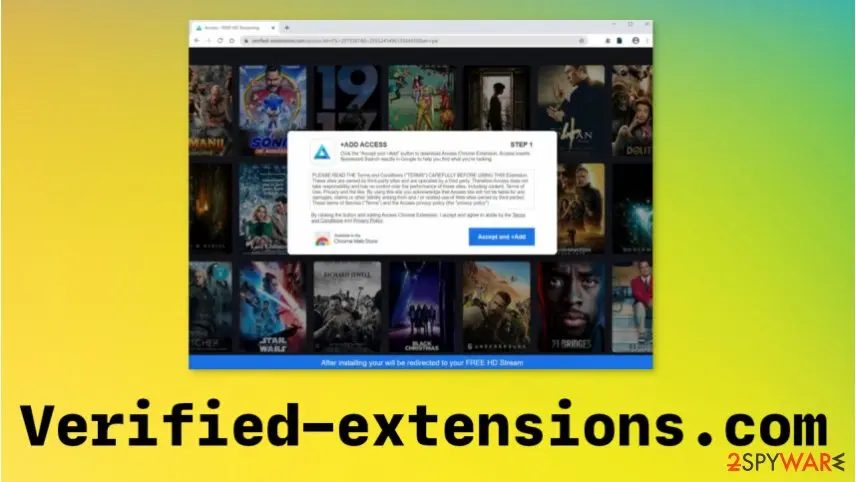
Verified-extensions.com - the potentially unwanted program that promotes browser extensions and eventually triggers installations of various PUAs. The site triggers pop-ups, banners, new windows, and other forms of commercial content that constantly shows up on your browser or even the desktop screen directly.
Facts checked October 6, 2026. Removal steps tested on Windows 11 (26H2) and checked against Microsoft's and the browser makers' current documentation. Sections marked as our earlier report are the original text: they describe the threat as it was then and have not been reviewed since. The 2026 status, the removal steps and the questions are current.
Automatic
Get a free scan and check if your PC is infected.
Fortect finds malware, unwanted programs and the Windows damage they leave behind, and repairs it in one pass.
A scan of the PC is a quick way to confirm that nothing installed is behind the verified-extensions.com redirects.
Do it yourself · free Remove Verified-extensions.com ads yourself 3 steps, about 9 minutes, no software needed.
Start the steps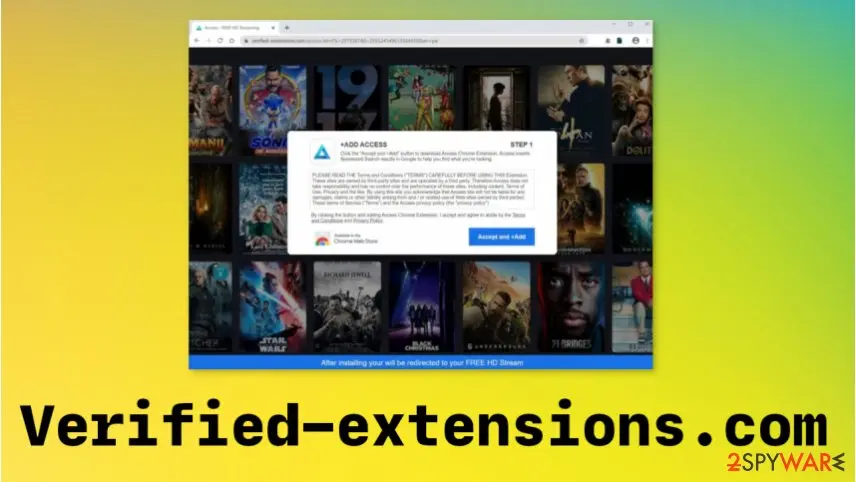
Verified-extensions.com ads: summary
| Distribution | These sites and the main program are distributed using freeware installations, shady sites, misleading pages, commercial material |
|---|---|
| Name | Verified-extensions.com |
| Type | Adware/ Redirect virus |
| Symptoms | The site shows promotional content, pushes browser extensions and triggers other content that creates frustration and can lead to more serious installations of malware. The commercial material exposes to possibly dangerous content and created issues with your privacy |
| Detection names | No Microsoft detection name is known |
| Damage | Not recorded in the old report |
| Removal | Scan the PC with security software to find and remove the malware and anything installed with it. Fortect scans Windows for malware and repairs the system files and settings it damaged. Remove it nowTo use the full-featured product, you have to purchase a license for Fortect. The scan is free. |
Show 6 more facts
| Evidence | 4 write-ups by security sites; details still limited |
|---|---|
| Domains | verified-extensions.com |
| Ads shown as | Redirects through ad pages |
| Browsers | Chrome, Edge and Firefox |
| First seen | 23 July 2020 |
| Facts checked | 6 October 2026 |
Is Verified-extensions.com ads dangerous?
From our report of Jul 2020 · not reviewed since
Verified-extensions.com is the program that creates issues on the system when triggers redirect to shady platforms, commercial pages
Verified-extensions.com - the potentially unwanted program that promotes browser extensions and eventually triggers installations of various PUAs.
The site triggers pop-ups, banners, new windows, and other forms of commercial content that constantly shows up on your browser or even the desktop screen directly. This adware program not only responsible for all the pop-up ads, but can reroute your online traffic to sites where various details regarding the browsing habits and history get accessed, tracked, and even collected.
Some of these sites generate revenue, so the content exposes you to promotional ads and triggers pop-ups that collect views and clicks for the sponsor later on. The PUP is the one responsible for all the issues and speed problems, performance that suffers once the adware starts running, so you need to get rid of the intruder properly.
Verified-extensions.com is the ad-supported site that focuses on intrusive behavior that includes random redirects, web browser changes, and alterations in system settings. It is not a valuable application that could be considered useful or needed, so you do not need to keep it.
Especially when such threats like Verified-extensions.com PUP infiltrates the system without your knowledge or permission. It is not a good idea to install anything promoted ion this or any associated site, so you should ignore any pop-ups or banners displayed and move on to clearing the intruders.
Unfortunately, Verified-extensions.com can access various information about you and your browsing habits, so IP addresses, URLs visited, search terms and queries, clicks on ads, hyperlinks get tracked and collected. This data is recorded for later advertising purposes and can end up in the hands of third-party companies and commercial content creators.
All the additional issues regarding the tracking and shady installations, other symptoms that can be created by the existence of the PUP should encourage you to remove Verified-extensions.com as soon as possible.
This is the useless site, and the initial program that runs in the background is one of many intruders that need to get deleted as soon as noticed. Adware triggers serious changes in the background that can cause issues with your machine in general.
Verified-extensions.com removal even can get affected when those system changes are triggered by the potentially unwanted application. You should get the proper anti-malware tool and run that on the system, so all the associated programs, files, and installations get detected and deleted.
Of course, after that Verified-extensions.com virus damage might still trigger some issues. This is why experts offer to fix the damage and repair those altered files, functions of the computer before you try to manage anything on the machine. can indicate affected parts for you and show corrupted parts that need to be repaired. For browser-based intruders - see the guide below.

From our report of Jul 2020 · not reviewed since
Deceptive contents trigger redirects to service pages
Browser plugins and other sites that push extensions are created to show up on many popular browsers, so you can find the intruder on the machine and encounter symptoms in every web browser you use. In most cases, these intruders get uploaded on the system during the insecure freeware installation process, so you cannot notice the infiltration yourself.
Unfortunately, malicious actors may put detailed descriptions on ads, sites, promotional pages, so you think about the reliable features and all the performance upgrades, so trigger the installation yourself. This is the worst thing that you can bo because you allow the PUP to affect the machine yourself.
You need to avoid any suspicious sites sine those can include payload carriers, direct malware downloads. Also, rely on official freeware providers or developers and always go for Advanced or Custom installation options, so you are not manipulated into allowing dangerous installs.
From our report of Jul 2020 · not reviewed since
More from our earlier report on Verified-extensions.com
- Verified-extensions.com removal should be successful when you use the proper anti-malware tool and run the application that can find and remove all traces
- You should also repair affected files and corrupted parts of the system using tools like that can possibly find and fix the damage caused by the PUP
Check your browser and PC
- Address:
verified-extensions.com
How to remove Verified-extensions.com ads
How to stop the Verified-extensions.com redirects
Work in this order and test a few links after each step, so you know which one was the cause.
Step 1: Check the browser's extensions
Redirects to
verified-extensions.comon sites that normally behave mean something in the browser is sending you there. In Chrome openchrome://extensions, in Edge edge://extensions, in Firefox the menu > Extensions and themes.Remove every extension you do not remember adding, especially new tab, search, coupon, PDF or video downloader add-ons. The extension pages look the same on Windows 11 and Windows 10.
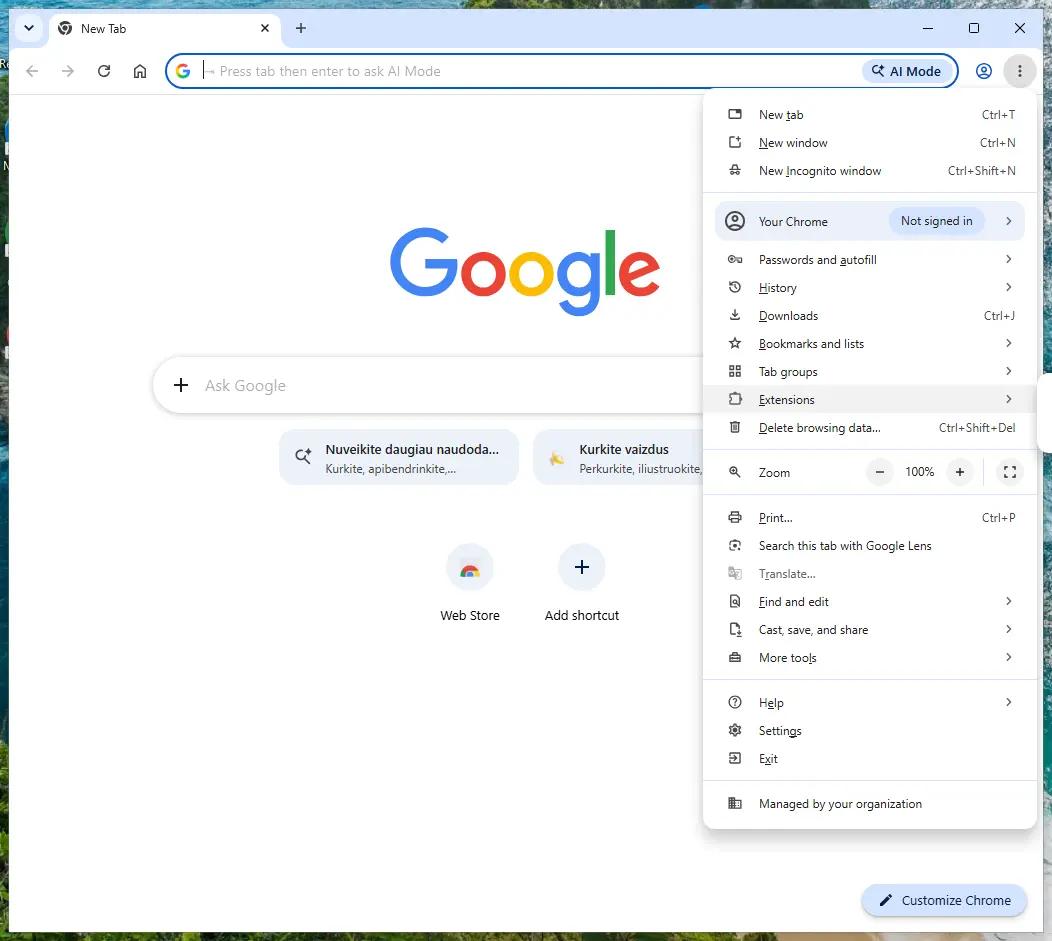
Chrome on Windows 11: More > Extensions > Manage extensions. Full procedure with screenshots: Remove a browser extension
Step 2: Reset the browser if the redirects continue
If
verified-extensions.comstill opens after the extensions are gone, put the browser's settings back to their defaults. In Chrome open Settings > Reset settings > Restore settings to their original defaults; in Edge Settings > Reset settings; in Firefox Help > More troubleshooting information > Refresh Firefox.Tip: Bookmarks and saved passwords stay, while site permissions, the start page and the search engine are reset.
Redirects that survive a reset in every browser point to a program installed in Windows 11 or Windows 10, so uninstall anything you do not recognise in Settings > Apps > Installed apps.
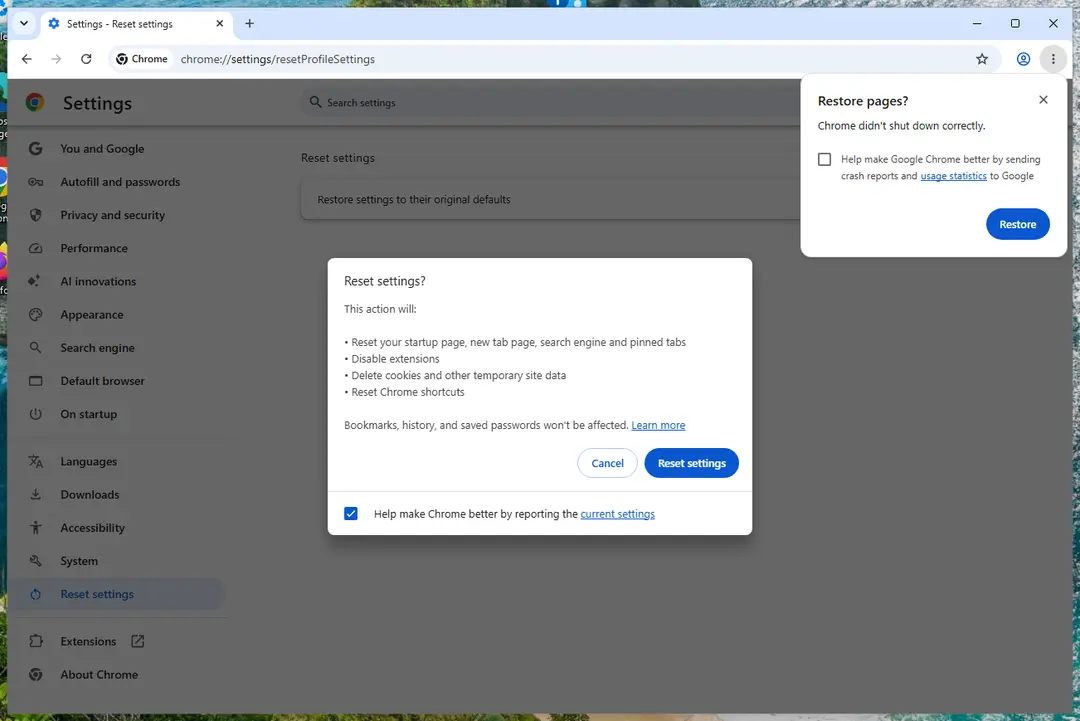
Chrome on Windows 11: Settings > Reset settings. Full procedure with screenshots: Reset a browser and fix a hijacked search engine
Step 3: Scan the PC if you downloaded anything from the ads
If you only saw the notifications and clicked nothing, you can stop before this step. If a notification led you to download or run something, delete that file, then scan Windows.
In Windows Security > Virus & threat protection > Scan options, run a Full scan, then choose Microsoft Defender Antivirus (offline scan) and Scan now. The offline scan restarts the PC and takes about 15 minutes on Windows 11 and Windows 10.
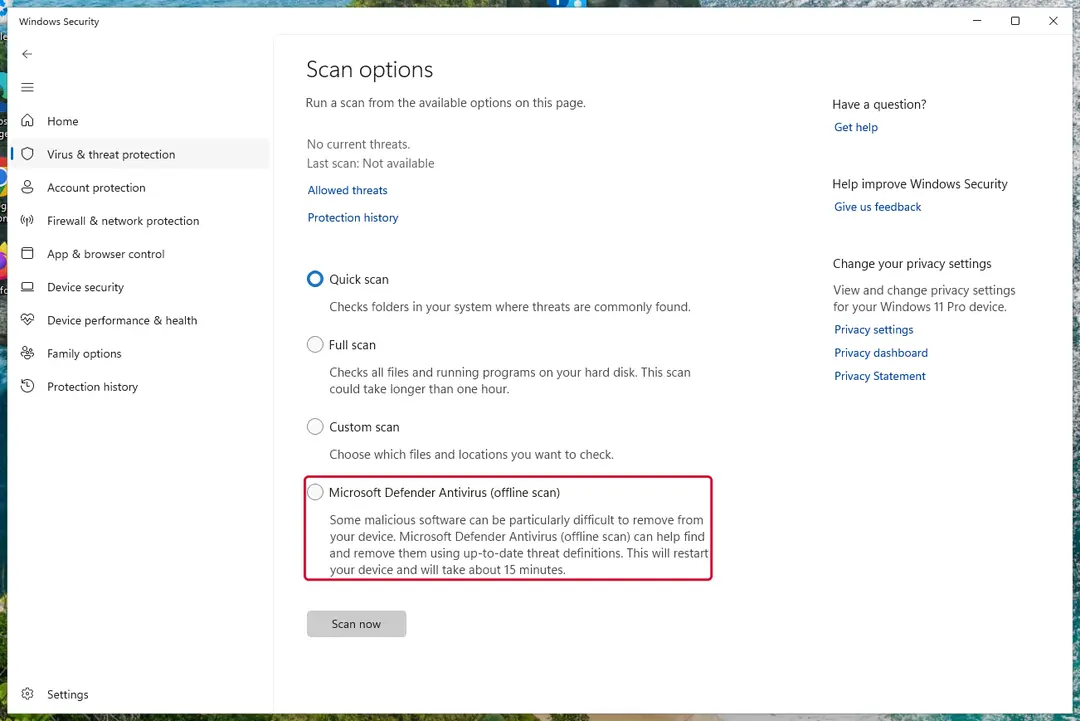
Windows 11: Windows Security > Virus & threat protection > Scan options. Full procedure with screenshots: Run a Microsoft Defender Offline scan
Instructions for each browser and system
The detailed steps for every browser and system this guide covers. Open the one you use.
Uninstall from Windows
Get rid of the adware program by following steps
Uninstall from Windows 10/8:
- Type Control Panel into the Windows search box and open the result.
- Under Programs, select Uninstall a program.
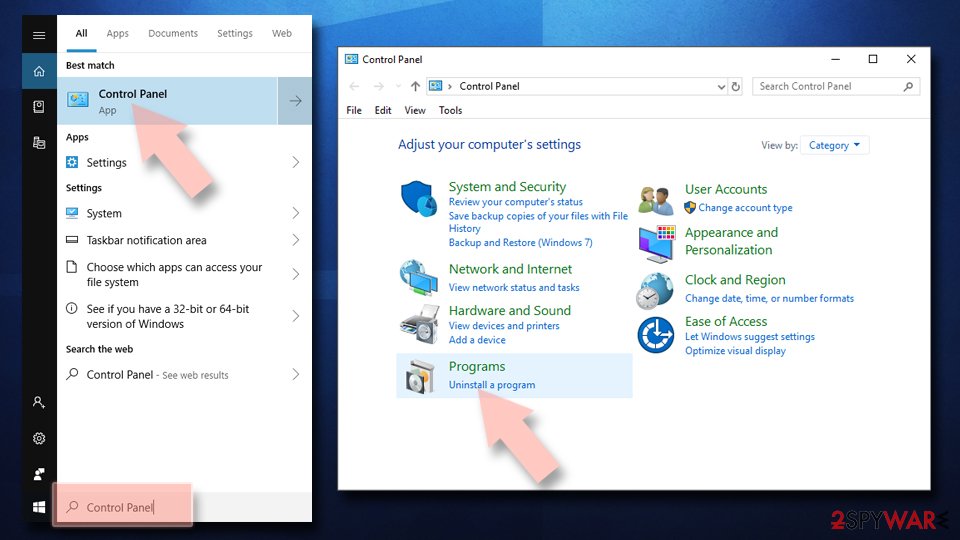
Uninstall from Windows 7/XP:
- Click on Windows Start > Control Panel (Windows XP users should click on Add/Remove Programs).
- In Control Panel, select Programs > Uninstall a program.
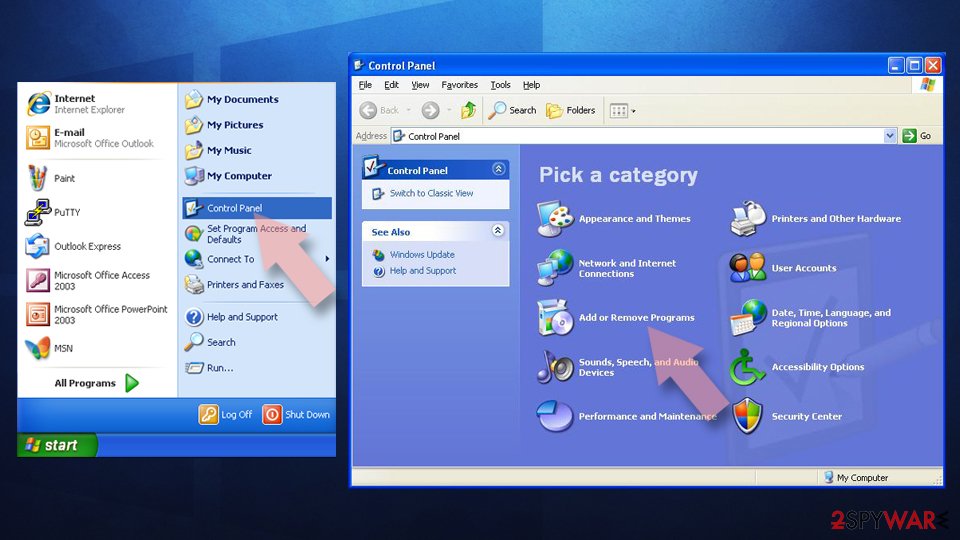
Remove the unwanted program:
- In the Programs and Features window, look for any recently installed suspicious entries, select them, and click Uninstall.
- If User Account Control appears, click Yes to confirm, then complete the removal.
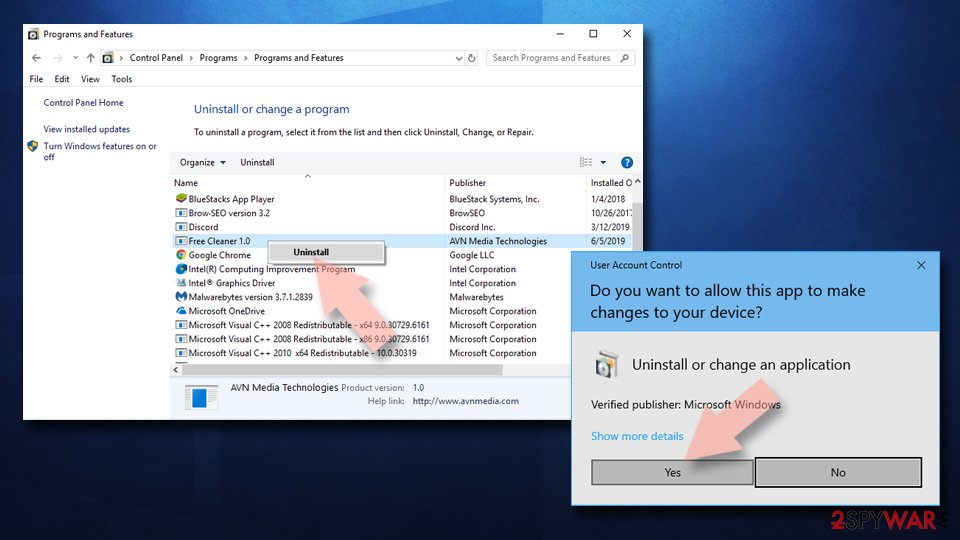
Remove from Google Chrome
Find any traces of the Verified-extensions.com virus or another PUP
Delete malicious extensions from Google Chrome:
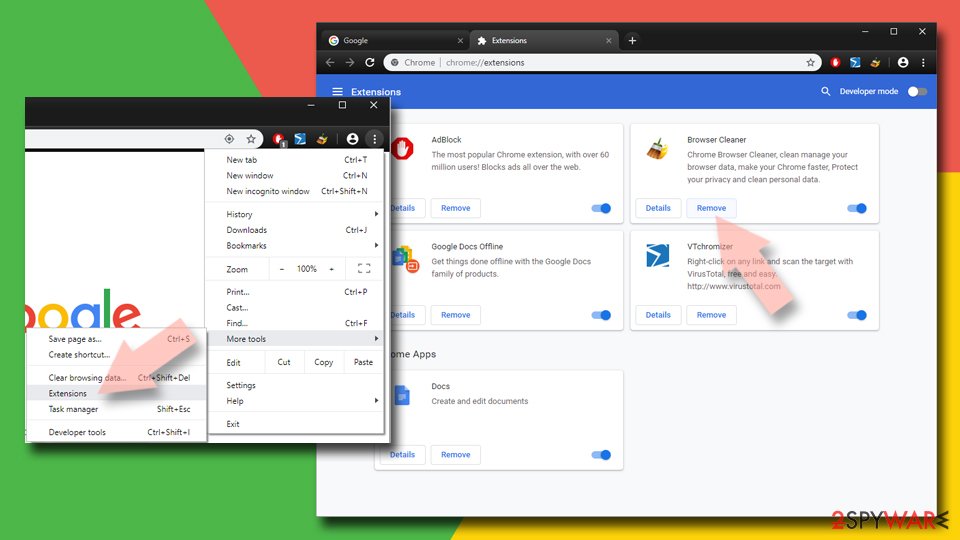
- Open Google Chrome, click on the Menu (three vertical dots at the top-right corner) and select More tools > Extensions.
- In the newly opened window, you will see all the installed extensions. Uninstall all suspicious extensions related to the unwanted program by clicking Remove.
Clear cache and web data from Chrome:
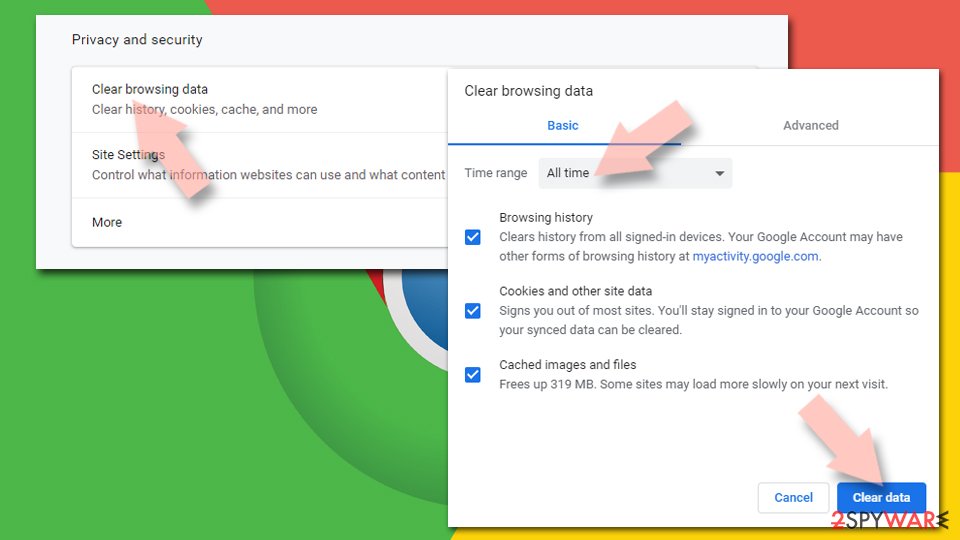
- Click on Menu and pick Settings.
- Under Privacy and security, select Clear browsing data.
- Select Browsing history, Cookies and other site data, as well as Cached images and files.
- Click Clear data.
Change your homepage:
- Click menu and choose Settings.
- Look for a suspicious site in the On startup section.
- Click on Open a specific or set of pages and click on three dots to find the Remove option.
Reset Google Chrome:
If the previous methods did not help you, reset Google Chrome to eliminate all the unwanted components:
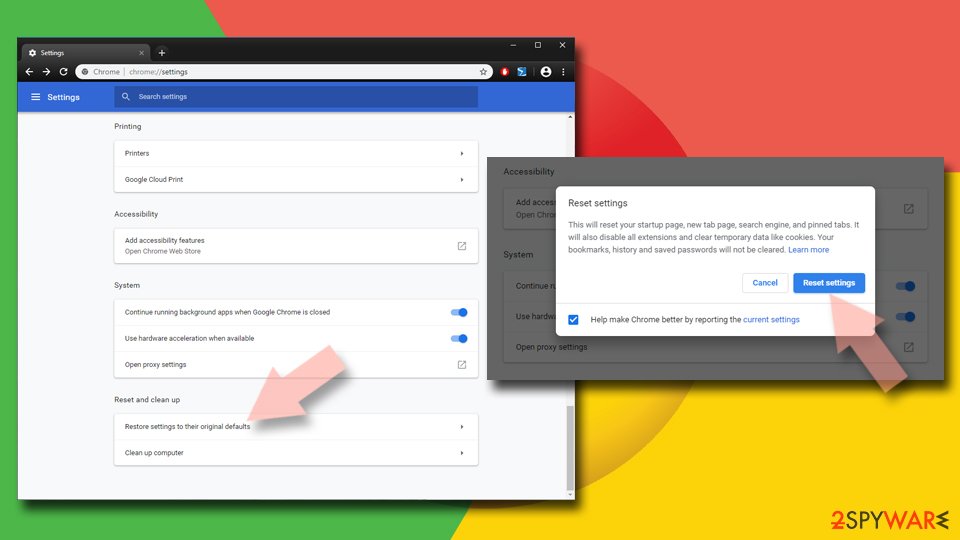
- Click on Menu and select Settings.
- In the Settings, scroll down and click Advanced.
- Scroll down and locate Reset and clean up section.
- Now click Restore settings to their original defaults.
- Confirm with Reset settings.
Remove from Microsoft Edge
Delete unwanted extensions from MS Edge:
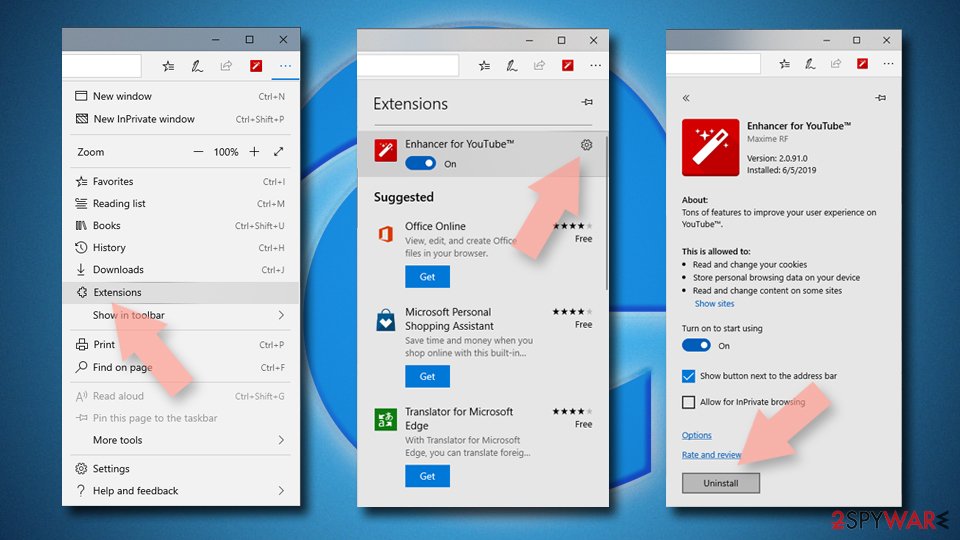
- Select Menu (three horizontal dots at the top-right of the browser window) and pick Extensions.
- From the list, pick the extension and click on the Gear icon.
- Click Remove.
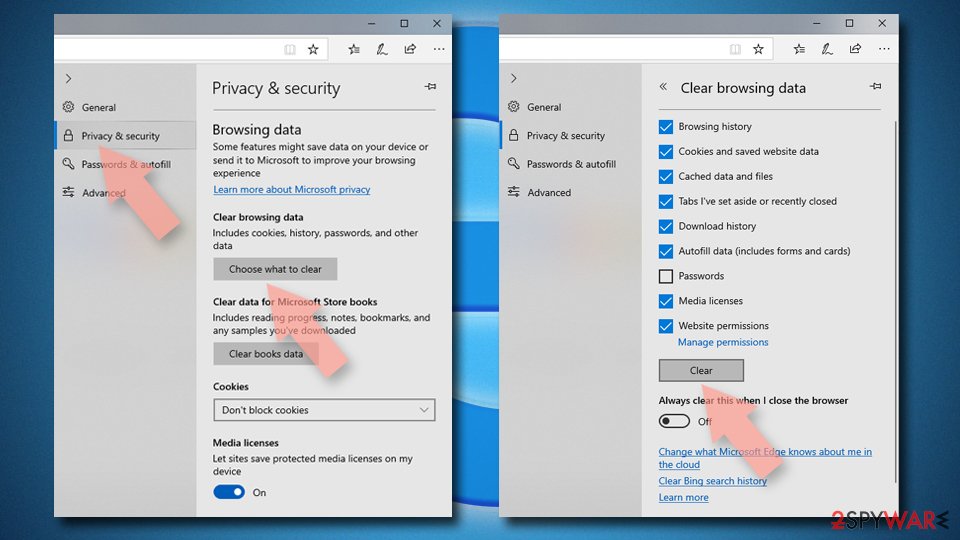
Clear cookies and other browser data:
- Click on the Menu (three horizontal dots at the top-right of the browser window) and select Settings > Privacy, search, and services..
- Under Clear browsing data, pick Choose what to clear.
- Select Cookies and other site data and Cached images and files. (apart from passwords, although you might want to include Media licenses as well, if applicable) and click on Clear.
Restore new tab and homepage settings:
- Click the menu icon and choose Settings.
- Then find On startup section.
- Click Remove next to any suspicious startup page.
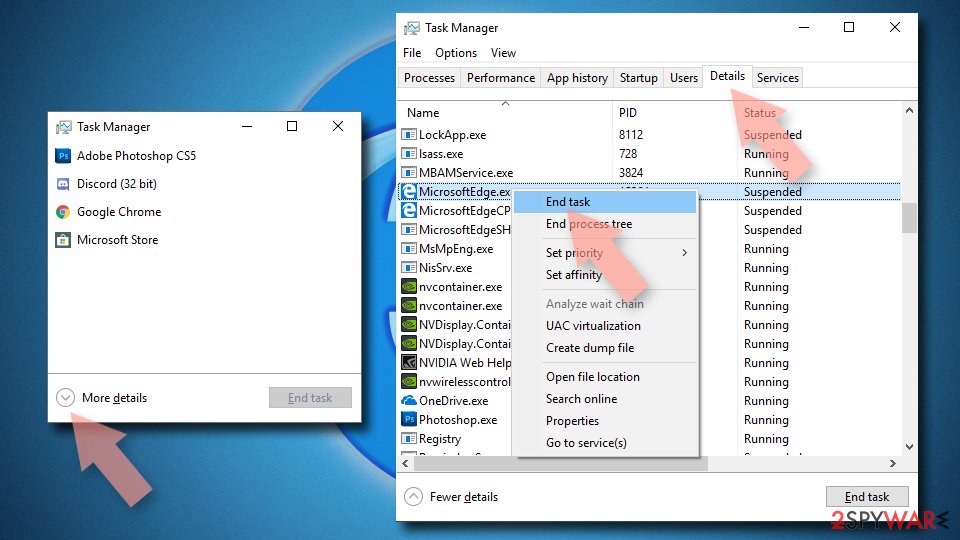
Reset MS Edge if the above steps did not work:
- Press on Ctrl + Shift + Esc to open Task Manager.
- Click on More details arrow at the bottom of the window.
- Select Details tab.
- Now scroll down and locate every entry with Microsoft Edge name in it. Right-click on each of them and select End Task to stop MS Edge from running.
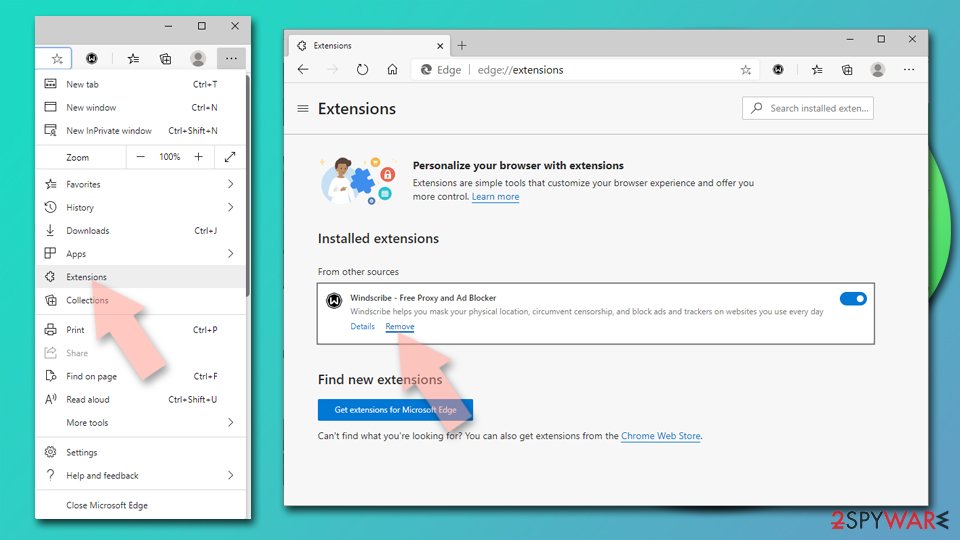
Delete extensions from MS Edge (Chromium):
- Open Edge and click select Settings > Extensions.
- Delete unwanted extensions by clicking Remove.
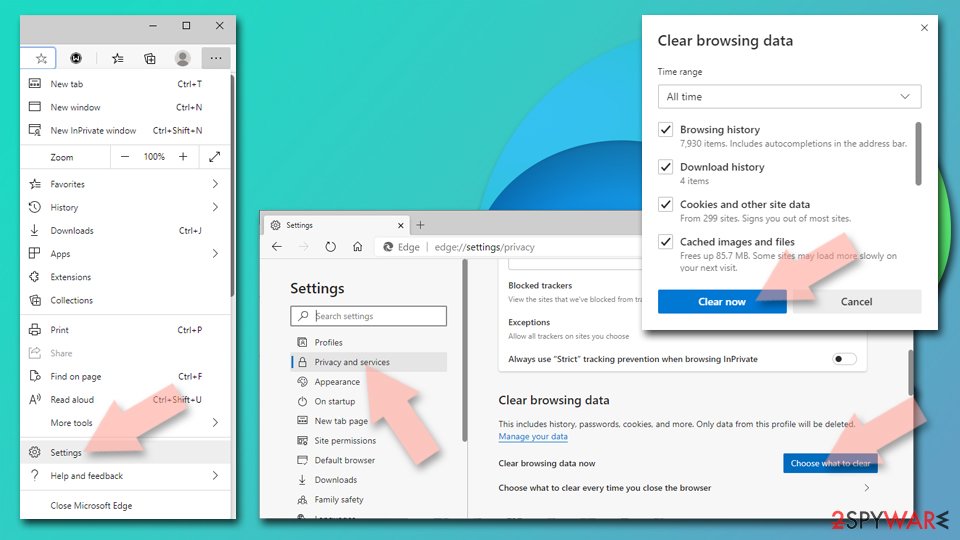
Clear cache and site data:
- Click on Menu and go to Settings.
- Select Privacy, search and services.
- Under Clear browsing data, pick Choose what to clear.
- Under Time range, pick All time.
- Select Clear now.
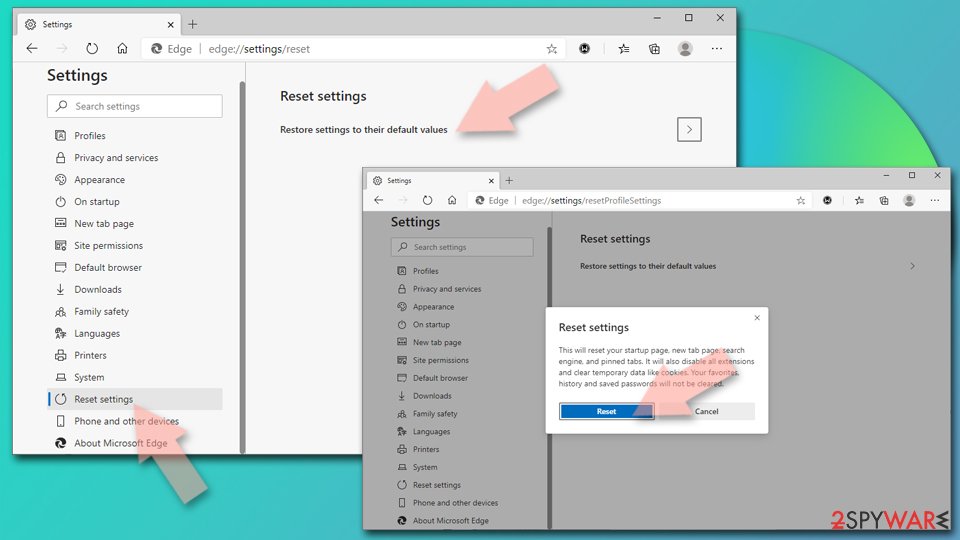
Reset Chromium-based MS Edge:
- Click on Menu and select Settings.
- On the left side, pick Reset settings.
- Select Restore settings to their default values.
- Confirm with Reset.
- This will disable extensions and reset startup pages but will not delete bookmarks, saved passwords, or browsing history.
Remove from Mozilla Firefox (FF)
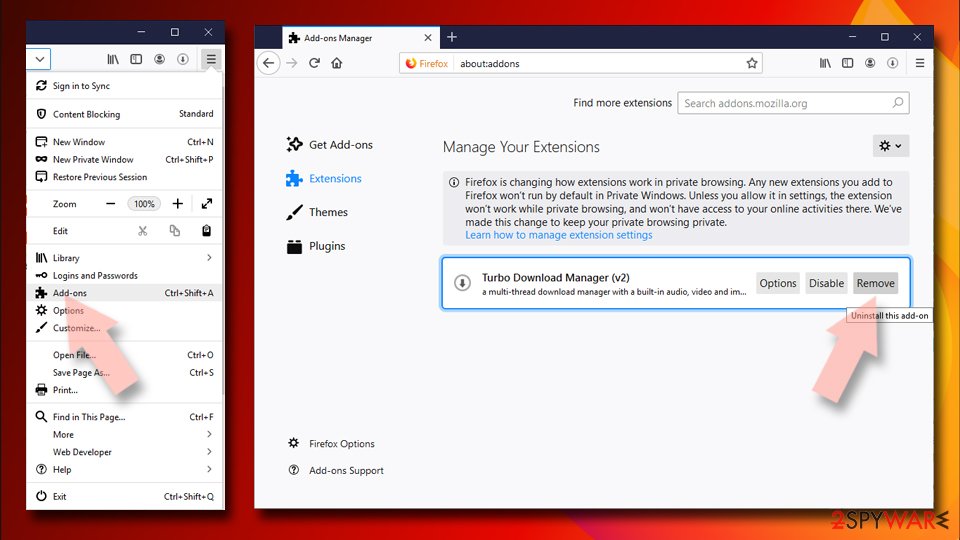
Remove dangerous extensions:
- Open Mozilla Firefox browser and click on the Menu (three horizontal lines at the top-right of the window).
- Select Add-ons.
- In here, select the unwanted extension and click Remove.
Reset the homepage:
- Click three horizontal lines at the top right corner to open the menu.
- Choose Settings.
- Under Home, set your preferred homepage and new tab settings.
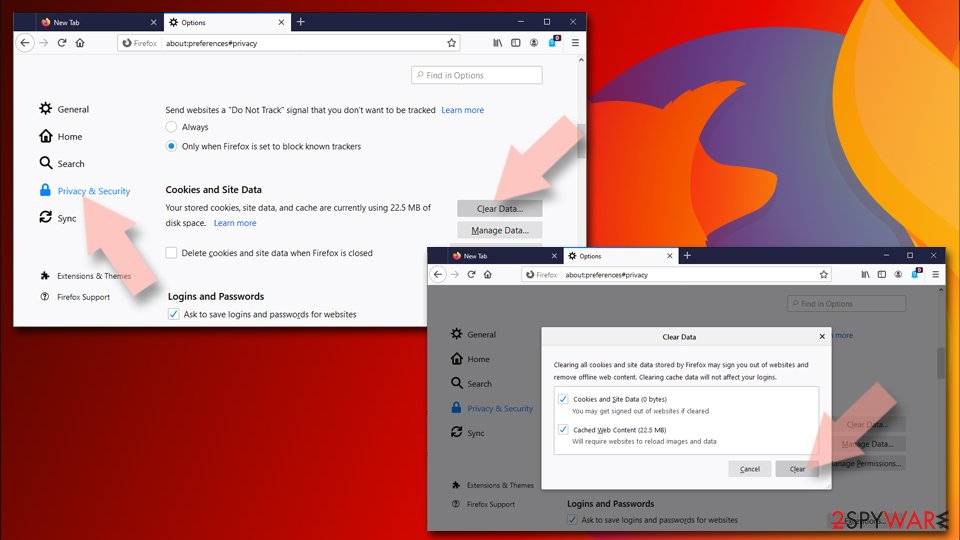
Clear cookies and site data:
- Click Menu and pick Settings.
- Go to Privacy & Security section.
- Scroll down to locate Cookies and Site Data.
- Click on Clear Data...
- Select Cookies and Site Data and Temporary cached files and pages, then click Clear.
Reset Mozilla Firefox
If clearing the browser as explained above did not help, reset Mozilla Firefox:
- Open Mozilla Firefox browser and click the Menu.
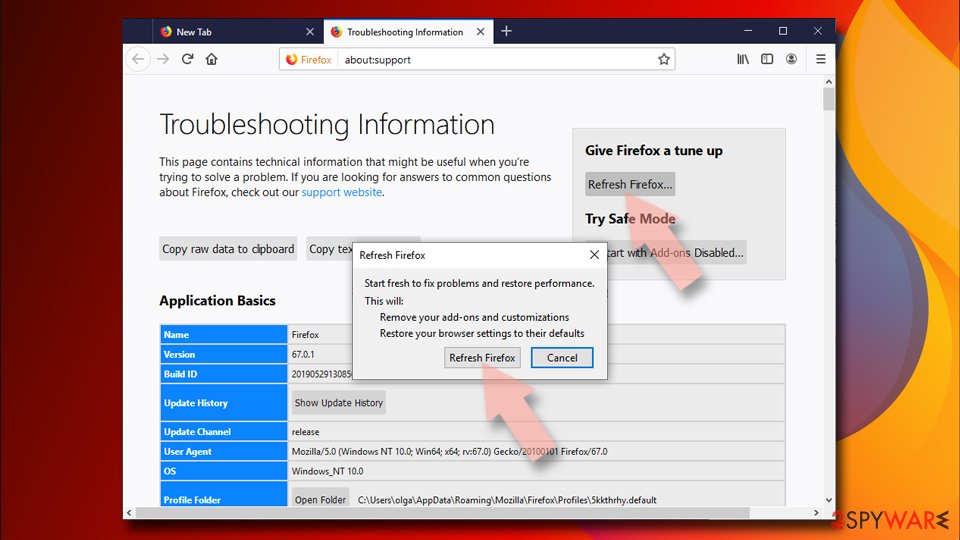
- Go to Help and then choose Troubleshooting Information.
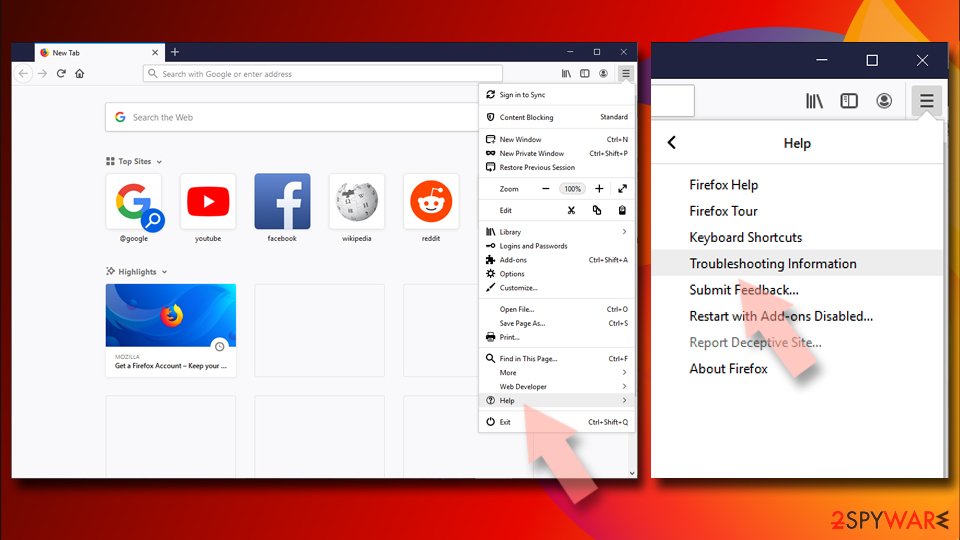
- Under Give Firefox a tune up section, click on Refresh Firefox...
- Once the pop-up shows up, confirm the action by pressing on Refresh Firefox.
Delete from Safari
Remove dangerous extensions:
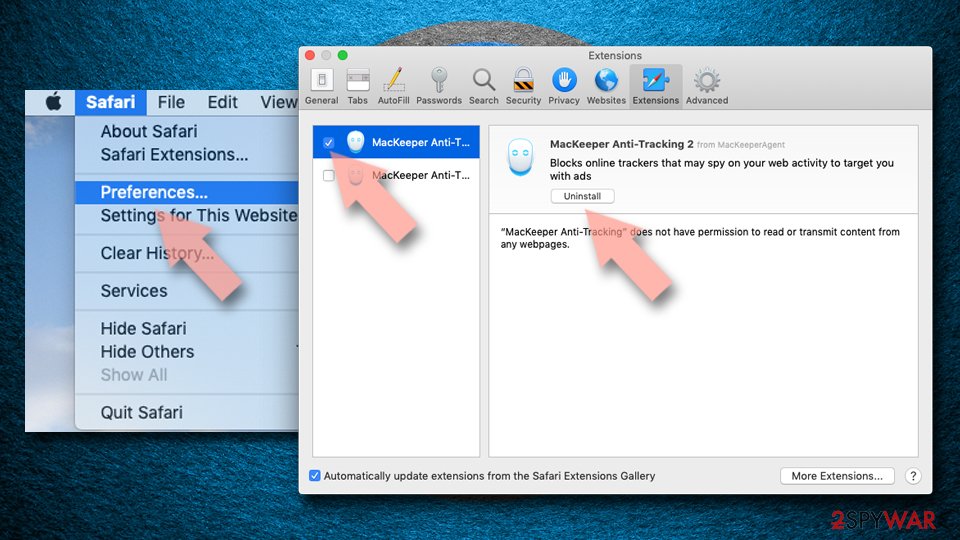
- Open Safari, click Safari in the menu at the top-left of the screen, and select Preferences.
- Go to the Extensions tab, look for any suspicious entries, and click Uninstall to remove them.
Clear history and website data:
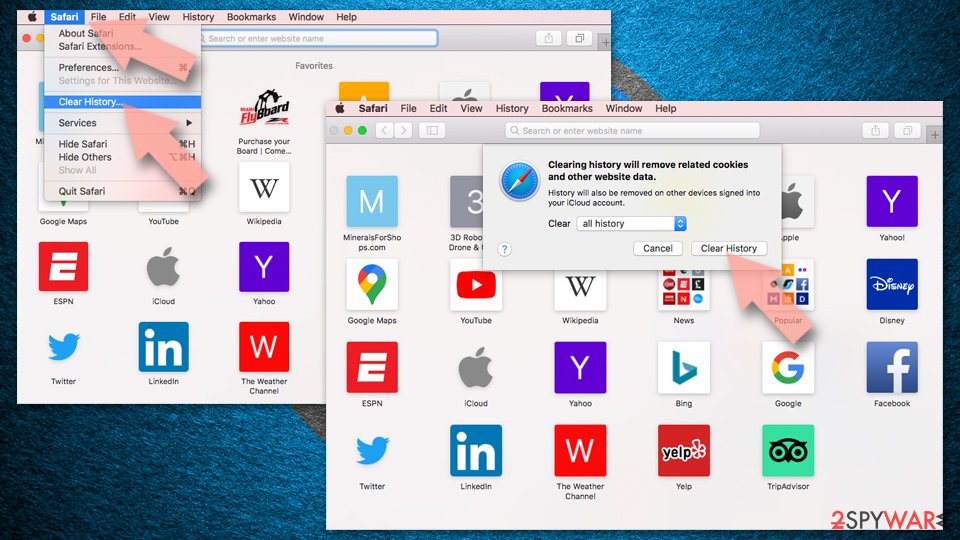
- Click Safari in the menu and pick Clear History.
- Set Clear to all history and confirm with Clear History.
Reset Safari:
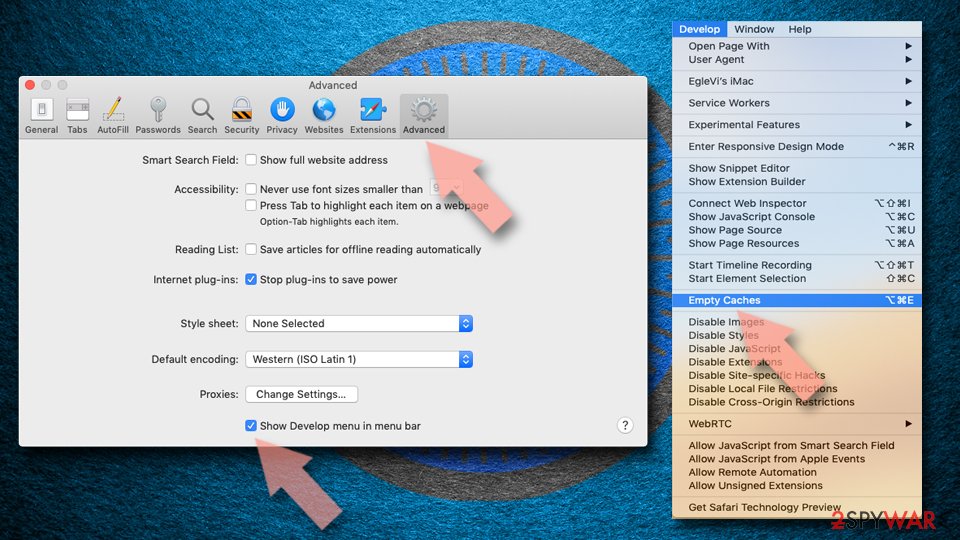
- Click Safari in the menu and select Preferences > Advanced.
- Enable Show Develop menu in menu bar.
- From the menu bar, click Develop and select Empty Caches.
Delete from macOS
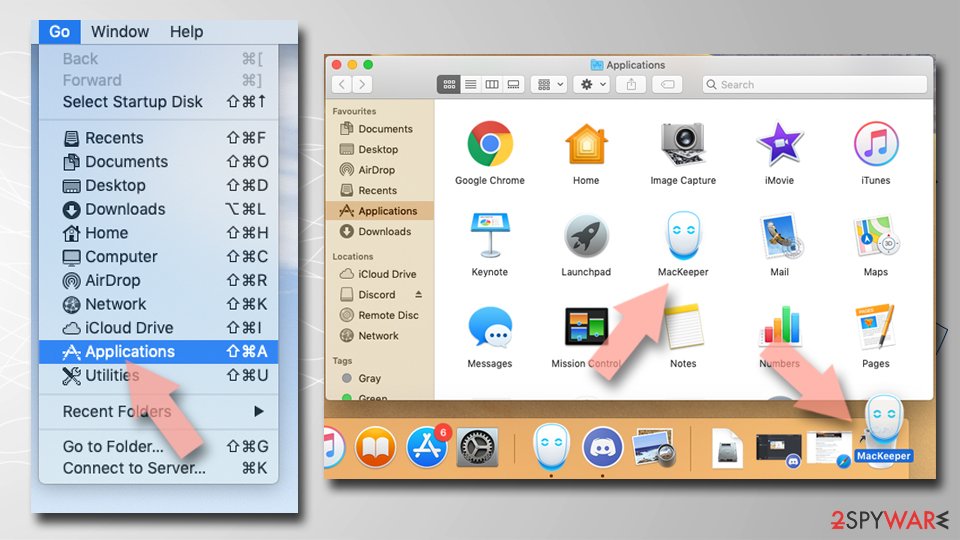
Remove the unwanted application:
- From the menu bar, select Go > Applications.
- In the Applications folder, look for any suspicious entries, then drag them to Trash (or right-click and pick Move to Trash).
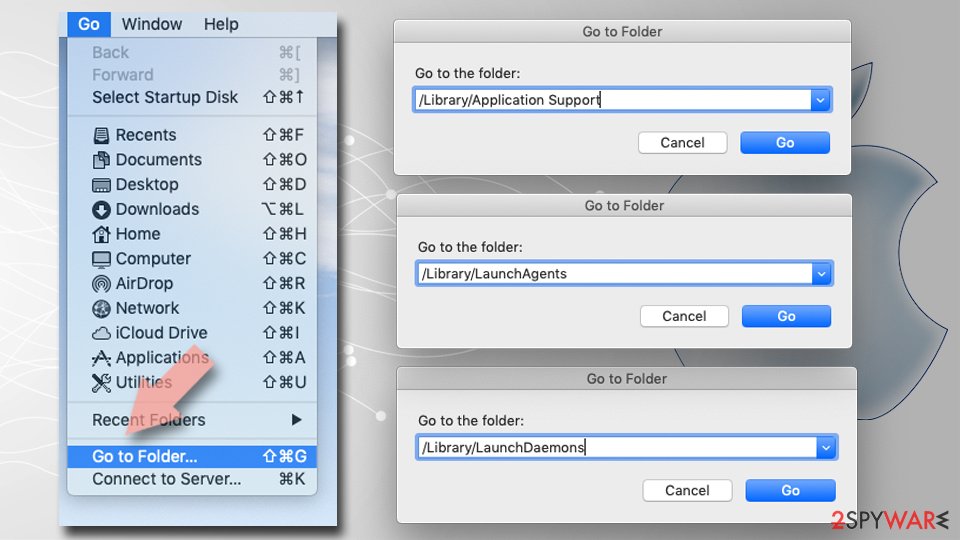
Delete leftover files and folders:
- Select Go > Go to Folder.
- Enter /Library/Application Support and remove any suspicious folders related to the unwanted program.
- Repeat the same check in the /Library/LaunchAgents and /Library/LaunchDaemons folders, deleting any suspicious entries.
- Finally, empty the Trash to permanently remove the leftovers.
Reset Internet Explorer
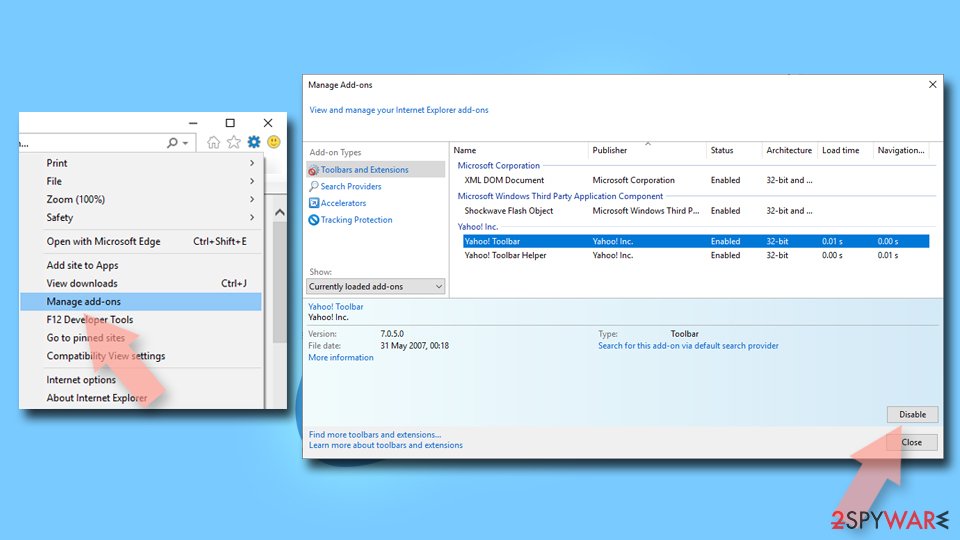
Remove dangerous add-ons:
- Open Internet Explorer, click on the Gear icon (IE menu) on the top-right corner of the browser
- Pick Manage Add-ons.
- You will see a Manage Add-ons window. Here, look for suspicious plugins. Click on these entries and select Disable.
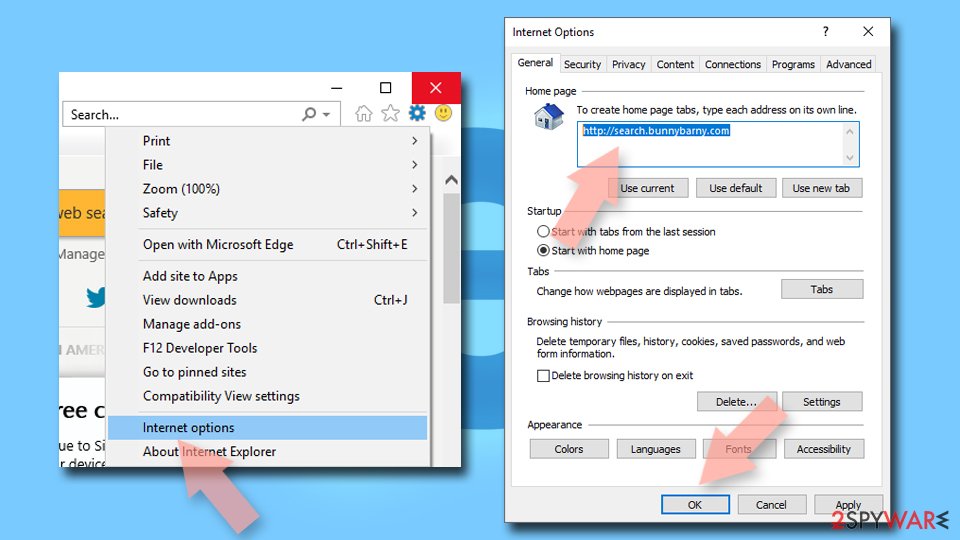
Change your homepage if it was altered:
- Open IE and click on the Gear icon.
- Select Internet Options.
- In the General tab, delete the Home page address and replace it by your preferred one (for example, Google.com).
- Click Apply and then select OK.
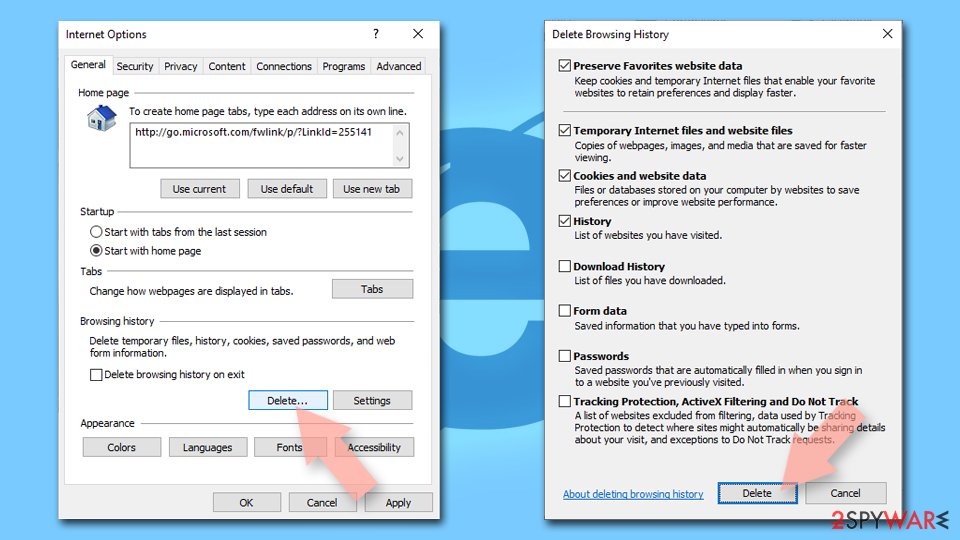
Delete temporary files:
- Press on the Gear icon and select Internet Options.
- Under Browsing history, click Delete...
- Select relevant fields and press Delete.
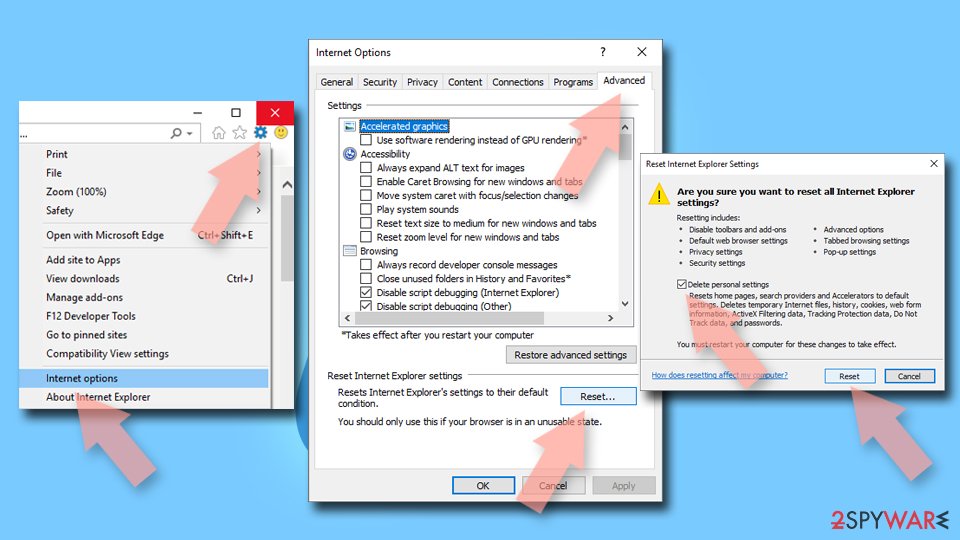
Reset Internet Explorer:
- Click on Gear icon > Internet options and select Advanced tab.
- Select Reset.
- In the new window, check Delete personal settings and select Reset.
Do not let government spy on you
The government has many issues in regards to tracking users' data and spying on citizens, so you should take this into consideration and learn more about shady information gathering practices.
Avoid any unwanted government tracking or spying by going totally anonymous on the internet.
You can choose a different location when you go online and access any material you want without particular content restrictions. You can easily enjoy internet connection without any risks of being hacked by using VPN.
Control the information that can be accessed by government any other unwanted party and surf online without being spied on. Even if you are not involved in illegal activities or trust your selection of services, platforms, be suspicious for your own security and take precautionary measures by using the VPN service.
Backup files for the later use, in case of the malware attack
Computer users can suffer from data losses due to cyber infections or their own faulty doings.
Ransomware can encrypt and hold files hostage, while unforeseen power cuts might cause a loss of important documents. If you have proper up-to-date backups, you can easily recover after such an incident and get back to work. It is also equally important to update backups on a regular basis so that the newest information remains intact - you can set this process to be performed automatically.
When you have the previous version of every important document or project you can avoid frustration and breakdowns. It comes in handy when malware strikes out of nowhere. Use for the data restoration process.
From our report of Jul 2020 · not reviewed since
Remove Verified-extensions.com virus and get rid of those ads
he worst thing about Verified-extensions.com virus is the fact that this is not a malicious program or tool, but it creates issues with the system that need more attention and help from proper tools. You should go for the anti-malware programs and run the tool, so the intruder gets terminated.
The success of the Verified-extensions.com removal procedure is closely related to the application you choose to use here. The best way to fight such stealthy intruders is to check the machine properly from the background, so the PUP itself get removed.
You cannot exit those ads and expect that this is the way to remove Verified-extensions.com. Run proper anti-malware tool, launch the full system scan, and then follow steps to clean the traces of the shady application.
Questions about Verified-extensions.com ads
Why does my browser keep going to verified-extensions.com?
Something is sending it there. On one site only, that site's ads are the cause and leaving the site ends it.
On many different sites, the usual causes are an extension you installed with something else, a site you once allowed to send notifications, or an ad-supported program in Windows that changes how the browser behaves. verified-extensions.com itself is only a stop on the way: it records the visit and forwards you to whatever advertiser pays most.
Check the extensions page, then the list of sites allowed to send notifications, then Installed apps sorted by date. Removing the cause stops the redirects; blocking the domain alone usually does not, because the network moves to a new one.
Did verified-extensions.com install a virus on my PC?
Very unlikely, unless you downloaded and opened something from the pages it led to. Redirect domains such as verified-extensions.com sell your visit to advertisers; they do not need to install anything to make money.
What can be installed is the thing that causes the redirects in the first place, such as an extension or an ad-supported program that came with free software. That is why the checks in this guide look at extensions, notification permissions and Installed apps.
A full scan with Microsoft Defender afterwards gives you a clear answer about the rest of the PC. If the scan is clean and the redirects stop after removing the cause, you are done.
Why does Verified-extensions.com show me ads?
Because that is its whole purpose. Verified-extensions.com is an ad redirect domain, and its operators are paid for every ad it displays and every click it gets. In this case the ads take the form of redirects through ad pages.
They are chosen by ad networks that accept almost any advertiser, which is why so many look like warnings or prizes. The ads are not a sign that your PC is broken or infected with something worse; they are a sign that something on it, or in the browser, has permission to advertise. Removing that permission or program stops them.
Is verified-extensions.com safe to visit?
No. The site verified-extensions.com exists to push visitors towards ads, and the pages it leads to include fake virus warnings, fake updates, prize scams and notification prompts. Visiting it once does not infect an up-to-date PC, but anything you click or download there is a gamble.
Do not enter personal details, do not allow notifications and do not call phone numbers it shows. If it opens by itself, close the tab and check the browser's extensions and notification permissions. Blocking the single domain helps little, because the operators register new names regularly.
Do I have to clean every browser?
Yes, if you use more than one. We saw Verified-extensions.com in Chrome, Edge and Firefox, and each browser keeps its own extensions, notification permissions and settings. Chrome and Edge share the same extension format, so one installer can add the same adware to both, while Firefox has its own add-ons.
Check every browser on the PC, including ones you rarely open. If you sync a browser with an account, clean it while signed in, so that the removal reaches your other computers rather than the adware returning from them.
How do I know the ads come from Verified-extensions.com?
Look for redirects to verified-extensions.com. That is the trace Verified-extensions.com leaves, and it shows up as redirects through ad pages. Ads that appear on every site, including ones that never carried ads before, point to something on your PC or in the browser rather than to the sites themselves.
A quick test is a private window, where extensions are off by default: if the ads disappear there, an extension is responsible. If they appear even with the browser closed, the source is a notification permission or a program in Windows.
Can adware slow down my PC?
Yes. Adware runs in the background, loads ad scripts, opens extra tabs and contacts its servers, all of which use processor time, memory and bandwidth. Ad-heavy extensions also slow down every page, because they inspect and change it before you see it.
The effect is strongest on older PCs and when several adware programs arrived together. After removal, restart the PC and check Task Manager for anything still using a lot of resources that you do not recognise. Speed usually returns to normal once the ads stop.
An ad showed a phone number and I called it. What now?
The number belongs to scammers, not to Microsoft or an antivirus company. If you only talked, hang up and do not call back. If you let them connect to the PC, disconnect it from the internet, uninstall the remote access program they used, such as AnyDesk, TeamViewer, ScreenConnect or UltraViewer, and run a full and offline scan.
If you paid or gave bank details, call your bank at once on the number printed on your card. Change any passwords you typed while they were connected, and report the call.
Does adware steal passwords?
Ordinary adware is built to show ads, not to steal logins, and most of it never touches saved passwords. The line is blurry, though. Extensions that can read every page could capture what you type, and adware ads sometimes lead to phishing pages that ask for passwords directly.
If you entered credentials on a page reached through an ad, change that password from a clean device and turn on two-step verification. Otherwise, removing ad redirect domain and clearing cookies is usually enough.
Will Fortect remove Verified-extensions.com?
Fortect scans Windows for malware and unwanted programs and repairs the system files and settings they change, and its free scan shows what it finds on your PC before you decide anything.
For Verified-extensions.com, follow the plan above as well: the browser steps take back permissions and settings that no scanner treats as a threat, and uninstalling the program that brought it removes the source.
Run Microsoft Defender's full scan and, if anything was found, its offline scan as a second opinion. If the symptoms are gone after the plan and both scans are clean, there is nothing more to do.
Sources
- Wikipedia: Ad-tracking (read October 6, 2026)
- Virusai: Virusai (read October 6, 2026)
- Google Chrome Help: Use notifications to get alerts (no longer online) (read October 6, 2026)
- FTC: How to recognize, remove and avoid malware (read October 6, 2026)
- Microsoft Learn: Microsoft Defender Offline (read October 6, 2026)