Personal Security (scam) - Removal Guide
Personal Security Removal Guide
What is Personal Security?
Personal Security – a fake anti-malware tool that will scam you out of your money

Personal Security is a misleading anti-spyware application that displays fake security alerts/pop-ups and reports false system security threats or infections to scare you into thinking that your computer is infected with all types of malware. This app is a clone of widely spread Cyber Security and Total Security malware that operates in the same manner, all while trying to scam users. If you found this program on your system, delete it immediately – follow the instructions below for more details.
| Name | Personal Security |
| Type | Rogue anti-spyware, scam, malware |
| Infiltration | Already installed Trojans, software cracks, fake online scanners, fake updates |
| Risks | Installation of other malicious software, monetary losses |
| Removal | Perform a full system scan with SpyHunter 5Combo Cleaner or another reputable anti-malware |
| System fix | Use FortectIntego after malware elimination to repair your system |
The rogue program simulates a system scan and asks to pay for a full version of the program in order to remove non-exist infections. In fact, the reported security threats or infections are actually either non-existing/harmless files or legitimate software.
This malware will likely block real security software to protect itself from being deleted. Most importantly, do not purchase this bogus application and uninstall this malware from your computer as soon as possible.
To make this scam look more realistic, Personal Security impersonates Windows Security Center. It states that your computer is not protected and should activate the program to ensure full system protection. As you may know, the legitimate one does not promote particular anti-virus software. That's the main difference.
The rogue application displays the same infections on every computer randomly. If your computer is infected, you will likely see one of the following:
- Zlob.PornAdvertiser.ba;
- Trojan.BAT.Adduser.t;
- Spyware.IMMonitor;
- Win32.Rbot.fm;
- Infostealer.Banker.E;
- Spyware.IEMoster.d;
- Trojan.Tooso, etc.
To make things even more complicated, this app will hijack Internet Explorer and displays fake notifications about possible threats or unsafe websites. The fake warning states:
This website has been reported as unsafeWe strongly recommend to discontinue the use of this website.Register your computer's security softwareThis website has been report to Microsoft for containing threats that might steal personal or financial information from your computer.

However, that's not all. You will also be flooded will fake security alerts about serious security and privacy issues. Personal Security will display a fake screen saver that looks like Blue Screen of Death window and the state that SPYWARE.MONSTER.FX_WILD_0x00000000 infection crashed your PC. More fake security alerts read:
Spyware activity alert! Spyware.IEMonster is a popular spyware that attempts to steal passwords from Web browsers, e-mail clients and other programs, including login information from online banking sessions, billing pages, CC transactions, etc. It may also create special tracking files to log your activity and compromise your Internet privacy. It is strongly recommended to prevent this threat immediately. Click here to get protection against Spyware.IEMonster.
System files modification alert! Some critical system files of your computer were modified by malicious program. It may cause system instability and data loss. Click here to block unauthorized modification by removing threats (Recommended).
Do not believe these claims as they are all bogus. The only goal of the program's authors is to convince you that your system is badly damaged and infected, which is not likely to be the case. To find accurate results, you should install a reputable security tool and perform a full system scan. Then, use FortectIntego to clean your web browsers and remediate Windows system files that could have been damaged due to a virus infection.
Ways cybercriminals infect users with malware
Usually, Personal Security must be manually installed. Its distribution channels include suspicious emails/malspam, malicious or hacked web pages, or peer-to-peer networks.
The scammers also use social engineering to distribute this rogue. Please note that it disguises itself and usually comes as a flash player update/video codec or other supposedly useful software. You shouldn't install anything from suspicious websites. Otherwise, you can infect your PC with various malware.
To avoid malware infection in the future, employ a powerful anti-malware program and ensure it provides protection from malicious websites as well. Also, stay away from high-risk websites (software cracks, pirated programs, gambling, etc.) and never allow spam email attachments to execute macros on your machine.
Eliminate rogue anti-spyware with ease
If your computer is infected with Personal Security, please use the removal guide below. Since rogue anti-virus software can significantly change the way Windows operates, we strongly advise you to run a scan with powerful anti-malware and then reset or clean your web browsers accordingly.
Do not give into criminals' tricks and purchase the license of this software! If you have already purchased it, contact your credit card company and dispute the charges. It is also advisable to change all the passwords for all your accounts immediately.
You may remove virus damage with a help of FortectIntego. SpyHunter 5Combo Cleaner and Malwarebytes are recommended to detect potentially unwanted programs and viruses with all their files and registry entries that are related to them.
Getting rid of Personal Security. Follow these steps
Uninstall from Windows
-
Click Start → Control Panel → Programs and Features (if you are Windows XP user, click on Add/Remove Programs).

-
If you are Windows 10 / Windows 8 user, then right-click in the lower left corner of the screen. Once Quick Access Menu shows up, select Control Panel and Uninstall a Program.

-
Uninstall Personal Security and related programs
Here, look for Personal Security or any other recently installed suspicious programs. -
Uninstall them and click OK to save these changes.


Remove from Microsoft Edge
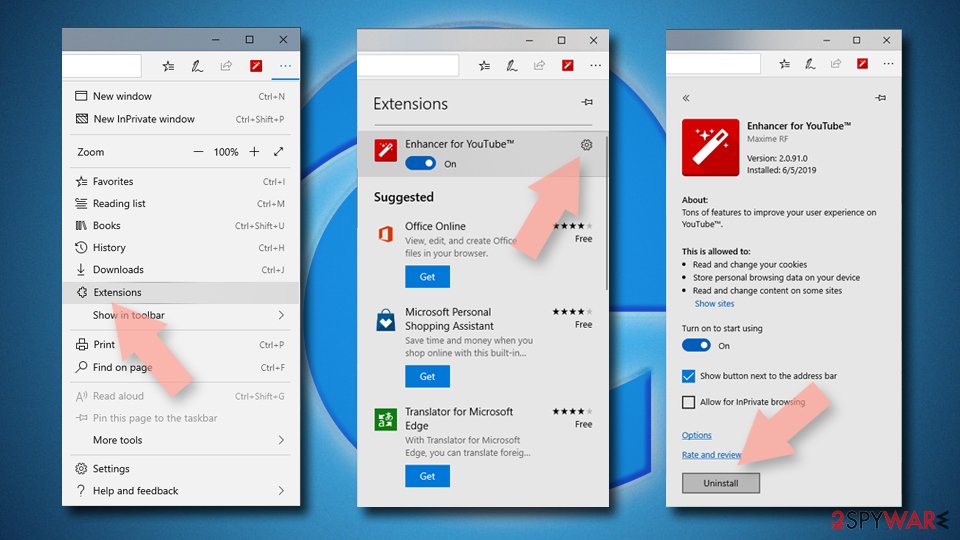
Delete unwanted extensions from MS Edge:
- Select Menu (three horizontal dots at the top-right of the browser window) and pick Extensions.
- From the list, pick the extension and click on the Gear icon.
- Click Remove.

Clear cookies and other browser data:
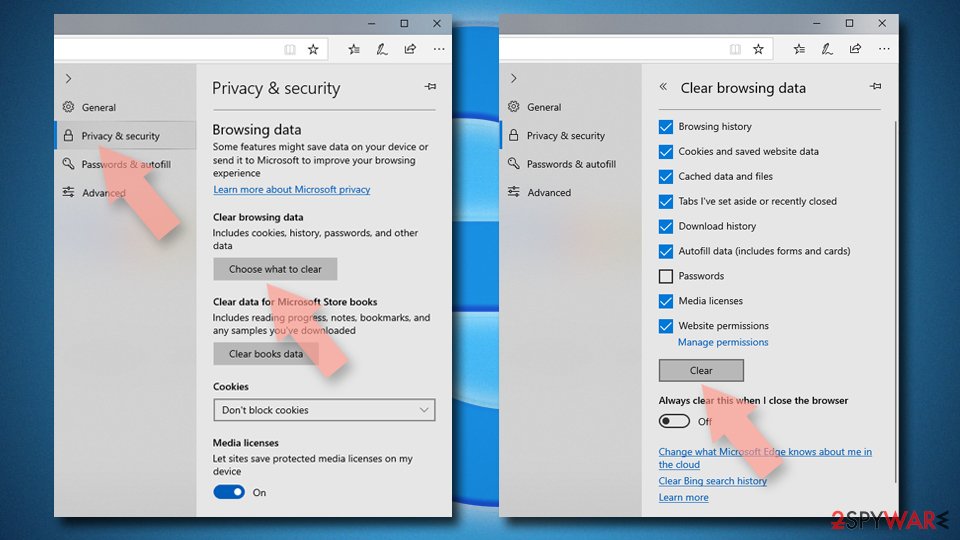
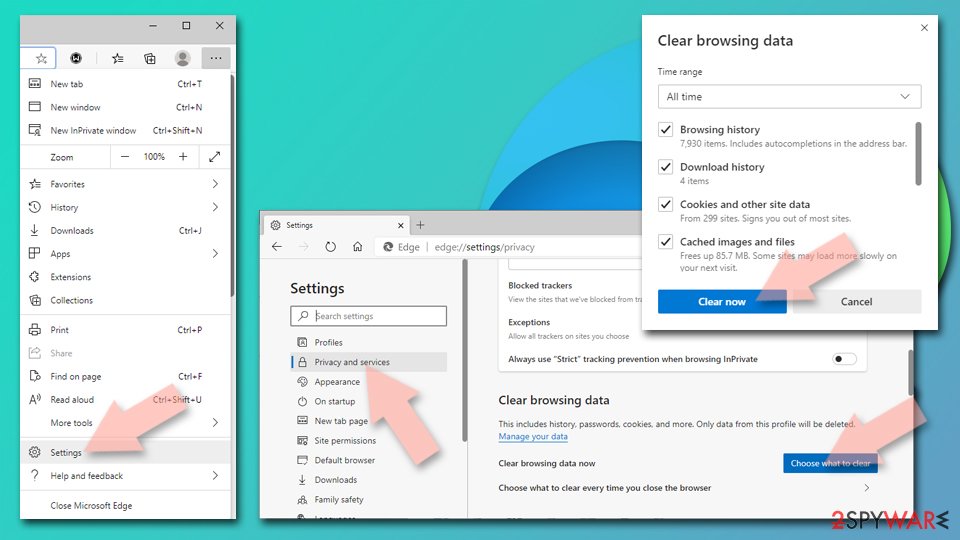
- Click on the Menu (three horizontal dots at the top-right of the browser window) and select Settings > Privacy, search, and services..
- Under Clear browsing data, pick Choose what to clear.
- Select Cookies and other site data and Cached images and files. (apart from passwords, although you might want to include Media licenses as well, if applicable) and click on Clear.

Restore new tab and homepage settings:
- Click the menu icon and choose Settings.
- Then find On startup section.
- Click Remove next to any suspicious startup page.
Reset MS Edge if the above steps did not work:
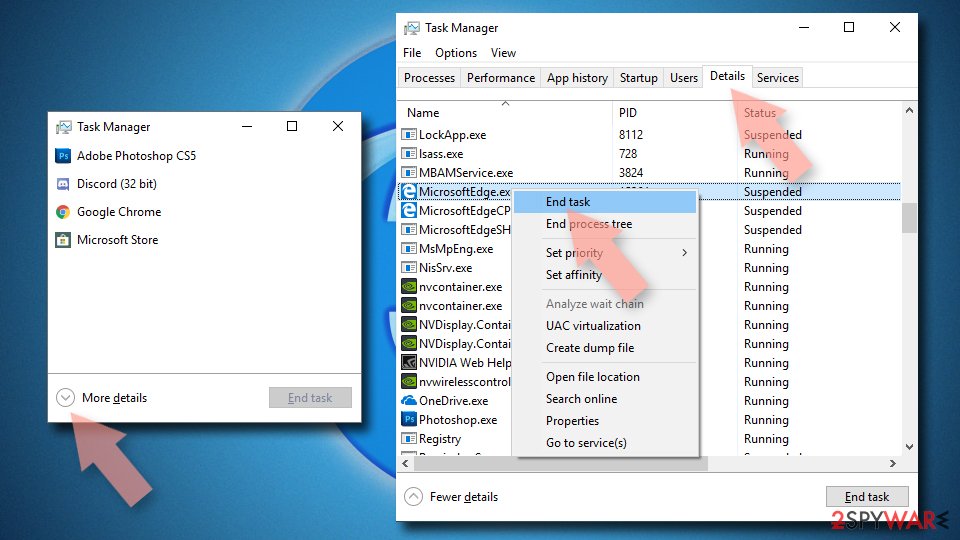
- Press on Ctrl + Shift + Esc to open Task Manager.
- Click on More details arrow at the bottom of the window.
- Select Details tab.
- Now scroll down and locate every entry with Microsoft Edge name in it. Right-click on each of them and select End Task to stop MS Edge from running.

Instructions for Chromium-based Edge
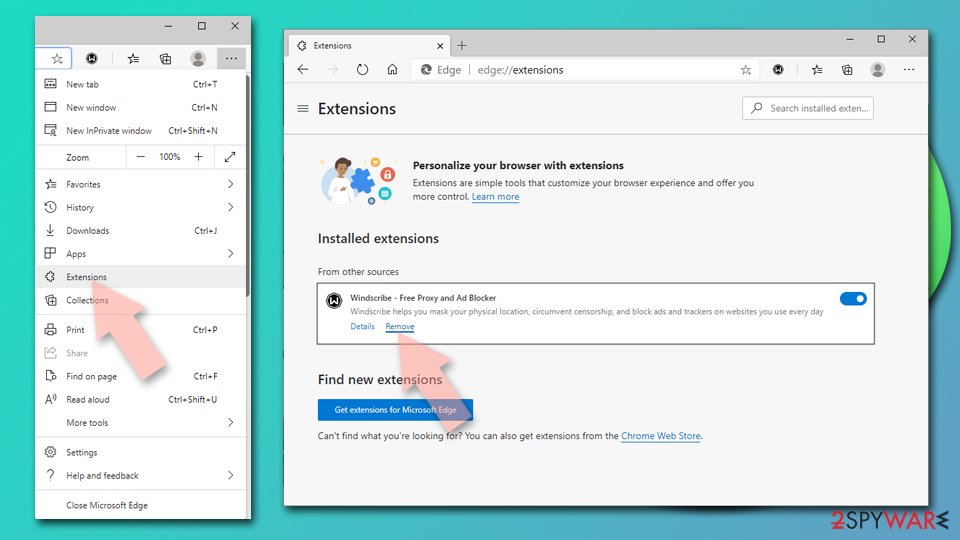
Delete extensions from MS Edge (Chromium):
- Open Edge and click select Settings > Extensions.
- Delete unwanted extensions by clicking Remove.

Clear cache and site data:
- Click on Menu and go to Settings.
- Select Privacy, search and services.
- Under Clear browsing data, pick Choose what to clear.
- Under Time range, pick All time.
- Select Clear now.

Reset Chromium-based MS Edge:
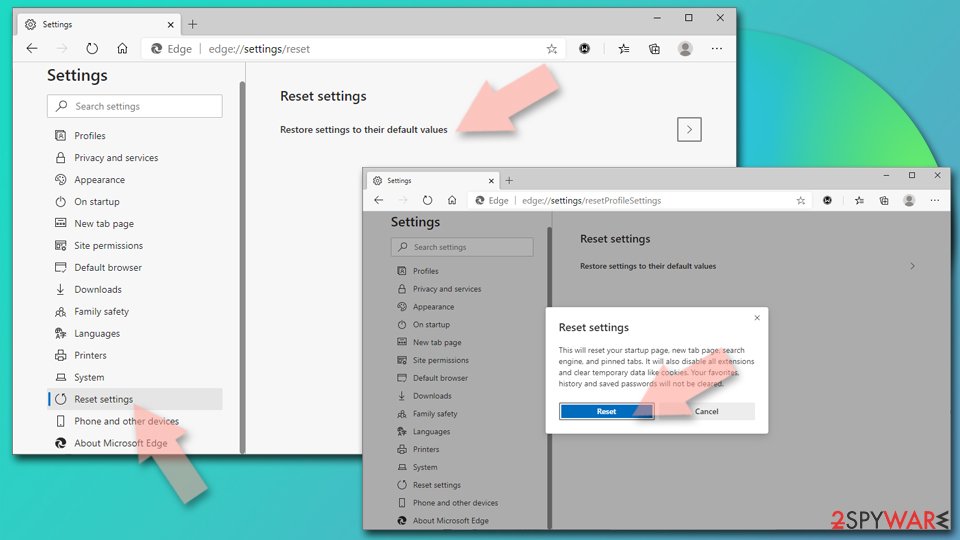
- Click on Menu and select Settings.
- On the left side, pick Reset settings.
- Select Restore settings to their default values.
- Confirm with Reset.
- This will disable extensions and reset startup pages but will not delete bookmarks, saved passwords, or browsing history.

Remove from Mozilla Firefox (FF)
Remove dangerous extensions:
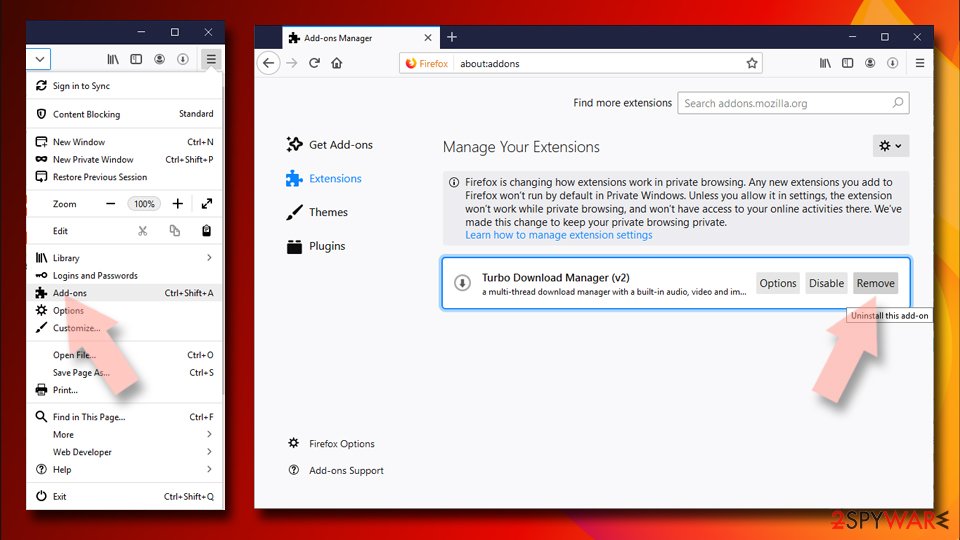
- Open Mozilla Firefox browser and click on the Menu (three horizontal lines at the top-right of the window).
- Select Add-ons.
- In here, select the unwanted extension and click Remove.

Reset the homepage:
- Click three horizontal lines at the top right corner to open the menu.
- Choose Settings.
- Under Home, set your preferred homepage and new tab settings.
Clear cookies and site data:
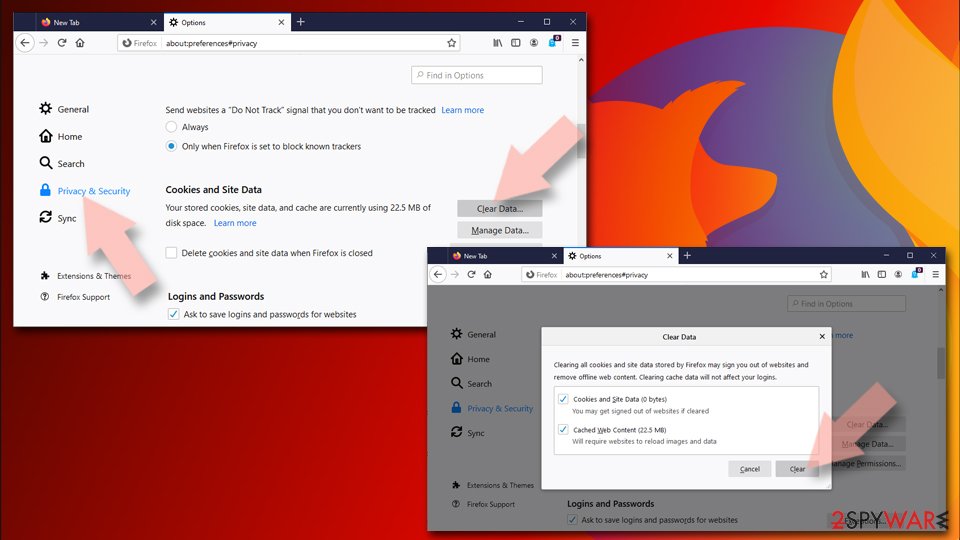
- Click Menu and pick Settings.
- Go to Privacy & Security section.
- Scroll down to locate Cookies and Site Data.
- Click on Clear Data…
- Select Cookies and Site Data and Temporary cached files and pages, then click Clear.

Reset Mozilla Firefox
If clearing the browser as explained above did not help, reset Mozilla Firefox:
- Open Mozilla Firefox browser and click the Menu.
- Go to Help and then choose Troubleshooting Information.
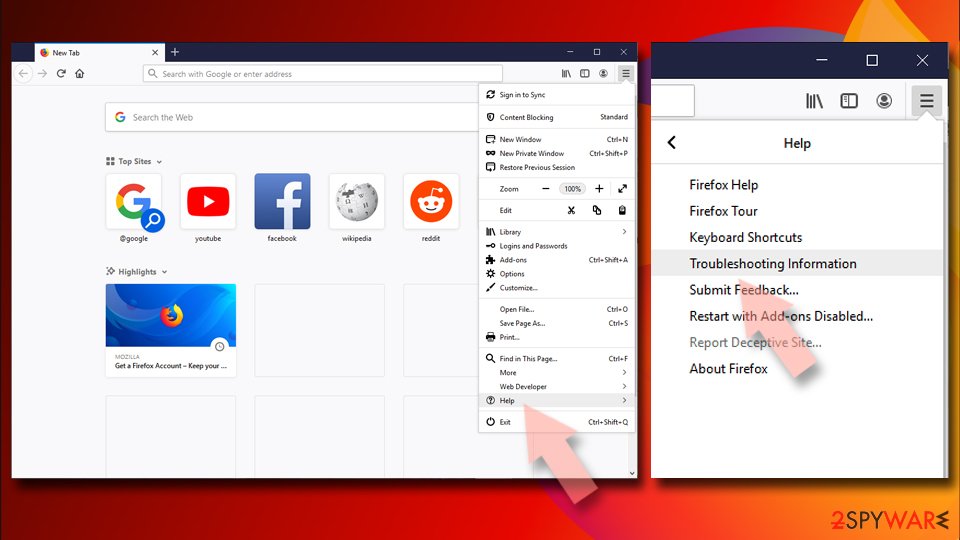
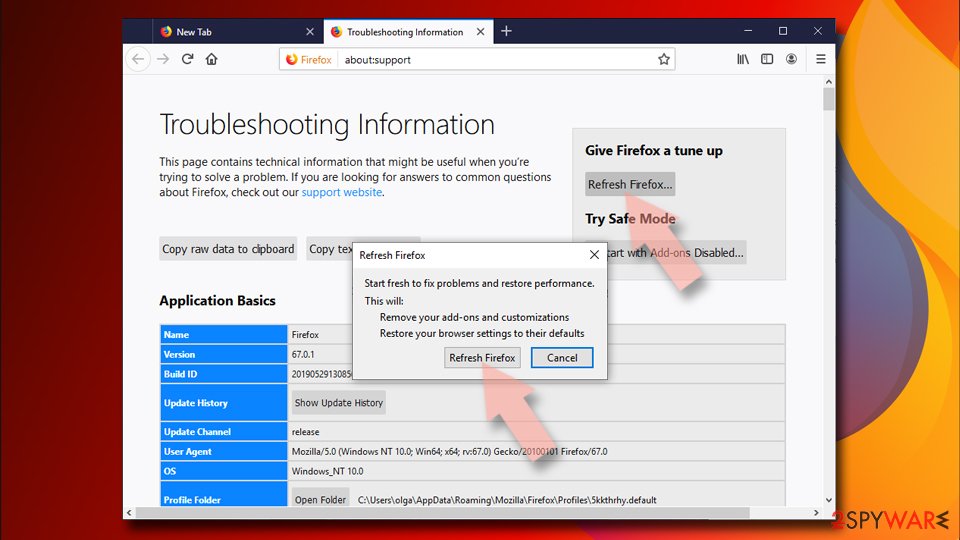
- Under Give Firefox a tune up section, click on Refresh Firefox…
- Once the pop-up shows up, confirm the action by pressing on Refresh Firefox.


Remove from Google Chrome
Delete malicious extensions from Google Chrome:
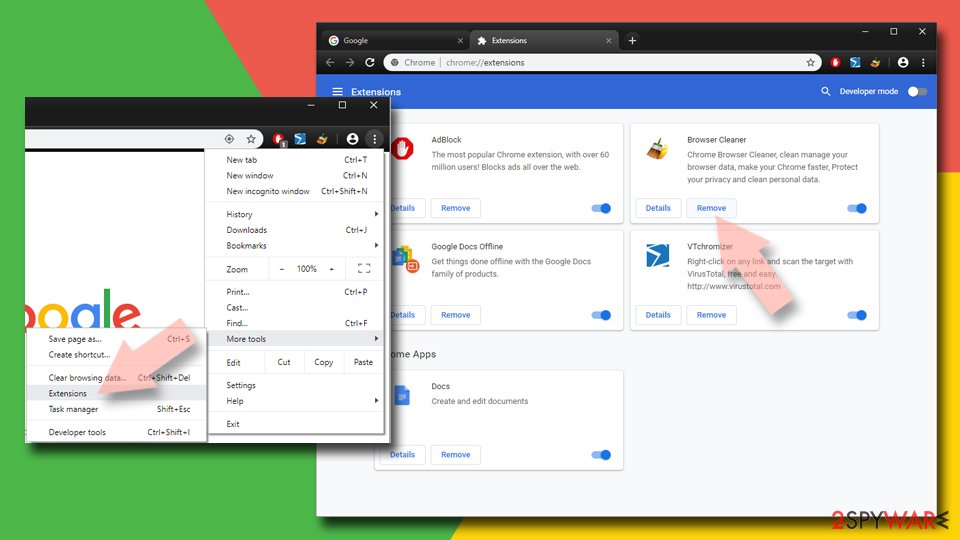
- Open Google Chrome, click on the Menu (three vertical dots at the top-right corner) and select More tools > Extensions.
- In the newly opened window, you will see all the installed extensions. Uninstall all suspicious extensions related to the unwanted program by clicking Remove.

Clear cache and web data from Chrome:
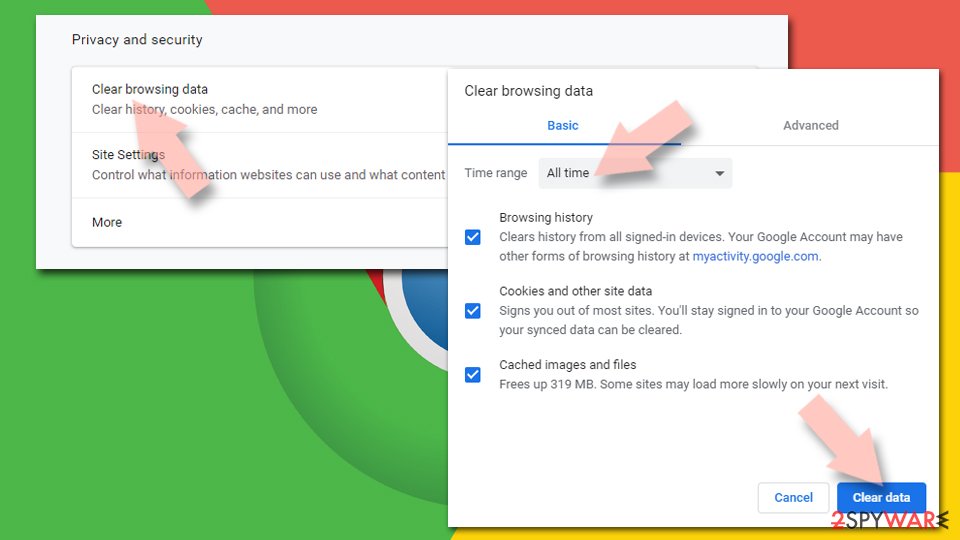
- Click on Menu and pick Settings.
- Under Privacy and security, select Clear browsing data.
- Select Browsing history, Cookies and other site data, as well as Cached images and files.
- Click Clear data.

Change your homepage:
- Click menu and choose Settings.
- Look for a suspicious site in the On startup section.
- Click on Open a specific or set of pages and click on three dots to find the Remove option.
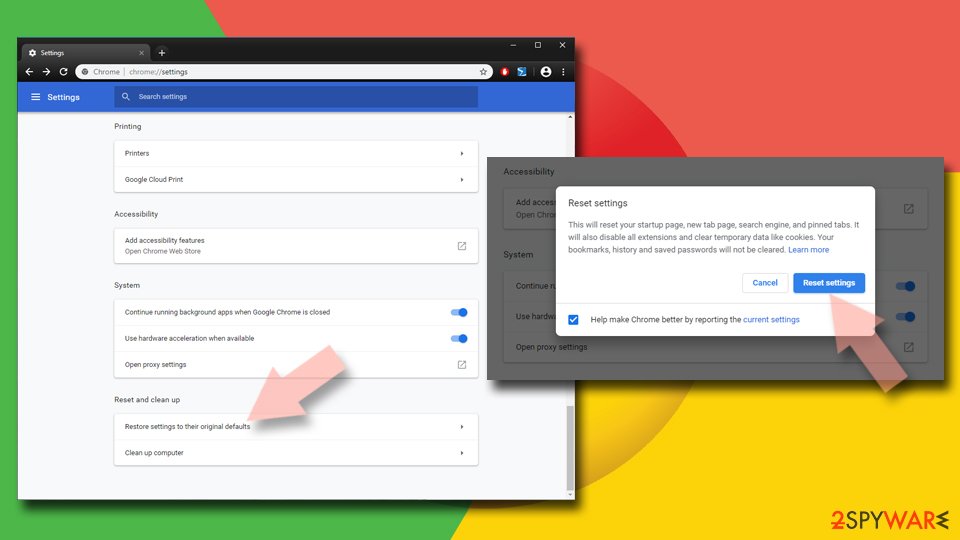
Reset Google Chrome:
If the previous methods did not help you, reset Google Chrome to eliminate all the unwanted components:
- Click on Menu and select Settings.
- In the Settings, scroll down and click Advanced.
- Scroll down and locate Reset and clean up section.
- Now click Restore settings to their original defaults.
- Confirm with Reset settings.

Delete from Safari
-
Remove dangerous extensions
Open Safari web browser and click on Safari in menu at the top left of the screen. Once you do this, select Preferences.
-
Here, select Extensions and look for Personal Security or other suspicious entries. Click on the Uninstall button to get rid each of them.

-
Reset Safari
Open Safari browser and click on Safari in menu section at the top left of the screen. Here, select Reset Safari....
-
Now you will see a detailed dialog window filled with reset options. All of those options are usually checked, but you can specify which of them you want to reset. Click the Reset button to complete Personal Security removal process.


After uninstalling this potentially unwanted program (PUP) and fixing each of your web browsers, we recommend you to scan your PC system with a reputable anti-spyware. This will help you to get rid of Personal Security registry traces and will also identify related parasites or possible malware infections on your computer. For that you can use our top-rated malware remover: FortectIntego, SpyHunter 5Combo Cleaner or Malwarebytes.
How to prevent from getting rogue antispyware
Choose a proper web browser and improve your safety with a VPN tool
Online spying has got momentum in recent years and people are getting more and more interested in how to protect their privacy online. One of the basic means to add a layer of security – choose the most private and secure web browser. Although web browsers can't grant full privacy protection and security, some of them are much better at sandboxing, HTTPS upgrading, active content blocking, tracking blocking, phishing protection, and similar privacy-oriented features. However, if you want true anonymity, we suggest you employ a powerful Private Internet Access VPN – it can encrypt all the traffic that comes and goes out of your computer, preventing tracking completely.
Lost your files? Use data recovery software
While some files located on any computer are replaceable or useless, others can be extremely valuable. Family photos, work documents, school projects – these are types of files that we don't want to lose. Unfortunately, there are many ways how unexpected data loss can occur: power cuts, Blue Screen of Death errors, hardware failures, crypto-malware attack, or even accidental deletion.
To ensure that all the files remain intact, you should prepare regular data backups. You can choose cloud-based or physical copies you could restore from later in case of a disaster. If your backups were lost as well or you never bothered to prepare any, Data Recovery Pro can be your only hope to retrieve your invaluable files.

If this free guide helped you and you are satisfied with our service, please consider making a donation to keep this service alive. Even a smallest amount will be appreciated.