
EvilNum: what it is and how to remove it
EvilNum is a Trojan that was first discovered in 2018 and showed its appearances in subsequent years with new campaigns. Written in JavaScript code (although later versions used .NET), the malware is believed to be created and used by an unknown Advanced Persistent Threat (APT) group, which mainly targets financial businesses and organizations worldwide.
Facts checked October 6, 2026. Removal steps tested on Windows 11 (26H2) and checked against Microsoft's and the browser makers' current documentation. Sections marked as our earlier report are the original text: they describe the threat as it was then and have not been reviewed since. The 2026 status, the removal steps and the questions are current.
Automatic
Get a free scan and check if your PC is infected.
Fortect finds malware, unwanted programs and the Windows damage they leave behind, and repairs it in one pass.
Programs like EvilNum usually arrive in groups; a free scan lists the companions that are easy to miss.
Do it yourself · free Remove EvilNum yourself 3 steps, about 9 minutes, no software needed.
Start the steps
EvilNum: summary
| Distribution | Malicious links, macro-laced documents, exploits, spam emails, etc. |
|---|---|
| Name | EvilNum |
| Type | Trojan, info-stealer |
| Possible relations | Cardinal RAT |
| Programming language | Initial release was using JavaScript, while later versions were written in .NET |
| Capabilities | Runs arbitrary code Steals computer name, user name and the name of antivirus Takes screenshots Modifies Windows registry for persistence Uploads malicious files/payloads, etc. |
| Removal | Scan the PC with security software to find and remove the malware and anything installed with it. Fortect scans Windows for malware and repairs the system files and settings it damaged. Remove it nowTo use the full-featured product, you have to purchase a license for Fortect. The scan is free. |
Show 6 more facts
| Detection names | No Microsoft detection name is known |
|---|---|
| Damage | Not recorded in the old report |
| Symptoms | An unknown program in Installed apps |
| Evidence | 4 write-ups by security sites; details still limited |
| First seen | 22 May 2020 |
| Facts checked | 6 October 2026 |
What EvilNum does
From our report of May 2020 · not reviewed since
Deceptive infection tactics that abuse Windows .lnk files
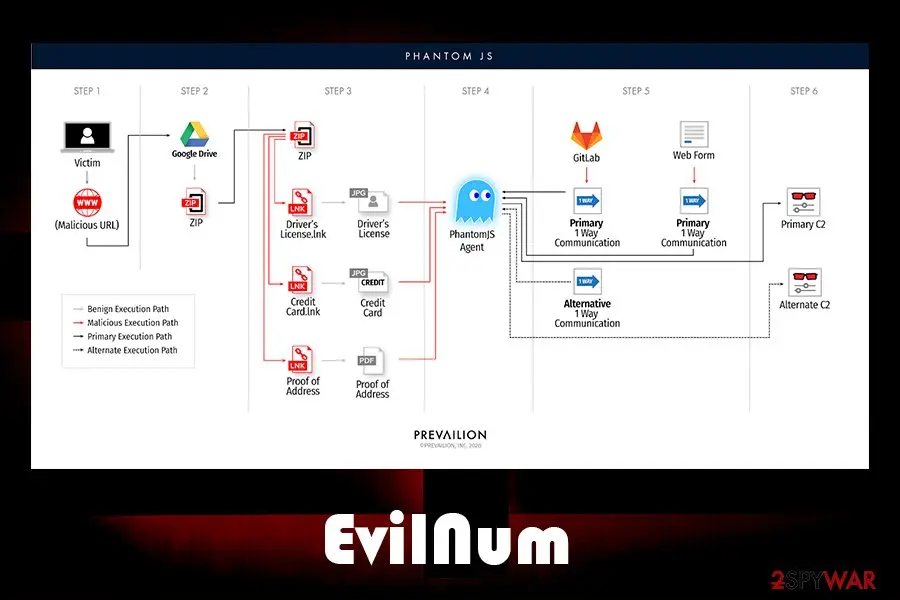
The EvilNum attack begins when a victim receives a link that is hosted on well-known cloud services, such as Google Drive.
These links are typically embedded within phishing emails that represent the corporate executives within the company so that the user would not suspect anything. Once the link is clicked, a compressed folder download starts. This technique is just another trick to evade detection of the infection, as detection systems do not check the integrity of files hosted on third-party sources.
Once the zip file is extracted, one of the following files will be delivered:
As evident, these files are presented as a picture (.jpg), while researchers also uncovered others that are meant to seem like they are PDFs, while in reality, these are all Microsoft link files.
Additionally, criminals employ social engineering to make users click on these files, as this information is commonly used by customers who are applying for financial services. Experts also saw differently named files that EvilNum extracts after the link are clicked - these often reference companies rather than individuals.
As soon as one of such link files are clicked, the infection routine begins, and the main payload is executed on the machine, ready to operate in the background.
- Driv License front.jpg.lnk
- Driv License back.jpg.lnk
- Credit Card Front.jpg.lnk
- Credit Card Back.jpg.lnk
- Utility Bill.jpg.lnk.
From our report of May 2020 · not reviewed since
Social engineering tricks used to proliferate malware
Phishing emails are exceptionally dangerous, as they are the major attack vector when it comes to malware attacking businesses and organizations.
While some emails can be recognized as fake immediately (lack of body text, visible grammar/spelling mistakes, inadequate formatting, etc.), some criminals, especially sophisticated APT groups put much effort to craft an email that looks legitimate and trustworthy.
Major email providers, such as Gmail or Outlook, use sophisticated malware scanners that mark these emails as malicious so that users can discard them immediately. However, some more advanced emails managed to bypass these security measures and end up in an Inbox instead of a Spam box.
In conjunction with evasion techniques, the attackers impersonate company officials and executives, making the email recipient not to think twice before opening the malicious attachment or clicking on an embedded hyperlink.
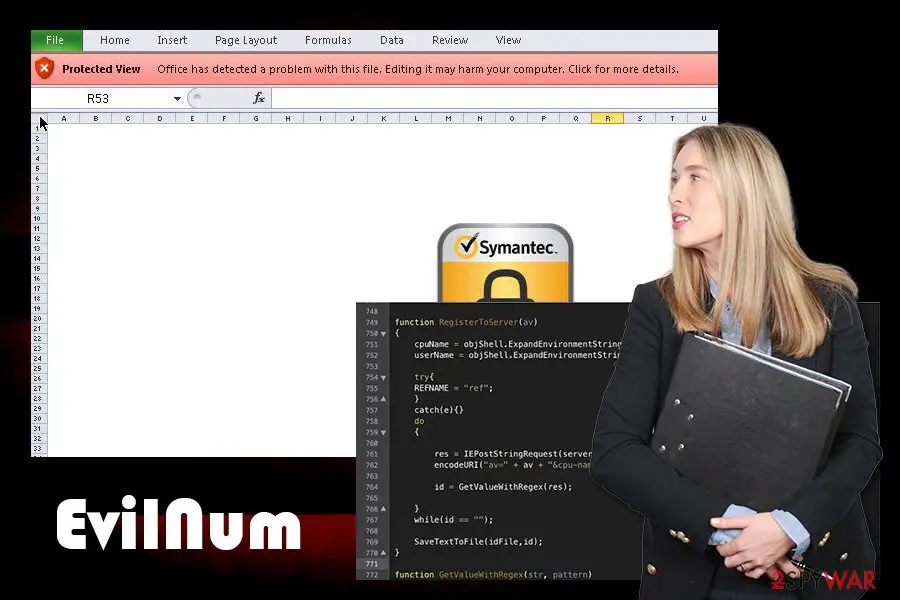
Quite often, documents with embedded macros are used. For the malware infection to begin, victims have to allow these macros to run on a .doc or .xlsm file (although other types can be used as well). Thus, these documents should never be allowed to run such commands in the first place, and a scan with anti-malware should be performed just to be sure.
Also, malicious actors now started employing malicious links that are hosted on a third-party cloud platform, such as Google Drive. In such a case, all security measures will fail if the individual will download the malicious files from the drive and click on relevant links.
From our report of May 2020 · not reviewed since
More from our earlier report on EvilNum
- To terminate malware from the infected workstation, one has to first disconnect it from the infected network and then access Safe Mode with Networking to perform a full system scan with the most up-to-date security application
- Malware can often damage various Windows components and corrupt system files.
- The Phantom in the Command Shell campaign shows that the threat actors behind the EVILNUM malware family are constantly advancing their techniques as they continue to focus their efforts on the global banking/financial system.
- The differences between the 3.6 and 4.0 variants appear to be trivial and do not affect functionality.
- Despite this, the core functionality of the malware is mostly the same, and some of the concepts used in the malware family (such as the lock file) remain the same.
- It's likely that the malware only serves as a first stage and the attackers deploy further tools to target networks of interest.
What EvilNum collects and where it sends it
From our report of May 2020 · not reviewed since
EvilNum is a Trojan that was first discovered in 2018 and showed its appearances in subsequent years with new campaigns.
Written in JavaScript code (although later versions used .NET), the malware is believed to be created and used by an unknown Advanced Persistent Threat (APT) group, which mainly targets financial businesses and organizations worldwide. While the operation of the virus is not complex, it allows the attackers to hide on the infected networks for a prolonged period of time and perform malicious operations in the background.
EvilNum virus is a well-developed data stealer which allows the attackers to execute commands remotely, take screenshots, proliferate other malware, capture login credentials, secret company documents, email contents, etc. Since its release, the malware has seen several upgrades by the attackers and was also used in many different campaigns, ranging from phishing emails to cloud-based links leading to a malicious payload.
In 2019, researchers uncovered several similarities between EvilNum and Cardinal RAT, as companies have been submitting both samples at the same time.
While EvilNum malware was previously analyzed several times, its newest campaign was spotted by Prevailion security researchers in May of 2020, who discovered two new campaigns (they named them "Phantom in the Shell") targeting financial organizations:
According to researchers, the malware is diverse and very adaptive, as it uses several different techniques to evade network and host detection.
As soon as it enters the machine, it performs different actions depending on the installed anti-virus software (experts not that even different Command & Control servers might be utilized for particular workstations of networks). Due to this adaptive nature, EvilNum removal and detection might be difficult, as it also can remain on the network undetected.
However, the most up-to-date security applications should be able to remove EvilNum malware easily. However, it is very important to disconnect the infected machine from the network first, as the virus might easily reinfect it.
Before infecting the machine, the EvilNum virus would check the computername, username, and the installed antivirus product on the machine and would send off this information via the Command & Control server to the attackers. Once executed, malware is capable of performing the following actions on the host machine:
Palo Alto experts mentioned that, despite the fact that EvilNum can function on its own and evade detection well, it is usually used as an attack vector to proliferate other malware for main functionality:
- Take screenshots (although researchers mentioned that this function was missing from the latest version of malware)
- Steal cookies and other browser-related data
- Download and upload files from Command & Control server
- Install other malware
- Access otherwise restricted data/information
- Run arbitrary code, etc.
How to remove EvilNum
How to remove EvilNum and secure your accounts
A stealer usually takes what it wants within minutes and may already be gone.
The scan comes first, then the accounts.
Step 1: Scan the PC, then run the offline scan
Open Windows Security > Virus & threat protection > Scan options, run a Full scan and remove everything it finds. Then select Microsoft Defender Antivirus (offline scan) and click Scan now: the PC restarts and scans before Windows loads, which finds files that hide while Windows runs.
Save your work first, because the offline scan takes about 15 minutes. Both scans are built into Windows 11 and Windows 10, and a second scanner from another vendor is a useful extra opinion.

Windows 11: Windows Security > Virus & threat protection > Scan options. Full procedure with screenshots: Run a Microsoft Defender Offline scan
Step 2: Change passwords from another device and sign out other sessions
Assume that the passwords saved in this PC's browsers, and the accounts that were open in them, are known to the attacker. From a phone or a clean computer, change the e-mail password first, then banking, shopping, social and gaming accounts.
Use each service's option to sign out of all other sessions, because stolen cookies keep a session open even after a password change. Turn on two-step verification on each account. Wait with the infected Windows 11 or Windows 10 PC until the scans are clean.
Full procedure with screenshots: Turn on two-step verification / secure a hacked account
Step 3: Delete the folders left behind
What the uninstaller leaves behind is usually in the user folders. Open File Explorer, switch on View > Show > Hidden items (in Windows 10 View > Hidden items), and go through
%LocalAppData%,%AppData%, %ProgramData% and the two Program Files folders.Sort by Date modified and delete folders that appeared together with the problem and belong to no program you use. Folders with random names that hold
.exe,.dll, .js or .ps1 files are the strongest sign.Full procedure with screenshots: Remove what malware leaves behind in Windows
Instructions for each browser and system
The detailed steps for every browser and system this guide covers. Open the one you use.
Manual removal using Safe Mode
Important! →
Manual removal guide might be too complicated for regular computer users. It requires advanced IT knowledge to be performed correctly (if vital system files are removed or damaged, it might result in full Windows compromise), and it also might take hours to complete. Therefore, we highly advise using the automatic method provided above instead.
Step 1. Access Safe Mode with Networking
Manual malware removal should be best performed in the Safe Mode environment.
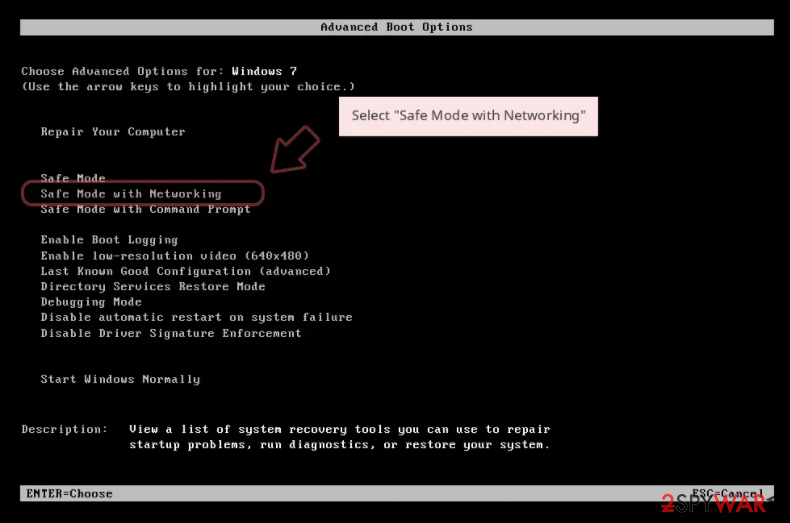
Windows 7 / Vista / XP
- Click Start > Shutdown > Restart > OK.
- When your computer becomes active, start pressing F8 button (if that does not work, try F2, F12, Del, etc. - it all depends on your motherboard model) multiple times until you see the Advanced Boot Options window.
- Select Safe Mode with Networking from the list.
Windows 10 / Windows 8
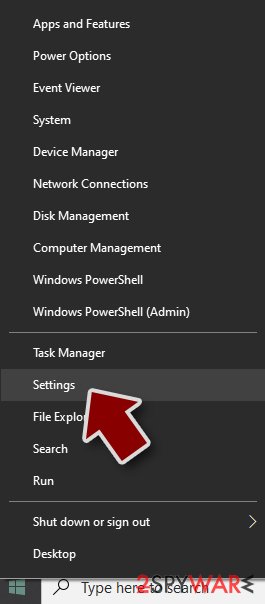
- Right-click on Start button and select Settings.
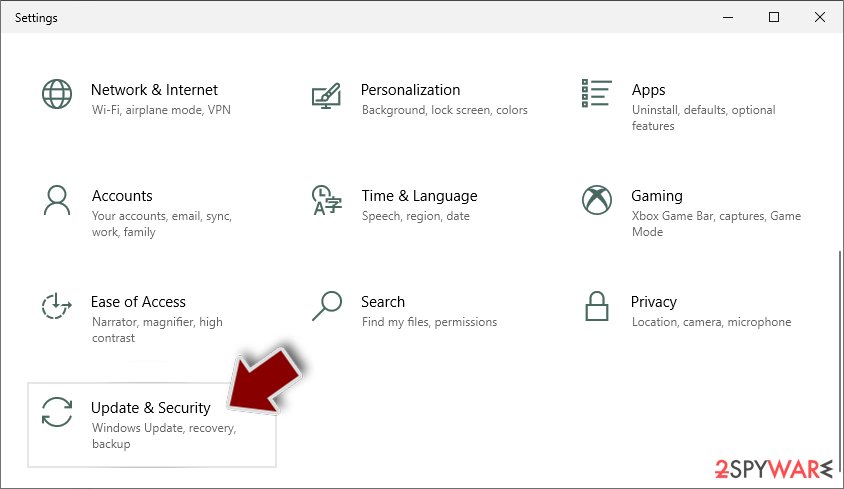
- Scroll down to pick Update & Security.
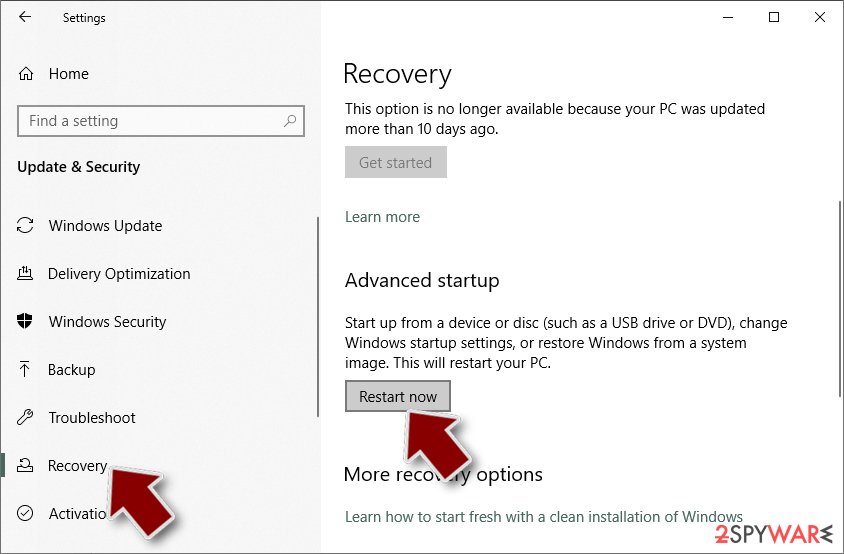
- On the left side of the window, pick Recovery.
- Now scroll down to find Advanced Startup section.
- Click Restart now.
- Select Troubleshoot.
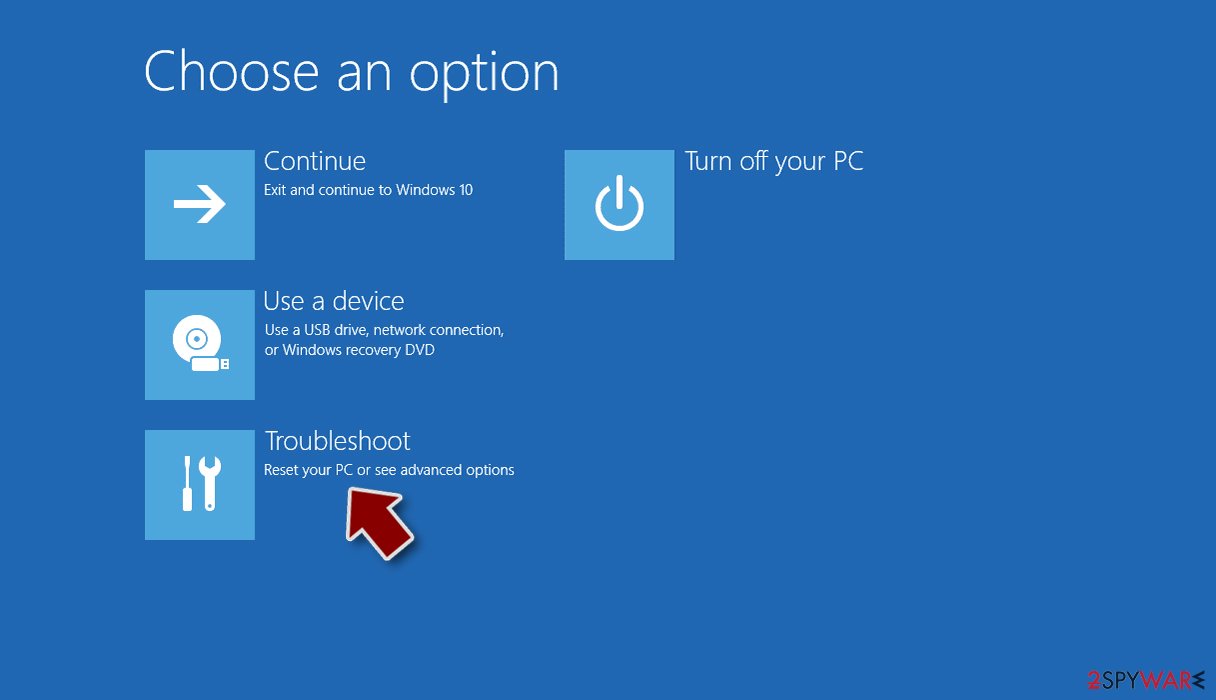
- Go to Advanced options.
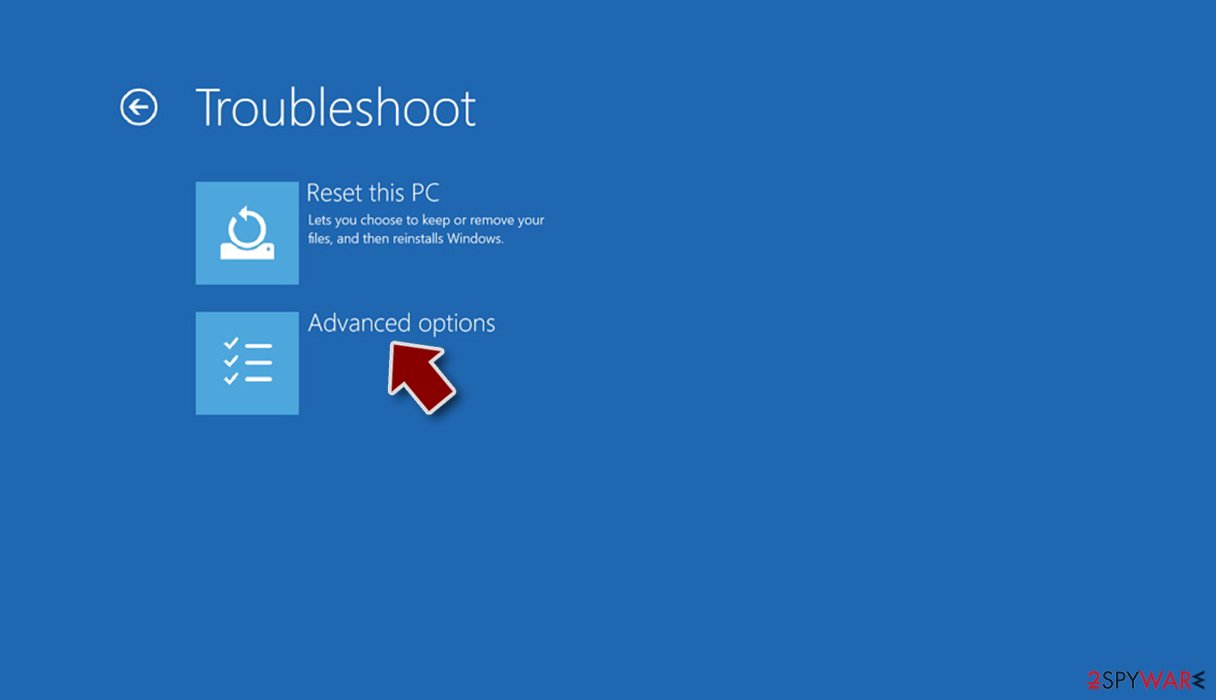
- Select Startup Settings.
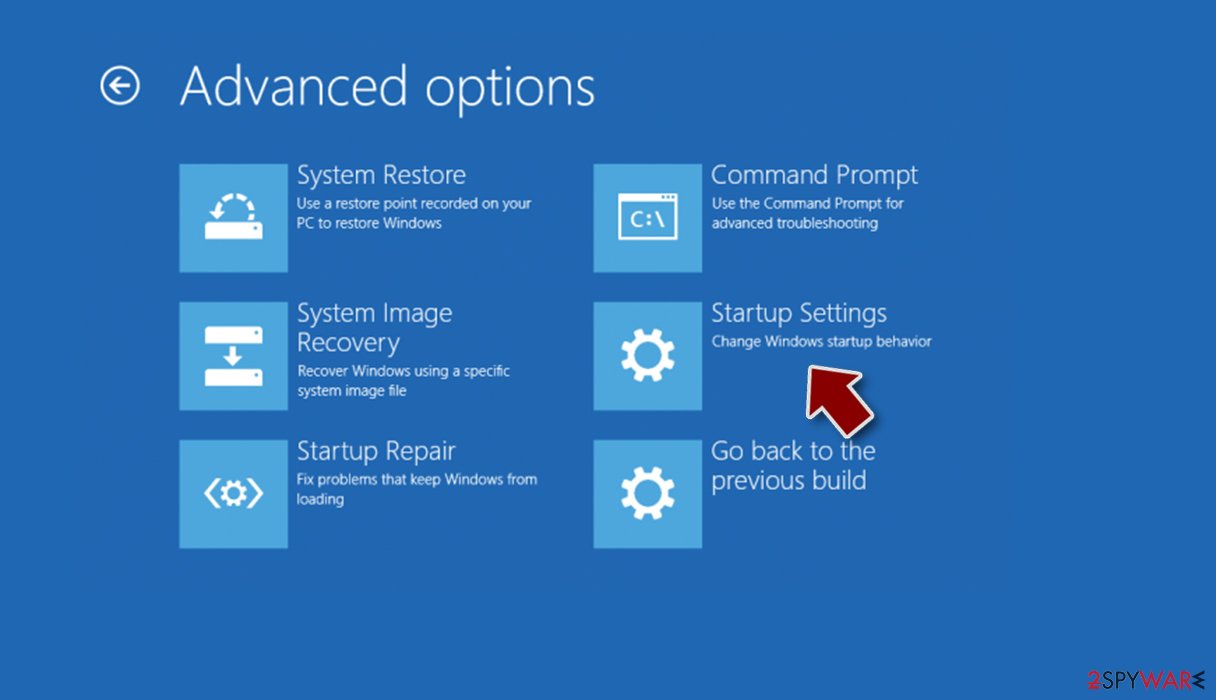
- Press Restart.
- Now press 5 or click 5) Enable Safe Mode with Networking.
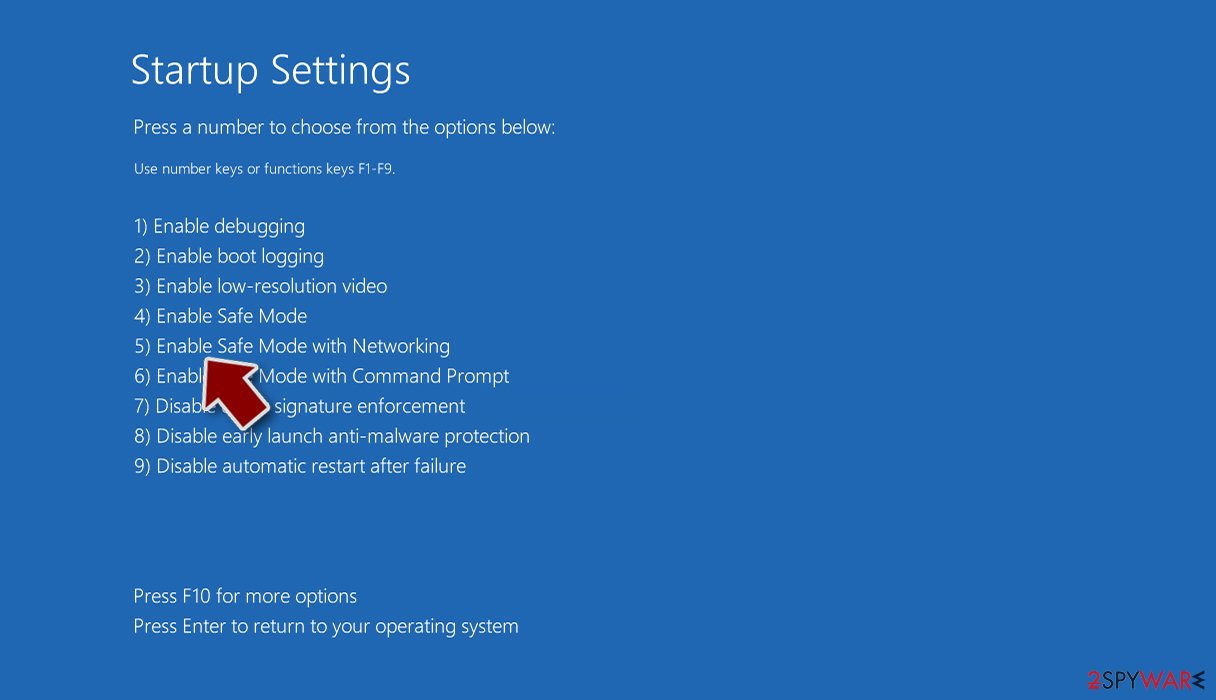
Step 2. Shut down suspicious processes
Windows Task Manager is a useful tool that shows all the processes running in the background. If malware is running a process, you need to shut it down:
- Press Ctrl + Shift + Esc on your keyboard to open Windows Task Manager.
- Click on More details.
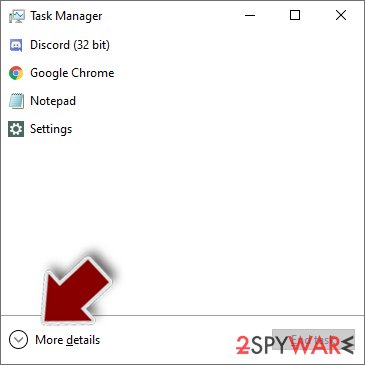
- Scroll down to Background processes section, and look for anything suspicious.
- Right-click and select Open file location.
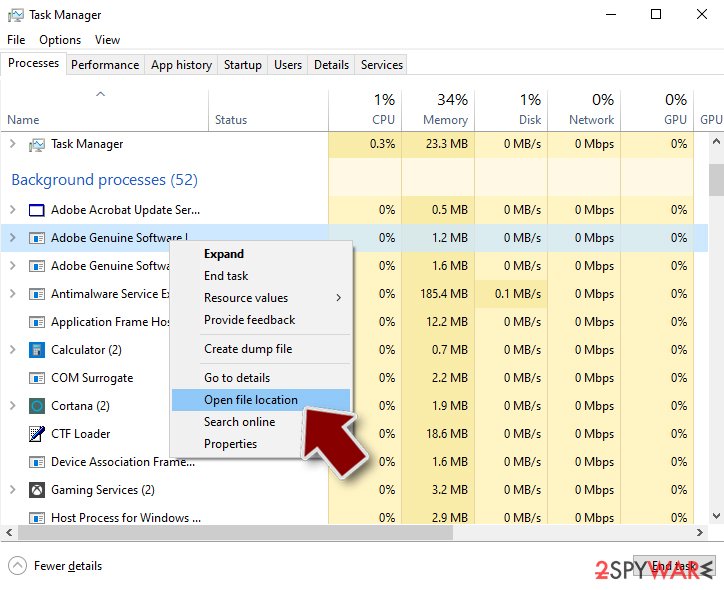
- Go back to the process, right-click and pick End Task.
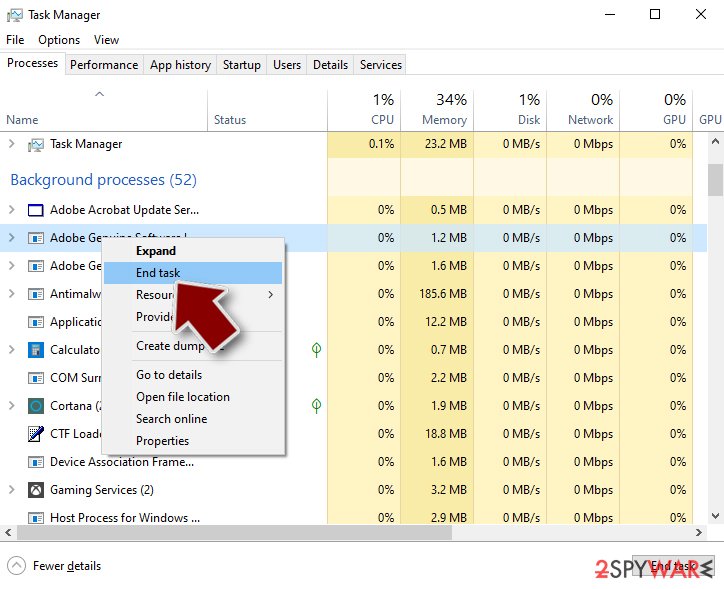
- Delete the contents of the malicious folder.
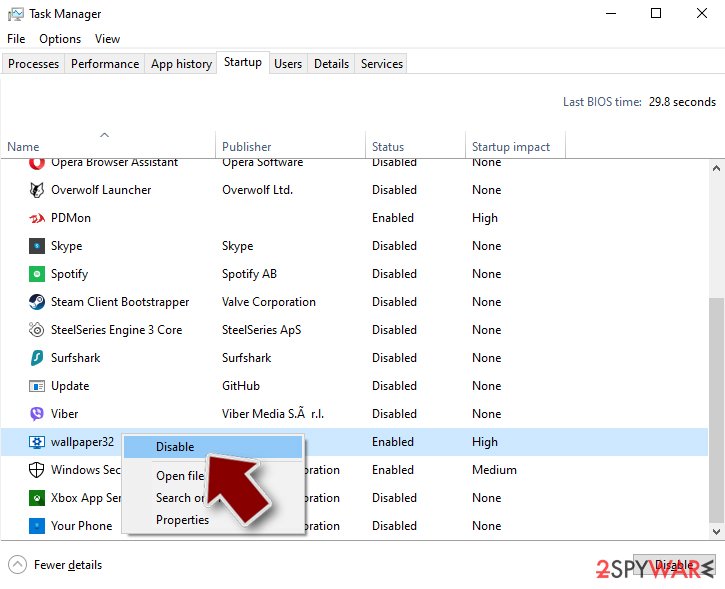
Step 3. Check program Startup
- Press Ctrl + Shift + Esc on your keyboard to open Windows Task Manager.
- Go to Startup tab.
- Right-click on the suspicious program and pick Disable.
Step 4. Delete virus files
Malware-related files can be found in various places within your computer. Here are instructions that could help you find them:
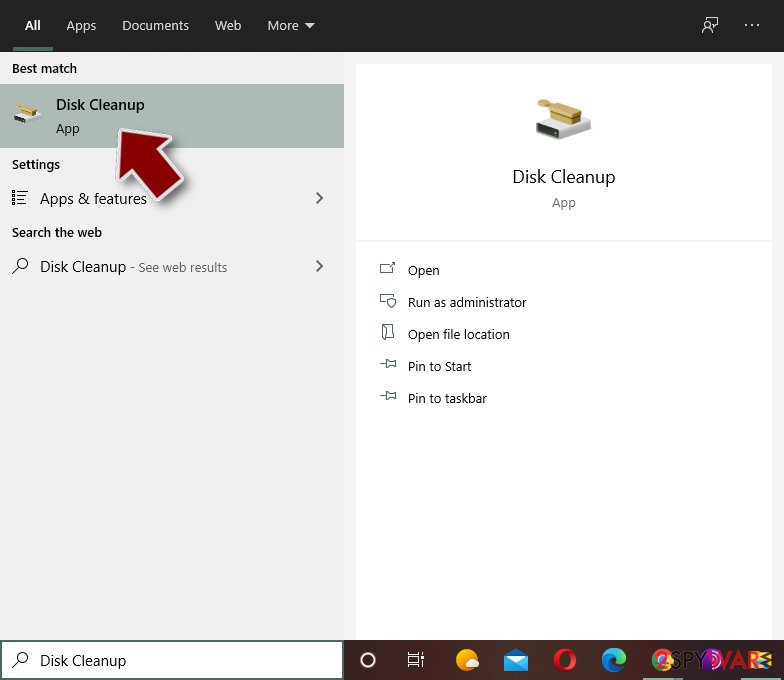
- Type in Disk Cleanup in Windows search and press Enter.
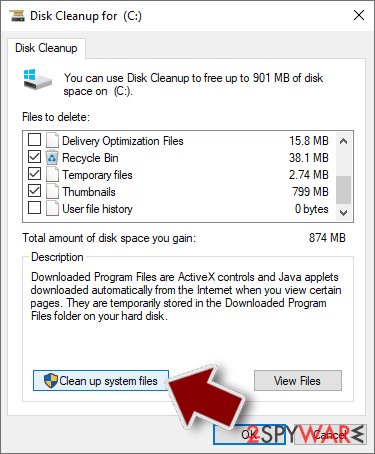
- Select the drive you want to clean (C: is your main drive by default and is likely to be the one that has malicious files in).
- Scroll through the Files to delete list and select the following:
Temporary Internet Files
Downloads
Recycle Bin
Temporary files - Pick Clean up system files.
- You can also look for other malicious files hidden in the following folders (type these entries in Windows Search and press Enter):
%AppData%
%LocalAppData%
%ProgramData%
%WinDir%
After you are finished, reboot the PC in normal mode.
Do not let government spy on you
The government has many issues in regards to tracking users' data and spying on citizens, so you should take this into consideration and learn more about shady information gathering practices.
Avoid any unwanted government tracking or spying by going totally anonymous on the internet.
You can choose a different location when you go online and access any material you want without particular content restrictions. You can easily enjoy internet connection without any risks of being hacked by using VPN.
Control the information that can be accessed by government any other unwanted party and surf online without being spied on. Even if you are not involved in illegal activities or trust your selection of services, platforms, be suspicious for your own security and take precautionary measures by using the VPN service.
Backup files for the later use, in case of the malware attack
Computer users can suffer from data losses due to cyber infections or their own faulty doings.
Ransomware can encrypt and hold files hostage, while unforeseen power cuts might cause a loss of important documents. If you have proper up-to-date backups, you can easily recover after such an incident and get back to work. It is also equally important to update backups on a regular basis so that the newest information remains intact - you can set this process to be performed automatically.
When you have the previous version of every important document or project you can avoid frustration and breakdowns. It comes in handy when malware strikes out of nowhere. Use for the data restoration process.
From our report of May 2020 · not reviewed since
EvilNum elimination methods
EvilNum virus is a highly evasive data-stealer which can also remain undetected by security software until the infection occurred.
As a result, threat actors can remain connected to the connected network for weeks before being detected. In the meantime, more malware can be pushed via the initial attack vector, which can be EvilNum itself.
Therefore, the first step when trying to protect the company network is to employ a sophisticated endpoint security solution suite. Also, the network should be constantly monitored for suspicious inbound connections to stop the intrusion immediately.
To remove EvilNum malware from the system, each of the infected computers should be first disconnected from the network. Then, the machine should undergo an extensive scan with the most up-to-date anti-malware software - a process that should be aided by the IT department.
Once EvilNum removal is complete, adequate measures should be taken to secure the network from future attacks of similar nature.
[GI=method-1]Access Safe Mode with Networking as explained below:
Questions about EvilNum
What is EvilNum and why is it on my PC?
EvilNum is a program that was installed on the PC, most likely together with something else you downloaded. Free software sites and many installers add extra programs on setup pages with pre-ticked boxes, so the extra install looks like your choice even though nobody read the page.
Check the install date in Settings, Apps, Installed apps: the program you installed that day is the probable carrier. If you do not need EvilNum, uninstall it. If it belongs to your hardware or to a program you use, search its exact name and publisher first, because drivers and their tools can have unfamiliar names.
How do I stop programs like EvilNum from being installed again?
Most unwanted programs arrive through installers, so the fix is in how you install software. Download programs from their official sites or the Microsoft Store, not from download portals or ads above search results. During setup, choose Custom or Advanced installation and untick every extra offer, including browsers, toolbars and optimizers.
Decline update prompts that appear inside other programs unless you know them. In Windows Security, turn on reputation-based protection and potentially unwanted app blocking. These steps would most likely have stopped EvilNum before it reached the app list.
Should I report a stealer infection?
Report it if money was taken, accounts were used for fraud, or your identity was misused. The report gives you a reference number for your bank and helps police link cases. Also tell the services involved:
- banks
- PayPal
- crypto exchanges and e-mail providers have their own fraud teams that can freeze transfers
- restore accounts
An infection with no misuse yet does not need a police report, but acting on your accounts does. Keep the antivirus log that shows EvilNum; it helps explain the case.
Should I reset my PC because of EvilNum?
Only if the signs point to deeper access. Reset when you see evilNum in the list of installed apps again after removal, when Windows Security cannot start or update, when remote access tools you did not install keep appearing, or when you simply cannot trust the PC any more.
Otherwise, the plan in this guide plus an offline scan is enough. If you do reset, choose Remove everything and Cloud download for a fresh copy of Windows, restore only documents and photos, and reinstall programs from their official sites. Change important passwords from the clean system afterwards.
How can someone log in without my two-step code?
By using a session instead of a login. When you sign in, the site gives the browser a cookie that says you already passed both steps. Spyware like EvilNum copies that cookie, and the attacker loads it into their own browser, so the site sees a logged-in user and asks for nothing.
The fix is to end all sessions in the account's security settings, which makes the copied cookie worthless, and then change the password. Some services also show active sessions with locations, which helps spot misuse.
What happens to the stolen data?
Stolen data is packed into "logs", one per infected PC. The criminal who ran the stealer uses them directly or sells them in online markets, where others search them for bank, crypto, e-mail, gaming and business accounts.
This can happen days or months after the infection. That is why changing passwords and ending sessions matters even if nothing has happened yet. Breach notification services such as Have I Been Pwned can tell you when your e-mail address appears in known leaks.
Should I stop using this PC?
Only for sensitive things, and only until it is clean. Do not log in to banking, e-mail or crypto on it until the offline scan finds nothing. You can keep using it to follow the removal steps.
If the scans keep finding new items, or protection keeps switching off, back up your documents and reset Windows. After that the PC is as safe as a new one, but the accounts still need the steps in this guide, because a reset cannot undo data that was already sent.
Is EvilNum a known stealer?
Not as a named family yet. The sign, evilNum in the list of installed apps, is typical of information stealers, keyloggers or clippers, but no analysis links EvilNum to a specific one. That is common:
- victims notice the effects
- such as lost accounts or swapped addresses
- before anyone sees the file
You do not need the family name to act. Change passwords from a clean device, sign out of all sessions, move crypto to a new wallet and run a Microsoft Defender offline scan on the PC. If a scan gives a detection name, note it for the report.
Do I need to tell my bank about EvilNum?
Yes, if any card was saved in a browser on the affected PC or if you did online banking there while evilNum in the list of installed apps was going on.
Call the number on the back of the card, explain that malware may have copied the card details, and ask for a replacement and a check of recent payments. Banks act faster when you call early. Also change the online banking password from another device and look for new payees, changed contact details or unfamiliar devices in the banking app.
Will Fortect remove EvilNum?
Fortect scans Windows for malware and unwanted programs and repairs the system files and settings they change, and its free scan shows what it finds on your PC before you decide anything.
For EvilNum, follow the plan above as well: the browser steps take back permissions and settings that no scanner treats as a threat, and uninstalling the program that brought it removes the source.
Run Microsoft Defender's full scan and, if anything was found, its offline scan as a second opinion. If the symptoms are gone after the plan and both scans are clean, there is nothing more to do.
Sources
- Trend Micro: Command and Control [C&C] Server (read October 6, 2026)
- Unit42: Cardinal RAT Sins Again, Targets Israeli Fin-Tech Firms (read October 6, 2026)
- FTC: How to recognize, remove and avoid malware (read October 6, 2026)
- Microsoft Learn: Microsoft Defender Offline (read October 6, 2026)
- Microsoft Learn: How Microsoft names malware (read October 6, 2026)