
How-to
Ransomware recovery: what to do, finding a decryptor and getting files back
Ransomware encrypts your files and leaves a note demanding payment. Do three things in order: stop it from spreading and keep the evidence, identify the family and check for a free decryptor, then recover what you can from shadow copies and backups. Paying does not guarantee your files back.
When you need this
- Your files have a new extension and will not open, and a text or HTML note asks for payment.
- Your desktop wallpaper or a full-screen message says your files are encrypted.
- A ransomware guide on this site sends you here for the recovery steps.
Windows 11
Written for Windows 11 (screenshots: Windows 11 Pro 26H2, build 26300, 2026-10-03). The steps and tools are the same on Windows 10.. Steps checked against CISA, FBI, No More Ransom and our Windows 11 screenshots on October 3, 2026.
Do not reinstall Windows, run cleaners or rename encrypted files yet: the note and the encrypted files are what identify the ransomware.
Disconnect the PC from the network: unplug the network cable or turn off Wi-Fi.
Settings > Network & internet shows whether you are still connected. If you cannot disconnect it, CISA's advice is to power the PC off, accepting that evidence in memory is lost.
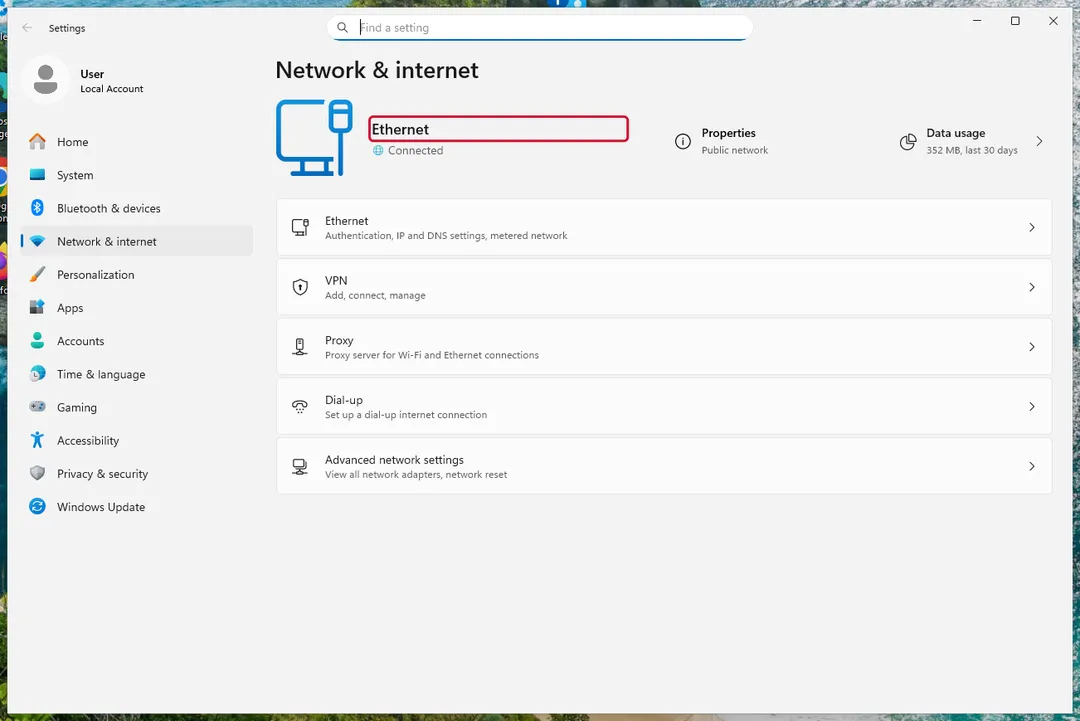
Windows 11: Settings > Network & internet; this PC is still connected over Ethernet. Unplug USB drives and backup disks, and pause cloud sync, so they are not encrypted too.
Find the ransom note and copy it, plus one or two encrypted files, to a USB stick or take a photo of the note.
The note's file name, the contact address in it and the new file extension identify the family. Do not delete the note.
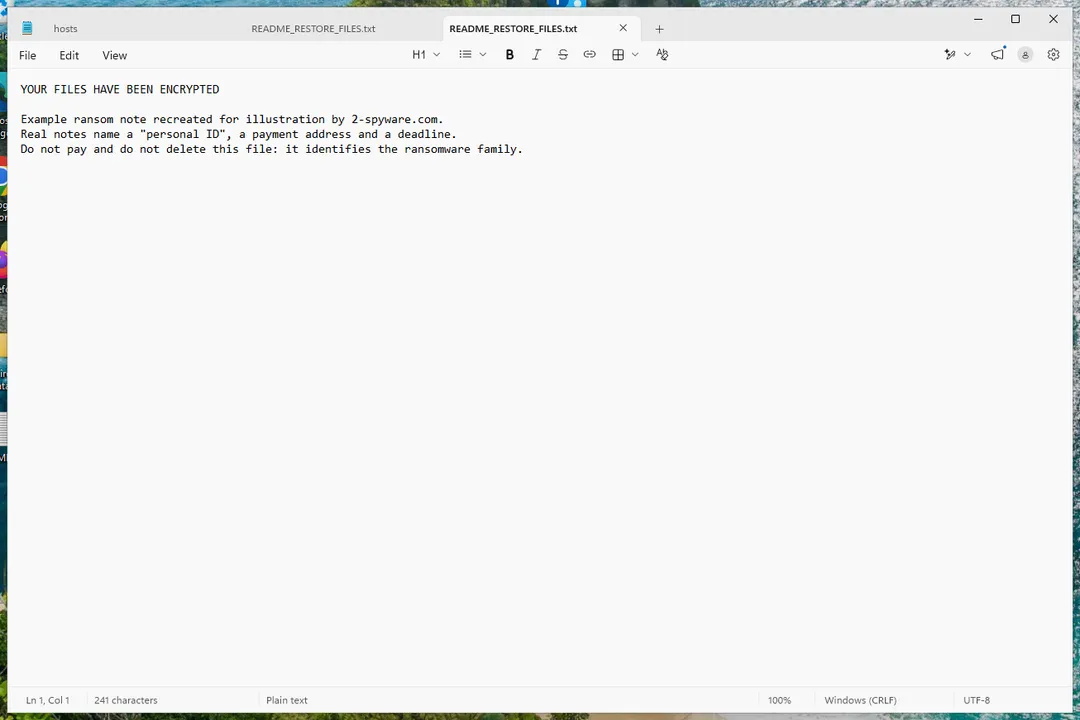
Windows 11: a recreated example ransom note we made for illustration; it is not from real ransomware. From another, clean device, upload the note and an encrypted file to ID Ransomware to identify the family.
No More Ransom's Crypto Sheriff does the same: two encrypted files of up to 1 MB each, plus any email, website or bitcoin address from the note.
Look the family up in the No More Ransom decryption tools list and read the tool's guide before running it.
Security vendors keep their own lists too, for example Emsisoft and Kaspersky No Ransom. Download decryptors only from these sites; a decryptor works only for the family and version it was made for.
Remove the ransomware before you decrypt or restore anything, for example with Run a Microsoft Defender Offline scan.
Otherwise it can encrypt the recovered files again.
Check for shadow copies: open Command Prompt as administrator and run
vssadmin list shadows.Each entry is a snapshot of a drive with its creation time. If the command lists none, there are no previous versions to restore; many ransomware families delete them.
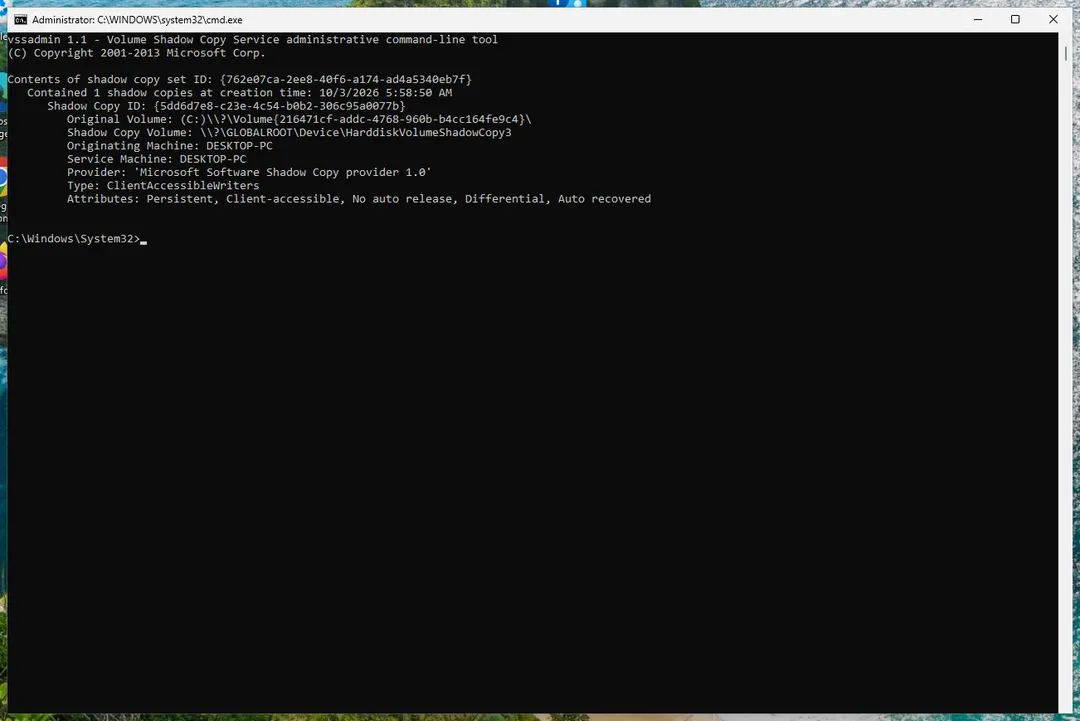
Windows 11: vssadmin list shadows found one shadow copy of drive C. In File Explorer, right-click the folder that held the files and choose Properties.
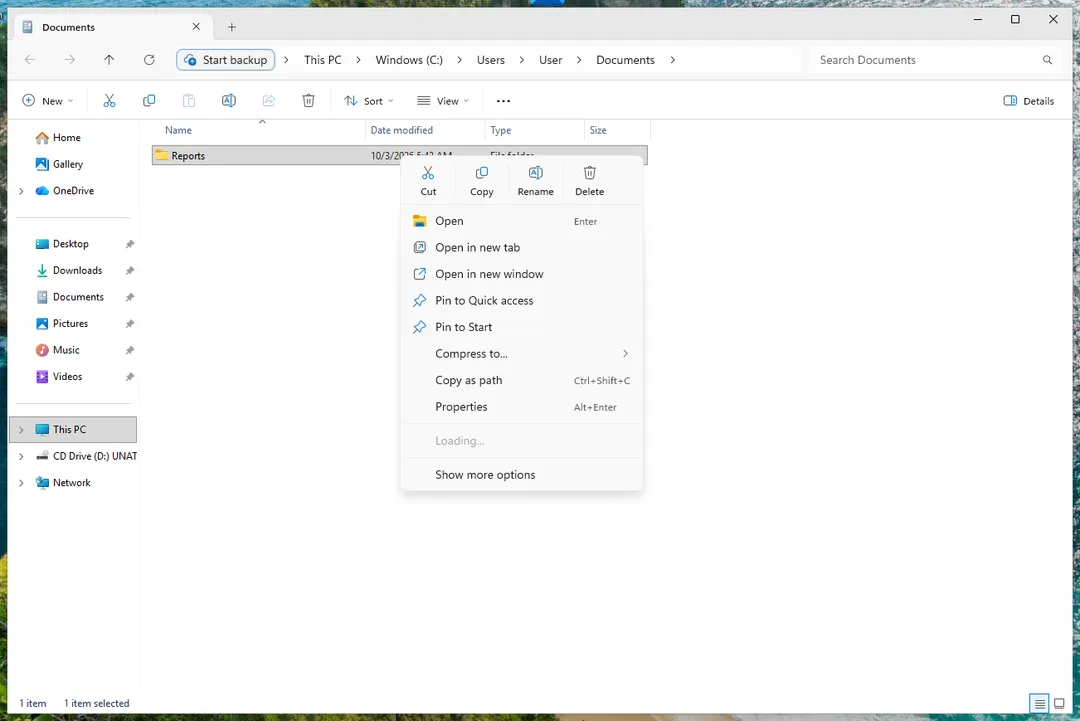
Windows 11: the right-click menu of a folder in File Explorer, with Properties. Open the Previous Versions tab and select a version dated before the attack.
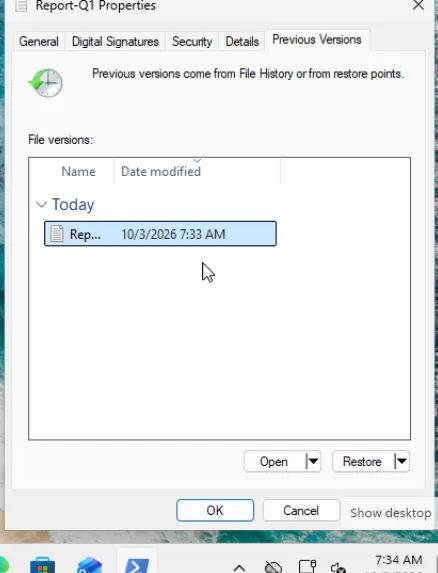
Windows 11: the Previous Versions tab with Open and Restore buttons. Click Open to check the files, then copy them out, or use Restore.
Restore overwrites the current files; the arrow next to it lets you restore to another place instead. Step-by-step: Restore an earlier version of a file or folder On uGetFix.
Restore anything else from a backup made before the infection, for example Windows Backup or OneDrive.
Connect the backup disk only after the ransomware is removed. See Back up your files (Windows Backup, File History, Time Machine) On uGetFix and Restore deleted or older files in OneDrive On uGetFix.
Report the attack, for example in the US at ic3.gov; other countries: Report a cyber attack or scam to the authorities.
Where previous versions come from: the Previous Versions tab itself says they come from File History or from restore points. On our Windows 11 26H2 test PC, File History was not present; Windows Backup is the backup tool there. Restore points exist only on drives where System Protection is on (see Undo recent changes with System Restore On uGetFix).
Microsoft's own answer is that Windows cannot decrypt files encrypted by ransomware; a decryptor, a shadow copy or a backup is needed.
Sources
- CISA: #StopRansomware Guide (response checklist) (read October 3, 2026)
- FBI: Ransomware (read October 3, 2026)
- The No More Ransom Project: Crypto Sheriff and decryption tools (read October 3, 2026)
- ID Ransomware (MalwareHunterTeam) (read October 3, 2026)
- Microsoft Support: Protect your PC from ransomware (read October 3, 2026)
- Microsoft Q&A: How do I recover files from a ransomware? (read October 3, 2026)
If the steps did not help
No decryptor and no shadow copies
- Keep the encrypted files. Decryptors for older families are still released years later; check No More Ransom again from time to time.
- Look for deleted originals. Some ransomware writes an encrypted copy and deletes the original, and file recovery tools can sometimes find the deleted original. Stop using the drive and try Recover deleted files with Windows File Recovery On uGetFix. In our test, Windows File Recovery did not recover a very small text file in either regular or extensive mode, so expect gaps.
- Check other copies. Email attachments, phones, cloud storage and USB sticks often hold older copies of the most important files.
Questions
Should I pay the ransom?
The FBI does not support paying: payment does not guarantee you get any data back and it funds further attacks. Check for a free decryptor and your backups first.
Does removing the ransomware decrypt my files?
No. Removal stops further encryption; the files stay encrypted until you decrypt them or restore them from a shadow copy or backup.
Can I just reinstall Windows?
Reinstalling removes the ransomware but not the encryption, and it can overwrite deleted originals and shadow copies. Copy the encrypted files and the note somewhere safe first.