
How to remove a virus from your computer: a Windows 11 and 10 guide
To remove a virus from a Windows computer, update Windows Security, run a full scan, then a Microsoft Defender Offline scan, and uninstall or delete what it names. Then change your passwords from another device, because a clean scan does not prove the computer is clean.
Facts checked October 17, 2026. Removal steps tested on Windows 11 (26H2) and checked against Microsoft's and the browser makers' current documentation.
Automatic
Get a free scan and check if your PC is infected.
Fortect finds malware, unwanted programs and the Windows damage they leave behind, and repairs it in one pass.
If a suspected virus on a Windows computer keeps coming back after uninstalling, a scan can find what reinstalls it.
Do it yourself · free Remove a virus or other malware on a Windows computer yourself 5 steps, about 15 minutes, no software needed.
Start the steps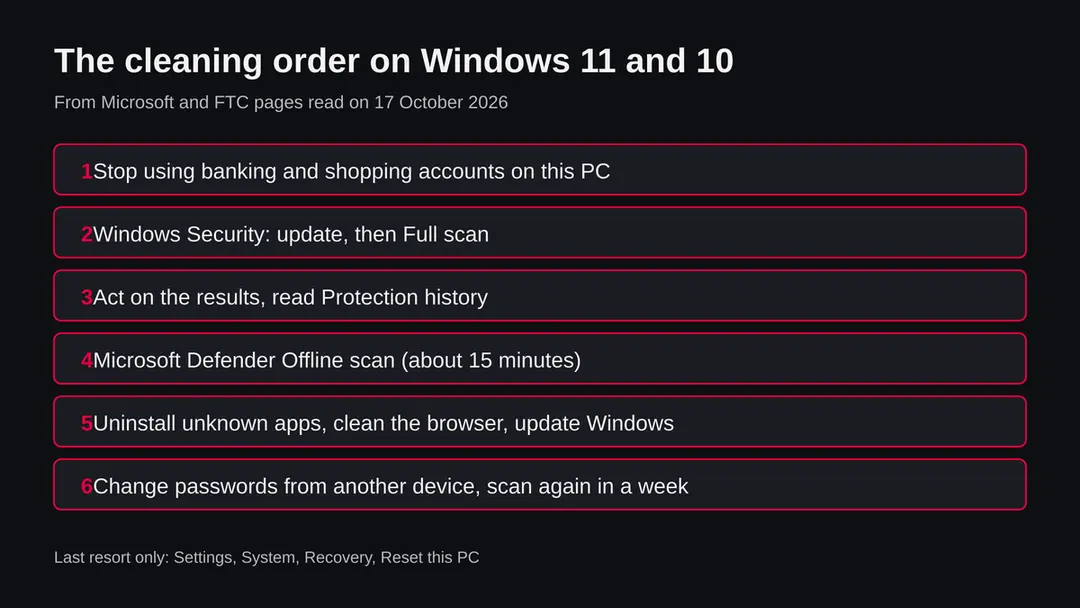
A virus or other malware on a Windows computer: summary
| Type | A how to guide for removing malware (the everyday word is virus) from a Windows 11 or Windows 10 computer |
|---|---|
| Risk | Varies: from an annoying ad program to stolen logins or locked files. Treat it as medium until the scans and your account checks agree |
| Symptoms | Per the FTC: slowdowns, crashes, a changed home page, unexpected toolbars, frequent pop-ups, messages you did not send, disabled system tools. Some infections show nothing |
| How to get rid of it | Update Windows Security, run a Full scan, run a Microsoft Defender Offline scan, uninstall unknown programs, clean the browser, update Windows, change passwords |
| Our check (17 October 2026) | No computer tested. We read Microsoft's Windows Security and Defender Offline pages and the FTC's malware page; no sample was run |
| First seen | Not applicable: this is a how to guide written on 17 October 2026 |
| Removal | Scan the PC with security software to find and remove the malware and anything installed with it. Fortect scans Windows for malware and repairs the system files and settings it damaged. Remove it nowTo use the full-featured product, you have to purchase a license for Fortect. The scan is free. |
Show 6 more facts
| Detection | No single name. Windows Security shows Microsoft names such as Trojan:Win32/Wacatac.B!ml or TrojanDownloader:JS/Nemucod; read the exact name in Protection history |
|---|---|
| Name | How to remove a virus from your computer |
| Evidence | 0 write-ups by security sites; details still limited |
| Distribution | Typically fake installers, cracked programs, e-mail attachments, fake "verify you are human" pages and ads for popular apps |
| Damage | Installs other malware, often several programs at once |
| Facts checked | 17 October 2026 |
Facts checked on 17 October 2026 against Microsoft's Windows Security support page, Microsoft Learn's Defender Offline page and the FTC's malware page. We tested no computer and ran no sample; the steps follow those pages and were not tried on a live infection. We did not give Safe Mode or registry steps because we did not read a page for them in this run.
What people mean by a virus, and what to do first
Most people who search for this have a computer that acts strangely, a warning on the screen or an alert from their security program. "Virus" is the everyday word for any malicious software. Strictly, a virus is one kind of malware; trojans, spyware, ransomware and adware are others, and the removal steps below work for all of them.
- 1
Stop using the computer for money and accounts
The FTC advises that you stop logging in to accounts for shopping or banking until the device is clean. If malware reads keystrokes or saved logins, everything you type now goes to the attacker.
- 2
Do not call a number in a warning
The FTC says scammers use pop-ups that claim your device is infected and tell you to call a support number. It advises: never call a phone number that appears in a pop-up window. Close the browser instead. A real Windows Security alert never shows a phone number.
- 3
Update and scan with what Windows already has
Windows 11 and Windows 10 include Windows Security with Microsoft Defender Antivirus. The FTC's order is the same: update your security software, run a security scan to remove the malware, then change your passwords and turn on two factor authentication.
- 4
Work in order and stop at a clean result you trust
One quick scan is a first step, not the end. The chapters below go from checking, to scanning, to an offline scan, to cleaning up accounts, in the order that costs you least if you are wrong.
- What this guide covers
- Removing malware (a "virus") from a Windows 11 or Windows 10 computer using tools built into Windows
- What it does not cover
- Mac, iPhone and Android. They need different steps, and some of the same signs have other causes there
- Tools used
- Windows Security (Microsoft Defender Antivirus), Microsoft Defender Offline scan, Task Manager, Settings
- Time needed
- About an hour for a full scan and an offline scan (Microsoft says the offline scan itself takes about 15 minutes)
- Do you need to pay?
- No. The built in tools cost nothing, and nothing in a pop-up is needed
- A name, not an address
- This is a how to guide, not a report about one website or one file. We have no sample and no site test behind it
What a virus or other malware on a Windows computer does on an infected PC
What we checked on 17 October 2026, and what we could not
This page covers a question, not one named threat, so there is no website to test and no file to run. We read Microsoft's pages on scanning and on the offline scan, and the FTC's malware page, on 17 October 2026. We tested no computer and no infected sample.
Our reading of the sources, 17 October 2026
- The scan pathsMicrosoft's page for Windows 11 and Windows 10 lists Windows Security > Virus & threat protection > Scan options, with Quick scan, Full scan, Custom scan and Microsoft Defender Antivirus (offline scan).
- The offline scanMicrosoft's Learn page says it runs outside the normal Windows kernel, targets malware that tries to bypass the Windows shell, takes about 15 minutes, and restarts the computer. Results are in Protection history.
- The order of actionsThe FTC lists: stop using accounts, update security software, run a scan, change passwords and turn on two factor authentication.
- Safe Mode stepsWe did not read a Microsoft page for the Safe Mode menu path in this run, so we do not give click by click Safe Mode steps. Search Microsoft Support for Windows Startup Settings if a scan will not start.
- Registry and Task Scheduler cleaningWe did not research or test manual registry edits for this page, so we do not give them. They can break Windows.
- A clean scanDoes not clear a computer. The FTC says that even with security software, malware might go undetected, at least temporarily.
Follow the whole order, not only the first scan Our check was reading three pages, not testing a machine. A clean result from one scan on one day is one data point. Treat the computer as possibly infected until the signs stop and the offline scan, a repeat scan and your account checks agree.
How to tell if your computer has a virus
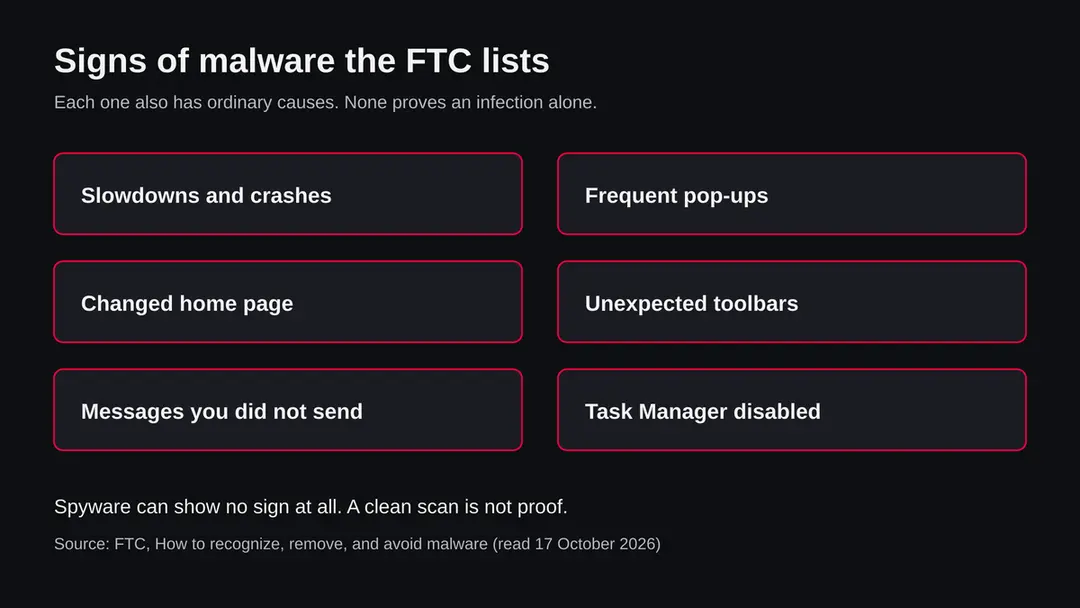
The FTC lists the signs: slowdowns, crashes, a changed home page, unexpected toolbars, frequent pop-ups, emails or social posts you did not send, and system tools such as Task Manager that are disabled. None of them proves an infection alone, because ordinary problems cause most of them.
| Sign | Could be malware if | Could also be |
|---|---|---|
| The computer is slow or the fan runs hard | An unknown process uses a lot of CPU or memory in Task Manager and it started after a download | Too many startup programs, a full disk, an update running in the background, a failing drive |
| Pop-ups and ads outside the browser | They appear with no browser open, or after you installed a free program | A browser notification you allowed on a website, which is cleared in the browser, not by a scan |
| The browser home page or search engine changed | It changes back after you fix it, or an extension you did not add is listed | An installer with pre ticked boxes that you accepted |
| Friends get messages you did not send | Your password was stolen, or malware on the PC sends them | A leaked password from another site, with no malware on your PC at all |
| Task Manager or Windows Security will not open | The FTC lists disabled system tools as a sign of malware | A damaged Windows file or a policy on a work computer |
| A message that your files are locked and you must pay | That is ransomware. Do not pay yet; follow the ransomware notes in the FAQ | A scam page that only pretends, shown in the browser |
| A full screen warning with a phone number | Almost never a real alert. The FTC describes this as a tech support scam | A browser tab that you can close without any infection |
| No sign at all | Spyware and stealers are built to be quiet | A healthy computer |
Virus, trojan, spyware, ransomware: why the name matters less than the steps
Security programs name what they find, and the name tells you what to worry about afterwards. The removal itself follows the same steps for all of them, so do not wait to learn the exact name before you start.
| Kind | What it does | What to worry about afterwards |
|---|---|---|
| Virus | Copies itself into other files or programs | Damaged programs; a scan may have to remove or quarantine several files |
| Trojan | Looks like something useful or arrives with a download, then does something else | It can open the door for other malware; treat it as real if the file came from an unofficial site |
| Spyware or stealer | Collects what you type, saved passwords, browser sessions or files | Your accounts, not only the computer: change passwords from another device |
| Adware or hijacker | Shows ads or changes browser settings | Browser settings and extensions that a scan may not undo |
| Ransomware | Locks files or the screen and asks for money | Backups and reporting; do not run the scan as your only step |
| Fake alert (scareware) | A web page or program that says you are infected when you are not | A scam call or payment; the page itself is not a virus on your computer |
If Windows Security shows a name such as a Trojan followed by a family name, write it down with the date and the file path. Those three details help you decide what happened, and they help anyone you ask for advice.
The order of actions that works, as a timeline of one cleaning session
There are no dated reports for this topic. This timeline is the order of one cleaning session, with rough times. The times are our estimate, except the offline scan, where Microsoft says about 15 minutes.
Minute 0
Stop and write down what you see
Take a photo of the alert or warning with your phone. Note the program name, the date and anything that happened just before, such as a download or a link you clicked.
Minute 5
Update Windows Security
Open Windows Security and check that Virus & threat protection shows no problem with updates. An out of date scanner misses newer malware.
Minute 10
Run a full scan
Under Scan options choose Full scan and Scan now. A full scan checks every file and program on the device, which takes longer than a quick scan.
Minute 60
Read Protection history
Open Protection history to see what was found, blocked or quarantined, and when. Do not choose Allow on an item you do not understand.
Minute 70
Run the Microsoft Defender Offline scan
Save your work first. The computer restarts and the scan takes about 15 minutes, then Windows loads again and the result is in Protection history.
Minute 100
Remove what you do not recognise
Uninstall unknown programs, switch off unknown startup items and remove unknown browser extensions.
Same day
Change passwords from another device
Email first, then banking, then everything else. Turn on two factor authentication.
One week later
Scan again
A file that was not running when you scanned may start later. A second full scan a week on is cheap and catches it.
How to check the PC for a virus or other malware on a Windows computer
How a virus gets onto a computer
We found no single source that ranks the routes, so this list is the ordinary ones, written from how the tools describe them. Knowing the route tells you what to remove and what to stop doing.
- 1
A download from an unofficial site
Cracks, keygens, repacked games and free versions of paid programs are common carriers. The file may do what it promises and also install something else.
- 2
An email attachment or link
A fake invoice, parcel notice or order confirmation asks you to open a file or sign in. Check the sender's real address, and open nothing you did not expect.
- 3
A fake update or fake alert
A page says your browser, Flash or video player needs an update, or that your computer is infected. The FTC advises you not to download software from ads and to go to a company's website by typing its address yourself.
- 4
A free program with extras
Installers sometimes add toolbars, browser extensions or a search engine change. Choose the custom install and untick what you did not ask for.
- 5
A USB drive or a shared file
A drive from someone else, or a file from a friend whose account was hacked, can carry malware. Do not trust a file only because of who sent it.
- 6
A call or remote session you started
If someone talked you into installing a remote control program, they can do anything you can. Uninstall it and treat it as a full compromise.
Check the computer before you delete anything
A few minutes of looking first lets you decide how serious this is. Use the pictures below for the screens you will meet.
- 1
Open Protection history
Open Windows Security > Protection history. Microsoft's page says this is where you see what was found, quarantined or blocked, and where the offline scan results appear. Note the detection name, the date and the status.
- 2
Read the path and the source
A file in Downloads may never have run. A file in a startup folder or in a hidden user folder may have started with Windows. Ask yourself where it came from: its maker's site, or a crack, a mirror or a link in a message.
- 3
Look at what is running
Press Ctrl + Shift + Esc to open Task Manager. On the Processes tab sort by CPU or Memory and look for names you do not know. Right click an entry and choose Open file location to see where it lives. Do not end Windows processes you do not recognise without checking them first.
- 4
Look at what starts with Windows
Open Settings > Apps > Startup and look for programs you do not recognise. Switch off what you do not know; you can switch it on again later.
- 5
Check the browser
In your browser open the extensions list and remove any you did not install. Open the notification permissions in Site settings and remove sites you do not know. Check the home page and the default search engine.
- 6
Check that protection is on
In Windows Security > Virus & threat protection confirm that Windows Security shows no warning about real time protection being off. If it is off and you did not turn it off, that is a reason for the offline scan.
How to remove a virus or other malware on a Windows computer
How to remove How to remove a virus from your computer
A loader's job is to install other malware, so treat the PC as infected with more than one program until the scans are clean.
Step 1: Delete scheduled tasks that bring it back
Open Task Scheduler from the Start menu and click Task Scheduler Library.
Select each task you do not recognise and read the Actions tab: a task that starts a file in
%AppData%or%Temp%, runs powershell with a long encoded line, or opens a web address belongs to How to remove a virus from your computer or a similar program.Right-click such a task and choose Delete, and check the subfolders too. Leave tasks from Microsoft, your PC's maker and programs you use. Task Scheduler is the same in Windows 11 and Windows 10.
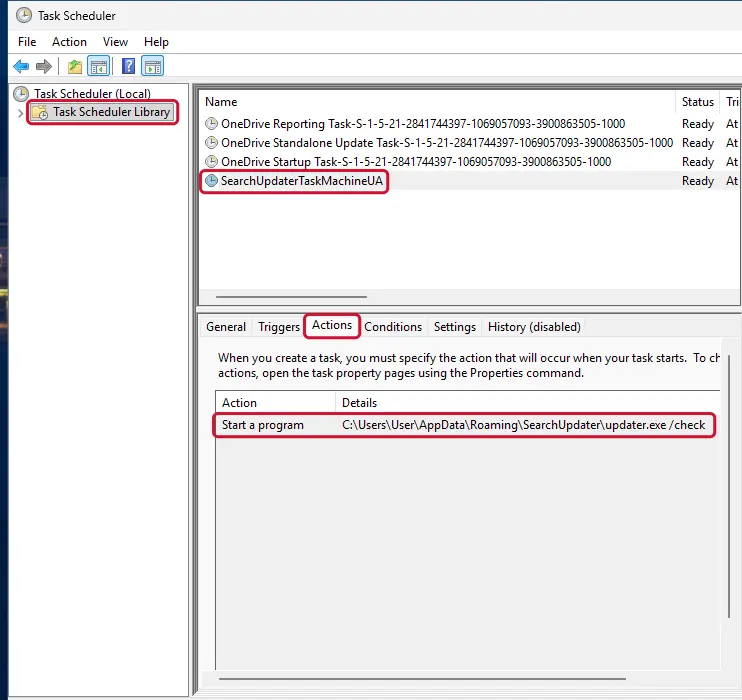
Windows 11: Task Scheduler Library, the task selected, the Actions tab shows the file it runs. Full procedure with screenshots: Remove what malware leaves behind in Windows
Step 2: Remove it from startup
Whatever How to remove a virus from your computer installed usually starts with Windows.
Open Task Manager with Ctrl + Shift + Esc, go to Startup apps in Windows 11 or the Startup tab in Windows 10, and disable what you do not know, starting with entries that have an empty Publisher column.
Open file location on the right-click menu shows the file, which helps you decide and tells you what to delete later. Disabling is safe: if something you need stops working, switch it back on.
Full procedure with screenshots: Stop apps from opening at startup On uGetFix
Step 3: Delete the folders left behind
What the uninstaller leaves behind is usually in the user folders. Open File Explorer, switch on View > Show > Hidden items (in Windows 10 View > Hidden items), and go through
%LocalAppData%,%AppData%, %ProgramData% and the two Program Files folders.Sort by Date modified and delete folders that appeared together with the problem and belong to no program you use. Folders with random names that hold
.exe,.dll, .js or .ps1 files are the strongest sign.Full procedure with screenshots: Remove what malware leaves behind in Windows
Step 4: Scan the PC, then run the offline scan
Open Windows Security > Virus & threat protection > Scan options, run a Full scan and remove everything it finds. Then select Microsoft Defender Antivirus (offline scan) and click Scan now: the PC restarts and scans before Windows loads, which finds files that hide while Windows runs.
Save your work first, because the offline scan takes about 15 minutes. Both scans are built into Windows 11 and Windows 10, and a second scanner from another vendor is a useful extra opinion.

Windows 11: Windows Security > Virus & threat protection > Scan options. Full procedure with screenshots: Run a Microsoft Defender Offline scan
Step 5: Change passwords from another device and sign out other sessions
Assume that the passwords saved in this PC's browsers, and the accounts that were open in them, are known to the attacker. From a phone or a clean computer, change the e-mail password first, then banking, shopping, social and gaming accounts.
Use each service's option to sign out of all other sessions, because stolen cookies keep a session open even after a password change. Turn on two-step verification on each account. Wait with the infected Windows 11 or Windows 10 PC until the scans are clean.
Full procedure with screenshots: Turn on two-step verification / secure a hacked account
Remove the virus from Windows 11 and Windows 10
Do these steps in order. Menu paths come from Microsoft's Windows Security page and its Defender Offline page, read on 17 October 2026, which apply to Windows 11 and Windows 10. We did not run them against a live infection.
- 1
Back up documents, not programs
Copy documents and photos to an external drive, then unplug it. Do not copy programs or files you downloaded recently, because they may be the problem. If you think ransomware is active, disconnect from the network first.
- 2
Update and start a full scan
Open Windows Security > Virus & threat protection, and check for protection updates. Then choose Scan options > Full scan > Scan now. Microsoft says a full scan checks every file and program on the device, so let it finish.
- 3
Act on what it finds
When the scan ends, open the list of threats and choose Remove or Quarantine for each item, and then Start actions if offered. Open Protection history afterwards and check the status of each item. Do not choose Allow to make an alert go away.
- 4
Run the Microsoft Defender Offline scan
Save your work and close your programs. Open Windows Security > Virus & threat protection > Scan options, choose Microsoft Defender Offline scan and Scan now. Confirm the prompts. Windows signs you out and restarts, the scan runs outside the normal Windows kernel for about 15 minutes, and Windows loads again. If BitLocker protects the system drive, Microsoft says to suspend it first, or you may be asked for the recovery key. Read the result under Protection history.
- 5
If the offline scan does not start
Microsoft's page says that if Windows Recovery Environment is disabled, the offline scan does not run and shows no error. In an administrator Command Prompt,
reagentc /infoshows the status, and Microsoft givesreagentc /enableto enable it. The offline scan does not apply to ARM versions of Windows 11 and Windows 10. - 6
Uninstall programs you did not choose
Open Settings > Apps > Installed apps, sort by install date and look at what was added around the time the problem began. Uninstall anything you do not recognise.
- 7
Clean the browser
Remove extensions you did not add, remove notification permissions from unknown sites, reset the home page and the search engine, and clear saved sessions by signing out of accounts.
- 8
Update Windows and your programs
Open Settings > Windows Update and install everything offered. Update your browser as well. Many infections use old holes that updates close.
- 9
Change passwords and turn on two factor authentication
The FTC's last two steps. Use another device for it if you can, starting with email and banking. If someone stole your information, the FTC says to report it at IdentityTheft.gov and follow the recovery plan.
- 10
Rebuild Windows only when everything else fails
If the signs return after the full scan, the offline scan and a week of watching, back up your documents and use Reset this PC in Settings > System > Recovery. It is the last step, not the first.
If it is only a fake virus warning in your browser
Many searches for this topic come from a full screen page that says "your computer is infected". That page is usually not a virus on the computer. It is a web page built to scare you into calling a number or paying.
Do
- Close the browser tab or the whole browser. If it will not close, press Ctrl + Shift + Esc, select the browser in Task Manager and choose End task.
- Reopen the browser and, if it offers to restore the last session, say no.
- Check the browser's notification permissions and extensions, then run a quick scan in Windows Security.
- Report the page to the FTC at ReportFraud.ftc.gov if it asked for money or access.
Don't
- Do not call the number on the page. The FTC says never to call a phone number that appears in a pop-up window.
- Do not let a caller connect to your computer remotely.
- Do not pay with gift cards, a wire or a cryptocurrency transfer.
- Do not download a cleaner or a security program that the page offers.
If you already called, gave remote access or paid, treat the computer as compromised, run the scans above, change passwords from another device, and tell your bank at once.
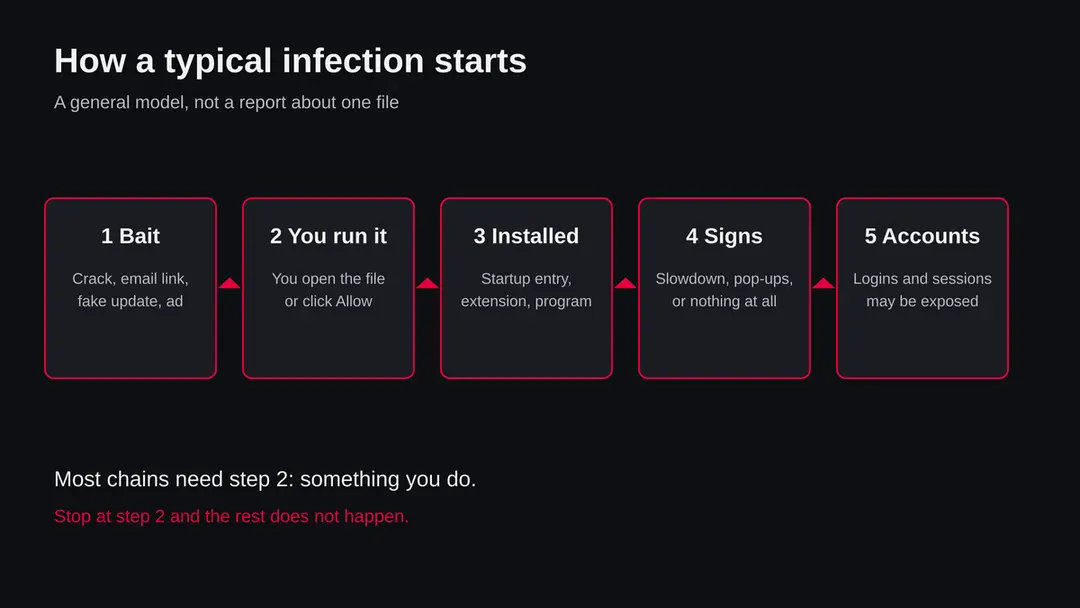
The attack chain, the signs and the order of action in three pictures
The three pictures below are our own diagrams. They show how a typical infection begins, how the signs relate to likely causes, and the order in which to clean.
After removal: passwords, accounts and prevention
Your passwords after How to remove a virus from your computer
Removing How to remove a virus from your computer does not undo what it may already have sent out while the PC showed A suspected virus on a Windows computer in the list of installed apps. Treat saved browser passwords and logged-in sessions on this PC as known to the attacker.
From another device, change the e-mail password first and end all its sessions. Then do the same for the bank, PayPal, Microsoft, Google and Apple accounts. Stolen session cookies keep working after a password change until you sign out everywhere.
Move crypto to a new wallet created on a clean device. A step-by-step order for every kind of account is in our guide to account security after an infection.
After the clean up: protect your accounts
A scan deals with the computer. The steps here deal with what the virus may have seen. The FTC pairs removal with changing passwords and two factor authentication for this reason.
- 1
Change passwords from a different device
Start with email, because it resets every other account. Then banking, shopping and social accounts. Use a different password for each.
- 2
Turn on two factor authentication
An authenticator app or a security key is better than text messages. It stops a stolen password from being enough on its own.
- 3
Sign out everywhere
Use the option to sign out of all sessions in your Google, Microsoft and social accounts, so stolen sign in cookies stop working.
- 4
Watch your money
Look at card and bank statements for payments you did not make, and tell the bank early if you see one.
- 5
Report identity theft
If someone stole your personal information, the FTC says to report it at IdentityTheft.gov and follow the recovery plan.
Keep viruses off your computer
Most infections need you to run something. These habits remove the most common routes.
Do
- Keep Windows Security on with real time protection, and check its status now and then.
- Install Windows Update when it is offered, and update your browser.
- Download programs from their makers' sites or the Microsoft Store.
- Keep a backup of documents on a drive you unplug afterwards.
- Use a password manager and two factor authentication.
- Use a standard user account for daily work, and an administrator account only to install.
Don't
- Do not run cracks, keygens or repacks.
- Do not open attachments you did not expect.
- Do not install a program because a pop-up told you to.
- Do not run two antivirus programs with live protection at once.
- Do not call a number from a warning on the screen.
Questions about a virus or other malware on a Windows computer
How do I remove a virus from my computer?
Update Windows Security, run a Full scan, act on what it finds, then run a Microsoft Defender Offline scan. Open Windows Security, choose Virus & threat protection, then Scan options, pick Full scan and Scan now.
Afterwards open Protection history to see what was found and what was done. Next uninstall programs you do not recognise, remove unknown browser extensions, install Windows updates and change your passwords from another device. The FTC gives the same order:
- stop using accounts
- update security software
- run a scan
- then change passwords
- turn on two factor authentication
How do I know if my computer has a virus?
You often cannot tell from one sign. The FTC lists slowdowns, crashes, a changed home page, unexpected toolbars, frequent pop-ups, emails or posts you did not send, and system tools such as Task Manager that are disabled. Each also has ordinary causes, such as too many startup programs or a full disk.
Check Protection history in Windows Security for detections, look at Task Manager for unknown processes using lots of CPU, and look at your browser extensions. Some spyware shows nothing at all, so a clean result from a scan does not prove the computer is clean.
Can I remove a virus for free?
Yes. Windows 11 and Windows 10 include Windows Security with Microsoft Defender Antivirus, which scans and removes malware at no cost, and the Microsoft Defender Offline scan is built in too. You do not need to buy a cleaner or call a number from a pop-up.
The FTC warns that scammers use fake infection pop-ups to sell fake support and advises against downloading software from ads. If you want a second opinion, choose a security program from a company you already trust and download it from that company's own site, typed by you.
What is the Microsoft Defender Offline scan and when should I use it?
It is a scan that runs outside the normal Windows environment, so malware that hides while Windows runs has a harder time.
Microsoft says it runs outside the normal Windows kernel, targets malware that tries to bypass the Windows shell, and takes about 15 minutes. Use it when the full scan found something, when the alert returns, or when you suspect a hidden infection.
Save your work first, because the computer restarts. If BitLocker protects the system drive, suspend it first. The result is in Protection history afterwards.
What if my antivirus finds nothing but the computer still acts strangely?
Keep investigating, because a quiet scan does not clear a computer. The FTC says that even with security software, malware might go undetected, at least temporarily.
Run the Microsoft Defender Offline scan, check Task Manager and Settings > Apps > Startup for unknown items, check Settings > Apps > Installed apps for programs you did not choose, and clean the browser's extensions and notification permissions.
Many strange behaviours come from the browser, not from a file. If the problem stays after all that, back up documents and consider Reset this PC as a last step.
Is a virus warning with a phone number real?
Almost certainly not. The FTC describes pop-ups that claim your device is infected and tell you to call a support number; once you call, they may ask for remote access, run a fake diagnostic and charge you for a problem that does not exist.
Its advice is never to call a phone number that appears in a pop-up window. Close the tab, or end the browser in Task Manager, and reopen it without restoring the last session. If you already called or paid, run the scans, change your passwords from another device and tell your bank.
Should I change my passwords after removing a virus?
Yes, if the computer may have been running the malware while you used it. The FTC lists changing passwords and turning on two factor authentication as part of removal, in case a hacker got into your accounts. Use another device.
Start with your email account, because it can reset every other account, then banking and shopping. Sign out of all sessions where the site offers it, check statements for payments you did not make, and if someone stole personal information report it at IdentityTheft.gov.
Do I need to reinstall Windows to remove a virus?
Usually not. Most infections are handled by a full scan, the Microsoft Defender Offline scan, uninstalling unknown programs and cleaning the browser. Reset this PC, under Settings > System > Recovery, is the last step when the signs return after those and a week of watching.
Back up your documents first and copy documents only, not programs. Before you reset, change your passwords from another device, because a reset cleans the computer but does not undo anything the attacker already took.
Does this work on a Mac, iPhone or Android phone?
No, this guide covers Windows 11 and Windows 10 only. Windows Security, the Offline scan and the Settings paths here do not exist on a Mac or phone. The ideas carry over:
- stop using accounts
- update
- remove what you did not choose
- change passwords from another device
- turn on two factor authentication
For Mac, iPhone or Android look for a guide written for that system, and be careful with the same fake warning pop-ups, which also appear in phone browsers.
Will Fortect remove How to remove a virus from your computer?
Fortect scans Windows for malware and unwanted programs and repairs the system files and settings they change, and its free scan shows what it finds on your PC before you decide anything.
For How to remove a virus from your computer, follow the plan above as well: the browser steps take back permissions and settings that no scanner treats as a threat, and uninstalling the program that brought it removes the source.
Run Microsoft Defender's full scan and, if anything was found, its offline scan as a second opinion. If the symptoms are gone after the plan and both scans are clean, there is nothing more to do.
Sources
- Microsoft Support: Virus and threat protection in the Windows Security app (read October 17, 2026)
- Microsoft Learn: Microsoft Defender Offline scan in Windows (read October 17, 2026)
- FTC Consumer Advice: How to recognize, remove, and avoid malware (read October 17, 2026)