
Malware link checker: how to check a link for malware, what a clean result means, and what to do after a click
A malware link checker is a web page, browser feature or program that compares a web address with lists of addresses already reported for malware or phishing and shows a verdict.
A warning is useful; a clean result only means the address was not on a list yet, so it never proves a link is safe. If you already clicked, update and scan the PC, and change passwords from another device if you typed any.
Facts checked October 17, 2026. Removal steps tested on Windows 11 (26H2) and checked against Microsoft's and the browser makers' current documentation.
Automatic
Get a free scan and check if your PC is infected.
Fortect finds malware, unwanted programs and the Windows damage they leave behind, and repairs it in one pass.
If a link checker site, extension or program you were told to use or install keeps coming back after uninstalling, a scan can find what reinstalls it.
Do it yourself · free Remove malware link checkers (how to check a link, and fake checkers) yourself 5 steps, about 15 minutes, no software needed.
Start the steps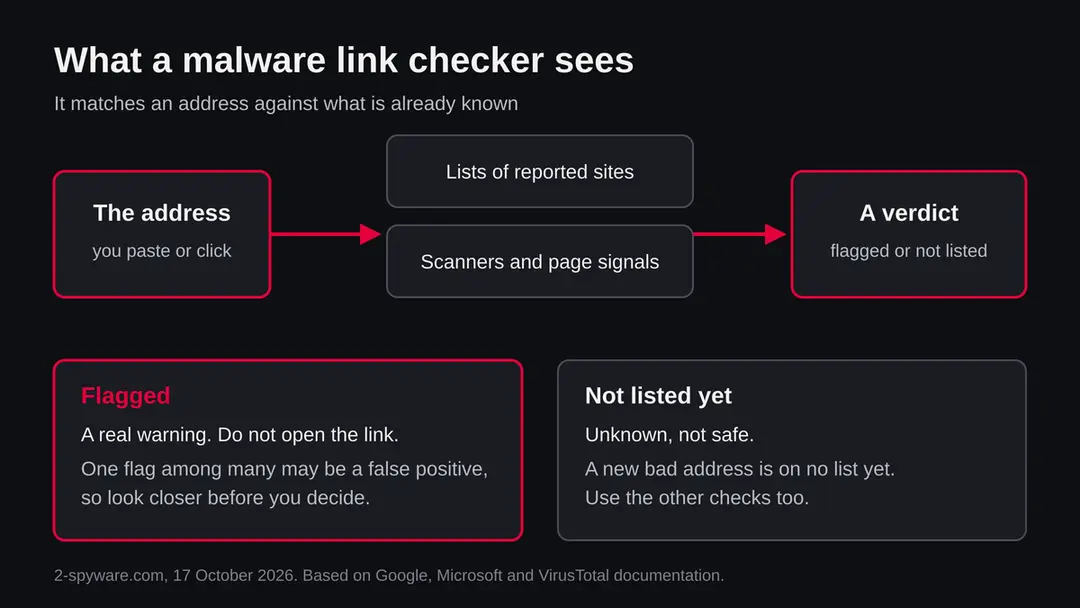
Malware link checkers (how to check a link, and fake checkers): summary
| Type | A kind of tool, not a threat: link checkers (and the fake ones that imitate them) |
|---|---|
| Risk | Medium: honest checkers are useful but incomplete; the dangers are trusting a clean result, leaking a private link and installing a fake checker |
| Symptoms | A 'checker' that asks you to install, sign in or allow notifications, or says every link is infected |
| How to get rid of it | Remove any extension or program a checker added, remove notification permission, scan, and change passwords from another device if you typed any |
| Our check (17 October 2026) | Reading of five official pages. No site test: this is not a plain address, and we ran no checker on a live malware link |
| First seen | Search interest noted by our topic radar on 15 October 2026; no reported address exists for it |
| Removal | Scan the PC with security software to find and remove the malware and anything installed with it. Fortect scans Windows for malware and repairs the system files and settings it damaged. Remove it nowTo use the full-featured product, you have to purchase a license for Fortect. The scan is free. |
Show 7 more facts
| Platform | Any device that opens links; cleaning steps given for Windows, with notes for Mac, iPhone and Android |
|---|---|
| Detection | No Microsoft detection name exists for a link checker, which is not malware. A fake one is detected under the name of what it installs; for a remote access trojan such as AsyncRAT, Microsoft's name is Backdoor:MSIL/AsyncRAT!MTB (an example, not seen by us with any checker) |
| Name | Malware link checker |
| Evidence | 0 write-ups by security sites; details still limited |
| Distribution | Typically fake installers, cracked programs, e-mail attachments, fake "verify you are human" pages and ads for popular apps |
| Damage | Installs other malware, often several programs at once |
| Facts checked | 17 October 2026 |
Facts checked on 17 October 2026 against the Google Safe Browsing developer page, VirusTotal's documentation, Microsoft Learn's SmartScreen overview, Google's Chrome Help page on Safe Browsing and the FTC's page on phishing. We tested no checker, made no site request and did not open any malware link. Where we draw a conclusion from those pages, such as the privacy point about private links, the text says it is our reading.
What a malware link checker is, and what it is not
'Malware link checker' is not one product. It is a group of tools that answer one question, 'is this web address known to be bad?', before you open it. Some are websites where you paste a link, some are built into your browser or Windows, and some are apps and browser extensions. This page explains how they work, how far to trust them, how to check a link yourself, and what to do if you used one that turned out to be a trap.
We did not test any single checker for this page, and we name no site as a scam. The topic came to us from search trends, not from a report about one address, so there is no URLhaus listing, no registration record and no site test to show. What follows comes from the vendors' and regulators' own pages, listed at the end.
- What it is
- A service that compares a link with lists of reported malware and phishing addresses, and with scanners, then shows a verdict
- What it can tell you
- That an address is already reported or flagged. That is a real warning and worth heeding
- What it cannot tell you
- That a link is safe. An address nobody has reported yet looks the same as a harmless one
- Where you meet one
- A paste box on a website, Google Safe Browsing and Microsoft Defender SmartScreen inside browsers, scanner sites such as VirusTotal, and add-ons
- The risk of the checker itself
- A site that asks you to install something or sign in 'to see the result' is not a checker. Fake ones exist as a trick, and a real one can still leak a private link
- Platforms
- Any: Windows, Mac, iPhone and Android all open links. The browser features differ; the thinking is the same
What malware link checkers (how to check a link, and fake checkers) does on an infected PC
What we checked on 17 October 2026, and what we could not
Our check for this page was a reading of official pages, not a visit to a site. Our server made no request, because the subject is a kind of tool and not an address.
What we did for this guide, 17 October 2026
- Official pages readGoogle Safe Browsing developer page, VirusTotal's 'how it works' page, Microsoft's SmartScreen overview (page dated 23 April 2026), Google's Chrome Help page on Safe Browsing levels and the FTC page on phishing.
- Site testNone. Our server sent no request: the subject is not a plain domain name. We did not run any link checker on a live malware link.
- URLhaus and registration dataNo reported URLs and no registration record exist for this subject, so there is nothing of ours to show about a specific site.
- Fake checkersWe name no site. We describe the pattern that regulators and vendors warn about and how to spot it. Whether a given checker is honest is something you test with the steps below.
Medium: depends on the tool you use The honest tools are useful warning systems with clear limits. The risk is in believing a clean result, pasting private links into public services, and trusting a 'checker' that asks you to install or sign in. A quiet result on one tool clears nothing.
How link checkers work, and what each kind can see
Almost every checker does the same two things: match the address against lists, and, for some, look at the page. The difference is who keeps the list, how fresh it is, and whether the page itself is examined.
| Kind of tool | How it decides | What it misses |
|---|---|---|
| Google Safe Browsing | Applications check addresses against Google's constantly updated lists of unsafe web resources, covering social engineering (phishing and deceptive sites) and malware or unwanted software. Google's developer page describes it as a set of interfaces for applications, such as warning users before they click links that may lead to infected pages | A new address that is not on the lists yet. The page says its programming interface is for non commercial use only |
| Microsoft Defender SmartScreen | Compares visited sites with a dynamic list of reported phishing and malware sites, and looks at pages for suspicious behaviour. For downloads it checks reputation: a file or certificate with no reputation gets a warning | Microsoft says it protects against malicious files from the internet, not files on internal locations or network shares |
| VirusTotal | Checks files and URLs with over 70 antivirus scanners and URL or domain blocklisting services, plus tools that extract other signals. Each engine's label is shown | A harmless item flagged by one engine (a false positive), and a bad one that no engine knows yet. Its page does not define a clean result as a guarantee |
| Paste boxes on other sites | Usually a front end for one or more of the lists above, or their own list. How they decide is often not explained | Anything we cannot see. If a site does not say what it checks, treat its verdict as one opinion |
| Add-ons and apps | Run the same kind of lookup from inside the browser or on the phone | They also see every address you visit, so you must trust the add-on. Install only from the browser's official store and from a maker you can name |
Why a clean result does not mean the link is safe
A checker can only report what is already known. Attackers register a new address, send the links, and move on before it lands on any list, so the first hours are exactly when a clean result is least meaningful.
- 1
A list is a record of the past
Safe Browsing and SmartScreen both match against lists of reported sites. Microsoft calls its list dynamic, and Google calls its lists constantly updated, but both describe reported or identified sites. An address created this morning is not on any of them yet.
- 2
Reputation helps, but unknown is not good
Microsoft says that if a URL, file, app or certificate has an established reputation, you see no warning, and if it has none, it is marked higher risk and you see one. So 'no warning' usually means a known good, but a new legitimate file also gets a warning, and the warning is not proof of malice.
- 3
One engine's flag is not a verdict
VirusTotal's own page says it helps identify false positives, items flagged by one or more scanners that are harmless. A single flag among over 70 engines needs a closer look, not a panic. An all green page needs the same care.
- 4
The page can change after the test
A link that is quiet when a service fetches it can behave differently for you, because sites can show different content by country, device, delay or a second visit. We cannot say how often that happens, but it is a reason to keep the rest of your habits.
- 5
Drive by attacks do not wait for a click
Microsoft describes drive by attacks as web attacks that tend to start on a trusted site and target software vulnerabilities, and says the danger often goes unnoticed because the user need not select or download anything. A checker does not replace updating your browser and Windows.
What malware link checkers (how to check a link, and fake checkers) can steal or download
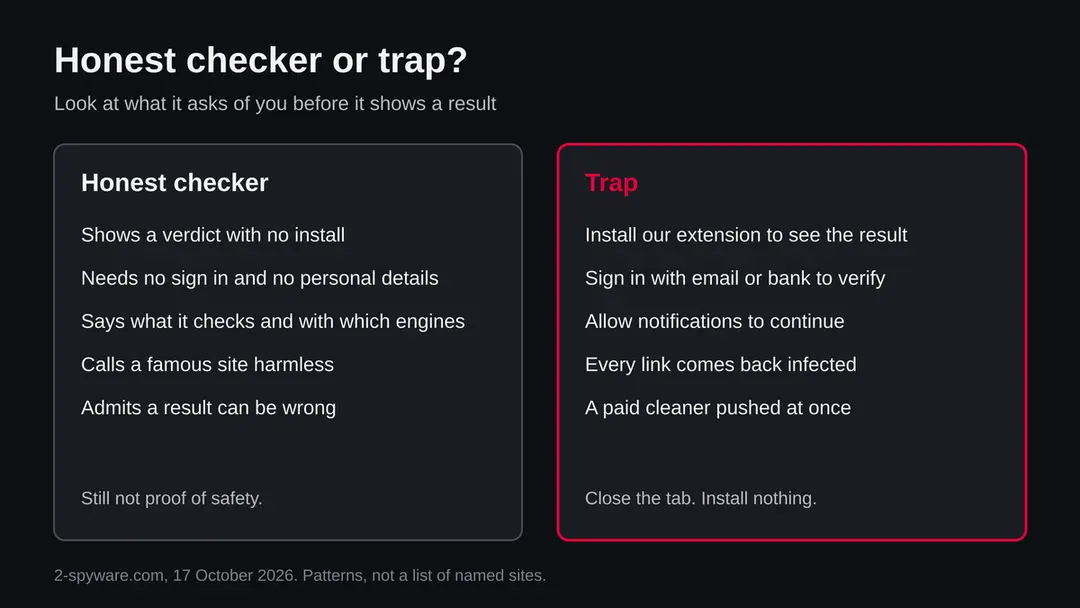
We found no primary source that names a specific fake link checker, so we name none. What we can do is describe how a tool that pretends to check links can go wrong, using the signs the FTC lists for phishing and Microsoft's description of socially engineered attacks.
- High
'Install our extension or app to see the result'
A checker never needs a program to tell you about one address. If a page asks you to install, run or allow something first, stop. This is how a scare page turns into the real infection.
- High
'Sign in with your email or bank to verify'
The FTC's list of phishing signs includes requests to confirm personal or financial information. A checker has no reason to ask for any.
- Medium
'Allow notifications to continue'
A page that says it must show notifications to display the scan is using a common trick of ad and scam pages. Click Block.
- Medium
A verdict that is always 'infected'
If every link you paste, even a famous one, comes back dangerous with a button to 'clean now', the tool is selling something, not checking. Try a harmless address you know, such as a bank's own website.
- Medium
A paste box that records the link
Any service that fetches your link sees it. If the link contains a private token, such as a password reset or a shared document, the token is now known to the checker.
- Low
A real checker that is simply wrong
Honest tools make mistakes in both directions. A flag can be a false positive, and a clean result can be a miss.
Signs a 'checker' is a trap
- Asks you to install before showing a result
- Asks you to sign in or give personal details
- Asks to show notifications
- Says everything is infected
- Pushes a paid cleaner at once
- Does not say what it checks
- A countdown or a fake progress bar
- Opens other pages in new tabs
These are patterns, not a list of named sites. Any one of them is reason to close the tab.
How to check the PC for malware link checkers (how to check a link, and fake checkers)
How to check a link yourself, in order
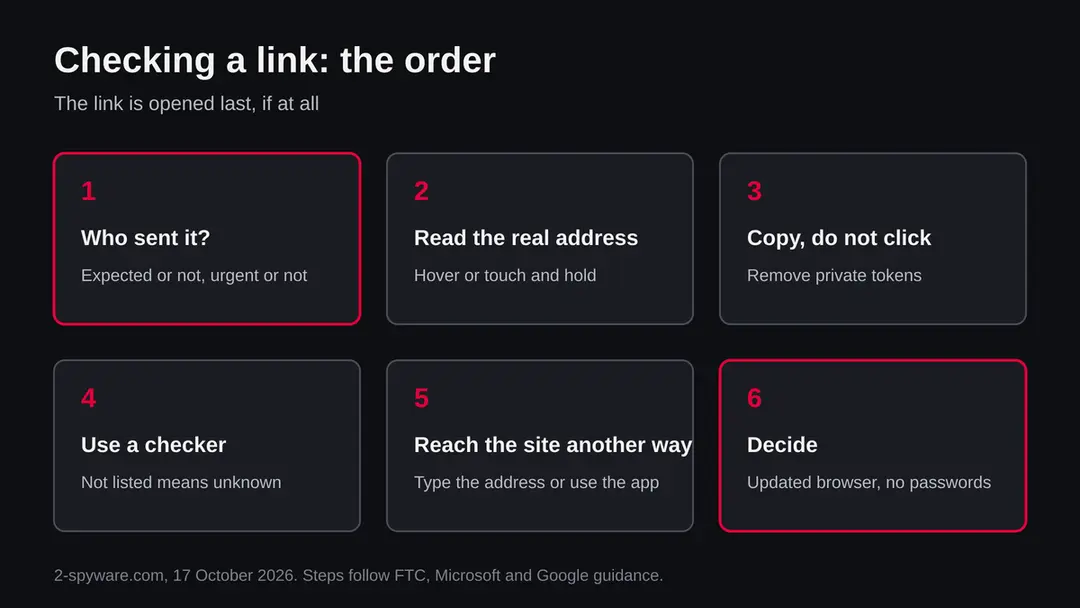
The checks below take about two minutes and none of them opens the link. Start at the top and stop as soon as something looks wrong. You will not get a certainty, but you will remove most of the risk.
- 1
Ask who sent it, and whether you expected it
The FTC lists unexpected email or text from a company you know, claims of suspicious activity or an account problem, an invoice you do not recognise, a link to make a payment, and a generic greeting such as 'Dear customer'. If the message matches, do not use its links or phone number at all. Contact the company through a website or number you already know is genuine.
- 2
Read the real address without opening it
On a computer, hover over the link and read the address at the bottom of the window. On a phone, touch and hold the link to see a preview. Read the part just before the first single slash: that is the real site. 'bank.example.com' belongs to example.com, while 'example.com.bank-login.net' belongs to bank-login.net.
- 3
Do not open it yet
Copy the link instead of clicking it: right click and choose Copy link address on a computer, or touch and hold and choose copy on a phone. Paste it into a text note first and look at the whole address, including very long strings after a question mark.
- 4
Remove anything private from the copy
VirusTotal says scanning reports are shared with its public community. It follows that a link holding a private token, such as a reset or a shared file link, should not be pasted there, because the token would sit in a public report. That is our reading of the page, not something it states. Check only plain addresses.
- 5
Use a checker, and read the answer for what it is
Paste the clean address into a tool that says what it checks, such as VirusTotal. A flag from several engines is a strong reason to stop. A single flag deserves a second look. 'Not detected' means unknown, not safe.
- 6
Check the site another way
If the message says to log in or pay, go to the company's website by typing its address yourself, or use its official app. If there is a genuine problem, you will see it there.
- 7
Decide, and keep your browser's own protection on
If you still need to open the link, do it in an up to date browser with its protection on, and on a device that holds nothing you cannot replace. Do not enter passwords, do not allow notifications, and close the tab if it asks to download or install anything.
Turn on the checker your browser already has
The most useful link checker is the one that works without you remembering to paste anything. Both Chrome and Edge include one, and it is worth knowing which level you run.
| Setting | What it does | Where to find it |
|---|---|---|
| Chrome: Enhanced protection | Google calls it its most secure browsing experience. It warns about dangerous sites, downloads and extensions, including threats not yet identified, and does in depth scans of suspicious downloads. Chrome sends the URL, a small sample of page content, extension activity and system information for checking | More (three dots) > Settings > Privacy and security > Security, then choose the level |
| Chrome: Standard protection (default) | Warns about sites, downloads and extensions already identified as dangerous. Only an obfuscated part of each URL is sent through privacy servers, and full URLs and bits of page content are sent only when a site does something suspicious | Same path as above |
| Chrome: No protection | Turns Safe Browsing off. Google marks it as not recommended | Same path. Do not choose it |
| Microsoft Defender SmartScreen | Built into Windows and used by Microsoft Edge. Warns for reported phishing and malware sites and for downloads without a reputation | In Windows Security > App & browser control > Reputation-based protection. Menu names can differ slightly between Windows builds |
Enhanced protection sends more data to Google for checking, and Standard sends less. That trade is yours to make; the tools do not hide it, and neither level proves a link safe. Whichever you pick, keep the browser and Windows up to date, because Microsoft describes drive by attacks that need no click.
How to remove malware link checkers (how to check a link, and fake checkers)
How to remove malware link checker
A loader's job is to install other malware, so treat the PC as infected with more than one program until the scans are clean.
Step 1: Delete scheduled tasks that bring it back
Open Task Scheduler from the Start menu and click Task Scheduler Library. Select each task you do not recognise and read the Actions tab:
- a task that starts a file in
%AppData%or%Temp% - runs
powershellwith a long encoded line - opens a web address belongs to malware link checker or a similar program
Right-click such a task and choose Delete, and check the subfolders too. Leave tasks from Microsoft, your PC's maker and programs you use. Task Scheduler is the same in Windows 11 and Windows 10.
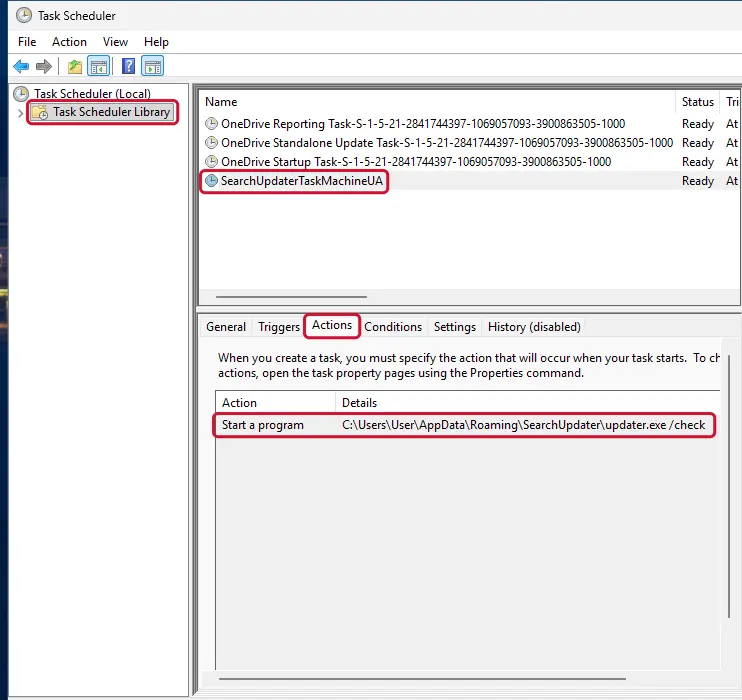
Windows 11: Task Scheduler Library, the task selected, the Actions tab shows the file it runs. Full procedure with screenshots: Remove what malware leaves behind in Windows
- a task that starts a file in
Step 2: Remove it from startup
Whatever malware link checker installed usually starts with Windows.
Open Task Manager with Ctrl + Shift + Esc, go to Startup apps in Windows 11 or the Startup tab in Windows 10, and disable what you do not know, starting with entries that have an empty Publisher column.
Open file location on the right-click menu shows the file, which helps you decide and tells you what to delete later. Disabling is safe: if something you need stops working, switch it back on.
Full procedure with screenshots: Stop apps from opening at startup On uGetFix
Step 3: Delete the folders left behind
What the uninstaller leaves behind is usually in the user folders. Open File Explorer, switch on View > Show > Hidden items (in Windows 10 View > Hidden items), and go through
%LocalAppData%,%AppData%, %ProgramData% and the two Program Files folders.Sort by Date modified and delete folders that appeared together with the problem and belong to no program you use. Folders with random names that hold
.exe,.dll, .js or .ps1 files are the strongest sign.Full procedure with screenshots: Remove what malware leaves behind in Windows
Step 4: Scan the PC, then run the offline scan
Open Windows Security > Virus & threat protection > Scan options, run a Full scan and remove everything it finds. Then select Microsoft Defender Antivirus (offline scan) and click Scan now: the PC restarts and scans before Windows loads, which finds files that hide while Windows runs.
Save your work first, because the offline scan takes about 15 minutes. Both scans are built into Windows 11 and Windows 10, and a second scanner from another vendor is a useful extra opinion.

Windows 11: Windows Security > Virus & threat protection > Scan options. Full procedure with screenshots: Run a Microsoft Defender Offline scan
Step 5: Change passwords from another device and sign out other sessions
Assume that the passwords saved in this PC's browsers, and the accounts that were open in them, are known to the attacker. From a phone or a clean computer, change the e-mail password first, then banking, shopping, social and gaming accounts.
Use each service's option to sign out of all other sessions, because stolen cookies keep a session open even after a password change. Turn on two-step verification on each account. Wait with the infected Windows 11 or Windows 10 PC until the scans are clean.
Full procedure with screenshots: Turn on two-step verification / secure a hacked account
Mac, iPhone and Android
Links are opened on every device, so the checking habits above apply everywhere. Only the cleaning steps are different.
| Device | Before you open a link | If you clicked |
|---|---|---|
| Mac | Hover over the link and read the address in the status bar. Safari, Chrome and Edge each have a built in warning for reported sites | Do not run a downloaded installer you did not expect. Remove unknown apps and browser extensions, and change passwords from another device |
| iPhone and iPad | Touch and hold a link to preview its address before opening. Do not scan a code that leads somewhere you cannot read | Close the page, do not enter details, and change any password you typed. Apps come only through the App Store, so a page asking for a profile or app is a warning sign |
| Android | Touch and hold a link to see its address. Chrome's Safe Browsing level is set in the app's settings | Do not install an APK a page offers. If you did, remove it in the app list and change passwords. Details are in our Android guides |
After removal: passwords, accounts and prevention
If you clicked, pasted or installed something
The right response depends on what happened after the click. Match yourself to one row, do only what that row says, and then add the scan.
| What happened | What it could mean | What to do |
|---|---|---|
| You opened the link and closed the page | Usually nothing. Drive by attacks exist, but they need an unpatched flaw | Update the browser and Windows, run a full scan, and watch for odd behaviour |
| A file downloaded | It may be a program or a script | Do not open it. Delete it, empty the Recycle Bin and scan. If you ran it, treat the PC as possibly infected |
| You allowed notifications | The site can now send pop ups | Remove the permission in the browser's site settings (steps below) |
| You installed an extension or program | It may read or change what you do online | Remove it, then change passwords from another device |
| You typed a password or card number | The details are in someone else's hands | Change the password at once from another device; call your bank for card details |
- 1
Disconnect if you ran a file
If you opened or ran something that downloaded, turn off Wi-Fi or unplug the cable until you have scanned. A program that is controlling the PC needs the connection.
- 2
Update, then scan
The FTC says that if you clicked a link or opened an attachment that may have installed harmful software, you should update your security software, run a scan and remove anything it flags. On Windows, open Windows Security > Virus & threat protection > Scan options and choose Full scan.
- 3
Look at what is installed
Open Settings > Apps > Installed apps in Windows 11 (Apps & features in Windows 10), sort by install date, and uninstall anything you did not choose that appeared the day of the click. In the browser, open the extensions page (
chrome://extensionsoredge://extensions) and remove what you do not recognise. - 4
Remove notification permission
In Chrome open Settings > Privacy and security > Site settings > Notifications and remove the site from the allowed list. In Edge the path is Settings > Cookies and site permissions > Notifications. Menu names can change with browser updates.
- 5
Change passwords from another device
If you typed a password on a page that was not the real site, change it on a phone or another computer, starting with your email. Turn on two step sign in where it is offered. If you gave a Social Security, card or bank account number, the FTC points to IdentityTheft.gov for steps based on what you lost.
- 6
Report it
The FTC says to forward phishing email to reportphishing@apwg.org, forward a scam text to 7726 (SPAM), and report other attempts at ReportFraud.ftc.gov. Reports help the lists that checkers use.
- 7
If you are still unsure, rebuild
If a program ran and you cannot account for what it did, the safe answer is to reset Windows with Settings > System > Recovery > Reset this PC, and restore only your documents. Back up first.
Habits that work better than any checker
A checker adds one useful signal. These habits change the odds more, because they work when the link is new and no list knows it.
Do
- Type the address of your bank, shop or email yourself, or use a bookmark, instead of following a link in a message.
- Keep Windows, your browser and Microsoft Defender updated, so a drive by attack finds nothing to use.
- Leave the browser's Safe Browsing or SmartScreen protection on, and consider Enhanced protection if you accept the extra data it sends.
- Read the part of the address before the first single slash, every time, on any device.
- Use a password manager: it fills a password only on the real site, which makes a lookalike page stand out.
- Turn on two step sign in for email, banking and cloud storage.
- Check a flagged link a second way: look for the same warning in another tool before you decide.
- Report phishing to the places the FTC lists, so the next person is warned sooner.
Don't
- Do not treat 'no threats found' as a guarantee.
- Do not install an extension or app because a checker asked you to.
- Do not paste private links, such as password resets or shared document links, into a public scanner.
- Do not sign in to a checker with your email or bank details.
- Do not allow notifications from a page that says it must do so to show a result.
- Do not open links from messages that create urgency or promise a prize or refund.
Questions about malware link checkers (how to check a link, and fake checkers)
What is a malware link checker?
It is a tool that compares a web address with lists of addresses already reported for malware or phishing, and sometimes with antivirus scanners, then shows a verdict. You meet it as a paste box on a website, as a warning page inside Chrome or Edge, or as an add-on.
It checks what is already known. It does not open the page in the way you would and judge it, so a clean answer means the address was not listed, not that it is safe.
Is a link safe if the checker says it is clean?
No. A clean result means the tool did not find the address on its lists or flag it with its scanners. A new malicious address is not on any list yet, and attackers rely on that gap.
VirusTotal's own page speaks of false positives and does not promise that a clean result is safe. Treat 'clean' as 'unknown', then use the other checks:
- who sent it
- the real address
- a second way to reach the site
What is the best malware link checker?
We did not rank tools, and no single one is best. The sources we read describe three kinds worth knowing. Browser protection (Google Safe Browsing in Chrome, Microsoft Defender SmartScreen in Edge) works without you doing anything.
VirusTotal checks an address with over 70 scanners and blocklist services and shows each engine's label. A tool that does not say what it checks, or that asks you to install something, is the one to avoid.
Can a link checker itself be a scam?
Yes. We name no site, but the pattern is plain. A page that offers to check your link and then asks you to install an extension, sign in with your email, allow notifications or buy a cleaner is not checking anything.
The FTC lists requests to confirm personal or financial information among phishing signs. A genuine checker shows a verdict without asking anything of you. If a result is always 'infected', close the tab.
Is it safe to paste a link into VirusTotal?
For an ordinary public address, it is the normal use. VirusTotal's documentation says scanning reports are shared with its public community and that basic results go to the submitter and the partner engines.
So do not paste a link that carries a private token, such as a password reset, a shared document or a payment page, because the token would sit in a shared report. That conclusion is our reading of the page. Check plain addresses only.
How do I check a link on my phone?
Touch and hold the link to see its real address without opening it, and read the part before the first single slash. Do not tap if the site does not match the sender. If you want a second opinion, paste only the plain address into a checker in your browser.
On Android, Chrome's Safe Browsing level is in the app's settings; on iPhone, Safari warns about reported sites. Never install an app or profile a page offers. We tested no phone steps for this page.
I clicked a link and nothing happened. Am I infected?
Probably not, but not provably. Opening a page and closing it is usually harmless if your browser and Windows are up to date, though Microsoft describes drive by attacks that need no click on vulnerable software.
Update, run a Microsoft Defender full scan, and check Settings > Apps > Installed apps and your browser extensions for anything new. If a file downloaded and you ran it, or you typed a password, treat it as a real incident.
What do I do if I typed my password on a fake page?
Change the password immediately, from another device, starting with the email account, because it can reset the others. Turn on two step sign in and sign out of other sessions.
If you gave a Social Security, card or bank account number, the FTC points to IdentityTheft.gov for steps based on what you lost, and your bank should be called for card details. Then report the message:
- forward phishing email to reportphishing@apwg.org
- texts to 7726
- others to ReportFraud.ftc.gov
Do I still need a checker if my browser warns me?
The browser warning is the most useful one, because it works on every link without effort. Chrome's Standard level, the default, warns about sites already identified as dangerous, while Enhanced protection also warns about new threats by sending more data to Google.
A second tool adds an independent opinion for a link you are unsure about. Neither replaces judgement, updates, a password manager and two step sign in.
Will Fortect remove malware link checker?
Fortect scans Windows for malware and unwanted programs and repairs the system files and settings they change, and its free scan shows what it finds on your PC before you decide anything.
For malware link checker, follow the plan above as well: the browser steps take back permissions and settings that no scanner treats as a threat, and uninstalling the program that brought it removes the source.
Run Microsoft Defender's full scan and, if anything was found, its offline scan as a second opinion. If the symptoms are gone after the plan and both scans are clean, there is nothing more to do.
Sources
- Google for Developers: Safe Browsing (read October 17, 2026)
- VirusTotal Documentation: How it works (read October 17, 2026)
- Microsoft Learn: Microsoft Defender SmartScreen overview (23 April 2026) (read October 17, 2026)
- FTC Consumer Advice: How to recognize and avoid phishing scams (read October 17, 2026)
- Google Chrome Help: Safe Browsing protection levels (no longer online) (read October 17, 2026)