

Pop up virus is a term used to describe malware helping advertisers generate income from numerous ads

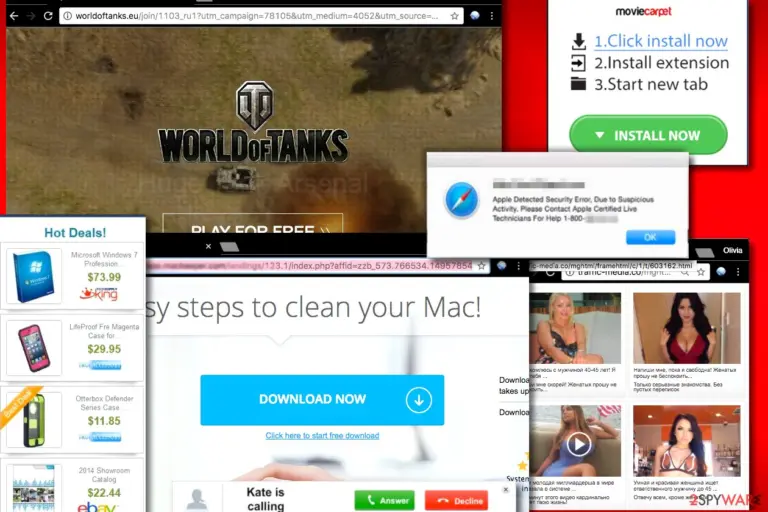
Pop up virus is the term used to describe a pop-up window that displays advertisements on websites that users visit. Their primary purpose is to persuade users into visiting specific sites or purchasing particular goods. While it can be an excellent method for website authors to monetize their website content, it is a nuisance for the end-users.
Such a virus might also be hiding on sites that usually do not prompt such behavior – and this is when adware is involved. Ad-supported programs are typically downloaded unintentionally while installing freeware/shareware or when users are lured by the app's certain functionalities, for example, driver updating. Some of such apps, especially the latter type, might be difficult to associate with the intrusive ads showing up on all the sites, so users often struggle to find the source and stop these activities.
| Name | Pop up virus |
| Source | Embedded into sites or can be initiated by adware |
| Infection means | While installing bundled software or questionable apps from third-party sites |
| Risk factors |
|
| Symptoms | If you see an ad on a website that you visit, it does not mean you are infected with a computer virus, and it just means that the ad is embedded in the site. However, if you see intrusive ads an most of the websites you visit, along with redirects and browser changes, you should check your computer for adware |
| Related | |
| Termination | To check your computer for adware, check our instructions below. Alternatively, you can use a security application that can remove the virus automatically |
| Recovery | Some adware might damage system files and corrupt the Windows registry. Scan your device with antispyware program to get rid of the unwanted program. Additionally, think about FortectIntego which might fix virus damage |
Pop-up ad advertising form was invented in the 1990s by Ethan Zuckerman[1], who later apologized for laying the ground for one of today's biggest Internet nuisances.
Some ads of this type can seem exciting and useful; however, they can also be highly dangerous and infect the computer system with malware[2] as soon as the victim clicks on the ad. In the majority of cases, annoying popups bother computer users that unwillingly install adware programs. One of the most efficient ways to cease the emergence of such commercial offers is to scan the PC with FortectIntego or another virus remover.
The alerts containing some promotional content are typically opened in individual browser windows that appear on top of the active browser window or under it (these are called pop-under ads). The described advertising form was eventually adapted and used across various platforms, including Windows, Mac OS, and Android[3]. Nowadays, these adverts can appear not only on computer screens but on smartphones as well, so make sure you remove the virus from every device you use.

Frequent appearance of ads might indicate adware infection
If you have been bothered by unwanted ads, you should know that your computer is infected. Typically, redirects and kinds of ads appear due to adware, browser hijackers, and similar PUPs, for example:
As soon as such a program enters your computer, it hijacks every web browser (Internet Explorer, Google Chrome, Mozilla Firefox, Safari, Opera, etc.). After doing so, it starts tracking you to get more information about your browsing habits.
To do so, programs that hide behind unwanted ads employ tracking technologies, including cookies and web beacons. They store information about the victim's browsing history, the list of search queries, frequently visited websites, ads and URLs clicked, time spent on particular sites, products viewed, and even IP addresses.
The majority of ad-supported programs promise to collect only personally non-identifiable data, although some pieces of data they collect (such as search queries) can contain personally identifiable information (PII). Some adware programs clearly disclose such fact in their Privacy Policy documents. For example, a popular browser hijacker zzz3.club, states the following:[4]
QxSearch may collect two types of information: 1) Personal Information, and 2(Anonymous Information. Personal Information means information that may directly or indirectly identify you, such as your name, address, email address, and telephone number. <…>
These potentially unwanted programs also claim to be collecting PII, but only “in case the user willingly provides it.” Such information is valuable and can be easily misused. The main reason to collect such data is to use it for market research and customization of ads.
You need to remove this related software to get rid of fake pop up ads on your web browser. However, sometimes it takes more than that because some of the PUP variants tend to change proxy settings and add wpad.dat files to keep serving sponsored content on the victim's computer.

Reasons why you might be seeing popups
Pop ups caused by adware
Annoying commercial offers appearing in new browser windows are most frequently sent by ad-supported programs that usually get into the computer system alongside other free software that the user willingly installs. However, such software bundles tend not to disclose the presence of additional software in a direct way and can install adware.
Agreements to install such programs typically hide in Default/Standard settings which look trustworthy for many people. Once installed, ad-supported parasites add specific browser extensions to all web browsers or even modify browser shortcuts to serve ads via them. Some adware programs are easy to remove, and other viruses tend to root deeply in the system. Currently, the most prevalent adware programs that keep bothering computer users are:
Recently, many users started complaining about annoying Russian ads appearing on websites that target the English-speaking audience. In such a case, it is obvious that such ads are bad and they do not originate from websites that the user visits, however, it can be harder to understand when ads caused by adware are provided in victim's native language or English.
To block annoying advertisements, usually, it is enough to run a system scan with anti-malware software like FortectIntego. Most of the ad-supported programs can be deleted manually quite easily as well. However, some adware programs come in a bundle with browser hijackers, and in such situations, we usually advise choosing an automatic spyware removal option to save time.
Pop ups related to tech support scams
Tech support scammers have also adopted a new technique to swindle money from unsuspecting victims by using pop up virus. Although earlier they used to call victims themselves, now they decided to upgrade their tricks and use malware to convince computer users to call them. On top of that, scammers continuously create new phishing websites[5] and make them look like Microsoft's support page just to trick the victim into calling them.
Tech support scams aim to convey a sense of urgency by opening new browser windows and displaying ads that suggest calling “certified Microsoft technicians” as soon as possible due to bogus reasons such as “suspicious activity on the computer was detected” or “Windows detected ZEUS virus” and similar. An example of such a scam usually contains the following text:
*******************************************************
RDN/YahLover.worm!055BCCAC9FEC infection
*******************************************************
Windows Defender Alert: Zeus Virus Detected In Your Computer !!
Please Do Not Shut Down or Reset Your Computer.The following data will be compromised if you continue:
1. Passwords
2. Browser History
3. Credit Card Information
4. Local Hard Disk Files.
The victim can receive these notifications if associated adware is installed on the system, or simply after clicking on a fraudulent link while scrolling through insecure web pages. The described malware can infect both Windows, Mac, and Android OS.

Pop up virus caused by ransomware
Some ransomware viruses (especially in the past) display a full-screen program window that blocks access to the computer. Additionally, there are ransomware viruses that employ victim's web browsers to display numerous notifications asking to pay a ransom to regain access to the PC.
One of the most prevalent examples is FBI ransomware, which primarily targets Mac OS, while there are versions for Windows and Android users as well. Such viruses typically prevent the user from closing annoying alerts that appear via a web browser.
Such ransomware viruses hardly ever encrypt files; therefore they are not as dangerous. However, described malware often accuses the victim of violating certain laws, for example:
- Neglectful use of personal computer;
- Attempts to access prohibited pornographic content;
- Downloading and watching movies illegally, or similar.
The alleged copyright infringements allow crooks to ask for a “fine,” which, if paid on time, allegedly drops the charges. Described viruses usually demand a ransom paid via pre-paid cards such as MoneyPak or Ukash. In case your computer displays such notifications, use anti-malware for ad removal.
Different pop up ads can also threaten your privacy
No matter how harmless different ads seem, they can also threaten your privacy. This is done by asking people to provide their email addresses and similar information in exchange for discounts. Here we have to warn you that such pop up ads seem to be very useful and can be filled with huge discounts and price comparisons.
Probably the most dangerous pop-up virus suggests installing fake Java or Flash updates.[6] Such ads are usually filled with stolen logos (for example, Adobe or others), convincing pictures, and similar things. If you have any doubts, go to the official website of the program to see what updates you need. NEVER trust ads that came out of nowhere because most of them are used to infect people with malware or redirect them to malicious websites. Fake Flash Player updates are known to distribute the following malware:
- XMRig cryprominer[7]
- Shlayer Trojan virus
- Locky ransomware
- GandCrab ransomware
- Invisible Man banking malware, etc.

Finally, the PUP, which launches pop-up ads, can easily slow down the work of your computer and can also make each of your web browsers run slower than ever. If you have already noticed intrusive ads on each of your web browsers without a break, you should waste no more time scanning your computer with a reputable anti-spyware, such as SpyHunterCombo Cleaner.
Ways to prevent ads from appearing
If you want to avoid pop-up ads, you need to stay away from adware triggering these ads. Typically, it infiltrates the system via the technique called “bundling.” This method facilitates developers of various freeware (download managers, PDF creators, video streaming software, video recording software, etc.) to earn money by promoting questionable browser add-ons, extensions, plugins, toolbars, and similar applications.
Some users believe that all ads can be blocked with programs like AdBlocker. However, in most cases, these annoying virtual parasites are sneaky enough to bypass AdBlocker restrictions. Here are a few tips:
- Before installing a program, read what is said in its Privacy Policy and End User's License Agreement. If there is something about third party content, advertising, collecting your browsing information, etc., you should cancel the installation.
- Opt for Custom or Advanced installation option to get ability to see optional components. Here, you should uncheck all pre-checked check marks that allow the installation of questionable browser add-ons, extensions, plugins and toolbars.
- After selecting Custom or Advanced installation, you should also stay away from offers to change your start page or the default search engine.

How to remove pop up virus completely?
Once you notice pop-up ads, look for the responsible application. Check the system for some sponsored application that you installed to try to save some dollars while shopping online. Hardly ever such apps are useful. Despite their claims to improve your searches, they almost never deliver useful or money-saving deals.
Bear in mind modern programs are actively promoted on the Internet with the help of suspicious distribution techniques, so there is no surprise that your computer has been hijacked by one of them. Fortunately, it's not hard to get rid of annoying ads and related adware, especially if you have an effective virus remover on your computer.
Next, you should check your Internet Explorer, Firefox, Internet Explorer, Safari, or Chrome. For that, you just need to scan your computer with one of a malware elimination utility. You can also combine manual virus removal instructions. They will help you eliminate web scripts associated with the adware.
Uninstall from Windows
Uninstall from Windows 10/8:
- Type Control Panel into the Windows search box and open the result.
- Under Programs, select Uninstall a program.


Uninstall from Windows 7/XP:
- Click on Windows Start > Control Panel (Windows XP users should click on Add/Remove Programs).
- In Control Panel, select Programs > Uninstall a program.


Remove the unwanted program:
- In the Programs and Features window, look for any recently installed suspicious entries, select them, and click Uninstall.
- If User Account Control appears, click Yes to confirm, then complete the removal.


Delete from macOS
Remove the unwanted application:
- From the menu bar, select Go > Applications.
- In the Applications folder, look for any suspicious entries, then drag them to Trash (or right-click and pick Move to Trash).


Delete leftover files and folders:
- Select Go > Go to Folder.
- Enter /Library/Application Support and remove any suspicious folders related to the unwanted program.
- Repeat the same check in the /Library/LaunchAgents and /Library/LaunchDaemons folders, deleting any suspicious entries.

- Finally, empty the Trash to permanently remove the leftovers.

Remove from Microsoft Edge
Delete unwanted extensions from MS Edge:
- Select Menu (three horizontal dots at the top-right of the browser window) and pick Extensions.
- From the list, pick the extension and click on the Gear icon.
- Click Remove.


Clear cookies and other browser data:
- Click on the Menu (three horizontal dots at the top-right of the browser window) and select Settings > Privacy, search, and services..
- Under Clear browsing data, pick Choose what to clear.
- Select Cookies and other site data and Cached images and files. (apart from passwords, although you might want to include Media licenses as well, if applicable) and click on Clear.


Restore new tab and homepage settings:
- Click the menu icon and choose Settings.
- Then find On startup section.
- Click Remove next to any suspicious startup page.
Reset MS Edge if the above steps did not work:
- Press on Ctrl + Shift + Esc to open Task Manager.
- Click on More details arrow at the bottom of the window.
- Select Details tab.
- Now scroll down and locate every entry with Microsoft Edge name in it. Right-click on each of them and select End Task to stop MS Edge from running.


Instructions for Chromium-based Edge
Delete extensions from MS Edge (Chromium):
- Open Edge and click select Settings > Extensions.
- Delete unwanted extensions by clicking Remove.


Clear cache and site data:
- Click on Menu and go to Settings.
- Select Privacy, search and services.
- Under Clear browsing data, pick Choose what to clear.
- Under Time range, pick All time.
- Select Clear now.


Reset Chromium-based MS Edge:
- Click on Menu and select Settings.
- On the left side, pick Reset settings.
- Select Restore settings to their default values.
- Confirm with Reset.
- This will disable extensions and reset startup pages but will not delete bookmarks, saved passwords, or browsing history.


Remove from Mozilla Firefox (FF)
Remove dangerous extensions:
- Open Mozilla Firefox browser and click on the Menu (three horizontal lines at the top-right of the window).
- Select Add-ons.
- In here, select the unwanted extension and click Remove.


Reset the homepage:
- Click three horizontal lines at the top right corner to open the menu.
- Choose Settings.
- Under Home, set your preferred homepage and new tab settings.
Clear cookies and site data:
- Click Menu and pick Settings.
- Go to Privacy & Security section.
- Scroll down to locate Cookies and Site Data.
- Click on Clear Data...
- Select Cookies and Site Data and Temporary cached files and pages, then click Clear.


Reset Mozilla Firefox
If clearing the browser as explained above did not help, reset Mozilla Firefox:
- Open Mozilla Firefox browser and click the Menu.
- Go to Help and then choose Troubleshooting Information.

- Under Give Firefox a tune up section, click on Refresh Firefox...
- Once the pop-up shows up, confirm the action by pressing on Refresh Firefox.



Remove from Google Chrome
Delete malicious extensions from Google Chrome:
- Open Google Chrome, click on the Menu (three vertical dots at the top-right corner) and select More tools > Extensions.
- In the newly opened window, you will see all the installed extensions. Uninstall all suspicious extensions related to the unwanted program by clicking Remove.


Clear cache and web data from Chrome:
- Click on Menu and pick Settings.
- Under Privacy and security, select Clear browsing data.
- Select Browsing history, Cookies and other site data, as well as Cached images and files.
- Click Clear data.


Change your homepage:
- Click menu and choose Settings.
- Look for a suspicious site in the On startup section.
- Click on Open a specific or set of pages and click on three dots to find the Remove option.
Reset Google Chrome:
If the previous methods did not help you, reset Google Chrome to eliminate all the unwanted components:
- Click on Menu and select Settings.
- In the Settings, scroll down and click Advanced.
- Scroll down and locate Reset and clean up section.
- Now click Restore settings to their original defaults.
- Confirm with Reset settings.


Delete from Safari
Remove dangerous extensions:
- Open Safari, click Safari in the menu at the top-left of the screen, and select Preferences.
- Go to the Extensions tab, look for any suspicious entries, and click Uninstall to remove them.


Clear history and website data:
- Click Safari in the menu and pick Clear History.
- Set Clear to all history and confirm with Clear History.


Reset Safari:
- Click Safari in the menu and select Preferences > Advanced.
- Enable Show Develop menu in menu bar.
- From the menu bar, click Develop and select Empty Caches.


Did this guide help?
Be the first to comment