Emotet: what it is and how to remove it
Emotet virus is one of the most prolific modular banking Trojans that first made an appearance back in 2014. It is employed by many criminal groups and never stops being distributed around the globe.
Facts checked October 7, 2026. Removal steps tested on Windows 11 (26H2) and checked against Microsoft's and the browser makers' current documentation. Sections marked as our earlier report are the original text: they describe the threat as it was then and have not been reviewed since. The 2026 status, the removal steps and the questions are current.
Automatic
Get a free scan and check if your PC is infected.
Fortect finds malware, unwanted programs and the Windows damage they leave behind, and repairs it in one pass.
Unsure whether wingroup.exe is safe? A free scan checks the file and what starts it.
Do it yourself · free Remove Emotet yourself 6 steps, about 18 minutes, no software needed.
Start the steps
Emotet: summary
| Detection names | No Microsoft detection name is known |
|---|---|
| Distribution | Not recorded in the old report |
| Damage | Not recorded in the old report |
| Name | Emotet |
| Type | Loader |
| Symptoms | An unknown process in Task Manager and a Windows Security "Threats found" notification |
| Removal | Scan the PC with security software to find and remove the malware and anything installed with it. Fortect scans Windows for malware and repairs the system files and settings it damaged. Remove it nowTo use the full-featured product, you have to purchase a license for Fortect. The scan is free. |
Show 5 more facts
| Evidence | 8 write-ups by security sites; no sample analysed yet |
|---|---|
| File names | wingroup.exe and C:\Windows\ |
| First seen | 4 May 2020 |
| Microsoft Defender name | Trojan:Win32/Emotet.PEH!MTB |
| Facts checked | 7 October 2026 |
What Emotet does on an infected PC
From our report of May 2020 · not reviewed since
Emotet virus is a well-known banking trojan employed by numerous cybercriminal groups
Emotet virus is one of the most prolific modular banking Trojans that first made an appearance back in 2014.
It is employed by many criminal groups and never stops being distributed around the globe.
Emotet is actively attacking the government, healthcare, education, and manufacturing sectors while spreading via exploits, credential brute-forcing, or a botnet. Previously, the malware used to rely on phishing emails embedded with malicious URLs - these led to a document boobytrapped with macro commands that would install the malicious payload. Nonetheless, attack vectors remain broad, and different criminal gangs take different approach.
Emotet is a data stealer, so its main goal is to copy and send out sensitive information to a remote server, and malware uses a variety of techniques for that.
Despite that, it is also equipped with numerous other functions, such as malware delivery and worm-like functionality to spread laterally within the infected company. On top of these destructive traits, the Trojan can also use evasion techniques to avoid detection by some security solutions.
Emotet virus takes advantage of weak admin passwords and system vulnerabilities that it uses to distribute itself on the computer network. This advanced cyber threat is used for dropping malware on the targeted computers in order to steal financial and banking information.
On the affected machine Emotet Trojan tries to get admin privileges. If it fails to do that, then it runs itself through other system processes. It also makes various changes to the system in order to boot with system startup, collect system information, encrypt it, and send it to its Command & Control server.
Emotet removal is quite complicated due to its specific functionality. The worm is designed to avoid detection. For instance, malware might hide under processes with random or legitimately-looking names, for instance, wingroup.exe or servicelog.exe.
Emotet-related files are usually placed in the following directories:
However, we do not recommend checking these locations and deleting malicious files manually. It is not an effective way to remove Emotet virus from the device. The worm spreads via the network, so it can re-install itself again.
For this reason, it's important that all computers connected to the affected network have a powerful antivirus installed. Only powerful malware removal tools can terminate this cyber threat entirely.
It is important to uninstall Emotet immediately because malware is capable of bringing other cyber infections to the system. Security specialists from Viruss.lv report that this banking worm can bring Dridex or Qakbot viruses to the affected systems too.
- C:\Windows\
- C:\windows\system32\
- C:\Windows\Syswow64\
- C:\Users\\AppData\Local\Temp\
From our report of May 2020 · not reviewed since
Infiltration and operation peculiarities of the Emotet banking Trojan
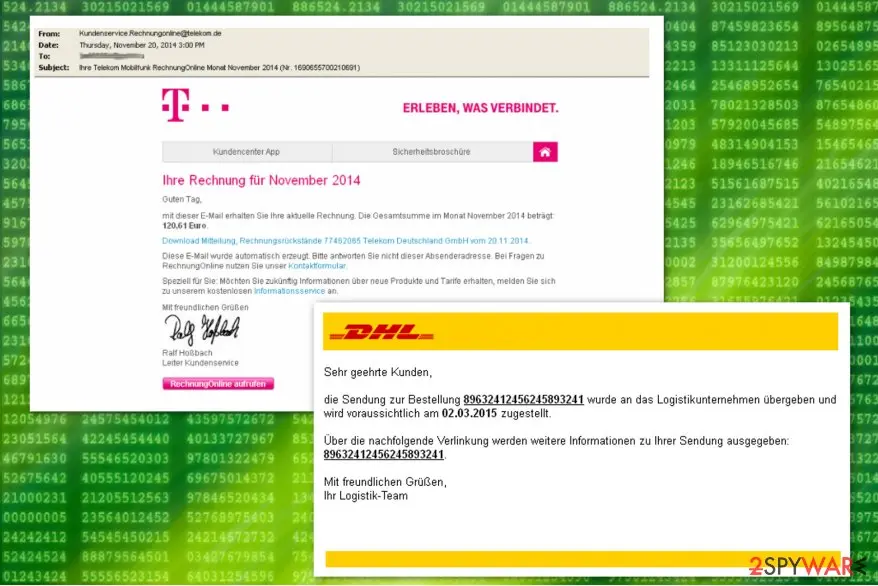
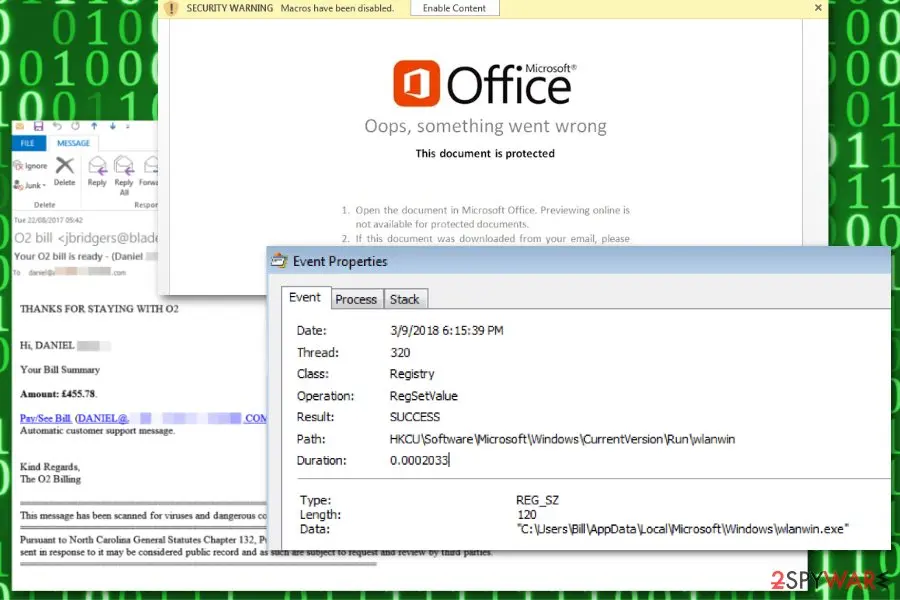
Authors of this malware have been spreading this malware via malicious spam emails.
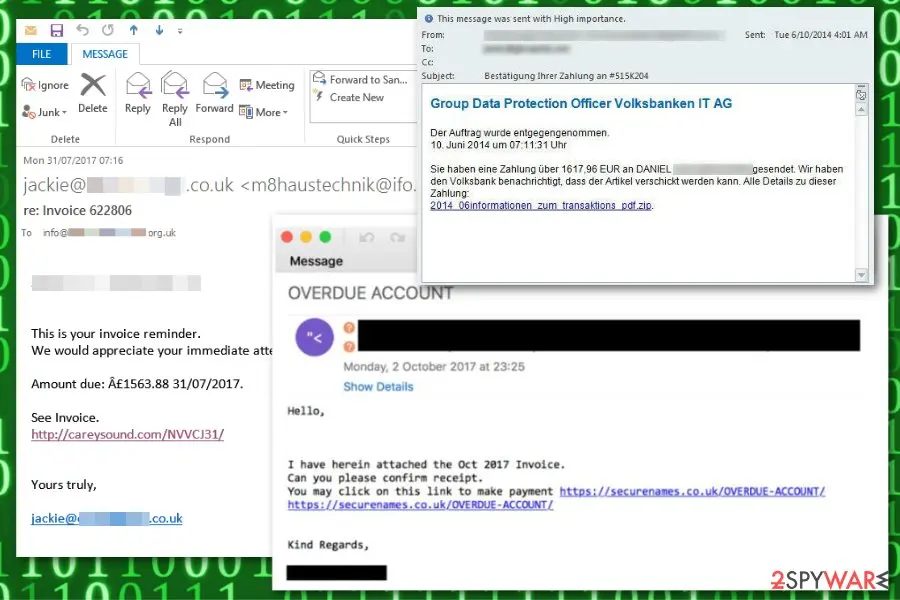
The phishing email arrives as a spam invoice e-mail or notification to make a payment to lure gullible computer users into opening the malicious link attached to the letter.
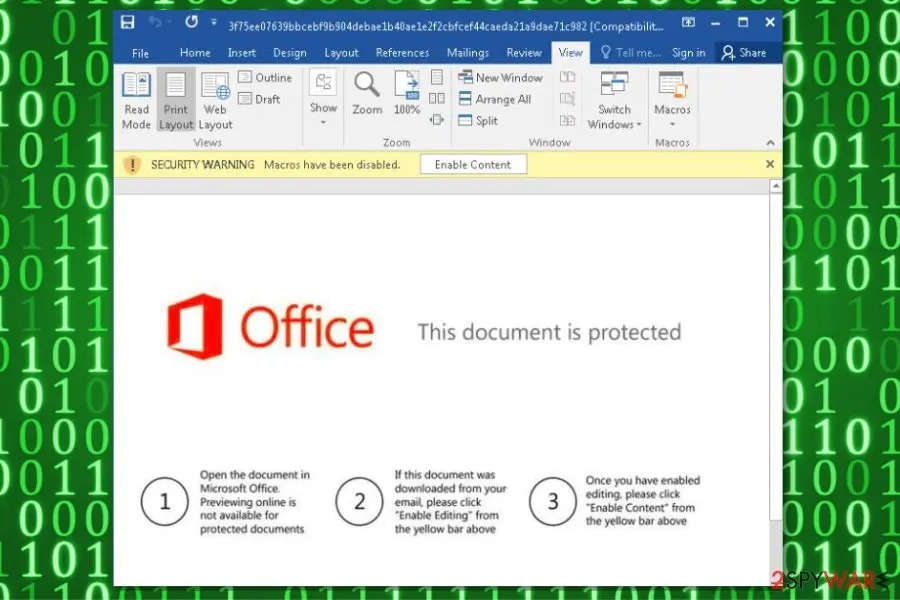
The link redirects to the specific URL address which triggers a download of an infected document that includes a malicious macro command. This macro embedded in the document prompts cmd.exe and PowerShell to download malware payload from the malicious website.
The list of discovered URL links used to distribute Emotet banking trojan:
After the installation the copies of the malware are stored in the following folders:
Besides, IT analysts say that the malicious program deletes the Alternate Data Stream (also known as Zone identifier) which determines the source of the file you attempt to download from Internet Explorer. Thus, it is almost impossible to detect trojan by yourself.
Shortly after, the trojan circumvents the system by registering as system service and modifies Windows Registry entries to enable an autostart mechanism. In other terms, Emotet virus sets itself to launch every time you turn on your computer.
- hxxp://vanguardatlantic[.]com/Invoice-number-7121315833-issue/;
- hxxp://abbeykurtz[.]com/VZZQNZJIZD9113942;
- hxxp://charly-bass[.]de/Copy-Invoice-0954/;
- hxxp://aplacetogrowtherapy[.]com/CNNKIAPGEP3572621.
- System%\{string 1}{string 2}.exe;
- %AppDataLocal%\Microsoft\Windows\{string 1}{string 2}.exe.
From our report of May 2020 · not reviewed since
Six years after its creation, Emotet virus is still active - was spotted attacking various organizations throughout 2020
According to the report published by security researchers, the last quarter of 2019 saw a decline in crypto-malware attacks, which totaled 7% year-over-year- increase.
Instead, the data-stealing viruses were on the rise and attacked users even more on the end of 2019/ beginning of 2020.
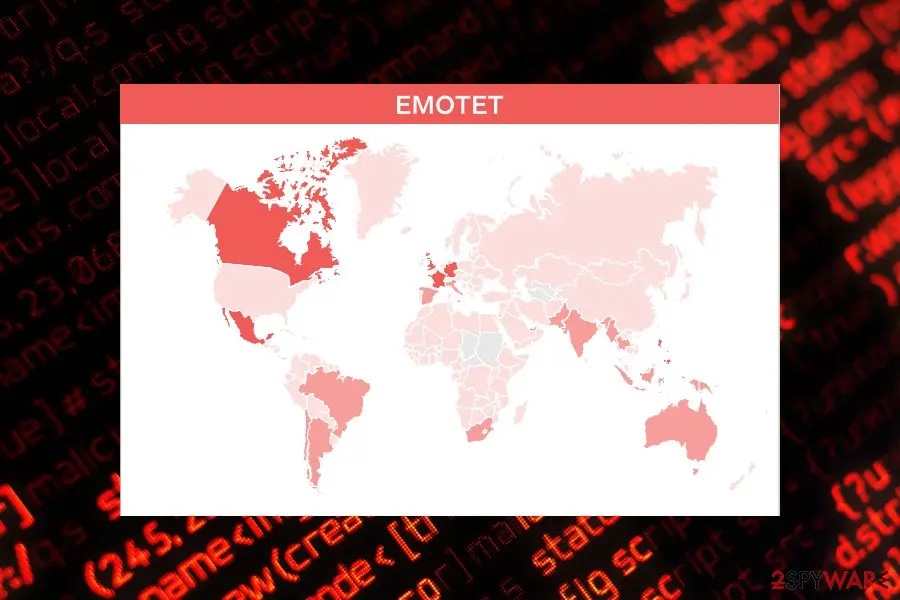
In particular, banking trojan Emotet affected many organizations and firms around the world, but mostly focusing on the US institutions, as it is typical for most malware due to strong economic factors. Emotet and TrickBot were targeting a variety of sectors, including governmental, hospitality, healthcare, manufacturing, and others.
Emotet distribution has been attributed to the TA542 group, which delivers the payload of malware via malicious spam email attachments. The gang took a break for over five months but returned in mid-summer 2020 and delivered booby-trapped emails on an enormous scale (up to one million a day).
The contents of emails include both generic themes and trending ones, e.g., COVID-19-related messages are being actively spread, also adapting to local languages.
Emotet is also included in a massive botnet. Once the user clicks on the malicious link in the spam email, the malware takes over his or her inbox and can start sending out malspam, and recipients do not suspect that the email is malicious, due to the trusted source.
After that, Emotet exploits EternalBlue to exploit vulnerable systems on the network. The affected computers then spread the virus laterally with the help of brute-forcing. Due to such a complicated scheme, Emotet still manages to rise to the top when it comes to infection rates, and it does not seem that it is stopping any time soon.
From our report of May 2020 · not reviewed since
More from our earlier report on Emotet
- Despite its relatively old age, security researchers at Malwarebytes reported that this threat, along with TrickBot , is the most prevalent data-stealing malware in the wild.
- Emotet virus / Emotet Trojan
- Germany, Austria, Switzerland, United States
- Spreads via networks and affects all connected computers; steals banking information and might install other malware to the system
- Mal/Emotet-E, Troj/Inject-CRI, Troj/Agent-AWUQ, Troj/Wonton-ABA, Mal/Generic-S, C2/Generic-B, Mal/Emotet-*, HPmal/Emotet-A, HPmal/Emotet-B, Troj/EmotMem-A, Mal/EncPk-ACW
- Malware is usually delivered via malicious spam email (malspam) attachments, embedded links, or a malicious script.
- Once present on a network, it can also break into other machines with the help of a brute-forcing technique
- In case the infected computer is connected to a network, you should disconnect it and run a full system scan with reputable anti-malware software such as
- Malware can root itself into the system and affect various vital Windows files.
- The most common Emotet variants
- Win32/Emotet Win64/Emotet Mal/Emotet-E Mal/Emotet-* HPmal/Emotet-A HPmal/Emotet-B Troj/EmotMem-A Mal/EncPk-ACW Trojan:Win32/Emotet.PEH!MTB Trojan:Win32/Emotet.CT Trojan:Win32/Emotet.AX Trojan:Win32/Emotet.BE!rfn Trojan:Win32/Emotet.SK!MTB Trojan:Win32/Emotet.AER!MTB Trojan:Win64/Emotet.PDA!MTB Trojan:Win32/Emotet.PED!MTB Trojan:Win32/Emotet.DCV!MTB Trojan:Win32/Emotet.PSM!MTB Trojan:Win32/Emotet.DDM!MTB Trojan:Win32/Emotet.VSB!MTB Trojan:Win32/Emotet.DFJ!MTB Trojan:Win32/Emotet.PEM!MTB Trojan.W97M.EMOTET.UAJS Trojan.W97M.EMOTET.JKAG Trojan.W97M.EMOTET.AFKT Trojan.W97M.EMOTET.TIOIBELH Trojan.W97M.EMOTET.SMBA
- TrojanDropper:JS/Emotet.A TrojanDownloader:Win32/Emotet TrojanDownloader:O97M/Emotet.CSK!MTB TrojanDownloader:O97M/Emotet.TV!MTB TrojanDownloader:O97M/Emotet.ABR!MTB TrojanDownloader:O97M/Emotet.VT!MTB TrojanDownloader:O97M/Emotet.UJ!rfn TrojanDownloader:O97M/Emotet.KAQ!MTB TrojanDownloader:O97M/Emotet.BBZ!MTB TrojanDownloader:O97M/Emotet.LAD!MTB TrojanDownloader:O97M/Emotet.TM!rfn TrojanDownloader:O97M/Emotet.PAF!MTB TrojanDownloader:O97M/Emotet.AAS!MTB TrojanDownloader:O97M/Emotet.FAO!MTB TrojanDownloader:O97M/Emotet.KAB!MTB TrojanDownloader:O97M/Emotet.NAN!MTB TrojanDownloader:O97M/Emotet.IAN!MTB TrojanDownloader:O97M/Emotet.VI!MTB TrojanDownloader:O97M/Emotet.PAM!MTB TrojanDownloader:O97M/Emotet.MAF!MTB TrojanDownloader:O97M/Emotet.JAT!MTB TrojanDownloader:O97M/Emotet.MAM!MTB TrojanDownloader:O97M/Emotet.KAI!MTB TrojanDownloader:O97M/Emotet.IAE!MTB TrojanDownloader:O97M/Emotet.JAI!MTB TrojanDownloader:O97M/Emotet.PAK!MTB TrojanDownloader:O97M/Emotet.CAT!MTB
How to check the PC for Emotet
Emotet detection names
If Windows Security shows Trojan:Win32/Emotet.PEH!MTB, it has found Emotet or a file that belongs to it.
Write the name down before you click Remove: it is the most useful search term later, and you will need it if you report the incident.
A family name in the label is more informative than a heuristic one. Our page on why one threat has many antivirus names lists the common formats and what each part means.
- Path:
C:\Windows\ - File:
wingroup.exe
How to remove Emotet
A loader's job is to install other malware, so treat the PC as infected with more than one program until the scans are clean.
Step 1: Check where wingroup.exe runs from and stop it
wingroup.exeis the part you can see, and its location tells you whether it belongs there. Right-click it on the Processes page of Task Manager and choose Open file location, then right-click the file > Properties > Digital Signatures to see who signed it.An unsigned file, or one in a user folder such as
%AppData%, is the one to remove: end the task, then delete the file.Note the folder name, because the same folder usually holds its other files. This is the same in Windows 11 and Windows 10.
Full procedure with screenshots: Close a frozen app (Task Manager, Force Quit) On uGetFix
Step 2: Delete scheduled tasks that bring it back
Open Task Scheduler from the Start menu and click Task Scheduler Library. Select each task you do not recognise and read the Actions tab:
- a task that starts a file in
%AppData%or%Temp% - runs
powershellwith a long encoded line - opens a web address belongs to Emotet or a similar program
Right-click such a task and choose Delete, and check the subfolders too. Leave tasks from Microsoft, your PC's maker and programs you use. Task Scheduler is the same in Windows 11 and Windows 10.
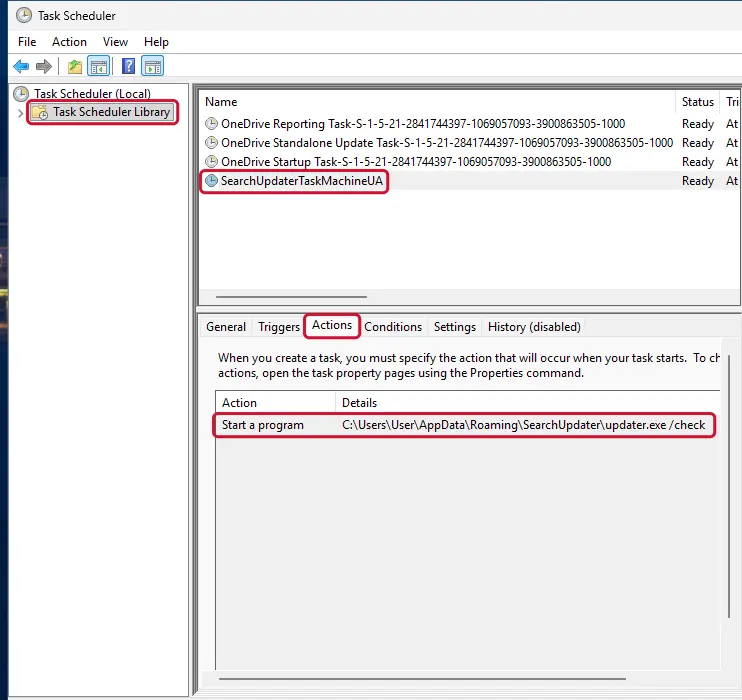
Windows 11: Task Scheduler Library, the task selected, the Actions tab shows the file it runs. Full procedure with screenshots: Remove what malware leaves behind in Windows
- a task that starts a file in
Step 3: Remove it from startup
Whatever Emotet installed usually starts with Windows. Open Task Manager with Ctrl + Shift + Esc, go to Startup apps in Windows 11 or the Startup tab in Windows 10, and disable what you do not know, starting with entries that have an empty Publisher column.
Open file location on the right-click menu shows the file, which helps you decide and tells you what to delete later. Disabling is safe: if something you need stops working, switch it back on.
Full procedure with screenshots: Stop apps from opening at startup On uGetFix
Step 4: Delete the folders left behind
What the uninstaller leaves behind is usually in the user folders. Open File Explorer, switch on View > Show > Hidden items (in Windows 10 View > Hidden items), and go through
%LocalAppData%,%AppData%, %ProgramData% and the two Program Files folders.Sort by Date modified and delete folders that appeared together with the problem and belong to no program you use. Folders with random names that hold
.exe,.dll, .js or .ps1 files are the strongest sign.Full procedure with screenshots: Remove what malware leaves behind in Windows
Step 5: Scan the PC, then run the offline scan
Open Windows Security > Virus & threat protection > Scan options, run a Full scan and remove everything it finds. Then select Microsoft Defender Antivirus (offline scan) and click Scan now: the PC restarts and scans before Windows loads, which finds files that hide while Windows runs.
Save your work first, because the offline scan takes about 15 minutes. Both scans are built into Windows 11 and Windows 10, and a second scanner from another vendor is a useful extra opinion.

Windows 11: Windows Security > Virus & threat protection > Scan options. Full procedure with screenshots: Run a Microsoft Defender Offline scan
Step 6: Change passwords from another device and sign out other sessions
Assume that the passwords saved in this PC's browsers, and the accounts that were open in them, are known to the attacker. From a phone or a clean computer, change the e-mail password first, then banking, shopping, social and gaming accounts.
Use each service's option to sign out of all other sessions, because stolen cookies keep a session open even after a password change. Turn on two-step verification on each account. Wait with the infected Windows 11 or Windows 10 PC until the scans are clean.
Full procedure with screenshots: Turn on two-step verification / secure a hacked account
Instructions for each browser and system
The detailed steps for every browser and system this guide covers. Open the one you use.
Manual removal using Safe Mode
Important! →
Manual removal guide might be too complicated for regular computer users. It requires advanced IT knowledge to be performed correctly (if vital system files are removed or damaged, it might result in full Windows compromise), and it also might take hours to complete. Therefore, we highly advise using the automatic method provided above instead.
Step 1. Access Safe Mode with Networking
Manual malware removal should be best performed in the Safe Mode environment.
Windows 7 / Vista / XP
- Click Start > Shutdown > Restart > OK.
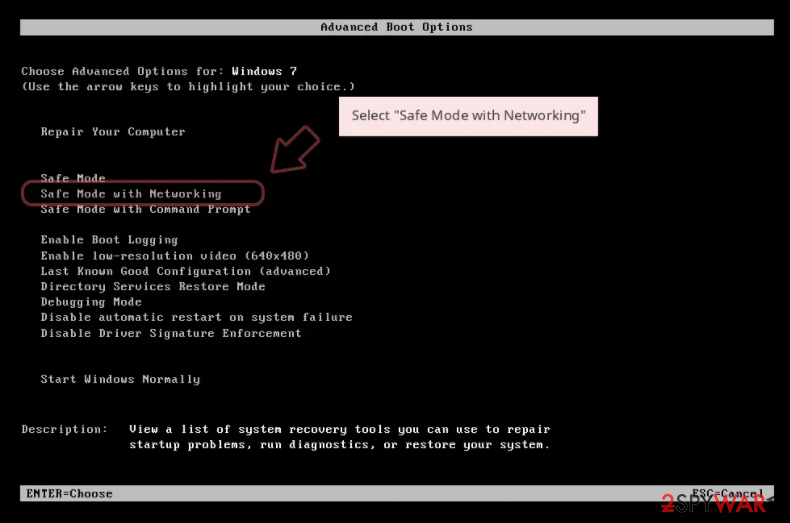
- When your computer becomes active, start pressing F8 button (if that does not work, try F2, F12, Del, etc. - it all depends on your motherboard model) multiple times until you see the Advanced Boot Options window.
- Select Safe Mode with Networking from the list.
Windows 10 / Windows 8
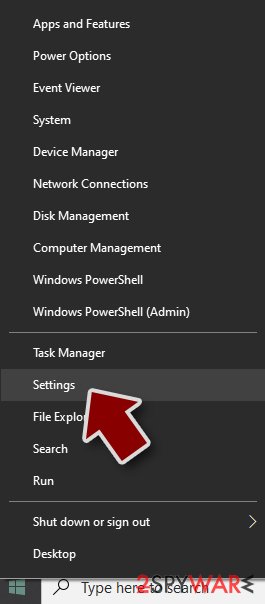
- Right-click on Start button and select Settings.
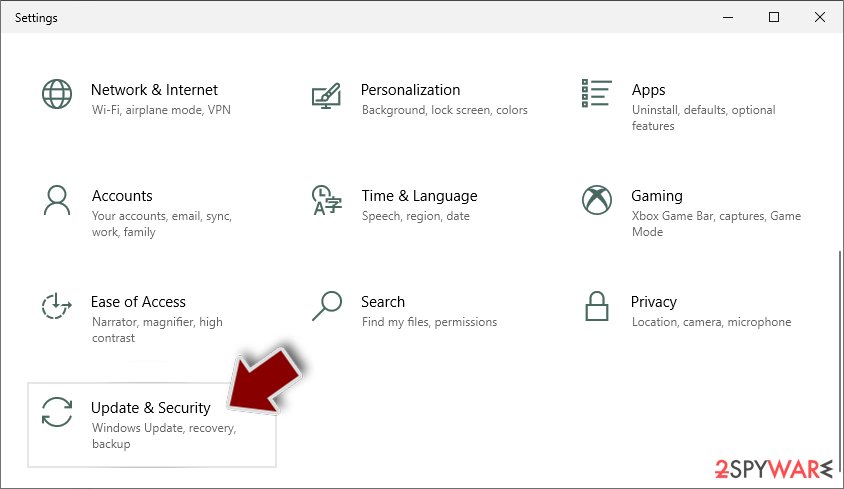
- Scroll down to pick Update & Security.
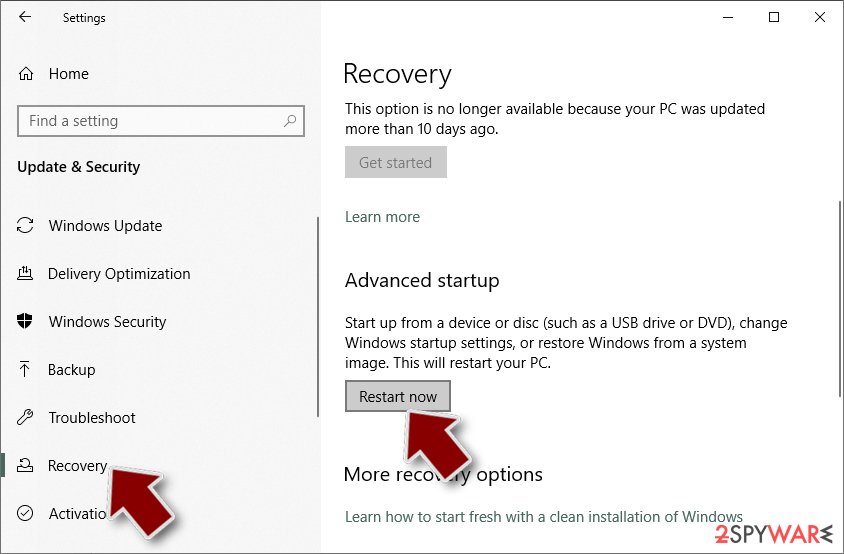
- On the left side of the window, pick Recovery.
- Now scroll down to find Advanced Startup section.
- Click Restart now.
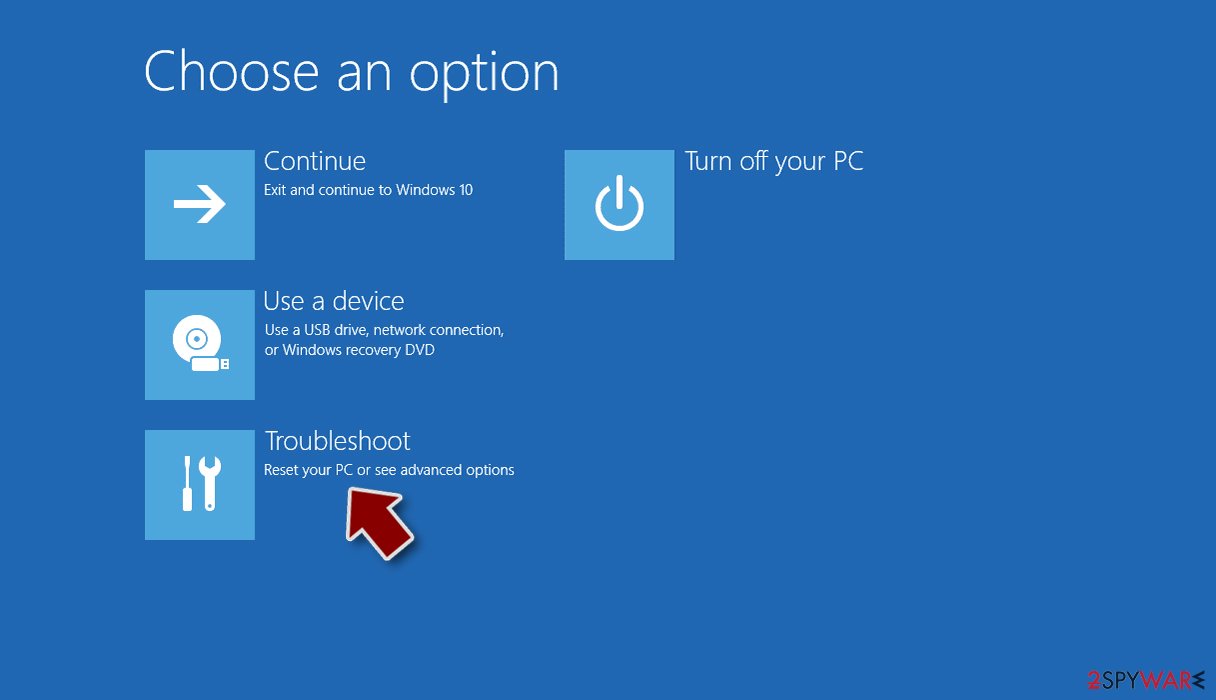
- Select Troubleshoot.
- Go to Advanced options.
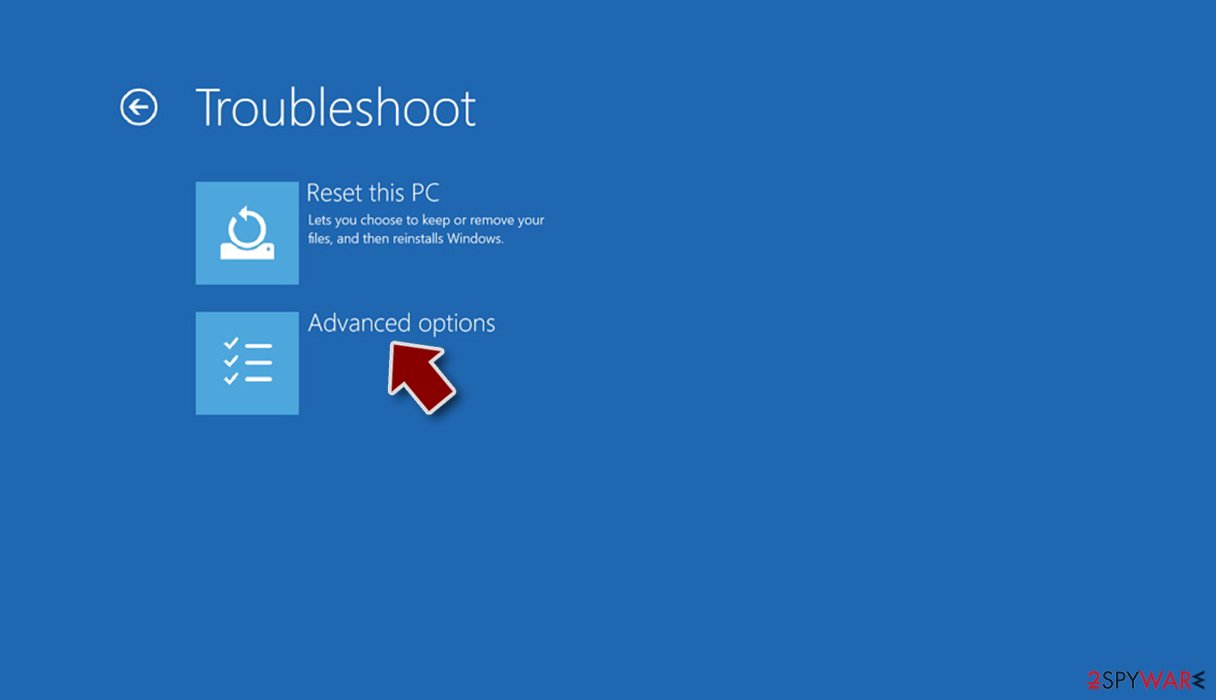
- Select Startup Settings.
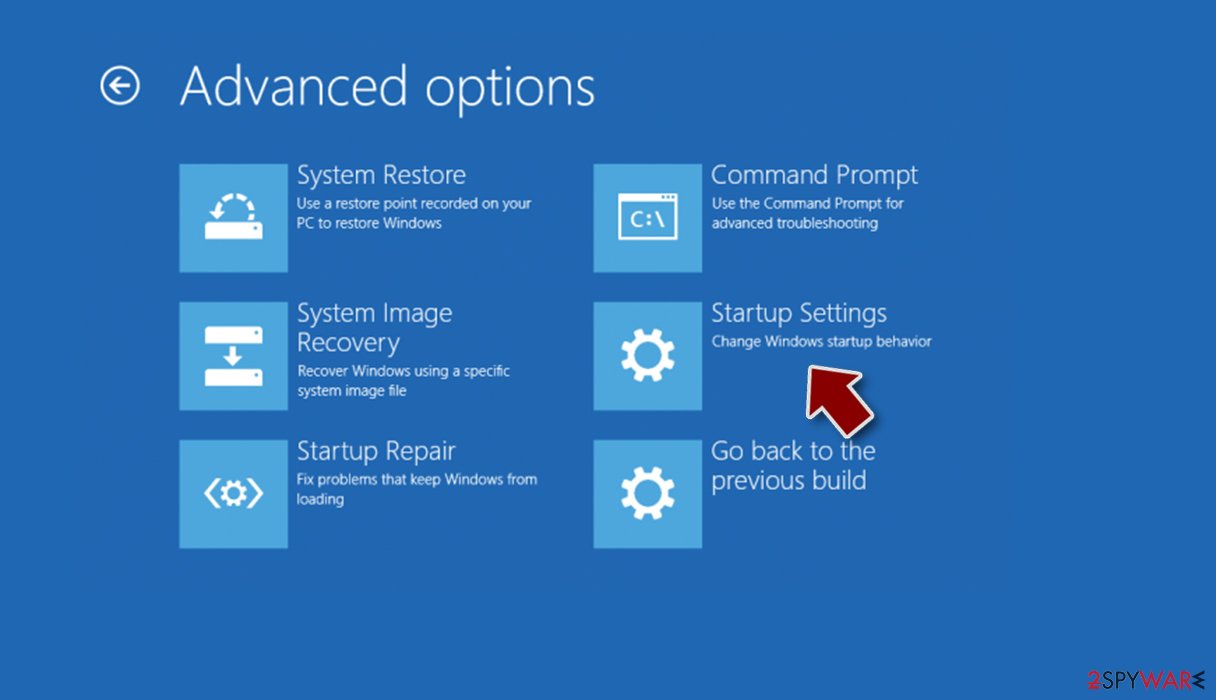
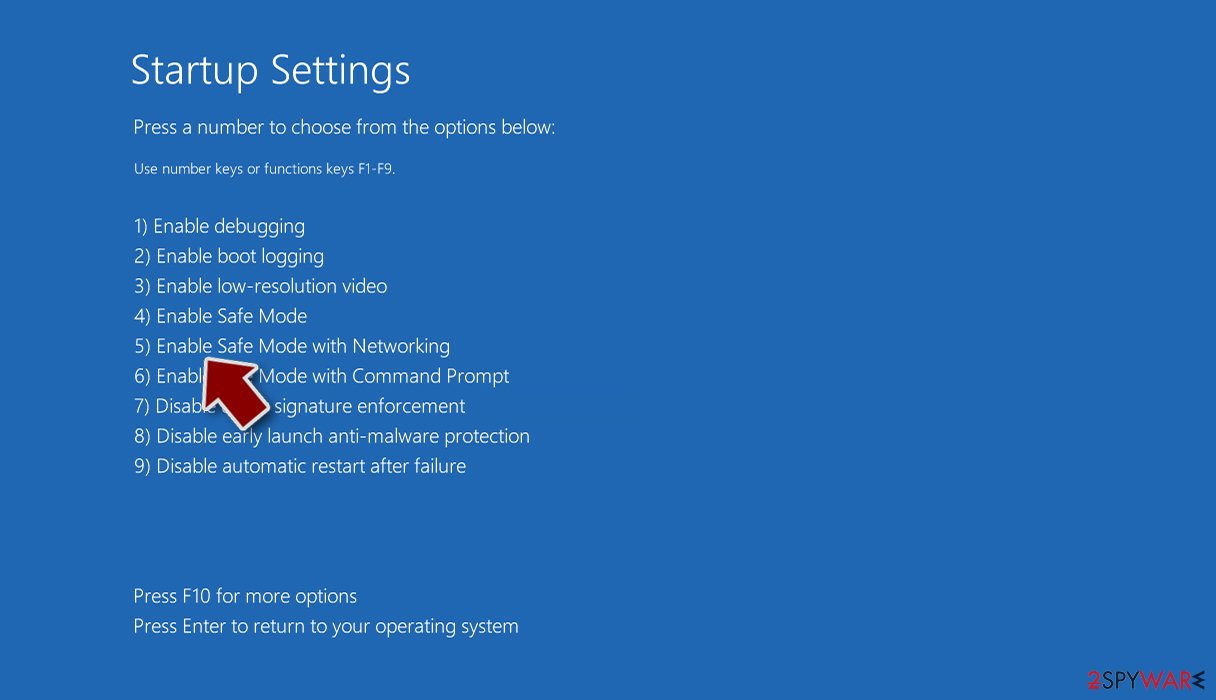
- Press Restart.
- Now press 5 or click 5) Enable Safe Mode with Networking.
Step 2. Shut down suspicious processes
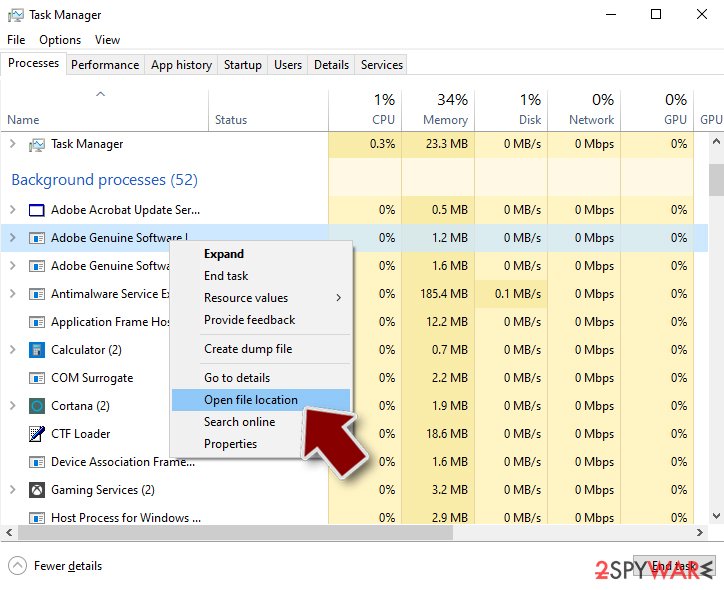
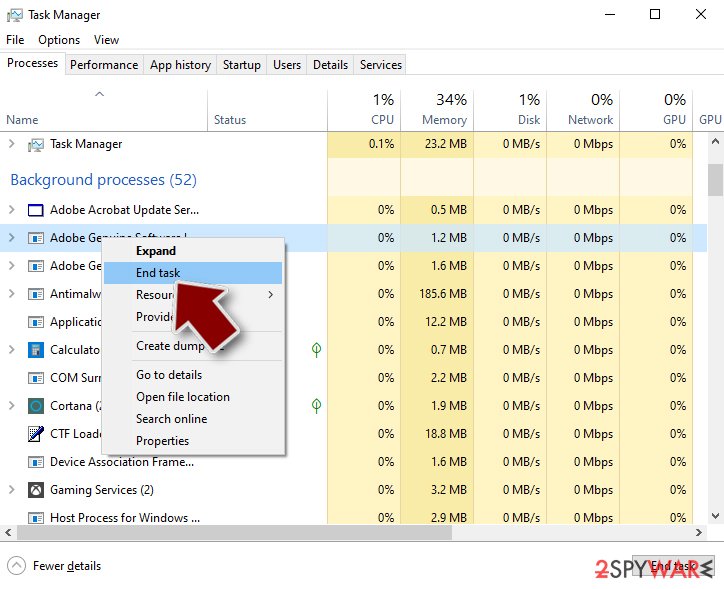
Windows Task Manager is a useful tool that shows all the processes running in the background. If malware is running a process, you need to shut it down:
- Press Ctrl + Shift + Esc on your keyboard to open Windows Task Manager.
- Click on More details.
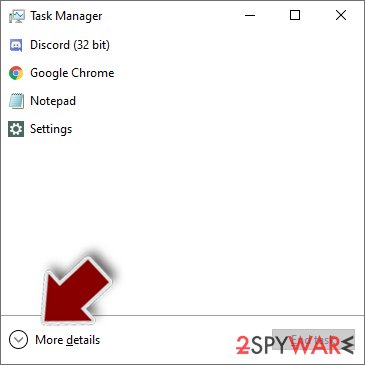
- Scroll down to Background processes section, and look for anything suspicious.
- Right-click and select Open file location.
- Go back to the process, right-click and pick End Task.
- Delete the contents of the malicious folder.
Step 3. Check program Startup
- Press Ctrl + Shift + Esc on your keyboard to open Windows Task Manager.
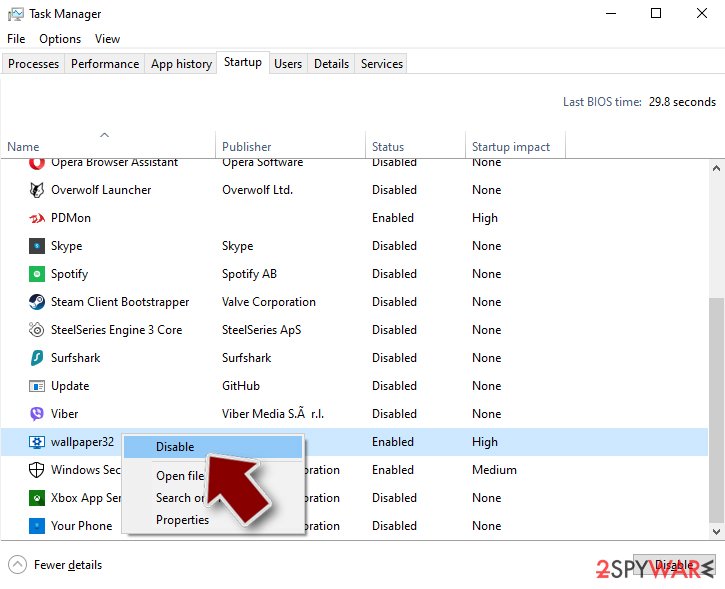
- Go to Startup tab.
- Right-click on the suspicious program and pick Disable.
Step 4. Delete virus files
Malware-related files can be found in various places within your computer. Here are instructions that could help you find them:
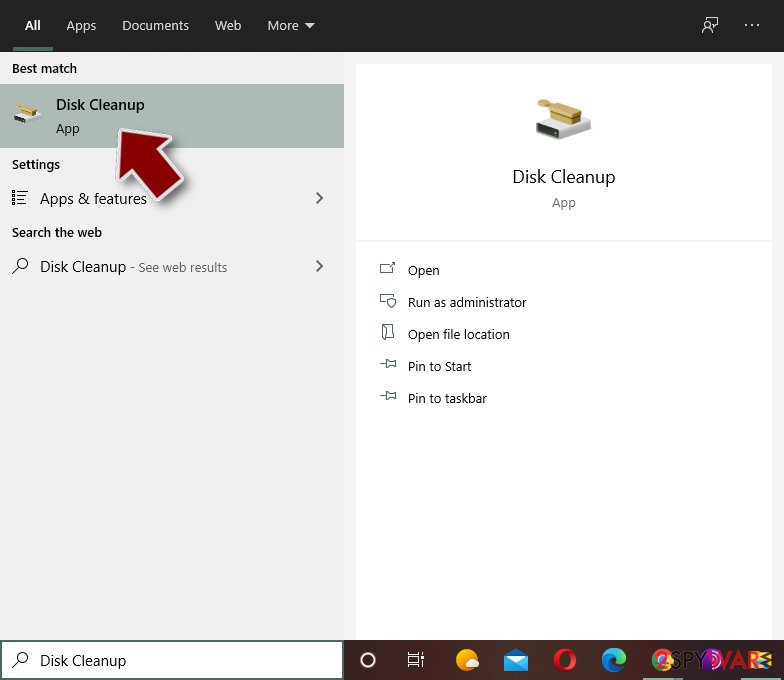
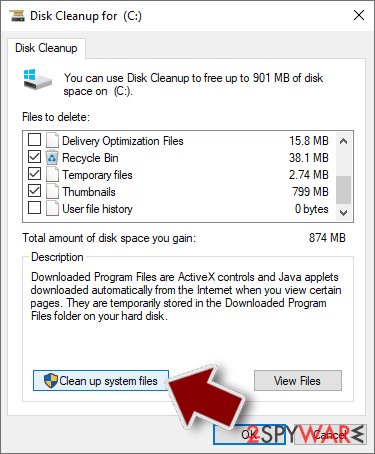
- Type in Disk Cleanup in Windows search and press Enter.
- Select the drive you want to clean (C: is your main drive by default and is likely to be the one that has malicious files in).
- Scroll through the Files to delete list and select the following:
Temporary Internet Files
Downloads
Recycle Bin
Temporary files - Pick Clean up system files.
- You can also look for other malicious files hidden in the following folders (type these entries in Windows Search and press Enter):
%AppData%
%LocalAppData%
%ProgramData%
%WinDir%
After you are finished, reboot the PC in normal mode.
From our report of May 2020 · not reviewed since
Instructions on how to eliminate Emotet from the affected computer
As mentioned above, this malicious virus can infect other computers connected to the network.
If you delay Emotet removal, you risk not only your own safety but other's as well. Be aware that this is a very dangerous program that is programmed to hide its presence and traces. Trying to get rid of it by yourself might lead to irreversible damage to your system.
However, this banking trojan might block the installation of the security software. Shortly after, you will be able to run a full system scan and eliminate the malware.
Keep in mind that you have to remove Emotet from all computers that are connected to the same affected network. If you run a system scan a couple of times and you still find malicious components, it means that some of the machines are still connected. So, trojan removal is a complex task and requires cleaning all connected machines immediately. Finally, fix virus damage with .
[GI=method-1]Emotet trojan might be programmed to block the installation of powerful security software.
[GI=method-2]If you are still not able to get rid of the banking trojan, try to Command Prompt method. The steps provided below will guide you through the process:
After removal: passwords, accounts and prevention
Your passwords after Emotet
Removing Emotet does not undo what it may already have sent out while the PC showed an unfamiliar process called wingroup.exe in Task Manager.
Treat saved browser passwords and logged-in sessions on this PC as known to the attacker.
From another device, change the e-mail password first and end all its sessions. Then do the same for the bank, PayPal, Microsoft, Google and Apple accounts. Stolen session cookies keep working after a password change until you sign out everywhere.
Move crypto to a new wallet created on a clean device. A step-by-step order for every kind of account is in our guide to account security after an infection.
Choose a proper web browser and improve your safety with a VPN tool
Online spying has got momentum in recent years and people are getting more and more interested in how to protect their privacy online.
One of the basic means to add a layer of security - choose the most private and secure web browser. Although web browsers can't grant full privacy protection and security, some of them are much better at sandboxing, HTTPS upgrading, active content blocking, tracking blocking, phishing protection, and similar privacy-oriented features.
However, if you want true anonymity, we suggest you employ a powerful VPN - it can encrypt all the traffic that comes and goes out of your computer, preventing tracking completely.
Lost your files? Use data recovery software
While some files located on any computer are replaceable or useless, others can be extremely valuable.
Family photos, work documents, school projects - these are types of files that we don't want to lose. Unfortunately, there are many ways how unexpected data loss can occur:
- power cuts
- Blue Screen of Death errors
- hardware failures
- crypto-malware attack
- even accidental deletion
To ensure that all the files remain intact, you should prepare regular data backups. You can choose cloud-based or physical copies you could restore from later in case of a disaster. If your backups were lost as well or you never bothered to prepare any, can be your only hope to retrieve your invaluable files.
Questions about Emotet
What is wingroup.exe and why is it running?
Every process is started by something:
- a program you installed
- a Windows service
- a scheduled task
- a startup entry
To learn why wingroup.exe runs, find its file with Open file location in Task Manager, then look for an entry pointing to that file in Settings > Apps > Startup and in Task Scheduler.
Sort Installed apps by date to see what arrived when the process first appeared. Once you know the owner, you can decide whether to keep it, switch it off at startup or uninstall it completely.
Defender removed Trojan:Win32/Emotet.PEH!MTB. Am I safe now?
Often yes, but check two things. First, whether the detection was caught on arrival: a file in Downloads or in an archive that Defender quarantined before it ran is the best case.
Second, whether Trojan:Win32/Emotet.PEH!MTB comes back. If it returns, or if Protection history shows several different detections around the same date, something on the PC keeps producing the file and needs to be found.
Run a full scan and, if anything remains, an offline scan. If the category names a password stealer or a backdoor, change your passwords from another device even if the file is gone.
Can I end wingroup.exe in Task Manager?
Ending an unknown process is safe in the sense that Windows will warn you before you close anything critical, and a restart brings back whatever Windows needs. Ending wingroup.exe will not remove it, though: if a task or startup entry launches it, it returns at the next sign-in.
Use ending the process as a test. If something important stops working, it belonged to a program you use. If nothing changes and it comes back by itself, find and disable its starter, delete the file and scan the PC.
Can I ignore Trojan:Win32/Emotet.PEH!MTB if the PC works fine?
No. Many threats are built to leave the PC working normally while they steal passwords, use the processor or wait for instructions. A detection is Defender telling you it saw something malicious, and the absence of symptoms says nothing about its activity.
Check the action in Protection history: if it is anything other than Quarantined or Removed, remove it now. Then run a full scan. If the detection was a single file caught on download and does not return, you can move on; if Trojan:Win32/Emotet.PEH!MTB reappears, follow the removal steps in this guide.
Can I just delete wingroup.exe?
Deleting wingroup.exe by hand rarely removes Emotet. While the trojan runs, Windows may refuse to delete the file, and if you succeed, a scheduled task, a service or a second copy may bring it back at the next restart.
The file can also be only one part of the infection: loaders and remote access tools often install other programs. Use the Microsoft Defender offline scan, which removes the file together with its startup entries before Windows loads, and then check startup items and scheduled tasks as described in the plan.
Will Windows Security detect Emotet?
Yes, current Microsoft Defender definitions name it Trojan:Win32/Emotet.PEH!MTB. Make sure the definitions are up to date first: open Windows Security > Virus & threat protection > Protection updates and click Check for updates. Then run a full scan and the Microsoft Defender offline scan.
If the detection comes back after you remove it, look for the program, task or extension that brings it back, using the plan above. Detection removes files and startup entries, but it does not reverse changes Emotet already made, so follow the other steps in this guide as well.
What are the signs of a trojan infection?
Most trojans try to leave no visible signs, so look for side effects. Common ones:
- Windows Security turned off or unable to update
- new entries in Startup apps or Task Scheduler
- programs in Installed apps you did not install
- browser settings that changed by themselves
- unusual network activity while the PC is idle
- password-reset or login-alert e-mails you did not trigger
None of these proves an infection on its own. Together with an antivirus alert naming Emotet, they are a strong reason to follow the full plan.
Why didn't my antivirus stop Emotet?
New trojan builds are packed and changed often so that signatures do not match, and some are signed with stolen or bought certificates. Many arrive inside password-protected archives, which scanners cannot open until you extract them.
Some downloads also tell the user to turn off the antivirus "because it gives false alarms", a common line in cracked software instructions. Keep real-time protection on, never disable it for an installer, and run the offline scan whenever you suspect something slipped through.
Can Emotet spread to other devices on my network?
Most trojans aimed at home users stay on the PC they infected, but an attacker with remote access can look at the network, open shared folders and try passwords on other devices. Loaders sometimes deliver worms or ransomware that do spread.
Disconnect the PC while cleaning, run a full scan on other Windows PCs, change the router's admin password and the Wi-Fi password if they were saved on the infected PC, and update the router's firmware. If other PCs show the same detection, treat them as infected too.
Will Fortect remove Emotet?
Fortect scans Windows for malware and unwanted programs and repairs the system files and settings they change, and its free scan shows what it finds on your PC before you decide anything.
For Emotet, follow the plan above as well: the browser steps take back permissions and settings that no scanner treats as a threat, and uninstalling the program that brought it removes the source.
Run Microsoft Defender's full scan and, if anything was found, its offline scan as a second opinion. If the symptoms are gone after the plan and both scans are clean, there is nothing more to do.
Sources
- Wikipedia: Emotet (read October 7, 2026)
- The Hacker News: Dridex Banking Trojan Gains 'AtomBombing' Code Injection Ability to Evade Detection (read October 7, 2026)
- ZDNet: Fresh wave of mutating Qakbot malware brings down enterprise networks (read October 7, 2026)
- Proofpoint: A Comprehensive Look at Emotet's Summer 2020 Return (read October 7, 2026)
- FTC: How to recognize, remove and avoid malware (read October 7, 2026)