
How-to
How to reset the hosts file in Windows 11 and 10
The hosts file tells Windows which address to use for a website name before it asks the internet. Malware adds lines to it to block antivirus and update sites or to send you to fake copies of real sites. The default Windows file contains only comment lines, so anything else in it was added by a program or a person.
When you need this
- Antivirus, Windows Update or security websites will not open, while other sites work.
- A known site opens a page that looks wrong or asks for your password in an unusual way.
- A removal guide on this site tells you to reset the hosts file.
Windows 11
Written for Windows 11 (screenshot: Windows 11 Pro 26H2, build 26300, 2026-10-03). Microsoft gives the same steps for Windows 10.. Steps checked against Microsoft Support and our Windows 11 screenshot on October 3, 2026.
The file is C:\Windows\System32\drivers\etc\hosts (no file extension). You need an administrator account to change it.
Click Start, type
Notepad, right-click Notepad and choose Run as administrator.In Notepad, choose File > Open, paste
C:\Windows\System32\drivers\etc\hostsinto the file name box and open it.If you browse to the folder instead, switch the file type to all files, or the hosts file is not shown.
Delete every line that does not start with
#.Microsoft's default file is only comment lines, as in the picture. If you added a line yourself (for example for a work tool), keep that one.
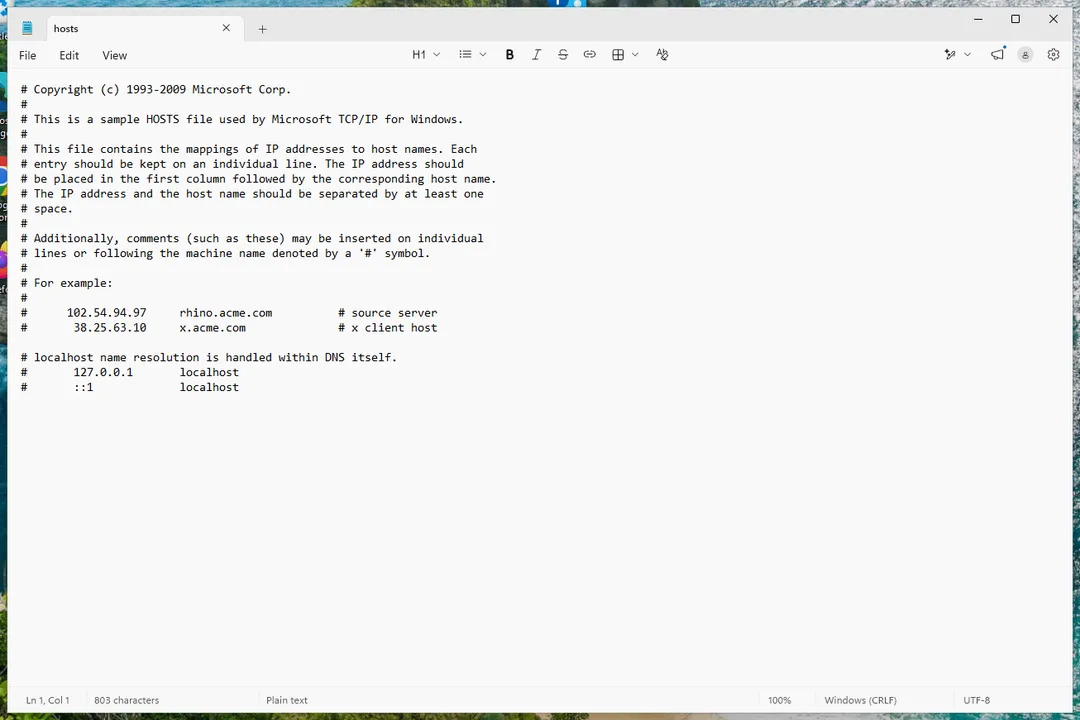
Windows 11: the default hosts file in Notepad; every line is a comment. Choose File > Save.
If Windows refuses to save, Notepad was not started as administrator, or the file is read-only (see below).
Open Command Prompt and run
ipconfig /flushdnsso Windows forgets the old addresses.
Microsoft's own method replaces the file instead of editing it: in Notepad, paste the default text from Microsoft's article, choose File > Save as, type "hosts" (with the quotes) as the name, set Save as type to All files (*.*) and save it to the desktop. Then rename the old file in %WinDir%\System32\drivers\etc to hosts.old and move the new file into that folder; select Continue if Windows asks for administrator permission.
Keeping hosts.old lets you see later which lines the malware added.
Sources
- Microsoft Support: How to reset the Hosts file back to the default (read October 3, 2026)
If the steps did not help
The changes come back, or the file cannot be saved
- The file is read-only. Right-click the hosts file in File Explorer > Properties, clear Read-only on the General tab, and save again. Malware sometimes sets it to stop you editing the file.
- A program writes the lines back. Remove the program that added them (Uninstall a program or app in Windows On uGetFix) and scan the PC, for example with Run a Microsoft Defender Offline scan. Then reset the file again.
- Sites still go to the wrong place. The redirect may be elsewhere: a proxy or DNS setting, or a browser extension. See Reset the network and flush DNS On uGetFix and remove a browser extension.
Questions
Where is the hosts file in Windows 11?
In C:\Windows\System32\drivers\etc. The file is called hosts and has no extension.
Is it safe to delete all the lines?
Yes for the lines that do not start with #: the default Windows file has none. Lines starting with # are comments and do nothing. Keep only entries you added on purpose.
Do I need to restart after resetting the hosts file?
Usually not. Running ipconfig /flushdns clears addresses Windows already looked up; restart the browser too.