CoolWebSearch: what it is and how to remove it
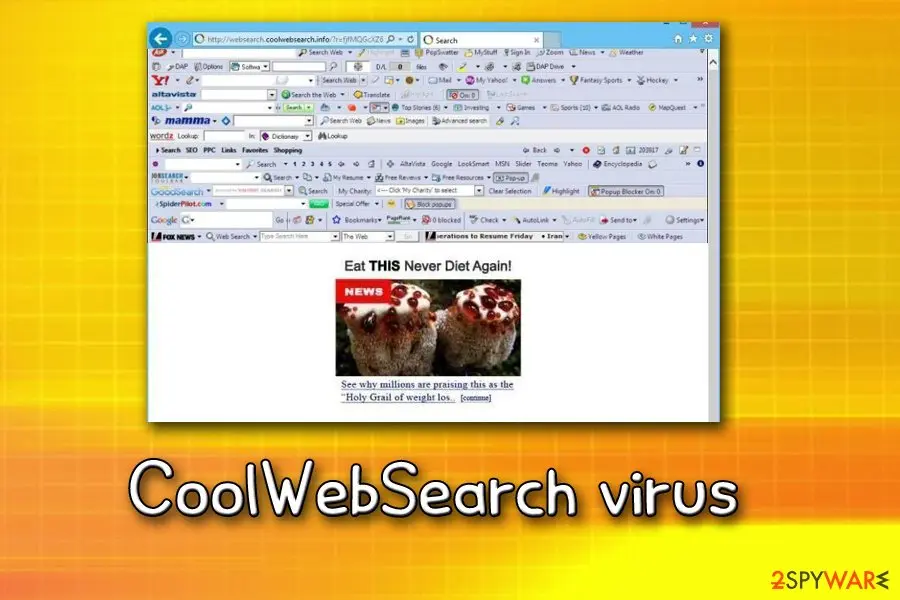
CoolWebSearch is a notorious potentially unwanted program that takes place in cybersecurity history as the nastiest browser hijacker ever created. This cyber threat is known to enter Google Chrome or Internet Explorer and modify their settings without warning.
Facts checked October 6, 2026. Removal steps tested on Windows 11 (26H2) and checked against Microsoft's and the browser makers' current documentation. Sections marked as our earlier report are the original text: they describe the threat as it was then and have not been reviewed since. The 2026 status, the removal steps and the questions are current.
Automatic
Get a free scan and check if your PC is infected.
Fortect finds malware, unwanted programs and the Windows damage they leave behind, and repairs it in one pass.
A quick scan confirms nothing else was installed alongside the coolwebsearch.com search hijacker.
Do it yourself · free Remove CoolWebSearch yourself 5 steps, about 15 minutes, no software needed.
Start the steps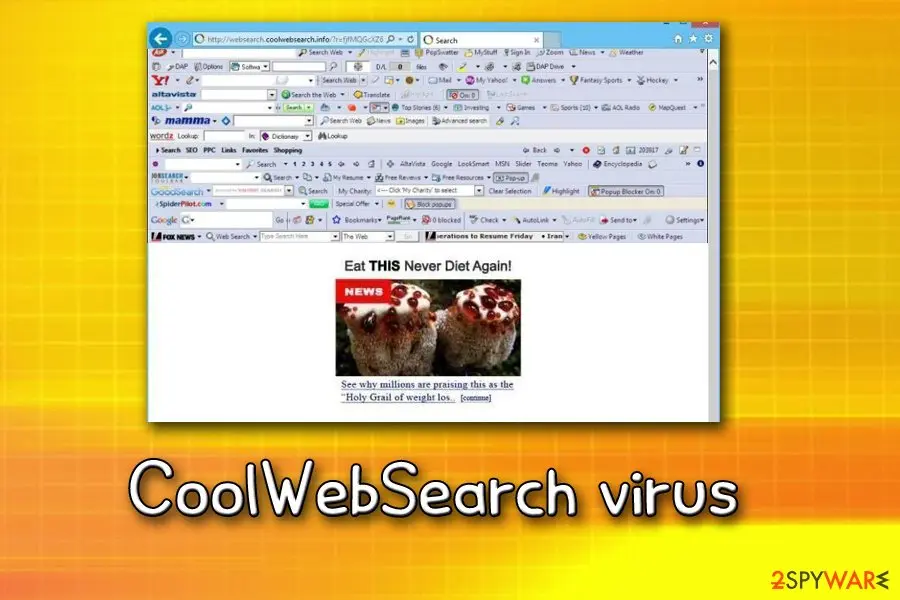
CoolWebSearch: summary
| Detection names | No Microsoft detection name is known |
|---|---|
| Distribution | Not recorded in the old report |
| Damage | Not recorded in the old report |
| Name | CoolWebSearch |
| Type | Search hijacker extension |
| Symptoms | A changed search engine |
| Removal | Scan the PC with security software to find and remove the malware and anything installed with it. Fortect scans Windows for malware and repairs the system files and settings it damaged. Remove it nowTo use the full-featured product, you have to purchase a license for Fortect. The scan is free. |
Show 5 more facts
| Evidence | 5 write-ups by security sites; details still limited |
|---|---|
| Search page | coolwebsearch.com |
| Browsers | Chrome, Edge and Firefox |
| First seen | 19 March 2021 |
| Facts checked | 6 October 2026 |
Is CoolWebSearch dangerous? What it collects
From our report of Oct 2026 · not reviewed since
CoolWebSearch is an infamous browser hijacker that bullies web users
CoolWebSearch is a notorious potentially unwanted program that takes place in cybersecurity history as the nastiest browser hijacker ever created.
This cyber threat is known to enter Google Chrome or Internet Explorer and modify their settings without warning.
Soon after that, the hijacker redirects all searches to Coolwebsearch.com or other questionable sites. The hazardous program comes in a variety of versions (107 to be precise), all of them using a different code, but behaving very similarly. During its reign in 2005, it infected over 8% of PCs worldwide, which is a massive amount.
Cool Web Search malware is considered to be one of the most aggressive browser hijackers ever made. As soon as it hijacks the browser, it installs multiple dubious bookmarks to porn sites, introduces browser helper objects (BHO) as well as creates shortcuts on the desktop.
What is more, it considerably slows down the browser and internet speed. Thus, security experts advise users to remove CoolWebSearch from their machines immediately. The most annoying feature of this browser hijacker is the advertising content display, as well as its frequency.
Users are often bothered by multiple pop-up windows or redirects that occur on a daily basis and conceal the content of legitimate websites. What is more, CoolWebSearch hijack considerably slows down your computer and may even crash your operating system.
Additionally, internet speed can be affected too, and getting to even the simplest websites might take a substantial amount of time. Just like any other browser hijacker, CoolWebSearch can track a variety of non-personally identifiable information, such as:
This data is invaluable for any marketing firm, as it is used as a tool to generate a virtual ID about every user, and display targeted advertisement, making users buy from sponsored retailers.
This way, traffic to unknown websites is boosted, and the sponsors manage to sell their products or services much easier. The sad part is, that a lot of these products may be bogus, or end up being a complete scam.
- IP address (note: this data may be considered personal, depending on where you live)
- Internet service provider
- Technical information
- Search queries
- Websites visited
- Bookmarks added
- Links clicked, etc.
From our report of Oct 2026 · not reviewed since
Developers of CoolWebSearch acted like malware authors – they engaged in DDoS attacks
Adding to all this, there is a much darker side to this browser hijacker.
When the unwanted program first appeared on the web, it was challenging to eliminate. Since it modified registry entries, it managed to stay on the PC as long as possible, and users failed to remove Cool Web Search spyware.
No matter what they did. In some cases, only a completed replacement of Windows registry with the previous version helped. What is more, cybercrooks used ByteVerify exploit to inject their malicious software.
Back in 2004, a Dutch student Merjin Bellekom created a CoolWebSearch removal tool called CWShredder. It got rid of the program fast, and developers of the browser hijacker hated it. Therefore, the bad actors used Distributed Denial of Service (DDoS) attacks to target websites hosting this anti-spyware tool. Countless versions of the application came out, just to counter CWS malware updates.
Fortunately, the tools created back then are already outdated, and if you need to deal with CoolWebSearch, you can use or - these anti-malware applications can get rid of the annoying pest in just a few minutes.
From our report of Oct 2026 · not reviewed since
Over 100 versions of CoolWebSearch created
As we already mentioned, there are over a hundred versions of CoolWebSearch, among them being Websearch.helpmefindyour.info, Websearch.eazytosearch.info, Websearch.simplespeedy.info, and many others.
Although all of them use a different code, the main goal remains - to redirect users to questionable websites and generate revenue. Here are the two most wide-spread versions on the internet:
From our report of Oct 2026 · not reviewed since
CoolWebSearch.control
CoolWebSearch.control is one of the first versions of Cool Web Search, and it aims to infiltrate as many machines as possible using software bundling technique.
Additionally, users can obtain it while browsing unsafe websites, such as file-sharing or torrent sites. Just as its original version, it injects several registry entries and avoid removal and proceeds wit hits malicious activities.
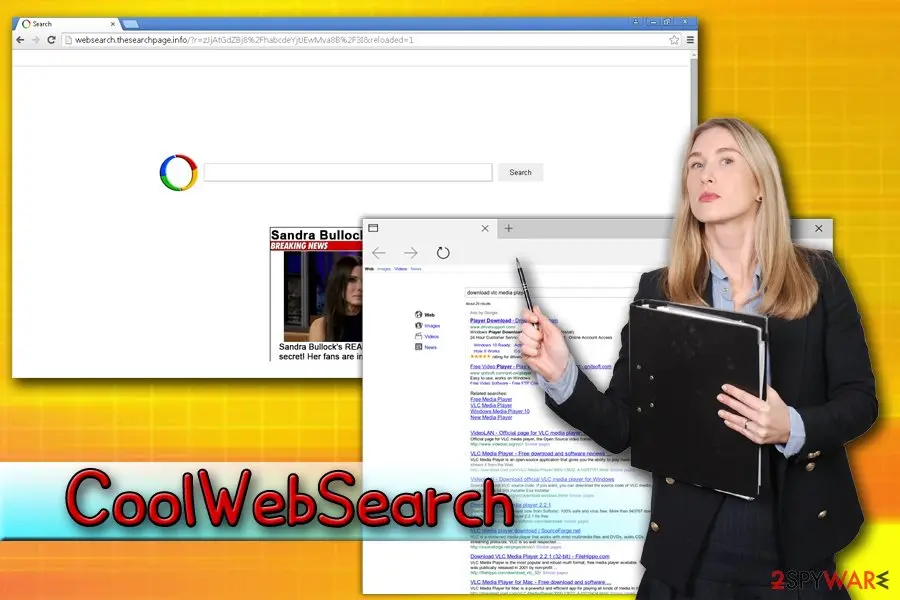
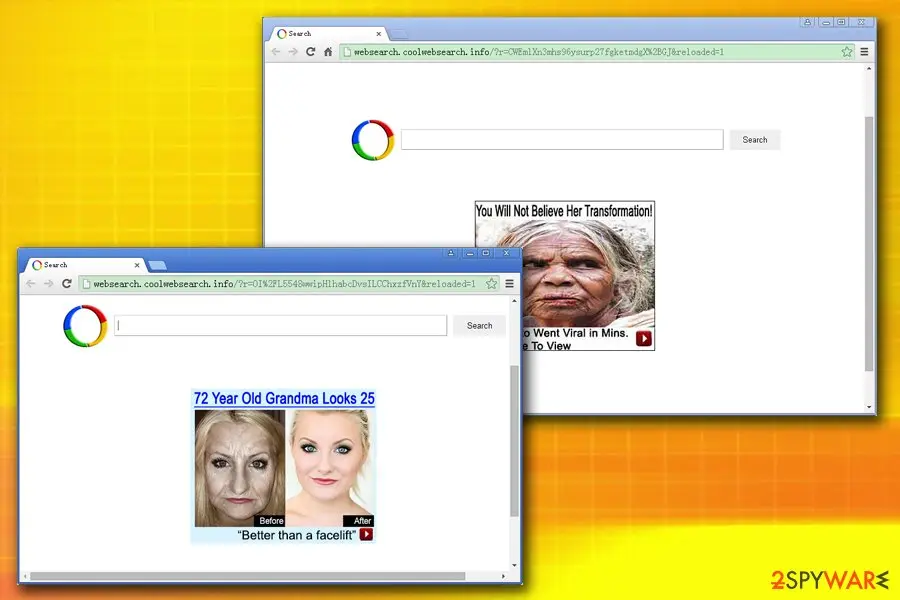
As soon as the hijacker modifies Chrome's or Internet Explorer's settings, the homepage is set to Websearch.coolwebsearch.info. Sadly users are unable to revert these changes until a full CoolWebSearch.control removal is performed. What is more, users have to suffer from continual ads and are as well being spied on by this suspicious software developers.
From our report of Oct 2026 · not reviewed since
Websearch.coolwebsearch.info
Websearch.coolwebsearch.info is a browser hijacker and as well a homepage which is used by many Web Cool Search virus variants.
It usually injects users' machines as a drive-by installation, which means that users are unaware that the unwanted app was installed on their PC. The browser hijacker does now label its affiliates ads, as well as does not provide an EULA or privacy policy, which is a deplorable behavior what pretends to be a legitimate company.
This variant of the virus can bring users to dangerous websites, including those which can use JavaScript to inject malware into users machines. All they need to do is merely get redirected to a malicious site, and the consequences could be disastrous. Victims can get infected with spyware, trojan horse or even ransomware. The latter one can lock up (potentially permanently) files and demand ransom for its release.
Therefore, we advise users to immediately take action if any traces of this dangerous application are noticed on the machine.
From our report of Oct 2026 · not reviewed since
More from our earlier report on CoolWebSearch
- Internet Explorer and Google Chrome
- Software bundling, fake ads, malicious sites
- Altered homepage and new tab URL, intrusive adverts and redirects, modify search results, etc.
- Malware infection, sensitive data leakage, etc.
- Running can fix damaged files on the system
From our report of Oct 2026 · not reviewed since
Users can inject even the most dangerous browser hijackers without noticing
Typically, potentially unwanted applications spread bundled as an attachment of freeware and shareware.
It means that the only way for it to enter the PC is to get user's permission, but since components that spread along with freeware are seldom disclosed explicitly, people who are not keen on checking Advanced/Custom settings can easily end up with various unwanted add-ons, plug-ins, toolbars, and extensions.
Thus, if you want to prevent that, you have to check expanded settings carefully and deselect all 'optional downloads' without delay. Note that attachments are set by default, so you will have to untick them before clicking the 'Next' button.
Security researchers noted that suspicious programs could also be obtained on the dubious websites. Therefore, you should avoid file-sharing, torrent, porn, gambling, free online gaming and similar sites. Finally, you should never forget to employ security software with real-time protection feature to be safe.
Check your browser and PC
- Address:
coolwebsearch.com
How to remove CoolWebSearch
How to remove CoolWebSearch and get your search engine back
Remove the extension first.
The search settings only stay fixed once nothing on the PC can change them again.
Step 1: Remove extensions you did not add
In Chrome open
chrome://extensions, in Edgeedge://extensions, and in Firefox the menu > Extensions and themes.Remove every extension you do not remember adding, especially search, new tab, coupon, PDF, weather or video downloader add-ons. Check every browser and every profile, because each keeps its own list.
If an extension has no Remove button or comes back, a browser policy holds it (see "Managed by your organization" in the procedure below). The pages are the same on Windows 11 and Windows 10.
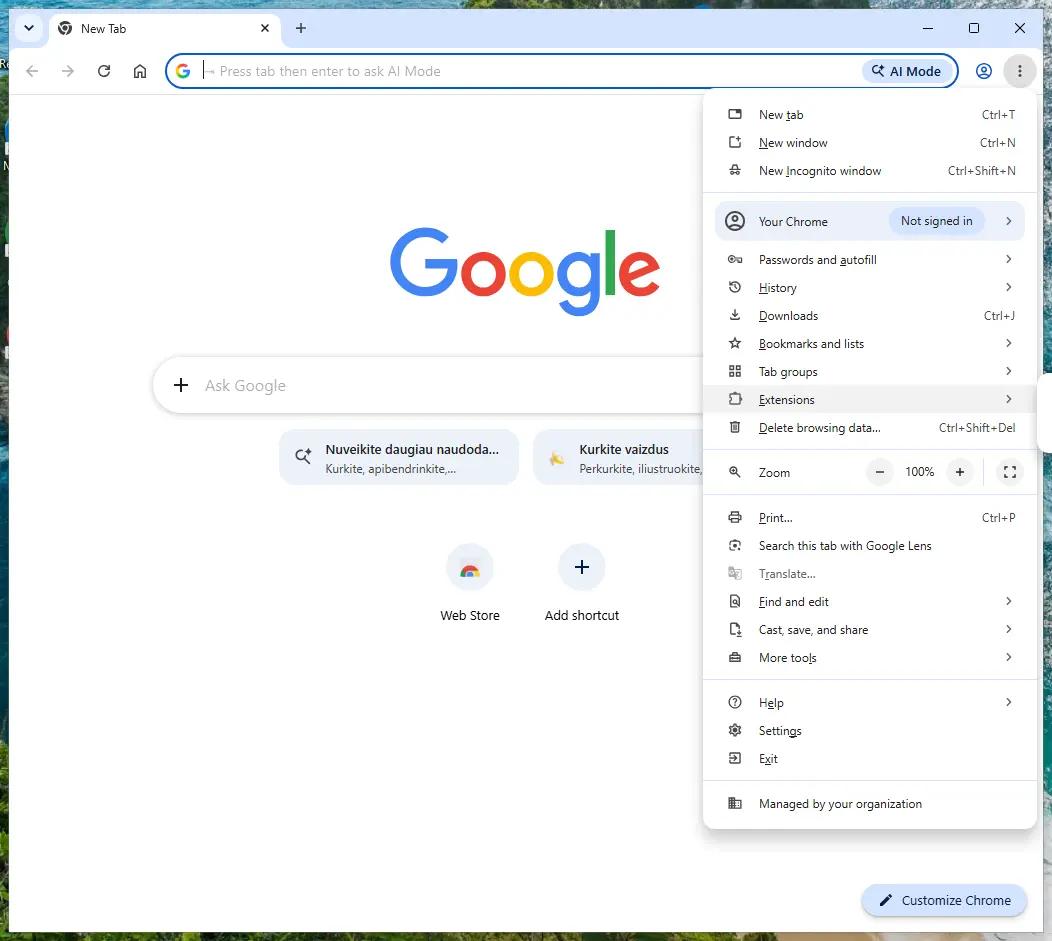
Chrome on Windows 11: More > Extensions > Manage extensions. Full procedure with screenshots: Remove a browser extension
Step 2: Put the search engine back and delete coolwebsearch.com
In Chrome open Settings > Search engine > Manage search engines and site search, make an engine you trust the default, and delete
coolwebsearch.comfrom the list.In Edge type
search engineinto the search box at the top of Settings and open Manage search engines; in Firefox use Settings > Search. Then check the homepage and the new tab page in the same settings, because hijackers change all three.If coolwebsearch.com is back after a restart, an extension, a program or a policy still sets it, so finish the other steps and check again. The settings are the same on Windows 11 and Windows 10.
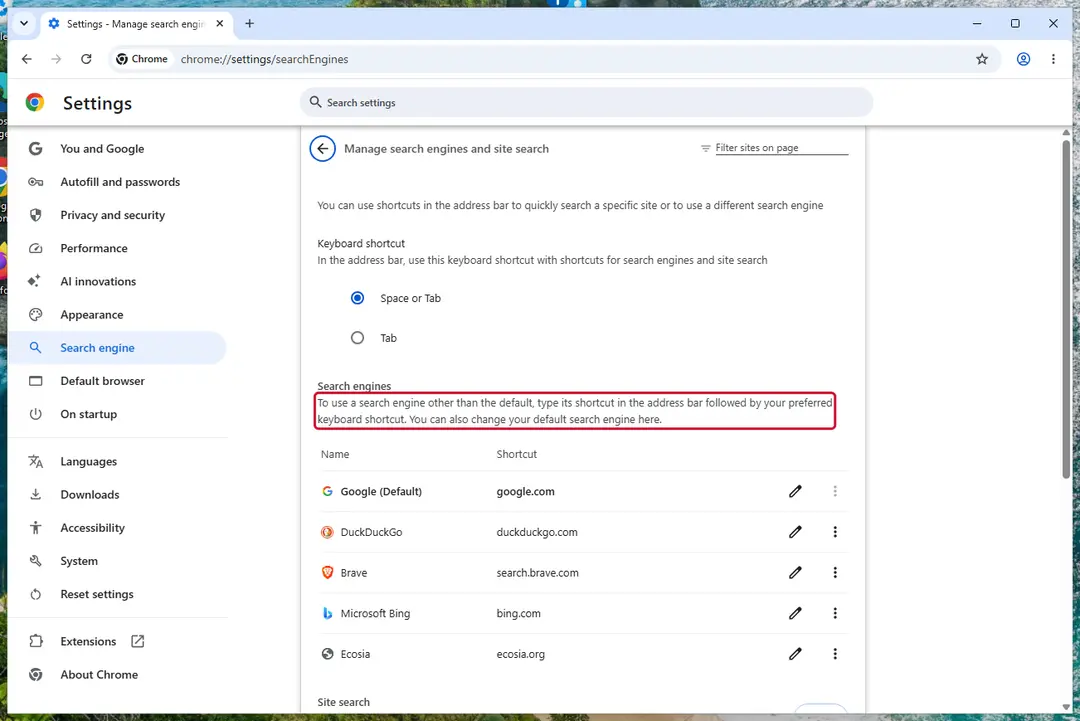
Chrome on Windows 11: check Search engine and On startup. Full procedure with screenshots: Reset a browser and fix a hijacked search engine
Step 3: Uninstall programs you did not mean to install
CoolWebSearch rarely comes alone: it is usually installed by, or together with, a free program. In Windows 11 open Settings > Apps > Installed apps, in Windows 10 Settings > Apps > Apps & features, and sort by install date.
Uninstall every entry from the day the trouble began that you did not install on purpose, for example a download manager, a converter or a browser you never chose.
Keep drivers and entries from Microsoft, Intel, AMD, NVIDIA or your PC's maker unless you are sure.
Full procedure with screenshots: Uninstall a program or app in Windows On uGetFix
Step 4: Reset the browser
A reset removes what the steps above could miss:
- changed start pages
- site permissions
- hidden settings
In Chrome open Settings > Reset settings > Restore settings to their original defaults; in Edge Settings > Reset settings; in Firefox Help > More troubleshooting information > Refresh Firefox.
Tip: Bookmarks and saved passwords stay, while extensions are turned off and the search engine and start page return to the defaults.
Reset every browser on the PC, including Edge, which Windows 11 and Windows 10 always have.
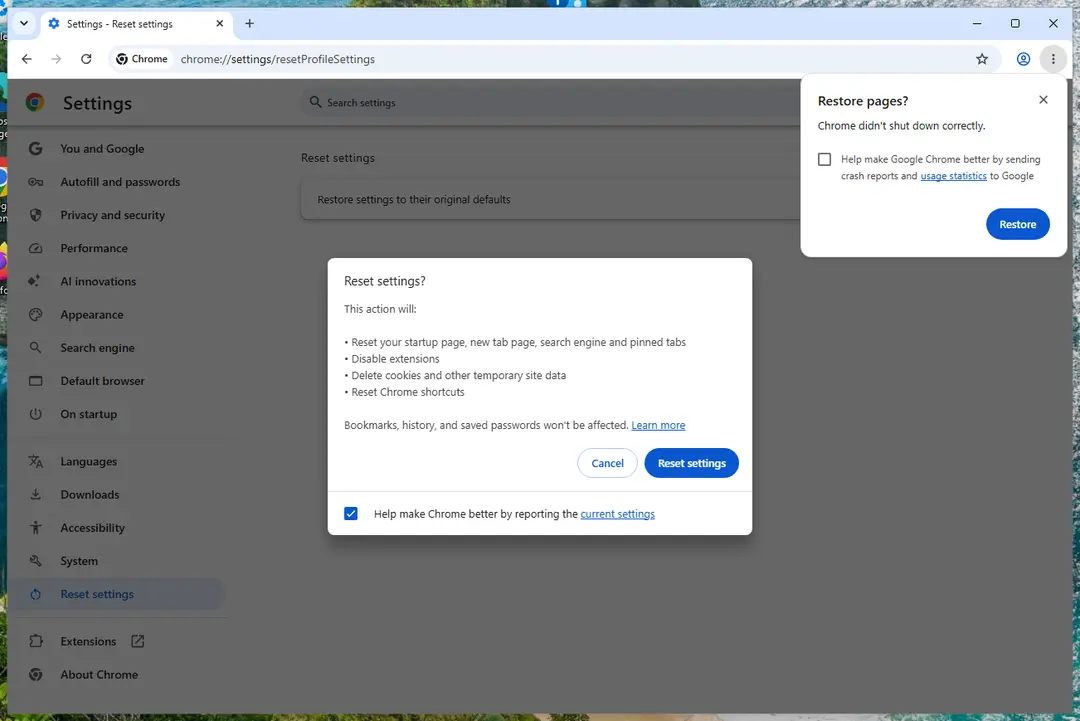
Chrome on Windows 11: Settings > Reset settings. Full procedure with screenshots: Reset a browser and fix a hijacked search engine
Step 5: Scan the PC, then run the offline scan
A scan finds the parts of CoolWebSearch that the manual steps cannot see. In Windows Security > Virus & threat protection > Scan options, start a Full scan and quarantine what it reports.
Follow it with Microsoft Defender Antivirus (offline scan) > Scan now, which restarts the PC and checks the disk while Windows and the malware are not running.
It takes about 15 minutes and works the same in Windows 11 and Windows 10. If either scan finds something, run the full scan again after removal until it comes back clean.

Windows 11: Windows Security > Virus & threat protection > Scan options. Full procedure with screenshots: Run a Microsoft Defender Offline scan
Instructions for each browser and system
The detailed steps for every browser and system this guide covers. Open the one you use.
Uninstall from Windows
To eliminate Web Cool Search virus from Windows, follow these steps:
Uninstall from Windows 10/8:
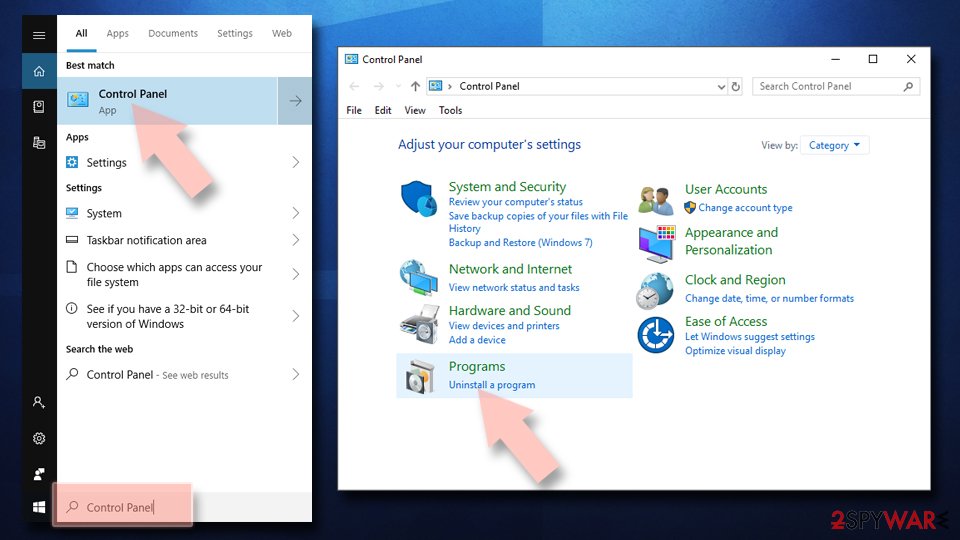
- Type Control Panel into the Windows search box and open the result.
- Under Programs, select Uninstall a program.
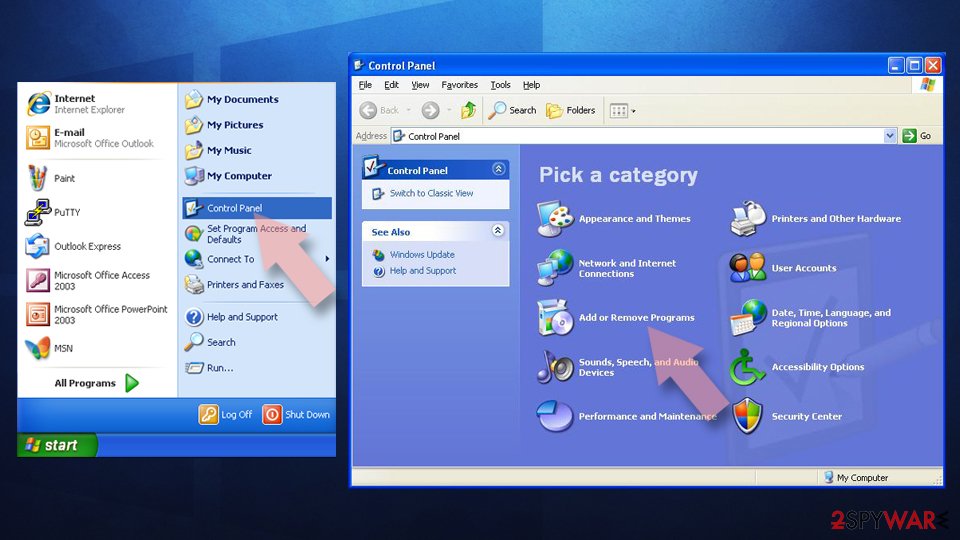
Uninstall from Windows 7/XP:
- Click on Windows Start > Control Panel (Windows XP users should click on Add/Remove Programs).
- In Control Panel, select Programs > Uninstall a program.
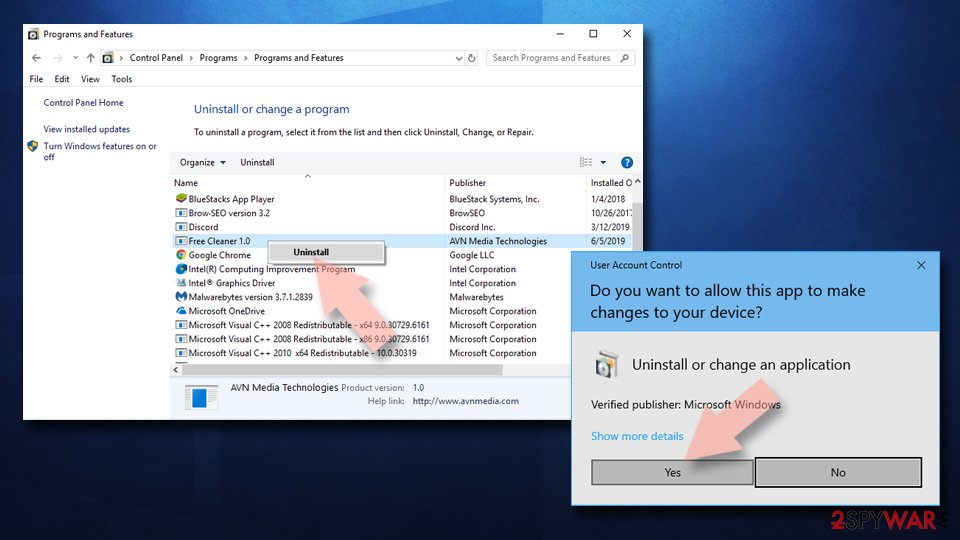
Remove the unwanted program:
- In the Programs and Features window, look for any recently installed suspicious entries, select them, and click Uninstall.
- If User Account Control appears, click Yes to confirm, then complete the removal.
Remove from Google Chrome
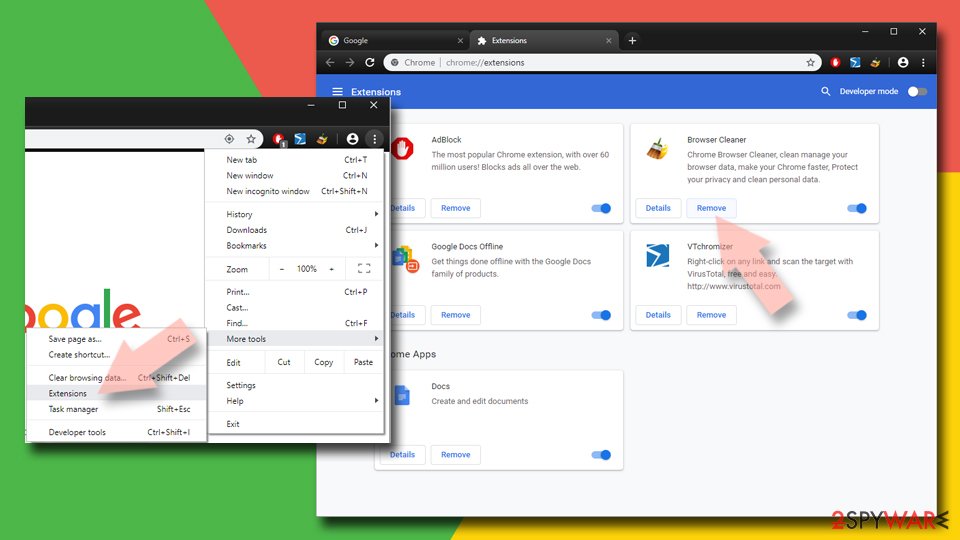
Delete malicious extensions from Google Chrome:
- Open Google Chrome, click on the Menu (three vertical dots at the top-right corner) and select More tools > Extensions.
- In the newly opened window, you will see all the installed extensions. Uninstall all suspicious extensions related to the unwanted program by clicking Remove.
Clear cache and web data from Chrome:
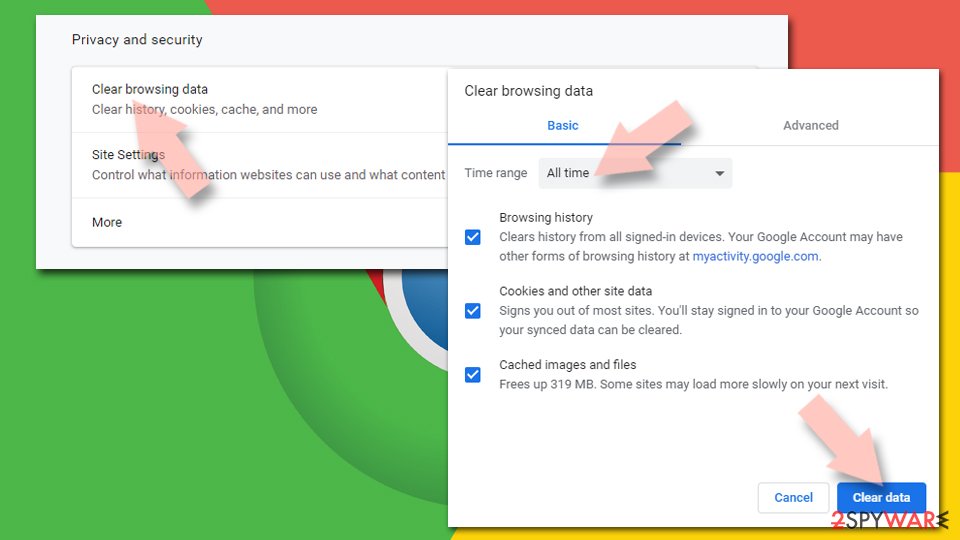
- Click on Menu and pick Settings.
- Under Privacy and security, select Clear browsing data.
- Select Browsing history, Cookies and other site data, as well as Cached images and files.
- Click Clear data.
Change your homepage:
- Click menu and choose Settings.
- Look for a suspicious site in the On startup section.
- Click on Open a specific or set of pages and click on three dots to find the Remove option.
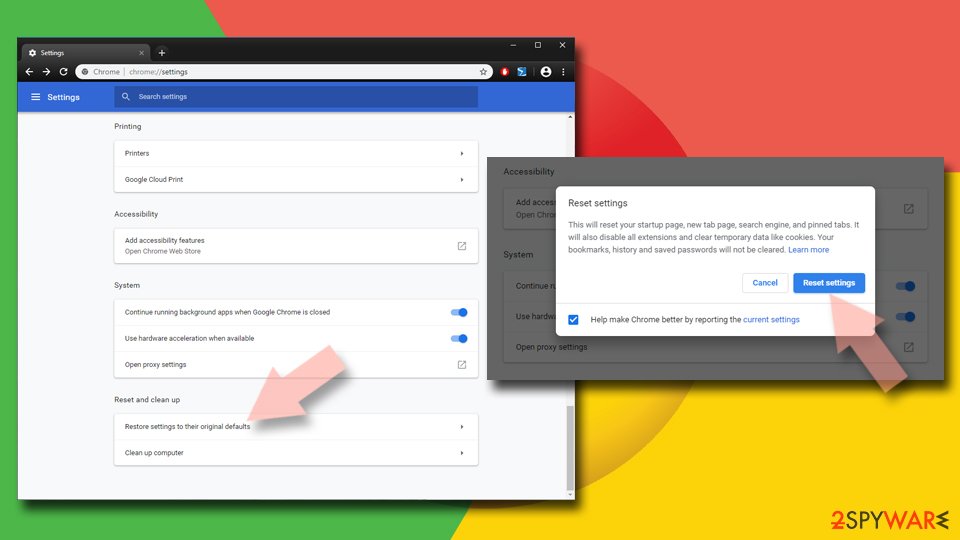
Reset Google Chrome:
If the previous methods did not help you, reset Google Chrome to eliminate all the unwanted components:
- Click on Menu and select Settings.
- In the Settings, scroll down and click Advanced.
- Scroll down and locate Reset and clean up section.
- Now click Restore settings to their original defaults.
- Confirm with Reset settings.
Remove from Microsoft Edge
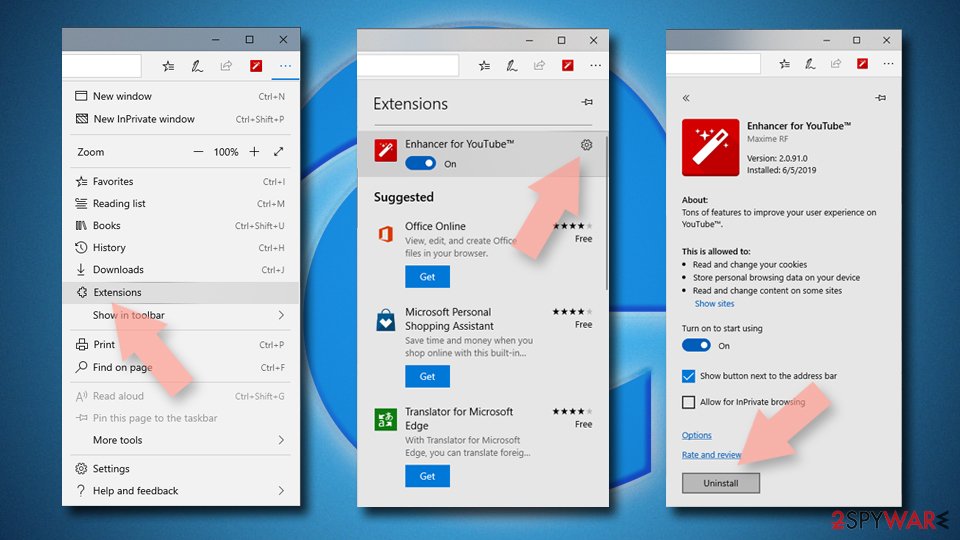
Delete unwanted extensions from MS Edge:
- Select Menu (three horizontal dots at the top-right of the browser window) and pick Extensions.
- From the list, pick the extension and click on the Gear icon.
- Click Remove.
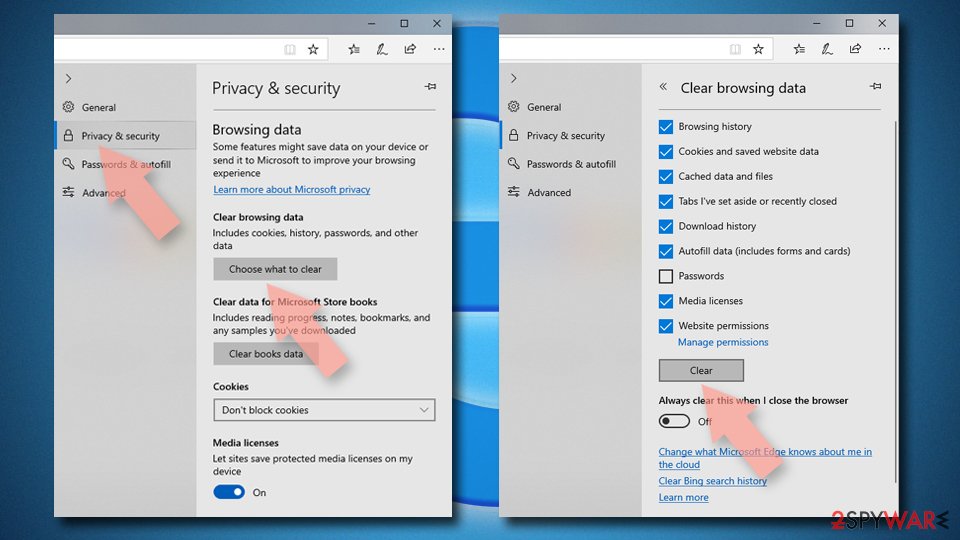
Clear cookies and other browser data:
- Click on the Menu (three horizontal dots at the top-right of the browser window) and select Settings > Privacy, search, and services..
- Under Clear browsing data, pick Choose what to clear.
- Select Cookies and other site data and Cached images and files. (apart from passwords, although you might want to include Media licenses as well, if applicable) and click on Clear.
Restore new tab and homepage settings:
- Click the menu icon and choose Settings.
- Then find On startup section.
- Click Remove next to any suspicious startup page.
Reset MS Edge if the above steps did not work:
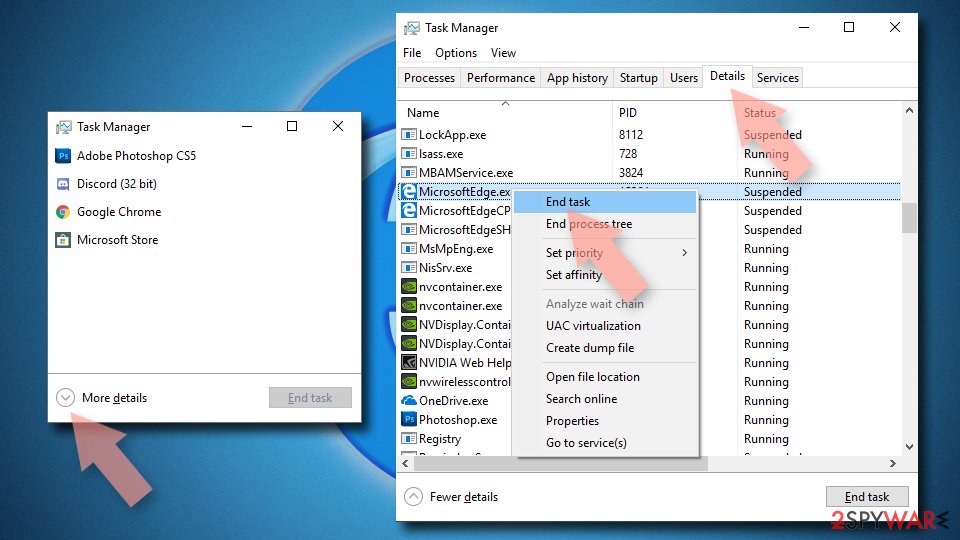
- Press on Ctrl + Shift + Esc to open Task Manager.
- Click on More details arrow at the bottom of the window.
- Select Details tab.
- Now scroll down and locate every entry with Microsoft Edge name in it. Right-click on each of them and select End Task to stop MS Edge from running.
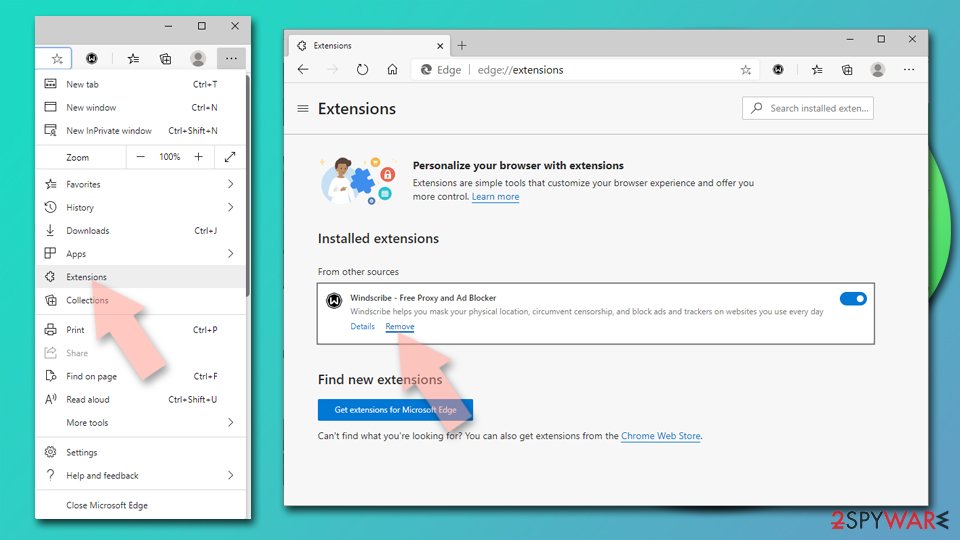
Delete extensions from MS Edge (Chromium):
- Open Edge and click select Settings > Extensions.
- Delete unwanted extensions by clicking Remove.
Clear cache and site data:
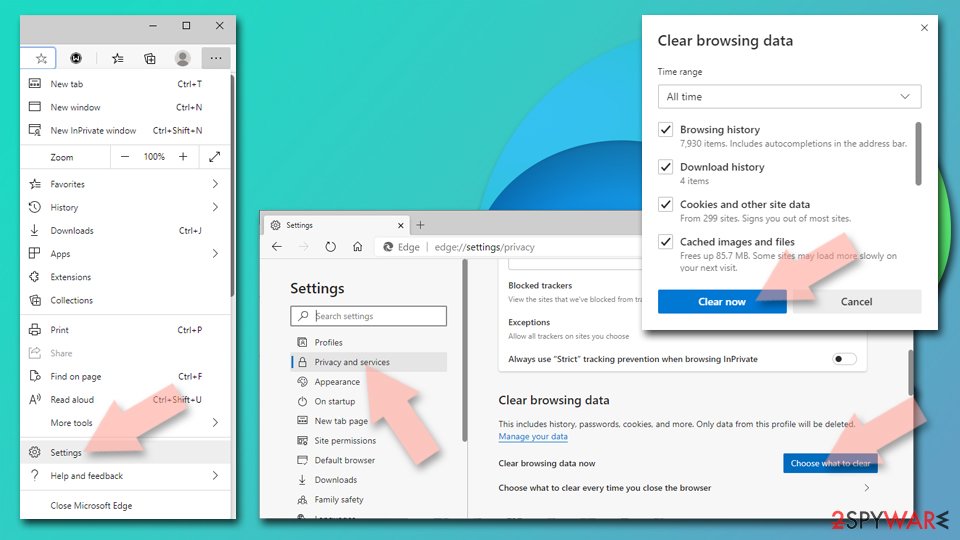
- Click on Menu and go to Settings.
- Select Privacy, search and services.
- Under Clear browsing data, pick Choose what to clear.
- Under Time range, pick All time.
- Select Clear now.
Reset Chromium-based MS Edge:
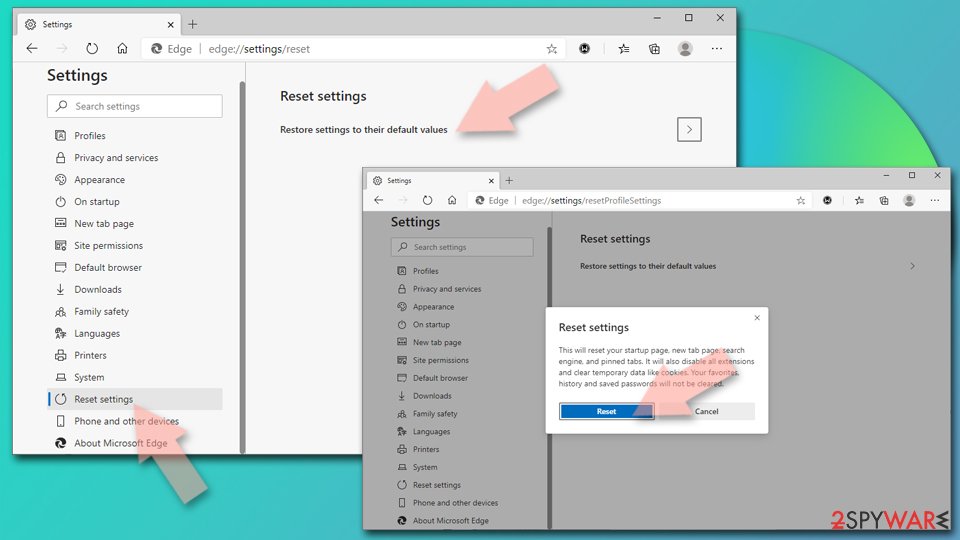
- Click on Menu and select Settings.
- On the left side, pick Reset settings.
- Select Restore settings to their default values.
- Confirm with Reset.
- This will disable extensions and reset startup pages but will not delete bookmarks, saved passwords, or browsing history.
Remove from Mozilla Firefox (FF)
Remove dangerous extensions:
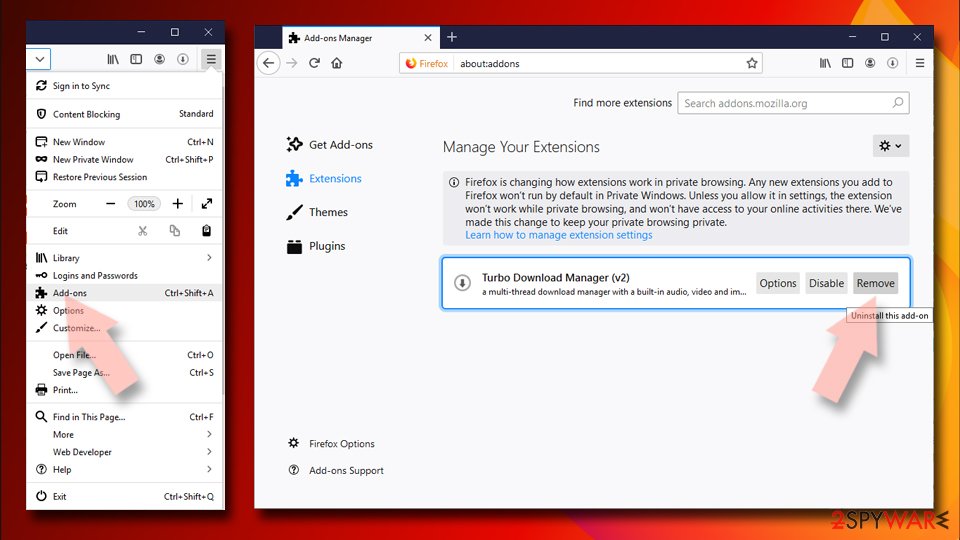
- Open Mozilla Firefox browser and click on the Menu (three horizontal lines at the top-right of the window).
- Select Add-ons.
- In here, select the unwanted extension and click Remove.
Reset the homepage:
- Click three horizontal lines at the top right corner to open the menu.
- Choose Settings.
- Under Home, set your preferred homepage and new tab settings.
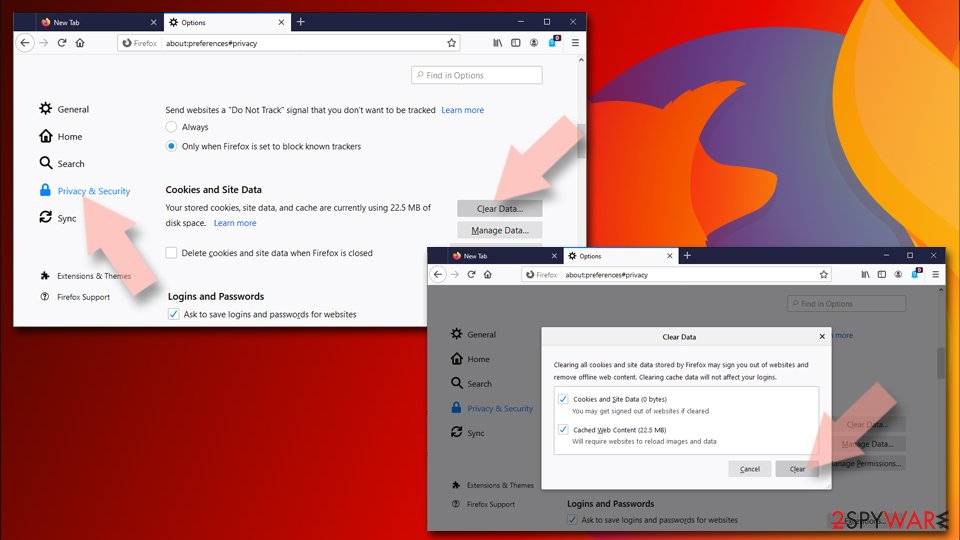
Clear cookies and site data:
- Click Menu and pick Settings.
- Go to Privacy & Security section.
- Scroll down to locate Cookies and Site Data.
- Click on Clear Data...
- Select Cookies and Site Data and Temporary cached files and pages, then click Clear.
Reset Mozilla Firefox
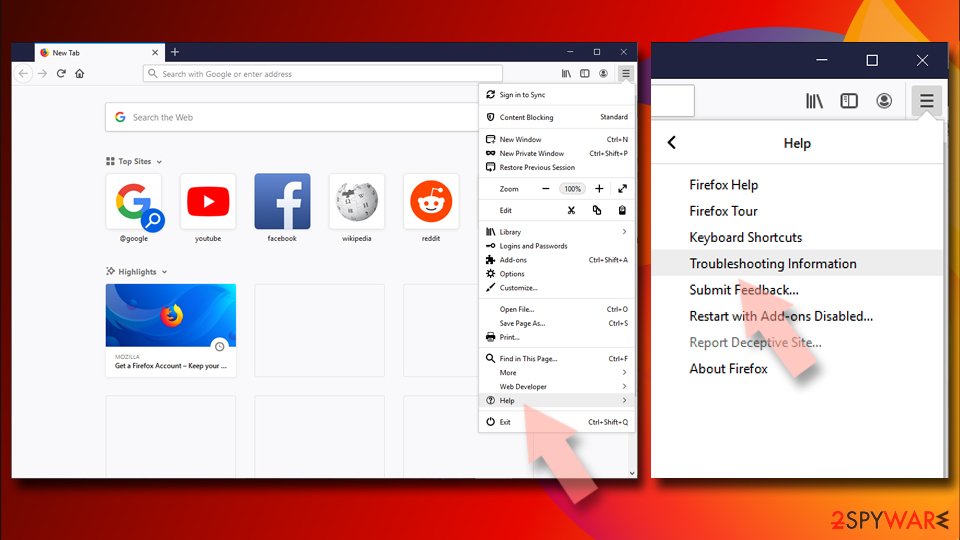
If clearing the browser as explained above did not help, reset Mozilla Firefox:
- Open Mozilla Firefox browser and click the Menu.
- Go to Help and then choose Troubleshooting Information.
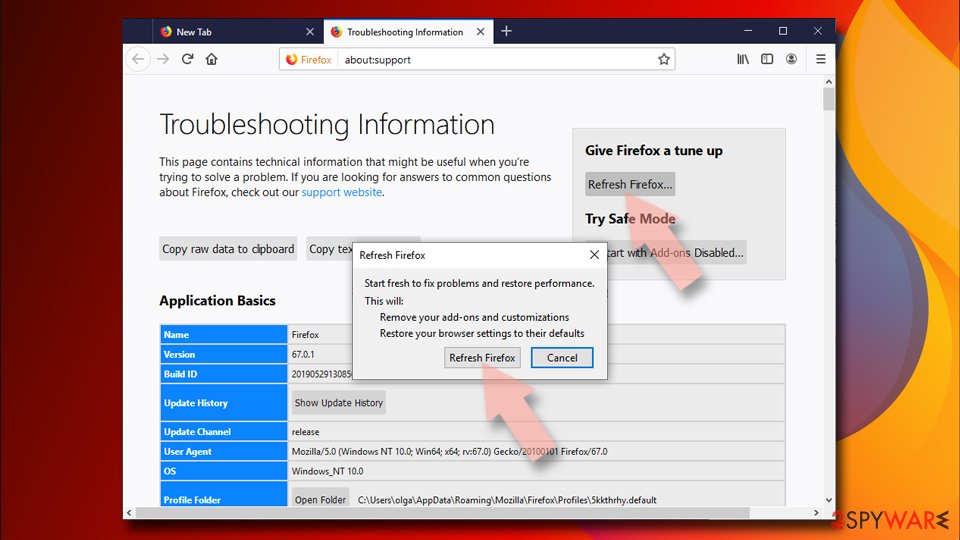
- Under Give Firefox a tune up section, click on Refresh Firefox...
- Once the pop-up shows up, confirm the action by pressing on Refresh Firefox.
Delete from Safari
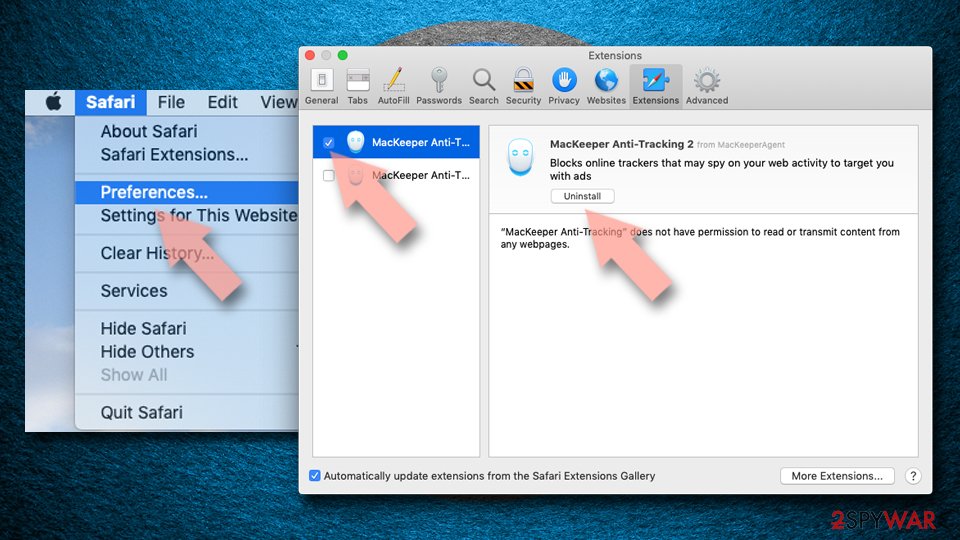
Remove dangerous extensions:
- Open Safari, click Safari in the menu at the top-left of the screen, and select Preferences.
- Go to the Extensions tab, look for any suspicious entries, and click Uninstall to remove them.
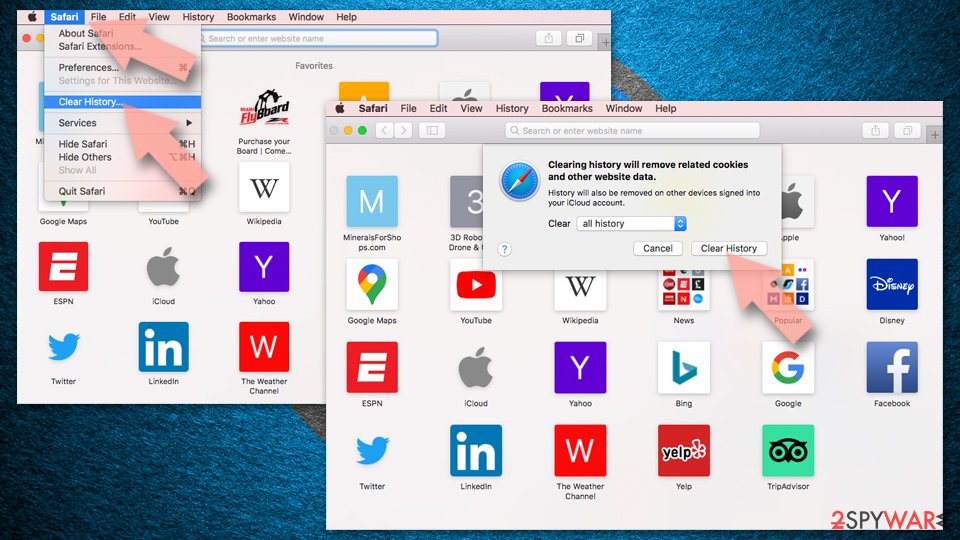
Clear history and website data:
- Click Safari in the menu and pick Clear History.
- Set Clear to all history and confirm with Clear History.
Reset Safari:
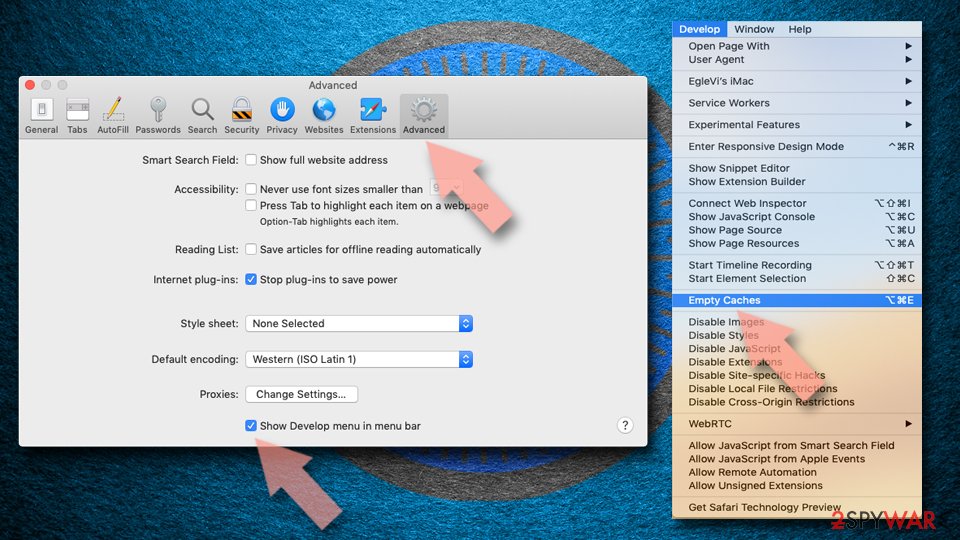
- Click Safari in the menu and select Preferences > Advanced.
- Enable Show Develop menu in menu bar.
- From the menu bar, click Develop and select Empty Caches.
Delete from macOS
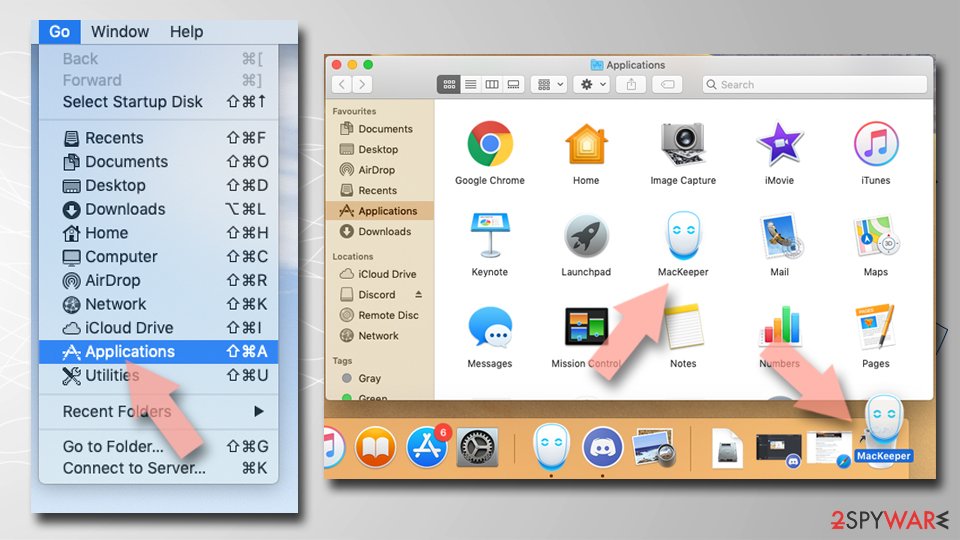
Remove the unwanted application:
- From the menu bar, select Go > Applications.
- In the Applications folder, look for any suspicious entries, then drag them to Trash (or right-click and pick Move to Trash).
Delete leftover files and folders:
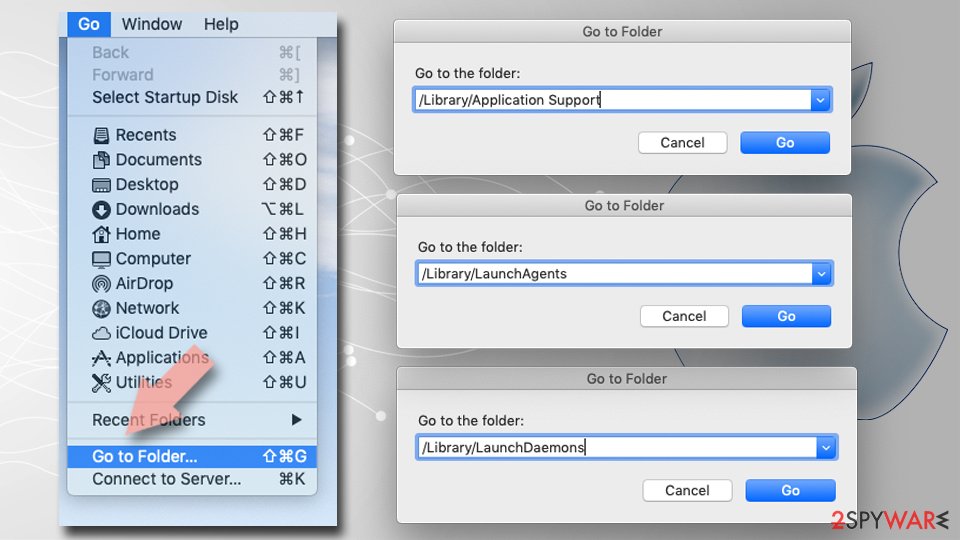
- Select Go > Go to Folder.
- Enter /Library/Application Support and remove any suspicious folders related to the unwanted program.
- Repeat the same check in the /Library/LaunchAgents and /Library/LaunchDaemons folders, deleting any suspicious entries.
- Finally, empty the Trash to permanently remove the leftovers.
Do not let government spy on you
The government has many issues in regards to tracking users' data and spying on citizens, so you should take this into consideration and learn more about shady information gathering practices.
Avoid any unwanted government tracking or spying by going totally anonymous on the internet.
You can choose a different location when you go online and access any material you want without particular content restrictions. You can easily enjoy internet connection without any risks of being hacked by using VPN.
Control the information that can be accessed by government any other unwanted party and surf online without being spied on. Even if you are not involved in illegal activities or trust your selection of services, platforms, be suspicious for your own security and take precautionary measures by using the VPN service.
Backup files for the later use, in case of the malware attack
Computer users can suffer from data losses due to cyber infections or their own faulty doings.
Ransomware can encrypt and hold files hostage, while unforeseen power cuts might cause a loss of important documents. If you have proper up-to-date backups, you can easily recover after such an incident and get back to work. It is also equally important to update backups on a regular basis so that the newest information remains intact - you can set this process to be performed automatically.
When you have the previous version of every important document or project you can avoid frustration and breakdowns. It comes in handy when malware strikes out of nowhere. Use for the data restoration process.
From our report of Oct 2026 · not reviewed since
CoolWebSearch virus removal steps
CoolWebSearch removal used to be extremely complicated when it came out back in the early 2000s.
Nevertheless, the security technologies improved over the years and browser hijacker elimination became a relatively easy task. So, you can get rid of the virus either manually or automatically.
Normally, we would assure that both methods are equally effective, as you can remove Cool Web Search via the control panel and then reset each of the installed browsers (instructions are presented below).
However, because this browser hijacker modifies registry entries, and it can intentionally install additional components without your knowledge, we highly advise using anti-malware software. This way, you can be sure that all traces of the dubious app are eliminated.
Questions about CoolWebSearch
Why does my search engine keep changing to coolwebsearch.com?
Because something keeps setting it. An extension can change the search engine every time the browser starts, and an ad-supported program in Windows can do it for every browser and re-add the extension after you remove it. Some hijackers also add a policy that locks the setting.
Changing the search engine back only works once the source is gone. Remove extensions you do not recognise, uninstall programs installed around the time coolwebsearch.com first appeared, and then set the search engine again. If it still returns, check the browser for the Managed by your organization message and follow the policy steps in this guide.
Is coolwebsearch.com a virus?
It is a browser hijacker, not a virus in the classic sense. coolwebsearch.com is a search page that an extension or program set as your default without a clear choice from you.
It does not destroy files or spread to other PCs, but it takes control of your searches, collects them and shows ads, and the software behind it is often bundled with other unwanted programs.
Many antivirus products flag such software as potentially unwanted. Removing the extension or program and resetting the search engine is enough in most cases. A full scan afterwards checks for anything else that came with it.
What is coolwebsearch.com?
It is the search page used by the browser hijacker CoolWebSearch. It has no search index of its own: it forwards your queries to another search engine and adds ads and tracking along the way.
People rarely choose it on purpose; it becomes the default search engine, home page or new tab after an extension, program or policy changes the browser settings. The page itself is not malware, but it should not be in your browser if you did not set it. The steps above remove the source and restore your settings.
Is coolwebsearch.com dangerous?
It is not designed to infect the PC, but it is not neutral either. It logs searches, adds sponsored results that are hard to tell apart from real ones, and its ad partners are not checked as strictly as those of major search engines.
Some hijacker pages have shown ads for fake updates, tech support scams and unwanted software. The main harm is to privacy. Remove CoolWebSearch, and if you entered personal data on sites reached through its results, check those sites carefully.
Do I have to fix every browser?
Yes, every one where the search engine or start page changed. In the cases we checked, CoolWebSearch affected Chrome, Edge and Firefox.
Each browser stores its own search settings and extensions, so fixing one does not fix the others, and Windows-level changes such as shortcuts can affect each browser differently. Work through them one at a time:
- remove the extension
- check the policies
- restore the search engine
- start page
If you sync a browser, stay signed in so the fix spreads to your other computers.
Did coolwebsearch.com record my searches?
Almost certainly. Logging is the point of a hijacker search page: each query, with your IP address, browser details and the result you clicked, is valuable to advertisers.
The operators of coolwebsearch.com can store and share that data under their own privacy policy, which you never agreed to knowingly. There is no way to delete it from their side. What you can do is stop the flow:
- remove CoolWebSearch
- clear cookies and site data for coolwebsearch.com
- treat sensitive searches made in the meantime as known to a third party
What do I lose if I reset Chrome or Edge?
Less than you might think. A reset turns off all extensions, which you can turn back on one by one, restores the default search engine, home page, new tab and pinned tabs, and clears cookies, so you are signed out of most sites.
Bookmarks, history, saved passwords and autofill data stay. Firefox's equivalent, Refresh Firefox, keeps the same essentials but removes add-ons completely. Before you reset, make sure you know your main passwords or have them saved, since you will need to sign in again.
Can I just block coolwebsearch.com?
You can, but it treats the symptom. Blocking the domain in a firewall or the hosts file makes searches fail instead of redirecting, while the extension or program that set it keeps running and collecting data.
Hijacker operators also switch to new domains in updates, so a block may stop working within weeks. Remove the source instead, then set your own search engine. If you want extra protection afterwards, turn on Potentially unwanted app blocking in Windows Security, which stops many hijacker installers before they run.
Why does my search page look slightly different?
Because it is not your search engine's own page. CoolWebSearch sends searches to coolwebsearch.com, which may copy the colours and layout of a known search engine while adding its own ads and tracking. Small differences give it away:
- an unfamiliar address
- more ads than usual
- a different logo
- a search box with a brand name you do not recognise
Remove the hijacker and set your search engine again from the browser's settings to get the real page back. Then delete the hijacker's entry from the saved search engines list.
Will Fortect remove CoolWebSearch?
Fortect scans Windows for malware and unwanted programs and repairs the system files and settings they change, and its free scan shows what it finds on your PC before you decide anything.
For CoolWebSearch, follow the plan above as well: the browser steps take back permissions and settings that no scanner treats as a threat, and uninstalling the program that brought it removes the source.
Run Microsoft Defender's full scan and, if anything was found, its offline scan as a second opinion. If the symptoms are gone after the plan and both scans are clean, there is nothing more to do.
Sources
- Technopedia: Browser Hijacker (read October 6, 2026)
- Microsoft: Exploit:Java/ByteVerify (read October 6, 2026)
- FTC: How to recognize, remove and avoid malware (read October 6, 2026)
- Microsoft Learn: Microsoft Defender Offline (read October 6, 2026)
- Microsoft Learn: How Microsoft names malware (read October 6, 2026)