
Default-search.net: what it is and how to remove it
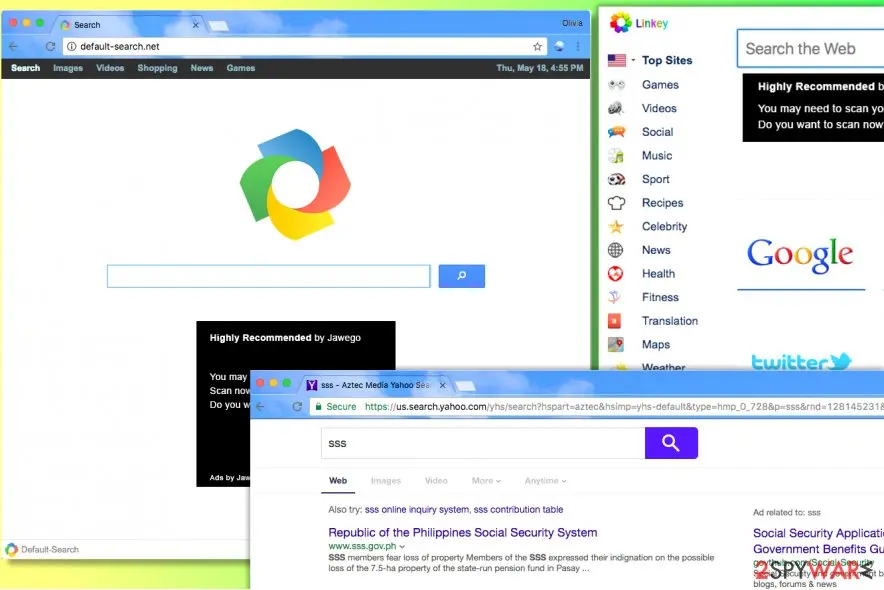
Default-search.net is a browser hijacker that sets Default-search page as default start and new tab page in all web browsers. It usually arrives together with Linkey adware or even Delta-Homes , and both of these are known to be incredibly sneaky spyware-type programs.
Facts checked October 6, 2026. Removal steps tested on Windows 11 (26H2) and checked against Microsoft's and the browser makers' current documentation. Sections marked as our earlier report are the original text: they describe the threat as it was then and have not been reviewed since. The 2026 status, the removal steps and the questions are current.
Automatic
Get a free scan and check if your PC is infected.
Fortect finds malware, unwanted programs and the Windows damage they leave behind, and repairs it in one pass.
If default-search.net returns after you change the search engine back, a free scan can find the program that keeps setting it.
Do it yourself · free Remove Default-search.net yourself 5 steps, about 15 minutes, no software needed.
Start the steps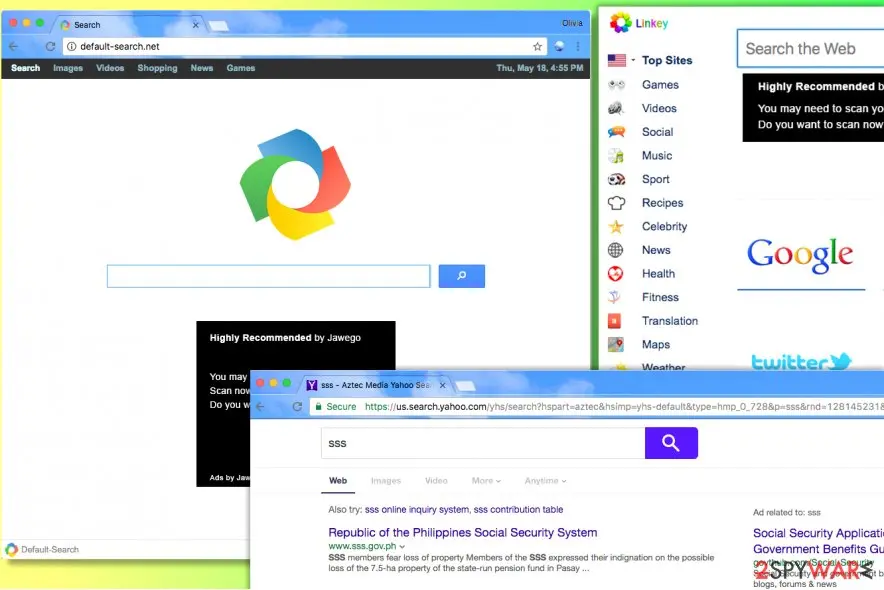
Default-search.net: summary
| Distribution | Third-party apps, infectious hyperlinks |
|---|---|
| Name | Default-search.net |
| Type | Browser hijacker |
| Developer | Aztec Media, Inc |
| Arrives with | Linkey adware and Delta-Homes |
| Search results | Yahoo |
| Removal | Scan the PC with security software to find and remove the malware and anything installed with it. Fortect scans Windows for malware and repairs the system files and settings it damaged. Remove it nowTo use the full-featured product, you have to purchase a license for Fortect. The scan is free. |
Show 9 more facts
| Activities | Redirecting, advertising, collecting browsing data |
|---|---|
| Detection names | No Microsoft detection name is known |
| Damage | Not recorded in the old report |
| Symptoms | A changed search engine |
| Evidence | 7 write-ups by security sites; details still limited |
| Search page | default-search.net |
| Browsers | Chrome, Edge and Firefox |
| First seen | 7 June 2019 |
| Facts checked | 6 October 2026 |
What Default-search.net changes in your browser
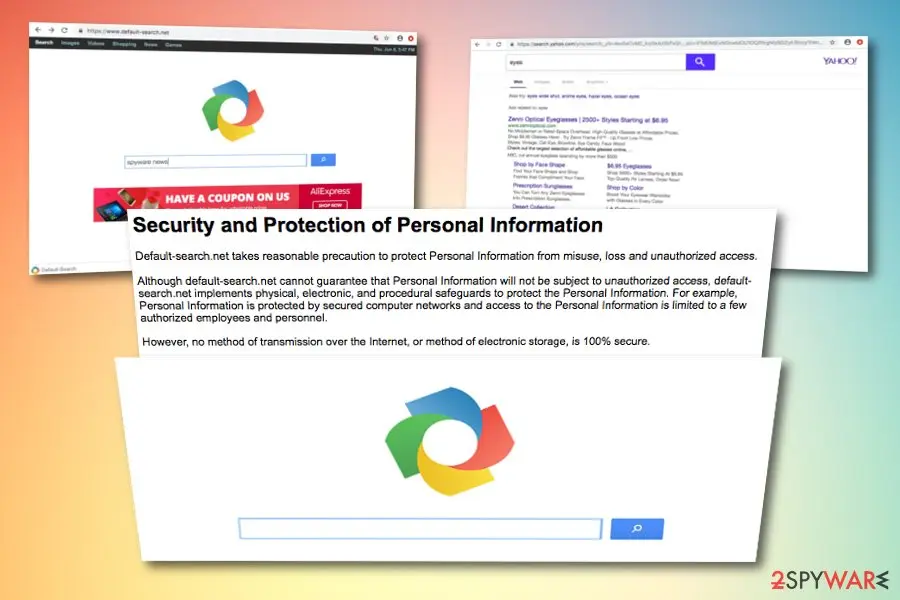
Although default-search.net cannot guarantee that Personal Information will not be subject to unauthorized access, default-search.net implements physical, electronic, and procedural safeguards to protect the Personal Information. For example, Personal Information is protected by secured computer networks and access to the Personal Information is limited to a few authorized employees and personnel.
Is Default-search.net dangerous? What it collects
From our report of Jun 2019 · not reviewed since
Default-search.net - a browser hijacker which sometimes comes together with Linkey ads
Default-search.net is a browser hijacker that sets Default-search page as default start and new tab page in all web browsers.
It usually arrives together with Linkey adware or even Delta-Homes , and both of these are known to be incredibly sneaky spyware-type programs. Furthermore, Default-search.net appears to be associated with System Manager and these two applications have the same developer - Aztec Media, Inc.
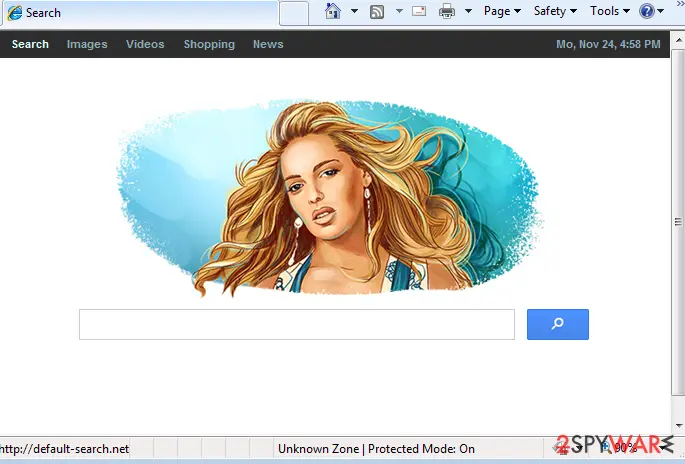
The browser hijacker takes control of main web browsers and makes them trigger redirects to http://www.default-search.net/ site every time the user wants to open a new blank page in the browser.
Default-search.net engine delivers deceptive Yahoo search results altered by Aztec Media, Inc. These search results are filled with bogus links that do not raise any suspicions when you first look at them. However, clicking on results brought by this dangerous search tool can immediately throw you onto hazardous websites that you typically try to avoid visiting.
Here are other unpleasant activities that can be performed by Default-search.net:
Although browser hijackers such as Default-search.net are not created to track personal data, anything can happen while using third-party questionable apps. If you read this program's privacy policy, you will find out that the developers are not sure if personal information of users will be safe at all times even though they claim to take some safety measures:
Experts inform to remove Default-search.net as soon as possible because it is considered to be a critical browser hijacker that in unison with Linkey completely disrupts computer's performance . If you noticed these programs in your system, immediately run a system scan using reputable anti-malware software. For best results, our team suggests using the software.
Unfortunately, Default-search redirect virus usually comes in a bundle with Linkey software. When infected with these programs, users can find various suspicious files in their system, for example, a program called Settings Manager which we have mentioned before. Experts advise removing not only these programs, but also other suspicious ones because Linkey reportedly can be using different names to hide on the computer system.
Once this filthy adware gains control of the victim's computer and browsers installed on it, the victim shortly starts seeing Linkey Deals when browsing through the Internet. The user might also experience redirects to linkeyproject.com site. The aforementioned ads typically pop-up on the screen when the user stays on the same website for a couple of seconds.
In most cases, they emerge in the form of banners that have Linkey logo on them. Try to avoid clicking on those banners until you complete Default-search.net removal with anti-malware software, which will also remove Linkey's components at the same time.
To sum up, no matter that Default-search does not belong to malware category, it poses a threat to the computer because sponsored content that it provides can link to highly dangerous sites (such as phishing sites) that might attempt to swindle personal information from you or force you to install critical programs.
- The hijacker implements URL redirections in order to point web traffic to particular sites and generate pay-per-click revenue. You must be careful and not click on ads and sponsored links presented by this dubious search tool or you might end up visiting malicious or simply untrustworthy websites.
- Besides, to increase the probability of desired events, the hijacker employs various tracking technologies such as cookies and web beacons that help to collect and store particular data about the user's interests. Typically, Default Search hijacker collects victim's search queries, URL requests, the list of downloads, IP address and similar data.
- Collected data is used to provide ads based on content that the victim usually explores. The attacker affects overall computer's performance, therefore the computer becomes slow and causes unpleasant occurrences such as browser crashes.
From our report of Jun 2019 · not reviewed since
Windows 10 and Chrome users among the primary hijacker's targets
Experts from 2-Spyware have received a lot of questions from Windows users whose computers were compromised by the infamous browser hijacker.
It seems that computer users can't remove default-search.net from Chrome browser despite their attempts to identify the hijacker on Windows 10 computer systems. Most of these reports came from Chinese and US citizens.
However, it doesn't mean that other operating systems are resistant to this virtual threat. It can affect almost every Windows version and Mac operating systems as well.
They were prepared by experienced IT experts who discovered a way to push the annoying hijacker out of the system.
NOTE. What is more, you might not succeed in finding these programs on your system because their developer might be using different names for them.
If you are unsure how to block http://www.default-search.net/?sid=712&aid=59002 for good, consider using automatic spyware removal software that will identify the culprit causing those browser redirects and remove it for you.
From our report of Jun 2019 · not reviewed since
More from our earlier report on Default-search.net
- The elimination can be completed with
How Default-search.net got into your browser
From our report of Jun 2019 · not reviewed since
Browser hijackers are spread using an unfair distribution method, which is known as "bundling" and is closely related to freeware and shareware.
However, it is not difficult to avoid infiltration.
It becomes clear that you just need to pay more attention to the information provided by free software installers and you will easily avoid this browser hijacker.
If you think that you have missed this check mark that allows installation of it, you should be very careful when browsing on the web. Please, try to avoid its corrupted search engine and ads that may try to pop on the screen during your browsing sessions.
- Remember to read Privacy Policy and End User's Agreement when installing freeware to your computer;
- Avoid Recommended or Quick options when choosing installation settings;
- Instead, select Advanced or Custom installation mode and uncheck all pre-checked checkboxes that claim: "Make Default-search my default search engine", "Make Default-search.net my start page", etc.
Check your browser and PC
- Address:
default-search.net
How to remove Default-search.net
How to remove Default-search.net and get your search engine back
Remove the extension first.
The search settings only stay fixed once nothing on the PC can change them again.
Step 1: Remove extensions you did not add
Default-search.net often works through an extension, so go through the extension list of each browser:
chrome://extensionsedge://extensions- Extensions and themes in Firefox
Switch suspicious extensions off one at a time and reload the page where the problem shows, then remove the one that stops it, and any other you did not add.
Remember the other browsers and profiles on the PC. If Remove is missing or greyed out, a policy forces the extension, which the policy step deals with. Windows 11 and Windows 10 show the same pages.
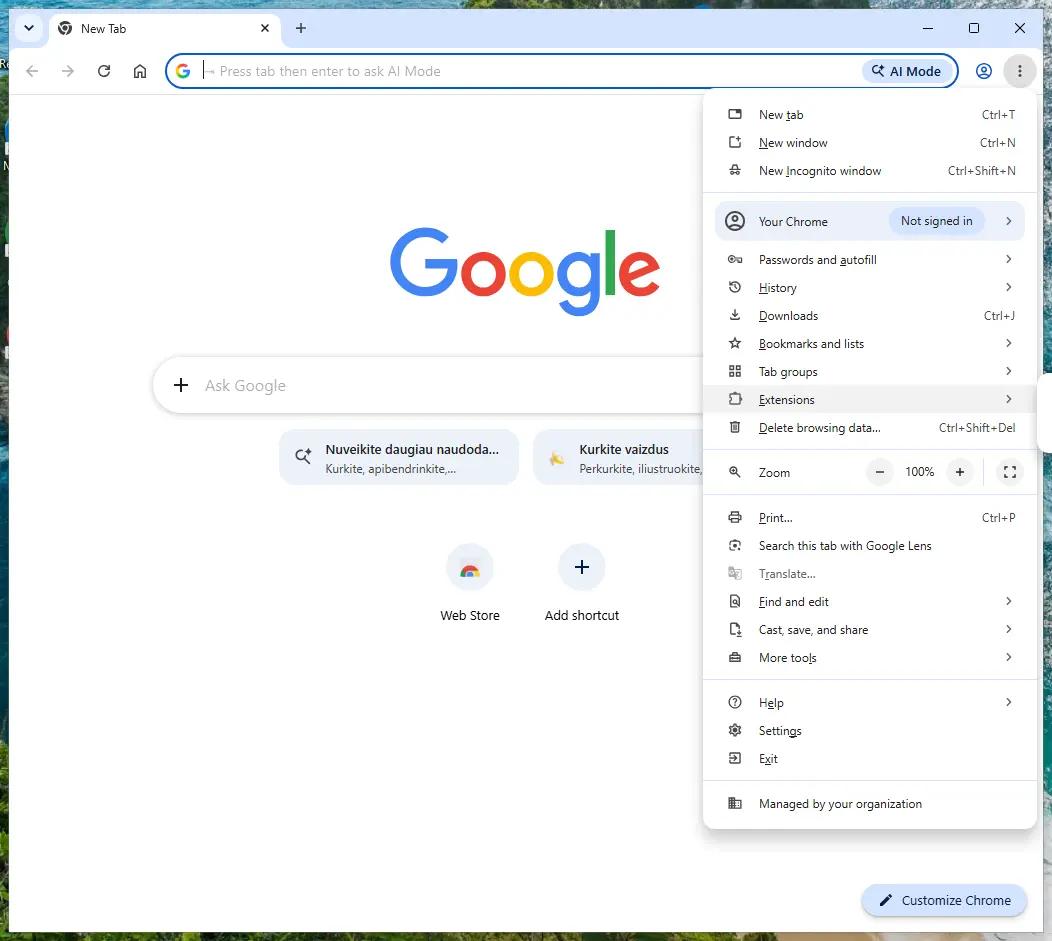
Chrome on Windows 11: More > Extensions > Manage extensions. Full procedure with screenshots: Remove a browser extension
Step 2: Put the search engine back and delete default-search.net
Searches that pass through
default-search.netmean the browser's default search engine was replaced. Chrome: Settings > Search engine > Manage search engines and site search, then Make default on Google, Bing or another engine you chose, and Delete on default-search.net.Edge has the same list under Manage search engines (search the Settings page for it), and Firefox under Settings > Search.
Look at On startup and the homepage settings too and remove the hijacker's address there. Nothing in this step differs between Windows 11 and Windows 10.
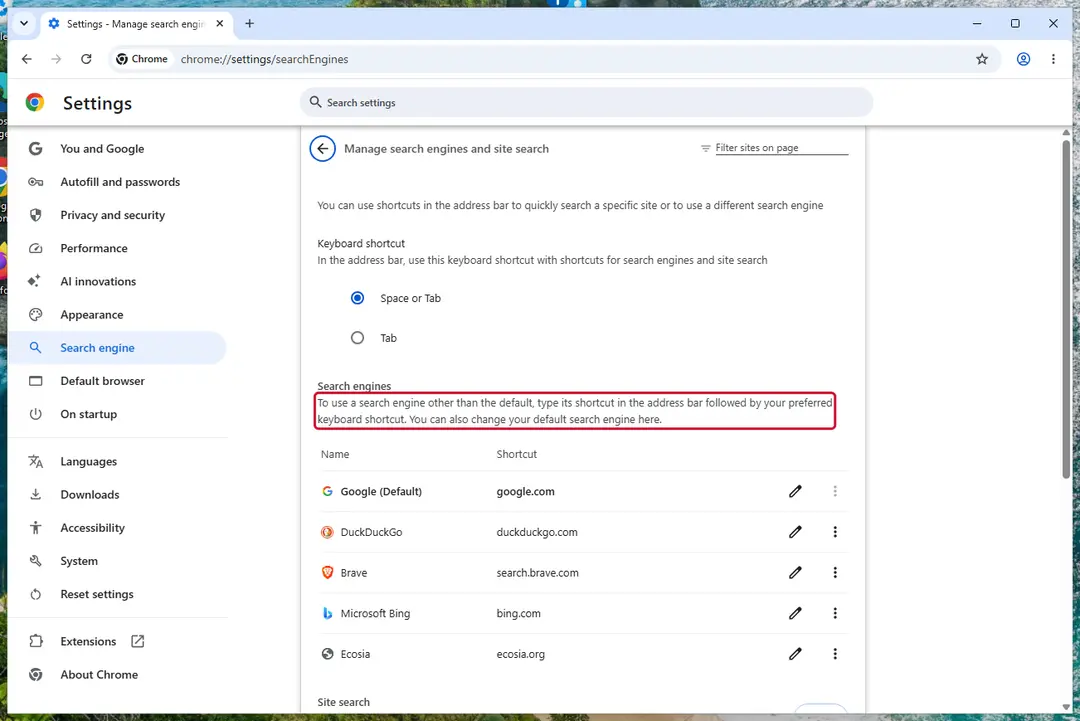
Chrome on Windows 11: check Search engine and On startup. Full procedure with screenshots: Reset a browser and fix a hijacked search engine
Step 3: Uninstall programs you did not mean to install
Open Settings > Apps > Installed apps in Windows 11, or Settings > Apps > Apps & features in Windows 10, and sort the list by install date. Look at what appeared around the day the problem started and uninstall every program you do not recognise or did not choose.
Free converters, PDF and video tools, "system optimizers" and unknown browsers are the usual carriers of Default-search.net. If a name is unclear, search for it before you remove it, so you do not uninstall a driver or a Windows component.
Full procedure with screenshots: Uninstall a program or app in Windows On uGetFix
Step 4: Reset the browser
Finish the browser part with a reset, which puts the search engine, start page, new tab page and site permissions back to their defaults and switches extensions off. Chrome: Settings > Reset settings > Restore settings to their original defaults.
Edge: Settings > Reset settings. Firefox: Help > More troubleshooting information > Refresh Firefox, which also removes its extensions. Your bookmarks and saved passwords are kept, and the menus are the same on Windows 11 and Windows 10.
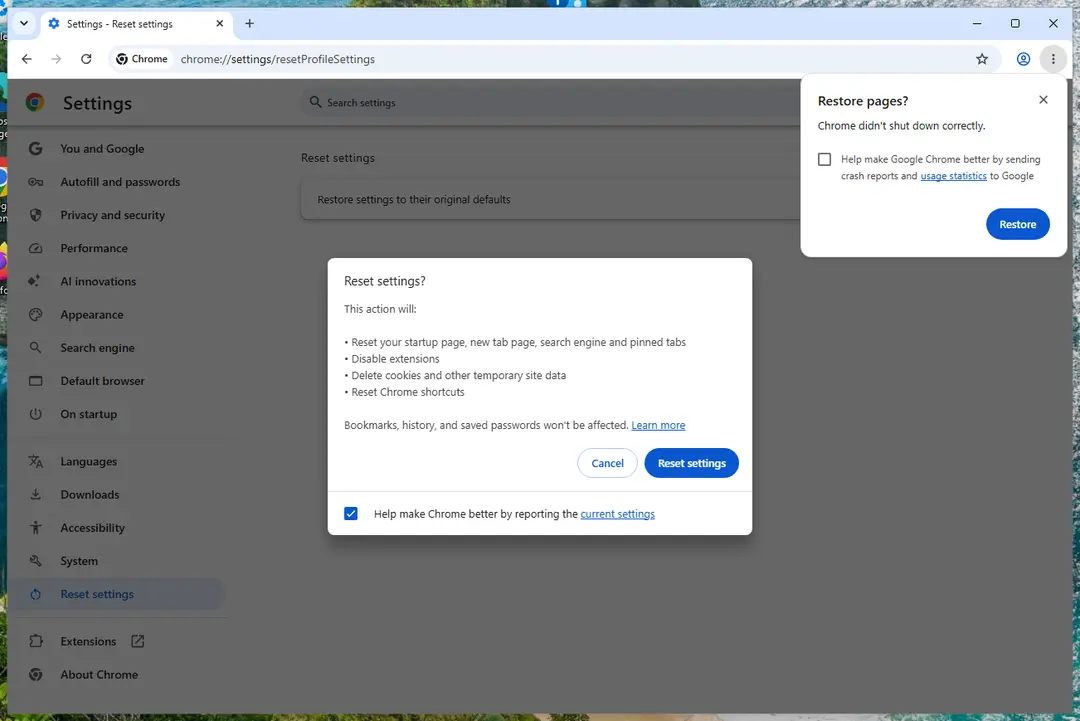
Chrome on Windows 11: Settings > Reset settings. Full procedure with screenshots: Reset a browser and fix a hijacked search engine
Step 5: Scan the PC, then run the offline scan
Open Windows Security > Virus & threat protection > Scan options, run a Full scan and remove everything it finds. Then select Microsoft Defender Antivirus (offline scan) and click Scan now: the PC restarts and scans before Windows loads, which finds files that hide while Windows runs.
Save your work first, because the offline scan takes about 15 minutes. Both scans are built into Windows 11 and Windows 10, and a second scanner from another vendor is a useful extra opinion.

Windows 11: Windows Security > Virus & threat protection > Scan options. Full procedure with screenshots: Run a Microsoft Defender Offline scan
Instructions for each browser and system
The detailed steps for every browser and system this guide covers. Open the one you use.
Uninstall from Windows
To completely uninstall Default-search.net from Windows along with its companions, use this tutorial and uninstall the following programs and all others that are named similarly: Delta-Homes, Linkey, Linkey Deals, Settings Manager. After uninstalling all of these programs, fix infected browser shortcuts using further instructions. You need to delete suspicious URLs added to each browser shortcut's Target field.
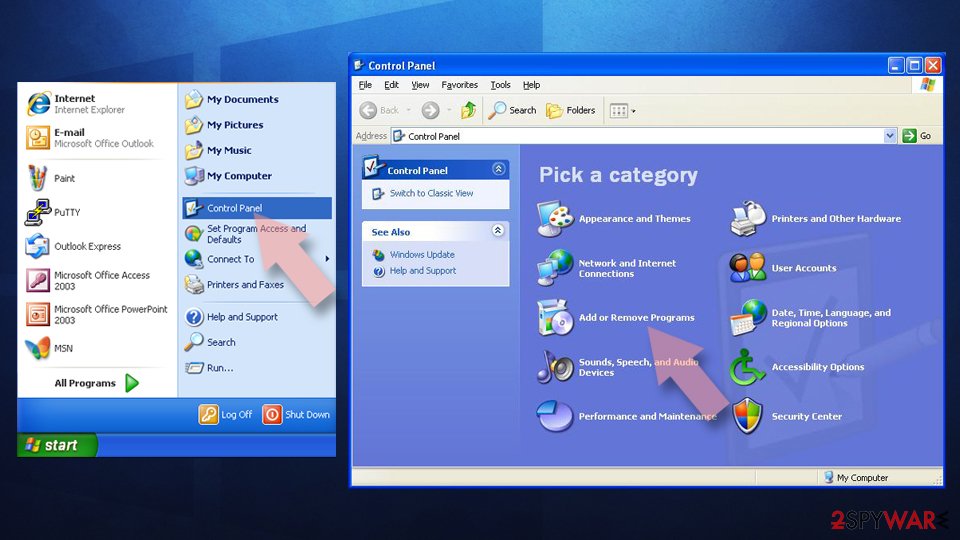
Uninstall from Windows 10/8:
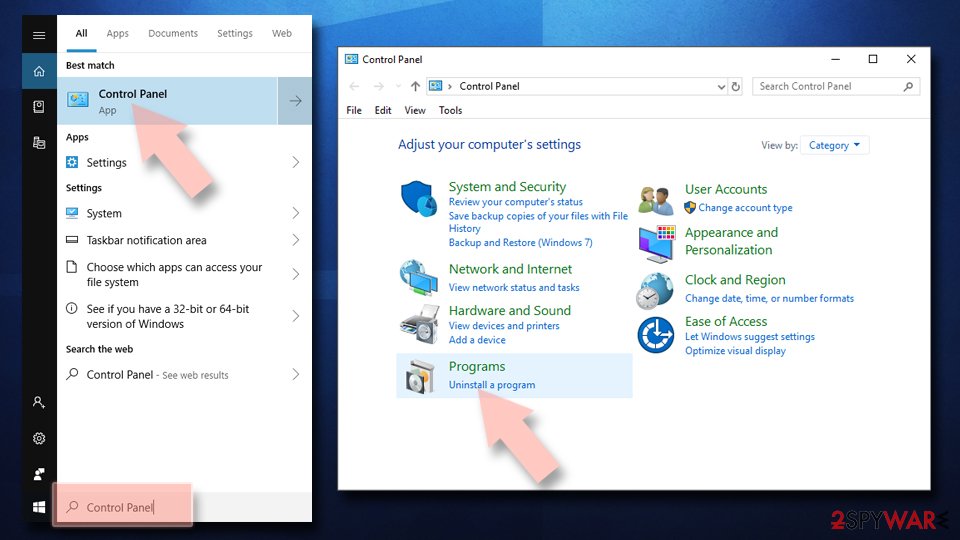
- Type Control Panel into the Windows search box and open the result.
- Under Programs, select Uninstall a program.
Uninstall from Windows 7/XP:
- Click on Windows Start > Control Panel (Windows XP users should click on Add/Remove Programs).
- In Control Panel, select Programs > Uninstall a program.
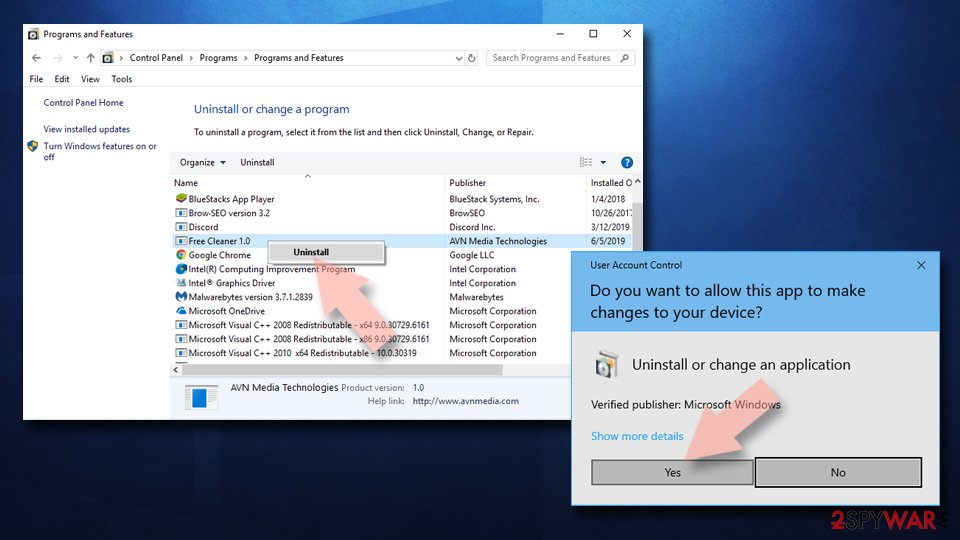
Remove the unwanted program:
- In the Programs and Features window, look for any recently installed suspicious entries, select them, and click Uninstall.
- If User Account Control appears, click Yes to confirm, then complete the removal.
Remove from Google Chrome
Chrome browser should contain several extensions that are responsible for serving bothersome ads and causing redirections to linkeyproject.com and other suspicious websites. Delete every extension that appears suspicious to you! For best results, reset Chrome.
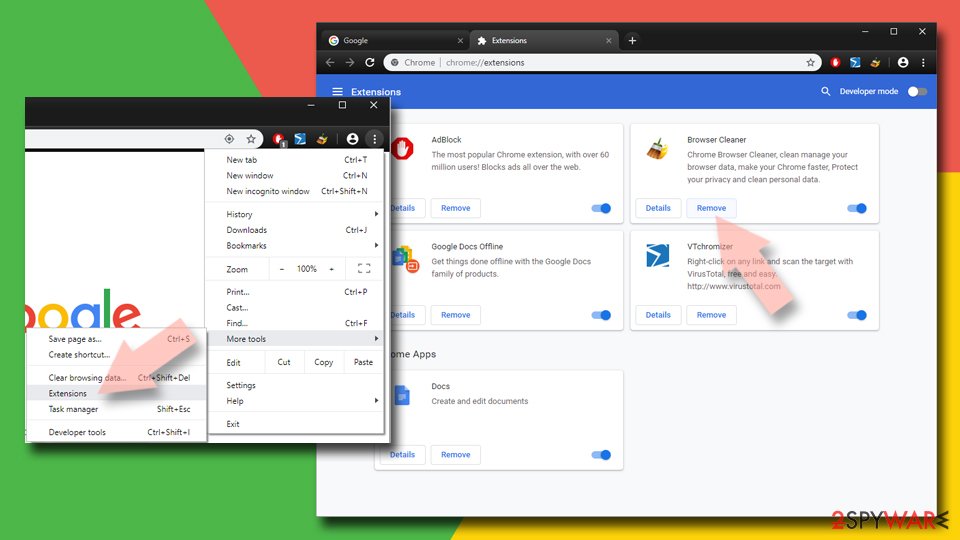
Delete malicious extensions from Google Chrome:
- Open Google Chrome, click on the Menu (three vertical dots at the top-right corner) and select More tools > Extensions.
- In the newly opened window, you will see all the installed extensions. Uninstall all suspicious extensions related to the unwanted program by clicking Remove.
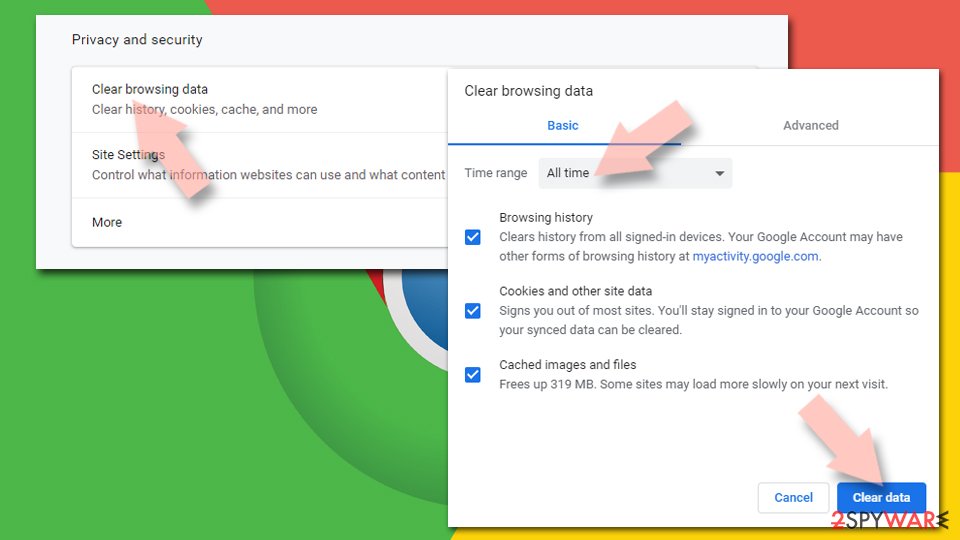
Clear cache and web data from Chrome:
- Click on Menu and pick Settings.
- Under Privacy and security, select Clear browsing data.
- Select Browsing history, Cookies and other site data, as well as Cached images and files.
- Click Clear data.
Change your homepage:
- Click menu and choose Settings.
- Look for a suspicious site in the On startup section.
- Click on Open a specific or set of pages and click on three dots to find the Remove option.
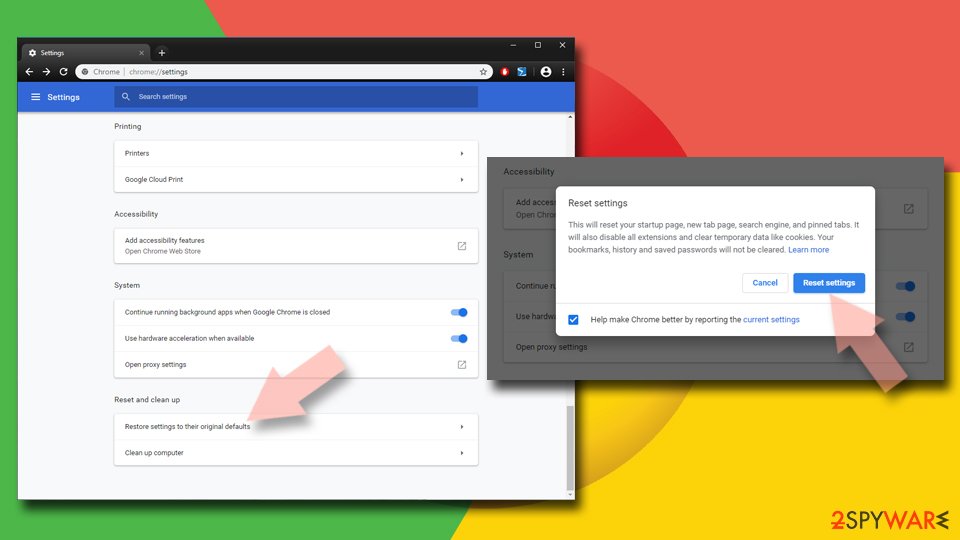
Reset Google Chrome:
If the previous methods did not help you, reset Google Chrome to eliminate all the unwanted components:
- Click on Menu and select Settings.
- In the Settings, scroll down and click Advanced.
- Scroll down and locate Reset and clean up section.
- Now click Restore settings to their original defaults.
- Confirm with Reset settings.
Remove from Microsoft Edge
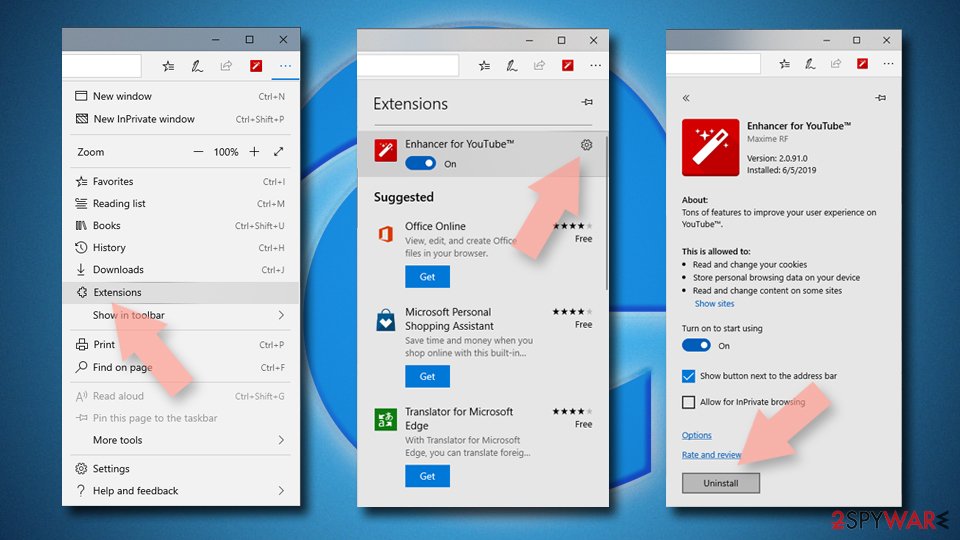
Delete unwanted extensions from MS Edge:
- Select Menu (three horizontal dots at the top-right of the browser window) and pick Extensions.
- From the list, pick the extension and click on the Gear icon.
- Click Remove.
Clear cookies and other browser data:
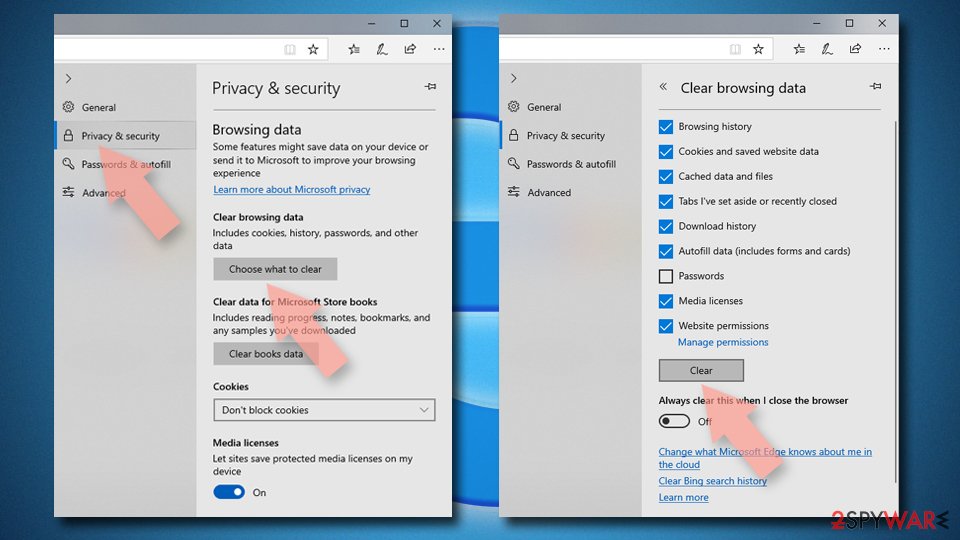
- Click on the Menu (three horizontal dots at the top-right of the browser window) and select Settings > Privacy, search, and services..
- Under Clear browsing data, pick Choose what to clear.
- Select Cookies and other site data and Cached images and files. (apart from passwords, although you might want to include Media licenses as well, if applicable) and click on Clear.
Restore new tab and homepage settings:
- Click the menu icon and choose Settings.
- Then find On startup section.
- Click Remove next to any suspicious startup page.
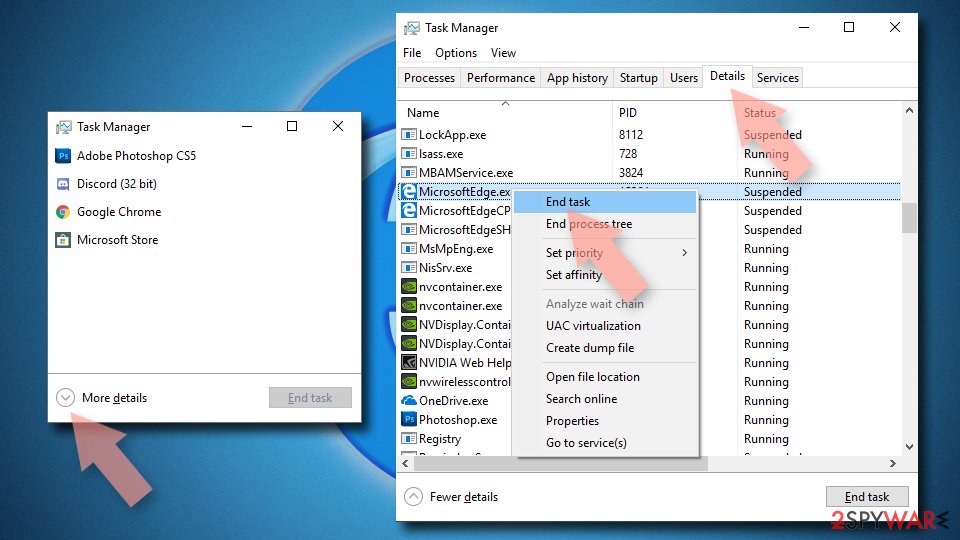
Reset MS Edge if the above steps did not work:
- Press on Ctrl + Shift + Esc to open Task Manager.
- Click on More details arrow at the bottom of the window.
- Select Details tab.
- Now scroll down and locate every entry with Microsoft Edge name in it. Right-click on each of them and select End Task to stop MS Edge from running.
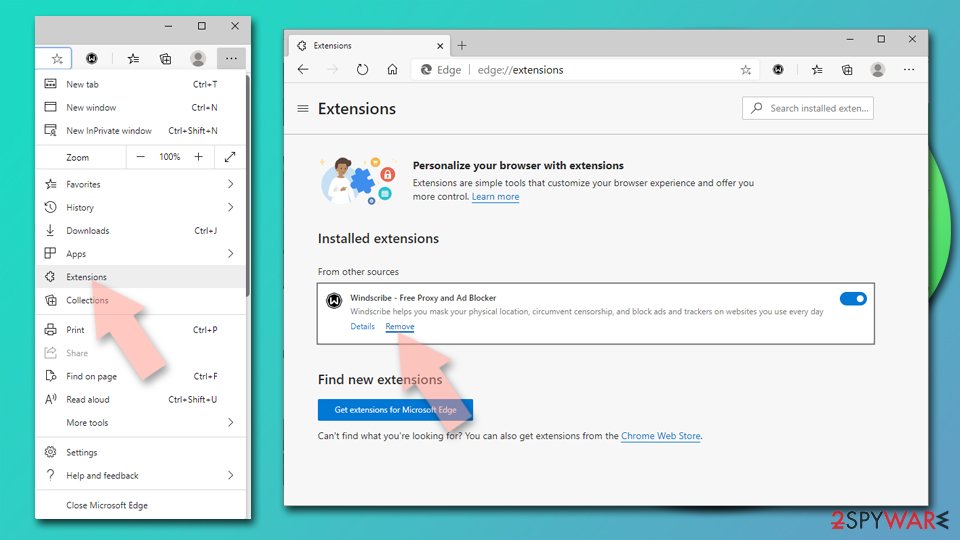
Delete extensions from MS Edge (Chromium):
- Open Edge and click select Settings > Extensions.
- Delete unwanted extensions by clicking Remove.
Clear cache and site data:
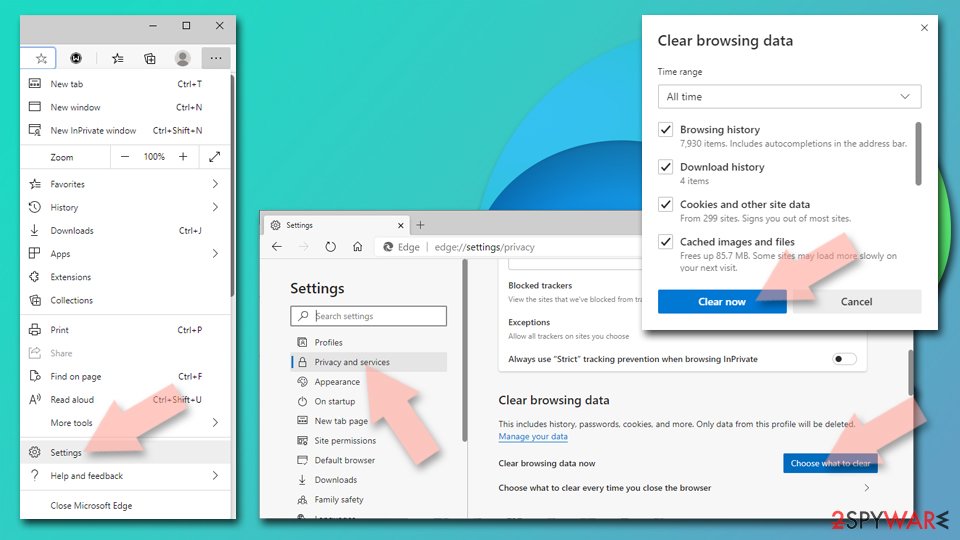
- Click on Menu and go to Settings.
- Select Privacy, search and services.
- Under Clear browsing data, pick Choose what to clear.
- Under Time range, pick All time.
- Select Clear now.
Reset Chromium-based MS Edge:
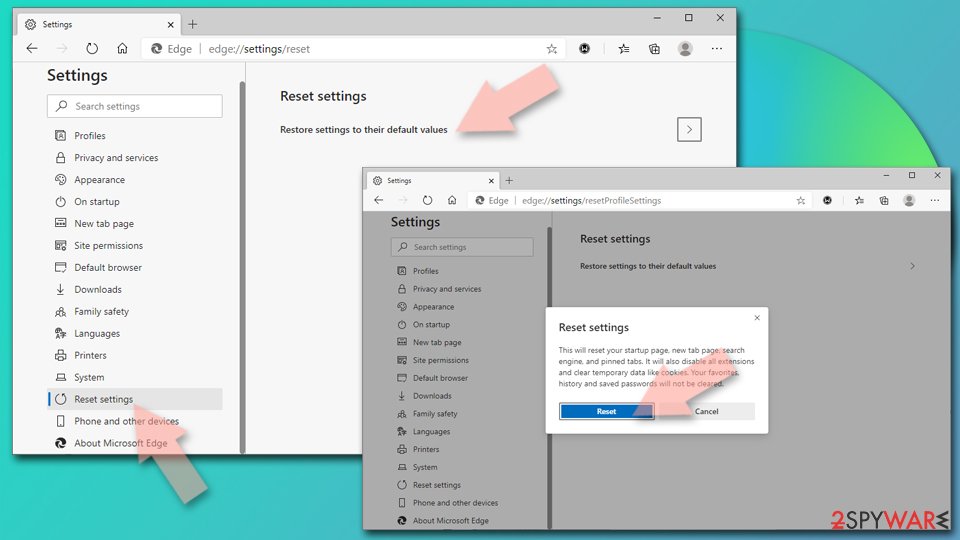
- Click on Menu and select Settings.
- On the left side, pick Reset settings.
- Select Restore settings to their default values.
- Confirm with Reset.
- This will disable extensions and reset startup pages but will not delete bookmarks, saved passwords, or browsing history.
Remove from Mozilla Firefox (FF)
Follow the provided instructions and eliminate all of hijacker's remains from Firefox. If you want to be sure that all spyware components are deleted, refresh Firefox after carrying out these guidelines.
Remove dangerous extensions:
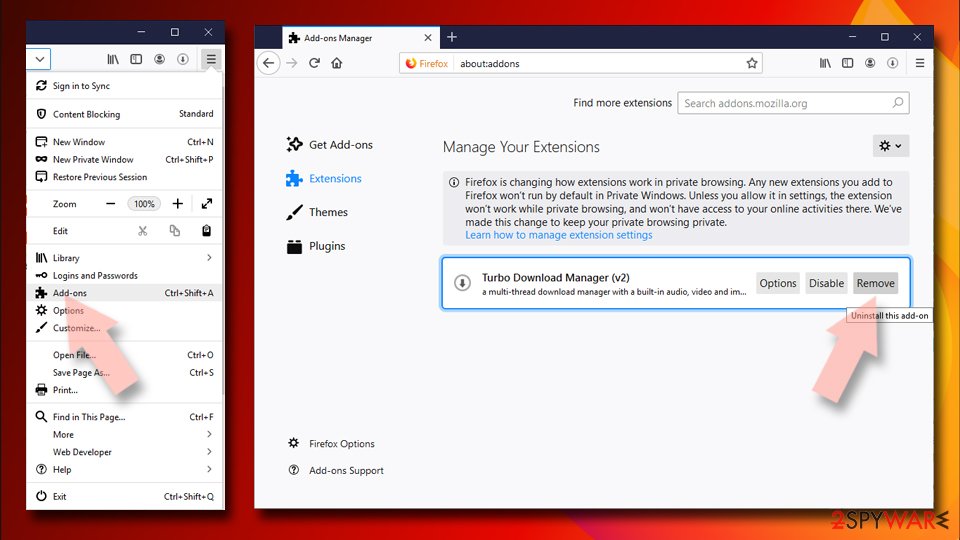
- Open Mozilla Firefox browser and click on the Menu (three horizontal lines at the top-right of the window).
- Select Add-ons.
- In here, select the unwanted extension and click Remove.
Reset the homepage:
- Click three horizontal lines at the top right corner to open the menu.
- Choose Settings.
- Under Home, set your preferred homepage and new tab settings.
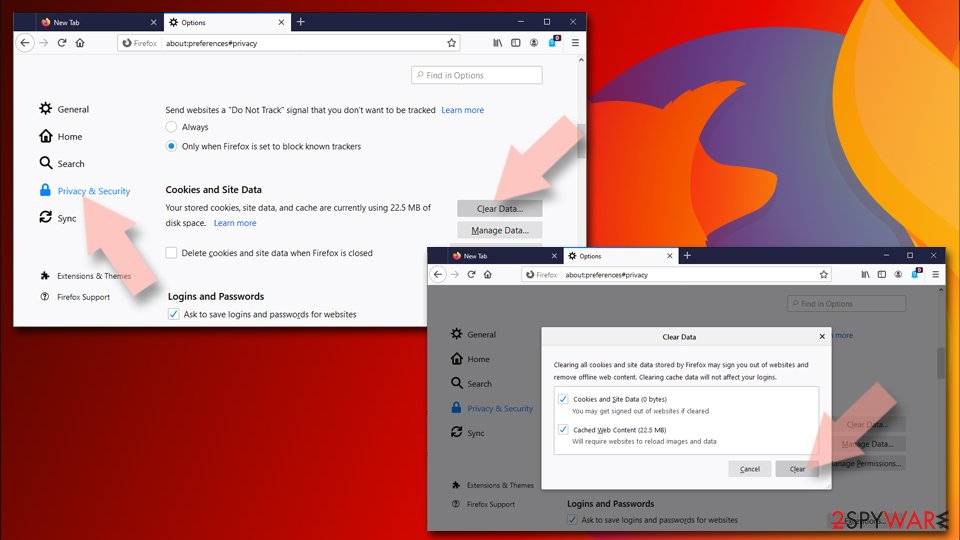
Clear cookies and site data:
- Click Menu and pick Settings.
- Go to Privacy & Security section.
- Scroll down to locate Cookies and Site Data.
- Click on Clear Data...
- Select Cookies and Site Data and Temporary cached files and pages, then click Clear.
Reset Mozilla Firefox
If clearing the browser as explained above did not help, reset Mozilla Firefox:
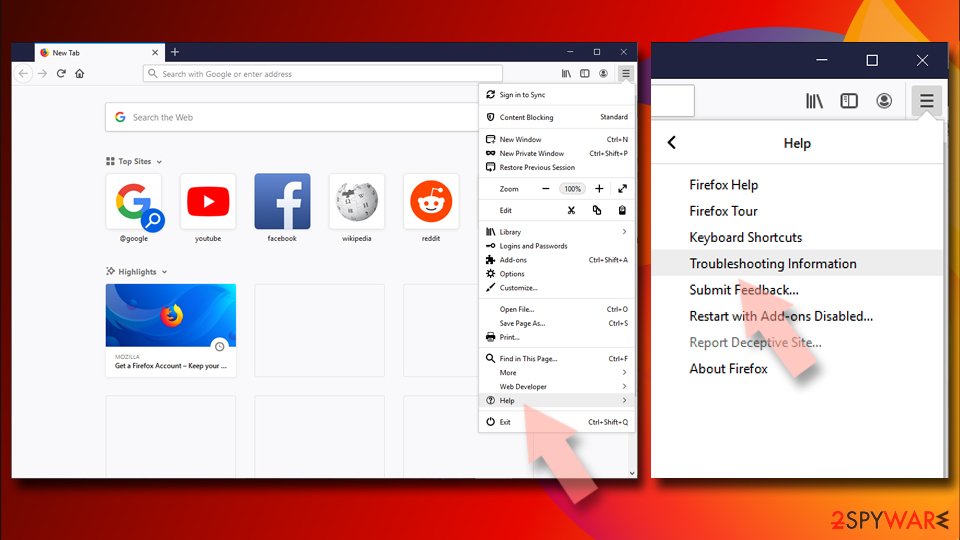
- Open Mozilla Firefox browser and click the Menu.
- Go to Help and then choose Troubleshooting Information.
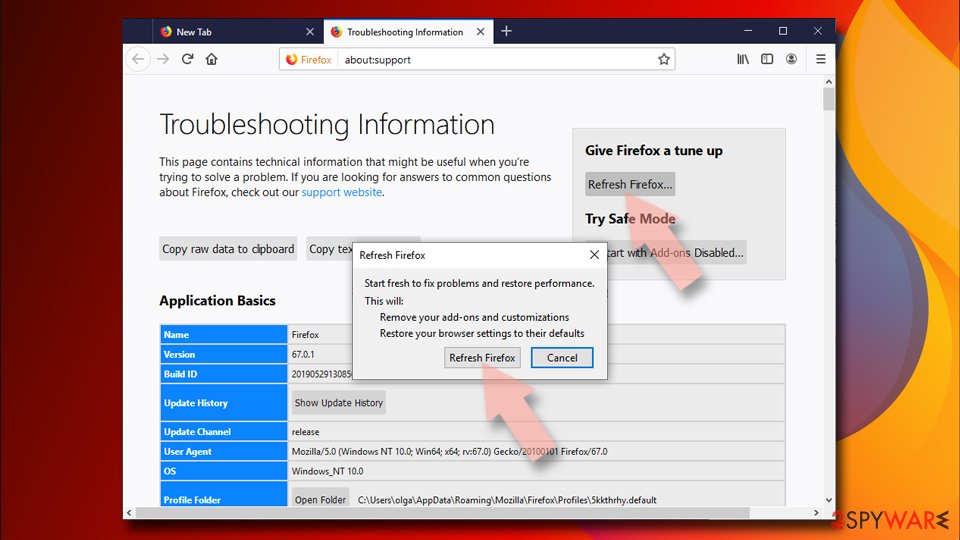
- Under Give Firefox a tune up section, click on Refresh Firefox...
- Once the pop-up shows up, confirm the action by pressing on Refresh Firefox.
Delete from Safari
Remove dangerous extensions:
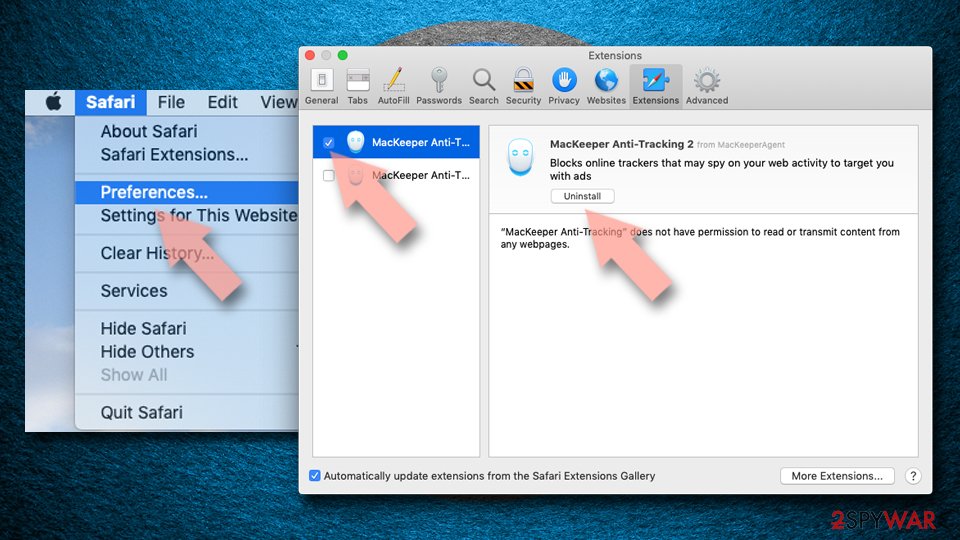
- Open Safari, click Safari in the menu at the top-left of the screen, and select Preferences.
- Go to the Extensions tab, look for any suspicious entries, and click Uninstall to remove them.
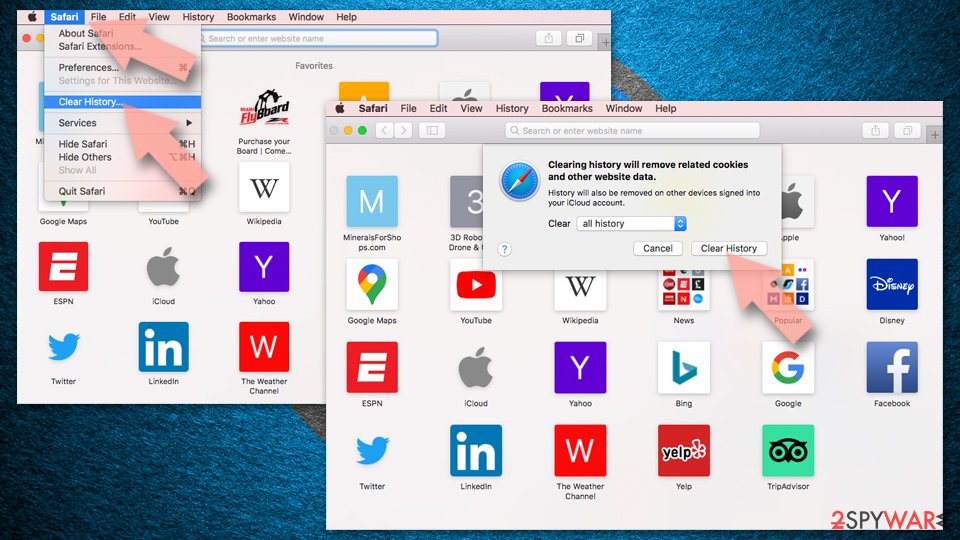
Clear history and website data:
- Click Safari in the menu and pick Clear History.
- Set Clear to all history and confirm with Clear History.
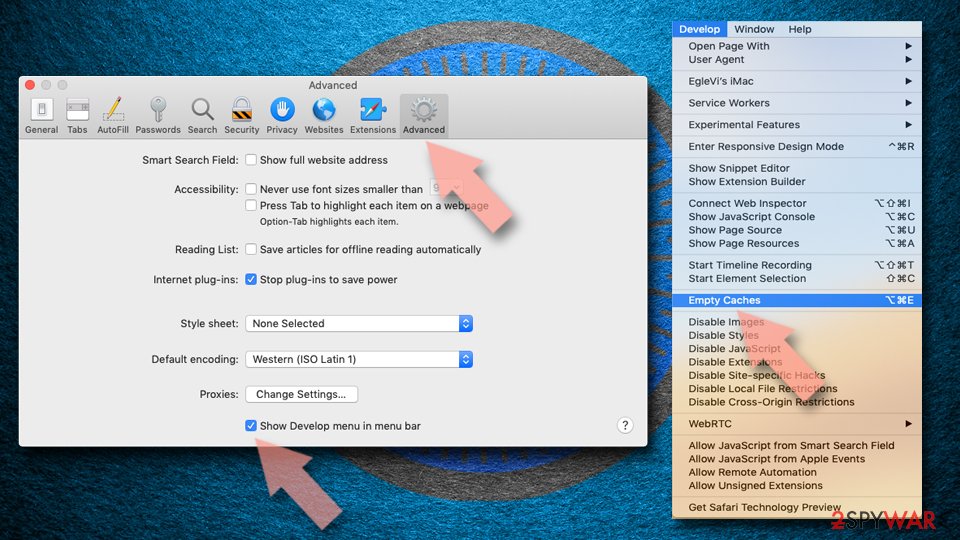
Reset Safari:
- Click Safari in the menu and select Preferences > Advanced.
- Enable Show Develop menu in menu bar.
- From the menu bar, click Develop and select Empty Caches.
Delete from macOS
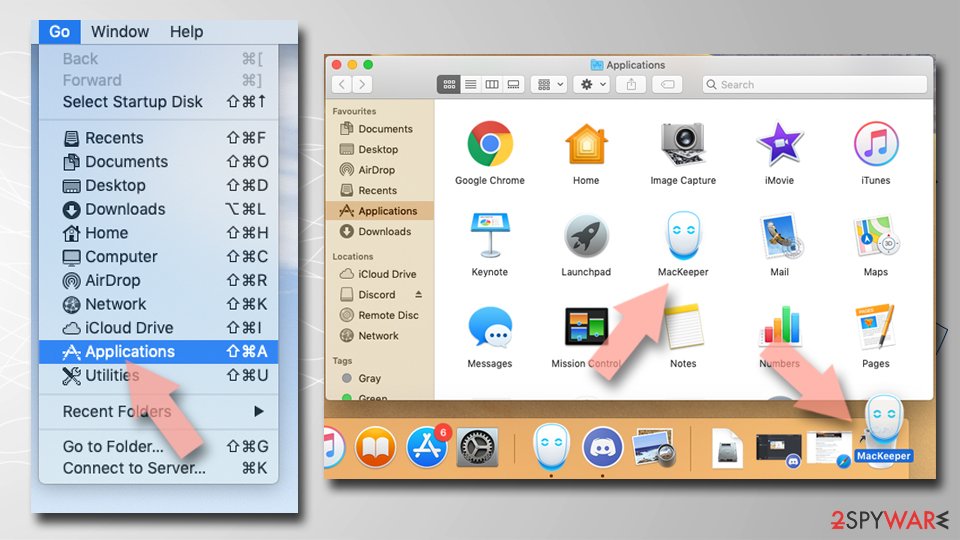
Remove the unwanted application:
- From the menu bar, select Go > Applications.
- In the Applications folder, look for any suspicious entries, then drag them to Trash (or right-click and pick Move to Trash).
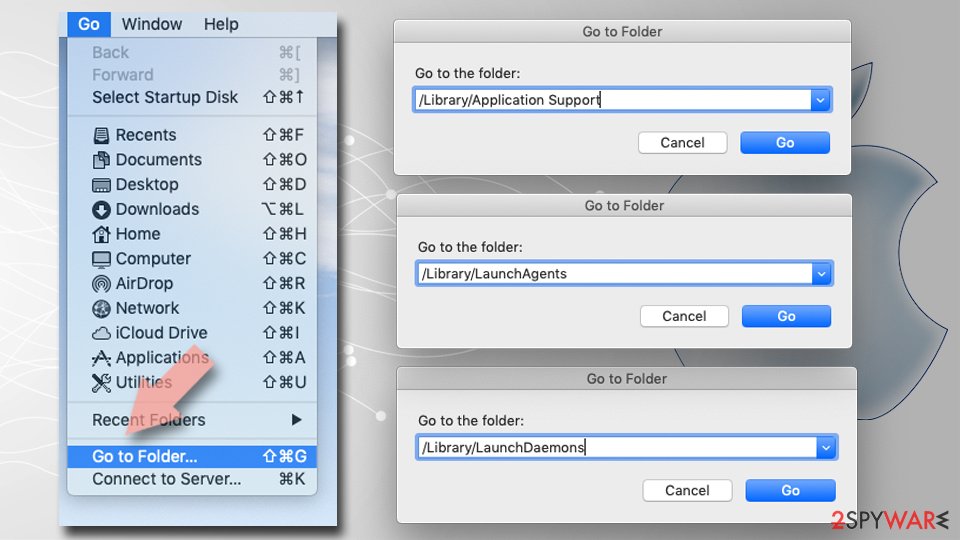
Delete leftover files and folders:
- Select Go > Go to Folder.
- Enter /Library/Application Support and remove any suspicious folders related to the unwanted program.
- Repeat the same check in the /Library/LaunchAgents and /Library/LaunchDaemons folders, deleting any suspicious entries.
- Finally, empty the Trash to permanently remove the leftovers.
Reset Internet Explorer
Remove dangerous add-ons:
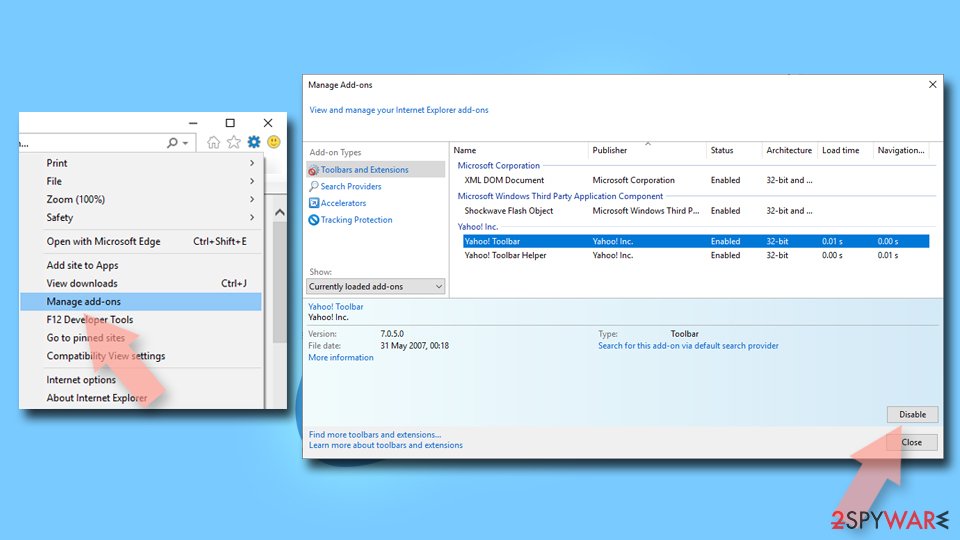
- Open Internet Explorer, click on the Gear icon (IE menu) on the top-right corner of the browser
- Pick Manage Add-ons.
- You will see a Manage Add-ons window. Here, look for suspicious plugins. Click on these entries and select Disable.
Change your homepage if it was altered:
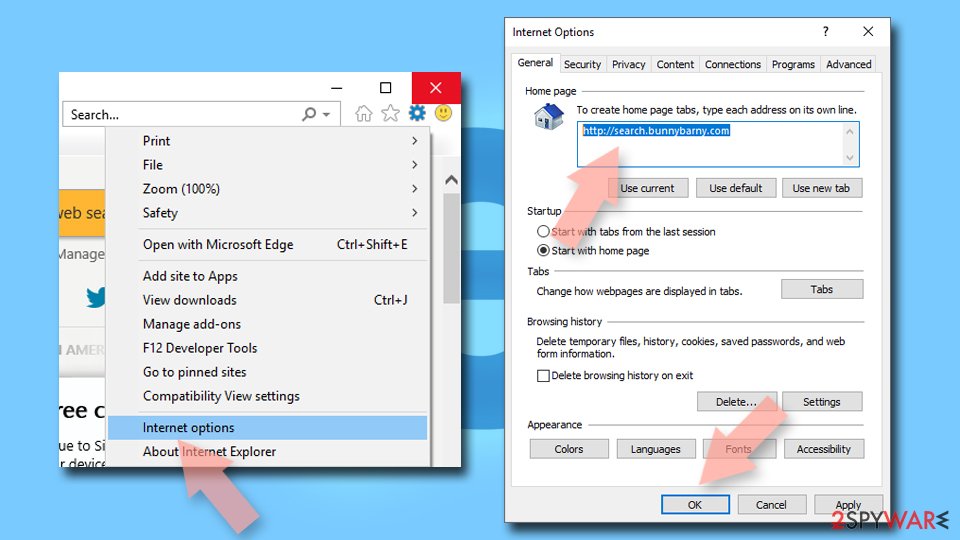
- Open IE and click on the Gear icon.
- Select Internet Options.
- In the General tab, delete the Home page address and replace it by your preferred one (for example, Google.com).
- Click Apply and then select OK.
Delete temporary files:
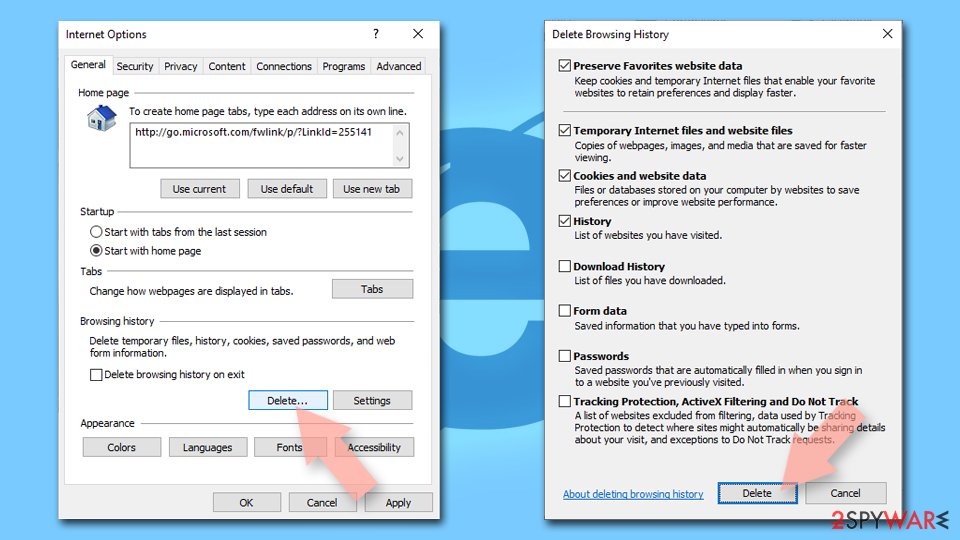
- Press on the Gear icon and select Internet Options.
- Under Browsing history, click Delete...
- Select relevant fields and press Delete.
Reset Internet Explorer:
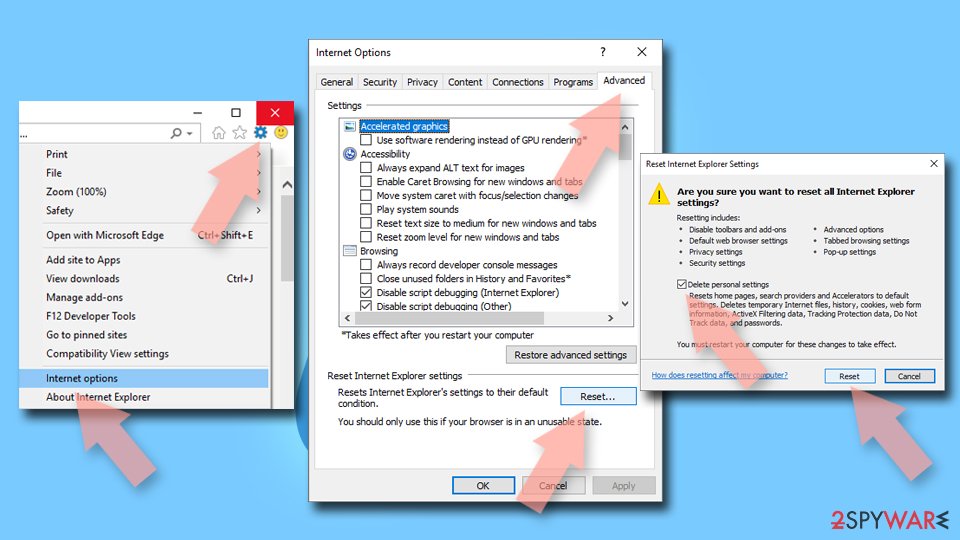
- Click on Gear icon > Internet options and select Advanced tab.
- Select Reset.
- In the new window, check Delete personal settings and select Reset.
Protect your privacy - employ a VPN
There are several ways how to make your online time more private - you can access an incognito tab.
However, there is no secret that even in this mode, you are tracked for advertising purposes. There is a way to add an extra layer of protection and create a completely anonymous web browsing practice with the help of VPN. This software reroutes traffic through different servers, thus leaving your IP address and geolocation in disguise.
Besides, it is based on a strict no-log policy, meaning that no data will be recorded, leaked, and available for both first and third parties. The combination of a secure web browser and VPN will let you browse the Internet without a feeling of being spied or targeted by criminals.
No backups? No problem. Use a data recovery tool
If you wonder how data loss can occur, you should not look any further for answers - human errors, malware attacks, hardware failures, power cuts, natural disasters, or even simple negligence.
In some cases, lost files are extremely important, and many straight out panic when such an unfortunate course of events happen. Due to this, you should always ensure that you prepare proper data backups on a regular basis.
If you were caught by surprise and did not have any backups to restore your files from, not everything is lost. is one of the leading file recovery solutions you can find on the market - it is likely to restore even lost emails or data located on an external device.
From our report of Jun 2019 · not reviewed since
Professional Default-search.net removal help
If you were tricked into installing these highly dangerous spyware examples, remove Default-search.net virus along with Linkey and other PUPs at once by running a thorough system scan with a powerful malware removal tool. As we said, you can use programs listed below the article or try to identify and delete dangerous files by yourself.
However, if you are an unskilled computer user, you should not try to deal with these programs on your own because your attempts to complete Default-search.net removal might result in failure. To gather all of the critical files, registry entries and helpers that keep this dangerous software on your system, employ a professional anti-malware software.
After uninstalling all of these programs, fix infected browser shortcuts using further instructions. You need to delete suspicious URLs added to each browser shortcut's Target field.
Questions about Default-search.net
Why does my search engine keep changing to default-search.net?
Because something keeps setting it. An extension can change the search engine every time the browser starts, and an ad-supported program in Windows can do it for every browser and re-add the extension after you remove it. Some hijackers also add a policy that locks the setting.
Changing the search engine back only works once the source is gone. Remove extensions you do not recognise, uninstall programs installed around the time default-search.net first appeared, and then set the search engine again. If it still returns, check the browser for the Managed by your organization message and follow the policy steps in this guide.
Did default-search.net come with a program I installed?
Most likely, yes. Search hijackers such as default-search.net usually arrive with free software, where an extra offer is pre-ticked in the installer, or as an extension that promises something useful, such as file conversion, maps, recipes or streaming.
Look at Settings, Apps, Installed apps sorted by install date: whatever was installed just before the search engine changed is the main suspect. Uninstall it, then remove any extension you do not recognise. In future, choose the custom or advanced option in installers and untick extra offers, and install extensions only from the official store pages of publishers you know.
Why do my searches go to default-search.net?
Because the browser's default search engine was changed to it. Default-search.net did that through an extension, a program or a browser policy, and as long as that source remains, the setting points to default-search.net.
The page then passes your query to a real search provider, so the results look almost normal, with extra sponsored links on top. Changing the search engine back on its own does not last, because the source resets it. Remove the extension or program first, then the policies if any, then set your own search engine.
Is it safe to keep searching with default-search.net?
We would not. Every query you type is logged by its operators and shared with their advertising partners, and the sponsored links at the top are chosen for payment, not relevance. Results that look like a download page or a support site may lead to scams.
The page will not damage Windows by itself, but there is no benefit in keeping it: the results come from another search engine anyway. Remove Default-search.net and use that search engine directly, by typing its address or choosing it in the browser settings.
Which browsers does Default-search.net affect?
We saw it in Chrome, Edge and Firefox. That does not mean the other browsers on your PC are safe: hijacker installers usually change every browser they find, and browser sync can carry an extension to other computers signed in to the same account.
Check the search engine, home page, new tab, extensions and policies in each browser you have, including ones you rarely open. Chrome and Edge profiles count separately, so switch to each profile and check it as well before you call the job done.
What does default-search.net know about me?
It knows what you searched for while it was your search engine, when, from which IP address and with which browser, and usually which results you opened. Tracking cookies let it connect those searches into a profile. It does not see your saved passwords or files.
After removing Default-search.net, delete the cookies and site data for default-search.net so the profile cannot be continued, and remove it from the browser's list of saved search engines. Signing out of important sites and back in also replaces session cookies.
The results look like Google or Bing. Is that real?
Partly. Many hijacker search pages pass your query to a real search engine and show its results, so the list looks familiar. What changes is the frame around it:
- extra sponsored links at the top
- the hijacker's own tracking
- sometimes a design that copies a known search engine
You can tell by the address bar. If it shows default-search.net or another unfamiliar domain instead of the search engine you know, the results come through a middleman. Remove Default-search.net and search directly.
Will resetting the browser remove Default-search.net?
A reset disables extensions, restores the default search engine, start page and new tab, and clears temporary data and cookies. It keeps bookmarks, history and saved passwords. For many hijackers that is enough.
It does not remove a program installed in Windows, policies in the registry, changes to the hosts file or DNS, or edited shortcuts, so Default-search.net can come back after a reset if one of those remains. Do the reset after removing the program and policies, not instead of it.
Would an ad blocker stop Default-search.net?
Not really. An ad blocker can hide some of the sponsored results on default-search.net, but it does not change your search engine back or remove the extension that set it. Your searches would still pass through the hijacker's servers and be logged.
Some ad blockers include tracking filters that block parts of the redirect chain, which can break searches altogether. Remove Default-search.net with the plan above; an ad blocker is a reasonable extra afterwards, from the official store only and from a developer with a long track record.
Will Fortect remove Default-search.net?
Fortect scans Windows for malware and unwanted programs and repairs the system files and settings they change, and its free scan shows what it finds on your PC before you decide anything.
For Default-search.net, follow the plan above as well: the browser steps take back permissions and settings that no scanner treats as a threat, and uninstalling the program that brought it removes the source.
Run Microsoft Defender's full scan and, if anything was found, its offline scan as a second opinion. If the symptoms are gone after the plan and both scans are clean, there is nothing more to do.
Sources
- Kaspersky Lab: What Is Browser Hijacking? (read October 6, 2026)
- Symantec Security Response: Trojan.Semnager (read October 6, 2026)
- MyWOT: Is default-search.net Safe? Reviews & Ratings (read October 6, 2026)
- FTC: How to recognize, remove and avoid malware (read October 6, 2026)
- Microsoft Learn: Microsoft Defender Offline (read October 6, 2026)