TradeAdExchange virus (Removal Guide) - 2021 update
TradeAdExchange virus Removal Guide
What is TradeAdExchange virus?
TradeAdExchange is an adware that shows pop-up ads and may slow down your computer
TradeAdExchange hijacker is a computer parasite that can considerably worsen your browsing experience. It is a potentially unwanted program (PUP), which commonly aims to install its extensions to web browsers on the victim’s computer. Once it does that, it immediately starts its intrusive activities. This adware mostly sends pop-up or New Tab advertisements whenever you browse the Internet.
Usually, TradeAdExchange ads show up whenever the user clicks on random links and opens new web pages. These notifications commonly offer to install computer programs or updates for free. Mostly, it suggests updating Java or Adobe Flash players.
Moreover, if you are infected with the TradeAdExchange virus, you might experience redirects to suspicious web domains, too. Be careful because security vendors claim that this dubious software frequently promotes dangerous software or even malware. Needless to say, you should not install suspicious software from unreliable web sources. No one can guarantee that you will receive a safe program, so why take the risk?

To completely remove TradeAdExchange, computer experts recommend using an automatic removal option. You should install an anti-malware program, for example, SpyHunter 5Combo Cleaner or Malwarebytes, which is capable of scanning the computer system and finding and deleting dangerous computer threats that may be hiding deep in the system.
After the successful TradeAdExchange removal, you should fix the system files with a reliable repair tool if you still experience slowdowns. For this task, we recommend using FortectIntego.
Adware is spreading with the help of bundles
This dubious program can invade your computer system in a stealthy way, and this should not be tolerated. The adware usually occurs in case a computer user does not follow certain software installation rules. This and other critical computer programs are typically spread as attachments to other freeware or shareware, so it is extremely important to be careful when installing such programs onto the computer system. We have some tips on how to install the software in the correct way:
- Download software only from trusted and secure Internet sources. If you are not sure whether the page that provides a software download link is worth to be relied on, read users’ feedback on it in various Internet forums.
- Once you download the program, you should install it attentively. Make sure you read each statement on the software installer and do not ignore Terms of Use or Privacy Policy documents. These documents usually disclose information about whether the program includes additional third-party apps or not.
- Set the right installation mode. Deselect the traditional Basic/Standard/Default installation option and choose the Custom or Advanced installation method instead. You see, the traditional installation methods usually conceal the agreements to install optional downloads, if there are any. The two other installation modes allow the user to opt-out of these agreements.
If you have noticed that malware has already attacked your computer and now it is disrupting your browsing experience with constant interferences, you should waste no time and look for a solution to this problem. If you want to find out how to remove the potentially unwanted program, continue reading our article.
TradeAdExchange removal guide
You can remove TradeAdExchange virus successfully in no time with a professional malware removal tool. Also, this way you will protect the system from other threats too.
There is another option how you can delete Trade Ad Exchange too. You can attempt to uninstall it manually, although PC security experts advise using this removal technique only in case you are an experienced computer user. Otherwise, you might leave unwanted components on your computer, which might cause problems in the future.
However, the manual TradeAdExchange removal guide is also provided below this article. Let us know if you have encountered any problems removing this PUP – our support team is always ready to help you out.
You may remove virus damage with a help of FortectIntego. SpyHunter 5Combo Cleaner and Malwarebytes are recommended to detect potentially unwanted programs and viruses with all their files and registry entries that are related to them.
Getting rid of TradeAdExchange virus. Follow these steps
Uninstall from Windows
-
Click Start → Control Panel → Programs and Features (if you are Windows XP user, click on Add/Remove Programs).

-
If you are Windows 10 / Windows 8 user, then right-click in the lower left corner of the screen. Once Quick Access Menu shows up, select Control Panel and Uninstall a Program.

-
Uninstall TradeAdExchange and related programs
Here, look for TradeAdExchange or any other recently installed suspicious programs. -
Uninstall them and click OK to save these changes.


Delete from macOS
-
If you are using OS X, click Go button at the top left of the screen and select Applications.

-
Wait until you see Applications folder and look for TradeAdExchange or any other suspicious programs on it. Now right click on every of such entries and select Move to Trash.


Remove from Microsoft Edge
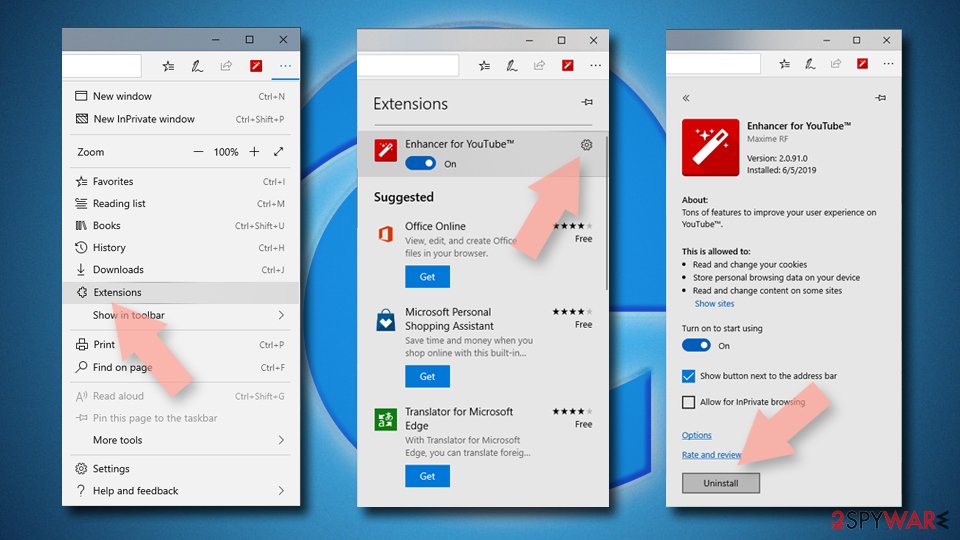
Delete unwanted extensions from MS Edge:
- Select Menu (three horizontal dots at the top-right of the browser window) and pick Extensions.
- From the list, pick the extension and click on the Gear icon.
- Click Remove.

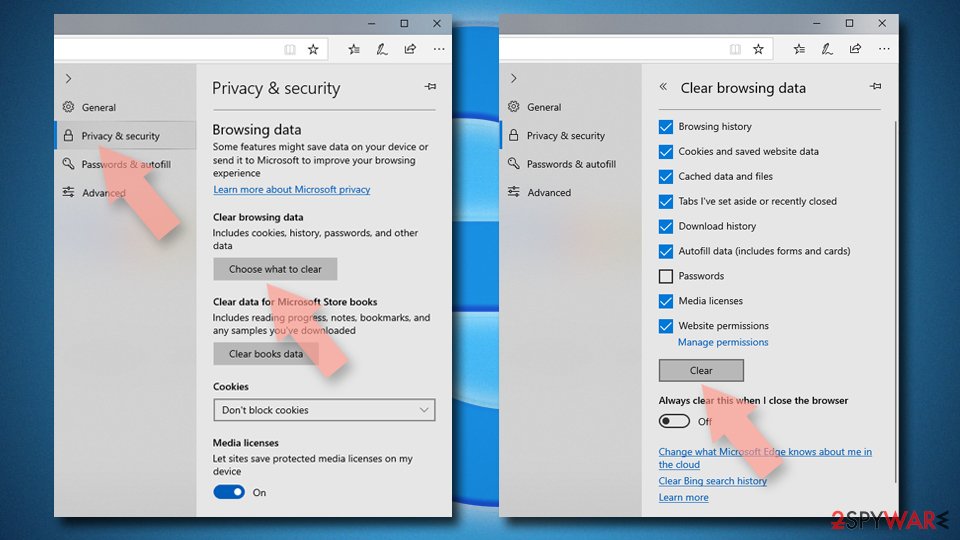
Clear cookies and other browser data:
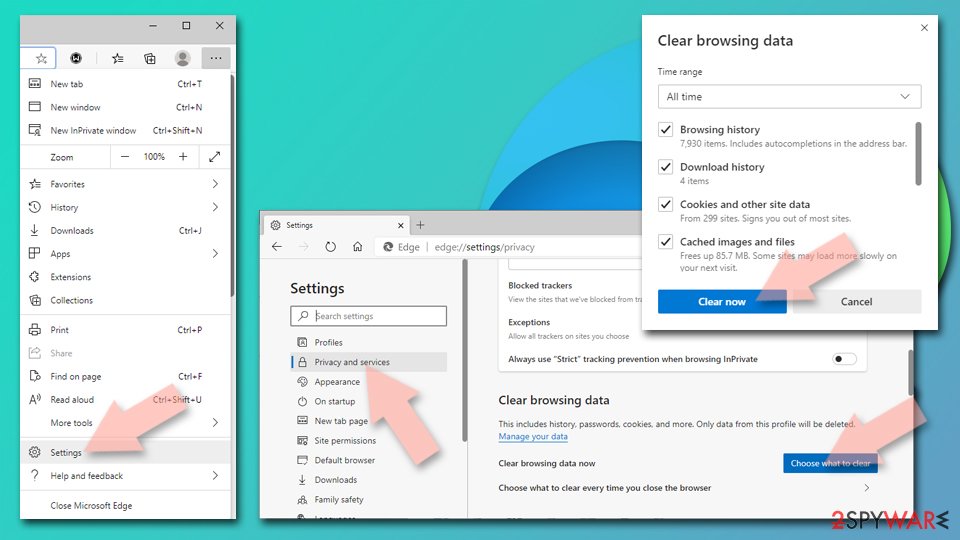
- Click on the Menu (three horizontal dots at the top-right of the browser window) and select Settings > Privacy, search, and services..
- Under Clear browsing data, pick Choose what to clear.
- Select Cookies and other site data and Cached images and files. (apart from passwords, although you might want to include Media licenses as well, if applicable) and click on Clear.

Restore new tab and homepage settings:
- Click the menu icon and choose Settings.
- Then find On startup section.
- Click Remove next to any suspicious startup page.
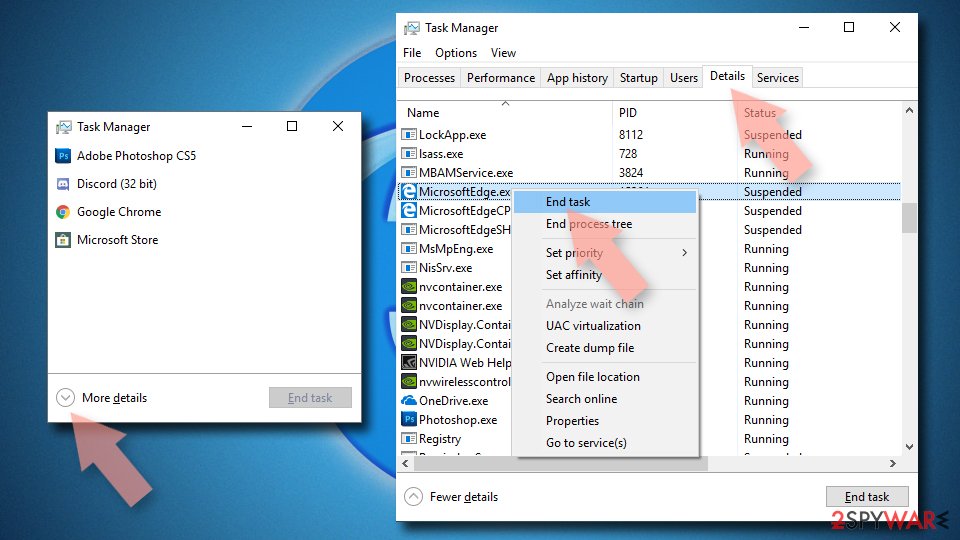
Reset MS Edge if the above steps did not work:
- Press on Ctrl + Shift + Esc to open Task Manager.
- Click on More details arrow at the bottom of the window.
- Select Details tab.
- Now scroll down and locate every entry with Microsoft Edge name in it. Right-click on each of them and select End Task to stop MS Edge from running.

Instructions for Chromium-based Edge
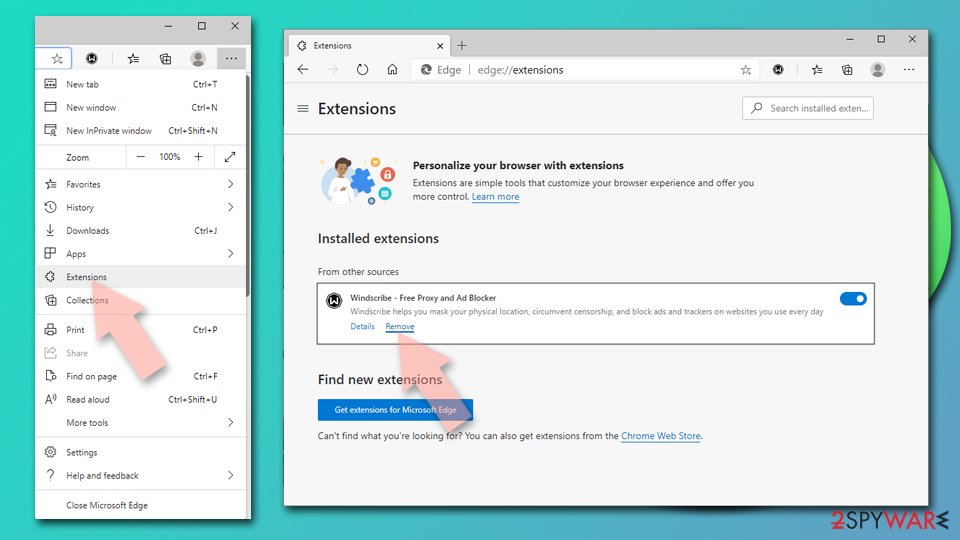
Delete extensions from MS Edge (Chromium):
- Open Edge and click select Settings > Extensions.
- Delete unwanted extensions by clicking Remove.

Clear cache and site data:
- Click on Menu and go to Settings.
- Select Privacy, search and services.
- Under Clear browsing data, pick Choose what to clear.
- Under Time range, pick All time.
- Select Clear now.

Reset Chromium-based MS Edge:
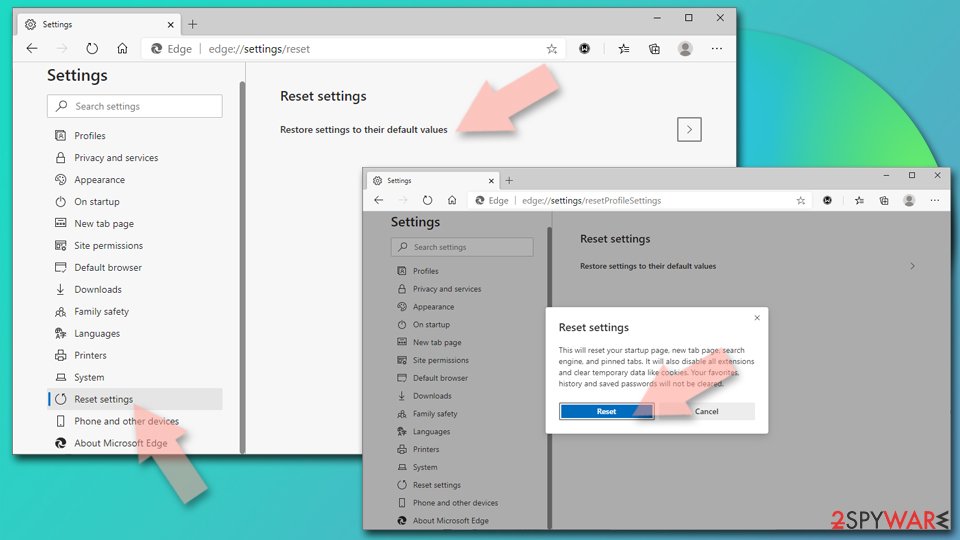
- Click on Menu and select Settings.
- On the left side, pick Reset settings.
- Select Restore settings to their default values.
- Confirm with Reset.
- This will disable extensions and reset startup pages but will not delete bookmarks, saved passwords, or browsing history.

Remove from Mozilla Firefox (FF)
Remove dangerous extensions:
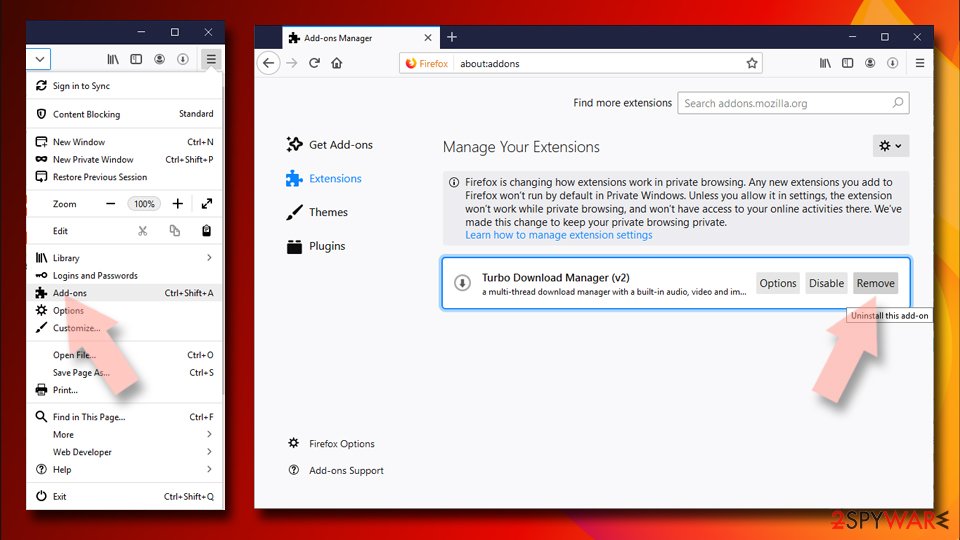
- Open Mozilla Firefox browser and click on the Menu (three horizontal lines at the top-right of the window).
- Select Add-ons.
- In here, select the unwanted extension and click Remove.

Reset the homepage:
- Click three horizontal lines at the top right corner to open the menu.
- Choose Settings.
- Under Home, set your preferred homepage and new tab settings.
Clear cookies and site data:
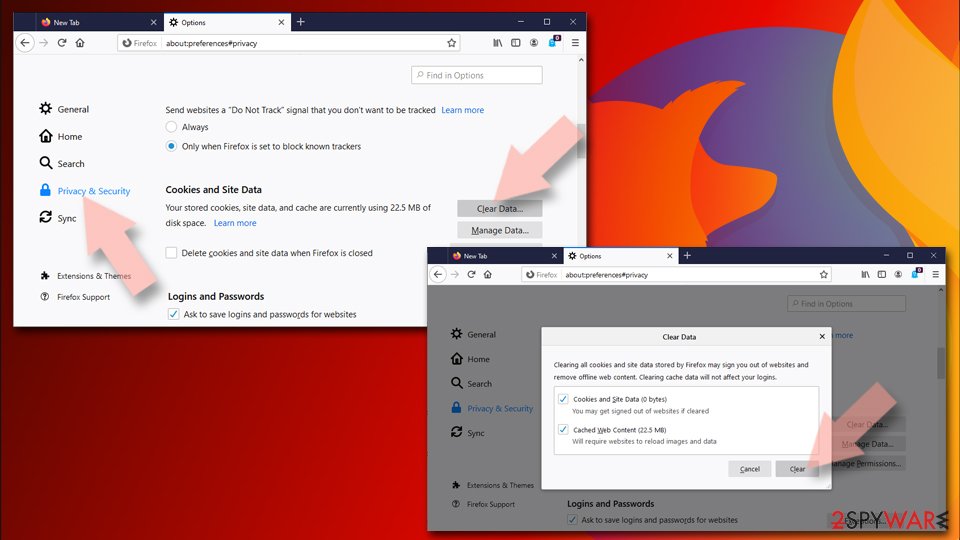
- Click Menu and pick Settings.
- Go to Privacy & Security section.
- Scroll down to locate Cookies and Site Data.
- Click on Clear Data…
- Select Cookies and Site Data and Temporary cached files and pages, then click Clear.

Reset Mozilla Firefox
If clearing the browser as explained above did not help, reset Mozilla Firefox:
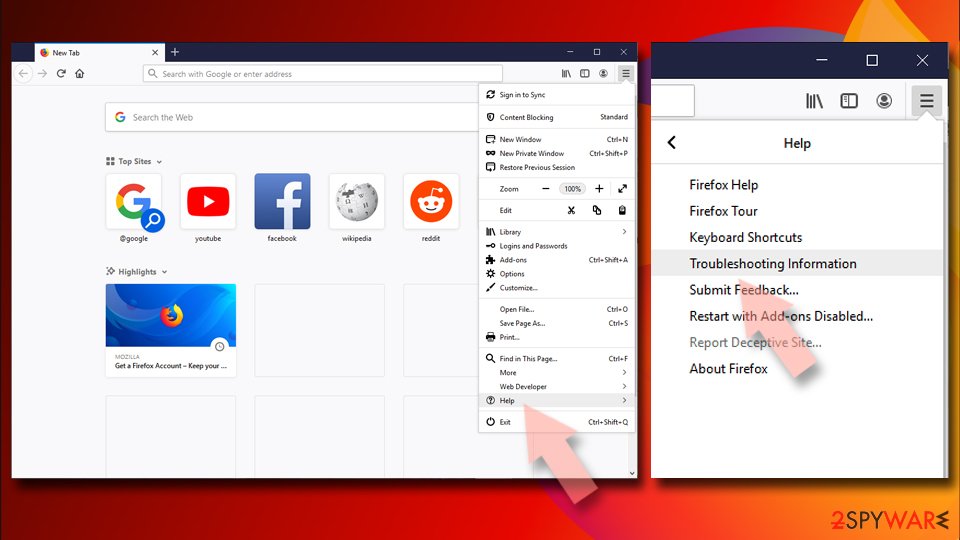
- Open Mozilla Firefox browser and click the Menu.
- Go to Help and then choose Troubleshooting Information.
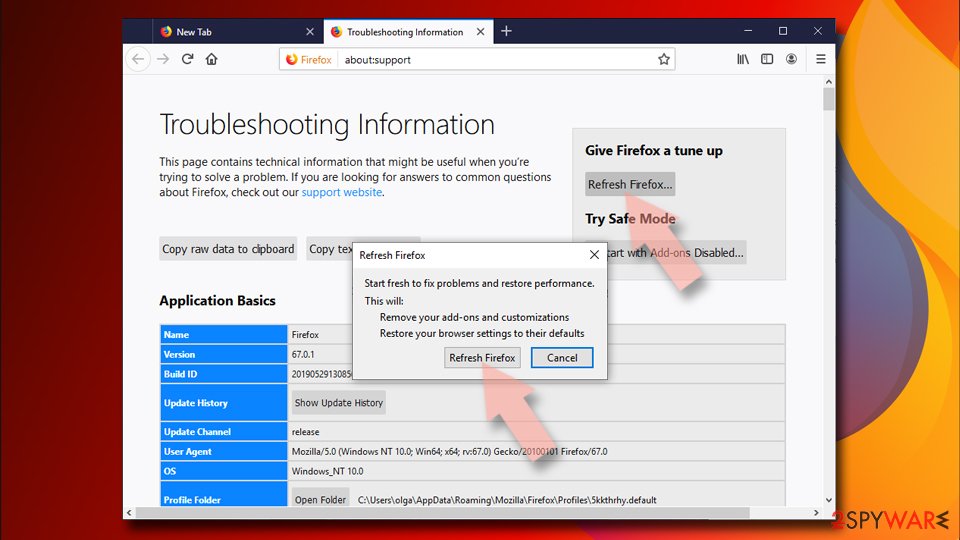
- Under Give Firefox a tune up section, click on Refresh Firefox…
- Once the pop-up shows up, confirm the action by pressing on Refresh Firefox.


Remove from Google Chrome
Delete malicious extensions from Google Chrome:
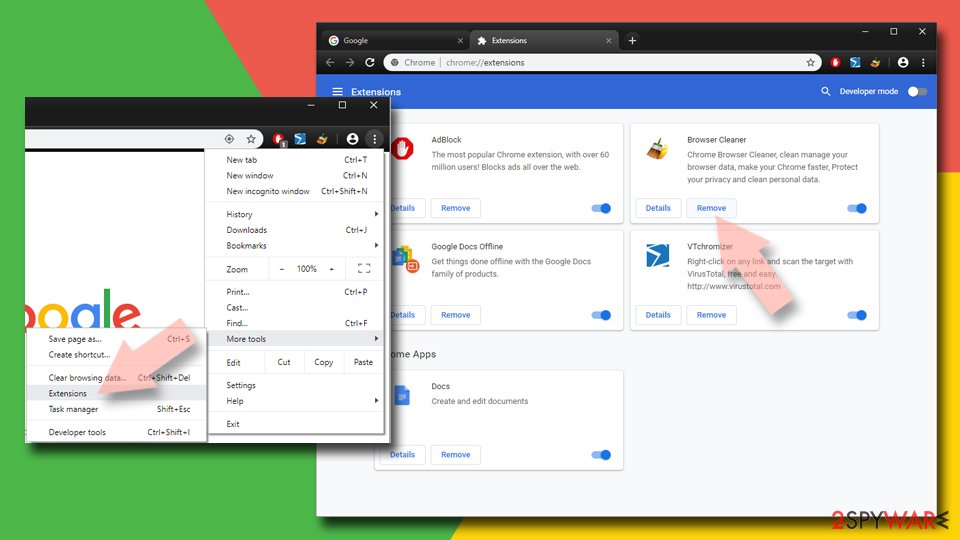
- Open Google Chrome, click on the Menu (three vertical dots at the top-right corner) and select More tools > Extensions.
- In the newly opened window, you will see all the installed extensions. Uninstall all suspicious extensions related to the unwanted program by clicking Remove.

Clear cache and web data from Chrome:
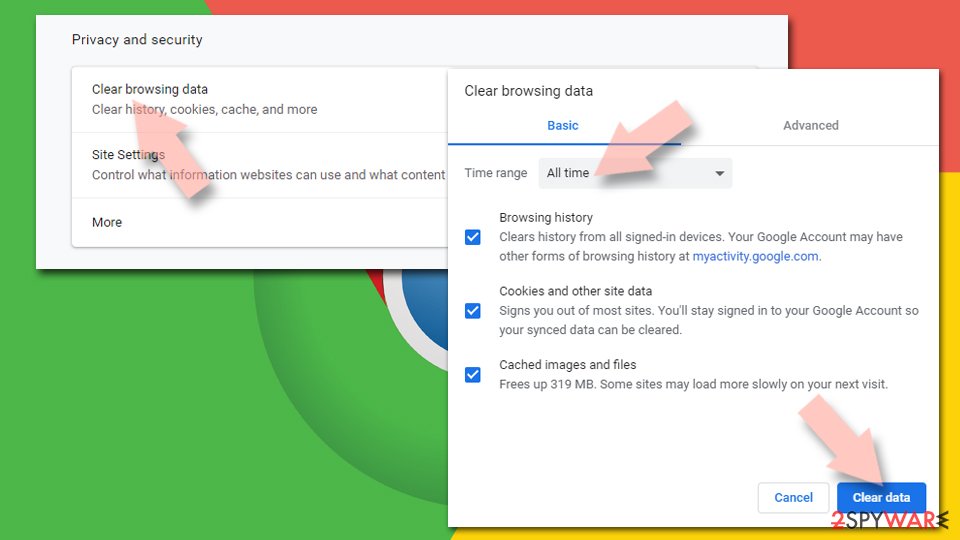
- Click on Menu and pick Settings.
- Under Privacy and security, select Clear browsing data.
- Select Browsing history, Cookies and other site data, as well as Cached images and files.
- Click Clear data.

Change your homepage:
- Click menu and choose Settings.
- Look for a suspicious site in the On startup section.
- Click on Open a specific or set of pages and click on three dots to find the Remove option.
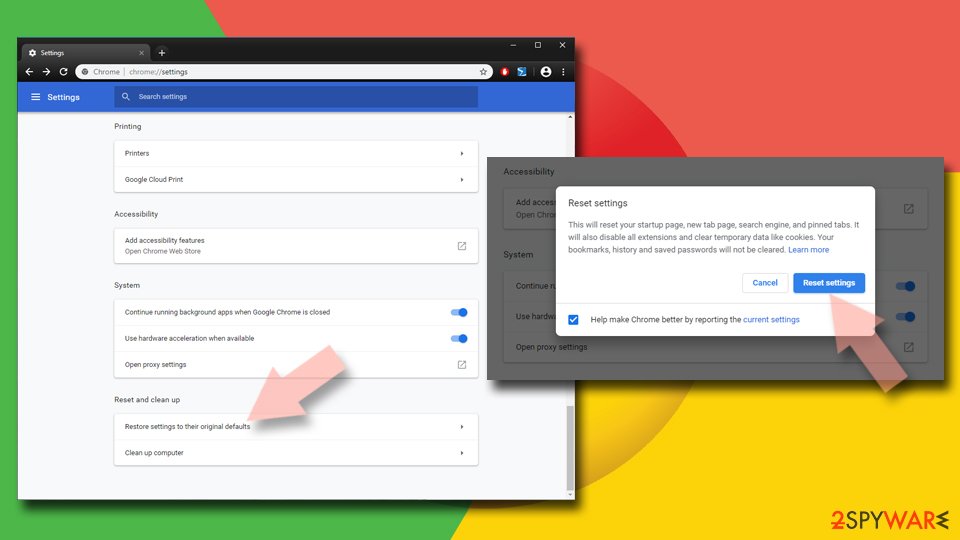
Reset Google Chrome:
If the previous methods did not help you, reset Google Chrome to eliminate all the unwanted components:
- Click on Menu and select Settings.
- In the Settings, scroll down and click Advanced.
- Scroll down and locate Reset and clean up section.
- Now click Restore settings to their original defaults.
- Confirm with Reset settings.

Delete from Safari
-
Remove dangerous extensions
Open Safari web browser and click on Safari in menu at the top left of the screen. Once you do this, select Preferences.
-
Here, select Extensions and look for TradeAdExchange or other suspicious entries. Click on the Uninstall button to get rid each of them.

-
Reset Safari
Open Safari browser and click on Safari in menu section at the top left of the screen. Here, select Reset Safari....
-
Now you will see a detailed dialog window filled with reset options. All of those options are usually checked, but you can specify which of them you want to reset. Click the Reset button to complete TradeAdExchange removal process.


After uninstalling this potentially unwanted program (PUP) and fixing each of your web browsers, we recommend you to scan your PC system with a reputable anti-spyware. This will help you to get rid of TradeAdExchange registry traces and will also identify related parasites or possible malware infections on your computer. For that you can use our top-rated malware remover: FortectIntego, SpyHunter 5Combo Cleaner or Malwarebytes.
How to prevent from getting adware
Access your website securely from any location
When you work on the domain, site, blog, or different project that requires constant management, content creation, or coding, you may need to connect to the server and content management service more often. The best solution for creating a tighter network could be a dedicated/fixed IP address.
If you make your IP address static and set to your device, you can connect to the CMS from any location and do not create any additional issues for the server or network manager that needs to monitor connections and activities. VPN software providers like Private Internet Access can help you with such settings and offer the option to control the online reputation and manage projects easily from any part of the world.
Recover files after data-affecting malware attacks
While much of the data can be accidentally deleted due to various reasons, malware is one of the main culprits that can cause loss of pictures, documents, videos, and other important files. More serious malware infections lead to significant data loss when your documents, system files, and images get encrypted. In particular, ransomware is is a type of malware that focuses on such functions, so your files become useless without an ability to access them.
Even though there is little to no possibility to recover after file-locking threats, some applications have features for data recovery in the system. In some cases, Data Recovery Pro can also help to recover at least some portion of your data after data-locking virus infection or general cyber infection.

If this free guide helped you and you are satisfied with our service, please consider making a donation to keep this service alive. Even a smallest amount will be appreciated.