
Trojan:Win32/MpTamperBulkExcl.H: what the Defender alert means and how to remove it
Trojan:Win32/MpTamperBulkExcl.H is the name Microsoft Defender gives to an attempt to add many Defender exclusions at once, a trick malware uses so its folders are never scanned. Check the exclusion list, remove what you did not add, find the program that wrote them and run a full and an offline scan.
Facts checked October 16, 2026. Removal steps tested on Windows 11 (26H2) and checked against Microsoft's and the browser makers' current documentation.
Automatic
Get a free scan and check if your PC is infected.
Fortect finds malware, unwanted programs and the Windows damage they leave behind, and repairs it in one pass.
A second opinion helps when Trojan:Win32/MpTamperBulkExcl.H keeps returning: a free scan checks startup items, tasks and programs together.
Do it yourself · free Remove Trojan:Win32/MpTamperBulkExcl.H yourself 6 steps, about 18 minutes, no software needed.
Start the steps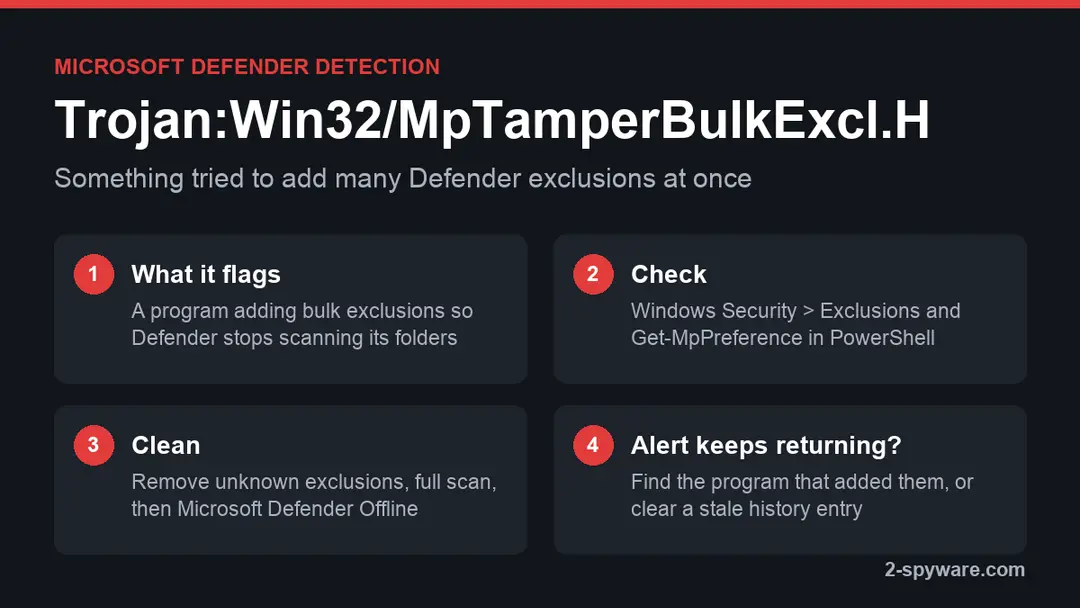
Trojan:Win32/MpTamperBulkExcl.H: summary
| Type | A Microsoft Defender detection for an attempt to add bulk Defender exclusions; not a program name |
|---|---|
| Risk | Medium until checked: the payload is unknown, and the program behind it wanted Defender to stop scanning |
| Symptoms | The Windows Security alert Trojan:Win32/MpTamperBulkExcl.H, unknown entries in Defender exclusions, an alert that returns |
| How to get rid of it | Remove unknown exclusions, find and uninstall the program that added them, full scan, Microsoft Defender Offline; clear a stale history entry in Safe Mode |
| Our check (16 October 2026) | No PC test: we read Microsoft's encyclopedia entry and Microsoft Q&A threads; no sample was run |
| First seen | Microsoft published the .C entry on 8 June 2022 |
| Removal | Scan the PC with security software to find and remove the malware and anything installed with it. Fortect scans Windows for malware and repairs the system files and settings it damaged. Remove it nowTo use the full-featured product, you have to purchase a license for Fortect. The scan is free. |
Show 8 more facts
| Detection | Microsoft: Trojan:Win32/MpTamperBulkExcl.H, also Trojan:Win32/MpTamperBulkExcl.C |
|---|---|
| Distribution | Cracked software, keygens, activators, loaders in archives and fake installers |
| Damage | Folders Defender no longer scans, which can hide stealers, miners and remote-access tools |
| Name | Trojan:Win32/MpTamperBulkExcl.H |
| Evidence | 3 reports from affected users and security sites; no sample analysed yet |
| File names | C:\Users\<you>\AppData\Roaming |
| Microsoft Defender name | Trojan:Win32/MpTamperBulkExcl.H |
| Facts checked | 16 October 2026 |
Facts checked on 16 October 2026 against Microsoft's threat encyclopedia and Microsoft Q&A threads about this detection and about clearing Protection history. We ran no sample and tested no infected PC; the steps follow Microsoft's pages and were not tried on a live infection.
What Trojan:Win32/MpTamperBulkExcl.H is, and what it is not
Trojan:Win32/MpTamperBulkExcl.H is a Microsoft Defender detection name, not the name of a program you can find in Installed apps. It marks an attempt to tamper with Defender by adding a batch of exclusions, so the program behind it can work in folders that Defender no longer scans.
- 1
What Microsoft says
Microsoft's threat encyclopedia lists the family as a trojan that Microsoft Defender Antivirus detects and removes. Its entry for the .C variant, published on 8 June 2022, says the threat can perform a number of actions of a malicious actor's choice, and that technical details are not available.
- 2
What the name points to
Microsoft does not explain the name. Read part by part, it describes tampering with Defender through bulk exclusions, which matches what people report: the alert appears when something runs a command or script that adds many paths, file types or processes to the exclusion list.
- 3
What it is not
It is not a virus that lives in one file called MpTamperBulkExcl. The detection is about the action. The real program is whatever ran that action, often a loader that came with cracked software, and it may sit in a folder with a random name.
- 4
Why the letter changes
The .H at the end is the variant. Microsoft also lists .C, and readers report other letters. The letter tells you which signature matched, and the removal steps are the same for all of them.
- Shown by
- Microsoft Defender Antivirus, in Windows Security on Windows 11 and Windows 10
- Usual form
- Trojan:Win32/MpTamperBulkExcl.H, sometimes .C or another letter
- What it flags
- An attempt to add many Defender exclusions at once
- Is it a file?
- No: it names the action, and the program that ran it is the thing to remove
- Not the same as
- VirTool:Win32/DefenderTamperingRestore, which is Defender restoring its own settings
If you came here because the alert keeps returning, read the chapters on checking exclusions and on the stale alert. Both cases are common, and they need different fixes. For the wider family, see our trojans guide.
What Trojan:Win32/MpTamperBulkExcl.H does on an infected PC
How to read the name, part by part
Microsoft names detections in a fixed order: type, platform, family and variant. Here is this name split up, with our reading of the family part marked as ours.
| Part | What it means | In this name |
|---|---|---|
| Trojan | The type of threat: a malicious program that does not copy itself | Defender treats the action as a trojan's work, not as a setting a user changed |
| Win32 | The platform: Windows programs | It runs on Windows 11 and Windows 10, 32-bit or 64-bit |
| Mp | The prefix Microsoft uses for Defender's own parts, as in MpCmdRun.exe and Get-MpPreference | Our reading: it refers to Defender itself |
| Tamper | Changing a security product's settings without permission | Something tried to change Defender |
| BulkExcl | Bulk exclusions | Our reading: many exclusions added in one go, the behaviour people report |
| .H | The variant letter | One of several signatures for the same behaviour; .C is another |
What we checked on 16 October 2026, and what we could not
There is no website to test here and we ran no sample. We read Microsoft's encyclopedia entry and the Microsoft Q&A threads about this alert, and we ran nothing on an infected PC.
Our reading of the sources, 16 October 2026
- The detection existsMicrosoft's threat encyclopedia lists the family and says Microsoft Defender Antivirus detects and removes it.
- The alert is a real Windows messageReaders see it in Windows Security and in Protection history, not on a web page, so it is not a scam pop-up.
- Which program is behind itDifferent on every PC. In one January 2024 Q&A case it was a file named Unefficaciously.exe in a randomly named AppData folder.
- What the payload doesNot documented. Microsoft says technical details are not available, so the risk depends on the program that added the exclusions.
- Defender removed it, so I am cleanNot proven. Defender blocks the action, but exclusions added before the block, and the program that tried, can stay behind.
- An alert that returnsTwo causes: the program is still there and tries again, or an old entry stays in Protection history. A Q&A answer explains the second case.
Treat it as real until the exclusion list and an offline scan are clean An attempt to switch off parts of Defender is rarely made by software you want. Check the exclusion list, find the program and scan offline before you trust the PC with banking again.
How people met it from 2022 to 2026
Microsoft added the .C entry in 2022. Most reports since then come from Microsoft Q&A, where people ask why the alert will not go away.
8 June 2022
Microsoft publishes the .C entry
The encyclopedia page for Trojan:Win32/MpTamperBulkExcl.C lists symptoms such as slow performance, added or modified files, changes in desktop settings, freezing or crashing and less free storage.
January 2024
A .H case solved with a log
A Windows 11 user could not get rid of Trojan:Win32/MpTamperBulkExcl.H. A volunteer moderator read the user's Farbar Recovery Scan Tool logs and pointed to Unefficaciously.exe in a randomly named folder under AppData\Roaming, flagged by 6 of 67 engines on VirusTotal.
2024 to 2026
Alerts that stay after removal
Threads about Defender alerts that remain in Protection history after the threat is gone get the same answer: start in Safe Mode and clear the history folder, then restart.
October 2026
Still searched
People search the full name with .H, the short name mptamperbulkexcl and phrases such as can't remove, which is why this guide covers the returning alert in its own chapter.
What bulk exclusions do to Defender
An exclusion tells Defender to skip a folder, a file type or a process. One wrong entry is a blind spot, and a batch of them can hide a whole toolkit.
| Exclusion type | What malware gains | What to look for in the list |
|---|---|---|
| Folder (ExclusionPath) | Its files in that folder are never scanned | Folders in AppData, ProgramData or Temp, random names, or a whole drive such as C:\ |
| Process (ExclusionProcess) | Files that process opens are not scanned | powershell.exe, cmd.exe, wscript.exe or an unknown .exe |
| File type (ExclusionExtension) | Every file with that ending is skipped | .exe, .dll, .ps1, .bat or .tmp |
| IP address (ExclusionIpAddress) | Network traffic to that address is not inspected | Any address you did not add for a work tool |
What Trojan:Win32/MpTamperBulkExcl.H can steal or download
The detection itself is the warning, not the damage. The risk is the program that wanted Defender to look away, and its payload is not documented for this family.
- High
Malware that Defender cannot see
Anything placed in an excluded folder runs without scans. A loader that adds exclusions usually does it to drop the next program there, so the PC can hold more than one threat.
- High
Stolen passwords and sessions
Password stealers often arrive the same way, with cracks and fake installers. If the exclusions were in place for days, assume browser passwords and cookies could have been read.
- Medium
A hidden coin miner
Miners exclude their own folder so they can run for months. Signs are high processor or graphics use when the PC is idle, fans that run loud and a slow PC, which matches Microsoft's symptom list.
- Medium
Remote control
Microsoft says the threat can perform actions of an attacker's choice. That wording covers running commands and downloading more programs.
- Low
A blocked attempt and nothing else
Defender may have stopped the change before any exclusion was written. The checks below tell you which case you have.
How to check the PC for Trojan:Win32/MpTamperBulkExcl.H
Which name will your scanner show?
Microsoft's name for Trojan:Win32/MpTamperBulkExcl.H is Trojan:Win32/MpTamperBulkExcl.H.
Defender sorts threats by category first, so the word before the colon tells you what kind of program was found, even if the family name means nothing to you.
Do not search for a removal tool by the detection name alone; fake "removal tools" use the same keywords. How the naming works is explained in our guide to antivirus detection names.
How it gets onto a PC
In the reports we read, the alert follows something the user ran: a crack, a keygen, a cheat or an installer from an unofficial site. The program that tries to add the exclusions comes in that download.
- 1
Cracked software and activators
Cracks and activators ask you to turn Defender off or to add their folder as an exclusion, which is the same blind spot by hand. Our KMSPico guide and keygen guide show how that works.
- 2
Loaders in archives
A password-protected archive or an installer with a random name runs a script that adds the exclusions, then drops the main program. Defender often names the next file too, for example Wacatac.
- 3
Fake updates and game mods
Pages that offer a browser update, a driver or a game mod outside the official store use the same chain.
- 4
Programs that came before
Malware already on the PC can add exclusions later, before it downloads something new. That is why the alert can appear days after the download.
Not sure whether a download site is safe? Paste the link into our link check before you open it.
Check and restore your Defender exclusions
This is the first thing to do, before any scan. A scan cannot look inside a folder that is excluded, so the list has to be clean first.
- 1
Open the exclusion list in Windows Security
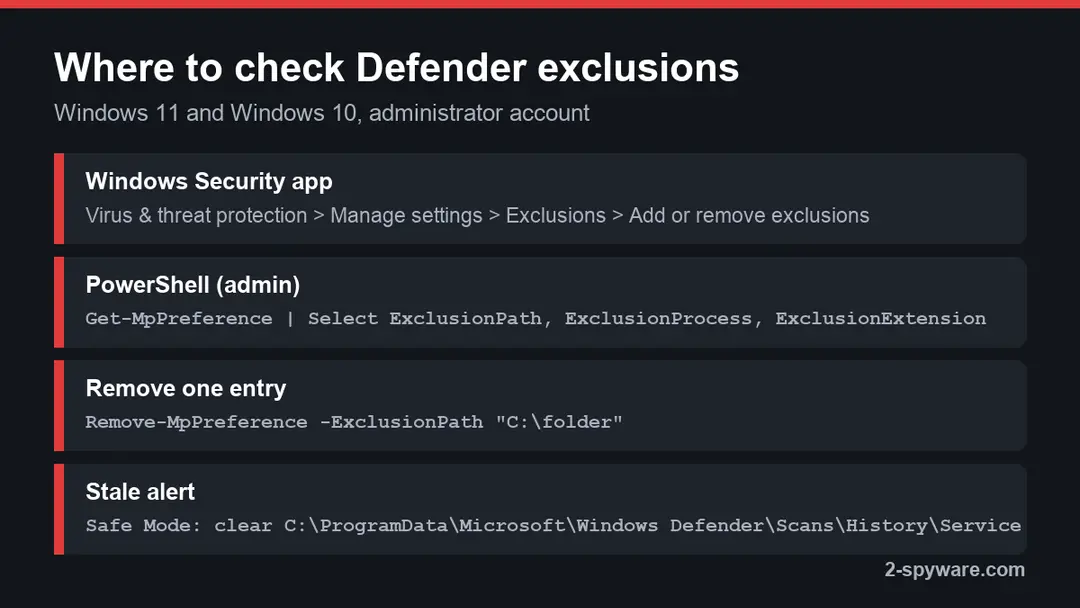
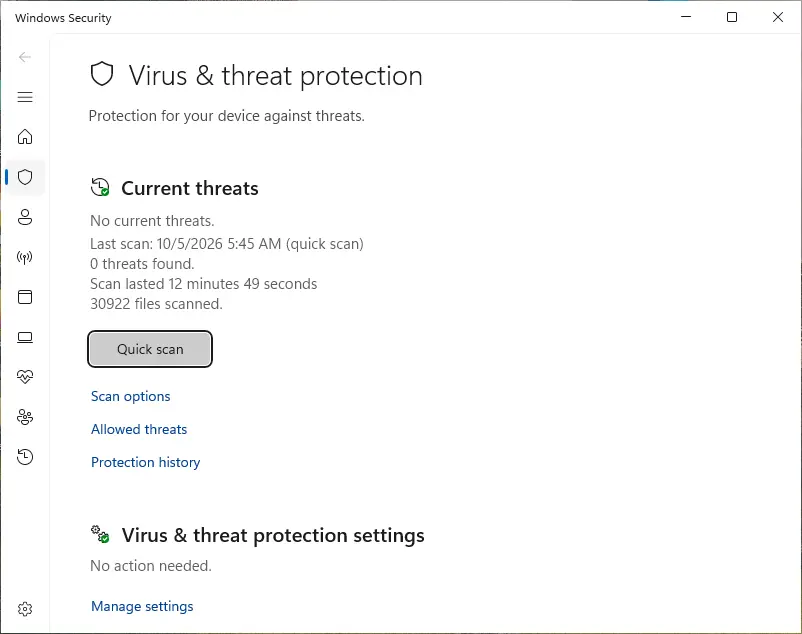
On Windows 11 and Windows 10 open Windows Security > Virus & threat protection. Under Virus & threat protection settings click Manage settings, scroll to Exclusions and click Add or remove exclusions. Approve the administrator prompt.
- 2
Remove what you did not add
Click each entry you do not recognise and choose Remove. Look hard at whole drives, AppData and ProgramData folders, file types such as .exe and processes such as powershell.exe. Keep only entries you added yourself on purpose.
- 3
Read the full list in PowerShell
Right-click Start, open Terminal (Admin) or Windows PowerShell (Admin) and run
Get-MpPreference | Select-Object ExclusionPath, ExclusionProcess, ExclusionExtension, ExclusionIpAddress. Without administrator rights the exclusion fields can stay hidden. - 4
Remove entries from PowerShell
Remove an entry with
Remove-MpPreference -ExclusionPath "C:\folder", and use -ExclusionProcess or -ExclusionExtension for the other kinds. Run Get-MpPreference again and check that the list is empty or holds only your entries. - 5
Note the folders before you delete them
Write down every excluded folder. They show you where the program lives, and you will need them in the removal steps.
- 6
Check Tamper Protection
On the same Manage settings page make sure Tamper Protection and Real-time protection are On. If a switch is greyed out with a message that your organization manages it on a home PC, see our Defender tampering guide.
How to remove Trojan:Win32/MpTamperBulkExcl.H
A loader's job is to install other malware, so treat the PC as infected with more than one program until the scans are clean.
Step 1: Delete scheduled tasks that bring it back
Programs like Trojan:Win32/MpTamperBulkExcl.H add a scheduled task so they return after an uninstall or reopen a page at every sign-in. Start Task Scheduler, open Task Scheduler Library and sort by Last Run Time to see what ran recently.
On the Actions tab, a program in a user folder, a script or a web address is a warning sign; right-click such a task and choose Delete.
Tasks with names copying Google, Edge or Windows updaters but pointing to an odd folder are typical. The tool looks the same in Windows 11 and Windows 10.
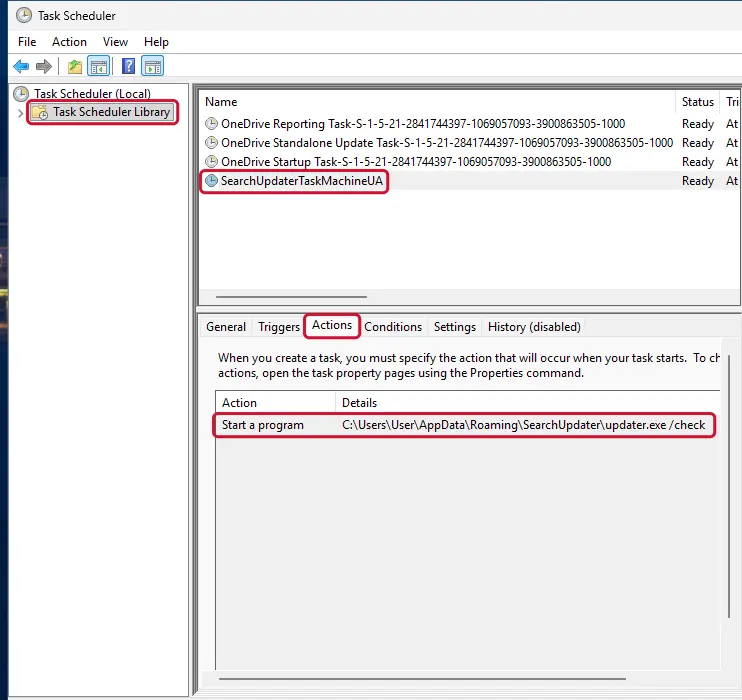
Windows 11: Task Scheduler Library, the task selected, the Actions tab shows the file it runs. Full procedure with screenshots: Remove what malware leaves behind in Windows
Step 2: Remove it from startup
Press Ctrl + Shift + Esc to open Task Manager and select Startup apps (Windows 11) or the Startup tab (Windows 10). Disable entries you do not recognise, especially ones with no publisher or with a name that copies a Windows component.
Right-click an entry and choose Open file location to see where it runs from: programs in
%AppData%or%Temp%deserve a closer look. Some entries are not listed there but in the registry Run keys, which the procedure below shows how to check.Full procedure with screenshots: Stop apps from opening at startup On uGetFix
Step 3: Delete the folders left behind
Uninstalling often leaves the program's folders, and some threats reinstall themselves from them.
Press Windows + R, type
%LocalAppData%and press Enter, then do the same for%AppData%and %ProgramData%, and look for folders named after Trojan:Win32/MpTamperBulkExcl.H, its publisher or created on the day the problem started. Delete those folders, and check C:\Program Files and C:\Program Files (x86) too.If Windows says a file is in use, end it in Task Manager or delete the folder after a restart in Safe Mode. The folders are the same in Windows 11 and Windows 10.
Full procedure with screenshots: Remove what malware leaves behind in Windows
Step 4: Turn Microsoft Defender back on and remove its exclusions
Open Windows Security > Virus & threat protection > Manage settings and switch Real-time protection and Tamper Protection on.
Further down, under Exclusions, click Add or remove exclusions and remove every folder, file or process you did not add, because malware excludes its own folder so the scan skips it.
If the switches are greyed out with "This setting is managed by your administrator", a policy was written to the registry, which the scan in the next steps usually clears. The pages are the same in Windows 11 and Windows 10.
Full procedure with screenshots: Turn off Microsoft Defender protection for a moment On uGetFix
Step 5: Scan the PC, then run the offline scan
A scan finds the parts of Trojan:Win32/MpTamperBulkExcl.H that the manual steps cannot see. In Windows Security > Virus & threat protection > Scan options, start a Full scan and quarantine what it reports.
Follow it with Microsoft Defender Antivirus (offline scan) > Scan now, which restarts the PC and checks the disk while Windows and the malware are not running.
It takes about 15 minutes and works the same in Windows 11 and Windows 10. If either scan finds something, run the full scan again after removal until it comes back clean.

Windows 11: Windows Security > Virus & threat protection > Scan options. Full procedure with screenshots: Run a Microsoft Defender Offline scan
Step 6: Change passwords from another device and sign out other sessions
Trojan:Win32/MpTamperBulkExcl.H can copy saved passwords, cookies and session tokens and send them out in seconds, so cleaning the PC does not undo the theft.
Change your passwords on a device that was never infected, starting with the e-mail account, since every other reset goes through it. On each account, end all other sessions and check the recovery e-mail, phone number and forwarding rules.
Then turn on two-step verification. Sign in on the Windows 11 or Windows 10 PC again only after the offline scan is clean.
Full procedure with screenshots: Turn on two-step verification / secure a hacked account
Remove it from Windows 11 and Windows 10
Do the steps in order and stop when the exclusion list stays clean and an offline scan finds nothing. We did not run these steps against a live infection; they follow Microsoft's pages and the Q&A answers.
- 1
Disconnect, then back up documents
Turn off Wi-Fi or unplug the cable. Copy documents and photos, not programs, to an external drive and unplug it afterwards.
- 2
Clean the exclusion list
Follow the previous chapter first. If the entries come back after a restart, something keeps writing them, and the next steps find it.
- 3
Find the program that added them
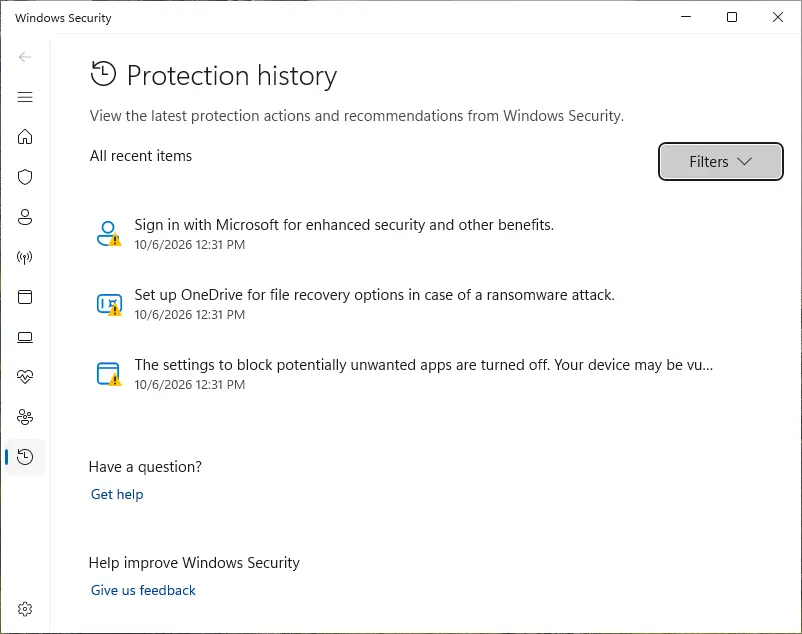
In Windows Security > Virus & threat protection > Protection history, open the alert and read Affected items. Then open Settings > Apps > Installed apps and sort by install date. Uninstall anything that appeared near the alert that you do not know.
- 4
Look for what runs at startup
Open Task Manager > Startup apps and Task Scheduler > Task Scheduler Library. Disable tasks with random names or actions that start PowerShell, cmd or a file in AppData. The excluded folders you noted are the best clue.
- 5
Check the Defender event log
Open Event Viewer > Applications and Services Logs > Microsoft > Windows > Windows Defender > Operational. Event ID 5007 records a configuration change, and its text shows the exclusion keys that were added and when.
- 6
Run a full scan
In Windows Security > Virus & threat protection > Scan options choose Full scan and click Scan now. Quarantine or remove everything it finds.
- 7
Run Microsoft Defender Offline
In Scan options choose Microsoft Defender Antivirus (offline scan) and click Scan now. The PC restarts and scans before Windows loads, which reaches files that hide while Windows runs. See our offline scan steps.
- 8
If it still returns, scan in Safe Mode
Open Settings > System > Recovery on Windows 11 or Update & Security > Recovery on Windows 10, click Restart now beside Advanced startup, then Troubleshoot > Advanced options > Startup Settings > Restart and press 5. Run the full scan again.
When nothing helps and the exclusions keep coming back, back up your documents and reset Windows with Remove everything. More help for your system is on our Windows help page.
The alert keeps coming back but nothing is found
If the exclusion list is clean, two scans find nothing and the same old entry still shows, the alert may be a stale record in Protection history. A Microsoft Q&A answer gives the fix: clear the history folder from Safe Mode.
- 1
Check the date first
Open Protection history and look at the date and time of the entry. If it is the same old date every time, it is a record, not a new detection. A new date means the program is still trying.
- 2
Start in Safe Mode
Use the Safe Mode steps above and press 4 for Safe Mode. Defender's history files are locked while it runs normally.
- 3
Clear the history folder
Open File Explorer and go to
C:\ProgramData\Microsoft\Windows Defender\Scans\History\Service. Delete the files inside it, not the folders above it. You may have to click Continue to get access. - 4
Restart and check again
Restart normally and open Protection history. The old entry should be gone. Run a quick scan to make sure Defender still works.
Do
- Clear the history only after the exclusion list and an offline scan are clean
- Delete only the files inside the Service folder
Don't
- Clear the history to hide an alert that has a new date each time
- Add an exclusion for the detection to make the alert stop
After removal: passwords, accounts and prevention
Your passwords after Trojan:Win32/MpTamperBulkExcl.H
Removing Trojan:Win32/MpTamperBulkExcl.H does not undo what it may already have sent out while the PC showed the Windows Security detection Trojan:Win32/MpTamperBulkExcl.H.
Treat saved browser passwords and logged-in sessions on this PC as known to the attacker.
From another device, change the e-mail password first and end all its sessions. Then do the same for the bank, PayPal, Microsoft, Google and Apple accounts. Stolen session cookies keep working after a password change until you sign out everywhere.
Move crypto to a new wallet created on a clean device. A step-by-step order for every kind of account is in our guide to account security after an infection.
Keep it from happening again
Most of these alerts start with one download that asked for an exclusion or for Defender to be turned off. These habits close that door.
Do
- Download programs from the developer's site or the Microsoft Store
- Keep Tamper Protection on and check the exclusion list now and then
- Use a standard account for daily work, so programs cannot change Defender without a prompt
- Keep a backup of documents on a drive you unplug
Don't
- Run cracks, keygens or activators, even ones that look clean
- Add a Defender exclusion because an installer asks for it
- Approve an administrator prompt you did not expect
- Open password-protected archives from unknown senders
Questions about Trojan:Win32/MpTamperBulkExcl.H
What is Trojan:Win32/MpTamperBulkExcl.H?
It is the name Microsoft Defender gives to an attempt to add many Defender exclusions at once. Microsoft's encyclopedia lists the family as a trojan that Defender detects and removes, and says the threat can perform actions of an attacker's choice. The name describes the action, not a program you can uninstall.
The real cause is whatever ran the change, usually a loader that came with a crack, a keygen or a fake installer. Treat the alert as a sign that something wanted Defender to look away, and check your exclusion list before anything else.
Is MpTamperBulkExcl a virus or a false positive?
It is rarely a false positive. Some legitimate tools add one exclusion for their own folder, but a batch of exclusions added by a script is what loaders do before they drop malware. The detection is behaviour based, so the question is which program did it.
Open Protection history, read Affected items and compare the time with what you installed. If the program is one you trust and it came from its developer, you can ask its support. If it came with a crack or from an unofficial site, treat the alert as real.
Why can't I remove Trojan:Win32/MpTamperBulkExcl.H?
Usually because Defender removed the attempt, but not the program that made it. If that program still runs at startup, it tries again and the alert returns with a new date. Clean the exclusion list, then look in Installed apps sorted by date, Startup apps and Task Scheduler, and run a full scan and Microsoft Defender Offline.
In a January 2024 Microsoft Q&A case the cause was one file, Unefficaciously.exe, in a randomly named AppData folder. If the date never changes, it is a stale record, which the next answer covers.
How do I clear an old MpTamperBulkExcl alert from Protection history?
Make sure it is old first:
- the exclusion list should be clean
- two scans should find nothing
- the entry should keep the same date
Then start Windows in Safe Mode, open C:\ProgramData\Microsoft\Windows Defender\Scans\History\Service and delete the files inside that folder. This is the fix Microsoft Q&A answers give for alerts that stay in Protection history.
Restart normally and check Protection history again. Do not use this to hide an alert that keeps appearing with new dates, because that one is still active.
How do I check Defender exclusions on Windows 11 and Windows 10?
Open Windows Security, go to Virus & threat protection, click Manage settings under Virus & threat protection settings, scroll to Exclusions and click Add or remove exclusions. Approve the administrator prompt.
For the full list, open PowerShell as administrator and run Get-MpPreference, then read the ExclusionPath, ExclusionProcess, ExclusionExtension and ExclusionIpAddress fields. Remove anything you did not add, either in the app or with Remove-MpPreference. Look out for whole drives, AppData folders, the .exe file type and processes such as powershell.exe.
Defender says the threat was removed. Am I safe?
Not yet. Defender stopped the attempt, but you do not know whether exclusions were already written or whether the program that tried is still on the PC. Check the exclusion list, run a full scan and then Microsoft Defender Offline, which scans before Windows starts.
If the list is clean, both scans find nothing and the alert does not return for a few days, you can be fairly confident. If the exclusions were there for a while, change your important passwords from another device as a precaution.
What is the difference between MpTamperBulkExcl.H and MpTamperBulkExcl.C?
They are variants of the same detection. Microsoft gives each signature a letter, and .C has its own encyclopedia entry published on 8 June 2022. The letter tells you which pattern matched, for example a different script or command used to add the exclusions.
It does not change what you should do. Both mean something tried to add bulk exclusions, and both are handled by cleaning the exclusion list, finding the program that made the change and running a full and an offline scan.
Can I add an exclusion to stop the alert?
No. That would do exactly what the malware wanted, and Defender would stop scanning the folder where the program lives. The alert is useful: it tells you that something on the PC tried to blind your antivirus.
If you are sure the program is genuine, for example a tool your employer installed, ask its developer or your IT team, and report the file to Microsoft as a false positive. For a home PC with cracked software on it, remove the program instead of the alert.
Will Fortect remove Trojan:Win32/MpTamperBulkExcl.H?
Fortect scans Windows for malware and unwanted programs and repairs the system files and settings they change, and its free scan shows what it finds on your PC before you decide anything.
For Trojan:Win32/MpTamperBulkExcl.H, follow the plan above as well: the browser steps take back permissions and settings that no scanner treats as a threat, and uninstalling the program that brought it removes the source.
Run Microsoft Defender's full scan and, if anything was found, its offline scan as a second opinion. If the symptoms are gone after the plan and both scans are clean, there is nothing more to do.
Sources
- Microsoft Security Intelligence: Trojan:Win32/MpTamperBulkExcl.C threat description (read October 16, 2026)
- Microsoft Q&A: Trojan:Win32/MpTamperBulkExcl.H (January 2024) (read October 16, 2026)
- Microsoft Q&A: How to remove a Protection History report from Windows Defender? (read October 16, 2026)
- Microsoft Learn: Get-MpPreference (Defender module) (read October 16, 2026)
- Microsoft Learn: Remove-MpPreference (Defender module) (read October 16, 2026)
- Microsoft Learn: Microsoft Defender Offline scan in Windows (read October 6, 2026)
- Microsoft Support: Windows startup settings (Safe Mode) (read October 6, 2026)
- Microsoft Support: Virus and threat protection in the Windows Security app (read October 6, 2026)