
Why Am I Getting Russian Ads on YouTube? What to Do (2026)
If you see ads in Russian on YouTube and you do not speak Russian, you are almost certainly not hacked. Google chooses the language of an ad from a mix of signals, and YouTube uses the language you set on its homepage, your browser language, your location and your browsing history.[1] The same ad system also shows ads in languages other than the one you search in.[1] The real warning sign is not the language of the ad. It is where the ad appears.
This article is for anyone who keeps asking why am I getting Russian ads, on a computer, a phone or an iPad. It explains the normal reasons, how to tell them apart from adware, and the exact settings that change what you see. It does not claim to know why Google chose a given ad for you, because nobody outside Google can see that. It tells you how to test the likely causes one by one.
| Question | Short answer |
|---|---|
| Does it mean my device is infected? | Not by itself. Ads inside YouTube are chosen by Google's ad system, not by malware on your device[1][2] |
| What does Google use to pick an ad language? | The language preference on the YouTube homepage, browser language, location and browsing history, among other signals[1] |
| Can I see ads in a language I do not use? | Yes. Google gives its own example of a user who searches in Spanish and is shown an ad in English[1] |
| What is a real warning sign? | Pop-ups or new tabs that will not go away, a changed home page or search engine, redirects to unfamiliar pages[6][7] |
| Which setting controls it? | My Ad Center, where you can change topics, brands and personalised ads[3] |
| Can I report a bad ad? | Yes. Choose More or Info on the ad, then Report ad[4] |
Why you see ads in Russian on YouTube
Google does not run one rule for ad language. For YouTube it says it uses the language preference that someone sets on the YouTube homepage, together with various other signals such as browser language, location and browsing history.[1] That is a long list, and any one of those signals can point to Russian even when you do not read it.
Google also describes how ads can differ from your main language. For the Display Network it looks at the language of the pages or apps a person is visiting or has recently visited, and its own help page gives examples of people who see ads in a second language.[1] So a single visit to a Russian-language page, or a family member who uses the same browser, can be enough to change the mix of ads you are shown for a while.
Personalisation adds more signals. Google lists the activity saved to your Google Account, such as what you searched for and which videos you watched, your age and gender as given or estimated, your general area, and on mobile devices the advertising ID of the device.[2] YouTube's own help page adds the types of videos you viewed, the websites you visit and your geographic location.[5] When you are signed out, the ads rest on the signals of the browser and the location alone.
| Likely cause | What you notice | What to check |
|---|---|---|
| Language signals | Ads in Russian only on YouTube, mixed with ads in your own language | The language preference on the YouTube homepage and your browser language list[1] |
| Browsing history | The ads began after you opened Russian-language pages, videos or apps | Your activity and My Ad Center settings[2][3] |
| Location or VPN | The ads change when you switch networks or use a VPN | Your general area is one of the signals Google lists[2] |
| Shared device or account | Other people use the same browser or profile | Who else is signed in on this device |
| An advertiser targeting Russian speakers | The same few advertisers repeat | The Why this ad and Report ad options on the ad[4] |
| Adware or a bad extension | Pop-ups and new tabs outside YouTube, a changed home page, redirects | Installed apps and browser extensions[6][7] |
Does this mean I am hacked or infected
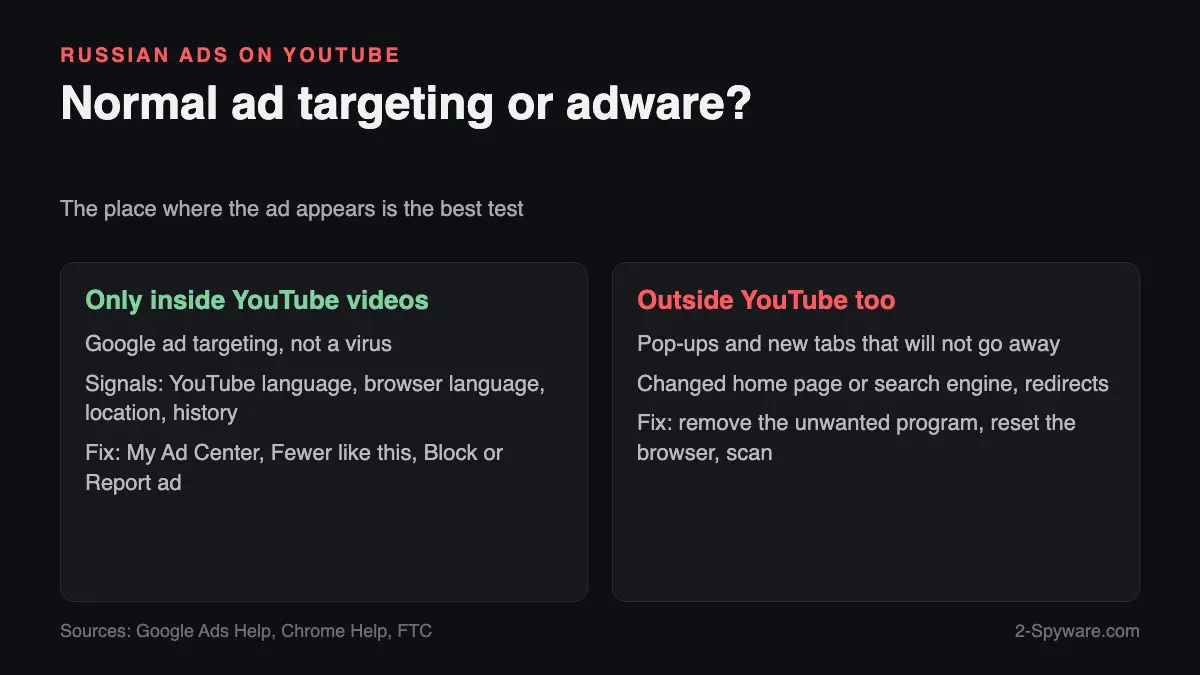
No, and the place where the ad appears is the best test. An ad inside a YouTube video is delivered by Google's own ad system. Adware works differently: it sits on your device and pushes ads wherever it can, including into pages that never carried ads before.
Chrome Help lists the signs of unwanted software: pop-up ads and new tabs that will not go away, a home page or search engine changed without permission, unwanted extensions or toolbars that come back, redirects to unfamiliar pages, and virus alerts.[6] The FTC gives a similar list of signs of an infected device: slowdowns, freezes or crashes, an unexpected change of home page or redirects, new toolbars or add-on programs, excessive pop-up ads, and disabled system tools such as Task Manager.[7]
If you see none of these signs and the Russian ads only appear inside YouTube, treat it as ad targeting and use the settings below. If you do see them, go straight to the adware section further down. This is our analysis of the two lists, not a statement from Google or the FTC.
What changed after 2022
Many readers ask whether the war in Ukraine explains the ads. One fact is clear. In March 2022 Google said it was pausing Google ads in Russia and halted ad sales there across search, YouTube and ads sold through outside publishing partners.[8] That decision concerns ads sold in Russia.
It does not say that nobody anywhere may buy ads in the Russian language. Our reading is that advertisers outside Russia can still target Russian speakers abroad, and Google's own help page confirms that language and location are separate signals.[1] Treat this as our analysis. Google does not publish the full rules for who sees which ad, so we cannot tell you why a specific ad reached you.
How to change what you see, step by step
These steps use the controls Google documents. They change which ads are shown, not whether you see ads, and they take effect gradually.
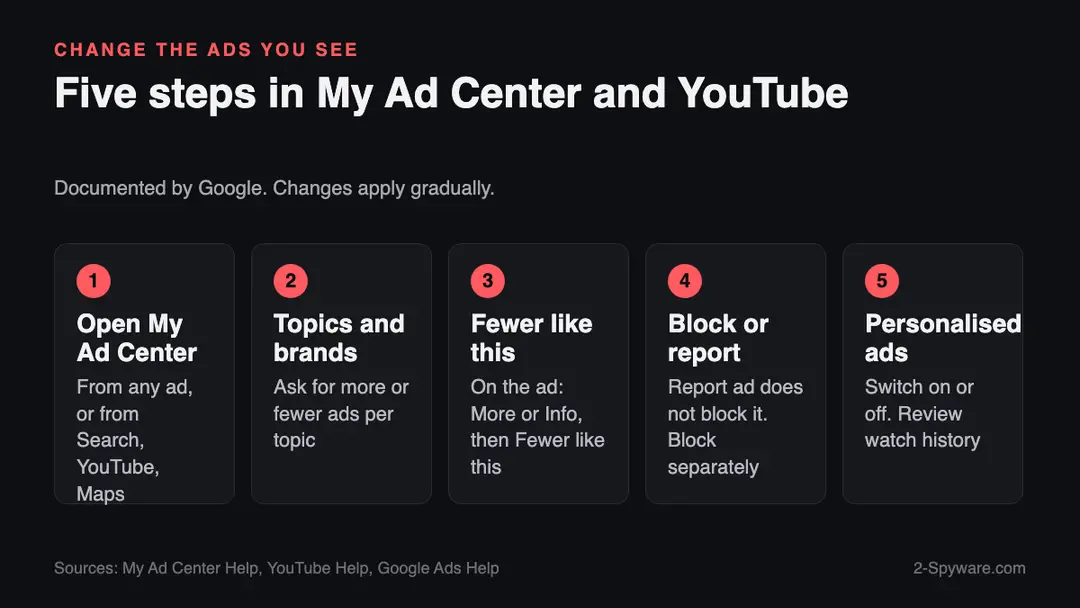
1. Open My Ad Center. Google says you can reach it from any service where ads appear, such as Search, YouTube and Maps, or directly from an individual ad.[3]
2. Customise topics and brands. On the Customize Ads page there are separate tabs for Topics, Brands and Sensitive. For each topic you can ask for more or fewer ads, and the preferences save automatically.[3]
3. Use More like this and Fewer like this. On an individual ad choose More or Info, then pick Fewer like this to move away from that topic or brand.[3]
4. Block or report the ad. YouTube says viewers can choose Block ad from the info menu, which needs My Ad Center.[5] To report an ad that looks inappropriate or breaks Google's policies, choose More or Info, then Report ad, give a reason and submit.[4] Reporting does not block the ad for you. Blocking is a separate action.[4]
5. Check personalised ads. When you are signed in, you can switch personalised ads on or off in My Ad Center. When you are signed out you use Ad Settings, where Search, YouTube and the web can be set separately.[2] Google says that without personalisation the ads rest on context such as the topic of the page or your general location.[2]
6. Review what Google knows about your activity. YouTube says viewers can view, delete or pause their YouTube watch history, which is one of the signals used for ads.[5]
Phones, iPads and other devices
The same account settings follow you to a phone or tablet, because the ads are tied to your Google Account and your device signals. Google lists the advertising ID of a mobile device as one of the signals, and says you can reset or delete the advertising ID on Android devices. You can also adjust personalisation in the YouTube app settings.[2]
If Russian ads appear outside YouTube on a phone, for example as pop-ups in the browser, full-screen ads from another app, or notifications, the cause is more likely an app or a website than YouTube. Find the app that shows them, check the permissions it holds and remove it. Our hub of adware removal guides lists many of the address names that appear in these ads.
If it is adware: how to check and clean up
Use this section only if you saw the warning signs above. Chrome Help describes the checks in plain steps.
Check the installed programs. On Windows open Settings, then Apps, then Installed apps, and uninstall anything you do not recognise. On a Mac, open Finder, then Applications, and move the unwanted program to the Trash.[6]
Check Chrome. Open Chrome settings, then Privacy and security, then Site settings, then Additional content settings, then Intrusive ads, to review the default ad setting. Remove extensions you did not install on purpose.[6]
Reset the browser if the home page or search engine was changed. In Chrome choose More, then Settings, then Reset settings, then Restore settings to their original defaults. Chrome warns that you may need to turn trusted extensions on again.[6]
Scan the device. The FTC advises that if you suspect an infection you stop logging in to sensitive accounts, update or install security software from a trusted source, run a full scan, and then change your passwords and turn on two-factor authentication.[7] On Windows you can run a Microsoft Defender Offline scan, and our guide to removing malware leftovers covers what to look for afterwards.
Before you click anything in a strange ad, you can test the web address it points to with our checker. A quiet result is not proof that an address is safe, so do not treat it as a clearance.
What is still unknown
- Which exact signal led Google to show a given Russian ad to you. Google does not publish the rules at that level, and only you can see your own account settings.[1][2]
- How long the effect of the settings takes. Google says preferences save automatically but does not give a time for the change in the ads you see.[3]
- Whether the war has changed which advertisers buy Russian-language ads abroad. The only confirmed fact we found is the March 2022 pause of ad sales in Russia.[8]
- Whether a specific ad is malicious. The language of an ad says nothing about that. Where it appears, where it leads and what the address is are better clues.
We wrote this article on 6 October 2026 from the Google, Chrome and FTC help pages listed in the sources. If Google changes its documented controls, the steps above will be updated.
Frequently asked questions
Why am I getting Russian ads on YouTube?
Google picks ad language from several signals. For YouTube these include the language set on the YouTube homepage, browser language, location and browsing history. Any of them can point to Russian, even if you do not read it, and Google's own help page says people see ads in more than one language.{1}
Does getting ads in Russian mean I have a virus?
No. Ads inside YouTube come from Google's ad system. Warning signs of unwanted software are pop-ups and new tabs that will not go away, a changed home page or search engine, extensions that come back and redirects to unfamiliar pages.{6}
Why am I getting Russian ads on my phone or iPad?
The ads follow your Google Account and your device signals. Google lists the mobile advertising ID as a signal and says you can reset or delete it on Android, and you can change personalisation in the YouTube app settings.{2}
Why do I keep getting Russian ads after I changed my settings?
Changes in My Ad Center save automatically, but Google gives no time for the effect, so the mix of ads changes gradually.{3} Check the other signals as well: browser language, location and who else uses the device.{1}
How do I stop ads in Russian?
Open My Ad Center, customise topics and brands, use Fewer like this on the ad, and block or report the ad. You cannot choose a language for ads directly, so these controls change which ads Google picks.{3}{5}
Is it because I use a VPN or travel?
It can be. Your general area is one of the signals Google lists for personalised ads, so a different location or a VPN can change the mix of ads. We cannot confirm this for your case.{2}
Did the war in Ukraine cause more Russian ads?
The only confirmed fact is that Google paused ad sales in Russia in March 2022. That concerns ads sold in Russia, and it does not explain why a specific ad reaches you elsewhere.{8}
How do I report a Russian ad that looks like a scam?
On the ad choose More or Info, then Report ad, choose a reason and submit. You get a confirmation email, and Google reviews the ad. Reporting does not block the ad for you, so block it as well.{4}
Sources
- Google Ads Help (no longer online)
- Google Ads Help (no longer online)
- My Ad Center Help (no longer online)
- My Ad Center Help (no longer online)
- YouTube Help (no longer online)
- Chrome Help (no longer online)
- Federal Trade Commission
- Global News
Log in to comment
No comments yet. Be the first.