Dogpile.com (Removal Guide) - Oct 2017 update
Dogpile.com Removal Guide
What is Dogpile.com?
Dogpile search engine should not be trusted

Dogpile.com is a suspicious search engine that might hijack your web browser if you do not install freeware or shareware carefully. Due to its sneaky distribution method, ability to alter browser’s settings and other nasty activities, this program is known as a browser hijacker.[1]
After the infiltration, the hijacker might change browser’s homepage or/and the default search engine to dogpile.com or private.dogpile.com. Then, this program may change some part of your browser settings without your approval and then may start showing altered search results.
These results are typically filled with predetermined links, banners and pop-up ads that are displayed for one big reason – trying to redirect people to affiliate websites and then help them to increase their page rank or sales. However, there is one big problem with this Dogpile.com redirect issue. You can never know what kind of website is promoted with the help of such technique.
The research team from Croatia[2] points out that Dogpile might redirect to really suspicious websites that may be used for spreading other questionable programs. Besides, you might also end up on phishing,[3] tech support scam or infected websites.[4] Therefore, using this program is not recommended.
Thus, if you have been using this search site during your browsing, you should stop doing that and remove Dogpile.com from the system. For that, we highly recommend using FortectIntego, SpyHunter 5Combo Cleaner or other reputable anti-spyware.
Finally, Dogpile.com virus may try to collect data that is related to your browsing. Typically, such programs are interested in people's search terms, most visited websites and data that they enter when visiting them. Based on the aggregated information, this potentially unwanted program (PUP) might deliver targeted ads as well.
Besides, some of the aggregated information might also be shared with advertising networks and other third-parties. Therefore, you should hurry up with Dogpile.com removal to protect your privacy and browser from annoying ads attack.

Tips to avoid browser hijack
Security experts noticed that this PUP spreads as a Dogpile Toolbar which is added in the freeware or shareware packages. Therefore, in order to avoid this search engine, you should try to keep an eye on the installation process of the freeware.[5]
For that, we always recommend choosing custom or advanced installation process of the freeware. Also, find these check marks that say “I agree to make Dogpile.com my homepage” and untick them. Keep in mind that you should never agree to install unknown third-party programs in this way.
If it infiltrates a computer, it affects all web browsers that are installed there, including Internet Explorer, Google Chrome, and Mozilla Firefox. After that, it may start displaying its pop-up ads that should make people visit specific sites and increase their sales.
Important steps to take after Dogpile.com hijack
If Dogpile appeared on your computer, it means that you downloaded it in a bundle with freeware and shareware. In most of the cases, it infiltrates systems in a bundle with pdf creators, download managers, and similar programs. Thus, you might need to get rid of these programs and the hijacker itself.
There are two ways how you can remove Dogpile.com from the system – manual and automatic. If you are interested in manual elimination option, scroll down below. You will find detailed and illustrated information how to perform this task successfully.
However, automatic Dogpile.com removal is quicker and easier solution. Once you run a full system scan and let security program to eliminate malicious components, you just have to reset your web browsers and continue browsing the web without any problems.
You may remove virus damage with a help of FortectIntego. SpyHunter 5Combo Cleaner and Malwarebytes are recommended to detect potentially unwanted programs and viruses with all their files and registry entries that are related to them.
Getting rid of Dogpile.com. Follow these steps
Uninstall from Windows
Below you can find manual Dogpile.com elimination guidelines. Please follow them carefully.
-
Click Start → Control Panel → Programs and Features (if you are Windows XP user, click on Add/Remove Programs).

-
If you are Windows 10 / Windows 8 user, then right-click in the lower left corner of the screen. Once Quick Access Menu shows up, select Control Panel and Uninstall a Program.

-
Uninstall Dogpile.com and related programs
Here, look for Dogpile.com or any other recently installed suspicious programs. -
Uninstall them and click OK to save these changes.


Delete from macOS
-
If you are using OS X, click Go button at the top left of the screen and select Applications.

-
Wait until you see Applications folder and look for Dogpile.com or any other suspicious programs on it. Now right click on every of such entries and select Move to Trash.


Remove from Microsoft Edge
After the hijack, follow these steps to fix Microsoft Edge:
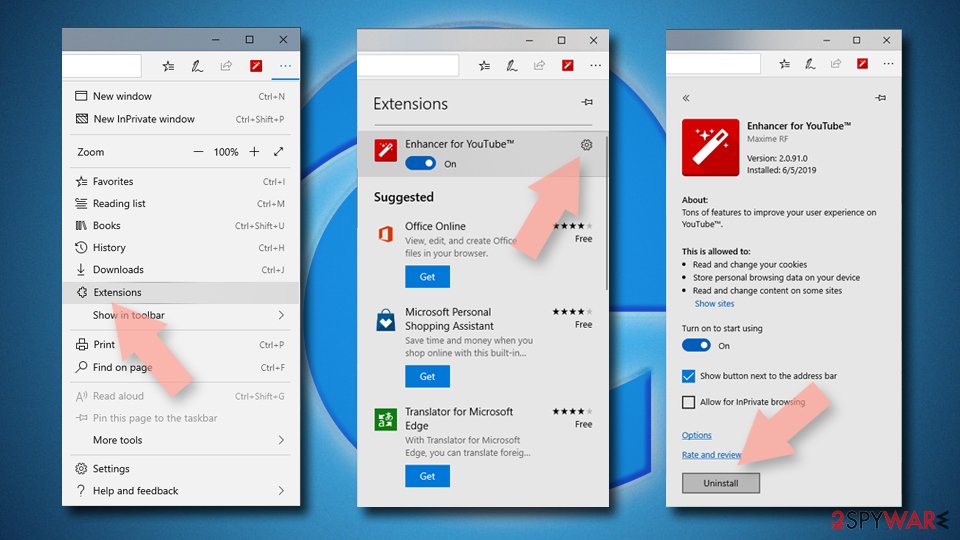
Delete unwanted extensions from MS Edge:
- Select Menu (three horizontal dots at the top-right of the browser window) and pick Extensions.
- From the list, pick the extension and click on the Gear icon.
- Click Remove.

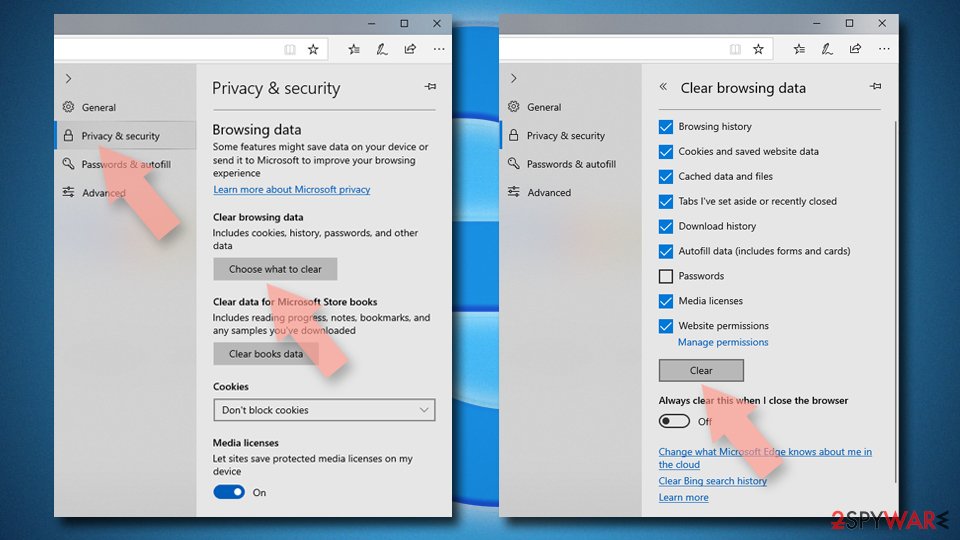
Clear cookies and other browser data:
- Click on the Menu (three horizontal dots at the top-right of the browser window) and select Settings > Privacy, search, and services..
- Under Clear browsing data, pick Choose what to clear.
- Select Cookies and other site data and Cached images and files. (apart from passwords, although you might want to include Media licenses as well, if applicable) and click on Clear.

Restore new tab and homepage settings:
- Click the menu icon and choose Settings.
- Then find On startup section.
- Click Remove next to any suspicious startup page.
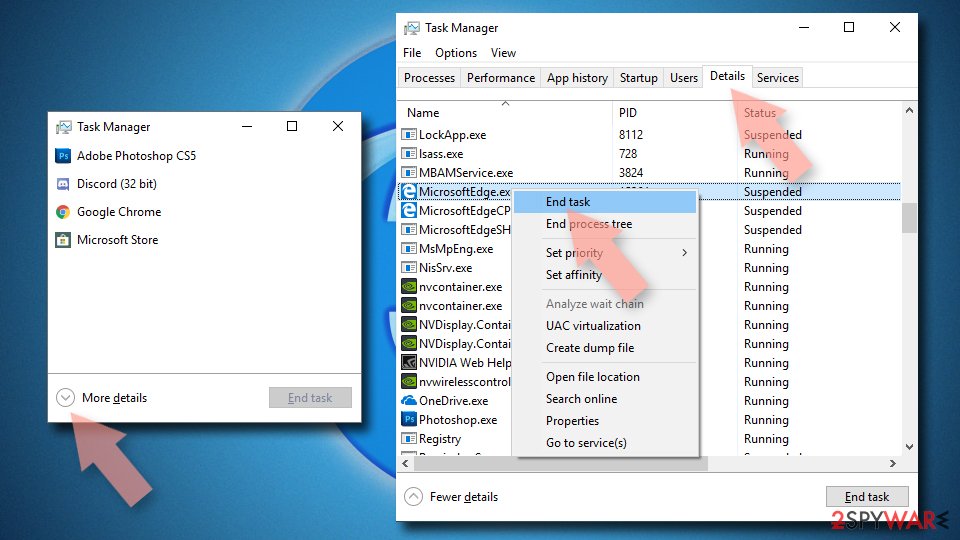
Reset MS Edge if the above steps did not work:
- Press on Ctrl + Shift + Esc to open Task Manager.
- Click on More details arrow at the bottom of the window.
- Select Details tab.
- Now scroll down and locate every entry with Microsoft Edge name in it. Right-click on each of them and select End Task to stop MS Edge from running.

Instructions for Chromium-based Edge
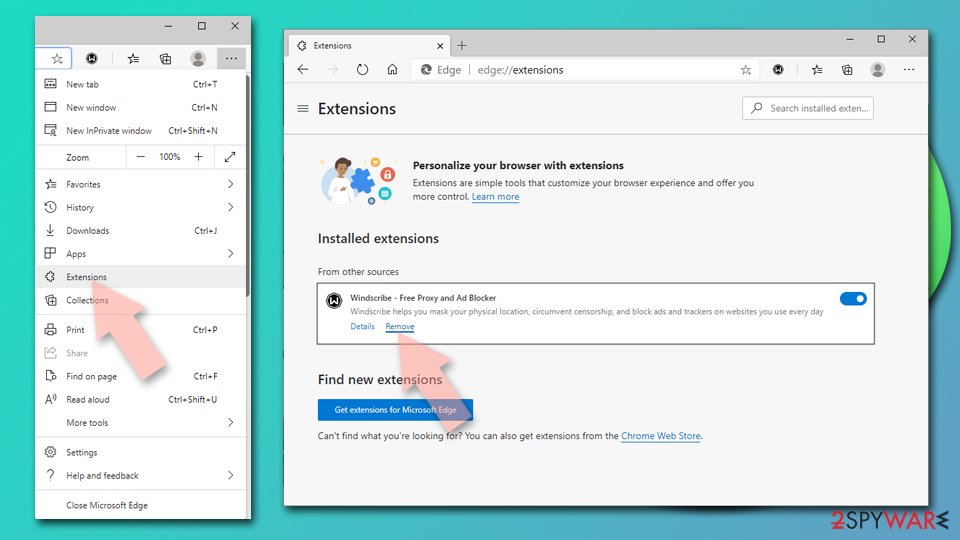
Delete extensions from MS Edge (Chromium):
- Open Edge and click select Settings > Extensions.
- Delete unwanted extensions by clicking Remove.

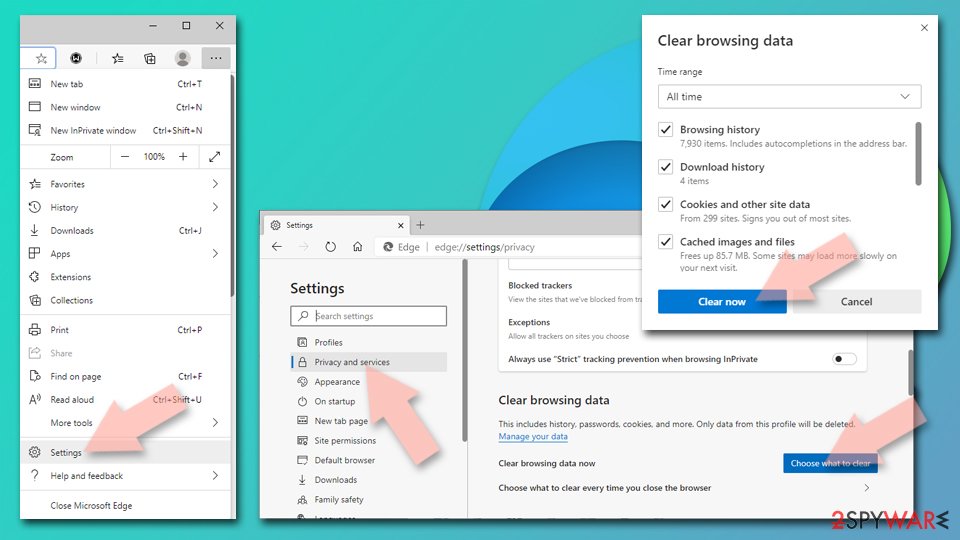
Clear cache and site data:
- Click on Menu and go to Settings.
- Select Privacy, search and services.
- Under Clear browsing data, pick Choose what to clear.
- Under Time range, pick All time.
- Select Clear now.

Reset Chromium-based MS Edge:
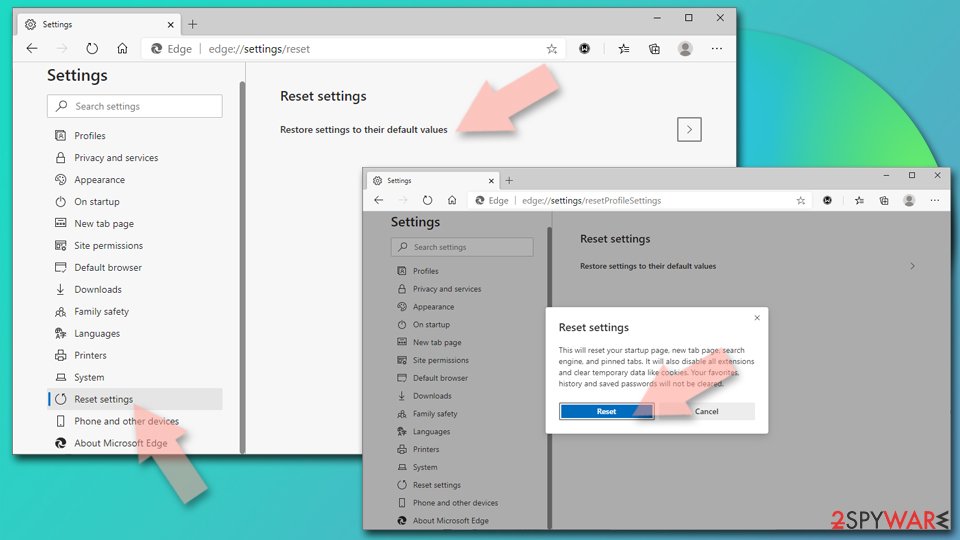
- Click on Menu and select Settings.
- On the left side, pick Reset settings.
- Select Restore settings to their default values.
- Confirm with Reset.
- This will disable extensions and reset startup pages but will not delete bookmarks, saved passwords, or browsing history.

Remove from Mozilla Firefox (FF)
Dobile Toolbar is repsonsibel for hijacking your browser. So, you have remove it together with other suspicious components.
Remove dangerous extensions:
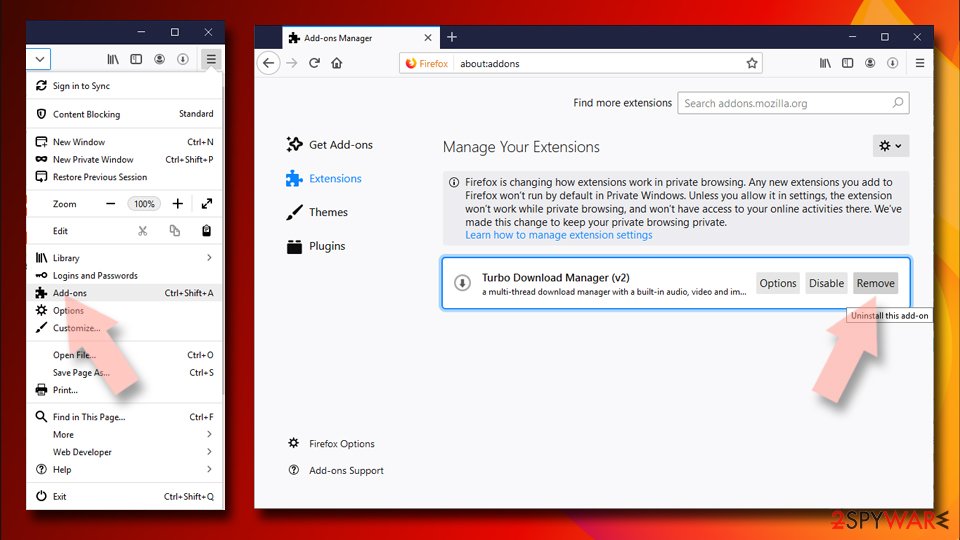
- Open Mozilla Firefox browser and click on the Menu (three horizontal lines at the top-right of the window).
- Select Add-ons.
- In here, select the unwanted extension and click Remove.

Reset the homepage:
- Click three horizontal lines at the top right corner to open the menu.
- Choose Settings.
- Under Home, set your preferred homepage and new tab settings.
Clear cookies and site data:
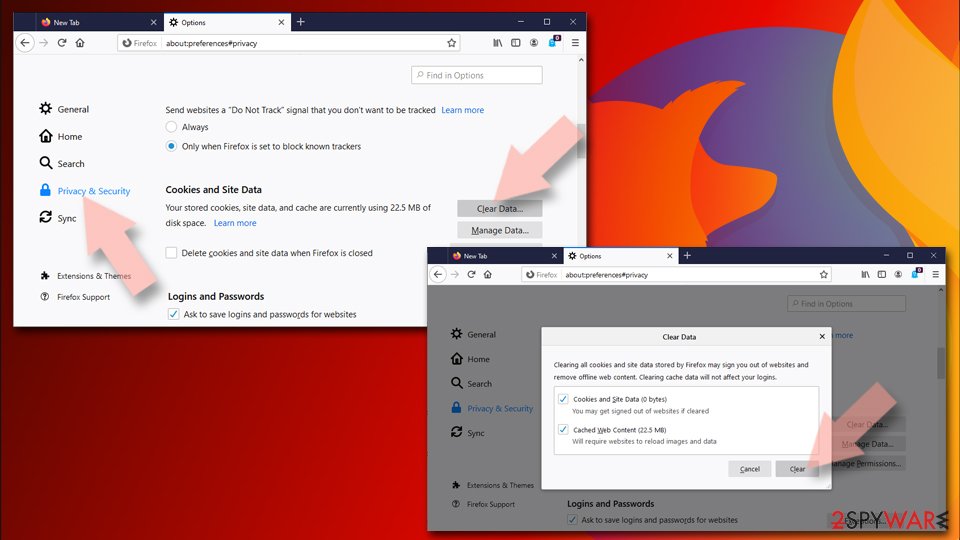
- Click Menu and pick Settings.
- Go to Privacy & Security section.
- Scroll down to locate Cookies and Site Data.
- Click on Clear Data…
- Select Cookies and Site Data and Temporary cached files and pages, then click Clear.

Reset Mozilla Firefox
If clearing the browser as explained above did not help, reset Mozilla Firefox:
- Open Mozilla Firefox browser and click the Menu.
- Go to Help and then choose Troubleshooting Information.
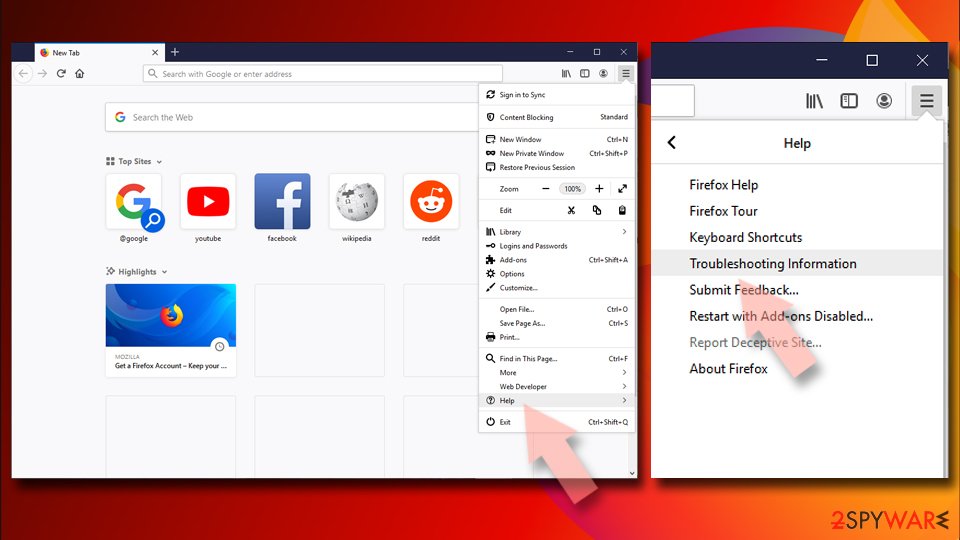
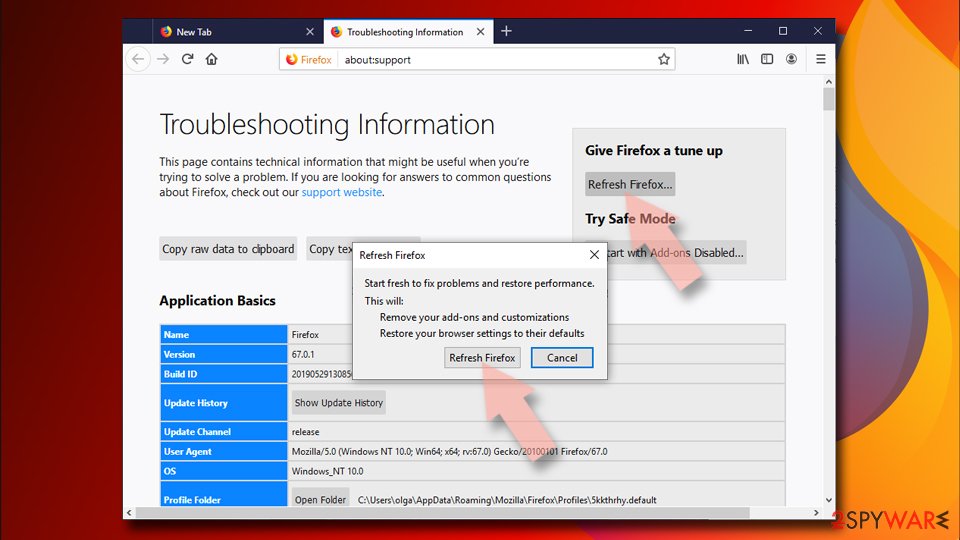
- Under Give Firefox a tune up section, click on Refresh Firefox…
- Once the pop-up shows up, confirm the action by pressing on Refresh Firefox.


Remove from Google Chrome
These guidelines will help you to wipe out browser hijacker from Google Chrome:
Delete malicious extensions from Google Chrome:
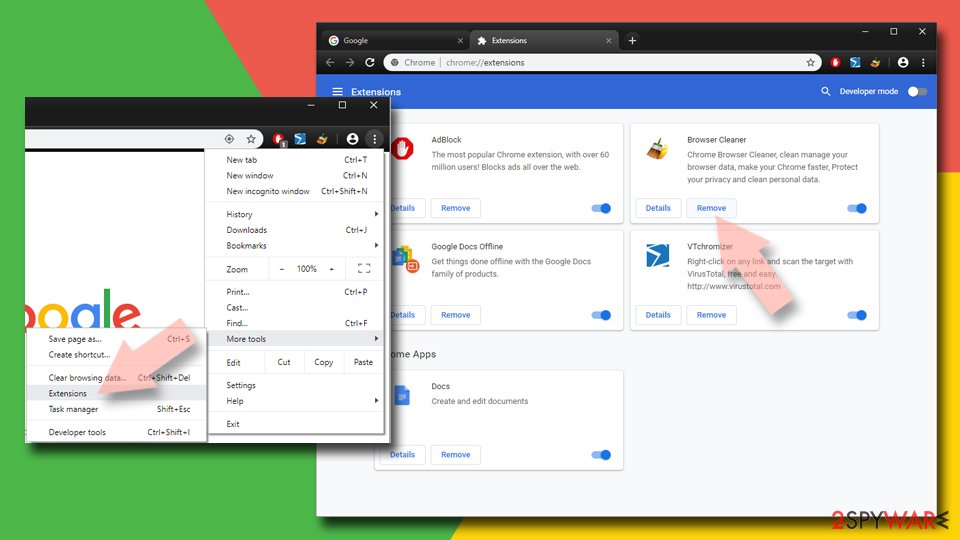
- Open Google Chrome, click on the Menu (three vertical dots at the top-right corner) and select More tools > Extensions.
- In the newly opened window, you will see all the installed extensions. Uninstall all suspicious extensions related to the unwanted program by clicking Remove.

Clear cache and web data from Chrome:
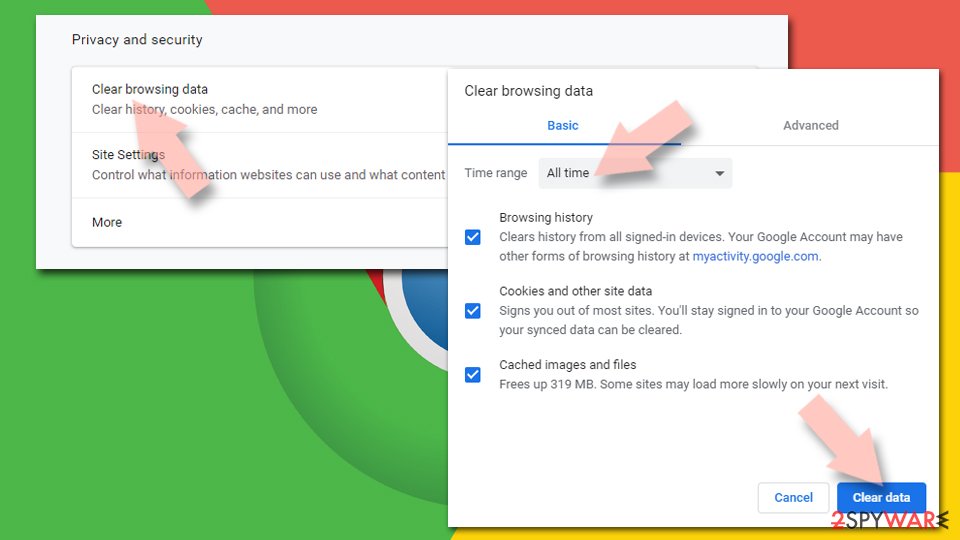
- Click on Menu and pick Settings.
- Under Privacy and security, select Clear browsing data.
- Select Browsing history, Cookies and other site data, as well as Cached images and files.
- Click Clear data.

Change your homepage:
- Click menu and choose Settings.
- Look for a suspicious site in the On startup section.
- Click on Open a specific or set of pages and click on three dots to find the Remove option.
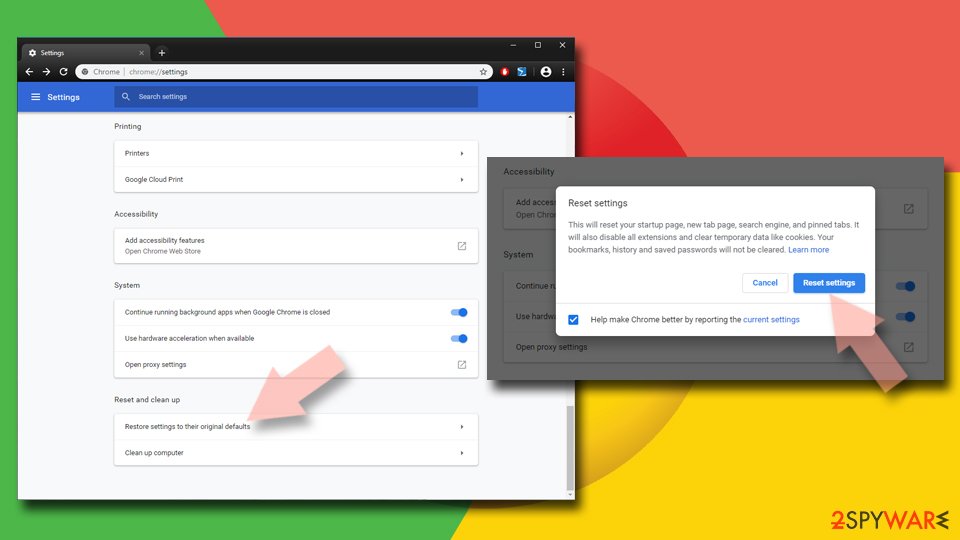
Reset Google Chrome:
If the previous methods did not help you, reset Google Chrome to eliminate all the unwanted components:
- Click on Menu and select Settings.
- In the Settings, scroll down and click Advanced.
- Scroll down and locate Reset and clean up section.
- Now click Restore settings to their original defaults.
- Confirm with Reset settings.

Delete from Safari
-
Remove dangerous extensions
Open Safari web browser and click on Safari in menu at the top left of the screen. Once you do this, select Preferences.
-
Here, select Extensions and look for Dogpile.com or other suspicious entries. Click on the Uninstall button to get rid each of them.

-
Reset Safari
Open Safari browser and click on Safari in menu section at the top left of the screen. Here, select Reset Safari....
-
Now you will see a detailed dialog window filled with reset options. All of those options are usually checked, but you can specify which of them you want to reset. Click the Reset button to complete Dogpile.com removal process.


After uninstalling this potentially unwanted program (PUP) and fixing each of your web browsers, we recommend you to scan your PC system with a reputable anti-spyware. This will help you to get rid of Dogpile.com registry traces and will also identify related parasites or possible malware infections on your computer. For that you can use our top-rated malware remover: FortectIntego, SpyHunter 5Combo Cleaner or Malwarebytes.
How to prevent from getting stealing programs
Protect your privacy – employ a VPN
There are several ways how to make your online time more private – you can access an incognito tab. However, there is no secret that even in this mode, you are tracked for advertising purposes. There is a way to add an extra layer of protection and create a completely anonymous web browsing practice with the help of Private Internet Access VPN. This software reroutes traffic through different servers, thus leaving your IP address and geolocation in disguise. Besides, it is based on a strict no-log policy, meaning that no data will be recorded, leaked, and available for both first and third parties. The combination of a secure web browser and Private Internet Access VPN will let you browse the Internet without a feeling of being spied or targeted by criminals.
No backups? No problem. Use a data recovery tool
If you wonder how data loss can occur, you should not look any further for answers – human errors, malware attacks, hardware failures, power cuts, natural disasters, or even simple negligence. In some cases, lost files are extremely important, and many straight out panic when such an unfortunate course of events happen. Due to this, you should always ensure that you prepare proper data backups on a regular basis.
If you were caught by surprise and did not have any backups to restore your files from, not everything is lost. Data Recovery Pro is one of the leading file recovery solutions you can find on the market – it is likely to restore even lost emails or data located on an external device.

If this free guide helped you and you are satisfied with our service, please consider making a donation to keep this service alive. Even a smallest amount will be appreciated.
- ^ Margaret Rouse. Browser hijacker (browser hijacking). TechTarget. Network of technology-specific websites.
- ^ Virusi. Virusi. Croatian cyber security news.
- ^ Danny Palmer. 1.4 million phishing websites are created every month: Here's who the scammers are pretending to be. ZDNet. Technology news, analysis, and research.
- ^ Hackers spread malware via children's gaming websites. BBC News. World news service.
- ^ Tim Fisher. How to Safely Download & Install Software. Lifewire. Tech how-to guides and tutorials.