
ZeroAccess: what it is and how to remove it
ZeroAccess is a malicious Trojan horse which was named like that because of the string found in its kernel driver code that points to the ZeroAccess folder. However, you can also find it named max++ and ZeroAccess rootkit.
Facts checked October 6, 2026. Removal steps tested on Windows 11 (26H2) and checked against Microsoft's and the browser makers' current documentation. Sections marked as our earlier report are the original text: they describe the threat as it was then and have not been reviewed since. The 2026 status, the removal steps and the questions are current.
Automatic
Get a free scan and check if your PC is infected.
Fortect finds malware, unwanted programs and the Windows damage they leave behind, and repairs it in one pass.
An automatic scan checks installed programs, startup items and browser extensions for anything that came with ZeroAccess.
Do it yourself · free Remove ZeroAccess yourself 5 steps, about 15 minutes, no software needed.
Start the steps
ZeroAccess: summary
| Name | ZeroAccess |
|---|---|
| Type | Trojan horse |
| Alternatively known as | ZeroAccess rootkit |
| Folder name | ZeroAccess; max++ |
| versions | Trojan.Zeroaccess!kmem; Trojan.Zeroaccess.B; Trojan.zeroaccess!inf; Trojan.Zeroaccess.C; Trojan.Zeroaccess!inf4; Trojan.Zeroaccess!gen10; and many others |
| Main purpose | Opens system's backdoors installs malware malicious programs |
| Removal | Scan the PC with security software to find and remove the malware and anything installed with it. Fortect scans Windows for malware and repairs the system files and settings it damaged. Remove it nowTo use the full-featured product, you have to purchase a license for Fortect. The scan is free. |
Show 7 more facts
| Distribution sources | Spam messages, potentially dangerous websites |
|---|---|
| Detection names | No Microsoft detection name is known |
| Damage | Not recorded in the old report |
| Symptoms | An unknown program in Installed apps |
| Evidence | 7 write-ups by security sites; details still limited |
| First seen | 14 July 2021 |
| Facts checked | 6 October 2026 |
What ZeroAccess does on an infected PC
From our report of Jul 2021 · not reviewed since
Trojans access the computer via spam messages or suspicious web pages
There are several ways how you can get infected with a Trojan horse or one of its modified versions.
It may come to your computer after clicking on a malicious link or after visiting a website, which is infected with a hazardous virus. Please, stay away from suspicious sites that can either be visited with the help of browser hijackers or voluntarily. In some cases, as soon as the trojan gets inside the target PC, it downloads an application that starts monitoring the victim's web searches and browsing habits.
Furthermore, according to IT specialists from NoVirus.uk website , another popular trojan distribution source is email spam. Trojan horses come as an attachment that is clicked to the phishing message. Gullible users access such content and immediately start the secret infiltration without even noticing it.
So, better stay away from opening email messages that you are not sure about. If you are not expecting to receive anything important at the moment, get rid of all emails that come from questionable senders.
From our report of Jul 2021 · not reviewed since
More from our earlier report on ZeroAccess
- Get rid of the Trojan horse automatically using anti-malware tools.
How ZeroAccess got on your PC
From our report of Jul 2021 · not reviewed since
ZeroAccess is a malicious Trojan horse which was named like that because of the string found in its kernel driver code that points to the ZeroAccess folder.
However, you can also find it named max++ and ZeroAccess rootkit. Note that there are many versions of this trojan horse that can easily hide deep inside your PC system without any sign. However, this is not what it was created for.
The main thing what this trojan is used for is to open the backdoors of the compromised PC and download malware or similar malicious software to it. The silent drop of this virus allows running malicious processes and adding any additional threat to the machine. You need to clean the machine asap because there are tons of different infections that can be active already.
Trojan.ZeroAccess can also create a hidden system file that helps it to store all of its components. As long as this threat is considered an advanced Trojan horse, it has also been noticed that it is capable of updating itself through the peer-to-peer network .
This is a very helpful capability that allows its authors to improve the virus as frequently as possible. They can easily fill it with more functions and set it for new tasks.
If you ever overcome this dangerous computer infection in the system, note that you need to remove ZeroAccess virus as soon as possible. For this purpose use only reliable and expert-tested anti-malware software. Furthermore, consider downloading and installing computer programs such as , because these programs can detect all malicious objects in the system.
Another reason to perform the infection removal is the possibility of other annoying and even harmful consequences such as:
Note that the sooner you get rid of ZeroAccess rootkit, the better it will be for your computer. We guess you do not want other malware to get injected into the system.
If another virus appears on your computer, the removal process might be even more difficult to perform and the damage might get bigger. Additionally, some Trojans have the ability to expose sensitive data which is related to the user. Due to this, make sure the cyber threat vanishes fast.
Even if you get rid of the dangerous infection, note that you have to be very careful in the future. Trojan horses are very likely to appear throughout the Internet and rogue messages. Continue reading and find out what are the distribution techniques and precautionary measures for avoiding dangerous computer viruses such as Trojan.ZeroAccess.
- high CPU and GPU usage;
- software slowdowns or crash downs;
- computer sluggishness;
- etc.


How to remove ZeroAccess
A loader's job is to install other malware, so treat the PC as infected with more than one program until the scans are clean.
Step 1: Delete scheduled tasks that bring it back
Programs like ZeroAccess add a scheduled task so they return after an uninstall or reopen a page at every sign-in. Start Task Scheduler, open Task Scheduler Library and sort by Last Run Time to see what ran recently.
On the Actions tab, a program in a user folder, a script or a web address is a warning sign; right-click such a task and choose Delete.
Tasks with names copying Google, Edge or Windows updaters but pointing to an odd folder are typical. The tool looks the same in Windows 11 and Windows 10.
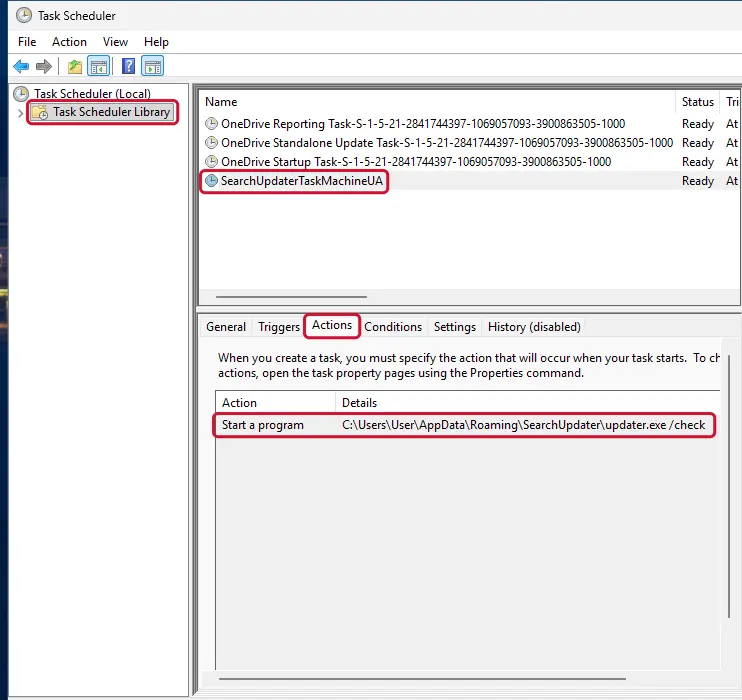
Windows 11: Task Scheduler Library, the task selected, the Actions tab shows the file it runs. Full procedure with screenshots: Remove what malware leaves behind in Windows
Step 2: Remove it from startup
Press Ctrl + Shift + Esc to open Task Manager and select Startup apps (Windows 11) or the Startup tab (Windows 10). Disable entries you do not recognise, especially ones with no publisher or with a name that copies a Windows component.
Right-click an entry and choose Open file location to see where it runs from: programs in
%AppData%or%Temp%deserve a closer look. Some entries are not listed there but in the registry Run keys, which the procedure below shows how to check.Full procedure with screenshots: Stop apps from opening at startup On uGetFix
Step 3: Delete the folders left behind
Uninstalling often leaves the program's folders, and some threats reinstall themselves from them.
Press Windows + R, type
%LocalAppData%and press Enter, then do the same for%AppData%and %ProgramData%, and look for folders named after ZeroAccess, its publisher or created on the day the problem started. Delete those folders, and check C:\Program Files and C:\Program Files (x86) too.If Windows says a file is in use, end it in Task Manager or delete the folder after a restart in Safe Mode. The folders are the same in Windows 11 and Windows 10.
Full procedure with screenshots: Remove what malware leaves behind in Windows
Step 4: Scan the PC, then run the offline scan
A scan finds the parts of ZeroAccess that the manual steps cannot see. In Windows Security > Virus & threat protection > Scan options, start a Full scan and quarantine what it reports.
Follow it with Microsoft Defender Antivirus (offline scan) > Scan now, which restarts the PC and checks the disk while Windows and the malware are not running.
It takes about 15 minutes and works the same in Windows 11 and Windows 10. If either scan finds something, run the full scan again after removal until it comes back clean.

Windows 11: Windows Security > Virus & threat protection > Scan options. Full procedure with screenshots: Run a Microsoft Defender Offline scan
Step 5: Change passwords from another device and sign out other sessions
ZeroAccess can copy saved passwords, cookies and session tokens and send them out in seconds, so cleaning the PC does not undo the theft.
Change your passwords on a device that was never infected, starting with the e-mail account, since every other reset goes through it. On each account, end all other sessions and check the recovery e-mail, phone number and forwarding rules.
Then turn on two-step verification. Sign in on the Windows 11 or Windows 10 PC again only after the offline scan is clean.
Full procedure with screenshots: Turn on two-step verification / secure a hacked account
Instructions for each browser and system
The detailed steps for every browser and system this guide covers. Open the one you use.
Manual removal using Safe Mode
Important! →
Manual removal guide might be too complicated for regular computer users. It requires advanced IT knowledge to be performed correctly (if vital system files are removed or damaged, it might result in full Windows compromise), and it also might take hours to complete. Therefore, we highly advise using the automatic method provided above instead.
Step 1. Access Safe Mode with Networking
Manual malware removal should be best performed in the Safe Mode environment.
Windows 7 / Vista / XP
- Click Start > Shutdown > Restart > OK.
- When your computer becomes active, start pressing F8 button (if that does not work, try F2, F12, Del, etc. - it all depends on your motherboard model) multiple times until you see the Advanced Boot Options window.
- Select Safe Mode with Networking from the list.
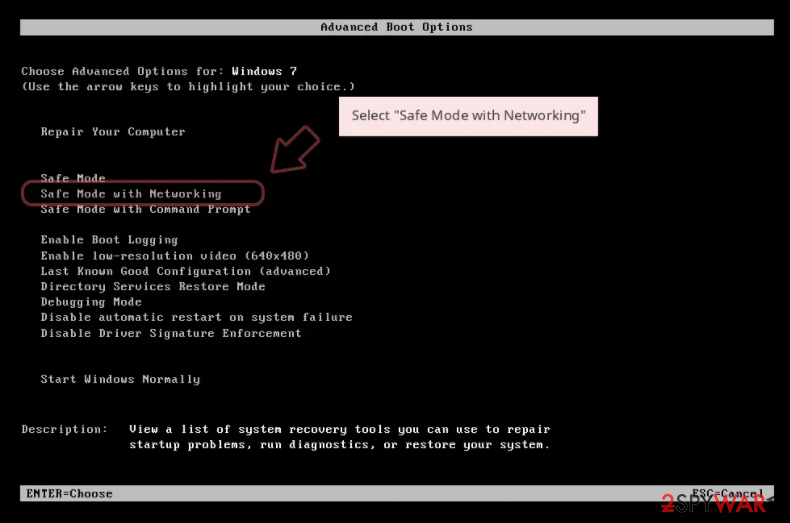
Windows 10 / Windows 8
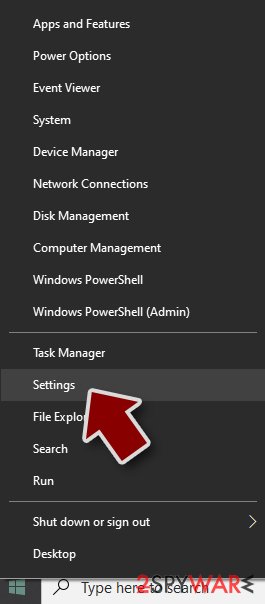
- Right-click on Start button and select Settings.
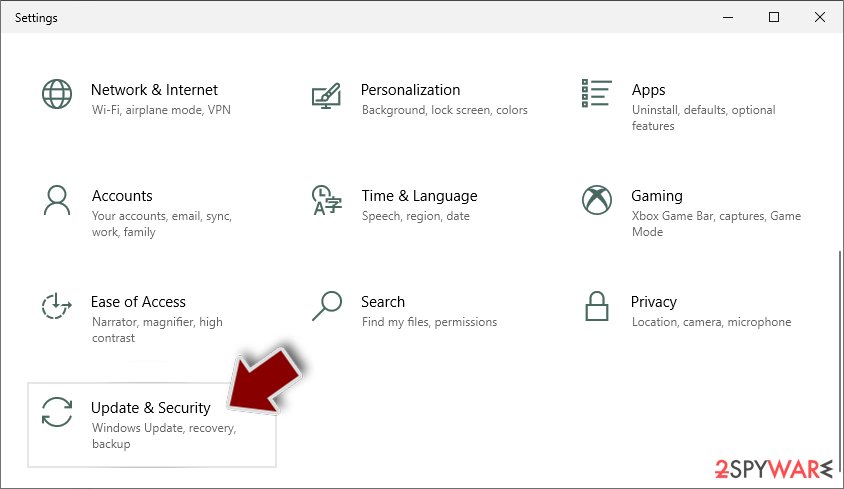
- Scroll down to pick Update & Security.
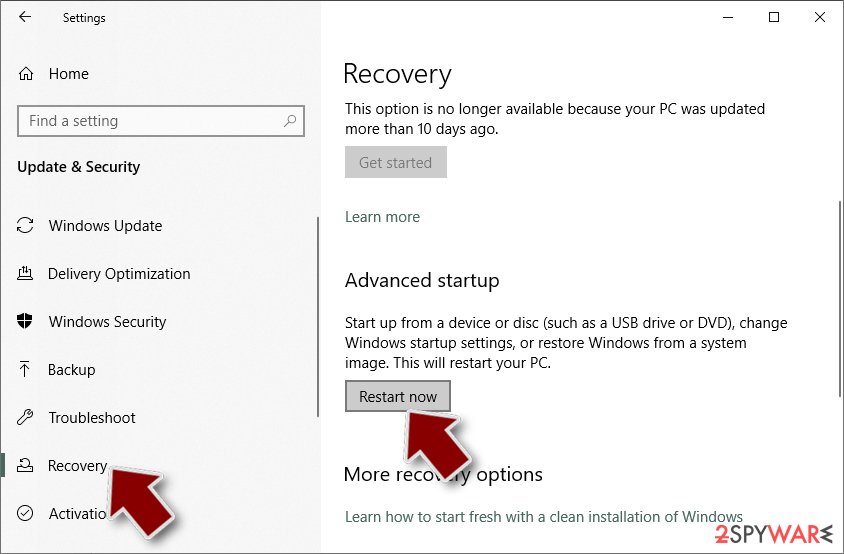
- On the left side of the window, pick Recovery.
- Now scroll down to find Advanced Startup section.
- Click Restart now.
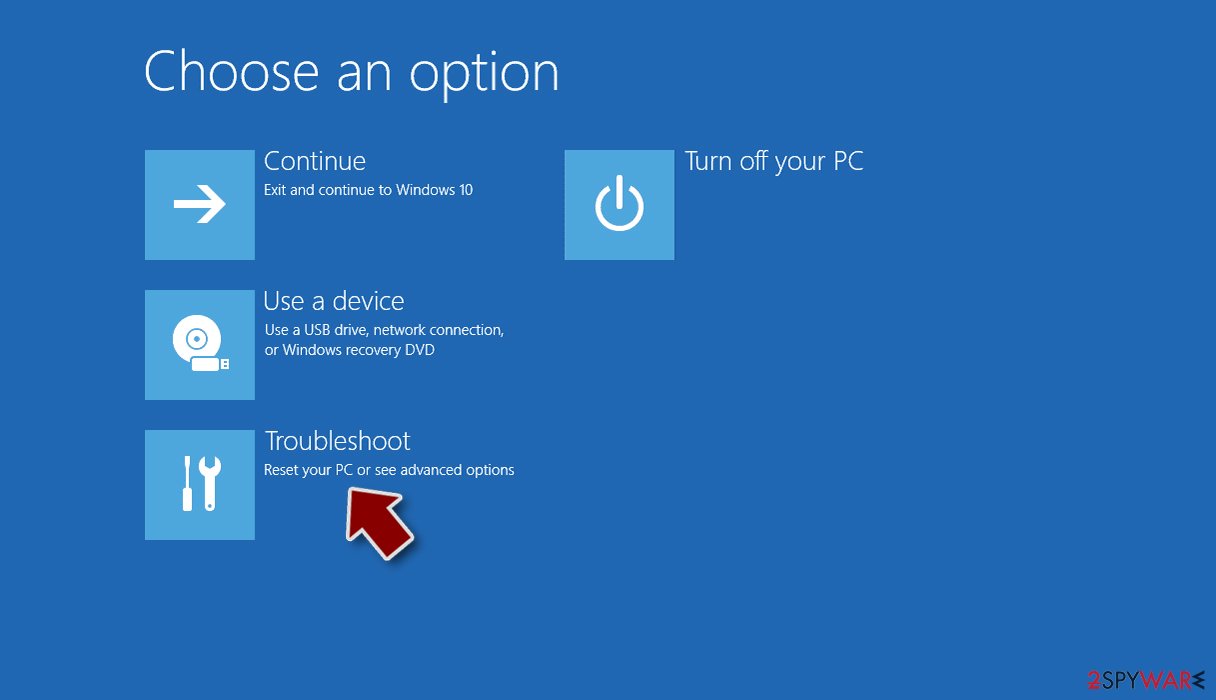
- Select Troubleshoot.
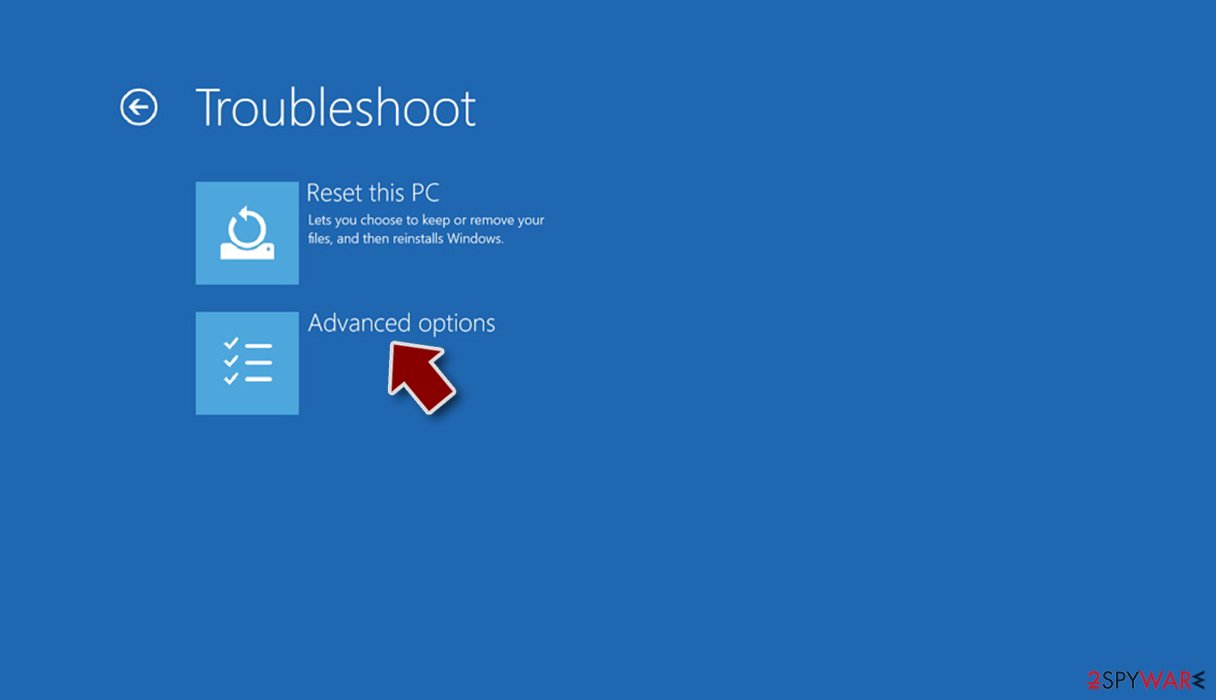
- Go to Advanced options.
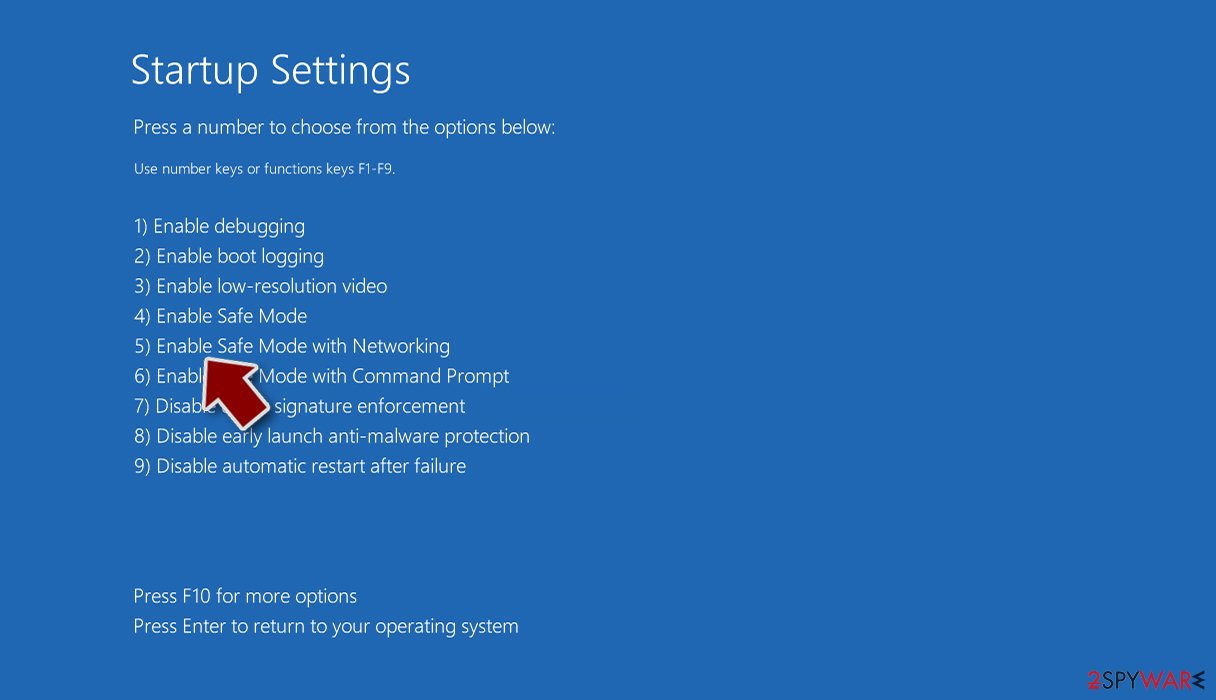
- Select Startup Settings.
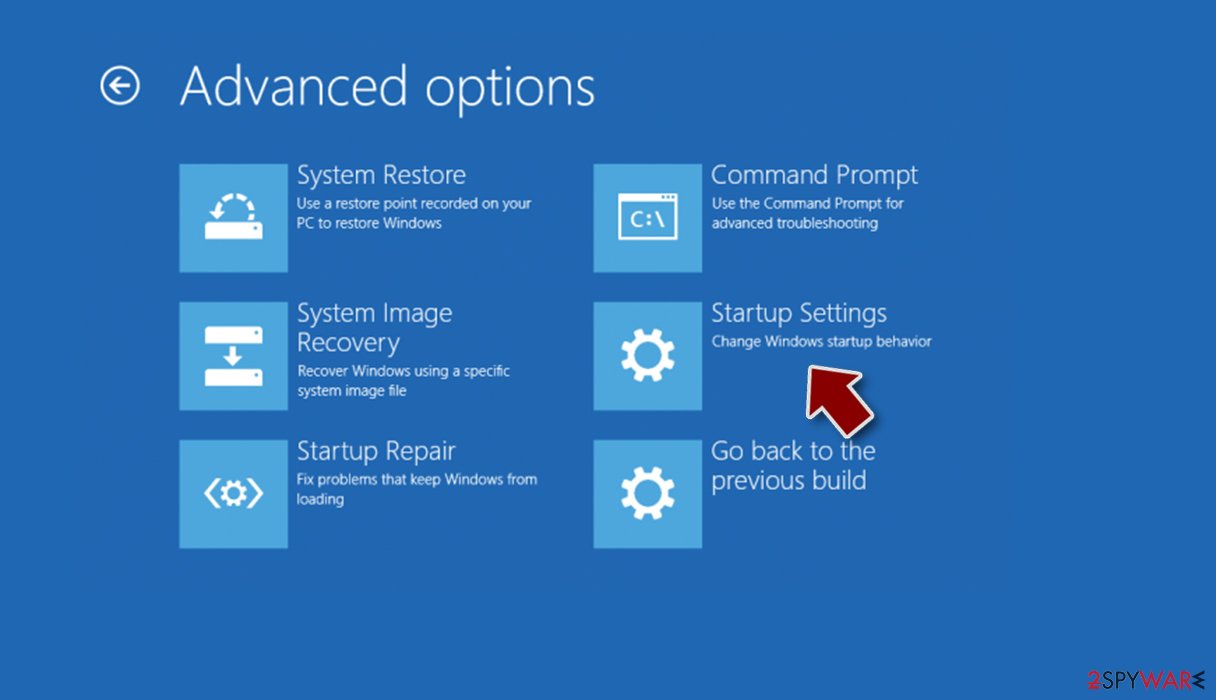
- Press Restart.
- Now press 5 or click 5) Enable Safe Mode with Networking.
Step 2. Shut down suspicious processes
Windows Task Manager is a useful tool that shows all the processes running in the background. If malware is running a process, you need to shut it down:
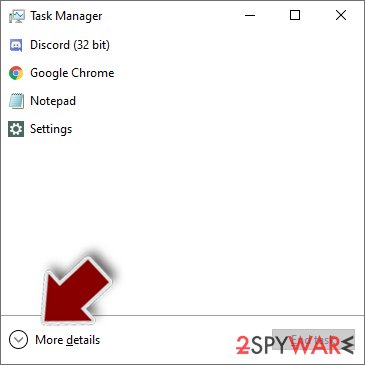
- Press Ctrl + Shift + Esc on your keyboard to open Windows Task Manager.
- Click on More details.
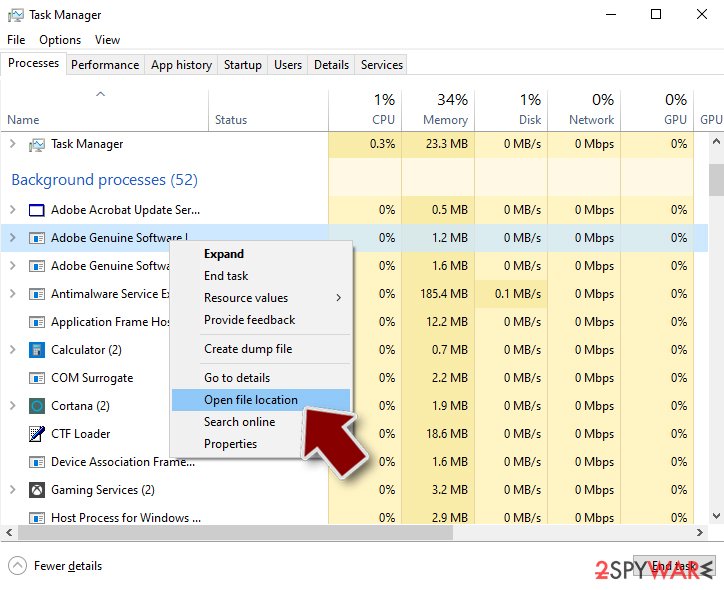
- Scroll down to Background processes section, and look for anything suspicious.
- Right-click and select Open file location.
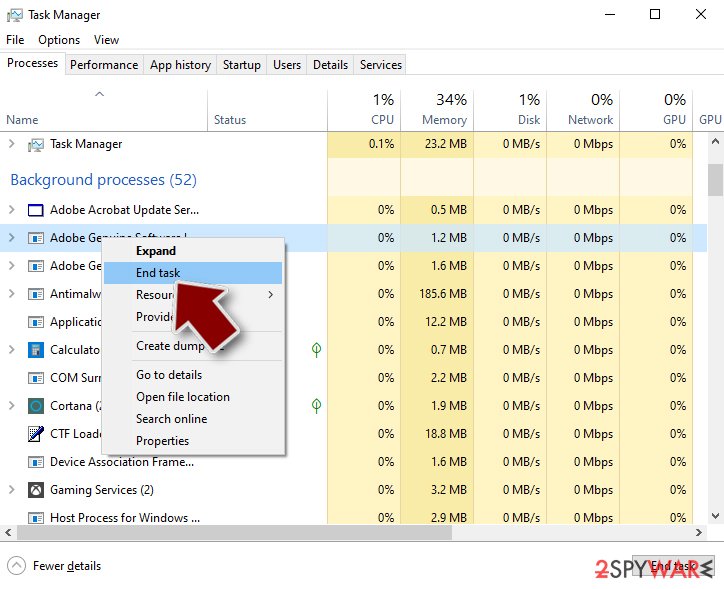
- Go back to the process, right-click and pick End Task.
- Delete the contents of the malicious folder.
Step 3. Check program Startup
- Press Ctrl + Shift + Esc on your keyboard to open Windows Task Manager.
- Go to Startup tab.
- Right-click on the suspicious program and pick Disable.
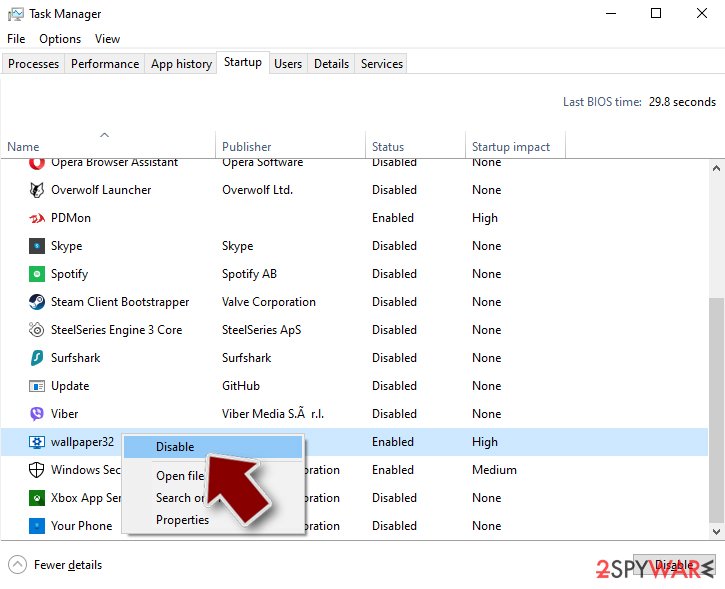
Step 4. Delete virus files
Malware-related files can be found in various places within your computer. Here are instructions that could help you find them:
- Type in Disk Cleanup in Windows search and press Enter.
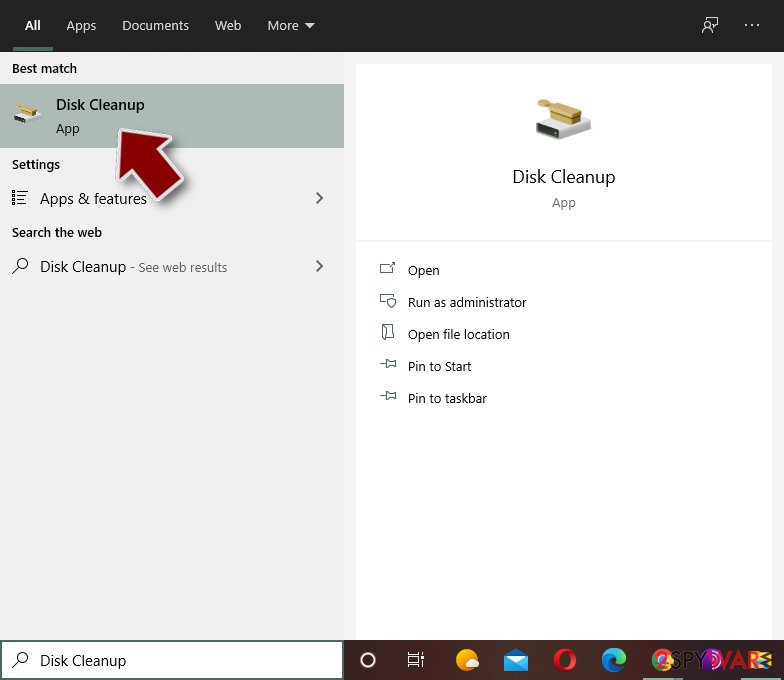
- Select the drive you want to clean (C: is your main drive by default and is likely to be the one that has malicious files in).
- Scroll through the Files to delete list and select the following:
Temporary Internet Files
Downloads
Recycle Bin
Temporary files - Pick Clean up system files.
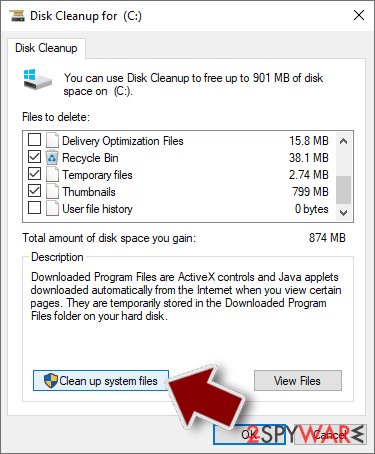
- You can also look for other malicious files hidden in the following folders (type these entries in Windows Search and press Enter):
%AppData%
%LocalAppData%
%ProgramData%
%WinDir%
After you are finished, reboot the PC in normal mode.
From our report of Jul 2021 · not reviewed since
Remove the Trojan from the computer to avoid additional damage
There are several ways how you can remove the ZeroAccess virus from the computer system.
First, you can try to download anti-malware and anti-virus programs. If you are blocked by the infection, firstly you should use anti-rootkit tools and then anti-malware programs.
Finally, you can try using bootable CDs. However, note that that's the most difficult way to perform the ZeroAccess removal and you should contact the professional to help you with this method if you don't have enough knowledge about the system's architecture. After the process is finished, reboot your computer system to make sure that no virus-related content is still active. can help with damaged or altered pieces.
[GI=method-1]Use Safe Mode with Networking to disable the Trojan horse. Read these instructions if help is needed:
[GI=method-2]Activate the System Restore feature by following these guidelines:
After removal: passwords, accounts and prevention
Accounts come next
Because the PC showed zeroAccess in the list of installed apps, a sign of a program that could read browser data, the clean-up is only half of the work.
The other half happens in your online accounts.
Change passwords from a clean device, beginning with e-mail; sign out of all sessions; check forwarding rules and recovery phone numbers; and turn on two-step verification with an authenticator app or a passkey. Ask your bank to replace cards saved in the browser.
Why the order matters and what to check in each account: secure your accounts after malware.
Choose a proper web browser and improve your safety with a VPN tool
Online spying has got momentum in recent years and people are getting more and more interested in how to protect their privacy online.
One of the basic means to add a layer of security - choose the most private and secure web browser. Although web browsers can't grant full privacy protection and security, some of them are much better at sandboxing, HTTPS upgrading, active content blocking, tracking blocking, phishing protection, and similar privacy-oriented features.
However, if you want true anonymity, we suggest you employ a powerful VPN - it can encrypt all the traffic that comes and goes out of your computer, preventing tracking completely.
Lost your files? Use data recovery software
While some files located on any computer are replaceable or useless, others can be extremely valuable.
Family photos, work documents, school projects - these are types of files that we don't want to lose. Unfortunately, there are many ways how unexpected data loss can occur:
- power cuts
- Blue Screen of Death errors
- hardware failures
- crypto-malware attack
- even accidental deletion
To ensure that all the files remain intact, you should prepare regular data backups. You can choose cloud-based or physical copies you could restore from later in case of a disaster. If your backups were lost as well or you never bothered to prepare any, can be your only hope to retrieve your invaluable files.
Questions about ZeroAccess
Can I safely uninstall ZeroAccess?
If you did not install ZeroAccess yourself and it is not part of your hardware or a program you rely on, yes. Uninstalling an unwanted program does not harm Windows. Before you do, search the exact name and publisher to be sure it is not a driver tool, a printer utility or a game launcher with an odd name.
Then remove it from Settings, Apps, Installed apps. Ignore any offers or warnings in its uninstaller about losing protection or performance. Afterwards check Startup apps and your browsers for leftovers, and restart once to confirm that it does not reinstall itself.
ZeroAccess will not uninstall. What can I do?
First restart the PC and try again, because the program may have been running and locked its own files. If the uninstaller is missing or fails, start Windows in Safe Mode, where most third-party programs do not start, and remove ZeroAccess from Installed apps there.
If it still refuses, delete its startup entry and its scheduled task, restart, and try once more. A program that actively prevents removal is behaving like malware, so finish with a Microsoft Defender offline scan. Avoid third-party uninstallers offered on search ads; several of them are unwanted programs themselves.
How do I know if my PC has ZeroAccess?
Often you do not, which is the point of a trojan. Possible signs are an antivirus alert naming ZeroAccess or a generic trojan detection, unknown programs or scheduled tasks, processes with random names in Task Manager, browser extensions you did not add, security settings turned off, slower performance, or account alerts about logins from unknown places.
The reliable check is a full scan followed by Microsoft Defender's offline scan. If you recently ran a crack, a fake installer or a command a website told you to paste, scan even without symptoms.
Is it safe to do online banking after seeing zeroAccess in the list of installed apps?
Not on that PC until it is clean. A program that produces zeroAccess in the list of installed apps runs with your rights and could read what you type or what the browser shows. Use a phone or another computer for banking and for changing passwords.
When the offline scan of the affected PC is clean and nothing suspicious starts with Windows any more, you can go back to using it. Check your bank statements for the past weeks either way, and call the bank if anything looks unfamiliar; banks can block cards and reset access quickly.
Do I need to reinstall Windows to get rid of ZeroAccess?
Usually not. A thorough clean-up is enough when the offline scan finds nothing afterwards and you do not see zeroAccess in the list of installed apps again. A reset is the safer choice if an attacker had remote control, if security tools were switched off, or if detections come back after every clean-up.
Windows 11 can reset itself without a USB stick under Settings > System > Recovery > Reset this PC. Copy documents and photos out first and scan the copies. A reset does not change passwords or undo stolen data, so the account steps still apply.
Is ZeroAccess a known trojan?
Not as a documented family, at least not yet. What is known is the visible sign, zeroAccess in the list of installed apps, which matches a hidden program working for someone else.
New threats are often seen by victims weeks before researchers publish anything about them. Treat ZeroAccess as you would any trojan:
- remove what starts it
- run an offline scan
- change passwords from another device
If a scan reports a detection name, keep it; it usually reveals the family and whether it is known to download other malware. We update this guide when an analysis appears.
My antivirus was on. How did a trojan get past it?
Antivirus programs see a file only when it is written or run, and criminals test each new build against popular scanners before release. Detection catches up within hours or days, which is often after the first victims ran it.
Archives with passwords, installers that fetch the malware later, and scripts run through PowerShell make the job harder. That is why behaviour such as downloading cracks or pasting commands matters more than any setting. Keep Windows and Defender updated, and turn on Reputation-based protection in App & browser control.
I found AnyDesk or ScreenConnect that I did not install. Is that ZeroAccess?
Not necessarily ZeroAccess, but it is a warning sign. These are legitimate remote support tools, and criminals use them as ready-made backdoors, especially after tech support scams or fake invoice calls.
If you did not install it and no one you trust set it up, uninstall it, change passwords from a clean device and check your bank account. If someone connected to your PC through it, follow the steps for remote access trojans and consider a Windows reset. Installed apps sorted by date shows when it appeared.
Should I report ZeroAccess?
Report it if you lost money, if accounts were taken over, if you are a business, or if the trojan came through a scam call. A police or national cybercrime report gives you a reference number for your bank and insurer and helps link cases.
You do not need to report a trojan that antivirus blocked before it ran. Before reporting, write down the dates, the detection name, file names and any messages or transactions linked to the attack; screenshots of antivirus alerts are useful evidence. The country list is in the report section above.
Will Fortect remove ZeroAccess?
Fortect scans Windows for malware and unwanted programs and repairs the system files and settings they change, and its free scan shows what it finds on your PC before you decide anything.
For ZeroAccess, follow the plan above as well: the browser steps take back permissions and settings that no scanner treats as a threat, and uninstalling the program that brought it removes the source.
Run Microsoft Defender's full scan and, if anything was found, its offline scan as a second opinion. If the symptoms are gone after the plan and both scans are clean, there is nothing more to do.
Sources
- Wikipedia: Trojan horse (computing) (read October 6, 2026)
- Tech Terms: P2P (read October 6, 2026)
- FTC: How to recognize, remove and avoid malware (read October 6, 2026)
- Microsoft Learn: Microsoft Defender Offline (read October 6, 2026)
- Microsoft Learn: How Microsoft names malware (read October 6, 2026)