
Conficker: what it is and how to remove it
Conficker is a botnet that infects the system and then controls the device remotely to launch attacks like denial of service and leads to system crashes. This virus can spread other malware, launch various processes and attacks, and even shut down services like banking institutions, hospitals, and government offices.
Facts checked October 6, 2026. Removal steps tested on Windows 11 (26H2) and checked against Microsoft's and the browser makers' current documentation. Sections marked as our earlier report are the original text: they describe the threat as it was then and have not been reviewed since. The 2026 status, the removal steps and the questions are current.
Automatic
Get a free scan and check if your PC is infected.
Fortect finds malware, unwanted programs and the Windows damage they leave behind, and repairs it in one pass.
If comaddin32.dll comes back after a restart, a full scan can find the task or service that relaunches it.
Do it yourself · free Remove Conficker yourself 5 steps, about 15 minutes, no software needed.
Start the steps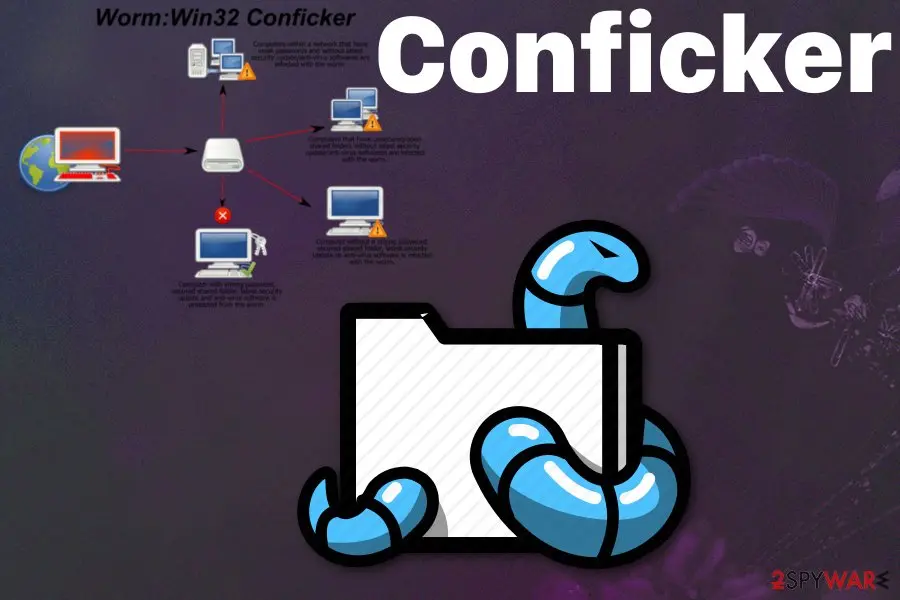
Conficker: summary
| Distribution | Exploits MS08-067 vulnerability, spreads through insecure external drives, infected files |
|---|---|
| Name | Conficker |
| Type | Worm |
| Danger level | High |
| Symptoms | Annoying messages on the screen, crashes of the system, suspicious processes running in the background |
| Known | Since 2008 |
| Removal | Scan the PC with security software to find and remove the malware and anything installed with it. Fortect scans Windows for malware and repairs the system files and settings it damaged. Remove it nowTo use the full-featured product, you have to purchase a license for Fortect. The scan is free. |
Show 6 more facts
| Detection names | No Microsoft detection name is known |
|---|---|
| Damage | Not recorded in the old report |
| Evidence | 6 write-ups by security sites; details still limited |
| Files | comaddin32.dll |
| First seen | 4 June 2021 |
| Facts checked | 6 October 2026 |
What Conficker does
From our report of Jun 2021 · not reviewed since
Conficker – a computer parasite responsible for millions of infection worldwide
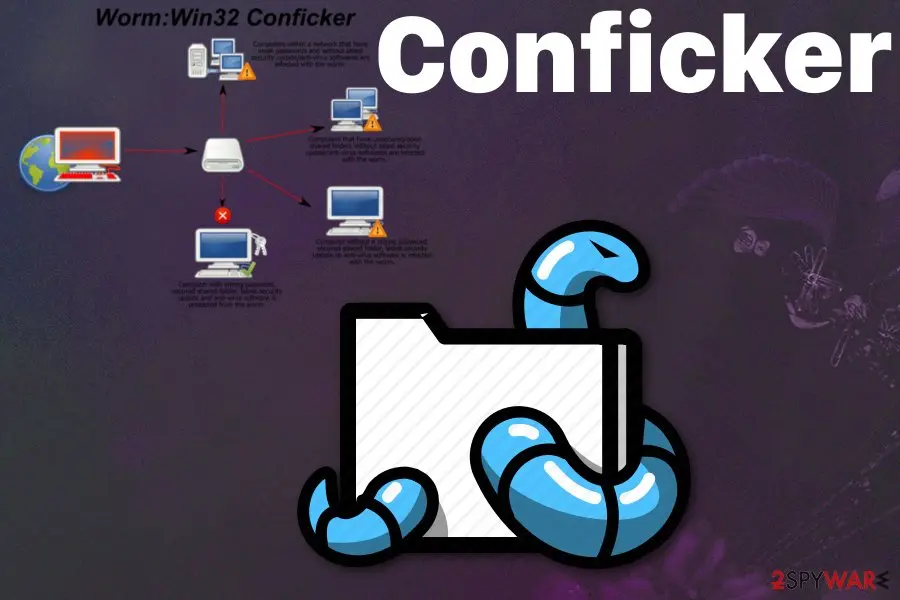
Conficker is a botnet that infects the system and then controls the device remotely to launch attacks like denial of service and leads to system crashes.
This virus can spread other malware, launch various processes and attacks, and even shut down services like banking institutions, hospitals, and government offices.
Attacks of such malware can lead to crippled computer networks of cities and interference with elections and social media. Since there are many versions of the botnet, it can launch any of these processes and lead to far worse attacks. This worm is one of the more persistent threats in the history of cybersecurity.
This virus spreads using various methods that are more common and unconventional techniques like exploiting vulnerabilities and looking for system flaws on the targeted system. Ransomware, miners, worms, and other malware set to perform system changes and launch processes in the background come unnoticed, and the victim only encounters system issues or suspicious activity.
Mainly Windows OS has been subject to attacks by this malware. Furthermore, it may run under the disguise of comaddin32.dll, svchost.exe, explorer.exe, or services.exe command in the Task Manager. Since its appearance, different variations have been detected. Naturally, they bear alternative names, such as Downup, Downadup, Kido, and Conficker B++ .
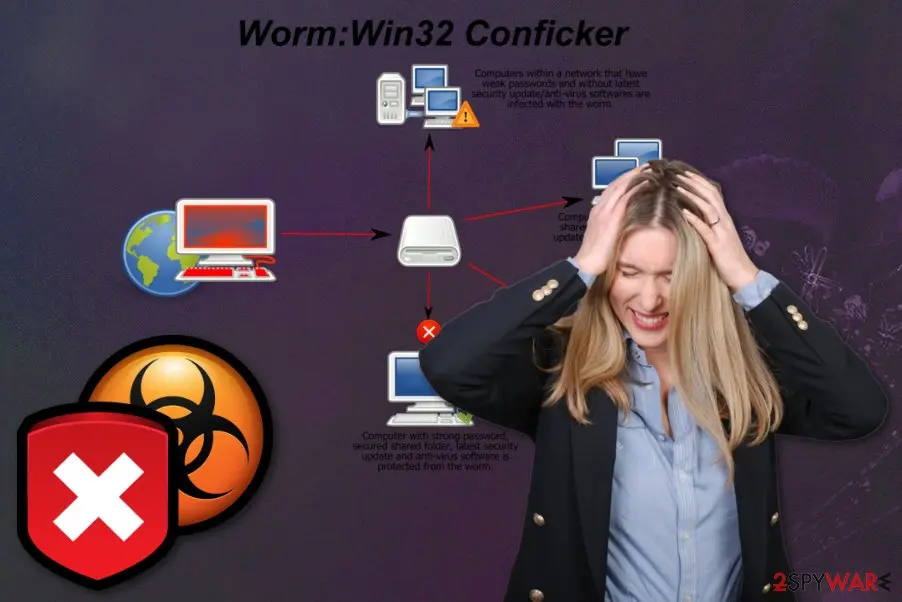
The computer worm was first detected in November 2008 . It breaks into a computer system and then connects to a larger network of machines – botnet, which then spreads the malware to other devices. Security vulnerabilities and outdated systems serve as the main vector for the worm to occupy the device. The malware is also capable of infecting removable devices such as USB sticks.
During the years, malware has evolved into a significant threat. Microsoft has even issued a 250 000 USD dollar reward for finding the culprit. Interestingly, ransomware developers decided to share the notorious fame of the worm and Conficker ransomware.
The emergence of this malware initiated the formation of the Conficker Working Group, which investigates the computer networks and IP addresses whether they are infected with the malware. It is suspected that over 600 000 devices still possess the threat. Over the years, the discussions about the infection have subsided. It has been a popular tendency among cybercriminals to revive older viruses.
Likewise, the same scenario may be applicable for this worm as well. Luckily, even if you get infected with this malware, the majority of anti-spyware security applications are able to detect and remove it. Most researchers believe that the worm is developed by Ukrainian hackers who focus on creating the platform for global theft.
Malware employs sophisticated encryption algorithms RC4, RSA, and MD6 that are produced by the premier cryptologist. The Ukraine clue was spotted when the feature about self-destruction on Ukrainian PCs was discovered.
The worm displays tons of redirects to suspicious domains to disguise the source of commands and this way machines come to the point where they overheat and crash. There are versions of the worm and the most known appears to be Conficker.C that was especially active at the end of 2011.
While improving technical specifications, the developers also shifted from using the previous title to the current one. When this worm emerged, few have anticipated what damage it would inflict on the entire cyberspace globally. Business companies and individual users in more than 190 countries have suffered from the hijack .
The flexibility of this malware was one of the key reasons why this malware has remained on the market. Once it gets into the system, it may disable security applications, download corrupted files, collect personal information and, most importantly, connect the device to a botnet.
Once Conficker.C malware settles on the operating system, it will add a specific file to the removable drive to the local drives. Then the dialogue box emerges asking to "Open folder to view files." The only thing which might trigger your suspicion is the line indicating – "Publisher not specified." During its presence, the computer processes significantly deteriorate.
Nonetheless, to the bewilderment of the virtual community, the virus has not been terminated yet. Indeed, it is less active than in 2008. Interestingly, the worm would not have emerged if not for a fatal Microsoft patch (MS08-67) released in 2008 .
Certain technical specifications allowed the virus to emerge and remain one of the top 5 most destructive threats. Since it targets system vulnerabilities, devices with poor passwords, it explains why the threat has not been seized and still remains potentially dangerous.
Furthermore, the current version of the worm targets not only ordinary computers but MRI machines, IoT devices, and CT scanners, such as police surveillance cameras. Such actors emphasize the necessity to secure devices by updating crucial system applications, features. Install a proper anti-virus program. You should pay close attention to all the parts and possible risks on the device you don't want to remove Conficker in the future.
Besides anti-malware utilities such as and , are practical as well. They might detect minor malicious files which signal a more elaborate threat. Lastly, it is no less important to be aware of the distribution. Once the threat is successfully terminated, you should use the tool to get your system back on its feet.
From our report of Jun 2021 · not reviewed since
More from our earlier report on Conficker
- Use anti-malware tools for system cleaning and virus removal
- can help to restore the overall system's health
How Conficker spreads and got on your PC
From our report of Jun 2021 · not reviewed since
The sophisticated method this worm infiltrates the core of computer requires knowledge of `particular Microsoft engineering.
This worm discovered new flaws in the Windows operating system and can exploit them to infiltrate the needed machines before users patch those vulnerabilities.
The worm also can disguise its point of origin and hide controllers, malicious files. It even encrypts commands and controls to avoid the shut down by security tools or even IT experts.
Another common way to spread such malicious files dropping the worm on the computer involves spam email campaigns and file attachments. Various documents, PDFs, and common types like DLLs or EXE files pose as attachments on the email containing legitimate-looking financial messages.
These emails look safe due to facts like:
- familiar company or service name;
- financial or informational purpose of the email;
- the email received going to the main email box, not spam.
Check your PC for Conficker
- File:
comaddin32.dll
How to remove Conficker
Clean the USB drives as well as the PC, or the worm comes back the next time a stick is plugged in.
Step 1: Clean the USB drives
Conficker spreads through USB sticks, so every drive used in this PC is suspect.
In File Explorer, switch on hidden items, delete the shortcuts that look like your folders, and run
attrib -h -r -s /s /d E:\*.*in Command Prompt (with your drive's letter) to restore the hidden ones.Right-click the drive and choose Scan with Microsoft Defender. Turn off AutoPlay for removable drives in Settings > Bluetooth & devices > AutoPlay (Windows 11) or Devices > AutoPlay (Windows 10).
Full procedure with screenshots: Run a Microsoft Defender Offline scan
Step 2: Check where comaddin32.dll runs from and stop it
comaddin32.dllis the part you can see, and its location tells you whether it belongs there. Right-click it on the Processes page of Task Manager and choose Open file location, then right-click the file > Properties > Digital Signatures to see who signed it.An unsigned file, or one in a user folder such as
%AppData%, is the one to remove: end the task, then delete the file.Note the folder name, because the same folder usually holds its other files. This is the same in Windows 11 and Windows 10.
Full procedure with screenshots: Close a frozen app (Task Manager, Force Quit) On uGetFix
Step 3: Remove it from startup
Whatever Conficker installed usually starts with Windows. Open Task Manager with Ctrl + Shift + Esc, go to Startup apps in Windows 11 or the Startup tab in Windows 10, and disable what you do not know, starting with entries that have an empty Publisher column.
Open file location on the right-click menu shows the file, which helps you decide and tells you what to delete later. Disabling is safe: if something you need stops working, switch it back on.
Full procedure with screenshots: Stop apps from opening at startup On uGetFix
Step 4: Delete scheduled tasks that bring it back
Open Task Scheduler from the Start menu and click Task Scheduler Library. Select each task you do not recognise and read the Actions tab:
- a task that starts a file in
%AppData%or%Temp% - runs
powershellwith a long encoded line - opens a web address belongs to Conficker or a similar program
Right-click such a task and choose Delete, and check the subfolders too. Leave tasks from Microsoft, your PC's maker and programs you use. Task Scheduler is the same in Windows 11 and Windows 10.
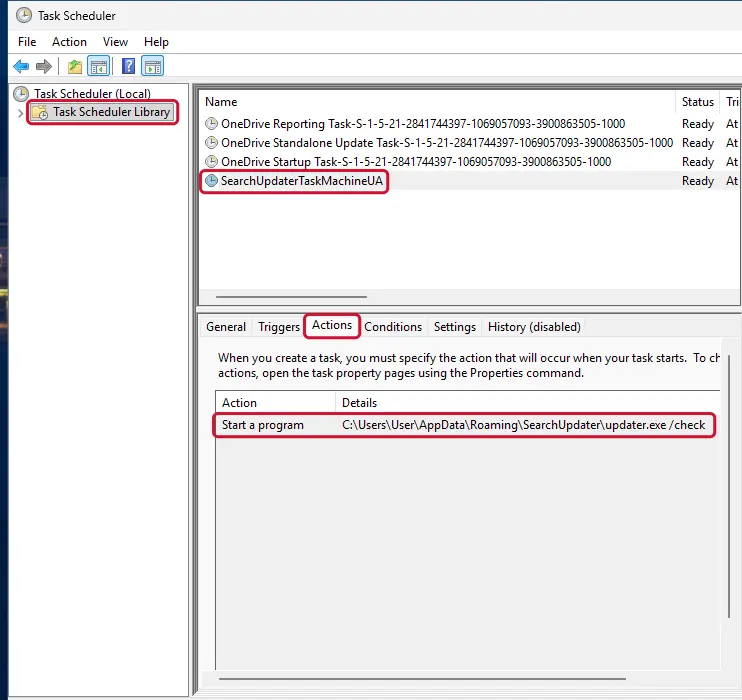
Windows 11: Task Scheduler Library, the task selected, the Actions tab shows the file it runs. Full procedure with screenshots: Remove what malware leaves behind in Windows
- a task that starts a file in
Step 5: Scan the PC, then run the offline scan
Open Windows Security > Virus & threat protection > Scan options, run a Full scan and remove everything it finds. Then select Microsoft Defender Antivirus (offline scan) and click Scan now: the PC restarts and scans before Windows loads, which finds files that hide while Windows runs.
Save your work first, because the offline scan takes about 15 minutes. Both scans are built into Windows 11 and Windows 10, and a second scanner from another vendor is a useful extra opinion.

Windows 11: Windows Security > Virus & threat protection > Scan options. Full procedure with screenshots: Run a Microsoft Defender Offline scan
From our report of Jun 2021 · not reviewed since
Remove Conficker by using reliable security tools
When the worm entered cyberspace and started spreading terror, one of the key questions was whether it was possible to remove Conficker virus.
The identity of developers remains a mystery as well as the specific number of still functioning bots.
On the other hand, you should bear in mind that the virus is still present in the virtual space and spreads around the world. Even if you happen to get infected with this computer worm, a variety of anti-virus programs both, professional and less powerful, are capable of detecting the threat . Launch it and start Conficker removal.
Developers of the worm can even use the infected machine for more attacks, and current threats can launch a range of different processes. Although many researchers took over the control of this botnet, they cannot indicate particular instructions and offer a remedy for the victim. You need to rely on , , and clean the machine thoroughly from all the malware installed without your permission.
After removal and prevention
Backups: the 3-2-1 rule
Keep three copies of files that matter, on two kinds of storage, with one copy offline or off-site.
A disk that stays plugged in is reached by malware like Conficker together with the PC; one you connect only for the backup is not.
On Windows 11, File History keeps versions on an external drive, and OneDrive keeps earlier versions of synced files. Before restoring anything, make sure the PC no longer shows comaddin32.dll using the processor or graphics card at full load.
Setting it up step by step: 3-2-1 backups on Windows 11 and 10.
Choose a proper web browser and improve your safety with a VPN tool
Online spying has got momentum in recent years and people are getting more and more interested in how to protect their privacy online.
One of the basic means to add a layer of security - choose the most private and secure web browser. Although web browsers can't grant full privacy protection and security, some of them are much better at sandboxing, HTTPS upgrading, active content blocking, tracking blocking, phishing protection, and similar privacy-oriented features.
However, if you want true anonymity, we suggest you employ a powerful VPN - it can encrypt all the traffic that comes and goes out of your computer, preventing tracking completely.
Lost your files? Use data recovery software
While some files located on any computer are replaceable or useless, others can be extremely valuable.
Family photos, work documents, school projects - these are types of files that we don't want to lose. Unfortunately, there are many ways how unexpected data loss can occur:
- power cuts
- Blue Screen of Death errors
- hardware failures
- crypto-malware attack
- even accidental deletion
To ensure that all the files remain intact, you should prepare regular data backups. You can choose cloud-based or physical copies you could restore from later in case of a disaster. If your backups were lost as well or you never bothered to prepare any, can be your only hope to retrieve your invaluable files.
Questions about Conficker
Why does comaddin32.dll use so much CPU?
Legitimate programs use a lot of processor time only while they work for you:
- a game
- a video export
- a Windows update
- an antivirus scan
If comaddin32.dll does it constantly, including when you are away from the PC, it is most likely mining cryptocurrency or running another background job for someone else.
Look at the file's location and digital signature, and at what starts it: the Startup list in Settings, Task Scheduler and services. A process with no clear owner, an unsigned file and a hidden restart entry should be removed and the PC scanned offline.
Should I delete the comaddin32.dll file myself?
You can, but only after you have stopped what restarts it, otherwise the file is simply downloaded or copied back. Note the full path of comaddin32.dll first, using Open file location in Task Manager. Then disable its startup entry or task, end the process and delete the folder.
If Windows says the file is in use, restart in Safe Mode and try again. Never delete a file from C:\Windows\System32 that is signed by Microsoft; if that is where the busy process lives, the cause is something else using a genuine Windows file.
Can I just delete comaddin32.dll?
You can, but it is rarely enough. comaddin32.dll is the visible part of Conficker; a scheduled task, a service or a startup entry usually starts it again, and some versions restore the file within minutes. Deleting it while it runs may also fail.
Run the Microsoft Defender offline scan instead, which removes the file and its startup entries before Windows loads. Then check Task Scheduler and Startup apps for anything still pointing to the old location. Restart afterwards and confirm the file does not return.
Should I scan my other computers too?
It is a good idea, even for malware that does not spread by itself. The same download, USB stick or loader may have been used on other PCs in the household, and shared folders can carry files between them.
Run a full scan followed by the Microsoft Defender offline scan on each Windows PC that shared drives or files with the infected one. Do not copy programs or installers from the infected PC until it is clean, and change Wi-Fi and router passwords if they were saved on it.
The PC is still slow after removing Conficker. What now?
Restart the PC first; some changes only take effect after a reboot. Then open Task Manager and check the Processes and Startup apps tabs for anything unfamiliar using the processor, disk or network. If something remains, run the Microsoft Defender offline scan once more.
Slowness can also come from a second infection installed alongside Conficker, or from programs that were damaged during the clean-up. If nothing helps, back up your files and reset Windows. Copy only documents and photos before a reset, and scan the copies.
Is Conficker a virus?
In everyday language, yes: Conficker is malware, a program that runs without your consent. More precisely, the reports point to a worm, based on what people saw: comaddin32.dll using the processor or graphics card at full load. It is not part of Windows and no legitimate program behaves this way while hiding from the user.
It should be removed, and the PC checked for other programs that may have come with it. Because there is no public analysis yet, we cannot list everything it does; the removal plan in this guide is written to cover the usual places this kind of malware uses to start and hide.
Can I just delete the file Windows Security found?
Let Windows Security handle it instead. When it finds Conficker, choose Remove or Quarantine; the scanner also removes related startup entries and tasks that a manual delete would miss. Deleting a running file by hand often fails, and many threats restore themselves from a second copy.
After the removal, run the Microsoft Defender offline scan, which works before Windows starts and catches parts that hide while Windows runs. Then check Task Scheduler for leftovers. Restart afterwards and check that the detection does not return.
Could Conficker have come from a website?
Visiting a website alone rarely installs malware on an up-to-date Windows PC. What websites do is persuade people to download and run something:
- a fake update
- a crack
- a codec
- a command pasted into the Run box
For Conficker, the exact route is not known yet, but comaddin32.dll using the processor or graphics card at full load means a program or script was started on the PC at some point.
Check your Downloads folder and browser history for the days before the sign appeared, and remove any program installed then. Keeping Windows, the browser and Microsoft Defender updated closes the few routes that need no click at all.
Should I reset my PC because of Conficker?
Only if the signs point to deeper access. Reset when you see comaddin32.dll using the processor or graphics card at full load again after removal, when Windows Security cannot start or update, when remote access tools you did not install keep appearing, or when you simply cannot trust the PC any more.
Otherwise, the plan in this guide plus an offline scan is enough. If you do reset, choose Remove everything and Cloud download for a fresh copy of Windows, restore only documents and photos, and reinstall programs from their official sites. Change important passwords from the clean system afterwards.
Will Fortect remove Conficker?
Fortect scans Windows for malware and unwanted programs and repairs the system files and settings they change, and its free scan shows what it finds on your PC before you decide anything.
For Conficker, follow the plan above as well: the browser steps take back permissions and settings that no scanner treats as a threat, and uninstalling the program that brought it removes the source.
Run Microsoft Defender's full scan and, if anything was found, its offline scan as a second opinion. If the symptoms are gone after the plan and both scans are clean, there is nothing more to do.
Sources
- Wikipedia: Conficker (read October 6, 2026)
- WeLiveSecurity: The odd, 8-year legacy of the Conficker worm (read October 6, 2026)
- Graham Cluley: Seven years on, the Conficker worm is not dead... but dominating (read October 6, 2026)
- ThreadPost: Conficker Used in New Wave of Hospital Iot Device Attacks (read October 6, 2026)
- FTC: How to recognize, remove and avoid malware (read October 6, 2026)