CoolWebSearch.winproc32 (Free Instructions) - Removal Guide
CoolWebSearch.winproc32 Removal Guide
What is CoolWebSearch.winproc32?
CoolWebSearch.winproc32 is the potentially unwanted program that changes browser settings on purpose

CoolWebSearch.winproc32 is the program that alters the search bar, homepage, new tab, and default page settings to redirect users via other sites. This particular PUP has the winproc32.exe file that some of the reports state can be malicious. This program is categorized as a browser hijacker because it reroutes all the activities related to online browsing through the 4-counter.com site and other suspicious pages deceptively promoted as useful search engines. Threats like this can hijack the machine and alter various parts of the system, including dynamic libraries and settings related to the startup and registry.
| Name | CoolWebSearch |
|---|---|
| Type | Browser hijacker, potentially unwanted program[1] |
| Distribution | Software bundle packages, deceptive ads, fake updates promotions |
| Symptoms | Unknown extension or application is installed on the system; homepage and new tab address are set to something else; a customized search engine is appended to the homepage; search results are filled with sponsored links and ads |
| Risks | Installation of other potentially unwanted programs, privacy risks due to information gathering practices, financial losses |
| Removal | You can uninstall potentially unwanted programs by following the manual guide below or by scanning the computer with powerful anti-malware |
| Optional steps | Computer infections can cause significant damage to system files or disrupt normal settings. To revert these changes, perform a full system scan with FortectIntego |
Potentially unwanted programs might directly affect the online traffic redirecting and advertisements that continuously go to your screen, but the computer is performing poorly the longer intruder has run on the device.[2]
CoolWebSearch.winproc32 removal might seem to be difficult if you only see the process name running in the background via Task Manager or receive those redirects without seeing the program installed on the system directly. It is possible to get rid of these silent and annoying programs with anti-malware tools like SpyHunter 5Combo Cleaner or Malwarebytes.
Experts[3] always state that these intruders that affect browsing online are controlled by the PUP running in the back. However, it is not the easiest task to find the applications that found the way on the computer. This is the reason why automatic methods with antivirus tools are more recommended,
But you can rely on the guide below that shows how to tackle the damage related to the program and get rid of any traces left behind in the system or additional installs of program associated with the CoolWebSearch.winproc32. You can notice that one of your browsers gets these pop-ups and redirects, receives changes, but the PUP runs on the machine, so a full system scan is a must.
CoolWebSearch version has numerous different programs associated with online traffic redirects, so don't be surprised when te Google Chrome, Mozilla Firefox, Safari, other browsers get add-ons and tools out of nowhere. Avoid clicking any of those pop-ups or banners to keep yourself away from malicious sites.

Developers of the shady search engine rely on deceiving the user
People who encounter these intruders like adware, browser hijackers, other threats based on browsing hijacking, redirecting can be caught out of nowhere. It is because PUPs tend to spread around without any indications of the infection. The most common way to distribute these intruders – software bundling.
These deceiving methods like freeware packages, false promotional content, updates, malicious download sites, and torrent services lead to the installation of the PUP itself. People skip through important steps of the installation and allow the additional intruder without knowing.
Always go for Advanced or Custom installation options and do not skip any steps, analyze the list of included programs to control what gets installed and what is not. Make sure to choose reliable sources for the apps only.
The procedure of system cleaning includes proper system scan using AV tools
You can always remove CoolWebSearch.winproc32 from the machine if you trigger the thorough system scan with anti-malware tools. Such a program properly checks the machine and finds any threats hidden in the system, so your device gets cleaned. Manual PUP removal is not the easiest.
CoolWebSearch.winproc32 is nothing but a PUP, but the virus detection engines help find all pieces and files that control the activities of this hijacker. Do not forget about possible damage and go through the steps below to repair any issues with web browsing.
You may remove virus damage with a help of FortectIntego. SpyHunter 5Combo Cleaner and Malwarebytes are recommended to detect potentially unwanted programs and viruses with all their files and registry entries that are related to them.
Getting rid of CoolWebSearch.winproc32. Follow these steps
Uninstall from Windows
-
Click Start → Control Panel → Programs and Features (if you are Windows XP user, click on Add/Remove Programs).

-
If you are Windows 10 / Windows 8 user, then right-click in the lower left corner of the screen. Once Quick Access Menu shows up, select Control Panel and Uninstall a Program.

-
Uninstall CoolWebSearch.winproc32 and related programs
Here, look for CoolWebSearch.winproc32 or any other recently installed suspicious programs. -
Uninstall them and click OK to save these changes.


Delete from macOS
-
If you are using OS X, click Go button at the top left of the screen and select Applications.

-
Wait until you see Applications folder and look for CoolWebSearch.winproc32 or any other suspicious programs on it. Now right click on every of such entries and select Move to Trash.


Remove from Microsoft Edge
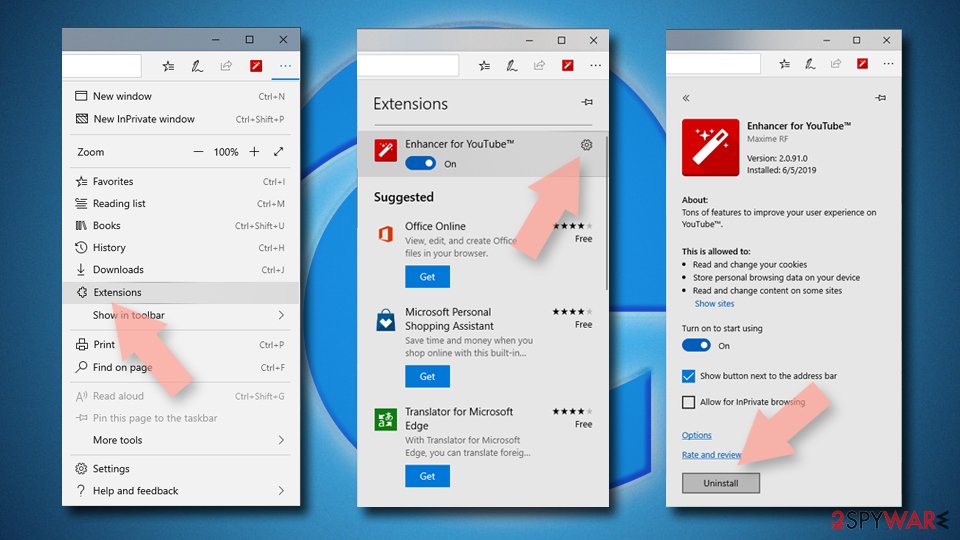
Delete unwanted extensions from MS Edge:
- Select Menu (three horizontal dots at the top-right of the browser window) and pick Extensions.
- From the list, pick the extension and click on the Gear icon.
- Click Remove.

Clear cookies and other browser data:
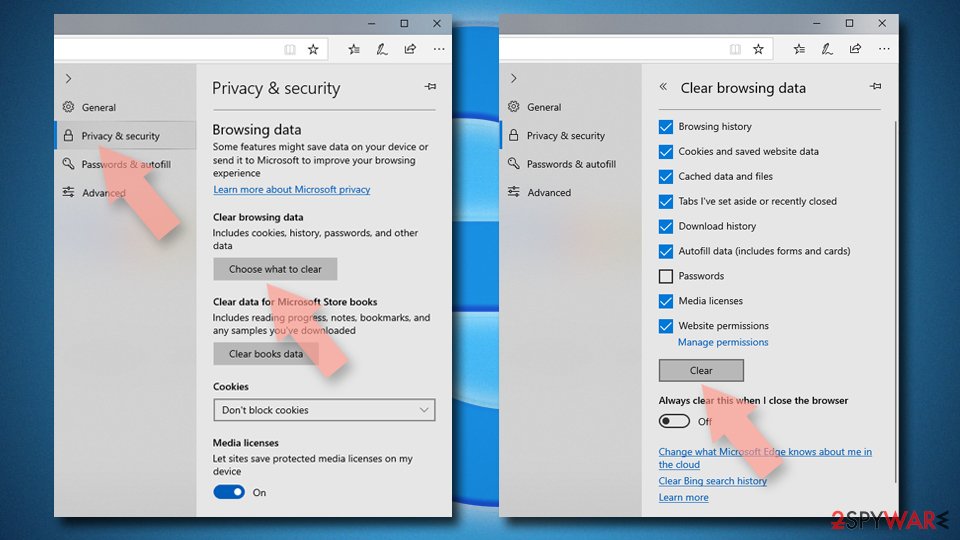
- Click on the Menu (three horizontal dots at the top-right of the browser window) and select Settings > Privacy, search, and services..
- Under Clear browsing data, pick Choose what to clear.
- Select Cookies and other site data and Cached images and files. (apart from passwords, although you might want to include Media licenses as well, if applicable) and click on Clear.

Restore new tab and homepage settings:
- Click the menu icon and choose Settings.
- Then find On startup section.
- Click Remove next to any suspicious startup page.
Reset MS Edge if the above steps did not work:
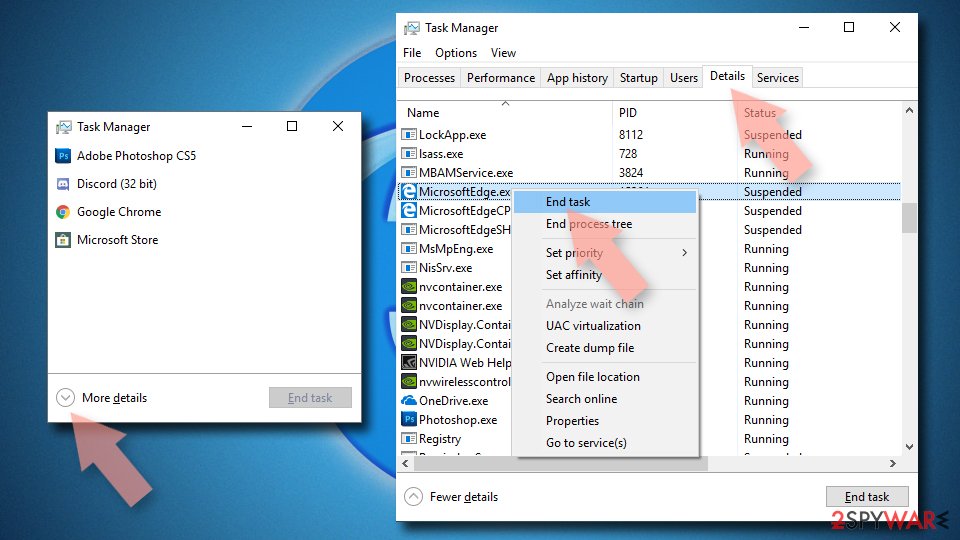
- Press on Ctrl + Shift + Esc to open Task Manager.
- Click on More details arrow at the bottom of the window.
- Select Details tab.
- Now scroll down and locate every entry with Microsoft Edge name in it. Right-click on each of them and select End Task to stop MS Edge from running.

Instructions for Chromium-based Edge
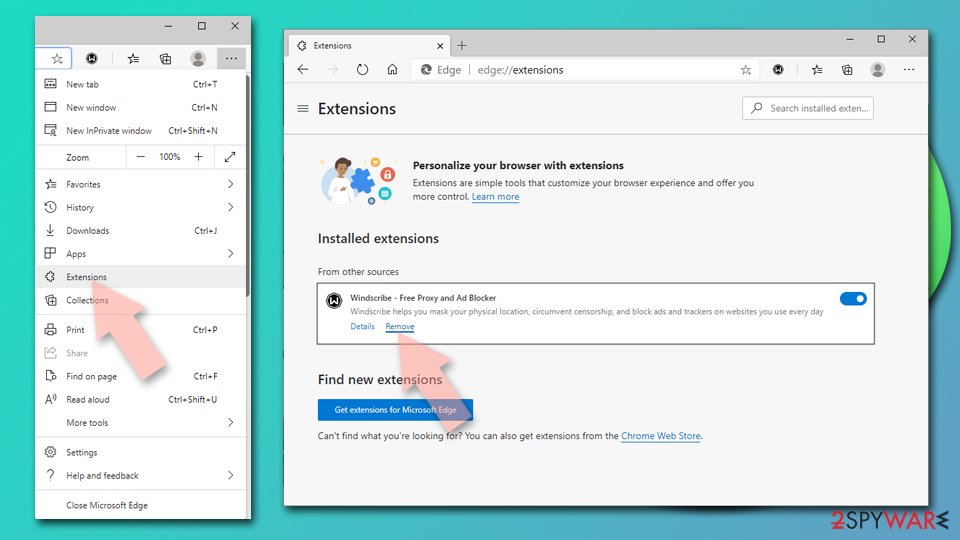
Delete extensions from MS Edge (Chromium):
- Open Edge and click select Settings > Extensions.
- Delete unwanted extensions by clicking Remove.

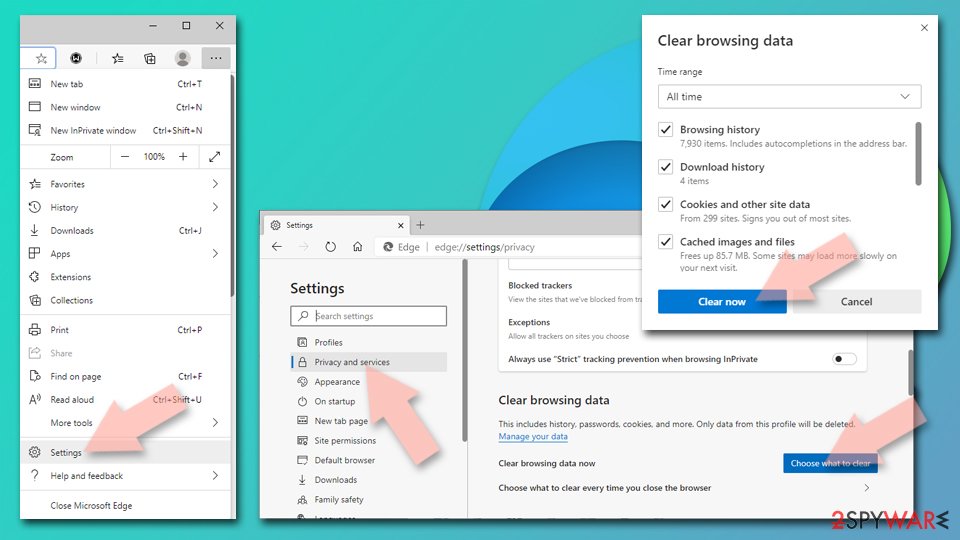
Clear cache and site data:
- Click on Menu and go to Settings.
- Select Privacy, search and services.
- Under Clear browsing data, pick Choose what to clear.
- Under Time range, pick All time.
- Select Clear now.

Reset Chromium-based MS Edge:
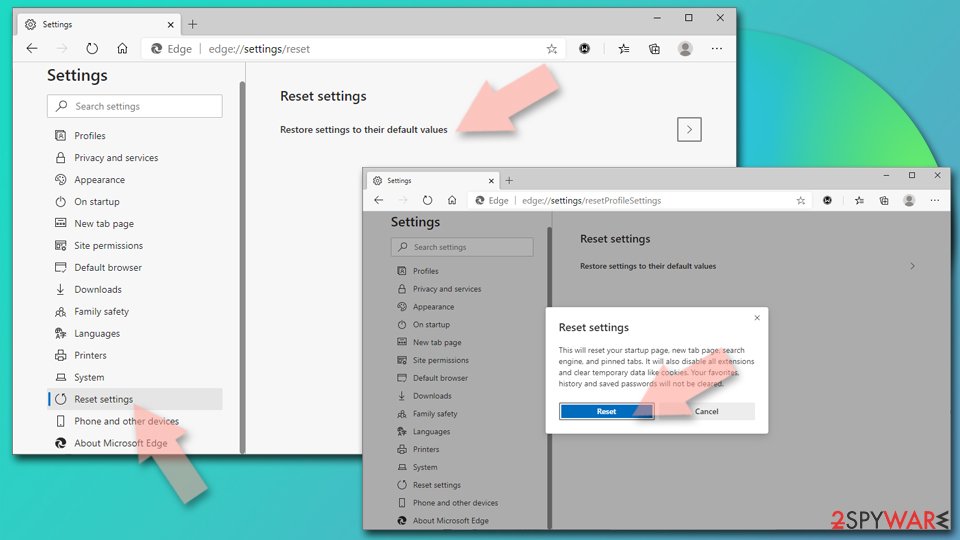
- Click on Menu and select Settings.
- On the left side, pick Reset settings.
- Select Restore settings to their default values.
- Confirm with Reset.
- This will disable extensions and reset startup pages but will not delete bookmarks, saved passwords, or browsing history.

Remove from Mozilla Firefox (FF)
Remove dangerous extensions:
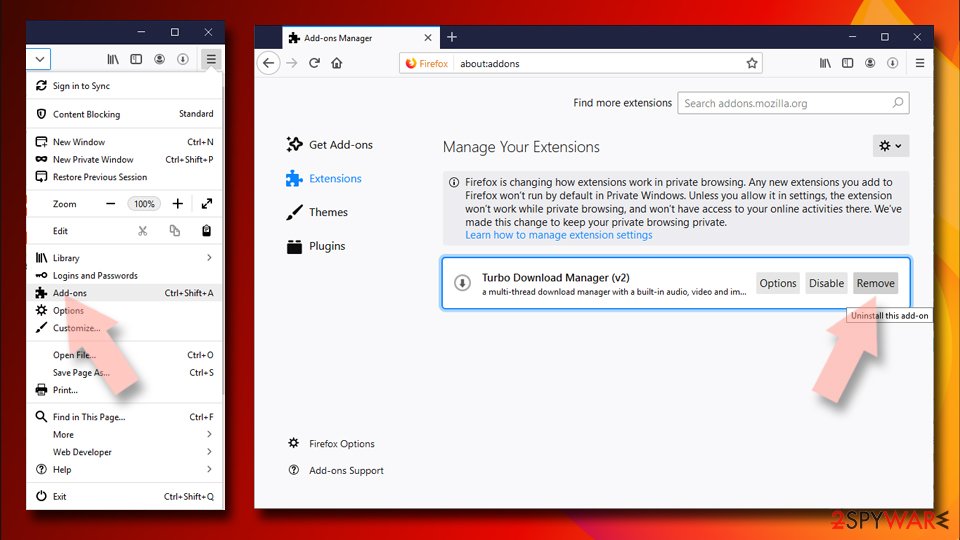
- Open Mozilla Firefox browser and click on the Menu (three horizontal lines at the top-right of the window).
- Select Add-ons.
- In here, select the unwanted extension and click Remove.

Reset the homepage:
- Click three horizontal lines at the top right corner to open the menu.
- Choose Settings.
- Under Home, set your preferred homepage and new tab settings.
Clear cookies and site data:
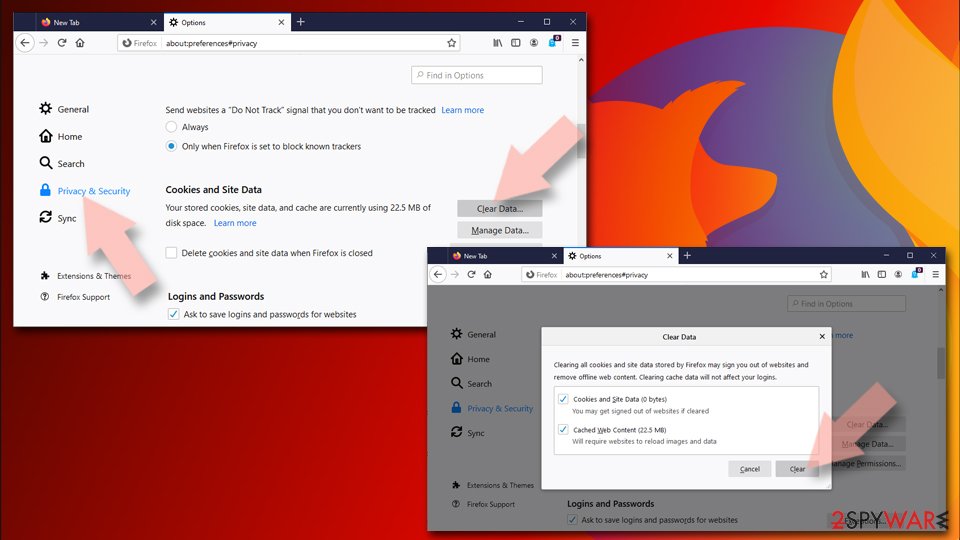
- Click Menu and pick Settings.
- Go to Privacy & Security section.
- Scroll down to locate Cookies and Site Data.
- Click on Clear Data…
- Select Cookies and Site Data and Temporary cached files and pages, then click Clear.

Reset Mozilla Firefox
If clearing the browser as explained above did not help, reset Mozilla Firefox:
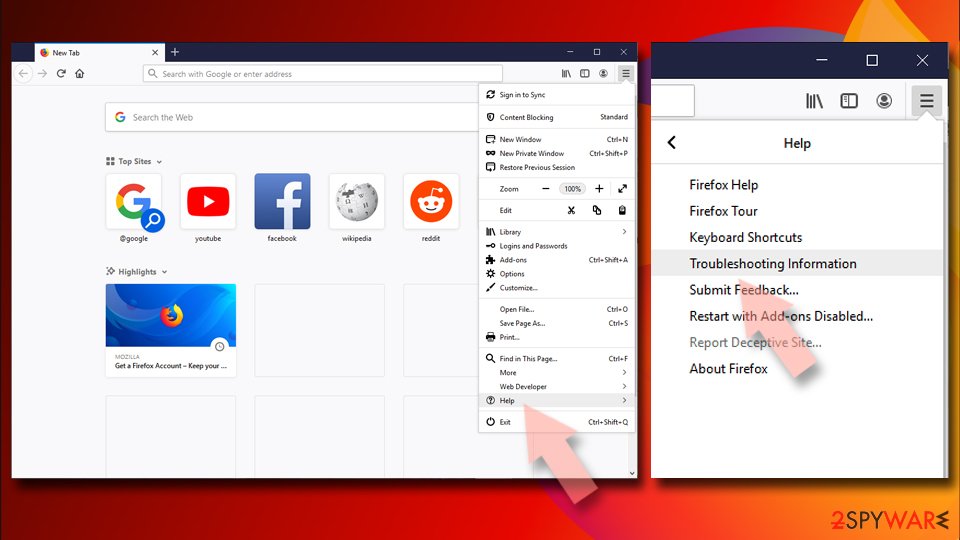
- Open Mozilla Firefox browser and click the Menu.
- Go to Help and then choose Troubleshooting Information.
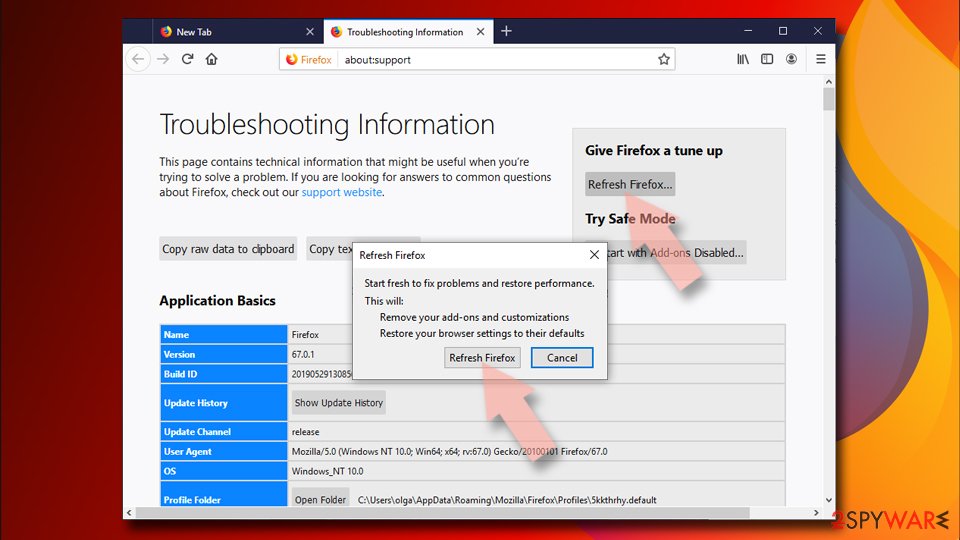
- Under Give Firefox a tune up section, click on Refresh Firefox…
- Once the pop-up shows up, confirm the action by pressing on Refresh Firefox.


Remove from Google Chrome
Delete malicious extensions from Google Chrome:
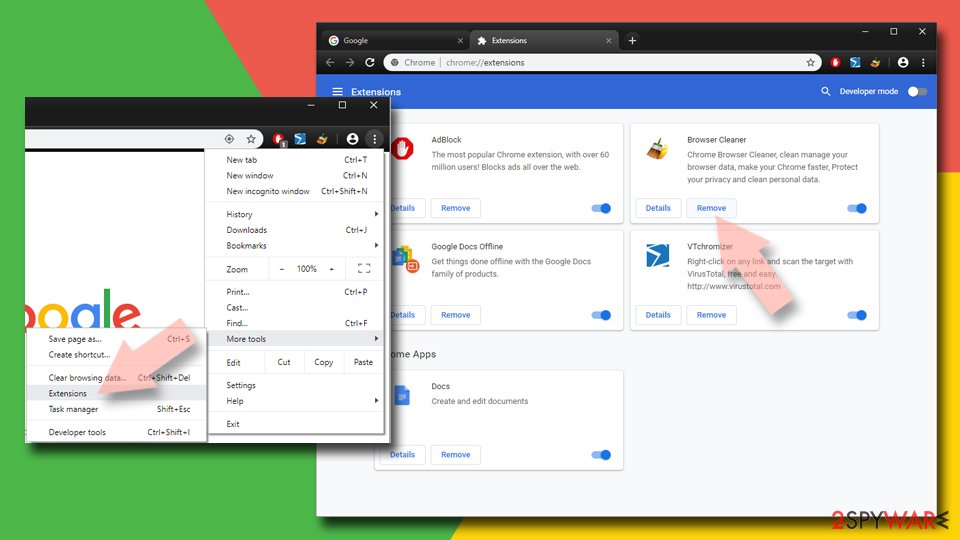
- Open Google Chrome, click on the Menu (three vertical dots at the top-right corner) and select More tools > Extensions.
- In the newly opened window, you will see all the installed extensions. Uninstall all suspicious extensions related to the unwanted program by clicking Remove.

Clear cache and web data from Chrome:
- Click on Menu and pick Settings.
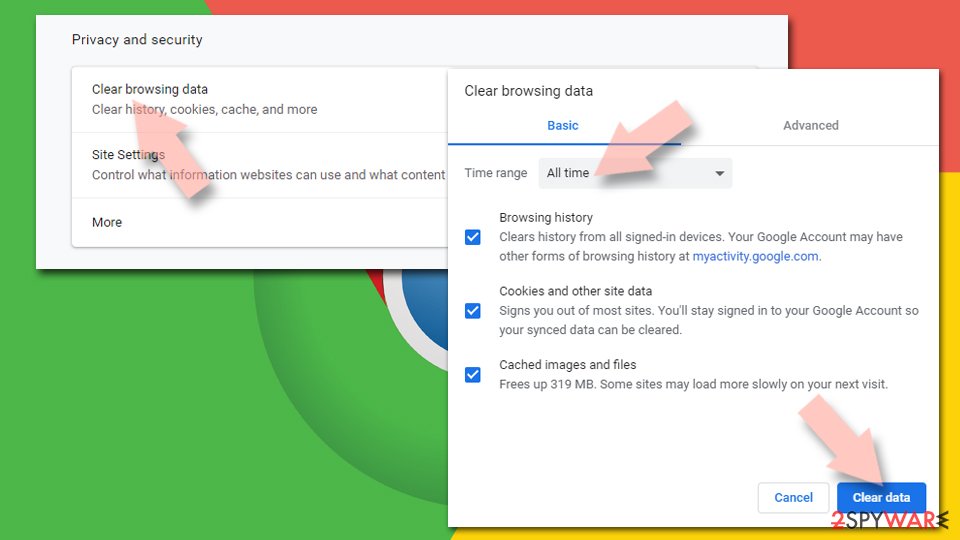
- Under Privacy and security, select Clear browsing data.
- Select Browsing history, Cookies and other site data, as well as Cached images and files.
- Click Clear data.

Change your homepage:
- Click menu and choose Settings.
- Look for a suspicious site in the On startup section.
- Click on Open a specific or set of pages and click on three dots to find the Remove option.
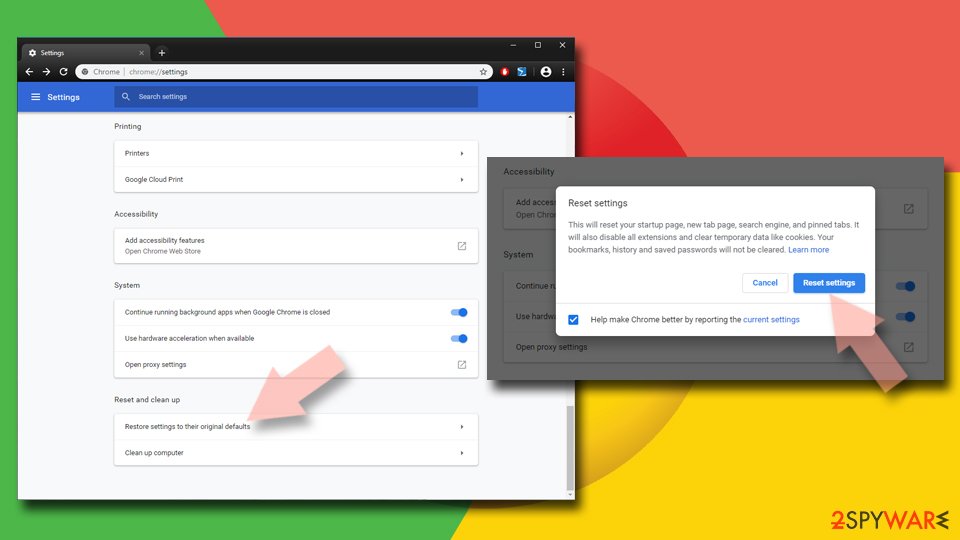
Reset Google Chrome:
If the previous methods did not help you, reset Google Chrome to eliminate all the unwanted components:
- Click on Menu and select Settings.
- In the Settings, scroll down and click Advanced.
- Scroll down and locate Reset and clean up section.
- Now click Restore settings to their original defaults.
- Confirm with Reset settings.

Delete from Safari
-
Remove dangerous extensions
Open Safari web browser and click on Safari in menu at the top left of the screen. Once you do this, select Preferences.
-
Here, select Extensions and look for CoolWebSearch.winproc32 or other suspicious entries. Click on the Uninstall button to get rid each of them.

-
Reset Safari
Open Safari browser and click on Safari in menu section at the top left of the screen. Here, select Reset Safari....
-
Now you will see a detailed dialog window filled with reset options. All of those options are usually checked, but you can specify which of them you want to reset. Click the Reset button to complete CoolWebSearch.winproc32 removal process.


After uninstalling this potentially unwanted program (PUP) and fixing each of your web browsers, we recommend you to scan your PC system with a reputable anti-spyware. This will help you to get rid of CoolWebSearch.winproc32 registry traces and will also identify related parasites or possible malware infections on your computer. For that you can use our top-rated malware remover: FortectIntego, SpyHunter 5Combo Cleaner or Malwarebytes.
How to prevent from getting browser hijacker
Choose a proper web browser and improve your safety with a VPN tool
Online spying has got momentum in recent years and people are getting more and more interested in how to protect their privacy online. One of the basic means to add a layer of security – choose the most private and secure web browser. Although web browsers can't grant full privacy protection and security, some of them are much better at sandboxing, HTTPS upgrading, active content blocking, tracking blocking, phishing protection, and similar privacy-oriented features. However, if you want true anonymity, we suggest you employ a powerful Private Internet Access VPN – it can encrypt all the traffic that comes and goes out of your computer, preventing tracking completely.
Lost your files? Use data recovery software
While some files located on any computer are replaceable or useless, others can be extremely valuable. Family photos, work documents, school projects – these are types of files that we don't want to lose. Unfortunately, there are many ways how unexpected data loss can occur: power cuts, Blue Screen of Death errors, hardware failures, crypto-malware attack, or even accidental deletion.
To ensure that all the files remain intact, you should prepare regular data backups. You can choose cloud-based or physical copies you could restore from later in case of a disaster. If your backups were lost as well or you never bothered to prepare any, Data Recovery Pro can be your only hope to retrieve your invaluable files.

If this free guide helped you and you are satisfied with our service, please consider making a donation to keep this service alive. Even a smallest amount will be appreciated.
- ^ Potentially unwanted program. Wikipedia. The free encyclopedia.
- ^ Battling Adware That Redirects Your Browser. NYtimes. News.
- ^ ZonderVirus. ZOnderVirus. Spyware related news.