

AnonTsugumi ransomware
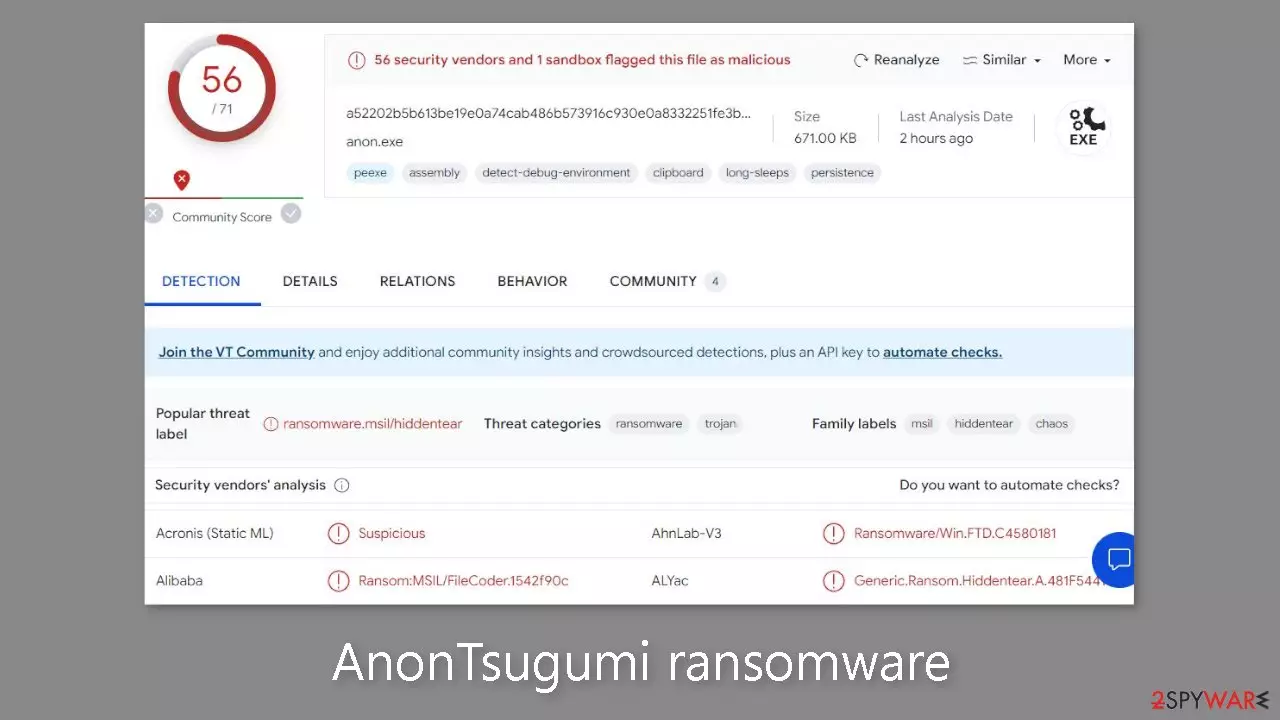
Cybersecurity professionals have recognized AnonTsugumi, a recently found ransomware strain. 56 security vendors and one sandbox have identified this malware file as dangerous. Once it has gained access to a victim's device, it immediately starts encrypting data using complex methods.
The files that fall victim to this ransomware are altered with the addition of the “.anontsugumi” extension. For example, a file previously named “picture.jpg” will be transformed into “picture.jpg.anontsugumi” after encryption. Additionally, the file icons are changed to blank pages, rendering their content invisible even in preview mode. If an attempt is made to open these compromised files, a prompt appears, indicating that Windows is incapable of opening them.
An “README.txt” ransom note is then written on the user's computer to inform them of the situation and to provide them advice on what to do if they want to restore their files. It is noteworthy that the creators of this particular ransomware do not state the precise ransom amount needed in return for a decryption key or program.
| NAME | AnonTsugumi |
| TYPE | Ransomware, cryptovirus, data-locking malware |
| DISTRIBUTION | Email attachments, peer-to-peer file-sharing platforms, malicious ads |
| FILE EXTENSION | .anontsugumi |
| RANSOM NOTE | README.txt |
| FILE RECOVERY | If no backups are available, recovering data is almost impossible. We list alternative methods that could help you in some cases below |
| MALWARE REMOVAL | Scan your machine with anti-malware software to eliminate the malicious files (this will not recover your data) |
| SYSTEM FIX | Malware can seriously tamper with Windows systems, causing errors, crashes, lag, and other stability issues. To remediate the OS and avoid its reinstallation, we recommend scanning it with the FortectIntego repair tool |
The ransom note
AnonTsugumi ransomware drops a README.txt file, which is a ransom note:
All of your files have been encrypted
Your computer was infected with a ransomware virus. Your files have been encrypted and you won't
be able to decrypt them without our help.What can I do to get your files back?
You can buy our special decryption software, this software will allow you to recover all of your data and remove the cooties from your computer.The price for the software is any donation!!
Payment can be made in Bitcoin only.
Purchasing Bitcoin varies from country to country, you are best advised to do a quick google search
yourself to find out how to buy it.Contact me because im bored.
Telegram: @anontsugumiPayment information Amount: ANY BTC
Bitcoin Address: 17CqMQFeuB3NTzJ2X28tfRmWaPyPQgvoHV
This promise of a solution may initially seem enticing to victims, especially when faced with the fear of losing their valuable data. However, it's crucial for victims to understand why paying the ransom is not advisable:
1. No guarantee of data recovery: Cybercriminals cannot be trusted to provide the decryption key or software even after the ransom is paid. There's no assurance that your files will be restored as promised.
2. Supporting criminal activity: Paying the ransom directly supports illegal and harmful activities. It incentivizes cybercriminals to continue their operations, putting more individuals and organizations at risk.
3. Lack of recourse: Once payment is made in Bitcoin or other cryptocurrencies, it is exceedingly challenging to trace or recover the funds. Law enforcement agencies may not be able to assist in retrieving the money.
4. Repeated attacks: Paying the ransom does not guarantee protection from future attacks. In fact, it may label you as a profitable target, leading to more extortion attempts.
In light of these risks and the unethical nature of ransomware attacks, victims are strongly encouraged not to pay the ransom. Instead, they should report the attack to law enforcement, isolate the infected system, attempt to remove the ransomware and restore their files from secure backups if available. The focus should be on enhancing cybersecurity measures to prevent future attacks, rather than negotiating with cybercriminals.

Start the removal process
The crucial step to take is to disconnect the affected machine from the local network, as we've previously discussed the associated risks. For home users, simply unplugging the ethernet cable should suffice. However, in a workplace setting, this might be more complex, so we've provided instructions for corporate environments at the end of this post.
Attempting to recover your data first can lead to permanent loss and even trigger a second encryption process. The ransomware will persist until the malicious files responsible for it are removed. It's essential not to try removing the malicious program yourself unless you possess the necessary experience. Manual ransomware removal is highly intricate and best suited for individuals with advanced IT skills.
Use anti-malware tools like SpyHunterCombo Cleaner or MalwarebytesMalwarebytes to scan your system. This security software should find all the related files and entries and remove them automatically for you. In some cases, malware does not let you use antivirus in normal mode, so you need to access Safe Mode and perform a full system scan from there:
Windows 7 / Vista / XP
- Click Start > Shutdown > Restart > OK.
- When your computer becomes active, start pressing F8 button (if that does not work, try F2, F12, Del, etc. – it all depends on your motherboard model) multiple times until you see the Advanced Boot Options window.
- Select Safe Mode with Networking from the list.


Windows 10 / Windows 8
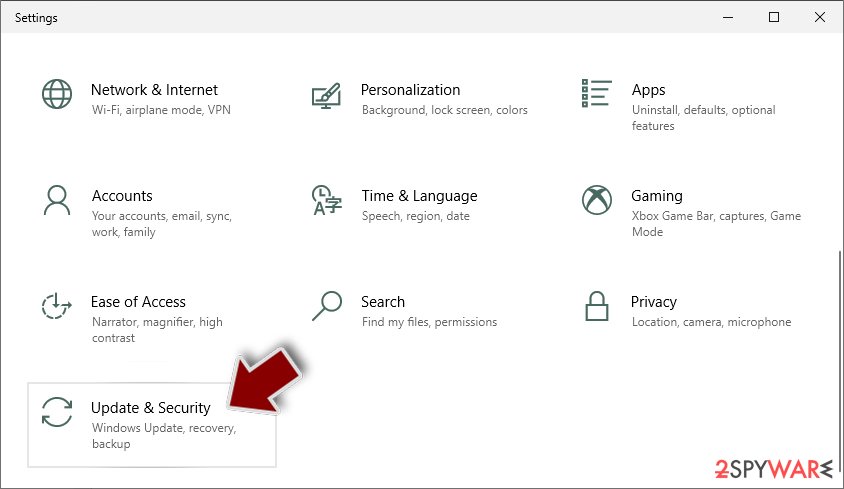
- Right-click on Start button and select Settings.
- Scroll down to pick Update & Security.
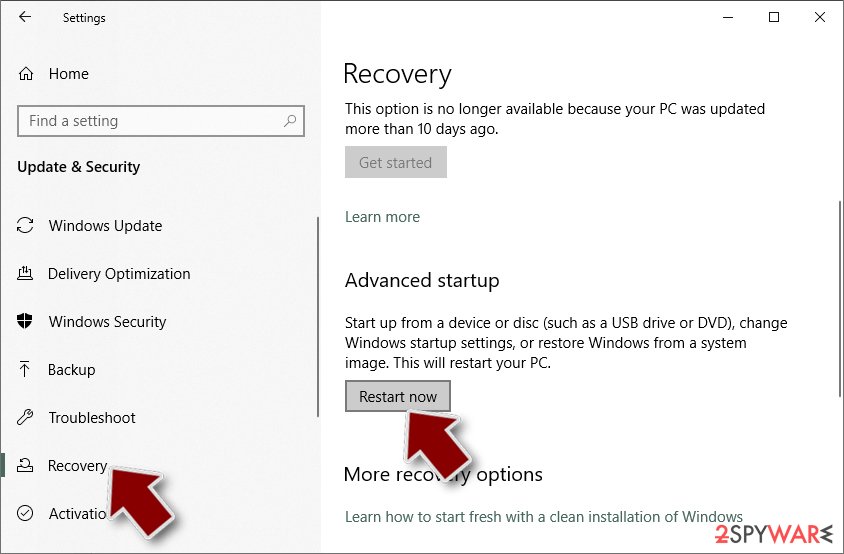
- On the left side of the window, pick Recovery.
- Now scroll down to find Advanced Startup section.
- Click Restart now.
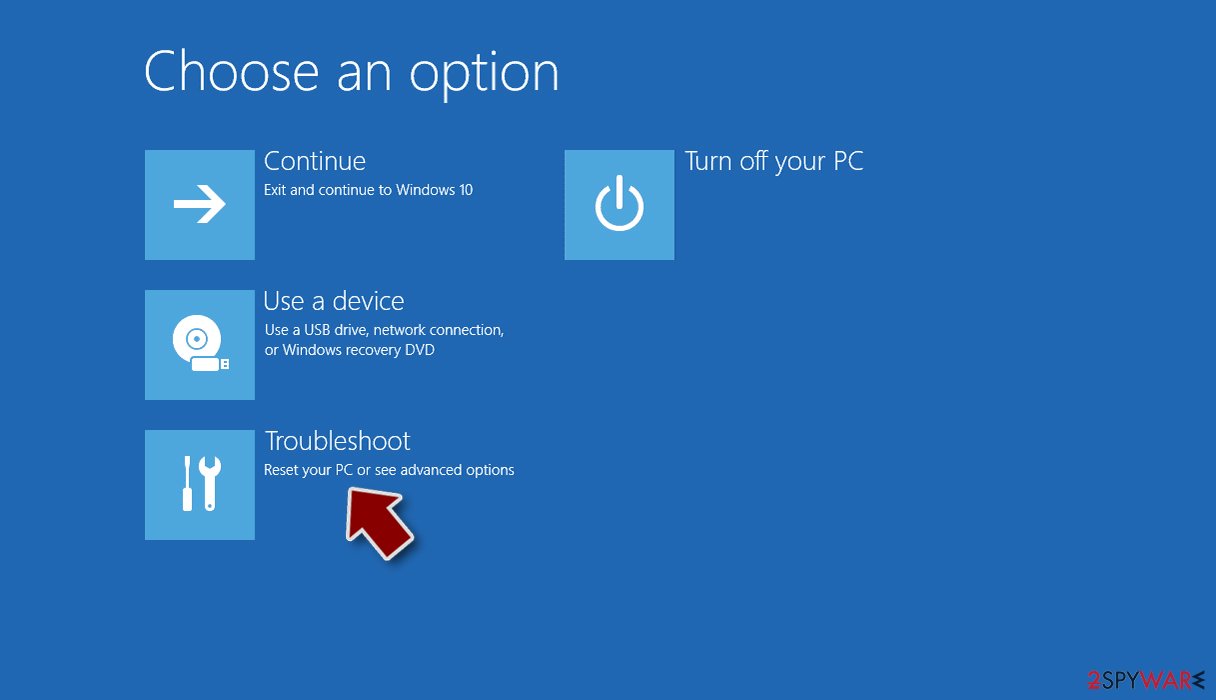
- Select Troubleshoot.
- Go to Advanced options.
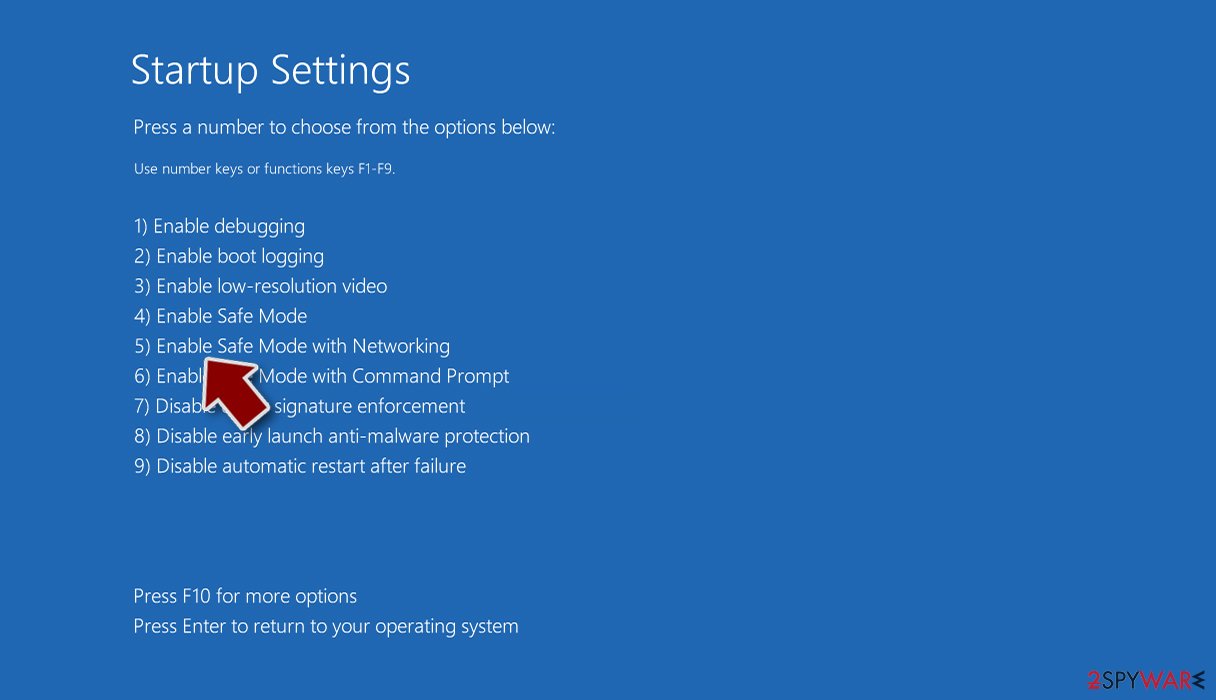
- Select Startup Settings.
- Click Restart.
- Press 5 or click 5) Enable Safe Mode with Networking.


Repair corrupted system files
Encountering performance, stability, and usability issues severe enough to necessitate a full Windows reinstallation is not uncommon following a malware infection. These types of viruses have the capability to modify the Windows registry database, impair critical bootup and system sections, delete or corrupt DLL files, and more. Once a system file is compromised by malware, antivirus software is unable to rectify the damage.
Addressing such damage through manual troubleshooting is also a highly intricate and time-consuming process. This is where FortectIntego comes into play. It has the capacity to rectify a substantial portion of the harm caused by infections of this nature. Problems like Blue Screen errors, system freezes, registry issues, damaged DLLs, and the like can render your computer completely inoperable. By utilizing this maintenance tool, you may be able to circumvent the need for a full Windows reinstallation.
Try recovering data with third-party software
Only hackers hold the decryption key, which can unlock your files, so if you did not back them up previously, there is a good chance that you will never get them back. You can try using data recovery software, but keep in mind that third-party programs cannot always decrypt the files. Whatever the situation may be, we suggest at least trying this method. Before you proceed, copy the corrupted files and place them in a USB flash drive or another external storage device. And remember – only do this if you have already removed the AnonTsugumi ransomware.
Before you begin, several pointers are important while dealing with this situation:
- Since the encrypted data on your computer might permanently be damaged by security or data recovery software, you should first make backups of it – use a USB flash drive or another storage.
- Only attempt to recover your files using this method after you perform a scan with anti-malware software.
Install data recovery software
- Download Data Recovery Pro.
- Double-click the installer to launch it.
- Follow on-screen instructions to install the software.
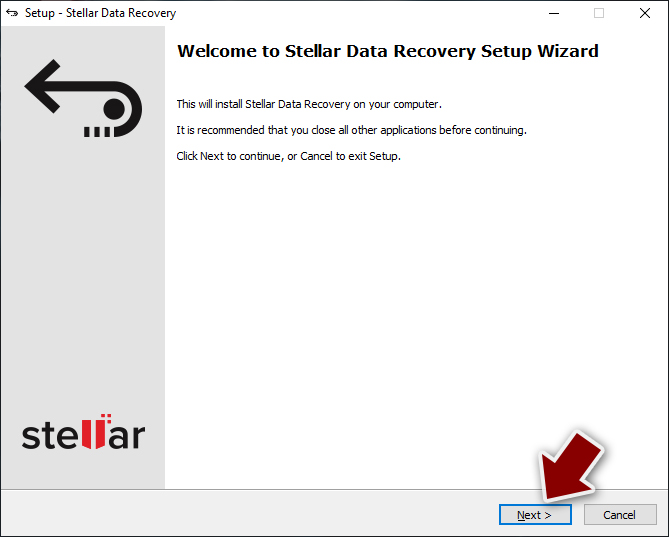
- As soon as you press Finish, you can use the app.
- Select Everything or pick individual folders where you want the files to be recovered from.
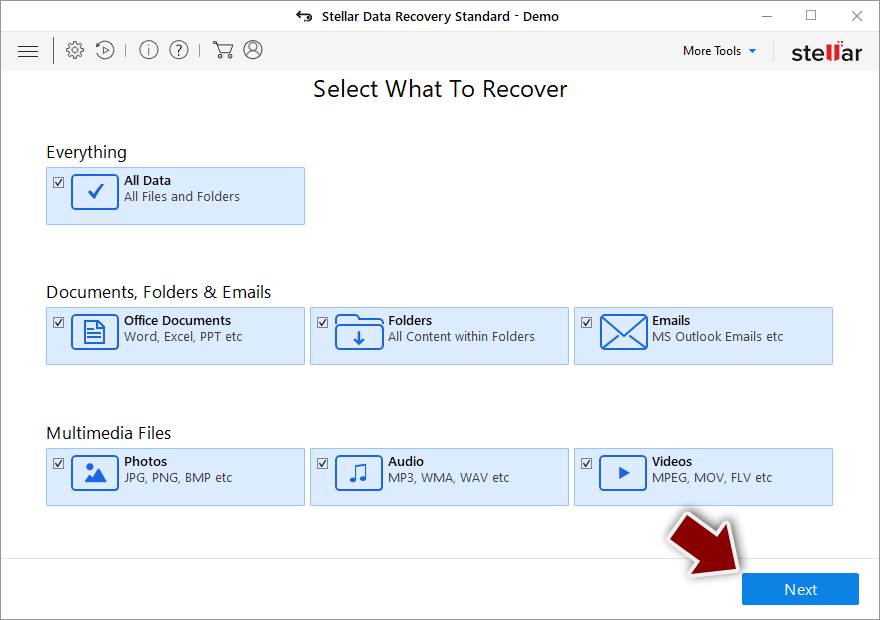
- Press Next.
- At the bottom, enable Deep scan and pick which Disks you want to be scanned.

- Press Scan and wait till it is complete.
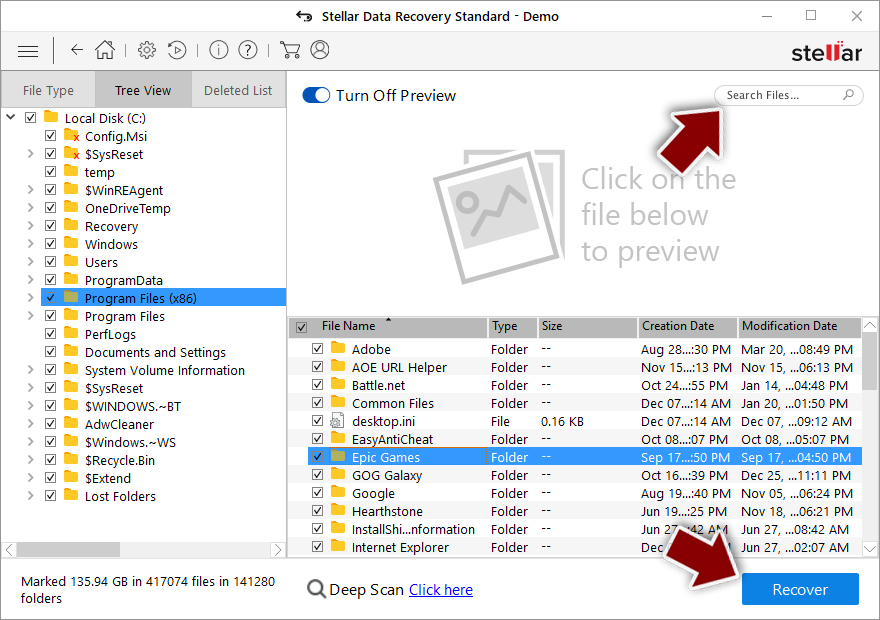
- You can now pick which folders/files to recover – don't forget you also have the option to search by the file name!
- Press Recover to retrieve your files.


Did this guide help?
Be the first to comment