
Iglamer: what it is and how to remove it
Iglamer is an Internet worm, and it works like a Trojan - it enters user's computer while pretending to be someone else. It can pass Firewall and some anti-virus programs, also, it may spread via e-mail attachments or through some networks or together with vulnerable programs.
Facts checked October 7, 2026. Removal steps tested on Windows 11 (26H2) and checked against Microsoft's and the browser makers' current documentation. Sections marked as our earlier report are the original text: they describe the threat as it was then and have not been reviewed since. The 2026 status, the removal steps and the questions are current.
Automatic
Get a free scan and check if your PC is infected.
Fortect finds malware, unwanted programs and the Windows damage they leave behind, and repairs it in one pass.
An automatic scan checks installed programs, startup items and browser extensions for anything that came with Iglamer.
Do it yourself · free Remove Iglamer yourself 4 steps, about 12 minutes, no software needed.
Start the steps
Iglamer: summary
| Detection names | No Microsoft detection name is known |
|---|---|
| Distribution | Not recorded in the old report |
| Damage | Not recorded in the old report |
| Name | Iglamer |
| Type | Worm |
| Symptoms | An unknown program in Installed apps |
| Removal | Scan the PC with security software to find and remove the malware and anything installed with it. Fortect scans Windows for malware and repairs the system files and settings it damaged. Remove it nowTo use the full-featured product, you have to purchase a license for Fortect. The scan is free. |
Show 3 more facts
| Evidence | One write-up by a security site; details still limited |
|---|---|
| First seen | 26 April 2021 |
| Facts checked | 7 October 2026 |
What Iglamer does
From our report of Apr 2021 · not reviewed since
What is Iglamer worm and what activities does it do on an infected computer?
Iglamer is an Internet worm, and it works like a Trojan - it enters user's computer while pretending to be someone else.
It can pass Firewall and some anti-virus programs, also, it may spread via e-mail attachments or through some networks or together with vulnerable programs. Once executed, the worm starts its spreading routine and may have a payload. It may infect personal documents, corrupt system files or delete several programs.
The worm may be used by attackers to control your system remotely. You may receive intrusive ads, pop-up warnings, and other interferences during your browsing sessions. This infection can cause slowdowns, lags or even crashes of your computer processes.
Besides, Iglamer may install its extensions to your web browsers (Google Chrome, Internet Explorer, Mozilla Firefox, etc) and start collecting personal information, for example, credit card numbers, passwords and other important details about you. It can also install various malware and also hijack user's browser to monitor victim's online activity. All such activities can be done without user's permission.

How to remove Iglamer
Clean the USB drives as well as the PC, or the worm comes back the next time a stick is plugged in.
Step 1: Clean the USB drives
USB worms hide your folders and put shortcuts with the same names in their place. Do not open any of those shortcuts; delete every
.lnkfile in the root of the drive.Open Command Prompt, type the drive letter (for example
E:), press Enter and runattrib -h -r -s /s /d *.*to make the hidden folders visible again.Scan each drive with Microsoft Defender before you use it on another PC, which works the same in Windows 11 and Windows 10.
Full procedure with screenshots: Run a Microsoft Defender Offline scan
Step 2: Remove it from startup
Press Ctrl + Shift + Esc to open Task Manager and select Startup apps (Windows 11) or the Startup tab (Windows 10). Disable entries you do not recognise, especially ones with no publisher or with a name that copies a Windows component.
Right-click an entry and choose Open file location to see where it runs from: programs in
%AppData%or%Temp%deserve a closer look. Some entries are not listed there but in the registry Run keys, which the procedure below shows how to check.Full procedure with screenshots: Stop apps from opening at startup On uGetFix
Step 3: Delete scheduled tasks that bring it back
Programs like Iglamer add a scheduled task so they return after an uninstall or reopen a page at every sign-in. Start Task Scheduler, open Task Scheduler Library and sort by Last Run Time to see what ran recently.
On the Actions tab, a program in a user folder, a script or a web address is a warning sign; right-click such a task and choose Delete.
Tasks with names copying Google, Edge or Windows updaters but pointing to an odd folder are typical. The tool looks the same in Windows 11 and Windows 10.
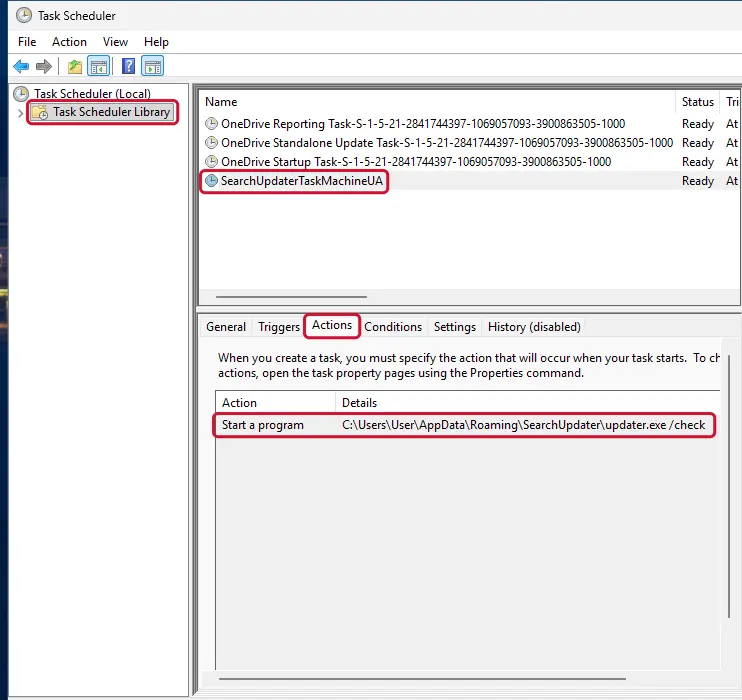
Windows 11: Task Scheduler Library, the task selected, the Actions tab shows the file it runs. Full procedure with screenshots: Remove what malware leaves behind in Windows
Step 4: Scan the PC, then run the offline scan
A scan finds the parts of Iglamer that the manual steps cannot see. In Windows Security > Virus & threat protection > Scan options, start a Full scan and quarantine what it reports.
Follow it with Microsoft Defender Antivirus (offline scan) > Scan now, which restarts the PC and checks the disk while Windows and the malware are not running.
It takes about 15 minutes and works the same in Windows 11 and Windows 10. If either scan finds something, run the full scan again after removal until it comes back clean.

Windows 11: Windows Security > Virus & threat protection > Scan options. Full procedure with screenshots: Run a Microsoft Defender Offline scan
From our report of Apr 2021 · not reviewed since
How to remove Iglamer
There is no doubt that Iglamer is a dangerous program, and it causes risk for your computer files and data.
It is almost impossible to remove Iglamer on your own because this worm can hide itself in your computer system and pretend to be a harmless program.
After removal and prevention
Make the next attack harmless
Iglamer could only hurt the files that had no second copy, and the signs (iglamer in the list of installed apps) showed exactly which ones those were.
The 3-2-1 rule fixes that:
- three copies
- two media
- one disconnected
A practical version for a home PC: OneDrive or another cloud backup with version history, plus an external disk that you plug in once a week for File History and then unplug. Test a restore now and then by opening a few files from the backup on another device.
Details, schedules and what not to back up are in our 3-2-1 backup guide for Windows.
Choose a proper web browser and improve your safety with a VPN tool
Online spying has got momentum in recent years and people are getting more and more interested in how to protect their privacy online.
One of the basic means to add a layer of security - choose the most private and secure web browser. Although web browsers can't grant full privacy protection and security, some of them are much better at sandboxing, HTTPS upgrading, active content blocking, tracking blocking, phishing protection, and similar privacy-oriented features.
However, if you want true anonymity, we suggest you employ a powerful VPN - it can encrypt all the traffic that comes and goes out of your computer, preventing tracking completely.
Lost your files? Use data recovery software
While some files located on any computer are replaceable or useless, others can be extremely valuable.
Family photos, work documents, school projects - these are types of files that we don't want to lose. Unfortunately, there are many ways how unexpected data loss can occur:
- power cuts
- Blue Screen of Death errors
- hardware failures
- crypto-malware attack
- even accidental deletion
To ensure that all the files remain intact, you should prepare regular data backups. You can choose cloud-based or physical copies you could restore from later in case of a disaster. If your backups were lost as well or you never bothered to prepare any, can be your only hope to retrieve your invaluable files.
Questions about Iglamer
What is Iglamer and why is it on my PC?
Iglamer is a program that was installed on the PC, most likely together with something else you downloaded. Free software sites and many installers add extra programs on setup pages with pre-ticked boxes, so the extra install looks like your choice even though nobody read the page.
Check the install date in Settings, Apps, Installed apps: the program you installed that day is the probable carrier. If you do not need Iglamer, uninstall it. If it belongs to your hardware or to a program you use, search its exact name and publisher first, because drivers and their tools can have unfamiliar names.
Iglamer will not uninstall. What can I do?
First restart the PC and try again, because the program may have been running and locked its own files. If the uninstaller is missing or fails, start Windows in Safe Mode, where most third-party programs do not start, and remove Iglamer from Installed apps there.
If it still refuses, delete its startup entry and its scheduled task, restart, and try once more. A program that actively prevents removal is behaving like malware, so finish with a Microsoft Defender offline scan. Avoid third-party uninstallers offered on search ads; several of them are unwanted programs themselves.
Windows Security keeps finding Iglamer again. Why?
Something is reinstalling it. Common causes are a scheduled task that downloads it again, a second program from the same source, an infected USB drive that is plugged in regularly, or another infected PC on the same network. Remove the detection, then check Task Scheduler, Installed apps sorted by date and every connected drive.
Run the offline scan with all USB drives unplugged. If the detection still comes back, resetting Windows is often faster than continuing the search. Copy only documents and photos before a reset.
Should I worry about Iglamer?
It deserves attention, not panic. The reported sign, iglamer in the list of installed apps, shows that code from someone else is running on the PC, and such code rarely arrives alone. It is not known yet whether Iglamer itself steals data, but the same sources that spread it often add a password stealer.
Remove it with the steps in this guide, run an offline scan, and change your important passwords from another device once the PC is clean. If the sign returns after removal, a reset of Windows is the more reliable fix. Most people who follow the plan carefully do not need to go that far.
Is it enough to quarantine Iglamer?
Quarantine stops the file from running, which is the main point. It is not the whole clean-up, though. Malware rarely consists of one file: there may be a scheduled task, a startup entry, a second copy or a payload that was installed later.
Run a full scan and the offline scan, check Task Scheduler and Startup apps for unfamiliar entries, and follow the plan in this guide. Never restore an item from quarantine unless you are certain it was a false alarm.
Should I format my USB stick?
Formatting removes everything, including the worm, so it is the surest option for a stick with nothing important on it. If the drive holds files you need, scan it on a cleaned PC first, make hidden items visible in File Explorer, copy your files off, and then format it.
Do not open any shortcut on the drive before the scan. After formatting, scan the copied files once more before you put them back. A quick format is enough for a stick; it removes the hidden copies of the worm.
Do I need to reinstall Windows to get rid of Iglamer?
Usually not. A thorough clean-up is enough when the offline scan finds nothing afterwards and you do not see iglamer in the list of installed apps again. A reset is the safer choice if an attacker had remote control, if security tools were switched off, or if detections come back after every clean-up.
Windows 11 can reset itself without a USB stick under Settings > System > Recovery > Reset this PC. Copy documents and photos out first and scan the copies. A reset does not change passwords or undo stolen data, so the account steps still apply.
What should I do about my accounts?
Treat them as possibly exposed while Iglamer was active. The reports only describe iglamer in the list of installed apps, but there is no analysis yet that rules out data theft, and many infections like this one come bundled with a stealer.
After the clean-up, use a phone or another computer to change your e-mail password first, then banking, shopping and social accounts. End all active sessions in each account's security page and turn on two-step verification with an authenticator app. If you use crypto wallets on the PC, move the funds to a new wallet created on a clean device.
How did Iglamer get on my computer?
The route for Iglamer is not documented yet. Malware that shows iglamer in the list of installed apps usually arrives with something you ran yourself:
- a cracked program or game cheat
- a free tool from a mirror site
- a fake installer found through a search ad
- a file on a USB drive
Some infections are dropped later by a loader that was already on the PC. To find your source, sort Installed apps by install date and look at the Downloads folder for the days before the sign appeared. Remove that item as well; otherwise the same infection may come back after the clean-up.
Will Fortect remove Iglamer?
Fortect scans Windows for malware and unwanted programs and repairs the system files and settings they change, and its free scan shows what it finds on your PC before you decide anything.
For Iglamer, follow the plan above as well: the browser steps take back permissions and settings that no scanner treats as a threat, and uninstalling the program that brought it removes the source.
Run Microsoft Defender's full scan and, if anything was found, its offline scan as a second opinion. If the symptoms are gone after the plan and both scans are clean, there is nothing more to do.
Sources
- FTC: How to recognize, remove and avoid malware (read October 7, 2026)
- Microsoft Learn: Microsoft Defender Offline (read October 7, 2026)
- Microsoft Learn: How Microsoft names malware (read October 7, 2026)