
CamKing: what it is and how to remove it
CamKing is a malicious program, which can initiate various problems for you and your computer. In most cases, this virus seeks to steal personally identifiable information from its victims and then share this data with related third parties.
Facts checked October 6, 2026. Removal steps tested on Windows 11 (26H2) and checked against Microsoft's and the browser makers' current documentation. Sections marked as our earlier report are the original text: they describe the threat as it was then and have not been reviewed since. The 2026 status, the removal steps and the questions are current.
Automatic
Get a free scan and check if your PC is infected.
Fortect finds malware, unwanted programs and the Windows damage they leave behind, and repairs it in one pass.
If you want to confirm nothing else came with Trojan:Win32/Camking., a full scan checks the usual places in one pass.
Do it yourself · free Remove CamKing yourself 5 steps, about 15 minutes, no software needed.
Start the steps
CamKing: summary
| Detection names | No Microsoft detection name is known |
|---|---|
| Distribution | Not recorded in the old report |
| Damage | Not recorded in the old report |
| Name | CamKing |
| Type | Loader |
| Symptoms | A Windows Security "Threats found" notification |
| Removal | Scan the PC with security software to find and remove the malware and anything installed with it. Fortect scans Windows for malware and repairs the system files and settings it damaged. Remove it nowTo use the full-featured product, you have to purchase a license for Fortect. The scan is free. |
Show 4 more facts
| Evidence | One write-up by a security site; details still limited |
|---|---|
| First seen | 8 March 2021 |
| Microsoft Defender name | Trojan:Win32/Camking. |
| Facts checked | 6 October 2026 |
What CamKing does on an infected PC
From our report of Mar 2021 · not reviewed since
CamKing - a Trojan designed to steal data from your PC
CamKing is a malicious program, which can initiate various problems for you and your computer.
In most cases, this virus seeks to steal personally identifiable information from its victims and then share this data with related third parties.
However, it may also be used for infecting computers with more serious threats, causing severe system slowdowns, updating or removing certain programs, and initiating similar tasks. Many security solutions identify this threat as Trojan:Win32/Camking.
Since this threat is categorized as a Trojan, it typically is installed by users themselves. In other words, the very definition of this category is:
As soon as CamKing enters the system, it hides deep inside its background and starts tracking the victim's browsing activity on the Internet. This virus starts its work as soon as the PC is rebooted and immediately begins its nefarious deeds.
It begins to collect valuable information, such as:
Collection of such data can not only cause privacy issues but may result in identity theft, consequently making victims lose money or being declined for a loan, or similar,
The clearest signs showing that something is wrong with your computer and CamKing malware might be hiding in it are the system's slowdowns, redirects to unfamiliar websites, and various ads that may start interrupting your browsing. Also, you may notice unknown entries running in your task manager.
Please, do not ignore these things! If you want to make sure that your computer is free of CamKing virus and other cyber threats, you should scan it with reputable anti-spyware. For that, we highly recommend using .
It is also important to note that this Trojan has nothing to do with a legitimate phone camera application that can be found on various official stores, such as Google Play or App Store.
- logins and passwords
- banking details
- precise location
- files located on the system, etc.

From our report of Mar 2021 · not reviewed since
More from our earlier report on CamKing
- Just like in ancient Greece the war veteran Odysseus compiled a plan on how to enter the city of Troy and take it over, the main payload of this type of malware is disguised as seemingly legitimately-looking application
- Additionally, you can always contact the sender in order to make sure that an email is real.
How CamKing got on your PC
From our report of Mar 2021 · not reviewed since
Like hundreds of other viruses or insecure programs, CamKing can easily infiltrate your computer without being noticed.
Of course, a reputable anti-spyware or anti-virus could help you to prevent its infiltration, so you should think about one for trying to stay safe.
Also, to avoid such viruses, you should make sure that you follow safe browsing practices whenever you start your browsing on the Internet. That means that you should avoid insecure websites, ignore every commercial ad that offers you free updates or unbelievable prizes, and also do not fall for misleading emails that are typically filled with malicious attachments.
If you have just received an email asking you to download its attachment because it is very important, you should first check it and look for grammar or typo mistakes.
How to check the PC for CamKing
Microsoft Defender reports CamKing as Trojan:Win32/Camking..
In a Defender name, the part before the colon is the category, the part after it is the platform, and the part after the slash is the family Microsoft assigned. A suffix after ! is an internal Microsoft marker, not a different threat.
Generic labels such as Agent, GenericKD or Malware.AI only say that a file looks malicious, not what it does; our guide to antivirus detection names shows how to read them.
How to remove CamKing
A loader's job is to install other malware, so treat the PC as infected with more than one program until the scans are clean.
Step 1: Delete scheduled tasks that bring it back
Open Task Scheduler from the Start menu and click Task Scheduler Library. Select each task you do not recognise and read the Actions tab:
- a task that starts a file in
%AppData%or%Temp% - runs
powershellwith a long encoded line - opens a web address belongs to CamKing or a similar program
Right-click such a task and choose Delete, and check the subfolders too. Leave tasks from Microsoft, your PC's maker and programs you use. Task Scheduler is the same in Windows 11 and Windows 10.
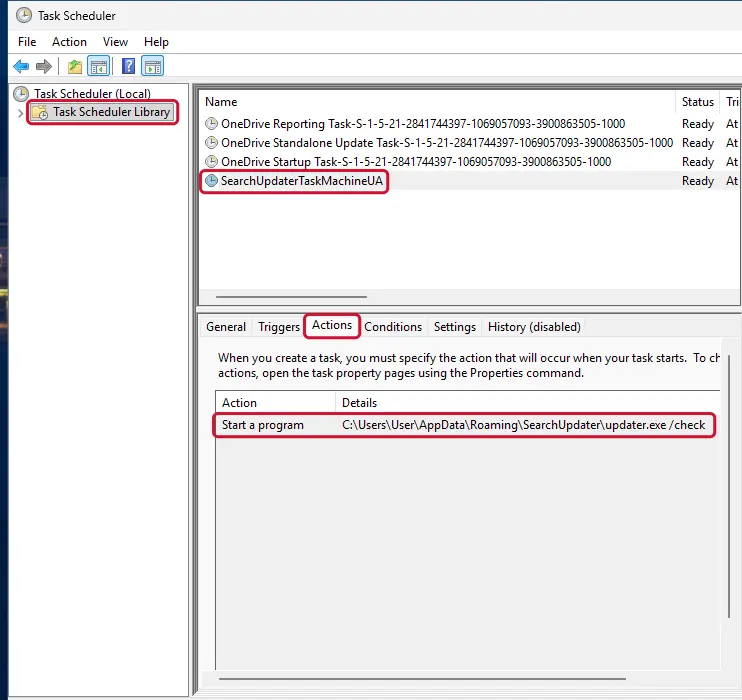
Windows 11: Task Scheduler Library, the task selected, the Actions tab shows the file it runs. Full procedure with screenshots: Remove what malware leaves behind in Windows
- a task that starts a file in
Step 2: Remove it from startup
Whatever CamKing installed usually starts with Windows. Open Task Manager with Ctrl + Shift + Esc, go to Startup apps in Windows 11 or the Startup tab in Windows 10, and disable what you do not know, starting with entries that have an empty Publisher column.
Open file location on the right-click menu shows the file, which helps you decide and tells you what to delete later. Disabling is safe: if something you need stops working, switch it back on.
Full procedure with screenshots: Stop apps from opening at startup On uGetFix
Step 3: Delete the folders left behind
What the uninstaller leaves behind is usually in the user folders. Open File Explorer, switch on View > Show > Hidden items (in Windows 10 View > Hidden items), and go through
%LocalAppData%,%AppData%, %ProgramData% and the two Program Files folders.Sort by Date modified and delete folders that appeared together with the problem and belong to no program you use. Folders with random names that hold
.exe,.dll, .js or .ps1 files are the strongest sign.Full procedure with screenshots: Remove what malware leaves behind in Windows
Step 4: Scan the PC, then run the offline scan
Open Windows Security > Virus & threat protection > Scan options, run a Full scan and remove everything it finds. Then select Microsoft Defender Antivirus (offline scan) and click Scan now: the PC restarts and scans before Windows loads, which finds files that hide while Windows runs.
Save your work first, because the offline scan takes about 15 minutes. Both scans are built into Windows 11 and Windows 10, and a second scanner from another vendor is a useful extra opinion.

Windows 11: Windows Security > Virus & threat protection > Scan options. Full procedure with screenshots: Run a Microsoft Defender Offline scan
Step 5: Change passwords from another device and sign out other sessions
Assume that the passwords saved in this PC's browsers, and the accounts that were open in them, are known to the attacker. From a phone or a clean computer, change the e-mail password first, then banking, shopping, social and gaming accounts.
Use each service's option to sign out of all other sessions, because stolen cookies keep a session open even after a password change. Turn on two-step verification on each account. Wait with the infected Windows 11 or Windows 10 PC until the scans are clean.
Full procedure with screenshots: Turn on two-step verification / secure a hacked account
Instructions for each browser and system
The detailed steps for every browser and system this guide covers. Open the one you use.
Manual removal using Safe Mode
Important! →
Manual removal guide might be too complicated for regular computer users. It requires advanced IT knowledge to be performed correctly (if vital system files are removed or damaged, it might result in full Windows compromise), and it also might take hours to complete. Therefore, we highly advise using the automatic method provided above instead.
Step 1. Access Safe Mode with Networking
Manual malware removal should be best performed in the Safe Mode environment.
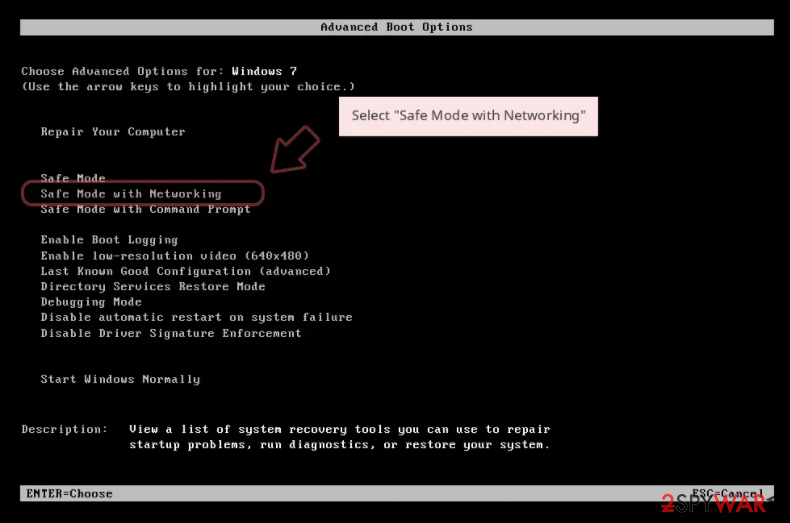
Windows 7 / Vista / XP
- Click Start > Shutdown > Restart > OK.
- When your computer becomes active, start pressing F8 button (if that does not work, try F2, F12, Del, etc. - it all depends on your motherboard model) multiple times until you see the Advanced Boot Options window.
- Select Safe Mode with Networking from the list.
Windows 10 / Windows 8
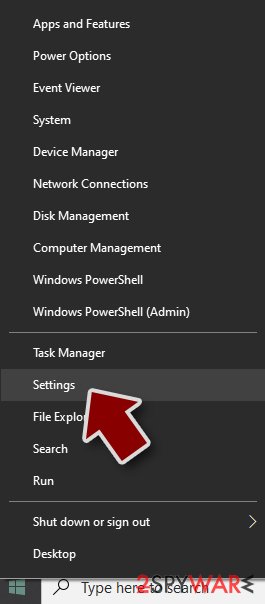
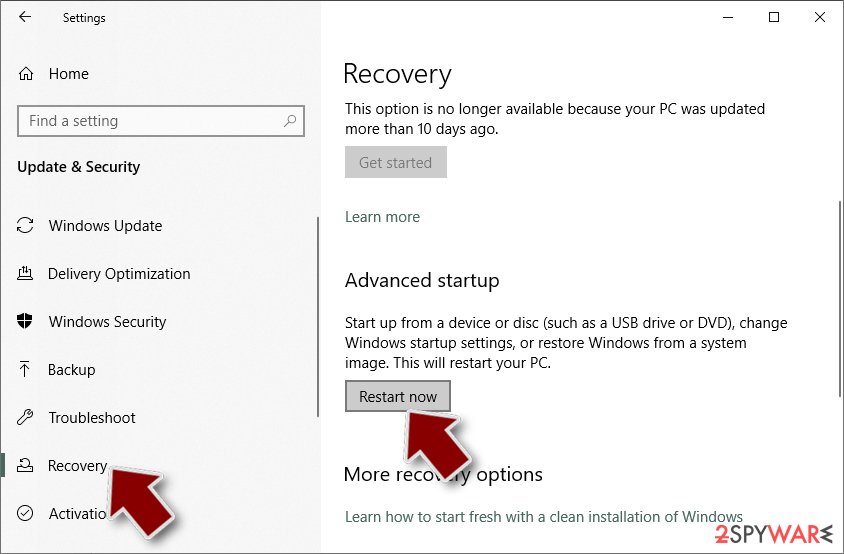
- Right-click on Start button and select Settings.
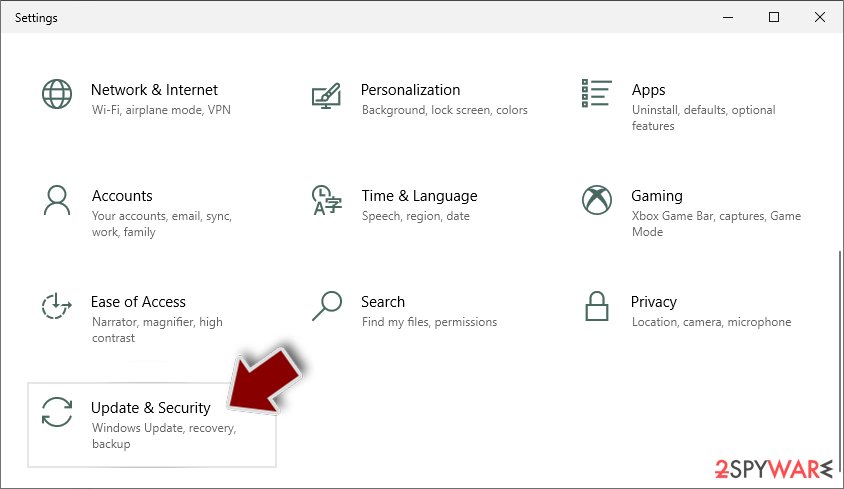
- Scroll down to pick Update & Security.
- On the left side of the window, pick Recovery.
- Now scroll down to find Advanced Startup section.
- Click Restart now.
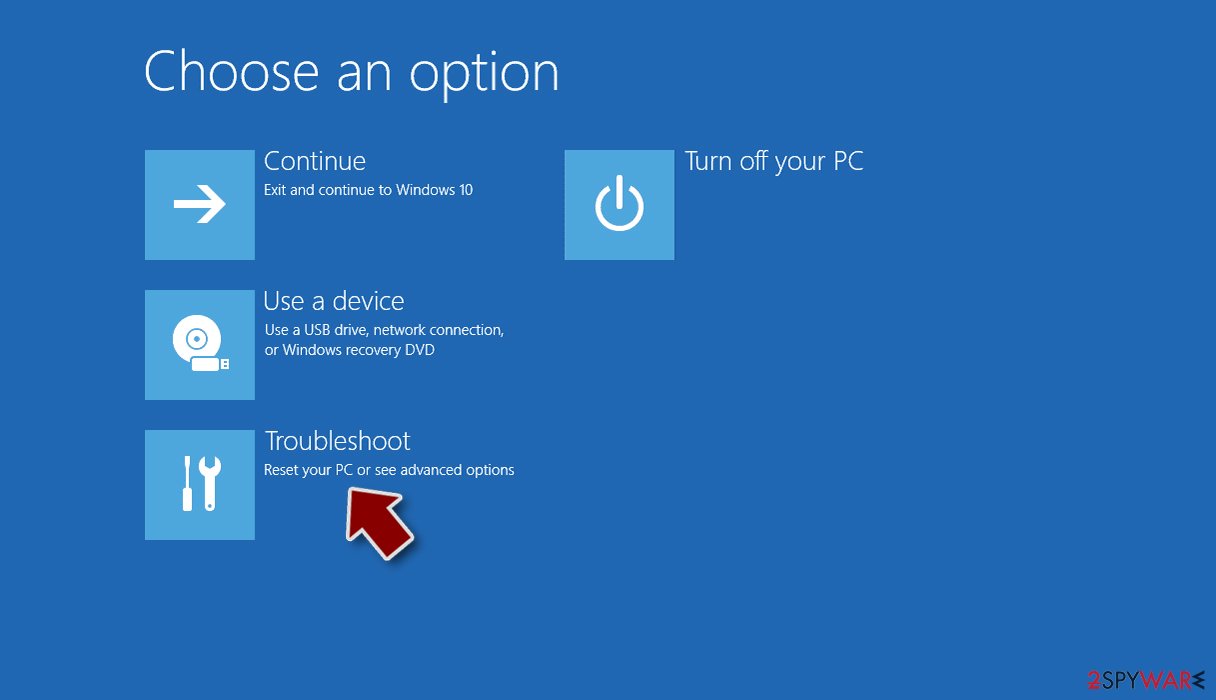
- Select Troubleshoot.
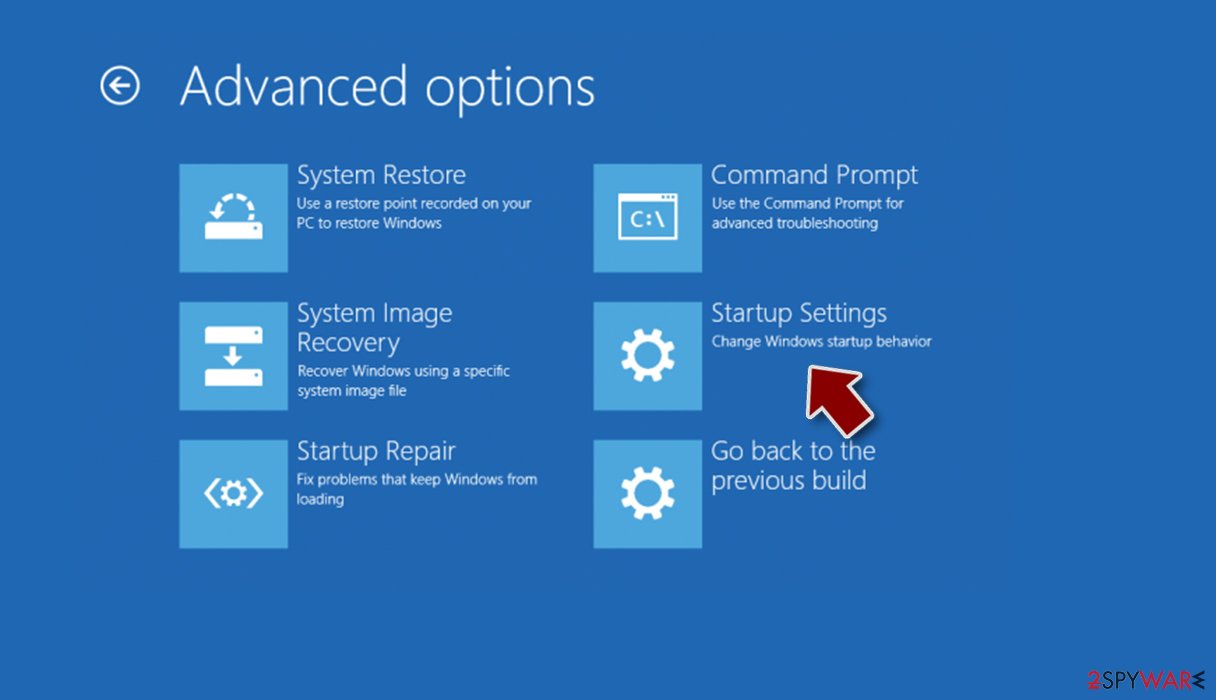
- Go to Advanced options.

- Select Startup Settings.
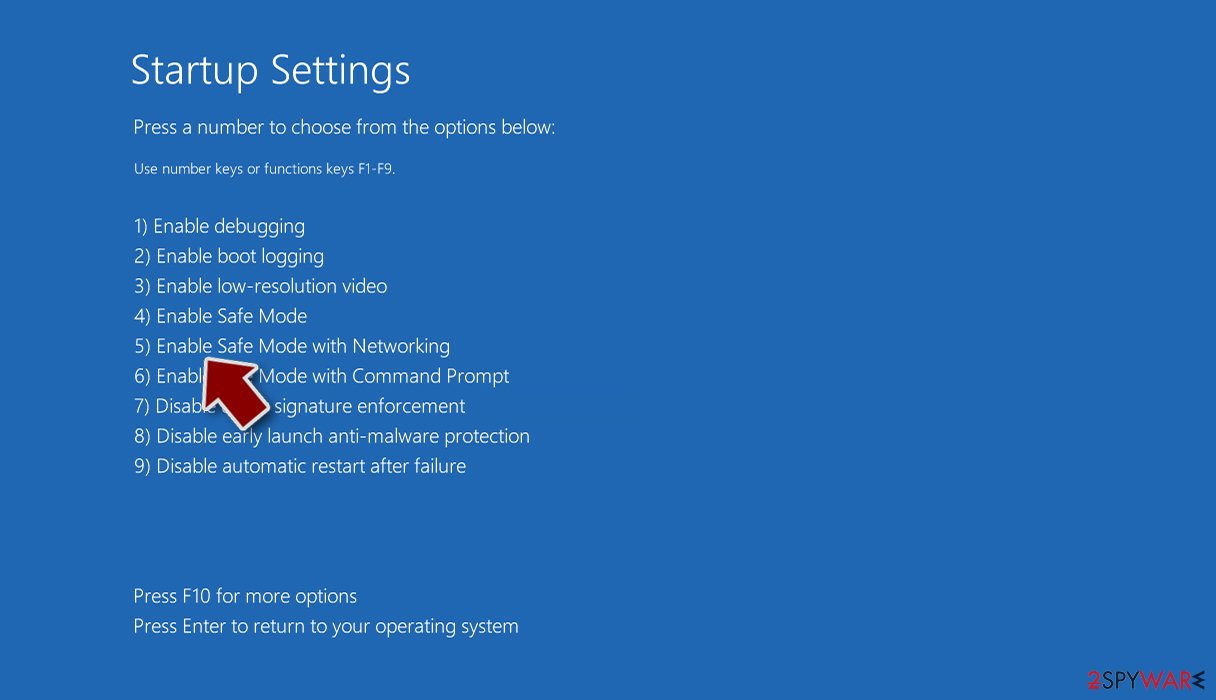
- Press Restart.
- Now press 5 or click 5) Enable Safe Mode with Networking.
Step 2. Shut down suspicious processes
Windows Task Manager is a useful tool that shows all the processes running in the background. If malware is running a process, you need to shut it down:
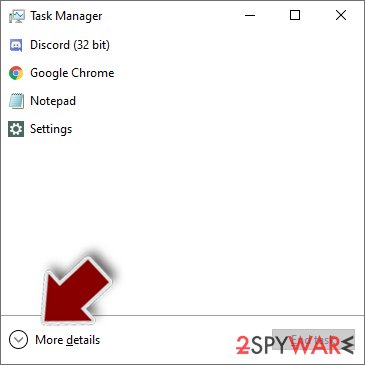
- Press Ctrl + Shift + Esc on your keyboard to open Windows Task Manager.
- Click on More details.
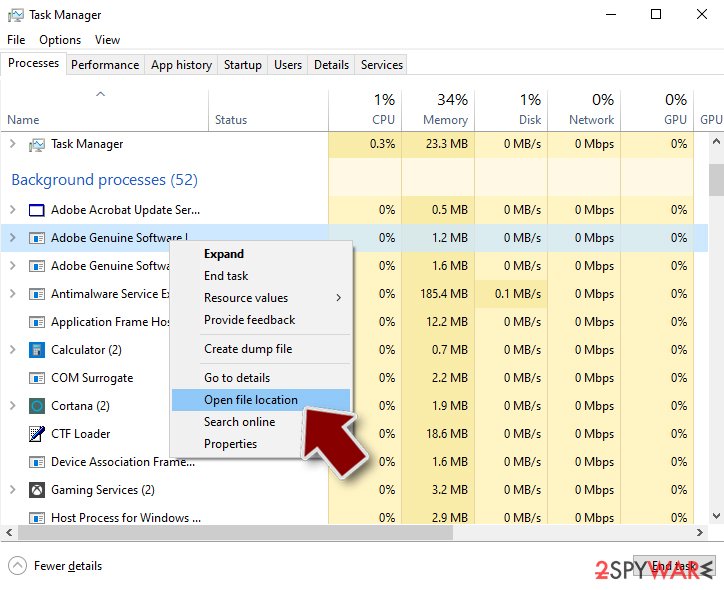
- Scroll down to Background processes section, and look for anything suspicious.
- Right-click and select Open file location.
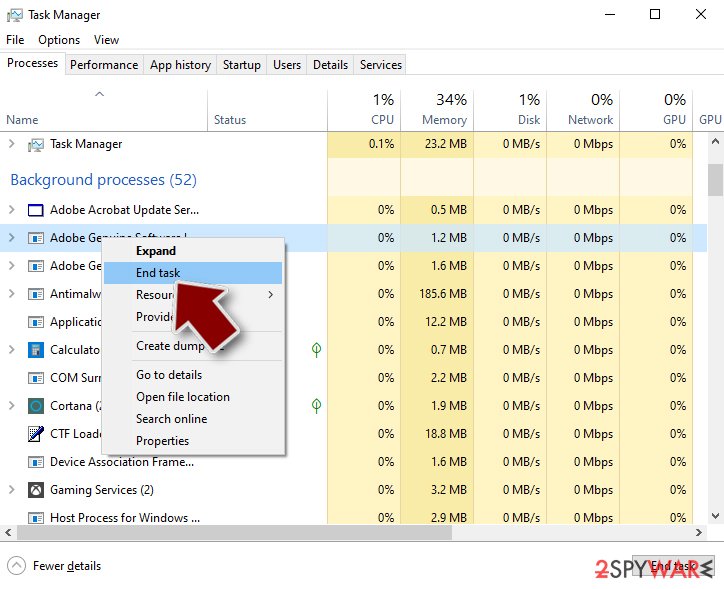
- Go back to the process, right-click and pick End Task.
- Delete the contents of the malicious folder.
Step 3. Check program Startup
- Press Ctrl + Shift + Esc on your keyboard to open Windows Task Manager.
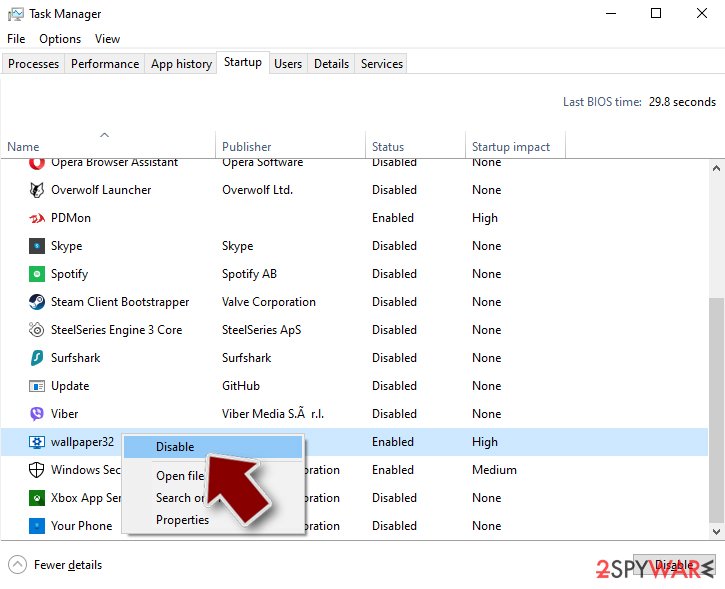
- Go to Startup tab.
- Right-click on the suspicious program and pick Disable.
Step 4. Delete virus files
Malware-related files can be found in various places within your computer. Here are instructions that could help you find them:
- Type in Disk Cleanup in Windows search and press Enter.
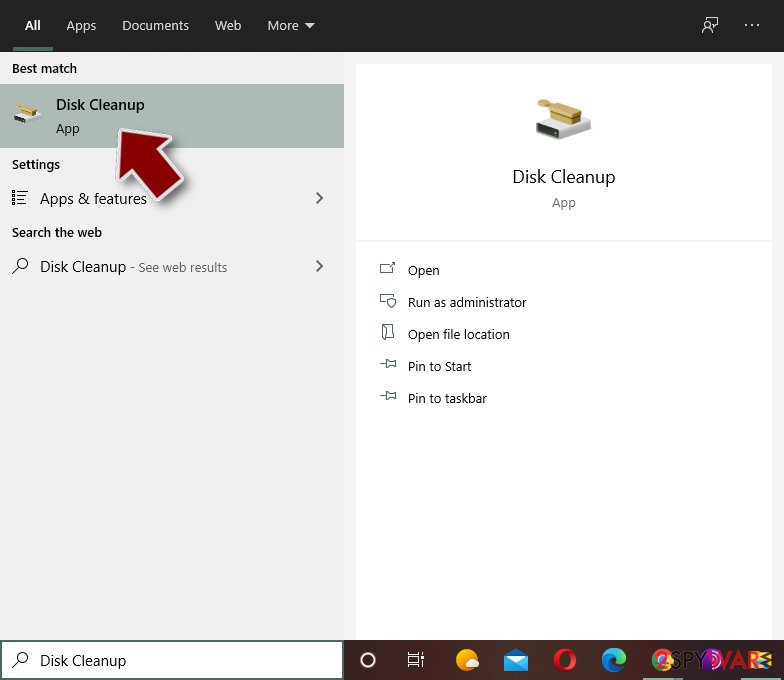
- Select the drive you want to clean (C: is your main drive by default and is likely to be the one that has malicious files in).
- Scroll through the Files to delete list and select the following:
Temporary Internet Files
Downloads
Recycle Bin
Temporary files - Pick Clean up system files.
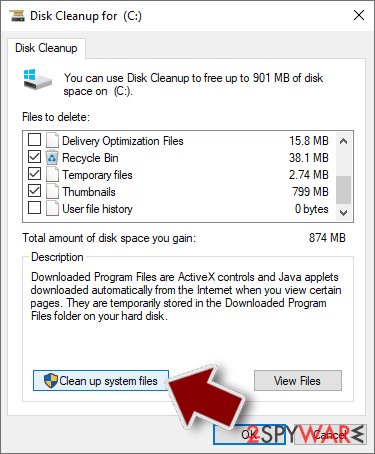
- You can also look for other malicious files hidden in the following folders (type these entries in Windows Search and press Enter):
%AppData%
%LocalAppData%
%ProgramData%
%WinDir%
After you are finished, reboot the PC in normal mode.
From our report of Mar 2021 · not reviewed since
Remove CamKing virus to protect your personal data
If you think that your computer is infected with a trojan, you should waste no time scanning it with one of these programs: , .
Make sure you use updated versions to avoid problems that are related to the CamKing removal. Of course, you should also consider installing one of these apps to prevent infiltration of this incredibly suspicious program that can lead you to identity theft and other issues.
Note that Trojans might sometimes interfere with security applications in various ways. For example, if the malicious program is equipped with obfuscation functions, it might not be detected. However, this functionality can easily be bypassed by accessing Safe Mode and performing the scan from there.
After removal: passwords, accounts and prevention
Accounts come next
Because the PC showed the Windows Security detection Trojan:Win32/Camking., a sign of a program that could read browser data, the clean-up is only half of the work.
The other half happens in your online accounts.
Change passwords from a clean device, beginning with e-mail; sign out of all sessions; check forwarding rules and recovery phone numbers; and turn on two-step verification with an authenticator app or a passkey. Ask your bank to replace cards saved in the browser.
Why the order matters and what to check in each account: secure your accounts after malware.
Protect your privacy - employ a VPN
There are several ways how to make your online time more private - you can access an incognito tab.
However, there is no secret that even in this mode, you are tracked for advertising purposes. There is a way to add an extra layer of protection and create a completely anonymous web browsing practice with the help of VPN. This software reroutes traffic through different servers, thus leaving your IP address and geolocation in disguise.
Besides, it is based on a strict no-log policy, meaning that no data will be recorded, leaked, and available for both first and third parties. The combination of a secure web browser and VPN will let you browse the Internet without a feeling of being spied or targeted by criminals.
No backups? No problem. Use a data recovery tool
If you wonder how data loss can occur, you should not look any further for answers - human errors, malware attacks, hardware failures, power cuts, natural disasters, or even simple negligence.
In some cases, lost files are extremely important, and many straight out panic when such an unfortunate course of events happen. Due to this, you should always ensure that you prepare proper data backups on a regular basis.
If you were caught by surprise and did not have any backups to restore your files from, not everything is lost. is one of the leading file recovery solutions you can find on the market - it is likely to restore even lost emails or data located on an external device.
Questions about CamKing
Is Trojan:Win32/Camking. a false positive?
Sometimes. Names ending in !ml or describing behaviour are generated by machine learning and occasionally flag cracked tools, game mods or small unsigned utilities. A false positive is likely only when the file is a program you installed from its official developer, it is signed by that developer and other scanners do not flag it.
Files from cracks, cheats, fake updates or unknown downloads are rarely false positives, whatever the detection name. If you are sure the file is genuine, you can report it to Microsoft as a false positive; never add an exclusion for Trojan:Win32/Camking. just to make the alert stop.
Can I ignore Trojan:Win32/Camking. if the PC works fine?
No. Many threats are built to leave the PC working normally while they steal passwords, use the processor or wait for instructions. A detection is Defender telling you it saw something malicious, and the absence of symptoms says nothing about its activity.
Check the action in Protection history: if it is anything other than Quarantined or Removed, remove it now. Then run a full scan. If the detection was a single file caught on download and does not return, you can move on; if Trojan:Win32/Camking. reappears, follow the removal steps in this guide.
Will Windows Security detect CamKing?
Yes, current Microsoft Defender definitions name it Trojan:Win32/Camking.. Make sure the definitions are up to date first: open Windows Security > Virus & threat protection > Protection updates and click Check for updates. Then run a full scan and the Microsoft Defender offline scan.
If the detection comes back after you remove it, look for the program, task or extension that brings it back, using the plan above. Detection removes files and startup entries, but it does not reverse changes CamKing already made, so follow the other steps in this guide as well.
What are the signs of a trojan infection?
Most trojans try to leave no visible signs, so look for side effects. Common ones:
- Windows Security turned off or unable to update
- new entries in Startup apps or Task Scheduler
- programs in Installed apps you did not install
- browser settings that changed by themselves
- unusual network activity while the PC is idle
- password-reset or login-alert e-mails you did not trigger
None of these proves an infection on its own. Together with an antivirus alert naming CamKing, they are a strong reason to follow the full plan.
Is CamKing a known trojan?
Not as a documented family, at least not yet. What is known is the visible sign, the Windows Security detection Trojan:Win32/Camking., which matches a hidden program working for someone else.
New threats are often seen by victims weeks before researchers publish anything about them. Treat CamKing as you would any trojan:
- remove what starts it
- run an offline scan
- change passwords from another device
If a scan reports a detection name, keep it; it usually reveals the family and whether it is known to download other malware. We update this guide when an analysis appears.
Can I keep using the PC while CamKing is on it?
Not for anything that matters. As long as the program behind the Windows Security detection Trojan:Win32/Camking. runs, it can see what you type and what the browser stores, and it may download more malware. Disconnect the PC from the internet while you remove it, and do your banking, e-mail and password changes from another device.
Once the offline scan finds nothing and the sign does not return after a few restarts, normal use is fine. If the scan keeps finding new items, or you cannot remove the startup entry, a reset of Windows is the safer choice.
Can a normal remote support program be a backdoor?
Yes. Tools such as AnyDesk, TeamViewer and ScreenConnect are legitimate, but whoever controls the account behind them controls the PC. Scammers install them during fake support calls, and some trojan campaigns install them silently because antivirus programs do not flag a genuine, signed product.
If you find one you did not set up, uninstall it, check Startup apps for related entries and change passwords from another device. If money or accounts were involved, call your bank and report the incident.
Why didn't my antivirus stop CamKing?
New trojan builds are packed and changed often so that signatures do not match, and some are signed with stolen or bought certificates. Many arrive inside password-protected archives, which scanners cannot open until you extract them.
Some downloads also tell the user to turn off the antivirus "because it gives false alarms", a common line in cracked software instructions. Keep real-time protection on, never disable it for an installer, and run the offline scan whenever you suspect something slipped through.
Should I reset my PC because of CamKing?
Only if the signs point to deeper access. Reset when you see the Windows Security detection Trojan:Win32/Camking. again after removal, when Windows Security cannot start or update, when remote access tools you did not install keep appearing, or when you simply cannot trust the PC any more.
Otherwise, the plan in this guide plus an offline scan is enough. If you do reset, choose Remove everything and Cloud download for a fresh copy of Windows, restore only documents and photos, and reinstall programs from their official sites. Change important passwords from the clean system afterwards.
Will Fortect remove CamKing?
Fortect scans Windows for malware and unwanted programs and repairs the system files and settings they change, and its free scan shows what it finds on your PC before you decide anything.
For CamKing, follow the plan above as well: the browser steps take back permissions and settings that no scanner treats as a threat, and uninstalling the program that brought it removes the source.
Run Microsoft Defender's full scan and, if anything was found, its offline scan as a second opinion. If the symptoms are gone after the plan and both scans are clean, there is nothing more to do.
Sources
- FTC: How to recognize, remove and avoid malware (read October 6, 2026)
- Microsoft Learn: Microsoft Defender Offline (read October 6, 2026)
- Microsoft Learn: How Microsoft names malware (read October 6, 2026)