
Content Cleaner: what it is and how to remove it
Content Cleaner is a potentially unwanted program (PUP), and its function is highly doubtful. When security vendors speak about it, they describe it as a system tool.
Facts checked October 6, 2026. Removal steps tested on Windows 11 (26H2) and checked against Microsoft's and the browser makers' current documentation. Sections marked as our earlier report are the original text: they describe the threat as it was then and have not been reviewed since. The 2026 status, the removal steps and the questions are current.
Automatic
Get a free scan and check if your PC is infected.
Fortect finds malware, unwanted programs and the Windows damage they leave behind, and repairs it in one pass.
If Content Cleaner keeps coming back after uninstalling, a scan can find what reinstalls it.
Do it yourself · free Remove Content Cleaner yourself 4 steps, about 12 minutes, no software needed.
Start the steps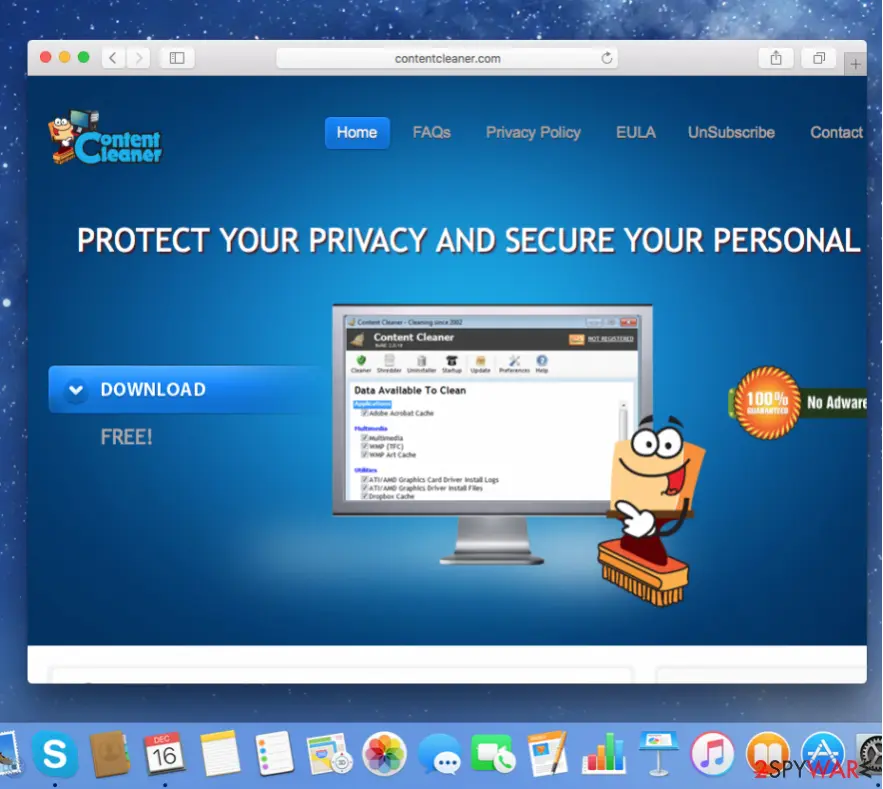
Content Cleaner: summary
| Detection names | No Microsoft detection name is known |
|---|---|
| Distribution | Not recorded in the old report |
| Damage | Not recorded in the old report |
| Name | Content Cleaner |
| Type | System optimizer |
| Symptoms | An unknown program in Installed apps |
| Removal | Scan the PC with security software to find and remove the malware and anything installed with it. Fortect scans Windows for malware and repairs the system files and settings it damaged. Remove it nowTo use the full-featured product, you have to purchase a license for Fortect. The scan is free. |
Show 4 more facts
| Evidence | One write-up by a security site; details still limited |
|---|---|
| Program | Content Cleaner |
| First seen | 12 January 2021 |
| Facts checked | 6 October 2026 |
Is Content Cleaner safe? Why it is flagged
From our report of Jan 2021 · not reviewed since
Content Cleaner is a potentially unwanted program that shows misleading system problems to trick users into buying its full version
Content Cleaner is a potentially unwanted program (PUP), and its function is highly doubtful.
When security vendors speak about it, they describe it as a system tool. This shady software pretends to be a reliable system optimization tool when in reality it is a hardly beneficial app, which seeks to earn money by convincing inexperienced computer users to pay for some completely basic PC optimization services.
First of all, we would like to point out the fact that Content Cleaner can be installed on your system without your consent. After this shady software sets its components in your Windows Registry, it will start to show misleading pop-ups for you.
These pop-ups include Content Cleaner alerts claiming that your computer is infected or that your computer system has some problems that need to be fixed. Moreover, this PUP might block access to legitimate websites on the Internet and prohibit you from reaching legitimate computer safety programs.
Content Cleaner is going to try its best to make an impression that your computer security condition is awful and that this cleaner is your only hope to fix it. This program detects fake problems and attempts to convince you to buy the registration key to access the full version of this tool (which is supposed to fix your computer).
Do not buy this key because Content Cleaner is rogue software that you should not trust. This program is just a low-level computer threat that needs to be removed upon its detection.
The Content Cleaner software might slow your computer down, too, and that is going to make your browsing experience unbearable. As you can see, this fake computer optimization tool can not provide any useful services, and this software should not be stored in your Windows Registry.
These programs have gained a reputation through all the years dealing with spyware and malware, and they are perfect software to keep your computer safe.
Additionally, you will find an easy-to-understand Content Cleaner removal guide at the bottom of this article. If you have successfully uninstalled the PUP and other threats, be sure to fix the system. is perfect for such a task.
From our report of Jan 2021 · not reviewed since
Potentially unwanted programs may have their own official websites
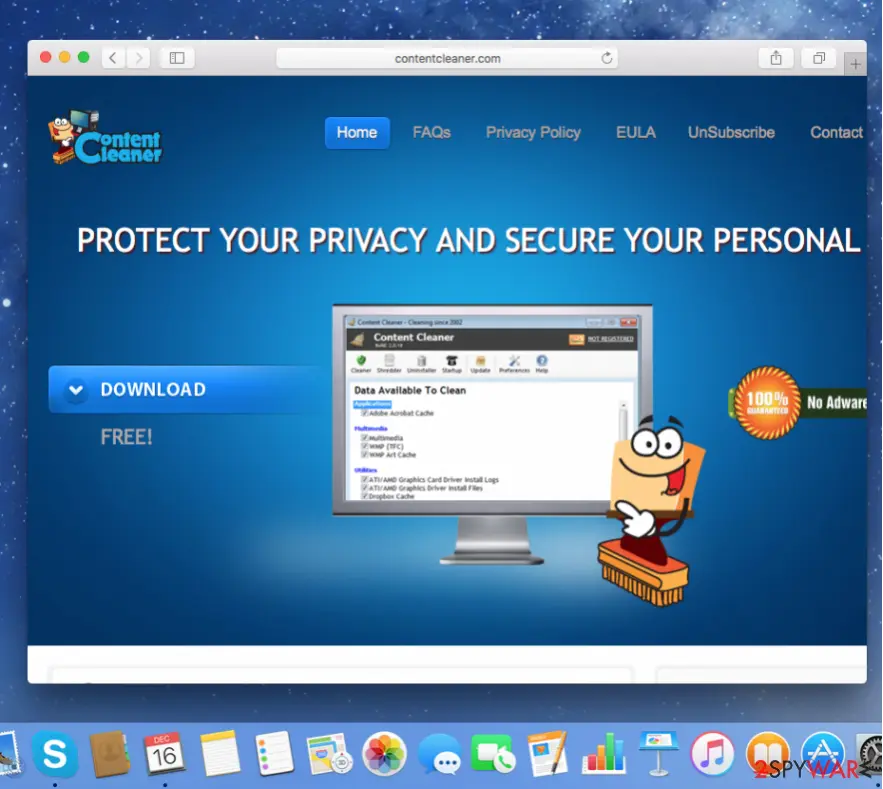
Even though this particular potentially unwanted program has a professionally-looking official website, it does not yet mean it is a safe or reliable program.
In reality, computer users rarely reach this site at all. In most cases, this doubtful program is promoted with other freeware and shareware via the bundling method.
That means such a tool can be spread as an attachment to other free programs. These programs usually conceal the existence of PUPs under the most popular Default and Standard installation modes. However, you should not rely on these traditional installation modes as they are highly deceptive.
Then, the setup should provide you a list of recommended programs - opt these suggestions to install additional freeware out to refuse to install them. This is how you have to refuse to install the hidden software attachments.
Now that you have learned how to avoid installing suspicious software, you might want to find out how to get rid of it. We have provided comprehensive removal guidelines at the bottom of this article.
How to uninstall Content Cleaner
How to remove Content Cleaner
Uninstall it, then remove what keeps it starting with Windows.
Nothing it flagged needs fixing.
Step 1: Uninstall Content Cleaner
Open Settings > Apps > Installed apps in Windows 11, or Settings > Apps > Apps & features in Windows 10. Sort the list by install date and find Content Cleaner, then choose Uninstall from the three-dot menu next to it (in Windows 10, click the entry and then Uninstall).
Remove anything else installed on the same day that you do not recognise, because such programs usually arrive together in one installer. If the uninstaller opens a browser page with an offer or a survey, close it: the program is removed either way.
Full procedure with screenshots: Uninstall a program or app in Windows On uGetFix
Step 2: Remove it from startup
Whatever Content Cleaner installed usually starts with Windows. Open Task Manager with Ctrl + Shift + Esc, go to Startup apps in Windows 11 or the Startup tab in Windows 10, and disable what you do not know, starting with entries that have an empty Publisher column.
Open file location on the right-click menu shows the file, which helps you decide and tells you what to delete later. Disabling is safe: if something you need stops working, switch it back on.
Full procedure with screenshots: Stop apps from opening at startup On uGetFix
Step 3: Delete the folders left behind
What the uninstaller leaves behind is usually in the user folders. Open File Explorer, switch on View > Show > Hidden items (in Windows 10 View > Hidden items), and go through
%LocalAppData%,%AppData%, %ProgramData% and the two Program Files folders.Sort by Date modified and delete folders that appeared together with the problem and belong to no program you use. Folders with random names that hold
.exe,.dll, .js or .ps1 files are the strongest sign.Full procedure with screenshots: Remove what malware leaves behind in Windows
Step 4: Scan the PC, then run the offline scan
Open Windows Security > Virus & threat protection > Scan options, run a Full scan and remove everything it finds. Then select Microsoft Defender Antivirus (offline scan) and click Scan now: the PC restarts and scans before Windows loads, which finds files that hide while Windows runs.
Save your work first, because the offline scan takes about 15 minutes. Both scans are built into Windows 11 and Windows 10, and a second scanner from another vendor is a useful extra opinion.

Windows 11: Windows Security > Virus & threat protection > Scan options. Full procedure with screenshots: Run a Microsoft Defender Offline scan
Instructions for each browser and system
The detailed steps for every browser and system this guide covers. Open the one you use.
Manual removal using Safe Mode
Important! →
Manual removal guide might be too complicated for regular computer users. It requires advanced IT knowledge to be performed correctly (if vital system files are removed or damaged, it might result in full Windows compromise), and it also might take hours to complete. Therefore, we highly advise using the automatic method provided above instead.
Step 1. Access Safe Mode with Networking
Manual malware removal should be best performed in the Safe Mode environment.
Windows 7 / Vista / XP
- Click Start > Shutdown > Restart > OK.
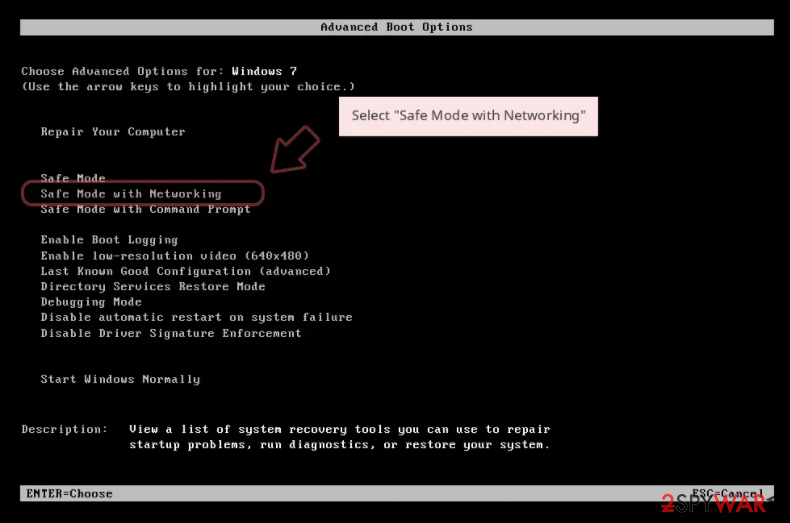
- When your computer becomes active, start pressing F8 button (if that does not work, try F2, F12, Del, etc. - it all depends on your motherboard model) multiple times until you see the Advanced Boot Options window.
- Select Safe Mode with Networking from the list.
Windows 10 / Windows 8
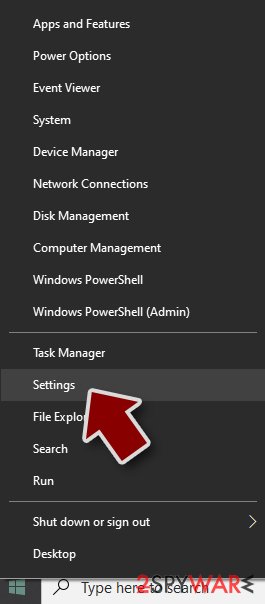
- Right-click on Start button and select Settings.
- Scroll down to pick Update & Security.
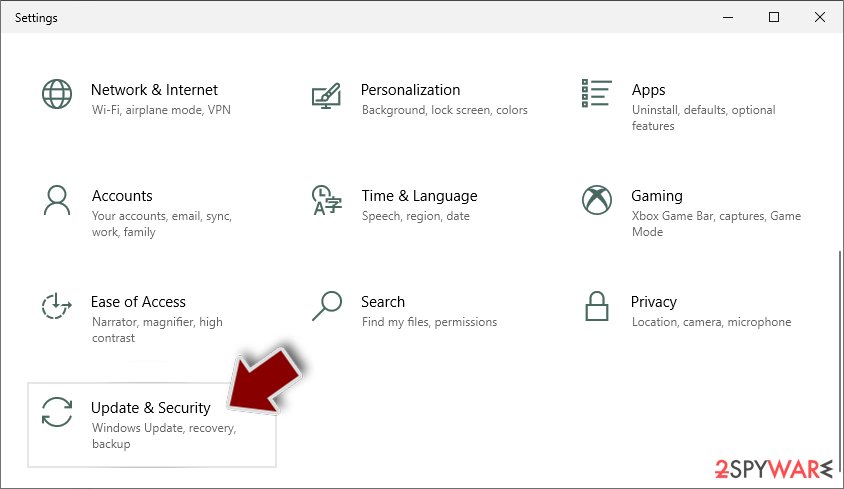
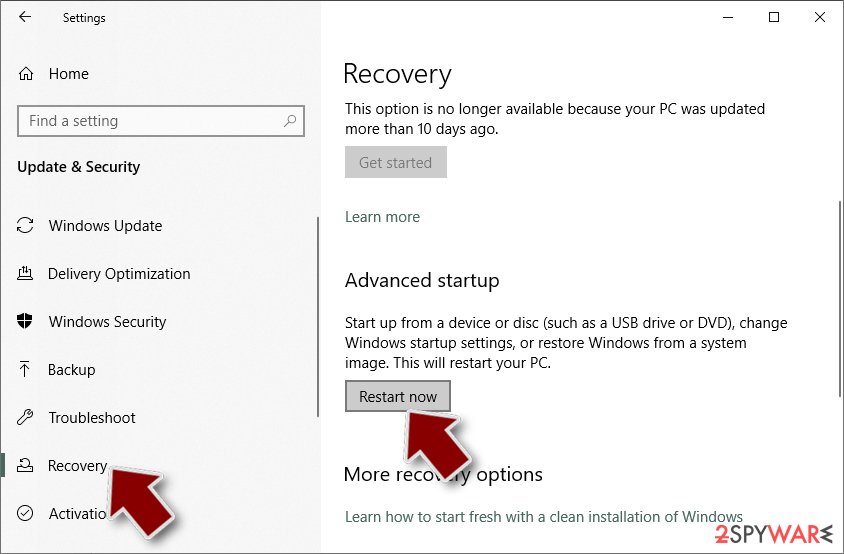
- On the left side of the window, pick Recovery.
- Now scroll down to find Advanced Startup section.
- Click Restart now.
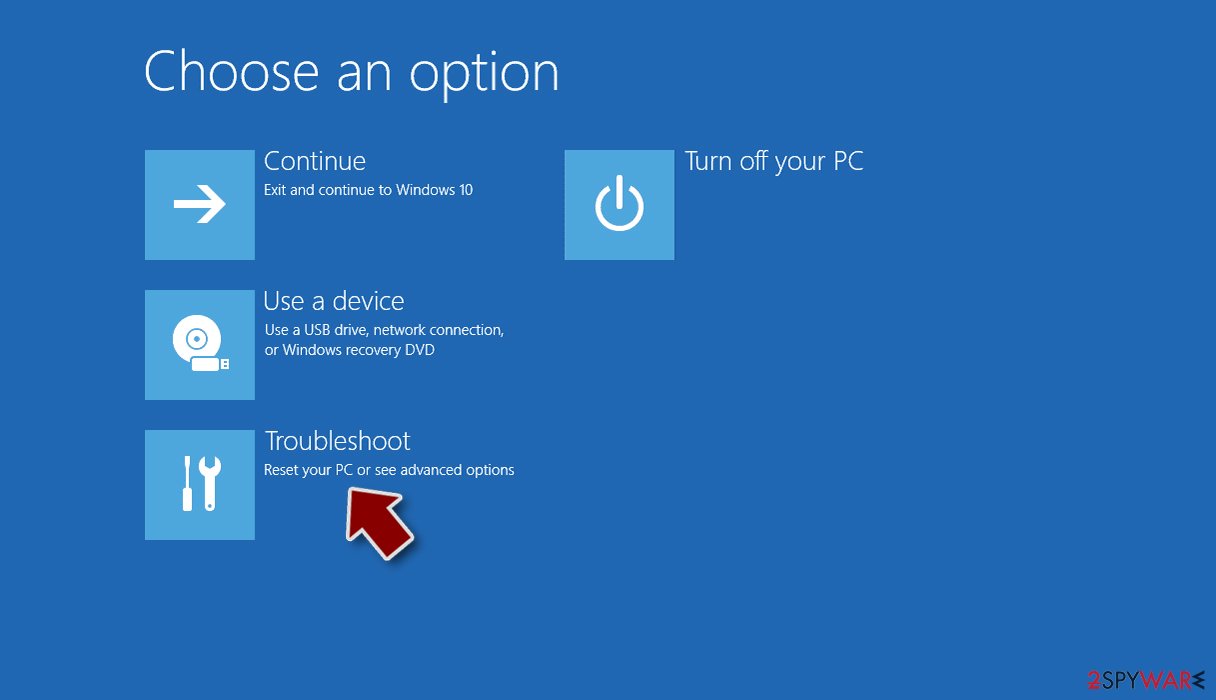
- Select Troubleshoot.
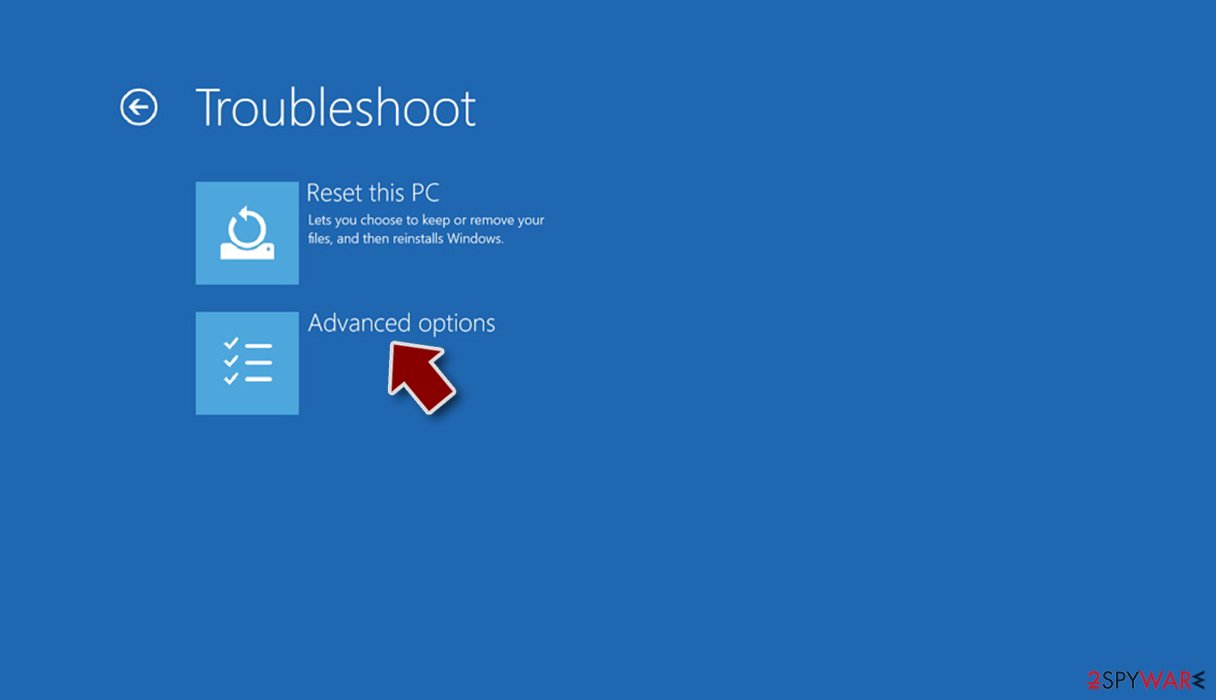
- Go to Advanced options.
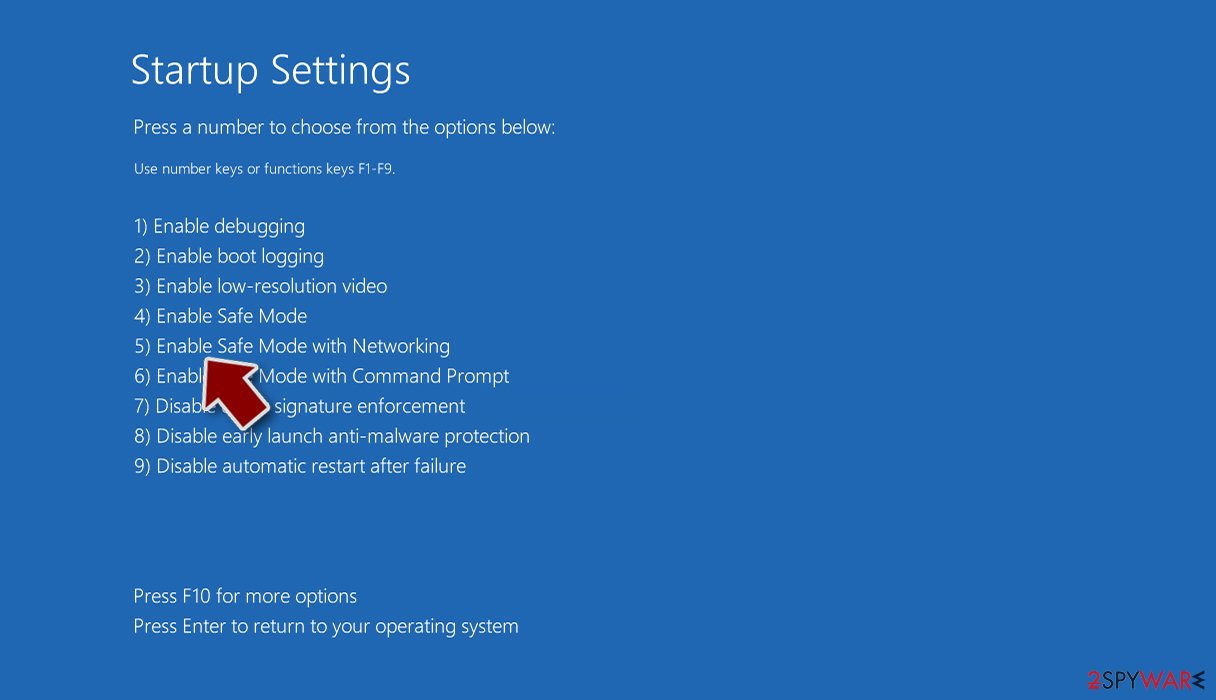
- Select Startup Settings.
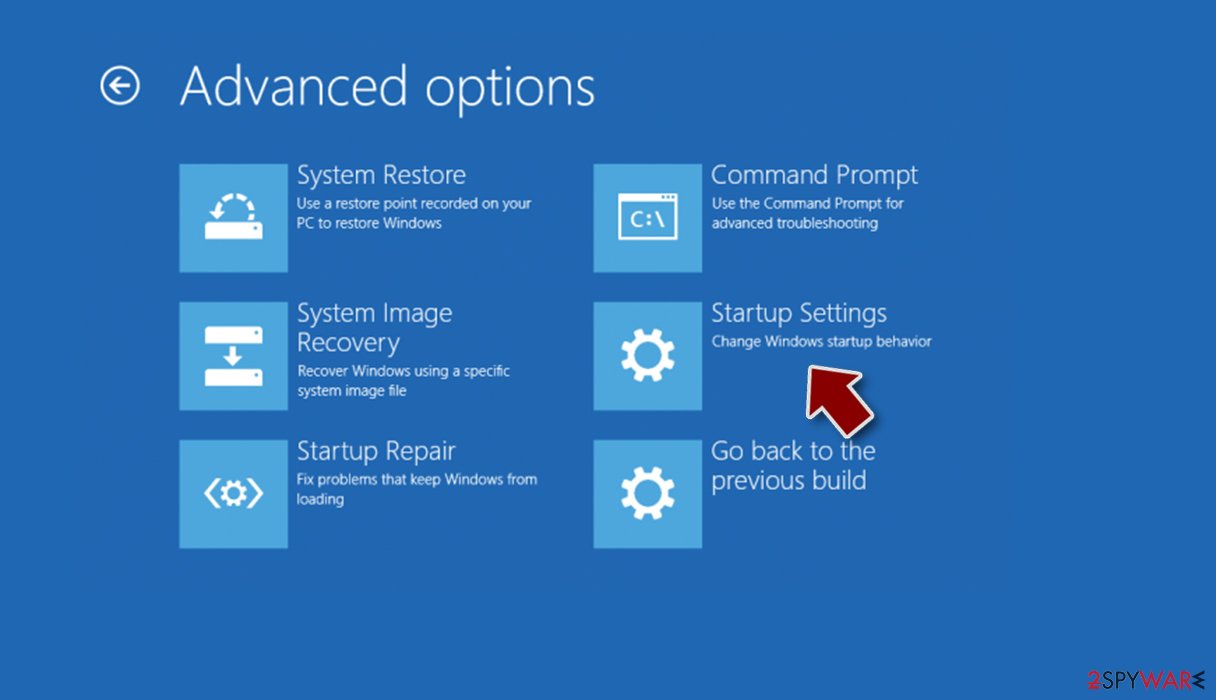
- Press Restart.
- Now press 5 or click 5) Enable Safe Mode with Networking.
Step 2. Shut down suspicious processes
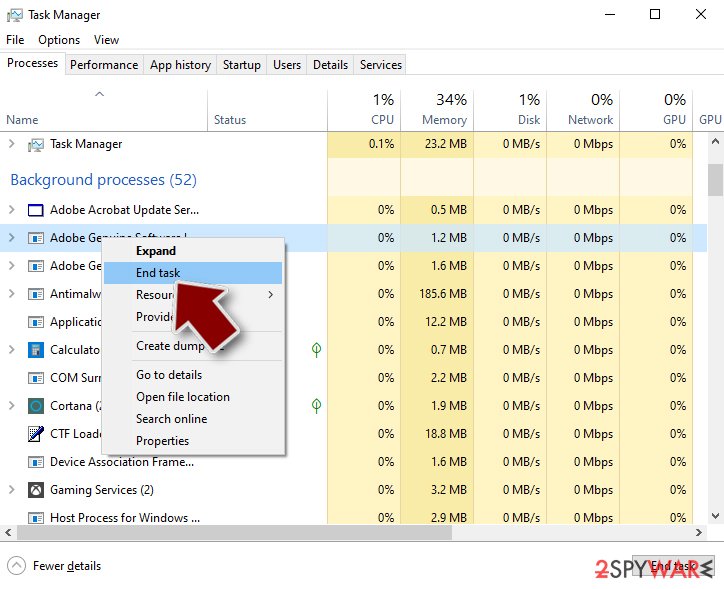
Windows Task Manager is a useful tool that shows all the processes running in the background. If malware is running a process, you need to shut it down:
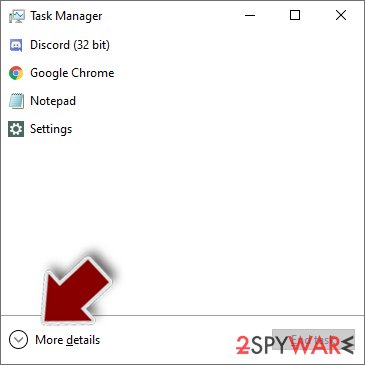
- Press Ctrl + Shift + Esc on your keyboard to open Windows Task Manager.
- Click on More details.
- Scroll down to Background processes section, and look for anything suspicious.
- Right-click and select Open file location.
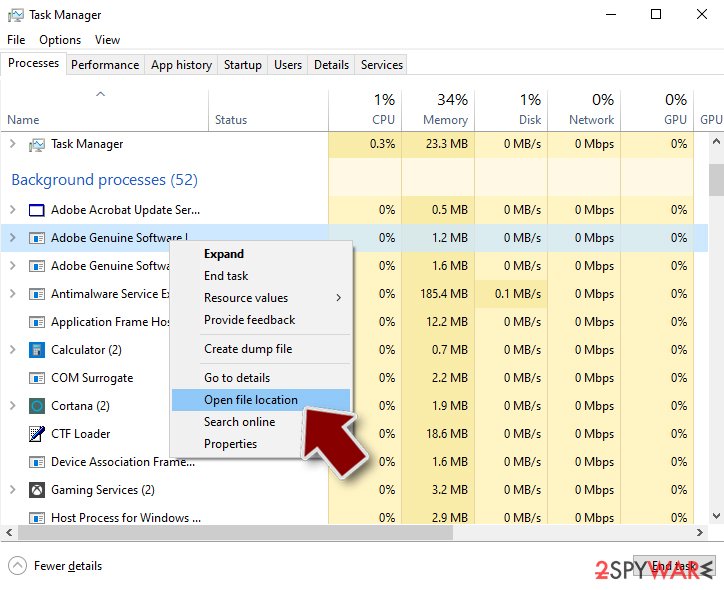
- Go back to the process, right-click and pick End Task.
- Delete the contents of the malicious folder.
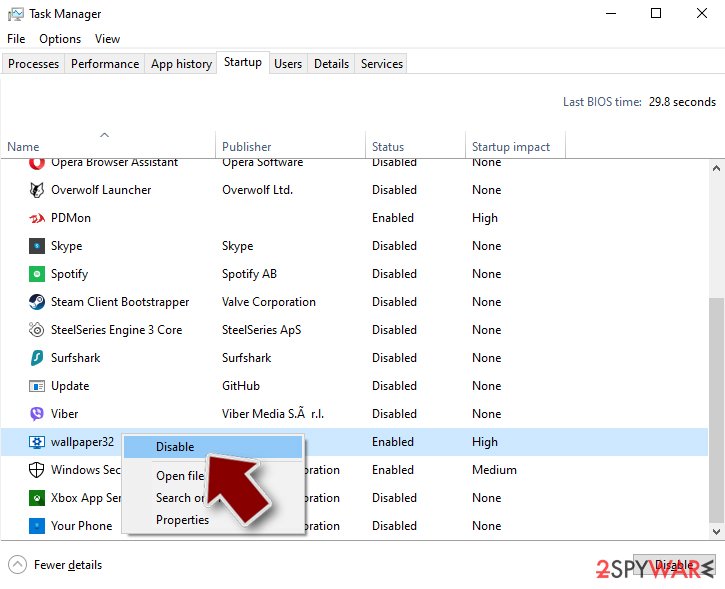
Step 3. Check program Startup
- Press Ctrl + Shift + Esc on your keyboard to open Windows Task Manager.
- Go to Startup tab.
- Right-click on the suspicious program and pick Disable.
Step 4. Delete virus files
Malware-related files can be found in various places within your computer. Here are instructions that could help you find them:
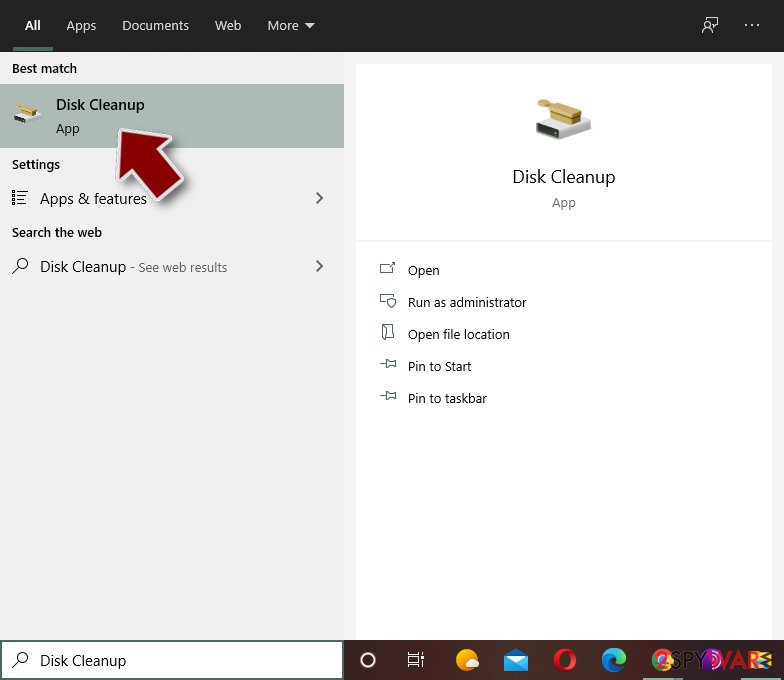
- Type in Disk Cleanup in Windows search and press Enter.
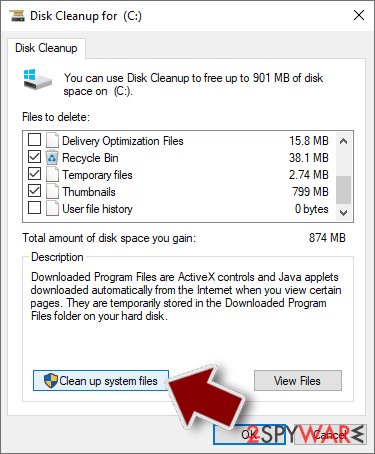
- Select the drive you want to clean (C: is your main drive by default and is likely to be the one that has malicious files in).
- Scroll through the Files to delete list and select the following:
Temporary Internet Files
Downloads
Recycle Bin
Temporary files - Pick Clean up system files.
- You can also look for other malicious files hidden in the following folders (type these entries in Windows Search and press Enter):
%AppData%
%LocalAppData%
%ProgramData%
%WinDir%
After you are finished, reboot the PC in normal mode.
Choose a proper web browser and improve your safety with a VPN tool
Online spying has got momentum in recent years and people are getting more and more interested in how to protect their privacy online.
One of the basic means to add a layer of security - choose the most private and secure web browser. Although web browsers can't grant full privacy protection and security, some of them are much better at sandboxing, HTTPS upgrading, active content blocking, tracking blocking, phishing protection, and similar privacy-oriented features.
However, if you want true anonymity, we suggest you employ a powerful VPN - it can encrypt all the traffic that comes and goes out of your computer, preventing tracking completely.
Lost your files? Use data recovery software
While some files located on any computer are replaceable or useless, others can be extremely valuable.
Family photos, work documents, school projects - these are types of files that we don't want to lose. Unfortunately, there are many ways how unexpected data loss can occur:
- power cuts
- Blue Screen of Death errors
- hardware failures
- crypto-malware attack
- even accidental deletion
To ensure that all the files remain intact, you should prepare regular data backups. You can choose cloud-based or physical copies you could restore from later in case of a disaster. If your backups were lost as well or you never bothered to prepare any, can be your only hope to retrieve your invaluable files.
From our report of Jan 2021 · not reviewed since
Tips on of to remove Content Cleaner from your system
Content Cleaner virus can be erased from your system very easily.
All you need to do is to eliminate it from your Windows registry. However, after you delete Content Cleaner, you should also check your system with an anti-spyware program to see if you do not have any more PUPs on your system left.
Manual removal instructions:
Also, keep in mind that the Content Cleaner removal may not be the last step in fixing your computer. If you notice that your computer is running slower, freezes, or even reboots, there may be a problem with your system files.
[GI=method-1]Try to enter Safe Mode with Networking if you failed to delete Content Cleaner
[GI=method-2]Prevent PUP from working by using System Restore function
- Click 'Start' and select 'Control Panel'.
- Select 'Uninstall a Program' under 'Programs'.
- Choose 'Content Cleaner' and opt for the 'Uninstall/Change' option.
- Click 'Yes' and 'OK' to save the changes.
Questions about Content Cleaner
Is Content Cleaner a virus?
Most programs that appear the way Content Cleaner did are not viruses in the strict sense. They are potentially unwanted programs:
- real software that arrives bundled with other downloads and then shows offers
- changes browser settings
- starts with Windows
Some are harmless, some are annoying and a few carry adware. What makes it worth removing is that you did not choose it.
Uninstall it from Installed apps and check the startup list and the browsers for anything added the same day. If it refuses to uninstall or returns after a restart, treat it as more serious and run a Microsoft Defender offline scan.
How do I stop programs like Content Cleaner from being installed again?
Most unwanted programs arrive through installers, so the fix is in how you install software. Download programs from their official sites or the Microsoft Store, not from download portals or ads above search results. During setup, choose Custom or Advanced installation and untick every extra offer, including browsers, toolbars and optimizers.
Decline update prompts that appear inside other programs unless you know them. In Windows Security, turn on reputation-based protection and potentially unwanted app blocking. These steps would most likely have stopped Content Cleaner before it reached the app list.
The uninstaller for Content Cleaner keeps asking me to stay. Is that normal?
It is a common tactic, not a technical requirement. Uninstallers of unwanted programs often show discounts, warnings that the PC will be at risk, or a choice between "repair" and "remove" designed to confuse. Choose the option that removes the program completely and decline everything else.
If the uninstaller closes without removing anything, end its processes in Task Manager and try again, or use Safe Mode. Check Installed apps afterwards; if Content Cleaner is still listed, the uninstall did not finish.
Is Content Cleaner a virus?
Not in the strict sense. Nothing reported so far shows Content Cleaner copying itself, encrypting files or stealing passwords, which is what security companies mean by a virus.
What people see is content Cleaner in the list of installed apps, which fits an unwanted program: software that arrives bundled with something else and keeps running without being asked for. Many antivirus programs label such software PUP or PUA rather than malware.
That label does not make it harmless. It still uses your PC and connection, may collect data and is often bundled with other programs, so removing it is the right call. Uninstall it from Installed apps, then check startup items and browser settings for its companions.
Could Content Cleaner be a legitimate program?
Possibly. Some programs that cause content Cleaner in the list of installed apps are real products from real companies that simply use aggressive distribution. Check the publisher in Installed apps and the digital signature in the file's Properties.
A known publisher and a program you actually use mean you can keep it and only adjust its settings. An unknown publisher, a program you never opened and no clear purpose mean it should go.
If it came bundled with something else, the decision is easy: you did not choose it, so remove it and keep the program you actually wanted.
Why can't I uninstall Content Cleaner?
Usually because it is still running or because a helper reinstalls it. Close it from the notification area first, then end its process in Task Manager and try Settings > Apps > Installed apps again. If there is no uninstall entry, look for a folder under Program Files or AppData with the same name and an uninstaller inside.
If the program comes back after removal, the cause of content Cleaner in the list of installed apps is a scheduled task, a startup entry or the program it was bundled with. Remove those, restart and check again. Starting Windows in Safe Mode stops most helpers and makes stubborn programs easier to remove.
Can Content Cleaner see my passwords?
There is no report of that. Unwanted programs make money from ads, offers, data about your browsing or the use of your connection, not from stealing passwords, and the sign reported here is content Cleaner in the list of installed apps.
That said, a bundle can contain more than one program, and you cannot be sure what else ran on the day it arrived. After removing Content Cleaner, run a full scan in Windows Security.
If it finds a password stealer or a trojan, change your passwords from another device. If the scan is clean and you see no unknown sign-ins, there is no need to change them.
Why does my antivirus call Content Cleaner a PUA or PUP?
These labels mean potentially unwanted application or program. They are used for software that is legal but uses deceptive distribution, aggressive ads, misleading claims or a hard removal. Microsoft's PUA categories include advertising software, bundlers, download managers, torrent clients, marketing software and miners.
A PUA detection is a warning, not proof of infection, and you decide whether to keep Content Cleaner. Other vendors use their own labels for the same idea, such as PUP.Optional or not-a-virus. Read more in our guide to potentially unwanted programs.
Can I use Content Cleaner safely?
Yes, if you installed it on purpose and control its settings. Download it only from the publisher's own site, never through a bundle or a portal. After installing, disable automatic start, offers and telemetry, and check that it did not change your search engine or add extensions.
Watch for renewals if you bought a licence, and turn on PUA blocking in Windows Security so that anything it tries to add during updates is stopped. If Content Cleaner keeps pushing payments or offers, it is not worth the trouble.
Will Fortect remove Content Cleaner?
Fortect scans Windows for malware and unwanted programs and repairs the system files and settings they change, and its free scan shows what it finds on your PC before you decide anything.
For Content Cleaner, follow the plan above as well: the browser steps take back permissions and settings that no scanner treats as a threat, and uninstalling the program that brought it removes the source.
Run Microsoft Defender's full scan and, if anything was found, its offline scan as a second opinion. If the symptoms are gone after the plan and both scans are clean, there is nothing more to do.
Sources
- FTC: How to recognize, remove and avoid malware (read October 6, 2026)
- Microsoft Learn: Microsoft Defender Offline (read October 6, 2026)
- Microsoft Learn: How Microsoft names malware (read October 6, 2026)