

Mac Adware Cleaner is a questionable system optimizer that should not be installed if the goal is proper security
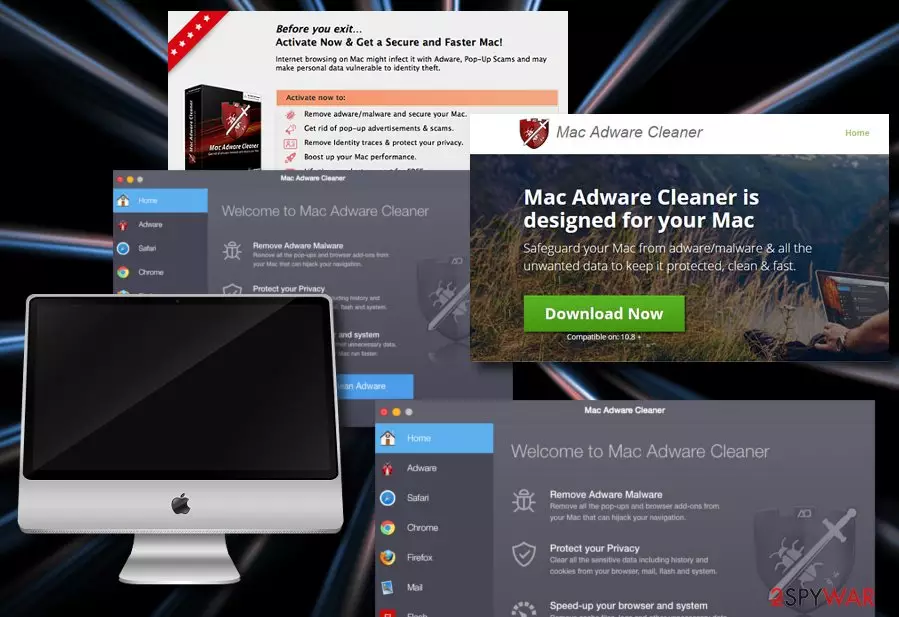
Mac Adware Cleaner is a potentially unwanted program[1] that targets Mac users and offers an ambiguous functionality. This cyber threat usually gets into machines with the help of Advanced Mac Cleaner which is often installed via software bundling. Beware that each of these programs is useless and can hardly improve your PC's functionality. In addition, Mac Adware Cleaner can get into the system via “Recommended Download” pop-up that can reappear on Google Chrome, Safari, Mozilla Firefox or other browsers because of adware hiding inside the system.
| SUMMARY | |
| Name | Mac Adware Cleaner |
| Type | Potentially Unwanted Program/Adware |
| Is advertised as | Adware/malware/crapware cleaner/system optimizer |
| Related software | Advanced Mac Cleaner |
| Functionality | Imitates a full system check-up, displays fake scan results, and encourages users to buy the licensed version as it is “the only option to fix all issues” |
| Symptoms | Excessive advertisement, unexpected system scans, redirects, promotions of other questionable-looking products, and similar |
| Distribution | The PUP usually comes bundled with free or shared programs, injected into rogue hyperlinks, and it also is promoted on its official website |
| Prevention | Avoid secret infiltration of rogue programs by downloading software only from reputable sources. Also, do not click on unknown adverts or links that occur along the way while browsing the Web |
| Elimination | Download and install FortectIntego to perform a full system check-up and discover all potentially dangerous content. Also, you can follow the manual instructions that are provided for you at the end of this web page |
Mac Adware Cleaner is advertised as a helpful tool that can get rid of adware, malware, and other unwanted apps. The truth is, this program is potentially malicious itself and there are numerous AV engines that detect it as malicious. In fact, Chrome engine has even marked the site as dangerous, naming the following:
This site contains harmful programs
Attackers on this site might trick you into installing programs that harm your browsing experience (for example, by changing your homepage or showing extra ads on sites you visit)
The official website consists of a bunch of fake reviews and bogus “approvals” from legitimate security companies and other known names, such as The Washington Post or the iPad-only news app The Daily. It is clear that, by using these names, developers of this treacherous app are only seeking to earn money. Beware that this program can hardly detect malicious entries on your computer and the only way to fix your system is to get rid of Mac Adware Cleaner without wasting your time.
As soon as Mac Adware Cleaner virus enters the targeted Mac, it performs multiple scans automatically. Users might not even understand where are they coming from or what is their purpose. Nevertheless, as soon as the scan is complete, the app typically shocks the user with multiple warnings about malicious threats and other problems detected. To fix these problems, the user should buy a licensed version which costs $49.95.

We understand that software developers cannot give out their products for free. However, this is more of a scam than an actually useful product. The threats found are bogus and do not impact your machine in any way. Therefore, users often look for ways how to delete Mac Adware Cleaner from their device. Nevertheless, it is a correct action and the right step towards a clean and smoothly-running Mac.
To remove Mac Adware Cleaner, we highly recommend using FortectIntego or another reputable anti-spyware program. Make sure you reset your web browsers to eliminate their popups entirely. If you are not an experienced user, jump to the guide below to see how it's done. Additionally, take a look at the end of the article and you will also find manual removal guidelines for your Mac computer and possibly-infected web browsers such as Chrome, Firefox, Edge, Explorer, and Safari.
The problem with this application is not only its phony scan results. It is also considered to be adware which floods machines with unending advertisements, redirects to potentially dangerous sites, and clutters the device with other useless software.
Additionally, PUPs also collect a variety of anonymous information, including:
- IP address;
- ISP provider;
- Links clicked;
- Search queries;
- Sites visited;
- System information, including installed software and its versions;
- Cookie[2] information, etc.
Thus, Mac Adware Cleaner developers know everything about your browsing habits. What is more, if you purchase the licensed version, you will be prompted to provide personal data,[3] such as name, address, credit card details, etc. This information can be potentially stolen and used by cybercriminals, as it is unclear what security precautions are practiced.

We guess that you yourself have already generated the thought that Mac Adware Cleaner removal is the best decision to make in this case as all the annoying activities that the program promotes might throw some risks and potential danger on you and your machine. In addition, we suggest you check out a paragraph about potentially unwanted program distribution below to prevent further infiltration of similar applications.
Ways unwanted programs contaminate devices
Just like the vast majority of PUPs, this one was also installed on the device along with other software. Thus, if you have recently introduced a new program or some other files from unknown sources, the unwanted app might have sneaked in as well. We want to point out that it’s important to choose only reliable sources for downloads. Stay away from torrents, P2P networks, insecure sites, and similar questionable sources, and download such content from publisher’s websites.
Additionally, you need to pay attention to the installation procedure itself. Do not rely on Quick or Standard modes and always opt for Custom or Advanced option. The Quick installation settings do not reveal optional third-party apps that might have been attached to the primary program. As a result, they are installed by default.
Security experts[4] also advise users to avoid visiting questionable websites (such as file-sharing, P2P, cracked software sites and other) and install legitimate security software. Besides, keep yourself far away from such and similar notifications trying to interrupt you while browsing on the Internet:
Recommended download
Install Mac Adware Cleaner now to protect your Mac device from malware, adware and other security threats.

Uninstall Mac Adware Cleaner ads from your machine
You can use reputable antimalware programs to terminate the potentially unwanted program from your computer system. This software operates quickly and will ensure you that all possibly-affected directories in your machine are fully cleaned and optimized. However, there is a manual method also. To remove Mac Adware Cleaner from your Mac, follow these steps:
- Open the Utilities folder and launch Activity Monitor.
- In the Activity Monitor look for the Advanced Mac Cleaner (or/and Mac Adware Cleaner). Click on it and select Quit Process option.
- You will receive a dialog window asking if you want to quit Advanced Mac Cleaner. Click on the Force Quit button.
- Click Go button and select Applications.
- In the Applications list, look for the Advanced Mac Cleaner. Once you find it, right-click on it and choose Move to Trash. You might be asked to enter a user password, thus enter it.
- Launch the Apple menu (Apple icon on the top left corner) and select System Preferences.
- In the System Preferences go to Accounts and select Login Items. In the appeared list look for the Advanced Mac Cleaner and click on the “-” button.
When Mac Adware Cleaner removal is completed, you have to make sure that no other suspicious entries have been installed on your web browsers. As we already mentioned, PUPs can install additional components that can be well hidden within your system. Thus, in order to get rid of Mac Adware Cleaner virus completely, you should use trusted anti-malware software that can find all the unwanted components automatically.
Delete from macOS
Remove the unwanted application:
- From the menu bar, select Go > Applications.
- In the Applications folder, look for any suspicious entries, then drag them to Trash (or right-click and pick Move to Trash).


Delete leftover files and folders:
- Select Go > Go to Folder.
- Enter /Library/Application Support and remove any suspicious folders related to the unwanted program.
- Repeat the same check in the /Library/LaunchAgents and /Library/LaunchDaemons folders, deleting any suspicious entries.

- Finally, empty the Trash to permanently remove the leftovers.

Remove from Mozilla Firefox (FF)
Remove dangerous extensions:
- Open Mozilla Firefox browser and click on the Menu (three horizontal lines at the top-right of the window).
- Select Add-ons.
- In here, select the unwanted extension and click Remove.


Reset the homepage:
- Click three horizontal lines at the top right corner to open the menu.
- Choose Settings.
- Under Home, set your preferred homepage and new tab settings.
Clear cookies and site data:
- Click Menu and pick Settings.
- Go to Privacy & Security section.
- Scroll down to locate Cookies and Site Data.
- Click on Clear Data...
- Select Cookies and Site Data and Temporary cached files and pages, then click Clear.


Reset Mozilla Firefox
If clearing the browser as explained above did not help, reset Mozilla Firefox:
- Open Mozilla Firefox browser and click the Menu.
- Go to Help and then choose Troubleshooting Information.

- Under Give Firefox a tune up section, click on Refresh Firefox...
- Once the pop-up shows up, confirm the action by pressing on Refresh Firefox.



Remove from Google Chrome
Delete malicious extensions from Google Chrome:
- Open Google Chrome, click on the Menu (three vertical dots at the top-right corner) and select More tools > Extensions.
- In the newly opened window, you will see all the installed extensions. Uninstall all suspicious extensions related to the unwanted program by clicking Remove.


Clear cache and web data from Chrome:
- Click on Menu and pick Settings.
- Under Privacy and security, select Clear browsing data.
- Select Browsing history, Cookies and other site data, as well as Cached images and files.
- Click Clear data.


Change your homepage:
- Click menu and choose Settings.
- Look for a suspicious site in the On startup section.
- Click on Open a specific or set of pages and click on three dots to find the Remove option.
Reset Google Chrome:
If the previous methods did not help you, reset Google Chrome to eliminate all the unwanted components:
- Click on Menu and select Settings.
- In the Settings, scroll down and click Advanced.
- Scroll down and locate Reset and clean up section.
- Now click Restore settings to their original defaults.
- Confirm with Reset settings.


Delete from Safari
Remove dangerous extensions:
- Open Safari, click Safari in the menu at the top-left of the screen, and select Preferences.
- Go to the Extensions tab, look for any suspicious entries, and click Uninstall to remove them.


Clear history and website data:
- Click Safari in the menu and pick Clear History.
- Set Clear to all history and confirm with Clear History.


Reset Safari:
- Click Safari in the menu and select Preferences > Advanced.
- Enable Show Develop menu in menu bar.
- From the menu bar, click Develop and select Empty Caches.


Did this guide help?
3 comments
Ambelin
These ads tricked me! Ive installed this shady software... Thank God it did not harm my Mac, but it increased the amount of suspicious ads. Stay away from these ads!
Mabelle
Thanks for the great instructions. Mac Adware Cleaner ads dont bother me anymore
Matthew
Ive never thought that Macs can get infected with such viruses...