

Startstreaming.net – a page that shows deceptive ads
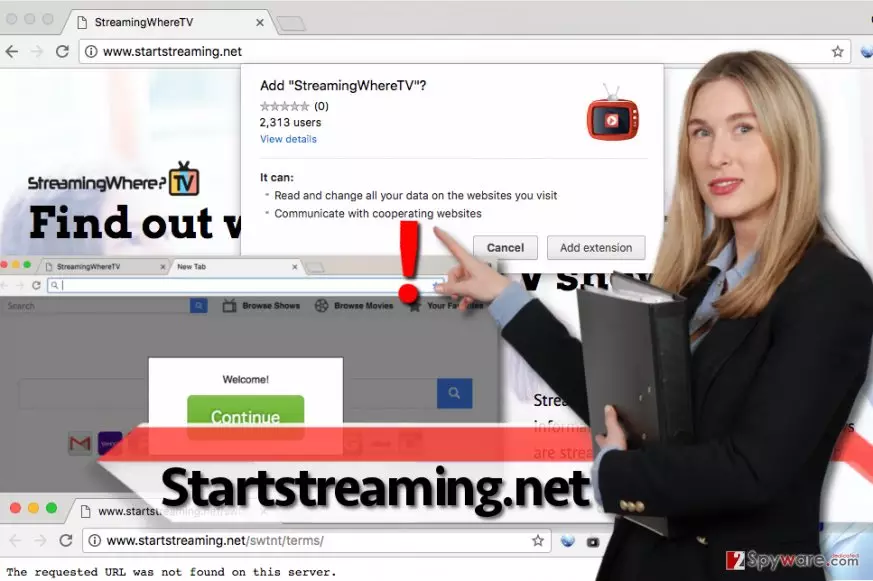
Startstreaming.net virus can possess your computer system and force all your web browsers to act suspiciously. If you started to experience repetitious redirects to the article culprit's website, it means that your PC has been affected by a potentially unwanted program, such as adware-type[1] software.
Nonetheless, in most cases, this dubious browser hijacker[2] sneaks into the system along with some free programs and hijacks the browser’s settings without the user's knowledge. It continues to control them until its removal is accomplished.
In the worst case, the user might not notice Startstreaming.net hijack and start using a search engine that the browser hijacker presents. It is a very bad idea because the extension[3] that this parasite adds to the system has permissions to read and modify all your data on the websites you visit, besides, it can also communicate with cooperating websites.
What it means is that you are going to be involved in a pay-per-click advertising scheme, receive third-party ads regularly, and get tricked into visiting possibly vague websites without showing the willingness to do so. To avoid all that, we're going to explain to you how to remove this threat.
| name | Startstreaming.net |
|---|---|
| Type | Browser hijacker, PUP |
| Symptoms | Modified browser settings; search inquiries a going through questionable sites until search results are shown from a different provider and contain ads |
| Associated extension | StreamingWhereTV |
| Risks | Privacy issues, additional PUP installation |
| Elimination | Remove all suspicious apps and files from your device by using a reliable security tool |
| System fix | Use the FortectIntego PC repair tool to fix any corrupted system files and avoid sluggish device performance |
Keep in mind that the aforementioned search engine incorporates sponsored content (Startstreaming.net ads) within results’ pages, and it means that by clicking on a safely-looking search result you risk visiting a completely different website.
In other words, you might experience web redirections to any of pre-planned third-party websites that this browser hijacker seeks to promote. Be aware that these websites might not necessarily be secure to visit, and some of them might attempt to trick you into installing more junkware on your system.
If you do not want to contaminate your PC with obscure pieces of software, remove Startstreaming.net redirect virus immediately. According to the Terms of Use presented by the developer of this extension, “you agree the Company is not responsible for the availability, accuracy, or substance of any Third Party Content,” so if this extension managed to install itself on your PC without notifying you beforehand, it means that you did not actually agree to these terms.
It is just another reason why we encourage you to start Startstreaming.net removal procedure. For that, we recommend using dependable software such as MalwarebytesMalwarebytes or SpyHunterCombo Cleaner. It will automatically detect all suspicious or malicious apps/files and remove them.
If you're willing to remove the threat yourself, please use our guides posted at the bottom of this article. When the threat is eradicated, FortectIntego system diagnostics tool should be used to ensure that your device doesn't crash and runs without any hiccups.
How such programs infect computers?
Just like severe viruses travel in an obfuscated form[4] (usually named and designed to look like a safe file), potentially unwanted programs hijack systems using a sprinkle of mystification, too. They manage to get into computer systems with the help of software bundling techniques.
Software bundling[5] allows developers of free programs to make a profit from promoting legal spyware-type applications that display advertisements or change user’s browser settings, so they willingly provide suggestions to install them. However, computer users usually do not feel happy about the installation of extra programs.
This can be easily prevented by adjusting software installation settings. Instead of Default/Standard ones, put a mark on Custom/Advanced option and deselect shady-looking items manually. Security applications can detect if you're about to install a PUP and would block it.
How to remove Startstreaming.net from my computer?
Startstreaming.net virus should not be treated less seriously than any other spyware or malware type parasite. Its existence should not be tolerated, and we highly suggest you remove the hijacker with the help of anti-spyware software for the best results.
If you do not want to try such software, you can read and carry out manual removal guidances given down below. But please be warned, that if any files or entries of a PUP are overlooked, it might result in infection renewal, odd PC behavior, and so on.
Uninstall from Windows
Uninstall from Windows 10/8:
- Type Control Panel into the Windows search box and open the result.
- Under Programs, select Uninstall a program.


Uninstall from Windows 7/XP:
- Click on Windows Start > Control Panel (Windows XP users should click on Add/Remove Programs).
- In Control Panel, select Programs > Uninstall a program.


Remove the unwanted program:
- In the Programs and Features window, look for any recently installed suspicious entries, select them, and click Uninstall.
- If User Account Control appears, click Yes to confirm, then complete the removal.


Delete from macOS
Remove the unwanted application:
- From the menu bar, select Go > Applications.
- In the Applications folder, look for any suspicious entries, then drag them to Trash (or right-click and pick Move to Trash).


Delete leftover files and folders:
- Select Go > Go to Folder.
- Enter /Library/Application Support and remove any suspicious folders related to the unwanted program.
- Repeat the same check in the /Library/LaunchAgents and /Library/LaunchDaemons folders, deleting any suspicious entries.

- Finally, empty the Trash to permanently remove the leftovers.

Remove from Microsoft Edge
Delete unwanted extensions from MS Edge:
- Select Menu (three horizontal dots at the top-right of the browser window) and pick Extensions.
- From the list, pick the extension and click on the Gear icon.
- Click Remove.


Clear cookies and other browser data:
- Click on the Menu (three horizontal dots at the top-right of the browser window) and select Settings > Privacy, search, and services..
- Under Clear browsing data, pick Choose what to clear.
- Select Cookies and other site data and Cached images and files. (apart from passwords, although you might want to include Media licenses as well, if applicable) and click on Clear.


Restore new tab and homepage settings:
- Click the menu icon and choose Settings.
- Then find On startup section.
- Click Remove next to any suspicious startup page.
Reset MS Edge if the above steps did not work:
- Press on Ctrl + Shift + Esc to open Task Manager.
- Click on More details arrow at the bottom of the window.
- Select Details tab.
- Now scroll down and locate every entry with Microsoft Edge name in it. Right-click on each of them and select End Task to stop MS Edge from running.


Instructions for Chromium-based Edge
Delete extensions from MS Edge (Chromium):
- Open Edge and click select Settings > Extensions.
- Delete unwanted extensions by clicking Remove.


Clear cache and site data:
- Click on Menu and go to Settings.
- Select Privacy, search and services.
- Under Clear browsing data, pick Choose what to clear.
- Under Time range, pick All time.
- Select Clear now.


Reset Chromium-based MS Edge:
- Click on Menu and select Settings.
- On the left side, pick Reset settings.
- Select Restore settings to their default values.
- Confirm with Reset.
- This will disable extensions and reset startup pages but will not delete bookmarks, saved passwords, or browsing history.


Remove from Mozilla Firefox (FF)
Remove dangerous extensions:
- Open Mozilla Firefox browser and click on the Menu (three horizontal lines at the top-right of the window).
- Select Add-ons.
- In here, select the unwanted extension and click Remove.


Reset the homepage:
- Click three horizontal lines at the top right corner to open the menu.
- Choose Settings.
- Under Home, set your preferred homepage and new tab settings.
Clear cookies and site data:
- Click Menu and pick Settings.
- Go to Privacy & Security section.
- Scroll down to locate Cookies and Site Data.
- Click on Clear Data...
- Select Cookies and Site Data and Temporary cached files and pages, then click Clear.


Reset Mozilla Firefox
If clearing the browser as explained above did not help, reset Mozilla Firefox:
- Open Mozilla Firefox browser and click the Menu.
- Go to Help and then choose Troubleshooting Information.

- Under Give Firefox a tune up section, click on Refresh Firefox...
- Once the pop-up shows up, confirm the action by pressing on Refresh Firefox.



Remove from Google Chrome
Delete malicious extensions from Google Chrome:
- Open Google Chrome, click on the Menu (three vertical dots at the top-right corner) and select More tools > Extensions.
- In the newly opened window, you will see all the installed extensions. Uninstall all suspicious extensions related to the unwanted program by clicking Remove.


Clear cache and web data from Chrome:
- Click on Menu and pick Settings.
- Under Privacy and security, select Clear browsing data.
- Select Browsing history, Cookies and other site data, as well as Cached images and files.
- Click Clear data.


Change your homepage:
- Click menu and choose Settings.
- Look for a suspicious site in the On startup section.
- Click on Open a specific or set of pages and click on three dots to find the Remove option.
Reset Google Chrome:
If the previous methods did not help you, reset Google Chrome to eliminate all the unwanted components:
- Click on Menu and select Settings.
- In the Settings, scroll down and click Advanced.
- Scroll down and locate Reset and clean up section.
- Now click Restore settings to their original defaults.
- Confirm with Reset settings.


Delete from Safari
Remove dangerous extensions:
- Open Safari, click Safari in the menu at the top-left of the screen, and select Preferences.
- Go to the Extensions tab, look for any suspicious entries, and click Uninstall to remove them.


Clear history and website data:
- Click Safari in the menu and pick Clear History.
- Set Clear to all history and confirm with Clear History.


Reset Safari:
- Click Safari in the menu and select Preferences > Advanced.
- Enable Show Develop menu in menu bar.
- From the menu bar, click Develop and select Empty Caches.


Did this guide help?
3 comments
karmen
i did not want that extension, but ads were so annoying so I just clicked install... I wish I didnt do it! Now my browser acts even more suspiciously, theres ads everywehere and I get redirected to strange websites every once in a while, too. I hope that Reimage will help me to improve the situation.
Dropthat
thanks - i was wondering why ever website started advertising Startstreaming.net all of a sudden.
Lloyd
Can anyone explain what kind of adware distributes these Startstreaming.net ads?