
Windows Warding Module: what it is and how to remove it
Windows Warding Module is a dangerous rogue anti-spyware, which belongs to a huge family of viruses known as Fakevimes (you can find the latest threats that belong to this family at the end of this post). Please, be very careful with this and any other Fakevimes virus because they all seek to steal people's money.
Facts checked October 7, 2026. Removal steps tested on Windows 11 (26H2) and checked against Microsoft's and the browser makers' current documentation. Sections marked as our earlier report are the original text: they describe the threat as it was then and have not been reviewed since. The 2026 status, the removal steps and the questions are current.
Automatic
Get a free scan and check if your PC is infected.
Fortect finds malware, unwanted programs and the Windows damage they leave behind, and repairs it in one pass.
Unsure whether iexplore.exe is safe? A free scan checks the file and what starts it.
Do it yourself · free Remove Windows Warding Module yourself 5 steps, about 15 minutes, no software needed.
Start the steps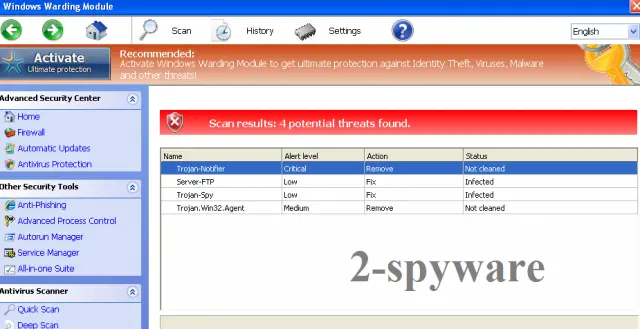
Windows Warding Module: summary
| Detection names | No Microsoft detection name is known |
|---|---|
| Distribution | Not recorded in the old report |
| Damage | Not recorded in the old report |
| Name | Windows Warding Module |
| Type | Rogue antivirus |
| Symptoms | An unknown process in Task Manager |
| Removal | Scan the PC with security software to find and remove the malware and anything installed with it. Fortect scans Windows for malware and repairs the system files and settings it damaged. Remove it nowTo use the full-featured product, you have to purchase a license for Fortect. The scan is free. |
Show 4 more facts
| Files and processes | iexplore.exe |
|---|---|
| Evidence | One write-up by a security site; details still limited |
| First seen | 5 December 2013 |
| Facts checked | 7 October 2026 |
From our report of Dec 2013 · not reviewed since
What Windows Warding Module is
Windows Warding Module is a dangerous rogue anti-spyware, which belongs to a huge family of viruses known as Fakevimes (you can find the latest threats that belong to this family at the end of this post). Please, be very careful with this and any other Fakevimes virus because they all seek to steal people's money.
For reaching this aim, Windows Warding Module displays fake alerts and system scanners that all report about tens of different viruses. Malware indicates exact locations where these 'viruses' are and then offers to remove these viruses. Of course, this service is not for free.
It you fall for purchasing the licensed Windows Warding Module's version, you will lose your money. So, the most important thing when dealing with this rogue anti-spyware is to ignore its warnings and remove Windows Warding Module from the system.
Is Windows Warding Module a real security program?
- File:
iexplore.exe
From our report of Dec 2013 · not reviewed since
HOW CAN Windows Warding Module INFILTRATE MY MACHINE?
As allways, Windows Warding Module is spread with a help of trojans.
Scammers rely on these threats because they can easily infiltrate poorly protected systems and make there unnoticeable system changes. Typically, it adds its own registry values so that Windows Warding Module could start its work every time victim reboots computer. Once it's done, malware starts showing misleading scanners and then reports about tens of different viruses. Windows Warding Module's alerts always look like that:
Keep in mind that Windows Warding Module seeks to scare you into believing that your machine is dangerously infected. In reality, it detects only legitimate system files or nonexistent viruses. That's why you can easily ignore Windows Warding Module's alerts and never take them serious.
If you were tricked to purchase Windows Warding Module license, you should waste no time and contant your credit card company. Besides, you must remove Windows Warding Module from the system.
From our report of Dec 2013 · not reviewed since
More from our earlier report on Windows Warding Module
- Firewall has blocked a program from accessing the Internet c:\windows\system32\iexplore.exe is suspected to have infected your PC.
- This type of virus intercepts entered data and transmits themto a remote server.
- Error Attempt to run a potentially dangerous script detected.Full system scan is highly recommended.
- Error System data security is at risk!To prevent potential PC errors, run a full system scan.
How to remove Windows Warding Module
Nothing it reports is real.
These steps remove it and undo a payment if you made one.
Step 1: Do not pay, and undo a payment if you made one
Nothing that Windows Warding Module says it found needs fixing by it. Close its windows and do not enter card details.
If you bought it, contact your bank or card issuer about a dispute and cancel any renewal, keeping the receipt e-mail as evidence. Uninstalling it from Windows 11 or Windows 10 removes the program but leaves the subscription running.
Full procedure with screenshots: What to do after paying a scammer
Step 2: Uninstall programs you did not mean to install
Windows Warding Module rarely comes alone: it is usually installed by, or together with, a free program. In Windows 11 open Settings > Apps > Installed apps, in Windows 10 Settings > Apps > Apps & features, and sort by install date.
Uninstall every entry from the day the trouble began that you did not install on purpose, for example a download manager, a converter or a browser you never chose.
Keep drivers and entries from Microsoft, Intel, AMD, NVIDIA or your PC's maker unless you are sure.
Full procedure with screenshots: Uninstall a program or app in Windows On uGetFix
Step 3: Remove it from startup
Press Ctrl + Shift + Esc to open Task Manager and select Startup apps (Windows 11) or the Startup tab (Windows 10). Disable entries you do not recognise, especially ones with no publisher or with a name that copies a Windows component.
Right-click an entry and choose Open file location to see where it runs from: programs in
%AppData%or%Temp%deserve a closer look. Some entries are not listed there but in the registry Run keys, which the procedure below shows how to check.Full procedure with screenshots: Stop apps from opening at startup On uGetFix
Step 4: Delete the folders left behind
Uninstalling often leaves the program's folders, and some threats reinstall themselves from them.
Press Windows + R, type
%LocalAppData%and press Enter, then do the same for%AppData%and %ProgramData%, and look for folders named after Windows Warding Module, its publisher or created on the day the problem started.Delete those folders, and check
C:\Program FilesandC:\Program Files (x86)too.If Windows says a file is in use, end it in Task Manager or delete the folder after a restart in Safe Mode. The folders are the same in Windows 11 and Windows 10.
Full procedure with screenshots: Remove what malware leaves behind in Windows
Step 5: Scan the PC, then run the offline scan
A scan finds the parts of Windows Warding Module that the manual steps cannot see. In Windows Security > Virus & threat protection > Scan options, start a Full scan and quarantine what it reports.
Follow it with Microsoft Defender Antivirus (offline scan) > Scan now, which restarts the PC and checks the disk while Windows and the malware are not running.
It takes about 15 minutes and works the same in Windows 11 and Windows 10. If either scan finds something, run the full scan again after removal until it comes back clean.

Windows 11: Windows Security > Virus & threat protection > Scan options. Full procedure with screenshots: Run a Microsoft Defender Offline scan
Stream videos without limitations, no matter where you are
There are multiple parties that could find out almost anything about you by checking your online activity.
While this is highly unlikely, advertisers and tech companies are constantly tracking you online. The first step to privacy should be a secure browser that focuses on tracker reduction to a minimum.
Even if you employ a secure browser, you will not be able to access websites that are restricted due to local government laws or other reasons. In other words, you may not be able to stream Disney+ or US-based Netflix in some countries. To bypass these restrictions, you can employ a powerful VPN, which provides dedicated servers for torrenting and streaming, not slowing you down in the process.
Data backups are important - recover your lost files
Ransomware is one of the biggest threats to personal data.
Once it is executed on a machine, it launches a sophisticated encryption algorithm that locks all your files, although it does not destroy them. The most common misconception is that anti-malware software can return files to their previous states. This is not true, however, and data remains locked after the malicious payload is deleted.
While regular data backups are the only secure method to recover your files after a ransomware attack, tools such as can also be effective and restore at least some of your lost data.
From our report of Dec 2013 · not reviewed since
HOW TO REMOVE Windows Warding Module?
Note that virus may block these programs and try to postpone its removal.
In this case you should reboot your PC into Safe Mode with Networking and lauch your anti-spyware again.
The latest parasite names used by FakeVimes:
Questions about Windows Warding Module
What is iexplore.exe and why is it running?
Every process is started by something:
- a program you installed
- a Windows service
- a scheduled task
- a startup entry
To learn why iexplore.exe runs, find its file with Open file location in Task Manager, then look for an entry pointing to that file in Settings > Apps > Startup and in Task Scheduler.
Sort Installed apps by date to see what arrived when the process first appeared. Once you know the owner, you can decide whether to keep it, switch it off at startup or uninstall it completely.
Can I end iexplore.exe in Task Manager?
Ending an unknown process is safe in the sense that Windows will warn you before you close anything critical, and a restart brings back whatever Windows needs. Ending iexplore.exe will not remove it, though: if a task or startup entry launches it, it returns at the next sign-in.
Use ending the process as a test. If something important stops working, it belonged to a program you use. If nothing changes and it comes back by itself, find and disable its starter, delete the file and scan the PC.
Is my card safe after buying Windows Warding Module?
Treat it as exposed. The order page belongs to the seller of Windows Warding Module, and you cannot know how the number is stored or shared. Ask your bank for a replacement card, which is usually free, and dispute the original charge as a misrepresented product.
Until the new card arrives, check your account daily for small or foreign transactions. If the bank offers alerts for every card payment, turn them on. Keep the receipt and screenshots, because they support the dispute.
Do I need to reinstall Windows to get rid of Windows Warding Module?
Usually not. A thorough clean-up is enough when the offline scan finds nothing afterwards and you do not see an unfamiliar process called iexplore.exe in Task Manager again. A reset is the safer choice if an attacker had remote control, if security tools were switched off, or if detections come back after every clean-up.
Windows 11 can reset itself without a USB stick under Settings > System > Recovery > Reset this PC. Copy documents and photos out first and scan the copies. A reset does not change passwords or undo stolen data, so the account steps still apply.
Is Windows Warding Module a real Windows warning?
No. Real Windows Security notifications appear in the notification area and in the Windows Security app, use Microsoft's design and never ask you to call a phone number or pay to fix anything. What people report is an unfamiliar process called iexplore.exe in Task Manager, drawn by a program that copies the look of a system message.
Open Windows Security from the Start menu to see the real status of your PC. If it shows no threats while the window keeps appearing, the window itself is the problem, and the plan in this guide removes the program that shows it.
What if I paid Windows Warding Module?
Contact your bank or card issuer the same day, explain that the payment went to a fake security program and ask for a chargeback. Keep screenshots of an unfamiliar process called iexplore.exe in Task Manager, the payment receipt and any e-mails.
If you gave card details in the program, ask the bank to block and replace the card. Then uninstall the program and run a full scan in Windows Security. If you also called a number and let someone connect to your PC, uninstall the remote-access tool they used and change your passwords from another device.
Someone called offering a refund for Windows Warding Module. Is it genuine?
Almost certainly not. Refund calls are a well-known second stage of scareware and tech support scams. The caller says you are owed money, asks you to install a remote access program to "process" it, then opens your online banking, makes it look as if too much was refunded and asks you to send the difference back.
Hang up. Real refunds go back to the card or PayPal account you paid with, through your bank or the payment provider, and never need remote access or a gift card.
What could the caller do while connected to my PC?
Anything you could do. Callers working with fake alerts like Windows Warding Module typically show you Windows logs as "proof", install their own remote tool for later, and steer you to online banking or a gift card purchase. Some add a password to Windows or lock the PC if you refuse to pay.
Remove every remote access program you did not install yourself, check Settings > Accounts > Other users for new accounts, and change important passwords from a clean device. If you cannot be sure what was changed, a reset of Windows is the safe choice.
Will Fortect remove Windows Warding Module?
Fortect scans Windows for malware and unwanted programs and repairs the system files and settings they change, and its free scan shows what it finds on your PC before you decide anything.
For Windows Warding Module, follow the plan above as well: the browser steps take back permissions and settings that no scanner treats as a threat, and uninstalling the program that brought it removes the source.
Run Microsoft Defender's full scan and, if anything was found, its offline scan as a second opinion. If the symptoms are gone after the plan and both scans are clean, there is nothing more to do.
Sources
- FTC: How to recognize, remove and avoid malware (read October 7, 2026)
- Microsoft Learn: Microsoft Defender Offline (read October 7, 2026)
- Microsoft Learn: How Microsoft names malware (read October 7, 2026)