
Cassiopesa ads: what it is and how to remove it
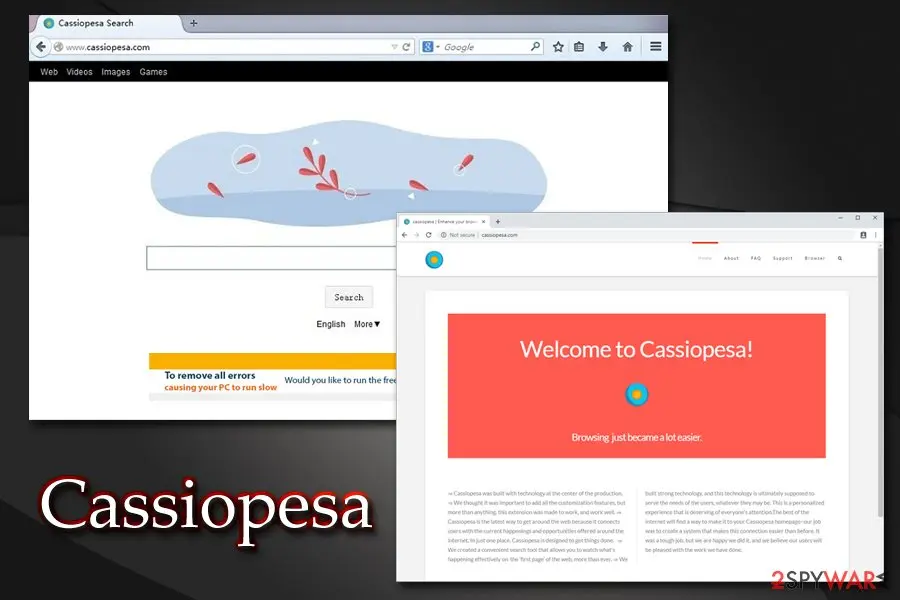
Cassiopesa.com is a domain name that users will see on their Google Chrome, Safari, Internet Explorer, Mozilla Firefox, or another browser after they get hijacked by a potentially unwanted application. The program comes in the form of a Chromium-based browser and initiates all the other changes at once.
Facts checked October 6, 2026. Removal steps tested on Windows 11 (26H2) and checked against Microsoft's and the browser makers' current documentation. Sections marked as our earlier report are the original text: they describe the threat as it was then and have not been reviewed since. The 2026 status, the removal steps and the questions are current.
Automatic
Get a free scan and check if your PC is infected.
Fortect finds malware, unwanted programs and the Windows damage they leave behind, and repairs it in one pass.
Not sure what sends your browser to cassiopesa.com? An automatic scan looks at the usual sources for you.
Do it yourself · free Remove Cassiopesa ads yourself 3 steps, about 9 minutes, no software needed.
Start the steps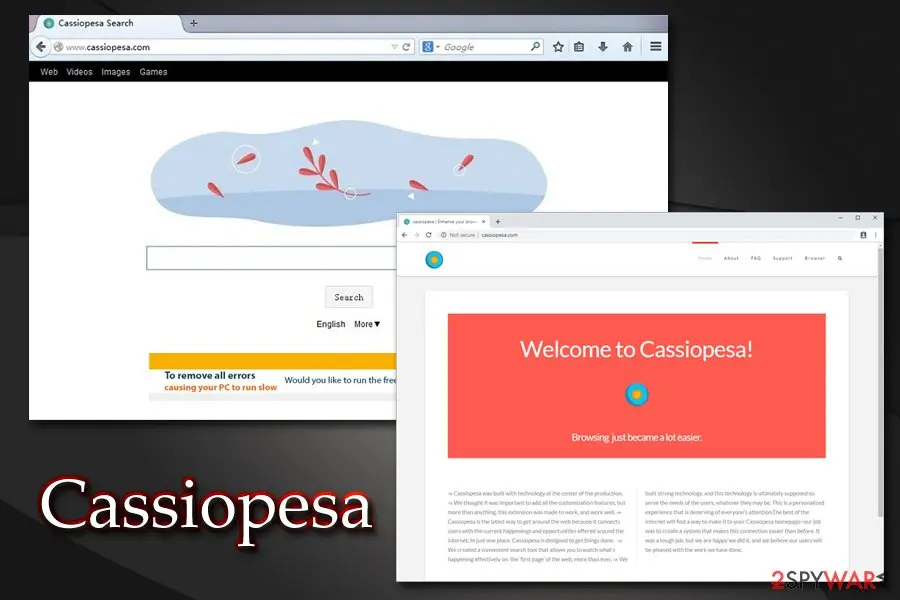
Cassiopesa ads: summary
| Name | Cassiopesa |
|---|---|
| Type | Potentially unwanted program, browser hijacker |
| Category | Browser based on Chromium project |
| Search engine set to | Cassiopesa.com |
| Symptoms | Hijacked web browsers, sponsored links, intrusive ads, redirects, etc. |
| Potential risks | Installation of bogus software, malware infection, information disclosure to unknown parties, etc. |
| Removal | Scan the PC with security software to find and remove the malware and anything installed with it. Fortect scans Windows for malware and repairs the system files and settings it damaged. Remove it nowTo use the full-featured product, you have to purchase a license for Fortect. The scan is free. |
Show 9 more facts
| Detection names | No Microsoft detection name is known |
|---|---|
| Distribution | Not recorded in the old report |
| Damage | Not recorded in the old report |
| Evidence | 5 write-ups by security sites; details still limited |
| Domains | cassiopesa.com |
| Ads shown as | Redirects through ad pages |
| Browsers | Chrome, Edge and Firefox |
| First seen | 13 January 2021 |
| Facts checked | 6 October 2026 |
Is Cassiopesa ads dangerous?
From our report of Jan 2021 · not reviewed since
Cassiopesa is a Chromium-based browser categorized as a potentially unwanted program that makes unwanted changes on the computer
Cassiopesa.com is a domain name that users will see on their Google Chrome, Safari, Internet Explorer, Mozilla Firefox, or another browser after they get hijacked by a potentially unwanted application.
The program comes in the form of a Chromium-based browser and initiates all the other changes at once.
Potentially unwanted programs (or PUPs for short) usually come bundled inside a software package downloaded from third-party hosting sites. Unfortunately, users might not be presented with the full list of the apps that are about to be installed unless the Advanced/Custom settings are picked.
Soon after that, they will notice the the infiltration of the app and that their default web browser opens .html, .php and other webpage-associated extensions changed to a customized version of Chromium.
Beware that Cassiopesa may cause various unwanted issues during your browsing. For example, it may initiate continuous redirects to unknown and suspicious websites, diminish web browser performance, or may even track your online activities. Therefore, if you noticed that your default web browser changed without your permission, you should immediately proceed with PUP removal from your system.
It is worth mentioning that Chromium is a legitimate web browser and an open-source project by Google. Unfortunately, many businesses that specialize is online advertising adopted it and turned it into potentially unwanted programs. Here are a few examples of potentially unwanted browsers that work similarly to this app:
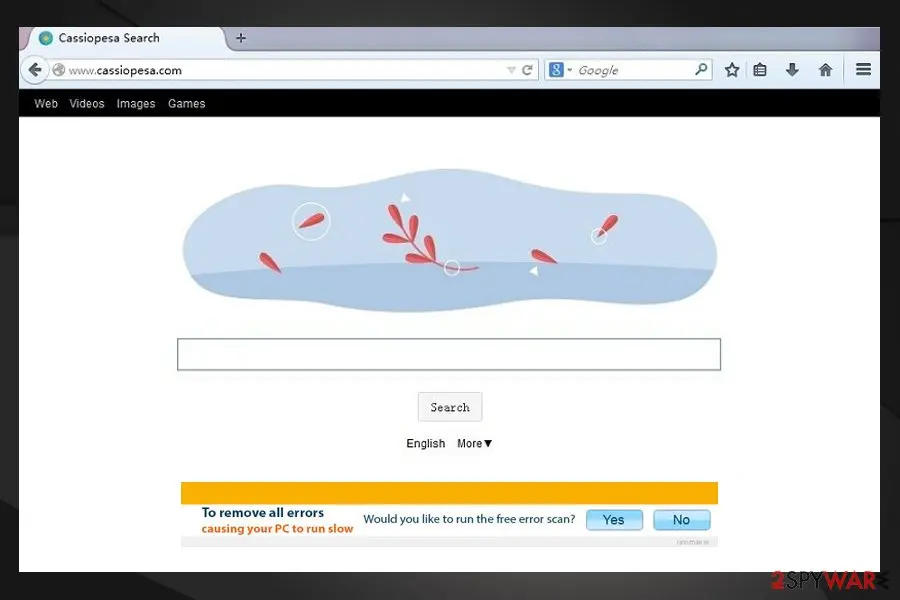
The primary feature of Cassiopesa.com is to display the promoted sites in all possible ways. For that, the developers employ software bundling in order to distribute the app to as many people as possible, which consequently performs changes to other web browsers and installs itself as a default one.
Users then can see a variety of sponsored links at the top of the search results that lead to affiliated sites. Besides, users might encounter pop-ups, deals, offers, in-text links, and other ads that might cover the underlying content of all visited sites, diminishing the web browser experience.
In some cases, the ads that offer bogus system scanners and fake driver updates might be inserted directly into the startup page. In such a way, the developers guarantee that the sponsored content will be viewed by millions, consequently guaranteeing revenue for themselves. Unfortunately, users will struggle with never-ending ads and unwanted browser changes, and might as well have troubles while trying to get rid of the PUP.
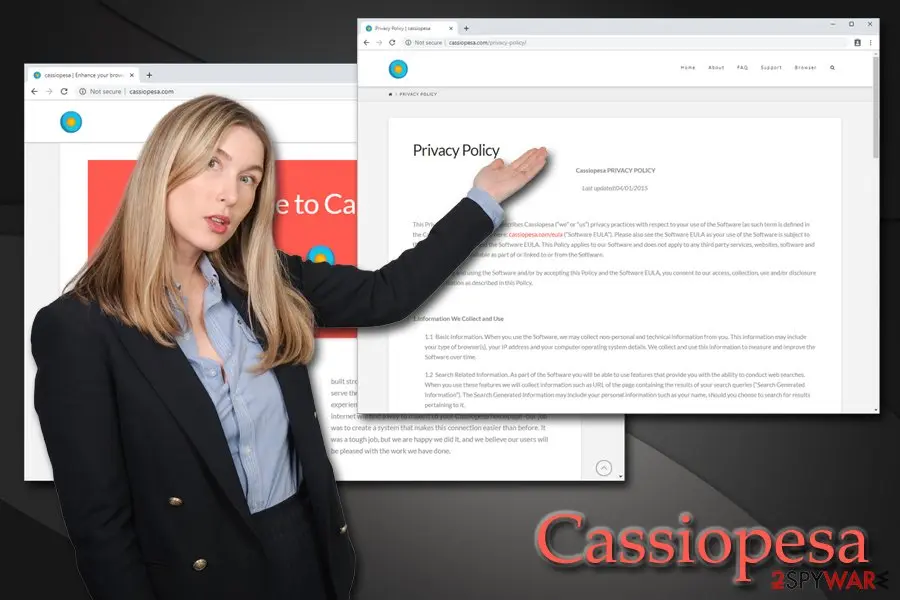
Besides, the app is spread along with tracking cookies, which may collect and store various information about the users, such as IP address, email address, PC location, search terms, websites visited, data entered in them, clicks, browser type, language and so on.
Therefore, by keeping Cassiopesa browser hijacker on your computer you risk losing personally and non-personally identifiable information, landing on suspicious websites, infecting your machine with other suspicious programs like scareware and even injecting malware without noticing it.
To conclude, our team, along with experts from Zondervirus.nl recommend users to remove the hijacker from their systems as soon as possible. The elimination can be performed by using automated security tools like or by employing manual removal instructions at the bottom of this article.
- Citrio
- Chroomium
- Qword
- WebDiscover
- Yandex
- Fusion, etc.
From our report of Jan 2021 · not reviewed since
You can terminate Cassiopesa easily
If the hijacker has already been downloaded to your computer as a reliable search engine, you should stay away from it.
Otherwise, you may notice such unwanted activities as redirects to unknown websites, tons of annoying pop-up ads, and even browser crashes.
The easiest way to remove Cassiopesa.com from your system is by using reputable anti-malware software that can detect and terminate potentially unwanted programs (some AV vendors include the scan as an optional feature, as PUPs are not usually treated as malware). Be warned that it might not be an easy task, especially if your computer is flooded with multiple unwanted applications.
Because Cassiopesa is a browser hijacker, it modified the settings of Mozilla Firefox, Safari, Google Chrome, and other installed browsers. Therefore, you should also reset the settings to make sure that unwanted activity does not come back.
How Cassiopesa ads got into your browser
From our report of Jan 2021 · not reviewed since
Potentially unwanted programs are called in this way mainly because of the way they are distributed - users often find such apps installed without their permission.
PUPs are inserted into a single software package, and optional components are often hidden from users' eyes purposely. This method, also often called as software bundling, is deceptive and unfair, although users are often accused of negligence and that they themselves failed to read the installation instruction properly.
Such software packages are usually promoted via popular and reputable download websites, including download.com, softonic.com, soft32.com, cnet.com, etc. By promoting optional applications within the freeware installers, these sites monetize effectively, and also offer freeware developers some share. Therefore, all parties are interested in as many users to install the optional components as possible.
No matter how attractively the optional components may be introduced, don't forget that the majority of them are adware, browser hijackers or other PUPs. To protect your computer from unwanted ads and redirects, you should opt-out of all attachments that are traveling with your selected freeware.
Therefore, you should always opt for Advanced/Custom settings, decline all the deals or offers, and watch out for fine print along with pre-selected boxes to avoid PUP installation.
Check your browser and PC
- Address:
cassiopesa.com
How to remove Cassiopesa ads
Work in this order and test a few links after each step, so you know which one was the cause.
Step 1: Check the browser's extensions
A browser that keeps landing on
cassiopesa.comby itself usually has an add-on doing it. Open the extension list (chrome://extensions, edge://extensions, or Extensions and themes in the Firefox menu) and remove anything you do not remember installing.Coupon, PDF, new tab, search and video downloader add-ons are the usual suspects. Do this in every browser on the Windows 11 or Windows 10 PC.
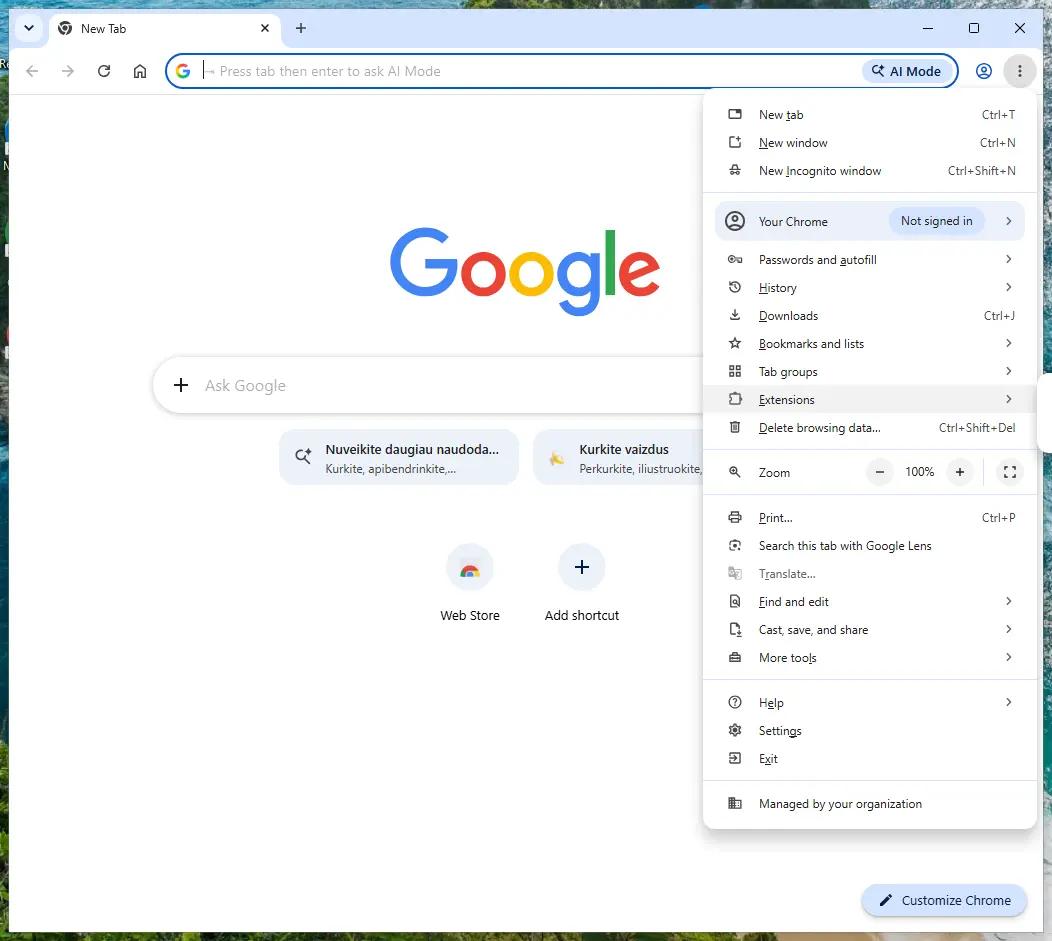
Chrome on Windows 11: More > Extensions > Manage extensions. Full procedure with screenshots: Remove a browser extension
Step 2: Reset the browser if the redirects continue
When
cassiopesa.comkeeps opening after the extensions are cleaned, reset the browser to its defaults. Chrome: Settings > Reset settings > Restore settings to their original defaults; Edge: Settings > Reset settings; Firefox: Help > More troubleshooting information > Refresh Firefox.A reset keeps bookmarks and saved passwords but clears site permissions, the start page and the search engine.
If every browser still redirects afterwards, the cause is a program in Windows 11 or Windows 10: check Settings > Apps > Installed apps for anything you did not install.
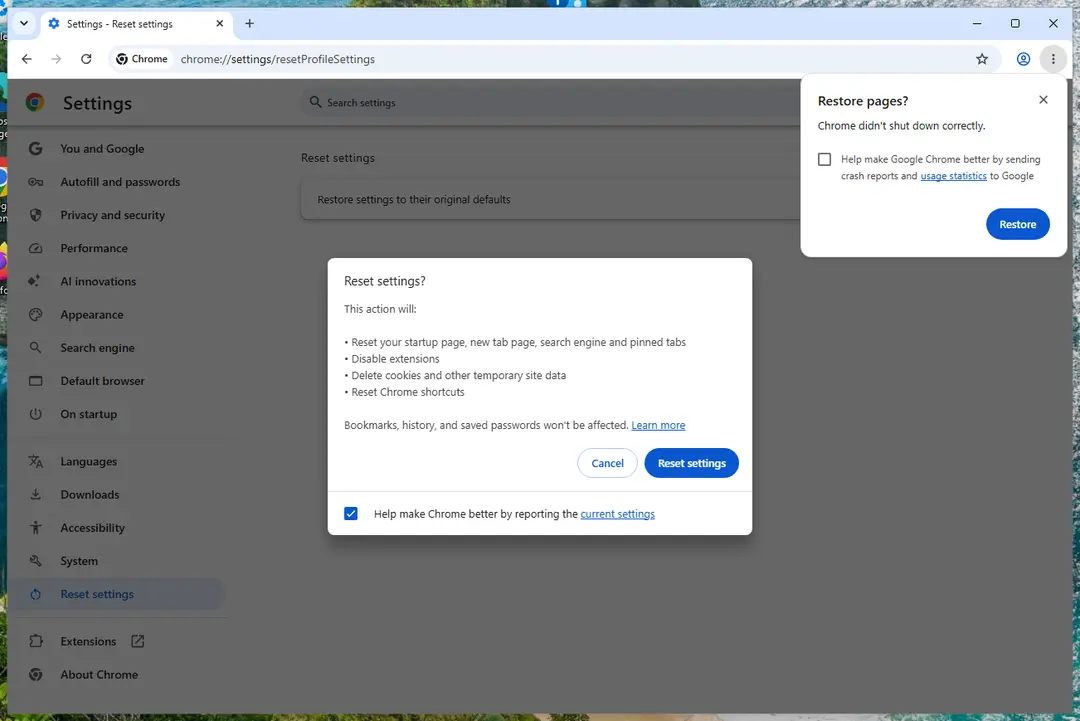
Chrome on Windows 11: Settings > Reset settings. Full procedure with screenshots: Reset a browser and fix a hijacked search engine
Step 3: Scan the PC if you downloaded anything from the ads
Most people who only saw the notifications can skip this step. If a notification or the page it opened made you download or run a file, delete the file and run a full scan, then a Microsoft Defender Offline scan.
In Windows 11 and Windows 10 open Windows Security > Virus & threat protection > Scan options, select Microsoft Defender Antivirus (offline scan) and click Scan now. The PC restarts and the scan takes about 15 minutes, so save your work first.

Windows 11: Windows Security > Virus & threat protection > Scan options. Full procedure with screenshots: Run a Microsoft Defender Offline scan
Instructions for each browser and system
The detailed steps for every browser and system this guide covers. Open the one you use.
Uninstall from Windows
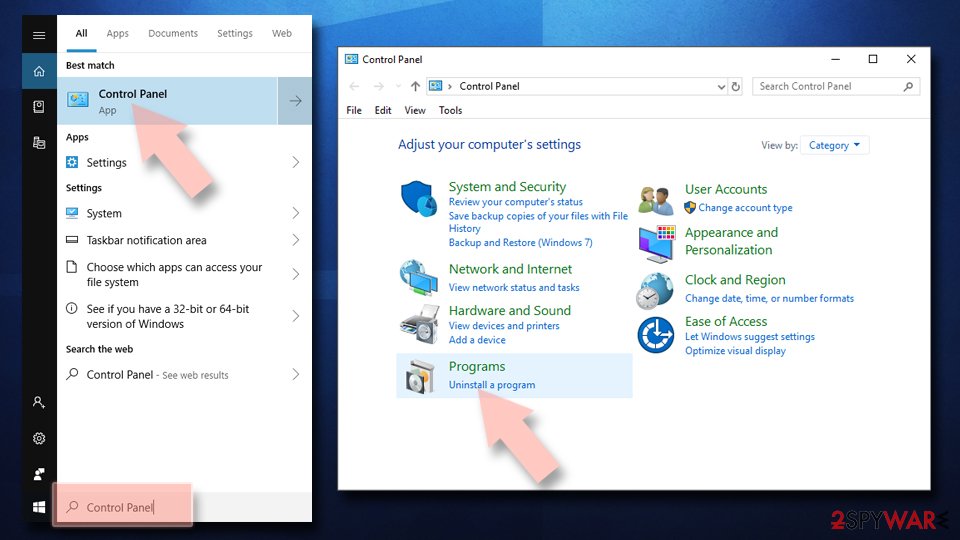
Uninstall from Windows 10/8:
- Type Control Panel into the Windows search box and open the result.
- Under Programs, select Uninstall a program.
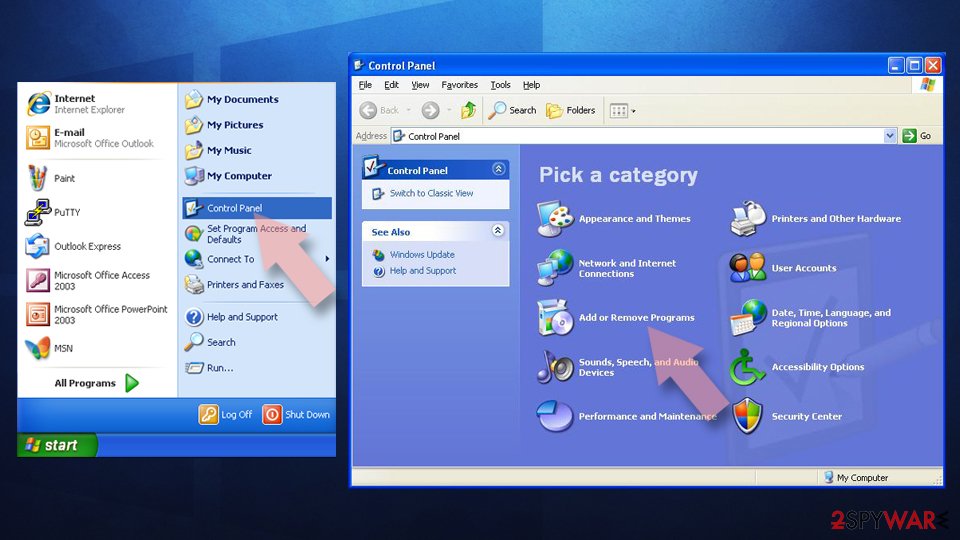
Uninstall from Windows 7/XP:
- Click on Windows Start > Control Panel (Windows XP users should click on Add/Remove Programs).
- In Control Panel, select Programs > Uninstall a program.
Remove the unwanted program:
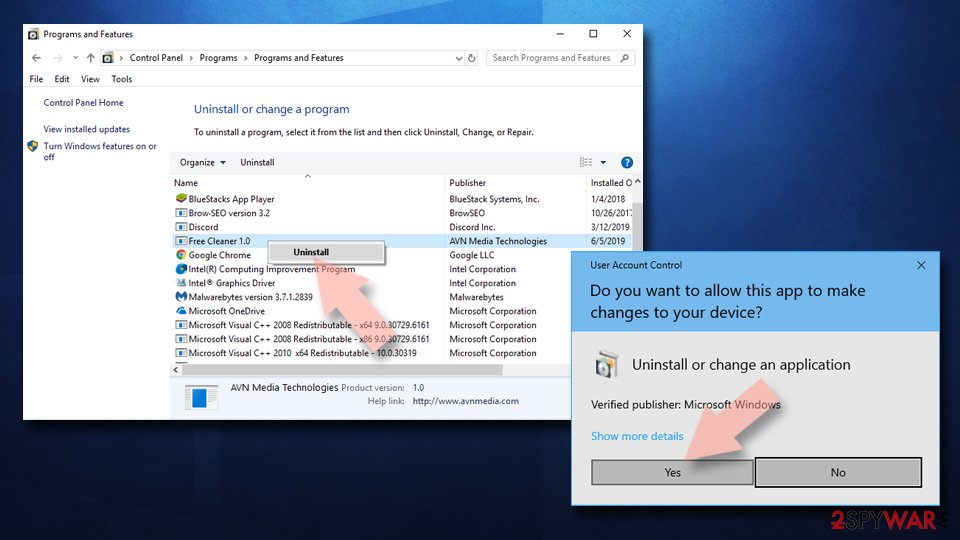
- In the Programs and Features window, look for any recently installed suspicious entries, select them, and click Uninstall.
- If User Account Control appears, click Yes to confirm, then complete the removal.
Remove from Google Chrome
As soon as you delete the PUP, make sure you reset Google Chrome, as the altered settings might still bring you to the affiliated sites and show intrusive ads:
Delete malicious extensions from Google Chrome:
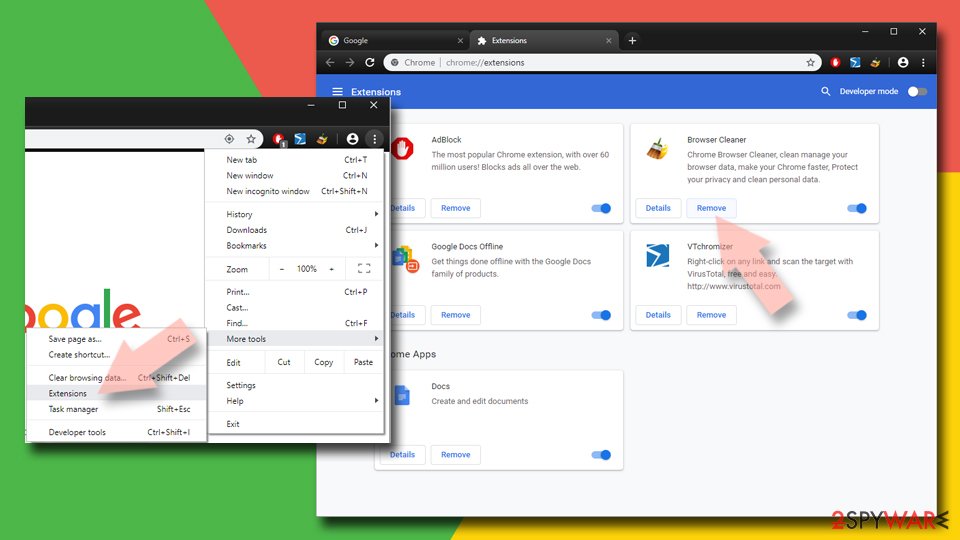
- Open Google Chrome, click on the Menu (three vertical dots at the top-right corner) and select More tools > Extensions.
- In the newly opened window, you will see all the installed extensions. Uninstall all suspicious extensions related to the unwanted program by clicking Remove.
Clear cache and web data from Chrome:
- Click on Menu and pick Settings.
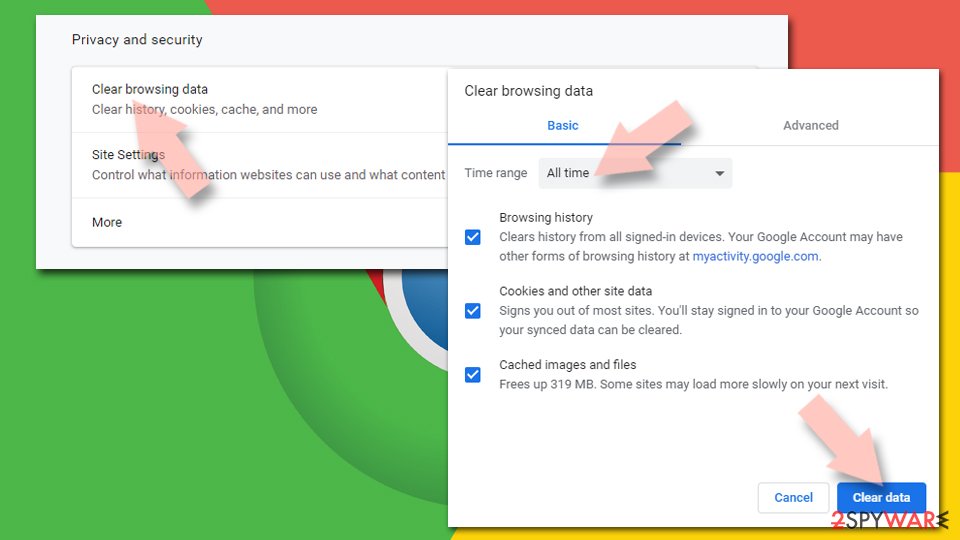
- Under Privacy and security, select Clear browsing data.
- Select Browsing history, Cookies and other site data, as well as Cached images and files.
- Click Clear data.
Change your homepage:
- Click menu and choose Settings.
- Look for a suspicious site in the On startup section.
- Click on Open a specific or set of pages and click on three dots to find the Remove option.
Reset Google Chrome:
If the previous methods did not help you, reset Google Chrome to eliminate all the unwanted components:
- Click on Menu and select Settings.
- In the Settings, scroll down and click Advanced.
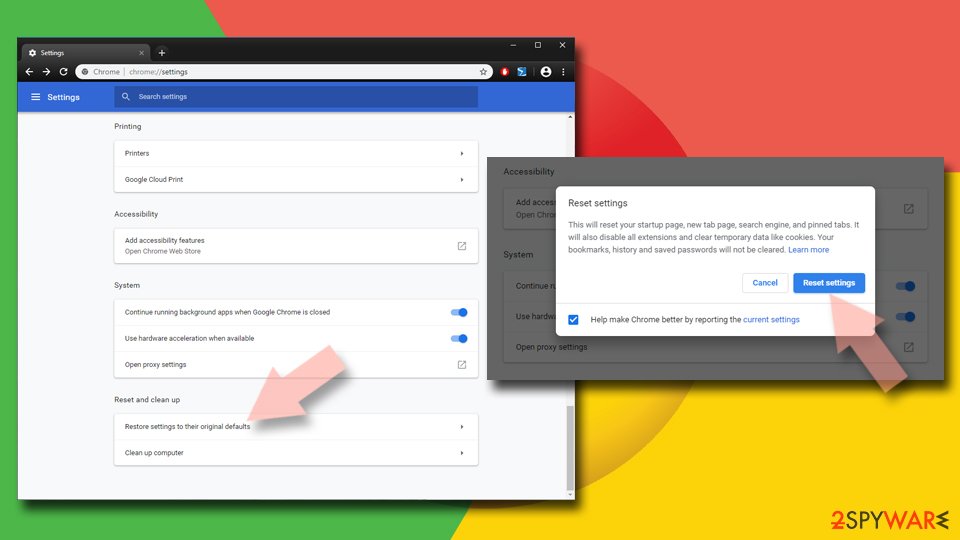
- Scroll down and locate Reset and clean up section.
- Now click Restore settings to their original defaults.
- Confirm with Reset settings.
Remove from Microsoft Edge
Delete unwanted extensions from MS Edge:
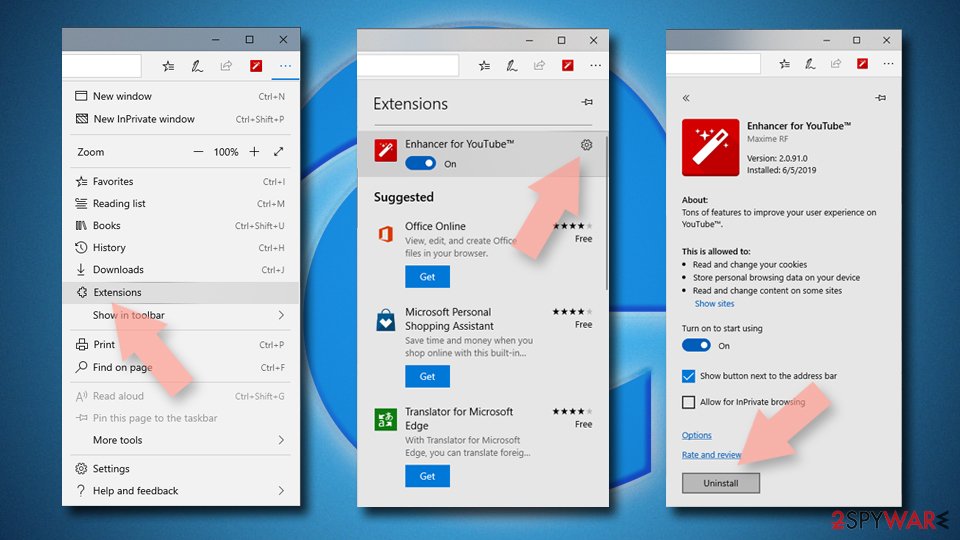
- Select Menu (three horizontal dots at the top-right of the browser window) and pick Extensions.
- From the list, pick the extension and click on the Gear icon.
- Click Remove.
Clear cookies and other browser data:
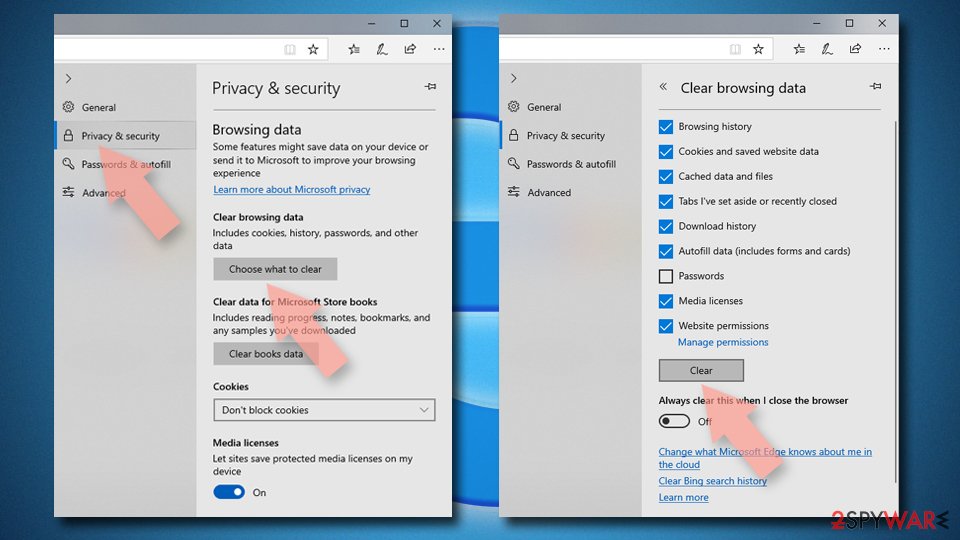
- Click on the Menu (three horizontal dots at the top-right of the browser window) and select Settings > Privacy, search, and services..
- Under Clear browsing data, pick Choose what to clear.
- Select Cookies and other site data and Cached images and files. (apart from passwords, although you might want to include Media licenses as well, if applicable) and click on Clear.
Restore new tab and homepage settings:
- Click the menu icon and choose Settings.
- Then find On startup section.
- Click Remove next to any suspicious startup page.
Reset MS Edge if the above steps did not work:
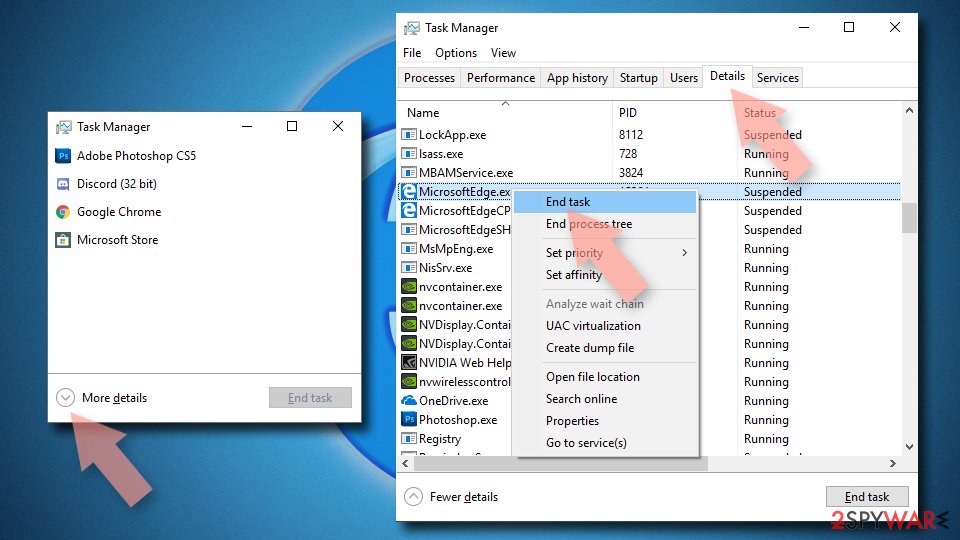
- Press on Ctrl + Shift + Esc to open Task Manager.
- Click on More details arrow at the bottom of the window.
- Select Details tab.
- Now scroll down and locate every entry with Microsoft Edge name in it. Right-click on each of them and select End Task to stop MS Edge from running.
Delete extensions from MS Edge (Chromium):
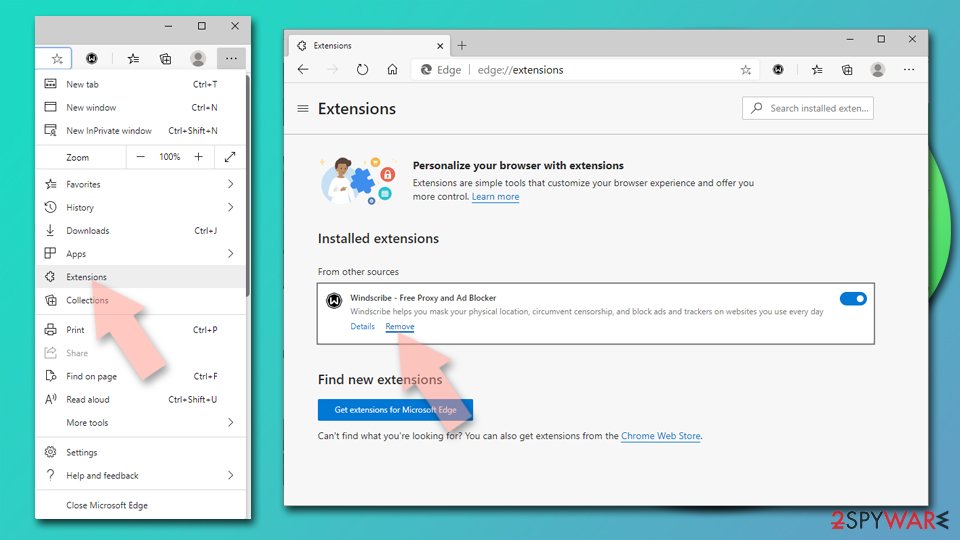
- Open Edge and click select Settings > Extensions.
- Delete unwanted extensions by clicking Remove.
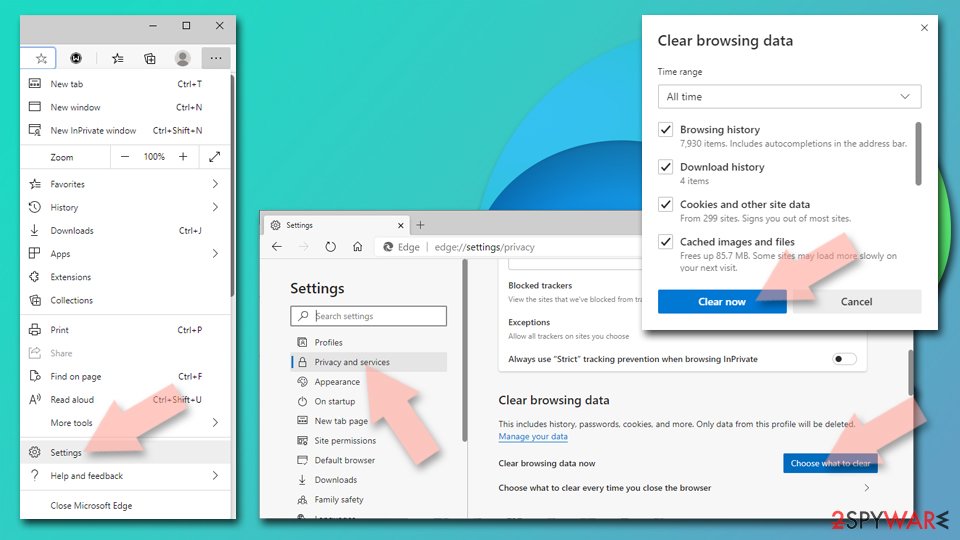
Clear cache and site data:
- Click on Menu and go to Settings.
- Select Privacy, search and services.
- Under Clear browsing data, pick Choose what to clear.
- Under Time range, pick All time.
- Select Clear now.
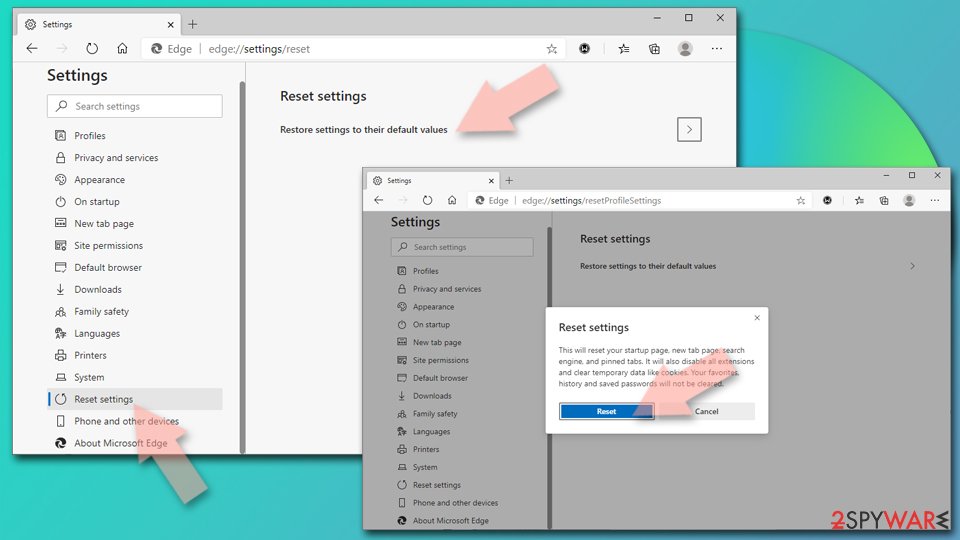
Reset Chromium-based MS Edge:
- Click on Menu and select Settings.
- On the left side, pick Reset settings.
- Select Restore settings to their default values.
- Confirm with Reset.
- This will disable extensions and reset startup pages but will not delete bookmarks, saved passwords, or browsing history.
Remove from Mozilla Firefox (FF)
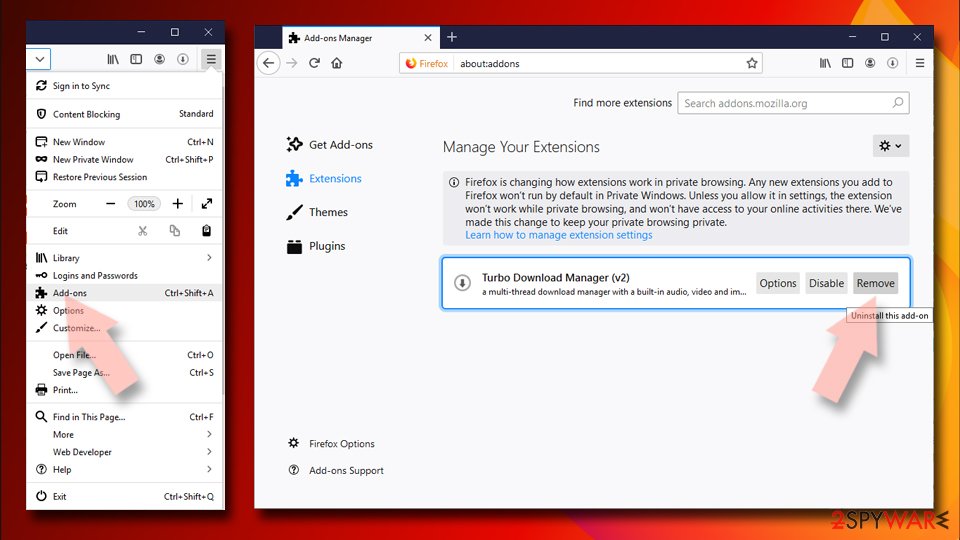
Remove dangerous extensions:
- Open Mozilla Firefox browser and click on the Menu (three horizontal lines at the top-right of the window).
- Select Add-ons.
- In here, select the unwanted extension and click Remove.
Reset the homepage:
- Click three horizontal lines at the top right corner to open the menu.
- Choose Settings.
- Under Home, set your preferred homepage and new tab settings.
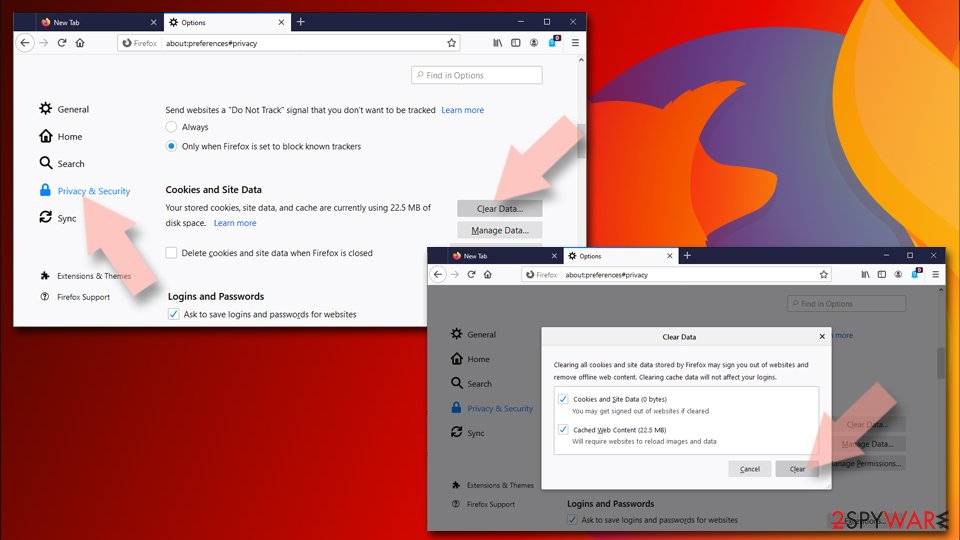
Clear cookies and site data:
- Click Menu and pick Settings.
- Go to Privacy & Security section.
- Scroll down to locate Cookies and Site Data.
- Click on Clear Data...
- Select Cookies and Site Data and Temporary cached files and pages, then click Clear.
Reset Mozilla Firefox
If clearing the browser as explained above did not help, reset Mozilla Firefox:
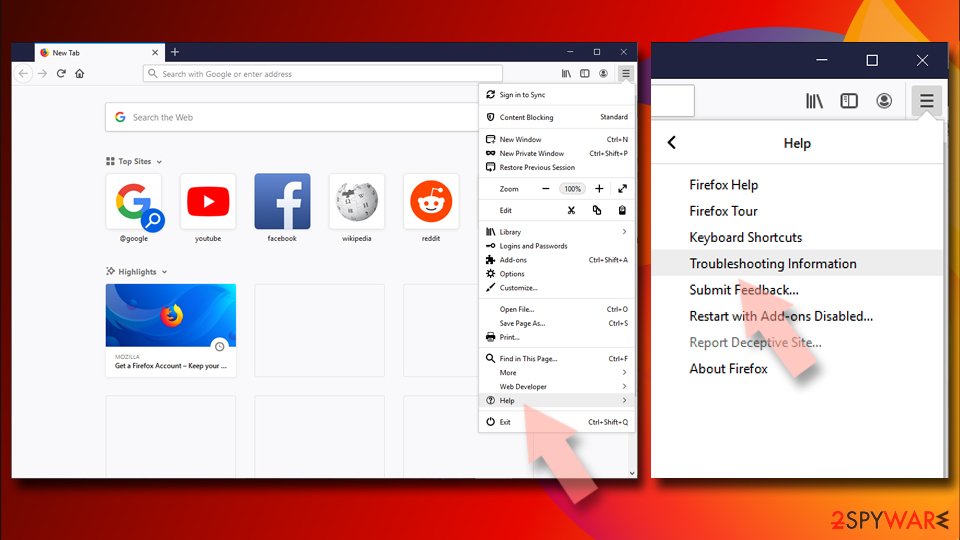
- Open Mozilla Firefox browser and click the Menu.
- Go to Help and then choose Troubleshooting Information.
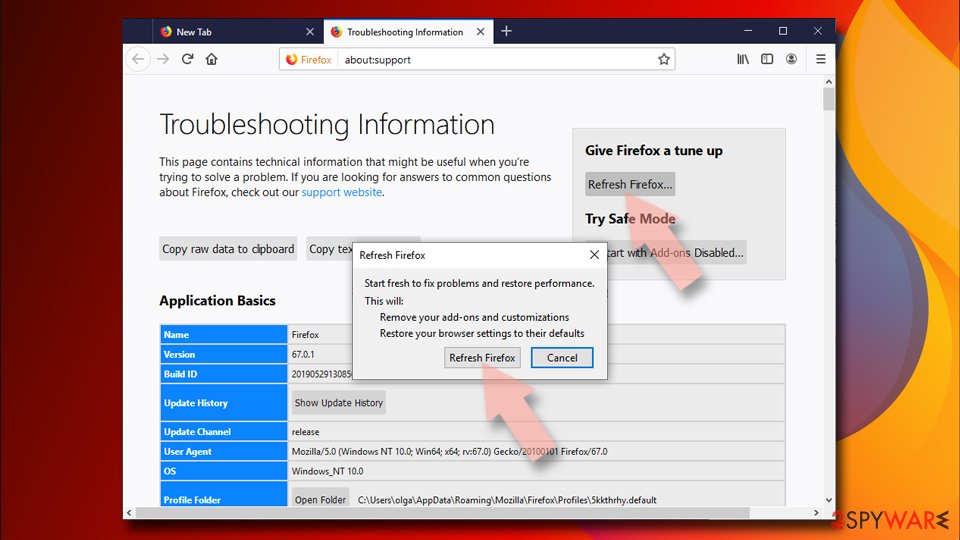
- Under Give Firefox a tune up section, click on Refresh Firefox...
- Once the pop-up shows up, confirm the action by pressing on Refresh Firefox.
Delete from Safari
Remove dangerous extensions:
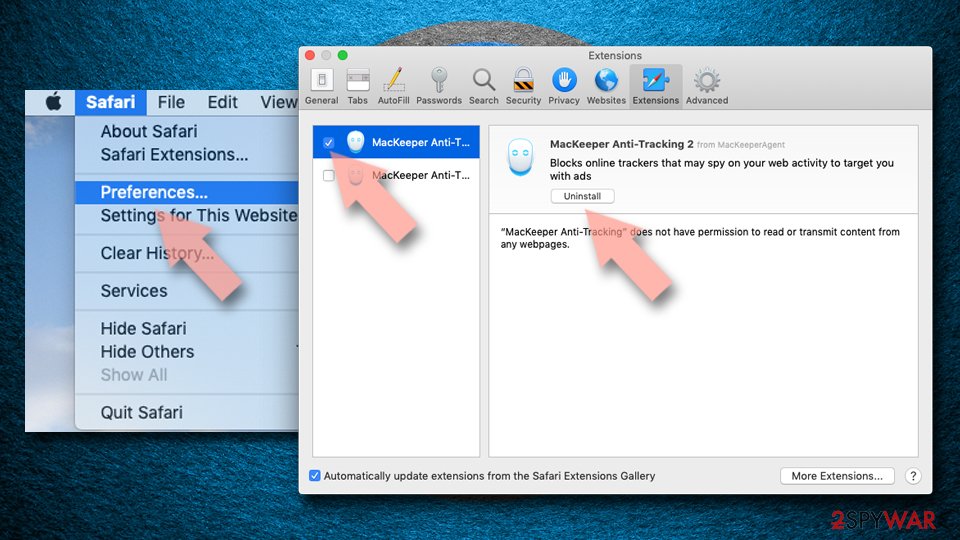
- Open Safari, click Safari in the menu at the top-left of the screen, and select Preferences.
- Go to the Extensions tab, look for any suspicious entries, and click Uninstall to remove them.
Clear history and website data:
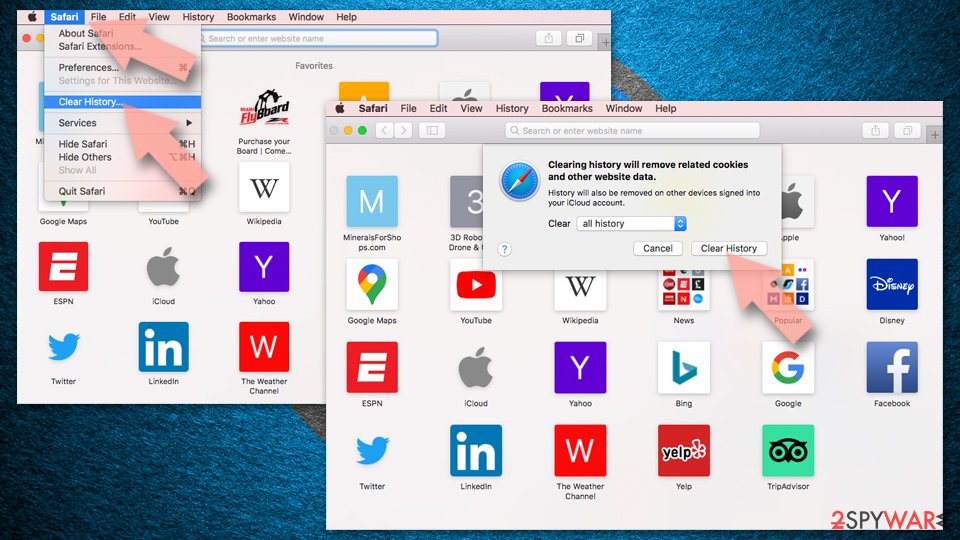
- Click Safari in the menu and pick Clear History.
- Set Clear to all history and confirm with Clear History.
Reset Safari:
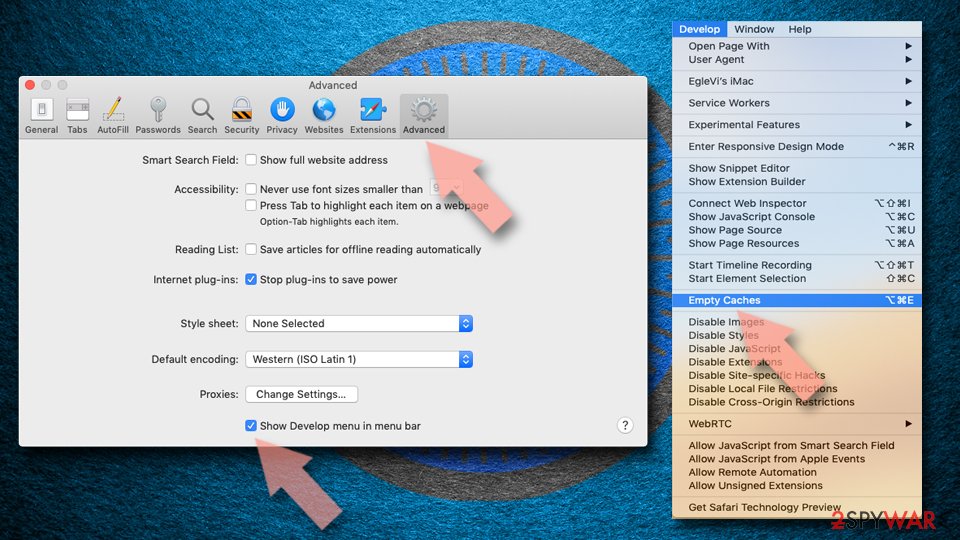
- Click Safari in the menu and select Preferences > Advanced.
- Enable Show Develop menu in menu bar.
- From the menu bar, click Develop and select Empty Caches.
Delete from macOS
Macs can also be infected with a browser hijacker, so you should proceed with the following instructions to get rid of the unwanted ads and redirects:
Remove the unwanted application:
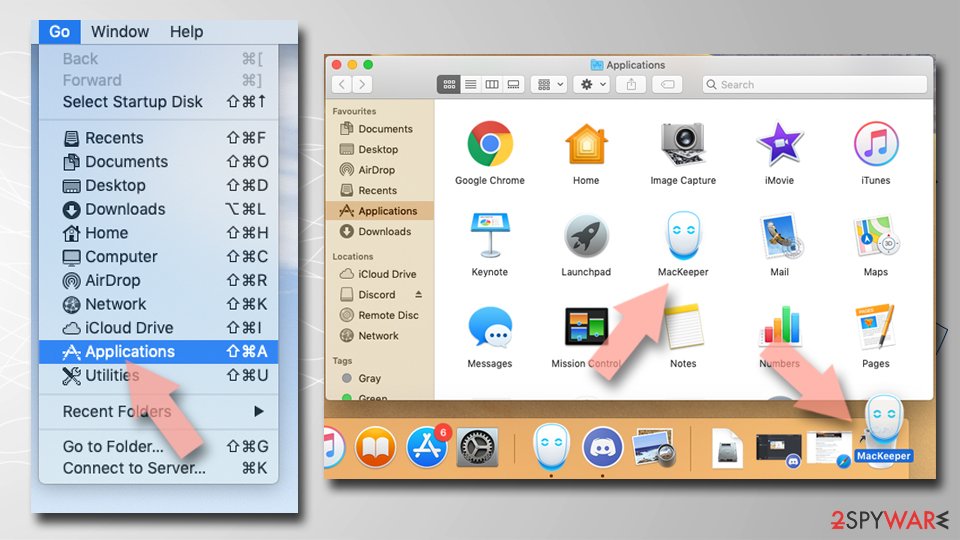
- From the menu bar, select Go > Applications.
- In the Applications folder, look for any suspicious entries, then drag them to Trash (or right-click and pick Move to Trash).
Delete leftover files and folders:
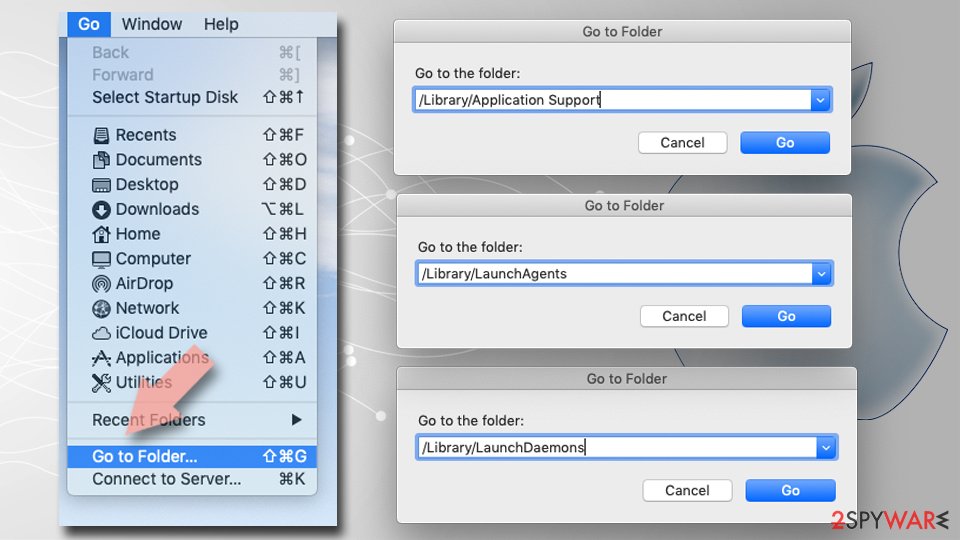
- Select Go > Go to Folder.
- Enter /Library/Application Support and remove any suspicious folders related to the unwanted program.
- Repeat the same check in the /Library/LaunchAgents and /Library/LaunchDaemons folders, deleting any suspicious entries.
- Finally, empty the Trash to permanently remove the leftovers.
Protect your privacy - employ a VPN
There are several ways how to make your online time more private - you can access an incognito tab.
However, there is no secret that even in this mode, you are tracked for advertising purposes. There is a way to add an extra layer of protection and create a completely anonymous web browsing practice with the help of VPN. This software reroutes traffic through different servers, thus leaving your IP address and geolocation in disguise.
Besides, it is based on a strict no-log policy, meaning that no data will be recorded, leaked, and available for both first and third parties. The combination of a secure web browser and VPN will let you browse the Internet without a feeling of being spied or targeted by criminals.
No backups? No problem. Use a data recovery tool
If you wonder how data loss can occur, you should not look any further for answers - human errors, malware attacks, hardware failures, power cuts, natural disasters, or even simple negligence.
In some cases, lost files are extremely important, and many straight out panic when such an unfortunate course of events happen. Due to this, you should always ensure that you prepare proper data backups on a regular basis.
If you were caught by surprise and did not have any backups to restore your files from, not everything is lost. is one of the leading file recovery solutions you can find on the market - it is likely to restore even lost emails or data located on an external device.
Questions about Cassiopesa ads
Why does my browser keep going to cassiopesa.com?
Something is sending it there. On one site only, that site's ads are the cause and leaving the site ends it.
On many different sites, the usual causes are an extension you installed with something else, a site you once allowed to send notifications, or an ad-supported program in Windows that changes how the browser behaves. cassiopesa.com itself is only a stop on the way: it records the visit and forwards you to whatever advertiser pays most.
Check the extensions page, then the list of sites allowed to send notifications, then Installed apps sorted by date. Removing the cause stops the redirects; blocking the domain alone usually does not, because the network moves to a new one.
Should I worry about redirects to cassiopesa.com?
Worry less about cassiopesa.com itself and more about what keeps sending you there. A single redirect from a free streaming or download site is normal and harmless once the tab is closed.
Repeated redirects on sites that used to work fine mean something in the browser or in Windows changed, often an extension or program installed alongside other software. It may also collect the pages you visit. Remove the cause with the steps in this guide, and do not act on anything the redirected pages ask:
- no Allow clicks
- no downloads
- no calls
If you already did one of those, the matching section of this guide explains what to do next.
What is Cassiopesa?
Cassiopesa is an ad redirect domain, a kind of adware. It earns money by showing redirects through ad pages, and each view, click or redirect pays whoever runs it. It is not something people usually choose; it arrives through a free download, a fake button or a misleading prompt.
Cassiopesa does not encrypt files or take control of Windows, but its ads are sold to anyone, including scam operators, so they can lead to fake virus warnings and unwanted downloads. The steps in this guide remove it from Windows and from each browser.
Why does cassiopesa.com keep showing up?
There are two possible reasons. If it appears as desktop notifications, a browser on this PC was given permission to receive them from cassiopesa.com, usually through a misleading prompt. That permission stays until you remove it in the browser's site settings.
If it appears as tabs or redirects, an ad on a site you visit is opening it, or an extension or program on the PC is. Test a private window: if cassiopesa.com never appears there, an extension is the likely cause. The plan above covers each case.
Which browsers does Cassiopesa affect?
In the cases we checked, Cassiopesa showed up in Chrome, Edge and Firefox. That does not rule out others on your PC, since adware installers often target every browser they find, and permissions and extensions sync across computers signed in to the same browser account.
Open each browser you have, go to its extensions page and its notification settings, and remove anything you do not recognise. Profiles count separately: Chrome and Edge can each hold several, and each one needs checking on its own.
Are the pop-ups I see really from Cassiopesa?
Compare them with the details in the table above. Cassiopesa produces redirects through ad pages, and the clearest sign of it is redirects to cassiopesa.com. Other adware looks similar, so check the name of the sending site at the bottom of a notification, the address in the tab that opened, or the newest entries on the extensions page.
If those match, this guide fits. If you see a different name, the same kind of steps apply, but remove the item you actually find rather than guessing.
My scan found nothing, but the ads continue. Why?
Because the source may not be a file a scanner looks for. Browser notifications are a permission stored in the browser, and many adware extensions are not flagged because they come from an official store.
Some ad-supported programs are only reported if you enable detection of potentially unwanted apps. So a clean scan does not mean the job is done. Check each browser's notification permissions and extension list by hand, and turn on Potentially unwanted app blocking in Windows Security before scanning again.
Can an adware pop-up infect my PC just by appearing?
No. A pop-up, a notification or a new tab is only a web page or a message. It cannot run programs on Windows by itself, provided the browser and Windows are up to date. Infection needs a step from you:
- running a downloaded file
- installing an extension
- giving a stranger remote access
That is why scam pages work so hard to make you click. Close such pages with the tab's X or by closing the browser, not with buttons inside the page, which may start a download.
Why is my browser so slow since the ads started?
Each page now does extra work. An adware extension reads the page, decides where to put ads, loads them from ad servers and reports your visit, and that happens on every tab. Ad-supported programs add their own background activity.
Removing the extension or program usually makes the browser fast again at once. If it stays slow, open the browser's own task manager with Shift+Esc in Chrome or Edge and look for extensions using a lot of memory or processor time.
Will Fortect remove Cassiopesa?
Fortect scans Windows for malware and unwanted programs and repairs the system files and settings they change, and its free scan shows what it finds on your PC before you decide anything.
For Cassiopesa, follow the plan above as well: the browser steps take back permissions and settings that no scanner treats as a threat, and uninstalling the program that brought it removes the source.
Run Microsoft Defender's full scan and, if anything was found, its offline scan as a second opinion. If the symptoms are gone after the plan and both scans are clean, there is nothing more to do.
Sources
- How-To Geek: PUPs Explained: What is a "Potentially Unwanted Program"? (read October 6, 2026)
- Online Tech Tips: What Are Tracking Cookies and Are They Bad? (read October 6, 2026)
- Zondervirus: Zondervirus (read October 6, 2026)
- Google Chrome Help: Use notifications to get alerts (no longer online) (read October 6, 2026)
- FTC: How to recognize, remove and avoid malware (read October 6, 2026)