
Free Radio Cast Toolbar: what it is and how to remove it
According to our research, Free Radio Cast Toolbar is closely related to Ask search. If this toolbar gets installed on the computer, it might replace your homepage to Ask search page.
Facts checked October 7, 2026. Removal steps tested on Windows 11 (26H2) and checked against Microsoft's and the browser makers' current documentation. Sections marked as our earlier report are the original text: they describe the threat as it was then and have not been reviewed since. The 2026 status, the removal steps and the questions are current.
Automatic
Get a free scan and check if your PC is infected.
Fortect finds malware, unwanted programs and the Windows damage they leave behind, and repairs it in one pass.
If Free Radio Cast Toolbar keeps coming back after uninstalling, a scan can find what reinstalls it.
Do it yourself · free Remove Free Radio Cast Toolbar yourself 4 steps, about 12 minutes, no software needed.
Start the steps
Free Radio Cast Toolbar: summary
| Detection names | No Microsoft detection name is known |
|---|---|
| Distribution | Not recorded in the old report |
| Damage | Not recorded in the old report |
| Name | Free Radio Cast Toolbar |
| Type | System optimizer |
| Symptoms | An unknown program in Installed apps |
| Removal | Scan the PC with security software to find and remove the malware and anything installed with it. Fortect scans Windows for malware and repairs the system files and settings it damaged. Remove it nowTo use the full-featured product, you have to purchase a license for Fortect. The scan is free. |
Show 4 more facts
| Evidence | One write-up by a security site; details still limited |
|---|---|
| Program | Free Radio Cast Toolbar |
| First seen | 13 January 2016 |
| Facts checked | 7 October 2026 |
Is Free Radio Cast Toolbar safe? Why it is flagged
From our report of Jan 2016 · not reviewed since
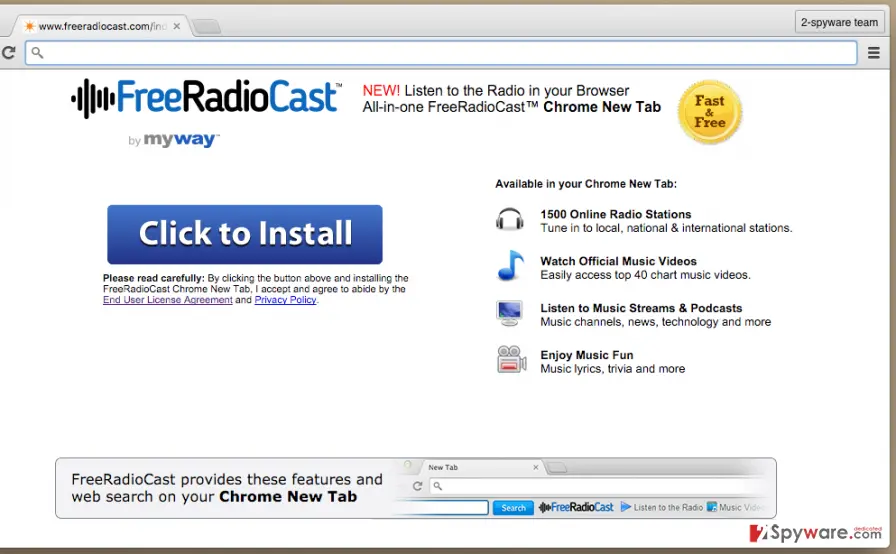
Free Radio Cast Toolbar description
According to our research, Free Radio Cast Toolbar is closely related to Ask search.
If this toolbar gets installed on the computer, it might replace your homepage to Ask search page. As much as we know, this toolbar app can affect every web browser (Google Chrome, Mozilla Firefox, Internet Explorer) by installing a browser extension.
As we have already mentioned, it is related to Ask search; therefore, it may set search.myway.com, which is a customized version of Ask.com page, as your default start page and search provider. As you probably already known, the reputation of this search provider is certainly not among the best ones.
Be very careful because it may deliver you both sponsored and genuine search results in one pack. We have noticed that computer users usually complain about Free Radio Cast redirects when they install this app. They say that this app forced them to visit sponsored websites, some of which may even appear to be unsafe. Moreover, this is what the developer states about this toolbar:
One more suspicious statement that we have found:
All in all, we would like to recommend you to think carefully whether you need such program on your computer or not.
From our report of Jan 2016 · not reviewed since
How can Free Radio Cast Toolbar be installed on my computer?
We do not recommend installing unknown browser toolbars, because, in most cases, they might be set to initiate various advertising campaigns.
Free Radio Cast Toolbar might cause annoying interruptions, too. Usually, such programs can be downloaded via their official page, but they can also be offered for you when you install freeware or shareware to your computer. This is what the developer of this program states in the Terms of Use document:
It is not a secret that many computer users tend to install programs in a rush, and they often tend to skip the 'Terms of Use' document, which reveals that you may be offered to install additional applications.
Another way to see these suggestions to install 'Recommended applications' is to select Advanced or Custom installation method - then you will see a full list of suggested applications. These settings also allow you to adjust the software components and either agree/disagree to install them. As you can see, an installation of this discussed program can be done only if you agree with that.
Some computer users complain that 'some programs' were installed without their knowledge, but that can only happen due to lack of attention to the installation process. We suggest to be careful when you install new programs. If you want to remove this program, follow the removal guide that we have provided on page 2.
These mentions fully fulfill each of the requirements of FTC.
From our report of Jan 2016 · not reviewed since
More from our earlier report on Free Radio Cast Toolbar
- You hereby acknowledge and agree that by using an MS Product you may be exposed to Content that may be offensive, indecent or objectionable in your community.
- You agree to accept all risks associated with the use of any Content, including any reliance on the accuracy or completeness of such Content.
- MS Products are exposed to various security issues, and should be regarded as unsecure.
- The MS Products may integrate, be integrated into, bundled, or be provided in connection with third-party services, feeds, and/or content.
- If you are installing an MS Product that includes third party services and third party content, such services and content are subject to such third party's terms of services and privacy policies, which may be found on the relevant Third Party Partner's website.
- MS Products may provide access to search results or other links to Third Party Partner websites or resources.
How to uninstall Free Radio Cast Toolbar
How to remove Free Radio Cast Toolbar
Uninstall it, then remove what keeps it starting with Windows.
Nothing it flagged needs fixing.
Step 1: Uninstall Free Radio Cast Toolbar
Open Settings > Apps > Installed apps in Windows 11, or Settings > Apps > Apps & features in Windows 10.
Sort the list by install date and find Free Radio Cast Toolbar, then choose Uninstall from the three-dot menu next to it (in Windows 10, click the entry and then Uninstall).
Remove anything else installed on the same day that you do not recognise, because such programs usually arrive together in one installer. If the uninstaller opens a browser page with an offer or a survey, close it: the program is removed either way.
Full procedure with screenshots: Uninstall a program or app in Windows On uGetFix
Step 2: Remove it from startup
Whatever Free Radio Cast Toolbar installed usually starts with Windows.
Open Task Manager with Ctrl + Shift + Esc, go to Startup apps in Windows 11 or the Startup tab in Windows 10, and disable what you do not know, starting with entries that have an empty Publisher column.
Open file location on the right-click menu shows the file, which helps you decide and tells you what to delete later. Disabling is safe: if something you need stops working, switch it back on.
Full procedure with screenshots: Stop apps from opening at startup On uGetFix
Step 3: Delete the folders left behind
What the uninstaller leaves behind is usually in the user folders. Open File Explorer, switch on View > Show > Hidden items (in Windows 10 View > Hidden items), and go through
%LocalAppData%,%AppData%, %ProgramData% and the two Program Files folders.Sort by Date modified and delete folders that appeared together with the problem and belong to no program you use. Folders with random names that hold
.exe,.dll, .js or .ps1 files are the strongest sign.Full procedure with screenshots: Remove what malware leaves behind in Windows
Step 4: Scan the PC, then run the offline scan
Open Windows Security > Virus & threat protection > Scan options, run a Full scan and remove everything it finds. Then select Microsoft Defender Antivirus (offline scan) and click Scan now: the PC restarts and scans before Windows loads, which finds files that hide while Windows runs.
Save your work first, because the offline scan takes about 15 minutes. Both scans are built into Windows 11 and Windows 10, and a second scanner from another vendor is a useful extra opinion.

Windows 11: Windows Security > Virus & threat protection > Scan options. Full procedure with screenshots: Run a Microsoft Defender Offline scan
Protect your privacy - employ a VPN
There are several ways how to make your online time more private - you can access an incognito tab.
However, there is no secret that even in this mode, you are tracked for advertising purposes. There is a way to add an extra layer of protection and create a completely anonymous web browsing practice with the help of VPN. This software reroutes traffic through different servers, thus leaving your IP address and geolocation in disguise.
Besides, it is based on a strict no-log policy, meaning that no data will be recorded, leaked, and available for both first and third parties. The combination of a secure web browser and VPN will let you browse the Internet without a feeling of being spied or targeted by criminals.
No backups? No problem. Use a data recovery tool
If you wonder how data loss can occur, you should not look any further for answers - human errors, malware attacks, hardware failures, power cuts, natural disasters, or even simple negligence.
In some cases, lost files are extremely important, and many straight out panic when such an unfortunate course of events happen. Due to this, you should always ensure that you prepare proper data backups on a regular basis.
If you were caught by surprise and did not have any backups to restore your files from, not everything is lost. is one of the leading file recovery solutions you can find on the market - it is likely to restore even lost emails or data located on an external device.
From our report of Jan 2016 · not reviewed since
How to remove this program?
If you do not want to keep this toolbar on your computer, you can remove it if you wish.
Luckily, Free Radio Cast removal is not a difficult task. Therefore, it is very likely that you will manage to do that manually with the help of a the guide given below. The most important thing that you should remember is that you need to be careful whenever you install software from the Internet.
1. Click Start → Control Panel → Uninstall a Program. 2. When in the Add/Remove Programs/Uninstall a Program, look for Free Radio Cast Toolbar and other programs that are unknown to you.
3. Click 'Uninstall' and then OK to save the changes.
Google Chrome: 1. Open Google Chrome, click on the menu icon (top right corner) and select 'Tools' -> 'Extensions'. 2. Here, select unfamiliar plugins (Free Radio Cast Toolbar, MyWay, MyWebSearch, etc.) and select trash icon to delete these entries.
3. In order to change your homepage, click on menu icon, choose 'Settings' -> 'On startup' section -> 'set pages'. 4. Here, eliminate myway.com by clicking on the "X" and enter your preferred website.
5. In order to change your default search engine, click on the menu icon -> 'Settings' -> 'Search' section. 6. Here, click 'Manage Search Engines...' and add your preferred domain name.
This will let you make sure that your computer is free of this program.
- Uninstall programs that are related to Free Radio Cast Toolbar from your computer:
- Reset your web browser:
Questions about Free Radio Cast Toolbar
Can I safely uninstall Free Radio Cast Toolbar?
If you did not install Free Radio Cast Toolbar yourself and it is not part of your hardware or a program you rely on, yes. Uninstalling an unwanted program does not harm Windows.
Before you do, search the exact name and publisher to be sure it is not a driver tool, a printer utility or a game launcher with an odd name. Then remove it from Settings, Apps, Installed apps.
Ignore any offers or warnings in its uninstaller about losing protection or performance. Afterwards check Startup apps and your browsers for leftovers, and restart once to confirm that it does not reinstall itself.
How do I stop programs like Free Radio Cast Toolbar from being installed again?
Most unwanted programs arrive through installers, so the fix is in how you install software. Download programs from their official sites or the Microsoft Store, not from download portals or ads above search results. During setup, choose Custom or Advanced installation and untick every extra offer, including browsers, toolbars and optimizers.
Decline update prompts that appear inside other programs unless you know them. In Windows Security, turn on reputation-based protection and potentially unwanted app blocking. These steps would most likely have stopped Free Radio Cast Toolbar before it reached the app list.
Why can't I uninstall Free Radio Cast Toolbar?
Usually because it is still running or because a helper reinstalls it. Close it from the notification area first, then end its process in Task Manager and try Settings > Apps > Installed apps again. If there is no uninstall entry, look for a folder under Program Files or AppData with the same name and an uninstaller inside.
If the program comes back after removal, the cause of free Radio Cast Toolbar in the list of installed apps is a scheduled task, a startup entry or the program it was bundled with. Remove those, restart and check again. Starting Windows in Safe Mode stops most helpers and makes stubborn programs easier to remove.
Do I need special software to remove Free Radio Cast Toolbar?
No. Windows has everything needed:
- Installed apps for the uninstall
- the Startup list and Task Scheduler for what restarts it
- Windows Security for a scan afterwards
The steps in this guide take about fifteen minutes. A dedicated tool is a convenience when you would rather not check each place yourself or when the program keeps coming back.
Whatever you use, finish by confirming that free Radio Cast Toolbar in the list of installed apps is gone after a restart, and avoid downloading removal tools from pages that promote them through scary warnings.
The uninstaller for Free Radio Cast Toolbar keeps asking me to stay. Is that normal?
It is a common tactic, not a technical requirement. Uninstallers of unwanted programs often show discounts, warnings that the PC will be at risk, or a choice between "repair" and "remove" designed to confuse. Choose the option that removes the program completely and decline everything else.
If the uninstaller closes without removing anything, end its processes in Task Manager and try again, or use Safe Mode. Check Installed apps afterwards; if Free Radio Cast Toolbar is still listed, the uninstall did not finish.
Is my privacy at risk because of Free Radio Cast Toolbar?
A little, not dramatically. Unwanted programs tend to report what you install, which sites you visit or how you use the program back to their publisher. That data is sold or used for ads.
The sign people noticed, free Radio Cast Toolbar in the list of installed apps, is consistent with such a program, and nothing reported suggests access to your files, camera or passwords.
Remove it, delete its leftovers and clear the browser data if it touched the browser. From then on, keep Potentially unwanted app blocking switched on in Windows Security, which stops many of these programs before they install.
Is it safe to remove Free Radio Cast Toolbar?
Yes. Removing an unwanted program does not damage Windows, because programs like this are not part of the system. Before uninstalling, make sure it is not something you rely on: if the publisher is a company you know and you use the program, keep it.
If not, uninstall it from Installed apps, restart and check that free Radio Cast Toolbar in the list of installed apps is gone. If something you need stops working afterwards, reinstall that program from its official website, choosing the custom installation so that the unwanted extra is not added again.
Is Free Radio Cast Toolbar why my PC is slow?
It can be one reason. Programs of this kind often start with Windows, run updaters in the background and keep a process open all the time.
The sign reported, free Radio Cast Toolbar in the list of installed apps, means at least one such program is active. Open Task Manager, sort by CPU, memory and network, and see whether Free Radio Cast Toolbar or a related process is near the top.
If it is, removing it will help. If not, the slowdown has another cause, but removing a program you never chose is still worth doing. A restart after removal shows the difference best.
Is Free Radio Cast Toolbar harmful?
It is unwelcome rather than destructive, based on what has been reported: free Radio Cast Toolbar in the list of installed apps. Unwanted programs like this slow Windows down, use your connection, show offers or change settings, and they make money for their publisher at your expense. The bigger concern is what arrived with them.
Bundled installers often add two or three programs at once, and some of those change the browser or install updaters that fetch more software later. Remove Free Radio Cast Toolbar, then sort Installed apps by date and remove anything else from the same day. A full scan in Windows Security afterwards confirms that nothing more serious came along.
Will Fortect remove Free Radio Cast Toolbar?
Fortect scans Windows for malware and unwanted programs and repairs the system files and settings they change, and its free scan shows what it finds on your PC before you decide anything.
For Free Radio Cast Toolbar, follow the plan above as well: the browser steps take back permissions and settings that no scanner treats as a threat, and uninstalling the program that brought it removes the source.
Run Microsoft Defender's full scan and, if anything was found, its offline scan as a second opinion. If the symptoms are gone after the plan and both scans are clean, there is nothing more to do.
Sources
- FTC: How to recognize, remove and avoid malware (read October 7, 2026)
- Microsoft Learn: Microsoft Defender Offline (read October 7, 2026)
- Microsoft Learn: How Microsoft names malware (read October 7, 2026)