
Small.CA virus: what it is and how to remove it
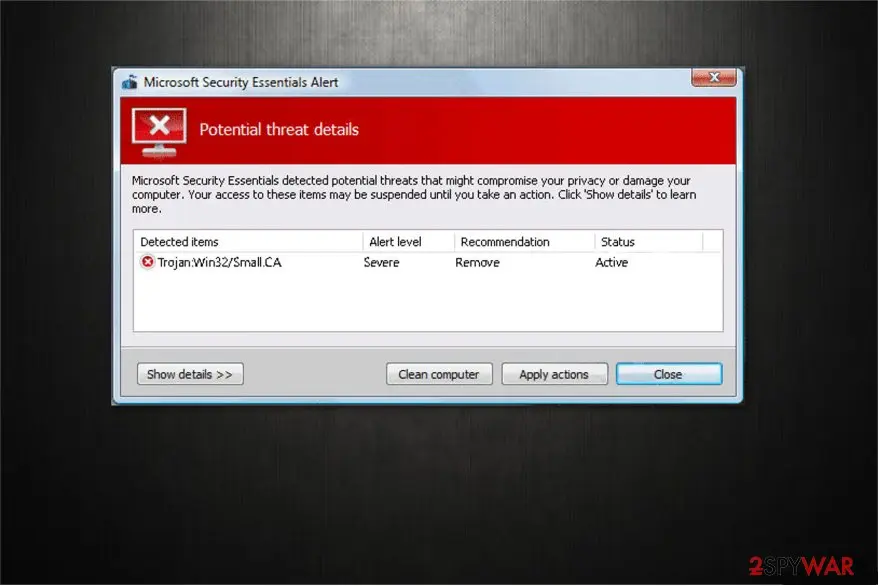
Small.CA virus belongs to the category of trojans that are designed to work as backdoors to infiltrate malware, and monitor user's browsing behavior or steal valuable data from the computer. Usually, this type of malicious program detects system vulnerabilities and exploits them to help hackers distribute high-risk PC infections.
Facts checked October 7, 2026. Removal steps tested on Windows 11 (26H2) and checked against Microsoft's and the browser makers' current documentation. Sections marked as our earlier report are the original text: they describe the threat as it was then and have not been reviewed since. The 2026 status, the removal steps and the questions are current.
Automatic
Get a free scan and check if your PC is infected.
Fortect finds malware, unwanted programs and the Windows damage they leave behind, and repairs it in one pass.
Programs like Small.CA virus usually arrive in groups; a free scan lists the companions that are easy to miss.
Do it yourself · free Remove Small.CA virus yourself 5 steps, about 15 minutes, no software needed.
Start the steps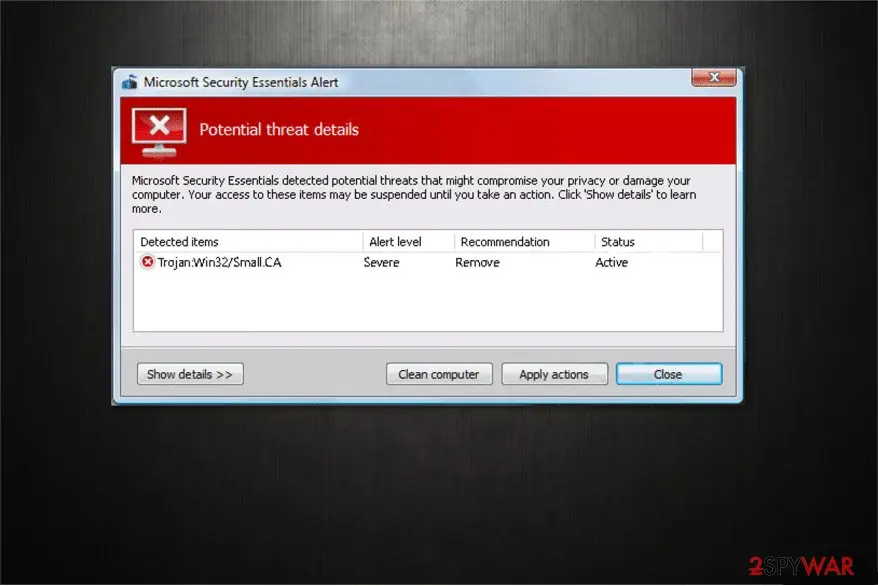
Small.CA virus: summary
| Detection names | No Microsoft detection name is known |
|---|---|
| Distribution | Not recorded in the old report |
| Damage | Not recorded in the old report |
| Name | Small.CA virus |
| Type | Loader |
| Symptoms | An unknown program in Installed apps |
| Removal | Scan the PC with security software to find and remove the malware and anything installed with it. Fortect scans Windows for malware and repairs the system files and settings it damaged. Remove it nowTo use the full-featured product, you have to purchase a license for Fortect. The scan is free. |
Show 3 more facts
| Evidence | 4 write-ups by security sites; details still limited |
|---|---|
| First seen | 10 November 2017 |
| Facts checked | 7 October 2026 |
What Small.CA virus does on an infected PC
From our report of Nov 2017 · not reviewed since
Small.CA aims to infect computers with Windows OS
Small.CA virus belongs to the category of trojans that are designed to work as backdoors to infiltrate malware, and monitor user's browsing behavior or steal valuable data from the computer.
Usually, this type of malicious program detects system vulnerabilities and exploits them to help hackers distribute high-risk PC infections.
According to the reports, Small.CA spreads via rogue ads promoted on suspicious websites, bundled with free applications or malvertising campaigns. After successful infiltration, it alters Windows Registry by assigning the command to automatically launch itself every time the user turns on the computer. As a result, victims might have no clue that the malicious program is operating on their systems for months or even years.
Experts warn that you can unconsciously infect your system with the trojan if you:
You should always use a sturdy security software to avoid trojans. However, if you have already been infected, remove Small.CA virus with the help of or . It will identify the executable files and quickly eliminate them.
Even if you think that you are virus-free, you should keep in mind that IT security experts, like the ones working for DieViren.de, warn users that trojans are able to sneak into systems without users' knowledge by imitating regular OS processes.
If you delay Win32/Small.CA removal, the consequences might be harmful not only to your computer but to yourself as well. It might deteriorate your browsing experience by generating annoying and malicious ads that pop-up every time you open your browser. There is a high possibility that they may cause redirects to less than reliable sites that are used to distribute spyware, ransomware, etc.
Besides, criminals created Small.CA to make illegal profits from inexperienced computer users. They set the trojan to collect files with specific file extensions that might possibly contain valuable data and send it to the hackers. Later, the stolen files may be sold in the underground market or misused in another way.
Also, there is a risk to lose your social media accounts or online banking passwords since the trojan hijacks your browser and infiltrates tracking cookies or extensions to monitor your browsing behavior. In other terms, developers of Small.CA are able to view anything you submit while surfing the internet.
- Visit suspicious websites and click on ads that it displays;
- Do not use anti-malware programs or forget to update them regularly;
- Download video, audio, and other files illegally;
- Open spam e-mail attachments that are sent by unknown senders.
From our report of Nov 2017 · not reviewed since
Trojan works as a 5-stage malware
Small.CA trojan horse is a perfect tool for cybercriminals and programmed to do its job following five steps:
- Successfully infiltrate on the targeted computer;
- Use Command Prompt to register itself as a legitimate process;
- Modify Windows Registry settings to enable an autostart;
- Wait for a remote command from the hacker;
- Infiltrate specific malware and/or collect credentials, other vital data.
From our report of Nov 2017 · not reviewed since
You should follow safe browsing rules to avoid the infiltration of the malware
Typically, Small.CA virus spreads on the malicious websites as deceptive advertisements.
Be aware that they appear in any form, such as banners, pop-ups, in-texts, etc. Developers make considerable investments to make their ads look genuine and attract as many gullible people as possible to click on them. Thus, to avoid Win32/Small.CA, you should stay away from any types of advertisements despite their legitimate appearance.
Moreover, do not open questionable e-mails sent by people or companies that you don't know. Hackers use malspam campaigns to distribute the trojan. Usually, it might appear as a fake invoice or another document from an authorized institution and contains a malicious link or attachment. You shouldn't open it under any circumstances if you want to protect your computer from Small.CA.
How to remove Small.CA virus
A loader's job is to install other malware, so treat the PC as infected with more than one program until the scans are clean.
Step 1: Delete scheduled tasks that bring it back
Open Task Scheduler from the Start menu and click Task Scheduler Library. Select each task you do not recognise and read the Actions tab:
- a task that starts a file in
%AppData%or%Temp% - runs
powershellwith a long encoded line - opens a web address belongs to Small.CA virus or a similar program
Right-click such a task and choose Delete, and check the subfolders too. Leave tasks from Microsoft, your PC's maker and programs you use. Task Scheduler is the same in Windows 11 and Windows 10.
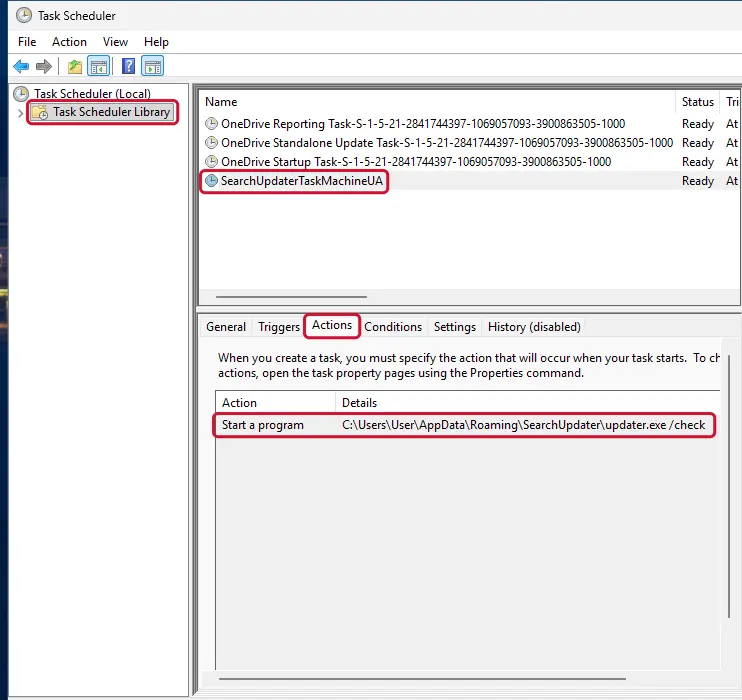
Windows 11: Task Scheduler Library, the task selected, the Actions tab shows the file it runs. Full procedure with screenshots: Remove what malware leaves behind in Windows
- a task that starts a file in
Step 2: Remove it from startup
Whatever Small.CA virus installed usually starts with Windows. Open Task Manager with Ctrl + Shift + Esc, go to Startup apps in Windows 11 or the Startup tab in Windows 10, and disable what you do not know, starting with entries that have an empty Publisher column.
Open file location on the right-click menu shows the file, which helps you decide and tells you what to delete later. Disabling is safe: if something you need stops working, switch it back on.
Full procedure with screenshots: Stop apps from opening at startup On uGetFix
Step 3: Delete the folders left behind
What the uninstaller leaves behind is usually in the user folders. Open File Explorer, switch on View > Show > Hidden items (in Windows 10 View > Hidden items), and go through
%LocalAppData%,%AppData%, %ProgramData% and the two Program Files folders.Sort by Date modified and delete folders that appeared together with the problem and belong to no program you use. Folders with random names that hold
.exe,.dll, .js or .ps1 files are the strongest sign.Full procedure with screenshots: Remove what malware leaves behind in Windows
Step 4: Scan the PC, then run the offline scan
Open Windows Security > Virus & threat protection > Scan options, run a Full scan and remove everything it finds. Then select Microsoft Defender Antivirus (offline scan) and click Scan now: the PC restarts and scans before Windows loads, which finds files that hide while Windows runs.
Save your work first, because the offline scan takes about 15 minutes. Both scans are built into Windows 11 and Windows 10, and a second scanner from another vendor is a useful extra opinion.

Windows 11: Windows Security > Virus & threat protection > Scan options. Full procedure with screenshots: Run a Microsoft Defender Offline scan
Step 5: Change passwords from another device and sign out other sessions
Assume that the passwords saved in this PC's browsers, and the accounts that were open in them, are known to the attacker. From a phone or a clean computer, change the e-mail password first, then banking, shopping, social and gaming accounts.
Use each service's option to sign out of all other sessions, because stolen cookies keep a session open even after a password change. Turn on two-step verification on each account. Wait with the infected Windows 11 or Windows 10 PC until the scans are clean.
Full procedure with screenshots: Turn on two-step verification / secure a hacked account
Instructions for each browser and system
The detailed steps for every browser and system this guide covers. Open the one you use.
Manual removal using Safe Mode
Important! →
Manual removal guide might be too complicated for regular computer users. It requires advanced IT knowledge to be performed correctly (if vital system files are removed or damaged, it might result in full Windows compromise), and it also might take hours to complete. Therefore, we highly advise using the automatic method provided above instead.
Step 1. Access Safe Mode with Networking
Manual malware removal should be best performed in the Safe Mode environment.
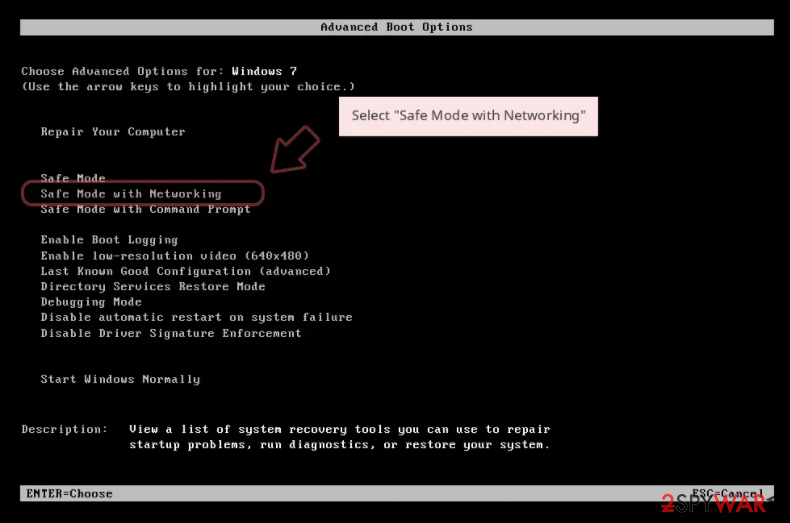
Windows 7 / Vista / XP
- Click Start > Shutdown > Restart > OK.
- When your computer becomes active, start pressing F8 button (if that does not work, try F2, F12, Del, etc. - it all depends on your motherboard model) multiple times until you see the Advanced Boot Options window.
- Select Safe Mode with Networking from the list.
Windows 10 / Windows 8
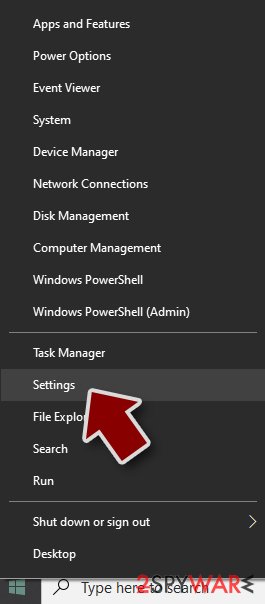
- Right-click on Start button and select Settings.
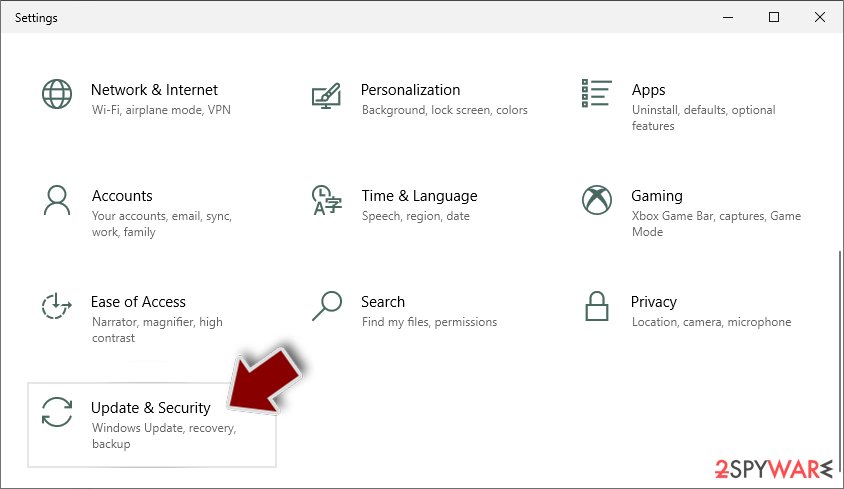
- Scroll down to pick Update & Security.
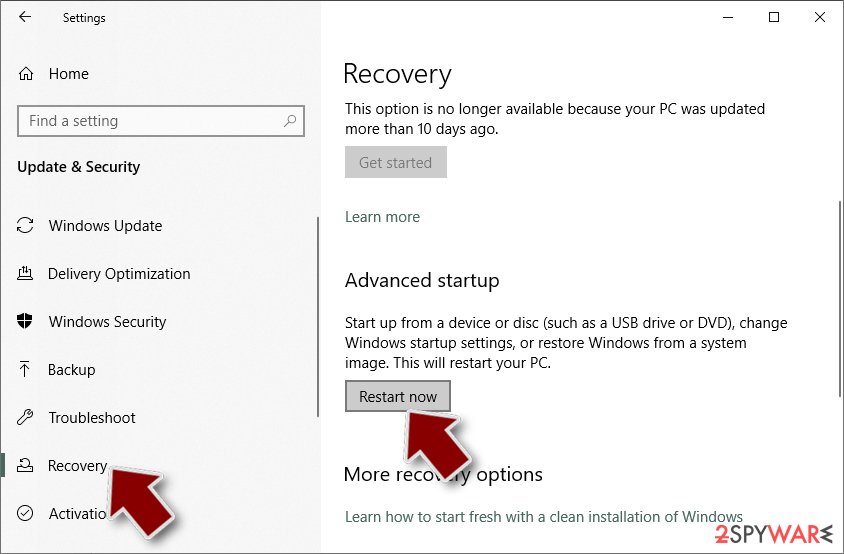
- On the left side of the window, pick Recovery.
- Now scroll down to find Advanced Startup section.
- Click Restart now.
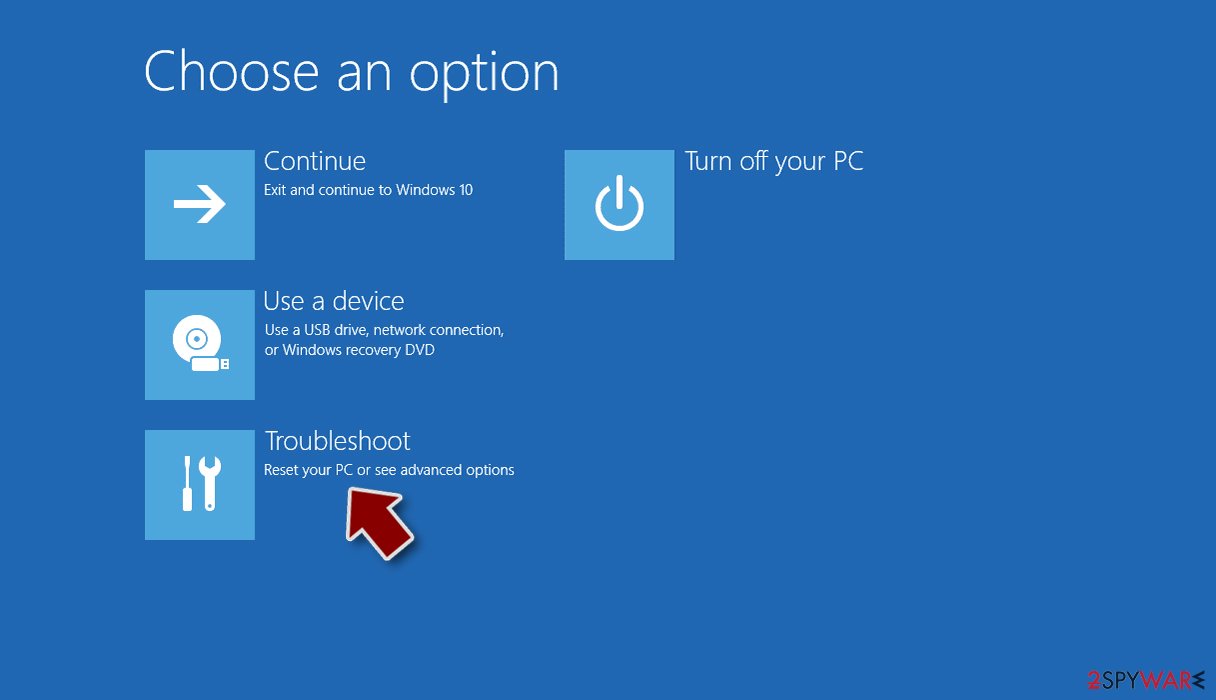
- Select Troubleshoot.
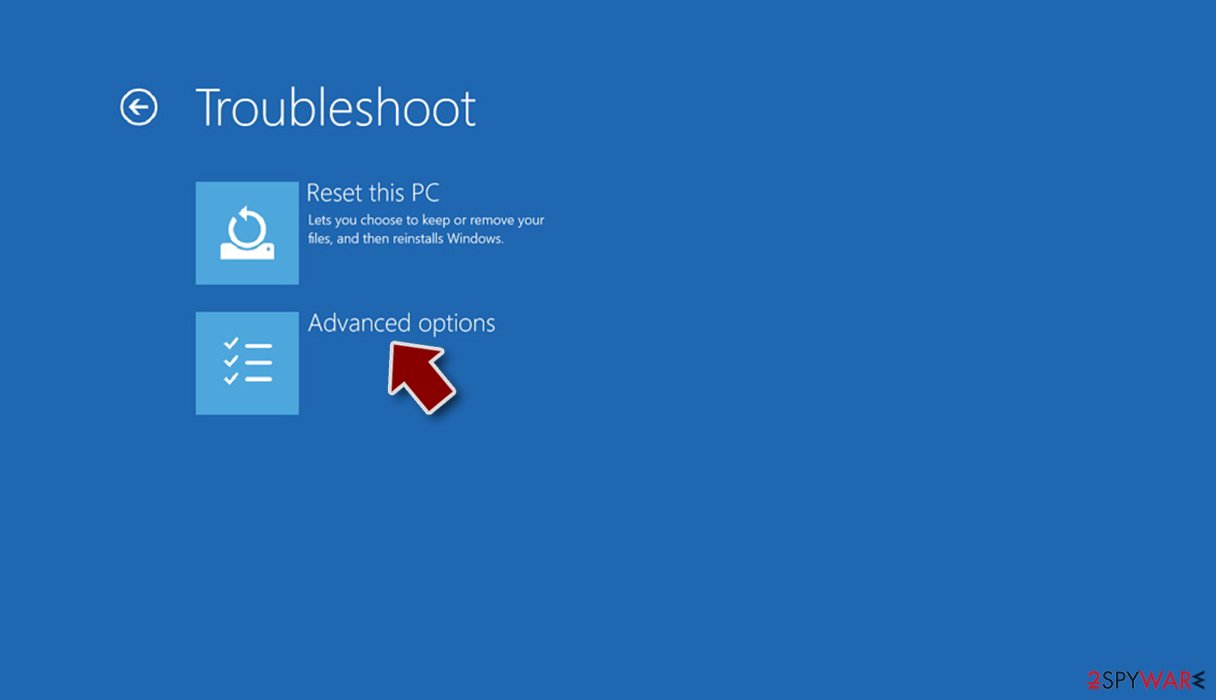
- Go to Advanced options.
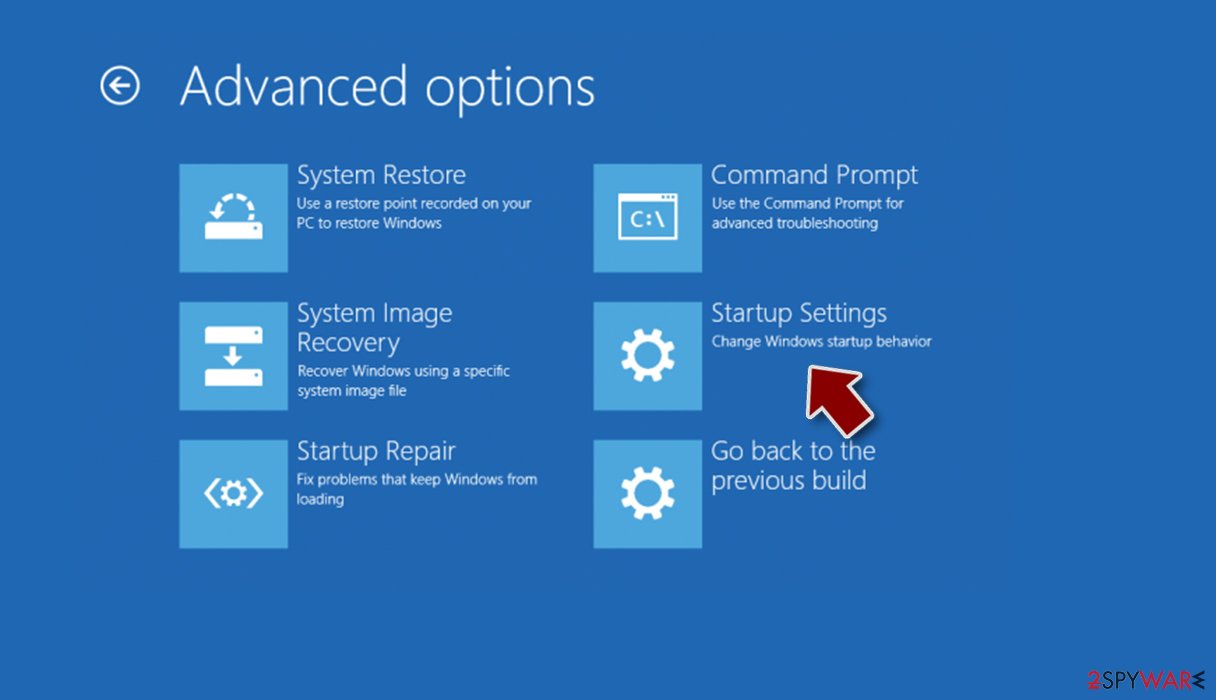
- Select Startup Settings.
- Press Restart.
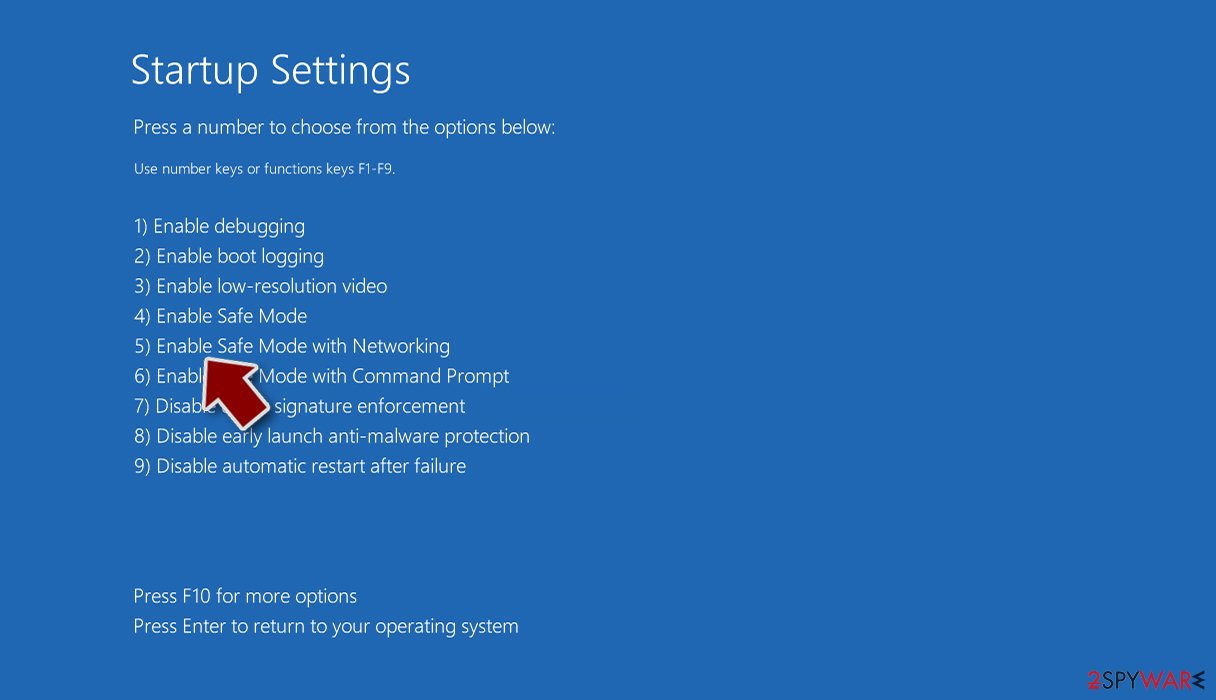
- Now press 5 or click 5) Enable Safe Mode with Networking.
Step 2. Shut down suspicious processes
Windows Task Manager is a useful tool that shows all the processes running in the background. If malware is running a process, you need to shut it down:
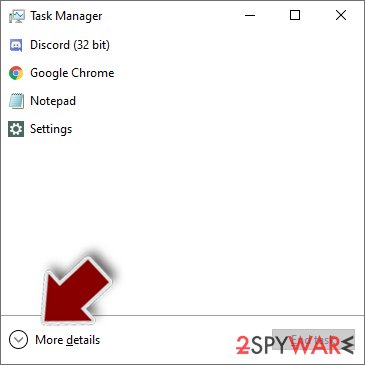
- Press Ctrl + Shift + Esc on your keyboard to open Windows Task Manager.
- Click on More details.
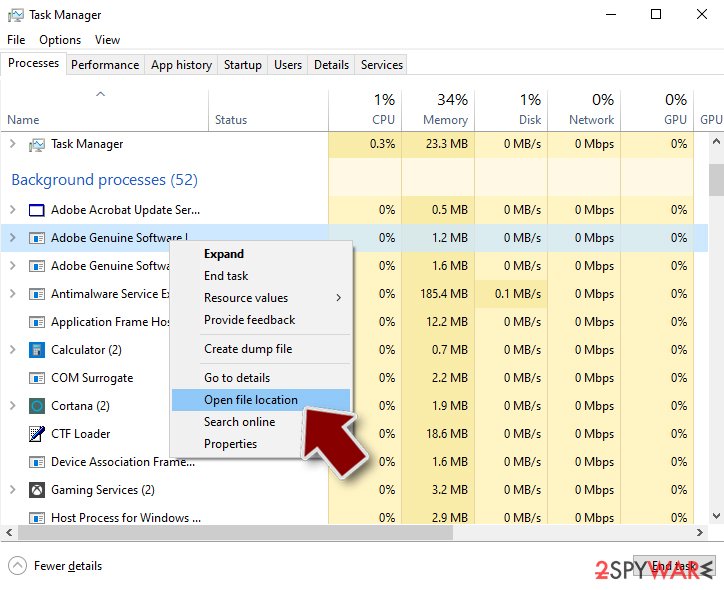
- Scroll down to Background processes section, and look for anything suspicious.
- Right-click and select Open file location.
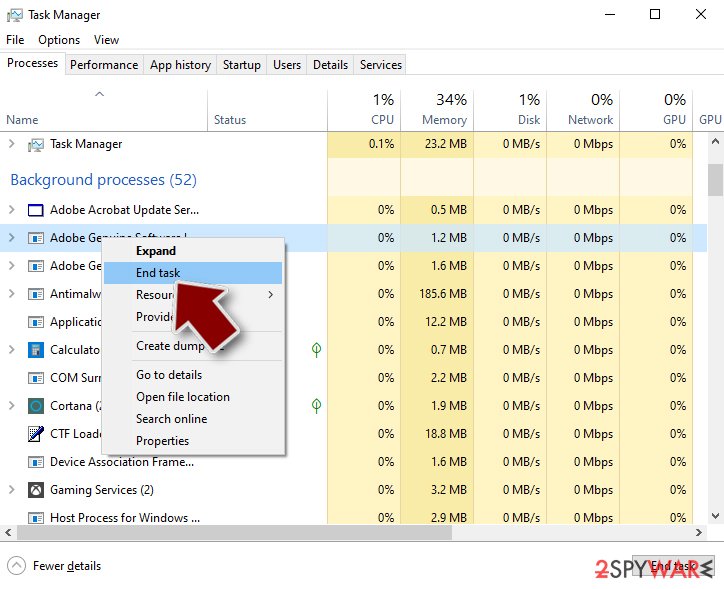
- Go back to the process, right-click and pick End Task.
- Delete the contents of the malicious folder.
Step 3. Check program Startup
- Press Ctrl + Shift + Esc on your keyboard to open Windows Task Manager.
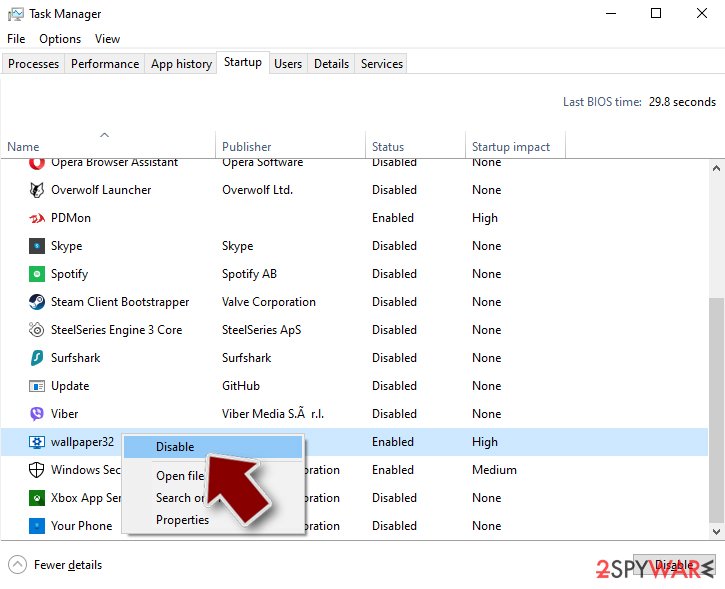
- Go to Startup tab.
- Right-click on the suspicious program and pick Disable.
Step 4. Delete virus files
Malware-related files can be found in various places within your computer. Here are instructions that could help you find them:
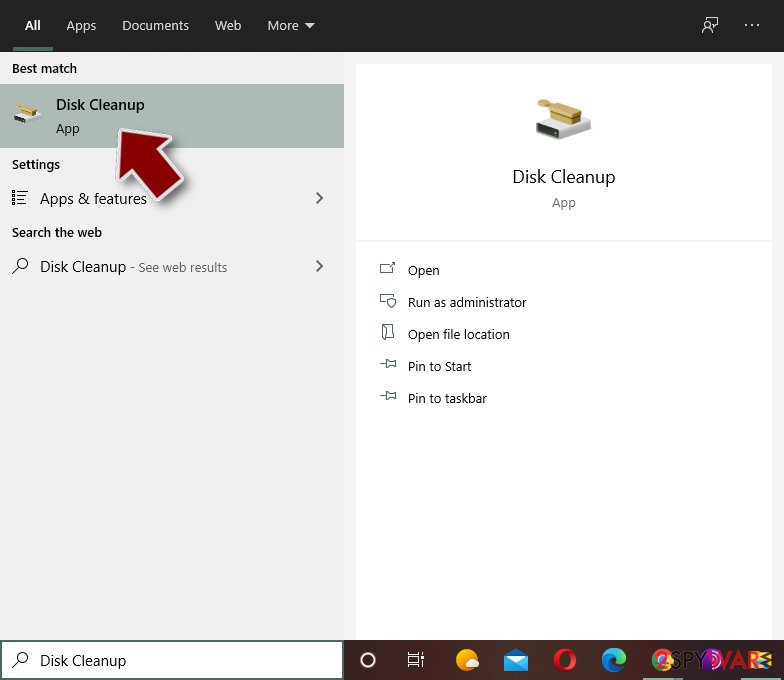
- Type in Disk Cleanup in Windows search and press Enter.
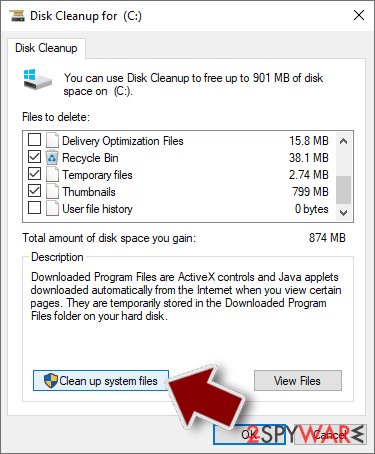
- Select the drive you want to clean (C: is your main drive by default and is likely to be the one that has malicious files in).
- Scroll through the Files to delete list and select the following:
Temporary Internet Files
Downloads
Recycle Bin
Temporary files - Pick Clean up system files.
- You can also look for other malicious files hidden in the following folders (type these entries in Windows Search and press Enter):
%AppData%
%LocalAppData%
%ProgramData%
%WinDir%
After you are finished, reboot the PC in normal mode.
From our report of Nov 2017 · not reviewed since
Employ a powerful security software to eliminate Win32/Small.CA
If you suspect that your PC might be infected, download a reliable security software right away.
It is extremely important to do it as soon as possible since trojan might infiltrate numerous other viruses and damage your computer permanently.
Be aware that eliminating might require specific IT knowledge. Thus do not try to get rid of it by yourself.
Instead, you can perform a manual Small.CA removal by following the guide provided below. Make sure to carefully monitor the procedure and avoid skipping steps since it may harm your PC.
[GI=method-1]If you want to get rid of Small.CA trojan, reboot your computer to Safe Mode with Networking. If you don't know how to do that, the guidelines provided below will help you:
[GI=method-2]Malware removal might get complicated since it may block the installation of a security software. If the first method failed and you still cannot remove Small.CA try to boot your PC into Safe Mode with Command Prompt.
After removal: passwords, accounts and prevention
Secure your accounts after the clean-up
Assume that whatever was saved in the browsers on this PC while the PC showed small.CA virus in the list of installed apps has been copied:
- passwords
- cookies
- autofill data
Work from a clean device, or from this PC once the offline scan finds nothing.
Start with your main e-mail account, because it can reset everything else, then banking and payment, then social and gaming accounts. Change each password, sign out of all sessions and turn on two-step verification: Turn on two-step verification / secure a hacked account.
The full order, including crypto wallets and card replacement, is in securing your accounts after malware.
Choose a proper web browser and improve your safety with a VPN tool
Online spying has got momentum in recent years and people are getting more and more interested in how to protect their privacy online.
One of the basic means to add a layer of security - choose the most private and secure web browser. Although web browsers can't grant full privacy protection and security, some of them are much better at sandboxing, HTTPS upgrading, active content blocking, tracking blocking, phishing protection, and similar privacy-oriented features.
However, if you want true anonymity, we suggest you employ a powerful VPN - it can encrypt all the traffic that comes and goes out of your computer, preventing tracking completely.
Lost your files? Use data recovery software
While some files located on any computer are replaceable or useless, others can be extremely valuable.
Family photos, work documents, school projects - these are types of files that we don't want to lose. Unfortunately, there are many ways how unexpected data loss can occur:
- power cuts
- Blue Screen of Death errors
- hardware failures
- crypto-malware attack
- even accidental deletion
To ensure that all the files remain intact, you should prepare regular data backups. You can choose cloud-based or physical copies you could restore from later in case of a disaster. If your backups were lost as well or you never bothered to prepare any, can be your only hope to retrieve your invaluable files.
Questions about Small.CA virus
What is Small.CA virus and why is it on my PC?
Small.CA virus is a program that was installed on the PC, most likely together with something else you downloaded. Free software sites and many installers add extra programs on setup pages with pre-ticked boxes, so the extra install looks like your choice even though nobody read the page.
Check the install date in Settings, Apps, Installed apps: the program you installed that day is the probable carrier. If you do not need Small.CA virus, uninstall it. If it belongs to your hardware or to a program you use, search its exact name and publisher first, because drivers and their tools can have unfamiliar names.
How do I stop programs like Small.CA virus from being installed again?
Most unwanted programs arrive through installers, so the fix is in how you install software. Download programs from their official sites or the Microsoft Store, not from download portals or ads above search results. During setup, choose Custom or Advanced installation and untick every extra offer, including browsers, toolbars and optimizers.
Decline update prompts that appear inside other programs unless you know them. In Windows Security, turn on reputation-based protection and potentially unwanted app blocking. These steps would most likely have stopped Small.CA virus before it reached the app list.
Why didn't my antivirus stop Small.CA virus?
New trojan builds are packed and changed often so that signatures do not match, and some are signed with stolen or bought certificates. Many arrive inside password-protected archives, which scanners cannot open until you extract them.
Some downloads also tell the user to turn off the antivirus "because it gives false alarms", a common line in cracked software instructions. Keep real-time protection on, never disable it for an installer, and run the offline scan whenever you suspect something slipped through.
Can Small.CA virus spread to other devices on my network?
Most trojans aimed at home users stay on the PC they infected, but an attacker with remote access can look at the network, open shared folders and try passwords on other devices. Loaders sometimes deliver worms or ransomware that do spread.
Disconnect the PC while cleaning, run a full scan on other Windows PCs, change the router's admin password and the Wi-Fi password if they were saved on the infected PC, and update the router's firmware. If other PCs show the same detection, treat them as infected too.
Is a trojan infection worth reporting to the police?
If there was harm, yes. Unauthorised payments, accounts used for fraud, blackmail or a remote session during a scam call all belong in a report, and banks often ask for its reference number before they refund anything.
If antivirus caught Small.CA virus before it ran and nothing was misused, there is nothing to report. Keep the evidence anyway:
- protection history
- the original download
- the dates
Businesses may also have to notify a data protection authority if personal data could have been accessed.
Should I reset my PC because of Small.CA virus?
Only if the signs point to deeper access. Reset when you see small.CA virus in the list of installed apps again after removal, when Windows Security cannot start or update, when remote access tools you did not install keep appearing, or when you simply cannot trust the PC any more.
Otherwise, the plan in this guide plus an offline scan is enough. If you do reset, choose Remove everything and Cloud download for a fresh copy of Windows, restore only documents and photos, and reinstall programs from their official sites. Change important passwords from the clean system afterwards.
Can I keep using the PC while Small.CA virus is on it?
Not for anything that matters. As long as the program behind small.CA virus in the list of installed apps runs, it can see what you type and what the browser stores, and it may download more malware. Disconnect the PC from the internet while you remove it, and do your banking, e-mail and password changes from another device.
Once the offline scan finds nothing and the sign does not return after a few restarts, normal use is fine. If the scan keeps finding new items, or you cannot remove the startup entry, a reset of Windows is the safer choice.
Is Small.CA virus a known trojan?
Not as a documented family, at least not yet. What is known is the visible sign, small.CA virus in the list of installed apps, which matches a hidden program working for someone else.
New threats are often seen by victims weeks before researchers publish anything about them. Treat Small.CA virus as you would any trojan:
- remove what starts it
- run an offline scan
- change passwords from another device
If a scan reports a detection name, keep it; it usually reveals the family and whether it is known to download other malware. We update this guide when an analysis appears.
What are the signs of a trojan infection?
Most trojans try to leave no visible signs, so look for side effects. Common ones:
- Windows Security turned off or unable to update
- new entries in Startup apps or Task Scheduler
- programs in Installed apps you did not install
- browser settings that changed by themselves
- unusual network activity while the PC is idle
- password-reset or login-alert e-mails you did not trigger
None of these proves an infection on its own. Together with an antivirus alert naming Small.CA virus, they are a strong reason to follow the full plan.
Will Fortect remove Small.CA virus?
Fortect scans Windows for malware and unwanted programs and repairs the system files and settings they change, and its free scan shows what it finds on your PC before you decide anything.
For Small.CA virus, follow the plan above as well: the browser steps take back permissions and settings that no scanner treats as a threat, and uninstalling the program that brought it removes the source.
Run Microsoft Defender's full scan and, if anything was found, its offline scan as a second opinion. If the symptoms are gone after the plan and both scans are clean, there is nothing more to do.
Sources
- DieViren: DieViren (read October 7, 2026)
- UCSB: Detecting and Characterizing Social Spam Campaigns (read October 7, 2026)
- FTC: How to recognize, remove and avoid malware (read October 7, 2026)
- Microsoft Learn: Microsoft Defender Offline (read October 7, 2026)
- Microsoft Learn: How Microsoft names malware (read October 7, 2026)