

Webhostoid is a browser hijacker that redirect users to sponsored sites
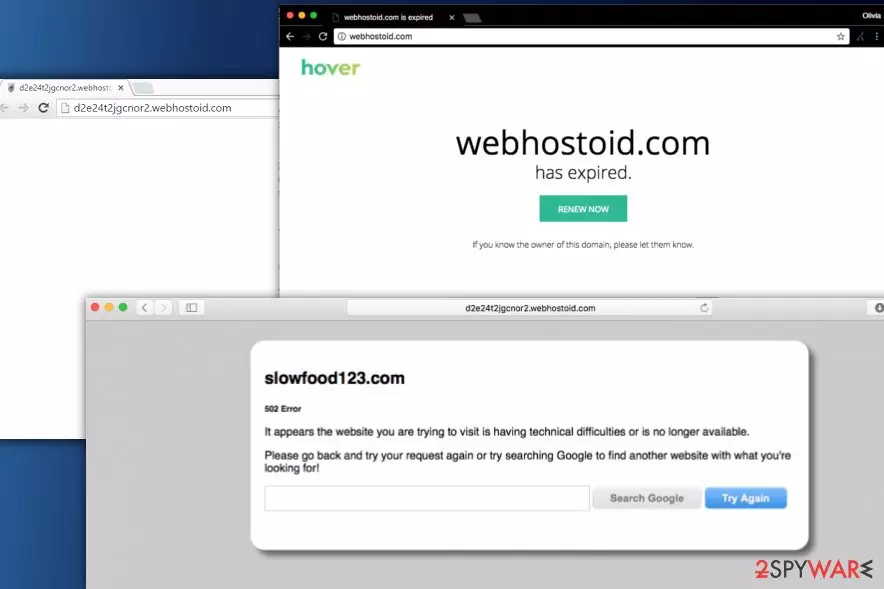
Webhostoid is a redirect virus that usually gets installed as a browser plugin or extension on Google Chrome, Mozilla Firefox or Safari browsers. These unwanted applications usually get into the machine via software bundling – the most prominent PUP distribution method. As soon as Webhostoid virus is installed, it starts its activity by redirecting users to sponsored sites, displaying pop-ups, deals, offers, banners, and considerably slowing down the computer.
| Summary | |
| Name | Webhostoid.com |
| Type | Adware |
| Distribution | Software bundling |
| Spreads as | Browser extension or plugin |
| Symptoms | Pop-up ads and redirects to questionable sites |
| Main dangers | Malware infection, personal data leakage |
| Elimination | User FortectIntego or our manual guide below |
Since Webhostoid is a redirect virus, it connects to multiple different domains, including d2e24t2jgcnor2.webhostoid.com, ww17.webhostoid.com and similar. This type of rerouting increases traffic to questionable sites and boosts their rankings. Therefore, users never gain any benefit from having Webhostoid virus installed on their computers.
It is important to know that it is hazardous to use this website, which seeks to gain revenue from its sponsors from redirecting users to untrustworthy sites. Usually, victims whose computers were infected with this potentially unwanted program complain about frequent and unexpected URL redirects to various suspicious-looking third-party pages.
Bear in mind that this application can lead you to infectious websites, so you should definitely avoid clicking on ads it loads to you and start looking for Webhostoid.com removal methods.

Webhostoid.com is an adware program, which is considered to be a potentially unwanted program (PUP). All adware programs seeks financial benefit and brings no actual use for the end user, making the dubious app completely useless.
Once Webhostoid slithers into the computer of a victim, it sneaks into your computer registry and alter proxy settings[1] to cause repetitive redirects to webhostoid domain. It might also install plug-ins to all your web browsers, and these might replace your current homepage with a suspicious search site.
The search engine provided by Webhostoid.com redirect virus can display search results that may also contain hazardous hyperlinks. As you can see, this PUP seeks to redirect you to particular websites; and these websites belong to questionable third-party companies.
Besides, Webhostoid.com might start to track your activity while you browse the Internet. The recorded data typically includes:
- Technical information
- Installed programs
- IP address
- Search queries
- Links clicked
- Bookmarks, etc.
Finally, we must warn you to be careful after noticing the described URL appearing in your browser. Websites you might access through it are definitely not trustworthy and in the worst case you can be tricked into installing dangerous software that can work as a keylogger[2] and track your keystrokes and steal your personal and sensitive information. For example, your credit card details, passwords, logins, and similar information that can be stolen and lead to financial loss. Do not risk losing such information and take care of your security and privacy as soon as possible.
Some computer security experts claim that Webhostoid virus is closely related to the Genius Box adware, RocketTab hijacker, and BrowserSafeguard. Researchers from Zondervirus.nl[3] say that it can install proxy servers on the victim’s computer. Such activity of Webhostoid should not be tolerated.
If you do not want to experience data leakage, financial tear-off or similar dangers, you should remove Webhostoid.com ASAP. The best solution is to install a professional anti-malware program; and for that, we strongly recommend FortectIntego.
Update September 2017. It seems that Webhostoid.com is no longer used for serving myriads of annoying ads. Instead, the victims might run into “Webhostoid.com has expired” page. That is a sign that your computer is still infected with a redirect virus, so we strongly recommend you to follow the provided directions and erase the cyber parasite causing these redirects immediately.

Protect your computer from PUP threats
You should know that you have to think about your safety and be aware all the time when you use your computer and browse the web. Remember that there are thousands of hackers on the cyber-network that seek to catch naive and inexperienced computer users and gain income from them.
We want to provide you a list of important things you should remember while browsing online that can help to prevent silent installation of critical programs or viruses on your computer:
- Research. Before installing any program to your computer, try to find as much information about the program and also investigate the website that provides the download link. Read user comments and reviews on various forums – it can also help you to understand if the program you are about to install is reliable.
- Stay attentive. You should always be cautious and suspicious of e-mails from unknown senders; you should immediately delete e-mails from unknown companies. Most important thing is to NEVER open the attachments from letters that fall into Junk or Spam mail categories. Take note that cyber-criminals try to conceal themselves by using e-mail addresses that look like they belong to reliable companies. For example, Name@hm.bing.com does not mean that the sender works for Bing.
- Install carefully. You should always install new programs using Advanced or Custom installation settings because only these options let the user review and opt out unwanted software components.
- Safety first. Do not surf through unreliable websites that contain suspicious offers. Do not let your curiosity make you experience severe consequences later. Such sites sometimes can place hidden hyperlinks that require only one click to launch an infected program on your computer.
Remove Webhostoid.com redirect virus for good
If you have been experiencing redirects through the described domain, now it is time to think about Webhostoid removal options. There are two options you can choose from. You can either remove Webhostoid.com virus using the anti-malware program that we have mentioned before or use manual elimination steps.

Manual elimination is considered to be an alternative removal method which does not require installing additional software on the system. The steps provided below the article explain how to get rid of Webhostoid redirect problem completely.
Uninstall from Windows
Uninstall from Windows 10/8:
- Type Control Panel into the Windows search box and open the result.
- Under Programs, select Uninstall a program.


Uninstall from Windows 7/XP:
- Click on Windows Start > Control Panel (Windows XP users should click on Add/Remove Programs).
- In Control Panel, select Programs > Uninstall a program.


Remove the unwanted program:
- In the Programs and Features window, look for any recently installed suspicious entries, select them, and click Uninstall.
- If User Account Control appears, click Yes to confirm, then complete the removal.


Delete from macOS
Remove the unwanted application:
- From the menu bar, select Go > Applications.
- In the Applications folder, look for any suspicious entries, then drag them to Trash (or right-click and pick Move to Trash).


Delete leftover files and folders:
- Select Go > Go to Folder.
- Enter /Library/Application Support and remove any suspicious folders related to the unwanted program.
- Repeat the same check in the /Library/LaunchAgents and /Library/LaunchDaemons folders, deleting any suspicious entries.

- Finally, empty the Trash to permanently remove the leftovers.

Reset Internet Explorer
Remove dangerous add-ons:
- Open Internet Explorer, click on the Gear icon (IE menu) on the top-right corner of the browser
- Pick Manage Add-ons.
- You will see a Manage Add-ons window. Here, look for suspicious plugins. Click on these entries and select Disable.


Change your homepage if it was altered:
- Open IE and click on the Gear icon.
- Select Internet Options.
- In the General tab, delete the Home page address and replace it by your preferred one (for example, Google.com).
- Click Apply and then select OK.


Delete temporary files:
- Press on the Gear icon and select Internet Options.
- Under Browsing history, click Delete...
- Select relevant fields and press Delete.


Reset Internet Explorer:
- Click on Gear icon > Internet options and select Advanced tab.
- Select Reset.
- In the new window, check Delete personal settings and select Reset.


Remove from Microsoft Edge
Delete unwanted extensions from MS Edge:
- Select Menu (three horizontal dots at the top-right of the browser window) and pick Extensions.
- From the list, pick the extension and click on the Gear icon.
- Click Remove.


Clear cookies and other browser data:
- Click on the Menu (three horizontal dots at the top-right of the browser window) and select Settings > Privacy, search, and services..
- Under Clear browsing data, pick Choose what to clear.
- Select Cookies and other site data and Cached images and files. (apart from passwords, although you might want to include Media licenses as well, if applicable) and click on Clear.


Restore new tab and homepage settings:
- Click the menu icon and choose Settings.
- Then find On startup section.
- Click Remove next to any suspicious startup page.
Reset MS Edge if the above steps did not work:
- Press on Ctrl + Shift + Esc to open Task Manager.
- Click on More details arrow at the bottom of the window.
- Select Details tab.
- Now scroll down and locate every entry with Microsoft Edge name in it. Right-click on each of them and select End Task to stop MS Edge from running.


Instructions for Chromium-based Edge
Delete extensions from MS Edge (Chromium):
- Open Edge and click select Settings > Extensions.
- Delete unwanted extensions by clicking Remove.


Clear cache and site data:
- Click on Menu and go to Settings.
- Select Privacy, search and services.
- Under Clear browsing data, pick Choose what to clear.
- Under Time range, pick All time.
- Select Clear now.


Reset Chromium-based MS Edge:
- Click on Menu and select Settings.
- On the left side, pick Reset settings.
- Select Restore settings to their default values.
- Confirm with Reset.
- This will disable extensions and reset startup pages but will not delete bookmarks, saved passwords, or browsing history.


Remove from Mozilla Firefox (FF)
Remove dangerous extensions:
- Open Mozilla Firefox browser and click on the Menu (three horizontal lines at the top-right of the window).
- Select Add-ons.
- In here, select the unwanted extension and click Remove.


Reset the homepage:
- Click three horizontal lines at the top right corner to open the menu.
- Choose Settings.
- Under Home, set your preferred homepage and new tab settings.
Clear cookies and site data:
- Click Menu and pick Settings.
- Go to Privacy & Security section.
- Scroll down to locate Cookies and Site Data.
- Click on Clear Data...
- Select Cookies and Site Data and Temporary cached files and pages, then click Clear.


Reset Mozilla Firefox
If clearing the browser as explained above did not help, reset Mozilla Firefox:
- Open Mozilla Firefox browser and click the Menu.
- Go to Help and then choose Troubleshooting Information.

- Under Give Firefox a tune up section, click on Refresh Firefox...
- Once the pop-up shows up, confirm the action by pressing on Refresh Firefox.



Remove from Google Chrome
Delete malicious extensions from Google Chrome:
- Open Google Chrome, click on the Menu (three vertical dots at the top-right corner) and select More tools > Extensions.
- In the newly opened window, you will see all the installed extensions. Uninstall all suspicious extensions related to the unwanted program by clicking Remove.


Clear cache and web data from Chrome:
- Click on Menu and pick Settings.
- Under Privacy and security, select Clear browsing data.
- Select Browsing history, Cookies and other site data, as well as Cached images and files.
- Click Clear data.


Change your homepage:
- Click menu and choose Settings.
- Look for a suspicious site in the On startup section.
- Click on Open a specific or set of pages and click on three dots to find the Remove option.
Reset Google Chrome:
If the previous methods did not help you, reset Google Chrome to eliminate all the unwanted components:
- Click on Menu and select Settings.
- In the Settings, scroll down and click Advanced.
- Scroll down and locate Reset and clean up section.
- Now click Restore settings to their original defaults.
- Confirm with Reset settings.


Delete from Safari
Remove dangerous extensions:
- Open Safari, click Safari in the menu at the top-left of the screen, and select Preferences.
- Go to the Extensions tab, look for any suspicious entries, and click Uninstall to remove them.


Clear history and website data:
- Click Safari in the menu and pick Clear History.
- Set Clear to all history and confirm with Clear History.


Reset Safari:
- Click Safari in the menu and select Preferences > Advanced.
- Enable Show Develop menu in menu bar.
- From the menu bar, click Develop and select Empty Caches.


Did this guide help?
Be the first to comment